

A coding exercise often feels safer than an executable because the candidate expects to inspect source files. That expectation can become the attacker’s strongest disguise.
PollCat was found inside a realistic React assessment delivered through a recruiter pretext. The project looked professional enough to reward speed over caution.
Overview
PollCat hides inside a developer assessment
PollCat is a cross-platform remote-access trojan written in obfuscated JavaScript. It targets Windows, macOS, and Linux systems used by software developers.
The recovered sample was bundled inside RankChallenge-react, a code-fixing exercise presented as a time-limited React hiring assessment.
Opening source files was not the decisive mistake. Running the supplied project allowed hidden server-side components to start alongside the visible challenge.
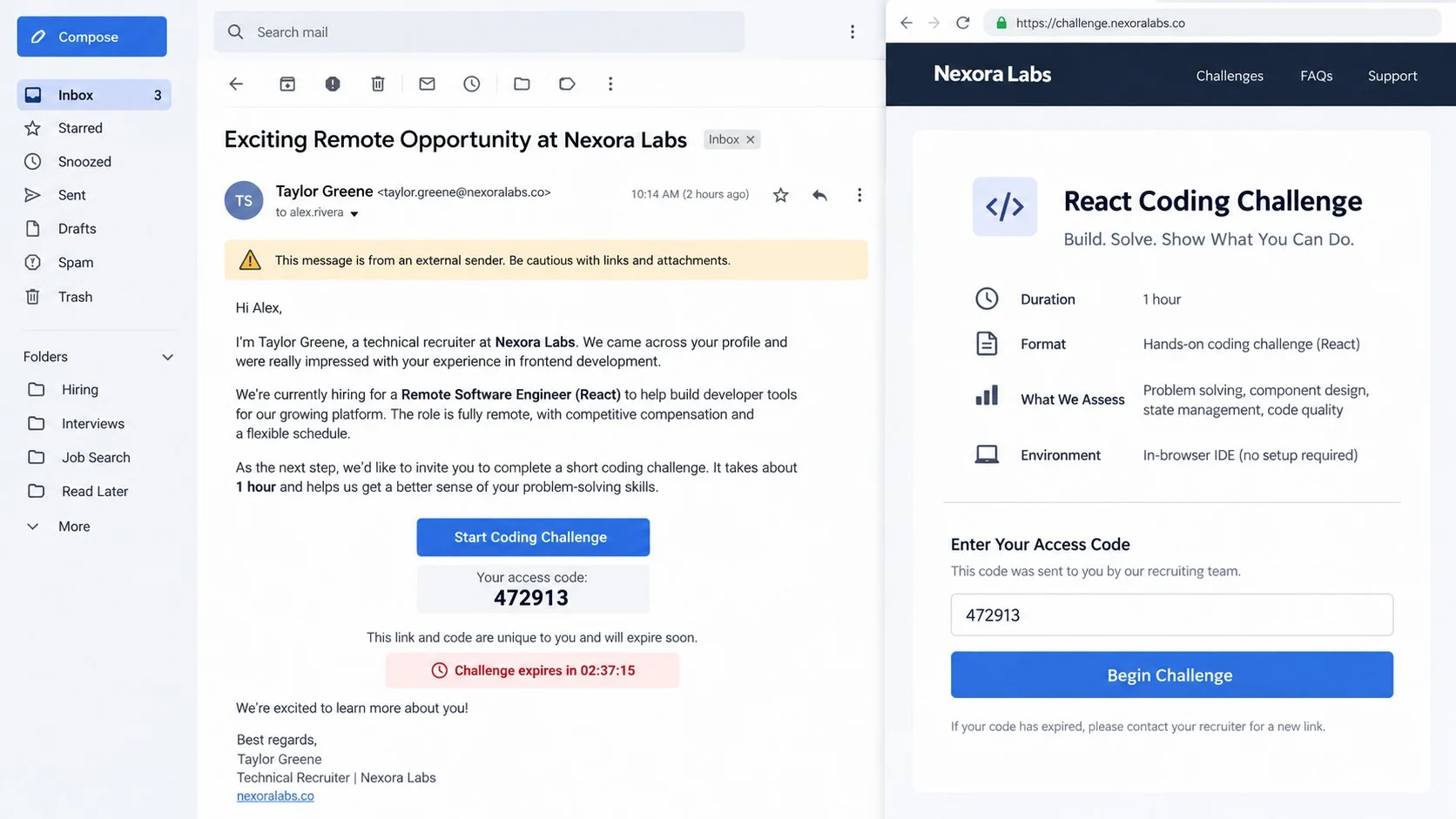
The recruiter story supplies trust and urgency
Threat actors can pose as recruiters on professional networks and job platforms, then move the conversation toward a technical evaluation.
The challenge included a six-digit code, an expiring session, and a one-hour deadline. Those details made the process feel controlled and selective.
Urgency also reduced inspection time. A candidate trying to impress a recruiter might run the project before auditing dependencies and startup behavior.
Why developers and employers should care
- Developer machines often hold repository credentials and cloud tokens.
- Package installation normally executes third-party scripts.
- Cross-platform JavaScript can follow candidates across operating systems.
- Legitimate cloud storage can make delivery links appear ordinary.
- PollCat begins communication before the visible code is completed.
- Compromised source accounts can expose an employer as well as the applicant.
A hiring conversation should never override secure review. Real recruiters can accommodate a request to inspect material safely before execution.
How the PollCat RAT Attack Works
Step 1: A fake recruiter approaches a developer
The operation begins with a profile claiming to represent a technology company or recruitment function. The message references the target’s engineering background.
A convincing approach may mention a specific framework, remote position, salary range, or public project from the candidate’s profile.
Professional networking platforms lower suspicion because unsolicited recruiter messages are common. The attacker imitates an interaction developers already expect.
Before trusting the conversation, verify the opening through the company’s official careers page and a separately obtained corporate contact.
Look closely at the recruiter’s history, connections, employment dates, writing patterns, and whether the position appears on genuine channels.
A polished profile is not proof. Stolen identities and copied job descriptions can support a highly specific lure.
Step 2: The candidate receives a cloud-hosted archive
The recruiter supplies a link to a compressed coding project. Legitimate cloud hosting gives the archive a familiar address and reliable download speed.
The file contains enough real application code to resemble a proper assessment. Documentation describes defects, rules, and expected deliverables.
Attackers benefit from sending complete projects because developers routinely install dependencies and start local servers to understand unfamiliar code.
Malicious behavior can hide under node_modules, lifecycle scripts, server initialization, helper packages, or generated files that reviewers often skip.
Scanning the archive before extraction helps, but a clean signature result is not conclusive. Newly created JavaScript may not match known detections.
The safer choice is an isolated virtual machine with no personal accounts, SSH agents, cloud credentials, or access to trusted networks.
Step 3: A countdown pushes the candidate to run first
The PollCat challenge used a six-digit OTP flow and a one-hour session. The recruiter could provide codes directly to individual targets.
Expiring access creates scarcity. The candidate feels that stopping to investigate may waste the opportunity or signal poor performance.
The visible portal reinforces the story with a login, tutorial, and challenge interface. Those elements consume attention while the project starts locally.
Some labels inside the package did not fully match the stated exercise. Repeated CTF terminology suggested recycled or AI-assisted scaffolding.
Template inconsistencies are not proof of malware, but they justify slowing down when a stranger wants local code execution.
A legitimate employer should explain why local execution is necessary and provide a safe alternative when the candidate raises security concerns.
Step 4: The project starts PollCat before authentication
Instructions launched the React project through standard Node.js commands. The visible application opened in the browser as expected.
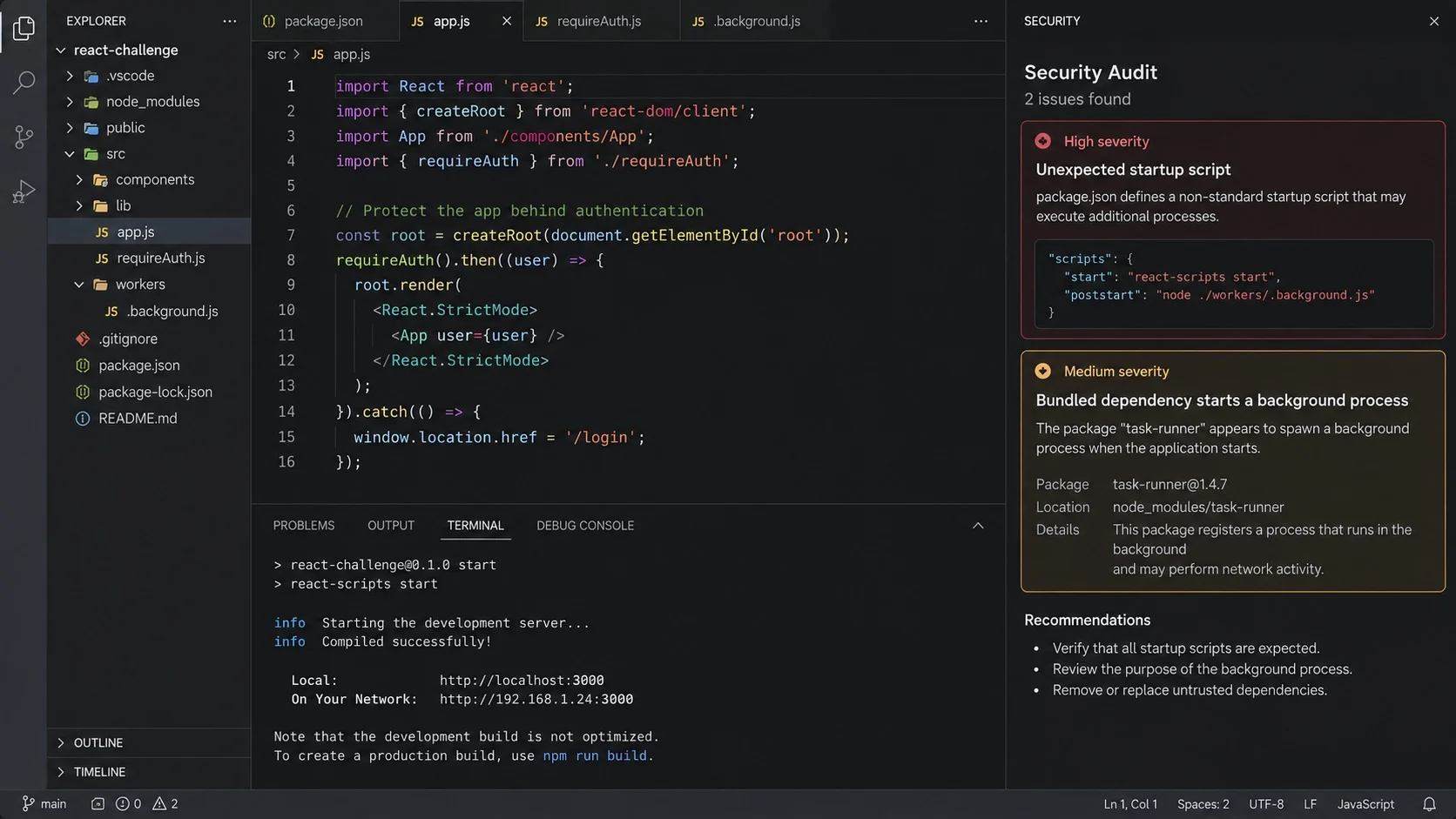
Behind that interface, app.js loaded an authentication component, which imported and immediately started a concealed malicious module.
PollCat did not need a correct OTP to begin. It could register with command infrastructure and request work while the login screen was still visible.
A failed code therefore did not mean nothing happened. The hidden worker continued even when protected challenge features remained inaccessible.
A successful code created another worker and triggered a persistence attempt. That behavior tied the recruiter-controlled login to deeper installation.
This design makes the visible challenge a decoy and delivery wrapper. Solving or failing the task is irrelevant to the initial compromise.
Step 5: PollCat creates platform-specific persistence
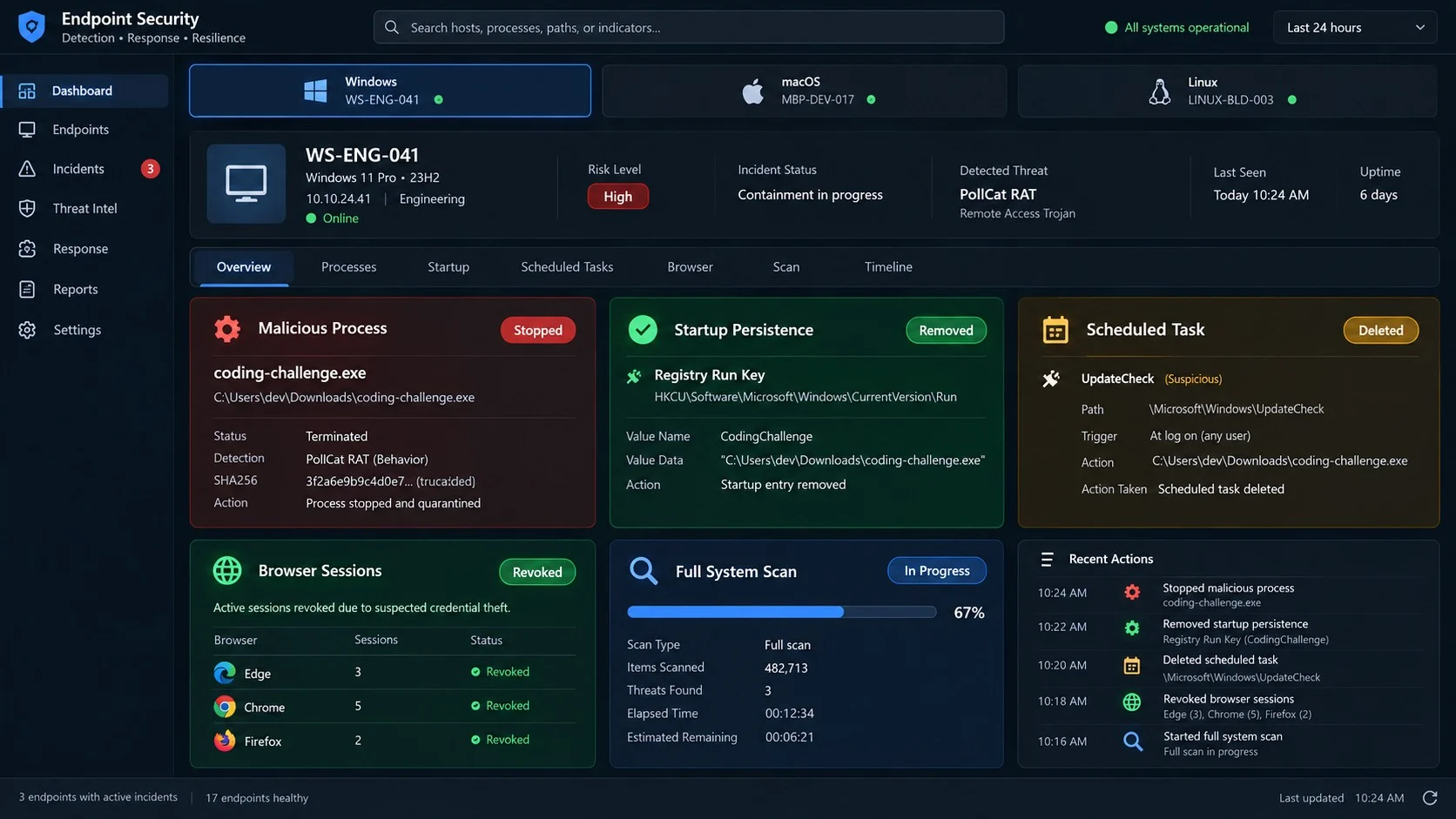
On Windows, the malware writes a worker and package configuration under the user profile, installs dependencies, and creates a daily scheduled task.
On Linux, it uses a hidden package directory and adds both daily and reboot-based cron entries.
On macOS, it combines a hidden local copy with cron and a LaunchAgent configured to load automatically.
These methods help the RAT return after a restart or after the original challenge folder is deleted.
The persistence names can resemble ordinary synchronization or helper tasks. Review path, author, command, and creation time rather than judging the label.
Deleting the downloaded archive is therefore insufficient. Installed dependencies, copied workers, scheduled entries, and launch configuration require separate removal.
Step 6: The RAT registers and waits for commands
PollCat identifies the host using a value derived from its name and attempts several controller addresses until registration succeeds.
After registration, it polls for tasks and sends results back. This recurring exchange gives the operator interactive control without keeping one continuous connection open.
The RAT’s JavaScript is obfuscated, making casual review harder. Obfuscation hides intent but does not prevent behavior-based security tools from observing activity.
Because Node.js runs on multiple operating systems, much of the attacker’s logic can remain shared across Windows, macOS, and Linux.
The operator can adapt tasks after seeing the infected host. A developer workstation may lead to targeted searches for repositories, credentials, or cloud access.
Network blocking can stop command exchange temporarily. Local persistence still needs removal before the endpoint returns to service.
Step 7: Developer access becomes the real prize
A developer’s workstation can contain source code, package tokens, SSH keys, cloud sessions, build credentials, signing material, and internal documentation.
Stolen access can support repository tampering, supply-chain attacks, secret theft, impersonation, or movement into an employer’s infrastructure.
Personal accounts are also at risk when the same browser stores email sessions, financial logins, password-manager access, or recovery information.
PollCat should therefore be treated as more than one infected laptop. Employers may need to examine repositories and services the candidate accessed.
Rotate secrets even when endpoint removal appears successful. A copied credential remains useful after its original file disappears.
The candidate should be supported, not blamed. Recruitment abuse succeeds because it mimics a legitimate and often stressful part of technical hiring.
How to Identify a PollCat RAT Infection
Trace the recruitment conversation
Preserve the recruiter profile, messages, email headers, job description, archive link, access codes, and claimed company information.
Compare the position with the official careers site and contact the organization through a separately verified channel.
A fake recruiter may delete the account after delivery. Screenshots and exported messages preserve details needed for reporting.
Audit the coding project without running it
Inspect package.json, lockfiles, lifecycle scripts, local dependencies, server startup files, hidden directories, and imports executed at initialization.
Question bundled packages that are absent from the public registry, especially when they start detached processes or load code from cache directories.
Review documentation for mismatched names, unexplained OTP services, embedded secrets, or instructions that direct attention away from one source file.
Check persistence on the operating system
Windows users should inspect recently created scheduled tasks and hidden folders under application data containing Node.js workers or package files.
macOS users should review LaunchAgents and cron. Linux users should inspect user cron entries and newly created hidden package directories.
Correlate timestamps with the moment the challenge was started. A daily task created within seconds is a strong investigative clue.
Review developer and account activity
Check source-control logins, newly added SSH keys, personal access tokens, cloud audit events, package publishing, and unexpected repository changes.
Inspect email, professional networking, and messaging accounts for new sessions or messages sent without the owner’s knowledge.
Notify an employer’s security team if the device accessed company resources. Central logs can reveal activity unavailable on the endpoint.
What to Do If PollCat RAT Infected Your Computer
- Disconnect the workstation. Remove network access and stop using browsers, terminals, repositories, cloud consoles, or password managers on the affected system.
- Inform every affected organization. Contact the employer, client, or repository owner whose resources were accessible. Rapid token revocation can contain wider damage.
- Preserve recruitment evidence. Save messages, profile details, job postings, archive names, checksums, access codes, and timestamps without reopening the project.
- Revoke developer credentials. Rotate SSH keys, repository tokens, package-registry tokens, cloud keys, CI secrets, signing credentials, and active web sessions from clean hardware.
- Remove persistence. Quarantine the worker, copied package directory, scheduled task, cron entries, LaunchAgent, and any unexpected Node.js executable or helper.
- Scan beyond the project. Use an offline scanner and then a complete Malwarebytes scan to locate RAT components, secondary payloads, and additional startup mechanisms.
- Protect later browsing. After a trusted rebuild or verified cleanup, use AdGuard to reduce malicious advertising and known unsafe destinations used in social-engineering chains.
- Inspect repositories and pipelines. Review commits, hooks, secrets, releases, workflows, package publishing, and deployment records touched after the challenge ran.
- Rebuild sensitive workstations. Reinstall from trusted media when the host contained production access, signing keys, regulated data, or unverified command execution.
- Report the fake recruiter. Notify the platform, impersonated company, and relevant cybercrime authority with preserved evidence and a clear timeline.
Is Your Device Infected? Run a Free Malware Scan
Slow performance, constant pop-ups, or strange behavior? These are classic signs of a malware infection. The fastest way to find out is to scan your device with Malwarebytes Free — one of the most trusted malware removal tools available.
The free version detects and removes the most common threats, including:
- Adware — the cause of those annoying pop-ups
- Browser hijackers — unwanted redirects and changed homepages
- Trojans and spyware — hidden programs stealing your data
- Potentially unwanted programs (PUPs) — software you never asked for
👉 Select your device below — Windows, Mac, or Android — then follow the simple steps to download Malwarebytes, scan your system, and remove any threats it finds. The scan usually takes 5 to 20 minutes.
Run a Malware Scan with Malwarebytes for Windows
Malwarebytes is one of the most popular and trusted anti-malware tools for Windows — and it’s completely free for removing infections. It catches threats that many antivirus programs miss, including adware, browser hijackers, and trojans. Follow the steps below to scan and clean your PC in just a few minutes.
Download Malwarebytes
Click the button below to download the latest version of Malwarebytes for Windows from the official source. The free version is all you need — it will scan your computer and remove adware, browser hijackers, and other malicious software at no cost.
Download MalwarebytesOfficial installer for Windows 11 and 10. Your download starts right away.Want real-time protection? See Malwarebytes Premium Malwarebytes Free for WindowsScans and removes malware at no cost
-
Install Malwarebytes
When the download finishes, open your Downloads folder and double-click the MBSetup file. If Windows shows a User Account Control pop-up, click “Yes” to allow the installation.

Follow the On-Screen Prompts to Install Malwarebytes
The setup wizard will walk you through a few quick screens:
-
Choose where you’re installing the program — “Personal Computer” or “Work Computer” — then click Next.

-
Malwarebytes will now install on your device. This usually takes under a minute.

-
When installation is complete, the “Welcome to Malwarebytes” screen will open automatically.

-
On the final screen, click Open Malwarebytes to launch the program.

-
Enable “Scan for Rootkits”
Before scanning, turn on rootkit detection so Malwarebytes can find even the most hidden threats. Click the Settings gear icon on the left side of the screen.

In the settings menu, find “Scan for rootkits” and click the toggle so it turns blue.

Done? Click “Dashboard” in the left pane to return to the main screen.
Start the Scan
Click the blue Scan button. Malwarebytes will automatically update its virus database and start checking your computer for malware.

-
Wait for the Scan to Finish
The scan checks your entire system for browser hijackers and other malicious programs, so it can take 5 to 20 minutes depending on your computer. Feel free to do something else — just check back occasionally to see the progress.

-
Quarantine the Detected Threats
When the scan is done, you’ll see a list of everything Malwarebytes found — malware, adware, and potentially unwanted programs. Click the “Quarantine” button to remove all of them at once.

Malwarebytes will now remove the malicious files and registry entries and move them safely into quarantine.

-
Restart Your Computer
Some threats can only be fully removed after a reboot. If Malwarebytes asks you to restart, click Yes. Once you’re logged back in, Malwarebytes has finished removing the threats it found.

That’s it — your Windows PC is now clean of trojans, adware, and other malware, and should be back to running smoothly.
If you are still having problems with your computer after completing these instructions, then please follow one of the steps:
- Run a computer scan with ESET Online Scanner
- Ask for help in our Windows Malware Removal Help & Support forum.
Run a Malware Scan with Malwarebytes for Mac
Malwarebytes for Mac is a free on-demand scanner that removes the malware other security software tends to miss — adware, browser hijackers, and unwanted programs included. Cleaning an infected Mac with Malwarebytes has always been completely free, and it’s our go-to recommendation. Follow the steps below to scan and clean your Mac in just a few minutes.
-
Download Malwarebytes for Mac
Click the button below to download the latest version of Malwarebytes for Mac.
Download MalwarebytesOfficial installer for macOS. Your download starts right away.Want real-time protection? See Malwarebytes PremiumMalwarebytes Free for MacScans and removes malware at no cost -
Open the Malwarebytes setup file
When the download finishes, open your Downloads folder and double-click the setup file to begin the installation.

-
Follow the On-Screen Prompts to Install Malwarebytes
The Malwarebytes for Mac Installer will guide you through a few quick screens. Click “Continue” and keep following the prompts until the installation completes.



When the installation is complete, Malwarebytes opens to the Welcome to Malwarebytes screen. Click “Get started“.
-
Select “Personal Computer” or “Work Computer”
Malwarebytes will ask what type of computer you’re installing it on. Click either Personal Computer or Work Computer, whichever applies.

-
Start the Scan
Click the “Scan” button. Malwarebytes will automatically update its detection database and begin checking your Mac for malware.

-
Wait for the Scan to Finish
Malwarebytes will scan your Mac for adware, browser hijackers, and other malicious programs. This can take a few minutes, so feel free to do something else — just check back occasionally to see the progress.

-
Quarantine the Detected Threats
When the scan is done, you’ll see a list of everything Malwarebytes found. Click the “Quarantine” button to remove all the threats at once.

-
Restart Your Mac
Malwarebytes will now remove all the malicious files it found. Some threats can only be fully removed after a reboot — if Malwarebytes asks you to restart, allow it. Once you’re logged back in, your Mac is clean.

That’s it — your Mac is now free of adware, rogue browser extensions, and other potentially harmful software.
If you are still experiencing problems while trying to remove a malicious program from your computer, please ask for help in our Mac Malware Removal Help & Support forum.
Run a Malware Scan with Malwarebytes for Android
Malwarebytes for Android automatically detects and removes dangerous threats like malware and ransomware so you don’t have to worry about your most-used device being compromised. Aggressive detection of adware and potentially unwanted programs keeps your Android phone or tablet running smooth.
-
Download Malwarebytes for Android.
You can download Malwarebytes for Android by clicking the link below.
Get Malwarebytes for AndroidOpens Google Play in a new tab.Want real-time protection? See Malwarebytes Premium for AndroidMalwarebytes for AndroidScans your phone and removes malware at no cost -
Install Malwarebytes for Android on your phone.
In the Google Play Store, tap “Install” to install Malwarebytes for Android on your device.

When the installation process has finished, tap “Open” to begin using Malwarebytes for Android. You can also open Malwarebytes by tapping on its icon in your phone menu or home screen.

-
Follow the on-screen prompts to complete the setup process
When Malwarebytes will open, you will see the Malwarebytes Setup Wizard which will guide you through a series of permissions and other setup options.
This is the first of two screens that explain the difference between the Premium and Free versions. Swipe this screen to continue.
Tap on “Got it” to proceed to the next step.
Malwarebytes for Android will now ask for a set of permissions that are required to scan your device and protect it from malware. Tap on “Give permission” to continue.
Tap on “Allow” to permit Malwarebytes to access the files on your phone.
-
Update database and run a scan with Malwarebytes for Android
You will now be prompted to update the Malwarebytes database and run a full system scan.

Click on “Update database” to update the Malwarebytes for Android definitions to the latest version, then click on “Run full scan” to perform a system scan.

-
Wait for the Malwarebytes scan to complete.
Malwarebytes will now start scanning your phone for adware and other malicious apps. This process can take a few minutes, so we suggest you do something else and periodically check on the status of the scan to see when it is finished.

-
Click on “Remove Selected”.
When the scan has been completed, you will be presented with a screen showing the malware infections that Malwarebytes for Android has detected. To remove the malicious apps that Malwarebytes has found, tap on the “Remove Selected” button.

-
Restart your phone.
Malwarebytes for Android will now remove all the malicious apps that it has found. To complete the malware removal process, Malwarebytes may ask you to restart your device.
That’s it — your Android phone is now clean — no more malicious apps, adware, or browser redirects.
If you are still having problems with your phone after completing these instructions, then please follow one of the steps:
- Restore your phone to factory settings by going to Settings > General management > Reset > Factory data reset.
- Ask for help in our Mobile Malware Removal Help & Support forum.
Stay Protected: Block Ads and Malicious Sites
Now that your device is clean, keep it that way. Most infections start with a malicious ad or a fake download button — so blocking them at the source is your best defense.
We recommend AdGuard, which blocks malicious ads, phishing pages, and dangerous redirects before they can reach you.
👉 Download AdGuard and browse safely
Developer Credential and Repository Recovery
Start with identities that can reach multiple systems, including primary email, source control, single sign-on, cloud administration, and password managers.
Revoke tokens instead of merely changing account passwords. Personal access tokens and SSH keys often remain valid independently.
Generate new SSH keys on a clean workstation and remove old public keys from every account, server, bastion, and code-hosting service.
Rotate cloud credentials and examine audit logs for enumeration, secret access, new identities, policy changes, or activity from unfamiliar networks.
Search repositories for unauthorized commits, branches, releases, webhooks, deploy keys, workflow edits, and modifications to dependency files.
Inspect local and shared Git hooks. A malicious hook can execute later when someone checks out or merges code.
Invalidate package-registry tokens and review recently published versions. A compromised developer identity can turn one incident into a supply-chain problem.
CI and deployment secrets may exist outside source control. Rotate values stored in build systems, environment managers, and hosted runners.
Document what each old credential could access. That map helps determine which logs, repositories, environments, and customers require review.
Continue heightened monitoring after rotation. Attackers sometimes create alternate access before defenders remove the first known credential.
How Developers Can Evaluate Coding Challenges Safely
Verify the recruiter and role independently. Do not use only the email address, link, or phone number supplied inside the same conversation.
Ask whether the assessment can run in a browser sandbox. Refusal to permit safe analysis deserves caution, especially for an unsolicited opportunity.
Use a disposable virtual machine without shared folders, clipboard integration, mounted SSH agents, synchronized browsers, or corporate network access.
Read lifecycle scripts and server entry points before installing dependencies. Package managers can execute code during installation, not only after the app starts.
Prefer lockfile-respecting installs and disable package scripts during initial review when the project allows it. Investigate any dependency bundled outside normal registries.
Keep real cloud credentials and repository tokens outside the analysis environment. A clean sandbox loses value when it inherits host secrets.
Ignore artificial countdowns while checking safety. A credible hiring team values responsible engineering more than blind execution.
When uncertain, send the archive to the employer’s security contact or a qualified analyst rather than testing it on a daily workstation.
Frequently Asked Questions
Is every take-home coding challenge dangerous?
No. Most are legitimate, but any unfamiliar project can execute code. Verification and isolation should be routine, not reserved for obvious scams.
Does entering the wrong OTP prevent PollCat infection?
No. The analyzed project started its malicious worker before successful authentication, so a failed code did not stop command polling.
Can PollCat infect macOS and Linux?
Yes. Its JavaScript design and separate persistence methods support Windows, macOS, and Linux developer environments.
Is deleting the challenge folder enough?
No. PollCat can copy components elsewhere and create scheduled tasks, cron entries, or a LaunchAgent that survives folder deletion.
Why are developer workstations valuable targets?
They commonly hold source access, cloud credentials, package tokens, signing material, and trusted paths into production systems.
Should the affected developer contact the claimed employer?
Yes, through an independently verified address. The organization can confirm impersonation, warn other applicants, and preserve related evidence.
The Bottom Line
PollCat weaponizes a familiar hiring ritual. Its React challenge provides credible work on the surface while hidden JavaScript starts remote access underneath.
Verify recruiters, isolate every unsolicited project, and treat execution as a full developer-account incident. Fast credential rotation can protect far more than one computer.

Join the discussion
0 commentsShare your experience or ask a question about this article.
Your progress
Did these steps help?
Let us know how the guide worked for you.
Describe what you see and the step you reached. Keep passwords and other private information out.
Discussion
Start the conversation
Have a question or something useful to share? Add the first comment.