

Searching for Revita Glow produces a surprisingly tangled picture. The same words lead to different bottles, different ingredients, and very different promises.
That confusion deserves more than a quick verdict. We traced the current store, older product claims, customer feedback, and the checkout risks.
Overview
The product identity has shifted
Older Revita Glow promotions described beauty gummies associated with collagen, biotin, hair, skin, and nail benefits.
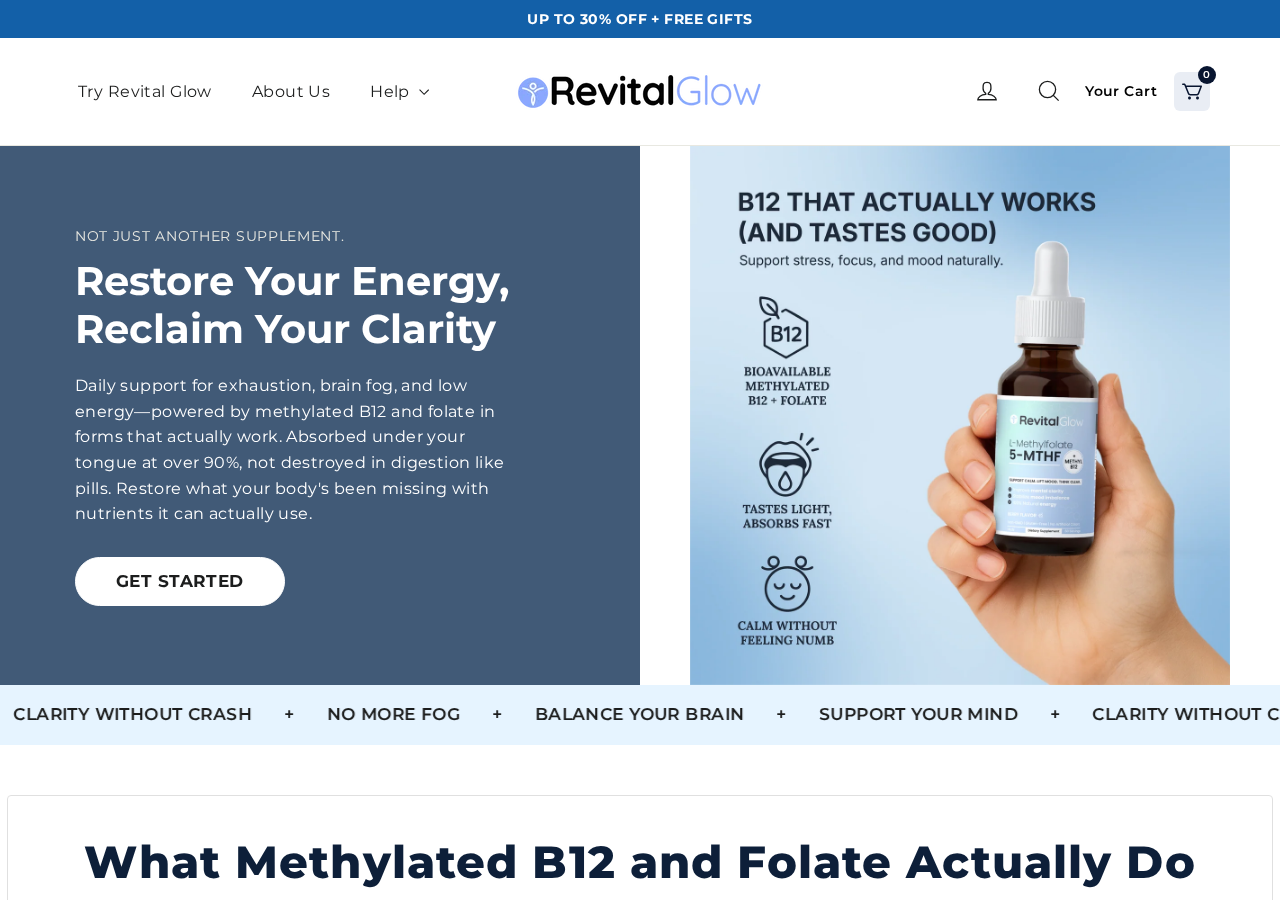
The current RevitalGlow website instead promotes liquid drops containing methylated vitamin B12 and folate, with energy and wellness language.
Marketplace listings add another layer. Products with a similar Revita Glow name appear under other seller or manufacturer labels and different formulas.
Similar branding does not prove one supply chain
A shared name may reflect rebranding, reseller activity, search manipulation, or unrelated businesses choosing similar language.
We did not find enough reliable evidence to claim every Revita Glow listing comes from one company or factory.
That uncertainty is itself important. Buyers should know which formula, legal seller, and return policy apply before entering payment details.
Customer reports raise billing and fulfillment questions
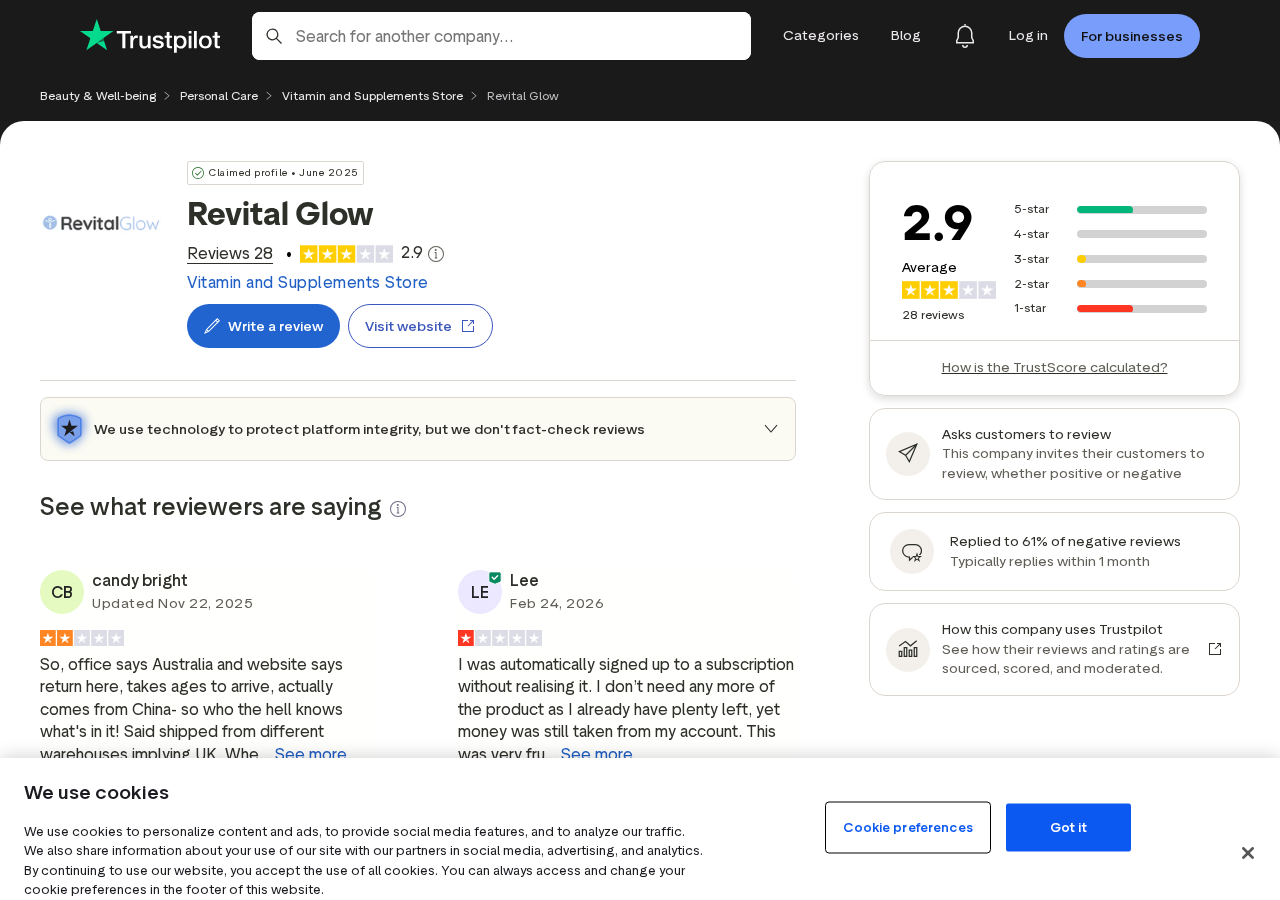
The current RevitalGlow Trustpilot profile showed a 2.9 rating from 28 reviews during our check. Experiences were sharply divided.
Some reviewers praised delivery or support. Others alleged unexpected recurring charges, unwanted shipments, product confusion, or difficulty obtaining a satisfactory resolution.
Reviews are individual claims, not independently verified facts. Still, repeated billing complaints are a reason to inspect the checkout carefully.
Our investigation focuses on these practical questions:
- Which Revita Glow product is actually being sold?
- Does the checkout enroll buyers in recurring shipments?
- Are ingredient and benefit claims supported by appropriate evidence?
- Who accepts payment and handles refunds?
- Can the buyer cancel without navigating a confusing support process?
What RevitaGlow Is Selling Today
The current site displays a small liquid supplement bottle rather than beauty gummies. Its prominent ingredients are methylated B12 and folate.
The page uses broad wellness language about cellular energy, focus, mood, and daily performance. Such wording can sound medically meaningful without promising a specific treatment.
That distinction matters. A dietary supplement may support normal nutrition, but it should not be treated as a proven cure for fatigue or disease.
The current drops and older gummies are not interchangeable
Vitamin B12 and folate drops serve a different nutritional purpose from collagen or biotin gummies. Dosage, warnings, and expected effects differ.
A review describing one formula cannot reliably establish the quality of another. Search results that merge them can mislead shoppers.
Before ordering, match the exact bottle, Supplement Facts panel, serving size, seller, and website shown at checkout.
If an advertisement shows gummies but the cart shows drops, stop. Do not assume the substitution is a harmless packaging update.
Marketplace listings may represent another product entirely
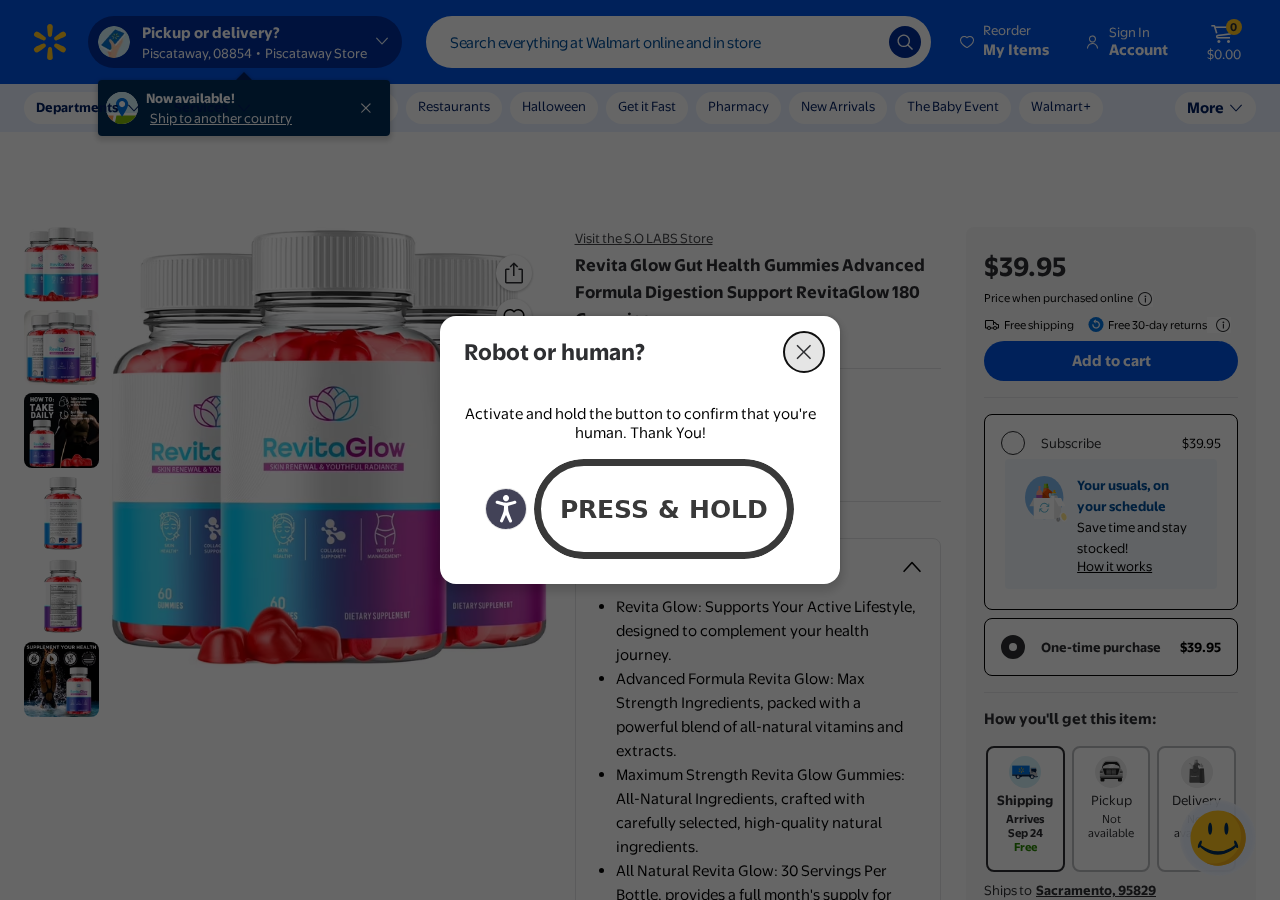
We found a Walmart marketplace listing using the Revita Glow name for skin-focused gummies sold under a separate label.
Marketplace presence does not mean Walmart manufactured, clinically tested, or endorsed the supplement. Third-party sellers can create their own listings.
Check the “sold and shipped by” field, package photographs, return eligibility, and responsible company before relying on the retailer’s reputation.
Names designed for search can outlive the original offer
Supplement brands often use flexible names built from words such as revitalize, glow, balance, and support.
Those names are easy to recycle. An older advertisement may keep circulating long after the landing page, formula, or merchant has changed.
This is why an investigation should follow the checkout active today, not only screenshots preserved from an earlier campaign.
How the RevitaGlow Marketing Funnel Works
Step 1: A broad wellness promise attracts several audiences
Words such as energy, glow, focus, metabolism, and healthy aging can speak to many concerns at once.
The advertisement does not need to diagnose anything. It encourages the viewer to connect ordinary symptoms with a simple nutritional explanation.
Fatigue, dry skin, forgetfulness, and low mood have many possible causes. A supplement advertisement cannot determine which cause applies.
Step 2: Social proof reduces hesitation
Star ratings, customer portraits, testimonials, and limited-stock messages create the impression that many people already made a safe choice.
Testimonials rarely reveal the customer’s full medical context. They also cannot replace controlled evidence for a health claim.
Look for reviews outside the seller’s page, but read them critically. Positive and negative posts can both be incomplete or manipulated.
Step 3: Search results blend multiple products
A shopper researching “Revita Glow reviews” may encounter gummies, liquid drops, marketplace listings, affiliate pages, and similarly named businesses.
The repeated name creates borrowed familiarity. A complaint about one seller may be dismissed, while praise for another formula may be misapplied.
Use exact identifiers. Record the domain, product format, ingredient panel, merchant name, and billing descriptor together.
Step 4: The offer emphasizes bundles and savings
Direct-response supplement pages often make larger bundles appear safer through discounts, free shipping, or extended guarantees.
A customer arriving for one bottle can be nudged toward several months of inventory before testing tolerance or customer support.
Calculate the complete charge, including shipping and tax. Ignore “per bottle” figures until the final payable total is visible.
Step 5: Recurring terms may appear late in the purchase
Some customers alleged they discovered a subscription after ordering. We cannot verify every account, but the pattern requires careful checkout review.
Search for “subscribe,” “autoship,” “membership,” “every 30 days,” “recurring,” and preselected savings options near the price and payment button.
Take a screenshot showing the selected option. If the page does not state whether the charge repeats, do not submit the order.
Step 6: Cancellation becomes the real product test
A reputable seller should provide a working support channel, a visible cancellation method, and a written confirmation.
When customers must chase several email addresses or discover new charges after cancellation, the practical value of any guarantee collapses.
Do not wait for another package. Contact the seller and card issuer promptly once an unwanted renewal appears.
Do the Health Claims Hold Up?
The evidence must be matched to the exact ingredient, dose, person, and claimed outcome. A general nutrient fact does not prove every marketing promise.
The United States Food and Drug Administration does not approve dietary supplements for effectiveness before they reach the market.
Manufacturers remain responsible for safety and truthful labeling. Consumers should not read a professional-looking bottle as an FDA endorsement.
Vitamin B12 and folate have legitimate nutritional roles
Both nutrients are important. Deficiency can have serious effects, and some people need supplementation based on diet, absorption, pregnancy, medication, or medical advice.
That does not mean every tired person benefits from a high-dose liquid. Testing and clinical guidance can distinguish deficiency from other causes.
Folate and B12 also interact with medical conditions and laboratory interpretation. Share the label with a healthcare professional when appropriate.
Biotin beauty claims are often broader than the evidence
The National Institutes of Health notes that biotin deficiency is rare and evidence supporting common hair, skin, and nail claims remains limited.
High biotin intake can interfere with some laboratory tests. Tell healthcare staff about supplements before blood work.
If a Revita Glow listing uses biotin, inspect the amount and warnings. Do not rely on the front-label phrase “beauty support.”
Collagen claims depend on the exact formula
Collagen research varies by source, dose, duration, and outcome. A product name alone cannot establish that a studied ingredient is present meaningfully.
Gummies may contain limited quantities because texture and serving size constrain formulation. Read actual grams or milligrams, not only ingredient pictures.
A proprietary blend that hides individual amounts makes comparison harder. Transparent labels allow buyers and clinicians to assess what is being consumed.
Customer testimonials cannot diagnose results
Skin, energy, and hair can change with sleep, diet, stress, medication, illness, and time. A testimonial usually cannot separate those influences.
Before-and-after images may use different lighting, makeup, angle, or editing. Treat dramatic visual transformations as advertising, not laboratory evidence.
Seek medical advice for persistent fatigue, numbness, severe hair loss, or other concerning symptoms. Delaying assessment can hide a treatable condition.
What the Customer Reviews Actually Tell Us
Review platforms are useful for spotting patterns, but they are not court records. A single post cannot establish exactly what happened.
Positive reviews may reflect a genuine experience, an incentive, early impressions, or customer service rather than measurable health improvement.
Negative reviews can also omit order details. Some disputes result from misunderstood terms, delivery errors, or purchases from an unrelated seller.
The relevant question is whether independent accounts repeat the same concrete problem across different dates and order circumstances.
For RevitalGlow, recurring-charge allegations deserve attention because billing can be checked objectively through the live checkout and card statement.
Product-mismatch complaints matter because several similarly named formulas already appear online. The buyer may not receive what an older review described.
Support complaints matter most when the seller’s written policy promises easy cancellation. A promise should be measured by the process customers encounter.
Read the most recent reviews first. Stores can change processors, warehouses, formulas, and customer service after older experiences were posted.
Filter for detailed accounts that identify dates, quantities, support attempts, and outcomes. Those are more useful than one-line praise or anger.
Watch for copied wording across reviewers. Repeated marketing phrases can indicate coordinated promotion rather than independent evaluation.
Do not rely on the platform score alone. A small sample can move sharply, and business replies may add important context.
Seller responses should address the exact complaint. Generic invitations to “contact support” do not demonstrate that a billing issue was resolved.
Most importantly, reviews cannot establish whether a supplement is medically effective. That requires evidence tied to the actual formula and dose.
Use reviews for fulfillment and service risk, then use reliable medical sources for ingredient safety and plausible benefits.
Red Flags to Check Before Ordering
RevitaGlow’s mixed identity makes ordinary checkout checks especially important. Spend five minutes verifying the offer before committing to months of product.
- The advertisement and checkout show different forms or ingredient panels.
- The seller uses one brand name while the receipt names another entity.
- A discounted option silently selects recurring delivery.
- Customer reviews describe charges that were not expected.
- The refund window begins on the order date, not delivery.
- Opened bottles are excluded despite a satisfaction guarantee.
- Return shipping goes to an address not disclosed before purchase.
- The page presents broad symptom relief without meaningful evidence.
- Contact details appear only after payment.
One warning sign may have an innocent explanation. Several together indicate that the purchase requires more caution than the advertisement suggests.
Do not let a countdown make the decision. Supplement offers commonly reset timers or repeat “today only” pricing for later visitors.
Company, Address, and Fulfillment Checks
Find the legal seller, not only the bottle name
Look for the entity accepting payment in the terms, privacy policy, checkout, receipt, and statement descriptor.
If those names disagree, ask support which company holds the order and refund obligation. Save the answer before buying.
Test the contact channels before paying
Send a simple question about cancellation and returns. A functioning business should answer specifically rather than returning an unrelated template.
Search the phone number and email address. Reused details can reveal other rotating supplement brands or unresolved complaints.
Investigate the return address
A returns warehouse is not necessarily the manufacturer or headquarters. It may process parcels for dozens of unrelated online stores.
Map the address and compare it with the legal entity. Missing suite numbers, virtual mailboxes, and unexplained overseas returns increase refund risk.
Demand traceable manufacturing information
The package should show a complete Supplement Facts panel, lot code, expiration date, responsible distributor, warnings, and support details.
Do not assume where a product was made from its advertising style. If origin or quality testing matters, request documentary evidence.
Ask whether the finished batch received independent identity and contaminant testing. A generic facility certificate does not answer that product-specific question.
Keep the bottle and lot number after opening. They are essential if a recall, adverse reaction, or labeling dispute develops later.
What to Do if You Were Misled or Charged Unexpectedly
- Preserve the exact offer. Save the advertisement, product page, checkout selection, confirmation, ingredient label, and every support message.
- Identify the charged merchant. Compare the receipt with your card statement. The billing name may differ from RevitaGlow.
- Cancel recurring delivery immediately. Use the website account and written support channel. Demand a cancellation number and effective date.
- Refuse unopened future parcels when appropriate. Ask the carrier and seller about the correct procedure before opening or returning anything.
- Request a refund precisely. State the order number, disputed amount, misleading representation, and policy provision supporting your request.
- Contact the card issuer. Explain unauthorized renewals or goods materially different from the order. Ask how to stop future merchant charges.
- Report adverse effects. Stop using the product and contact a healthcare professional. Serious events can also be reported through FDA MedWatch.
- Do not return unknown products blindly. Confirm the authorized return address and tracking requirements. Keep photographs of the sealed package.
- Scan devices used on suspicious pages. Run Malwarebytes if you downloaded files, allowed notifications, or installed an extension during checkout.
- Block aggressive redirects. AdGuard can reduce malicious ads and tracking links, but it cannot evaluate supplement safety or cancel a subscription.
Is Your Device Infected? Run a Free Malware Scan
Slow performance, constant pop-ups, or strange behavior? These are classic signs of a malware infection. The fastest way to find out is to scan your device with Malwarebytes Free — one of the most trusted malware removal tools available.
The free version detects and removes the most common threats, including:
- Adware — the cause of those annoying pop-ups
- Browser hijackers — unwanted redirects and changed homepages
- Trojans and spyware — hidden programs stealing your data
- Potentially unwanted programs (PUPs) — software you never asked for
👉 Select your device below — Windows, Mac, or Android — then follow the simple steps to download Malwarebytes, scan your system, and remove any threats it finds. The scan usually takes 5 to 20 minutes.
Run a Malware Scan with Malwarebytes for Windows
Malwarebytes is one of the most popular and trusted anti-malware tools for Windows — and it’s completely free for removing infections. It catches threats that many antivirus programs miss, including adware, browser hijackers, and trojans. Follow the steps below to scan and clean your PC in just a few minutes.
Download Malwarebytes
Click the button below to download the latest version of Malwarebytes for Windows from the official source. The free version is all you need — it will scan your computer and remove adware, browser hijackers, and other malicious software at no cost.
Download MalwarebytesOfficial installer for Windows 11 and 10. Your download starts right away.Want real-time protection? See Malwarebytes Premium Malwarebytes Free for WindowsScans and removes malware at no cost
-
Install Malwarebytes
When the download finishes, open your Downloads folder and double-click the MBSetup file. If Windows shows a User Account Control pop-up, click “Yes” to allow the installation.

Follow the On-Screen Prompts to Install Malwarebytes
The setup wizard will walk you through a few quick screens:
-
Choose where you’re installing the program — “Personal Computer” or “Work Computer” — then click Next.

-
Malwarebytes will now install on your device. This usually takes under a minute.

-
When installation is complete, the “Welcome to Malwarebytes” screen will open automatically.

-
On the final screen, click Open Malwarebytes to launch the program.

-
Enable “Scan for Rootkits”
Before scanning, turn on rootkit detection so Malwarebytes can find even the most hidden threats. Click the Settings gear icon on the left side of the screen.

In the settings menu, find “Scan for rootkits” and click the toggle so it turns blue.

Done? Click “Dashboard” in the left pane to return to the main screen.
Start the Scan
Click the blue Scan button. Malwarebytes will automatically update its virus database and start checking your computer for malware.

-
Wait for the Scan to Finish
The scan checks your entire system for browser hijackers and other malicious programs, so it can take 5 to 20 minutes depending on your computer. Feel free to do something else — just check back occasionally to see the progress.

-
Quarantine the Detected Threats
When the scan is done, you’ll see a list of everything Malwarebytes found — malware, adware, and potentially unwanted programs. Click the “Quarantine” button to remove all of them at once.

Malwarebytes will now remove the malicious files and registry entries and move them safely into quarantine.

-
Restart Your Computer
Some threats can only be fully removed after a reboot. If Malwarebytes asks you to restart, click Yes. Once you’re logged back in, Malwarebytes has finished removing the threats it found.

That’s it — your Windows PC is now clean of trojans, adware, and other malware, and should be back to running smoothly.
If you are still having problems with your computer after completing these instructions, then please follow one of the steps:
- Run a computer scan with ESET Online Scanner
- Ask for help in our Windows Malware Removal Help & Support forum.
Run a Malware Scan with Malwarebytes for Mac
Malwarebytes for Mac is a free on-demand scanner that removes the malware other security software tends to miss — adware, browser hijackers, and unwanted programs included. Cleaning an infected Mac with Malwarebytes has always been completely free, and it’s our go-to recommendation. Follow the steps below to scan and clean your Mac in just a few minutes.
-
Download Malwarebytes for Mac
Click the button below to download the latest version of Malwarebytes for Mac.
Download MalwarebytesOfficial installer for macOS. Your download starts right away.Want real-time protection? See Malwarebytes PremiumMalwarebytes Free for MacScans and removes malware at no cost -
Open the Malwarebytes setup file
When the download finishes, open your Downloads folder and double-click the setup file to begin the installation.

-
Follow the On-Screen Prompts to Install Malwarebytes
The Malwarebytes for Mac Installer will guide you through a few quick screens. Click “Continue” and keep following the prompts until the installation completes.



When the installation is complete, Malwarebytes opens to the Welcome to Malwarebytes screen. Click “Get started“.
-
Select “Personal Computer” or “Work Computer”
Malwarebytes will ask what type of computer you’re installing it on. Click either Personal Computer or Work Computer, whichever applies.

-
Start the Scan
Click the “Scan” button. Malwarebytes will automatically update its detection database and begin checking your Mac for malware.

-
Wait for the Scan to Finish
Malwarebytes will scan your Mac for adware, browser hijackers, and other malicious programs. This can take a few minutes, so feel free to do something else — just check back occasionally to see the progress.

-
Quarantine the Detected Threats
When the scan is done, you’ll see a list of everything Malwarebytes found. Click the “Quarantine” button to remove all the threats at once.

-
Restart Your Mac
Malwarebytes will now remove all the malicious files it found. Some threats can only be fully removed after a reboot — if Malwarebytes asks you to restart, allow it. Once you’re logged back in, your Mac is clean.

That’s it — your Mac is now free of adware, rogue browser extensions, and other potentially harmful software.
If you are still experiencing problems while trying to remove a malicious program from your computer, please ask for help in our Mac Malware Removal Help & Support forum.
Run a Malware Scan with Malwarebytes for Android
Malwarebytes for Android automatically detects and removes dangerous threats like malware and ransomware so you don’t have to worry about your most-used device being compromised. Aggressive detection of adware and potentially unwanted programs keeps your Android phone or tablet running smooth.
-
Download Malwarebytes for Android.
You can download Malwarebytes for Android by clicking the link below.
Get Malwarebytes for AndroidOpens Google Play in a new tab.Want real-time protection? See Malwarebytes Premium for AndroidMalwarebytes for AndroidScans your phone and removes malware at no cost -
Install Malwarebytes for Android on your phone.
In the Google Play Store, tap “Install” to install Malwarebytes for Android on your device.

When the installation process has finished, tap “Open” to begin using Malwarebytes for Android. You can also open Malwarebytes by tapping on its icon in your phone menu or home screen.

-
Follow the on-screen prompts to complete the setup process
When Malwarebytes will open, you will see the Malwarebytes Setup Wizard which will guide you through a series of permissions and other setup options.
This is the first of two screens that explain the difference between the Premium and Free versions. Swipe this screen to continue.
Tap on “Got it” to proceed to the next step.
Malwarebytes for Android will now ask for a set of permissions that are required to scan your device and protect it from malware. Tap on “Give permission” to continue.
Tap on “Allow” to permit Malwarebytes to access the files on your phone.
-
Update database and run a scan with Malwarebytes for Android
You will now be prompted to update the Malwarebytes database and run a full system scan.

Click on “Update database” to update the Malwarebytes for Android definitions to the latest version, then click on “Run full scan” to perform a system scan.

-
Wait for the Malwarebytes scan to complete.
Malwarebytes will now start scanning your phone for adware and other malicious apps. This process can take a few minutes, so we suggest you do something else and periodically check on the status of the scan to see when it is finished.

-
Click on “Remove Selected”.
When the scan has been completed, you will be presented with a screen showing the malware infections that Malwarebytes for Android has detected. To remove the malicious apps that Malwarebytes has found, tap on the “Remove Selected” button.

-
Restart your phone.
Malwarebytes for Android will now remove all the malicious apps that it has found. To complete the malware removal process, Malwarebytes may ask you to restart your device.
That’s it — your Android phone is now clean — no more malicious apps, adware, or browser redirects.
If you are still having problems with your phone after completing these instructions, then please follow one of the steps:
- Restore your phone to factory settings by going to Settings > General management > Reset > Factory data reset.
- Ask for help in our Mobile Malware Removal Help & Support forum.
Stay Protected: Block Ads and Malicious Sites
Now that your device is clean, keep it that way. Most infections start with a malicious ad or a fake download button — so blocking them at the source is your best defense.
We recommend AdGuard, which blocks malicious ads, phishing pages, and dangerous redirects before they can reach you.
👉 Download AdGuard and browse safely
Frequently Asked Questions
Is RevitaGlow a scam?
We found genuine product pages and mixed customer feedback, but also serious identity and billing concerns. Evidence does not justify calling every transaction fraudulent.
Is Revita Glow the same as RevitalGlow?
The names overlap, yet search results show different forms, ingredients, and sellers. Buyers should not assume they represent one product or company.
Does RevitaGlow enroll buyers in a subscription?
Some reviewers alleged unexpected recurring billing. Inspect the live checkout because terms can change and individual purchases may use different options.
Are Revita Glow gummies FDA approved?
Dietary supplements are not FDA approved for effectiveness before sale. FDA registration language does not mean the agency endorsed a product’s claims.
Can RevitaGlow cure fatigue or improve skin?
No supplement should be assumed to cure unexplained symptoms. Benefits depend on the exact formula, dose, nutritional need, and credible supporting evidence.
How do I cancel a RevitaGlow order?
Use the seller’s current written cancellation channel and account controls. Save confirmation, then monitor the card statement for additional charges.
The Bottom Line
Revita Glow is not one clearly defined product across the web. Gummies, liquid drops, sellers, and claims overlap in ways that can mislead careful shoppers.
Verify the exact formula and merchant, reject unclear recurring terms, and treat sweeping beauty or energy promises cautiously. Confusion should never be part of informed consent.

Join the discussion
0 commentsShare your experience or ask a question about this article.
Discussion
Start the conversation
Have a question or something useful to share? Add the first comment.