

An appeal arrives asking you to help children with a cryptocurrency donation. The name is familiar, and the cause deserves attention.
Before copying the wallet address, take a moment to separate the charity you recognize from the message asking for your money.
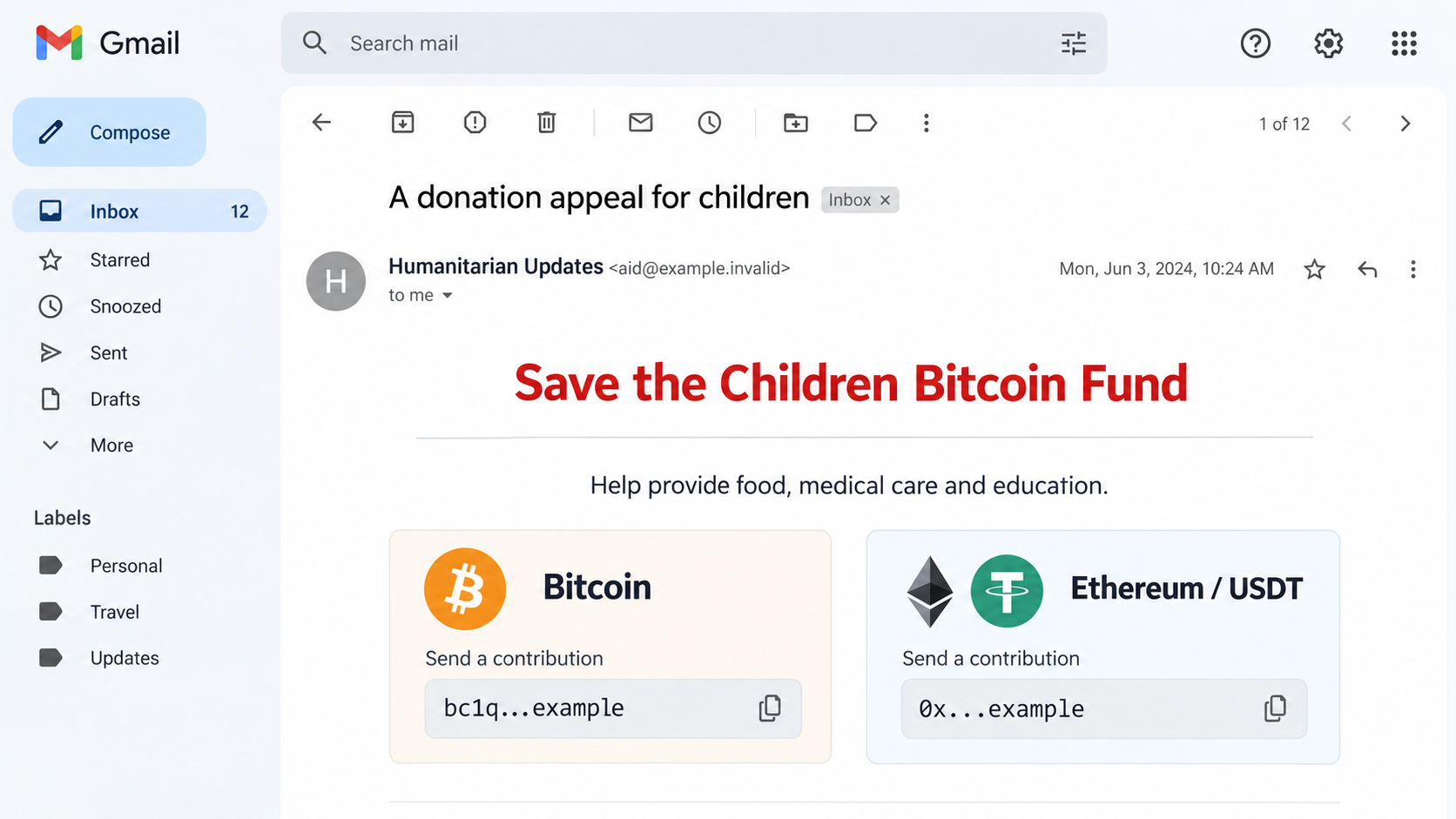
Overview
A real Bitcoin Fund gives the fake appeal a convincing story
The Save the Children Bitcoin Fund email scam impersonates the humanitarian organization and asks recipients to send cryptocurrency directly to addresses supplied in the message.
The appeal describes urgent needs such as food, medical support and education. It presents digital currency as a practical way to help across borders.
There is an important complication: Save the Children really does accept cryptocurrency and operates a Bitcoin Fund. The underlying charitable program is not invented.
The deception is the unauthenticated donation destination. A genuine initiative does not make every email describing it an authorized fundraiser.
The address determines where the contribution goes
The reported message offers Bitcoin and other digital-asset payment routes. Its purpose is to move the recipient from concern for children to a transfer.
A charity’s logo, mission statement or public announcement can be copied. None of those elements proves that the wallet printed beside it belongs to the charity.
- The message borrows Save the Children’s identity and a genuine fundraising idea.
- It makes giving sound immediate, useful and uncomplicated.
- It provides cryptocurrency destinations inside the unsolicited appeal.
- The recipient is asked to trust those destinations before independently checking the fundraiser.
Do not send a small test payment to authenticate the appeal. A transfer reaching an address tells you nothing about whether its controller represents the organization.
You can support the real cause without using the message
Reach the organization’s official donation information yourself. Save the Children’s Bitcoin donation page explains its genuine program and available giving process.
The illustration above uses fictional sender details, dates and masked address placeholders. It is not a recovered charity message, payment receipt or usable donation instruction.
No donation was made to test this campaign. No individual behind the supplied addresses, particular staff member or total amount received has been independently identified here.
Ignore the wallet instructions in the unsolicited appeal. If you want to give, begin again through the real charity’s independently located site.
Why a Familiar Cause Can Hide an Unfamiliar Recipient
Most donors are deciding whether to help, not trying to investigate a payment system. A recognizable humanitarian name can make the recipient question feel settled already.
The email then supplies the remaining practical detail: where to send the contribution. That small-looking detail is the part that controls where the money goes.
You may recognize the charity, agree with its mission and have read genuine news about its Bitcoin Fund. Those can all be true while the email is fraudulent.
This is why checking only whether the charity exists is insufficient. You need a trusted connection between the charity and the exact payment instructions.
Likewise, a public charity registration confirms information about a legal organization. It does not certify an unrelated address copied into an inbox appeal.
A friend forwarding the message may have sincere intentions. Their trust in the cause does not authenticate the original sender or the wallet.
If you want to share the legitimate campaign, share the official page reached independently. Do not forward the questionable transfer details with an endorsement.
There is no requirement to let an unknown fundraiser choose your payment method. You can decide how to give after reaching the charity yourself.
If a stranger offers to match your contribution, verify that arrangement with the organization too. A matching promise is another claim, not proof of the original destination.
For workplace fundraising, have the organizer circulate one independently verified campaign page. Several coworkers repeating the same wallet address can amplify an initial mistake.
Keep any donor’s private information out of the group discussion. Verifying the fundraiser does not require sharing everybody’s balances, identities or transaction histories.
You are not withholding help by taking that extra step. You are making sure your contribution reaches the people and program you intended to support.
How the Save the Children Bitcoin Fund Email Scam Works
Step 1: Borrow a Genuine Organization and a Genuine Initiative
The sender starts with a charitable identity that already means something to the reader. There is no need to build an unknown organization from scratch.
A real Bitcoin Fund supplies a second layer of plausibility. Someone checking the program’s name may find genuine information and assume the whole message has been validated.
But that search answers only one question: does such a program exist? It does not show that this particular email came from the organization.
The same distinction applies to copied paragraphs about humanitarian need. Accurate background information can surround a dishonest request for payment.
Look at the relationship the sender actually establishes. Are you in a conversation you started through the charity, or has an unknown party introduced new instructions?
If it is the latter, keep the message separate from your giving decision. The real program can still be supported through its own verified channels.
Step 2: Turn Concern Into a Quick Direct Transfer
The reported appeal emphasizes how contributions can help children. That framing keeps attention on the desired outcome rather than the identity controlling the payment destination.
Direct wallet addresses reduce the number of visible steps between reading and donating. There may be no familiar checkout or established donor account to pause the process.
Speed is not a substitute for verification. If the message makes independent checking feel like an unnecessary delay, that is precisely the point to stop.
A request for a small amount can lower your guard too. The problem is not whether the suggested contribution feels affordable, but whether its destination is authenticated.
Do not let guilt make the wallet decision for you. A real cause does not require you to trust the first stranger who presents its name.
Ask the organization through contact information on its official site if the fundraiser is unclear. Do not ask the suspicious sender to verify itself.
Step 3: Make a Valid Crypto Address Look Like a Verified Charity Address
A wallet address can look technically correct and still belong to the wrong recipient. Format checks cannot establish an organization’s control of it.
Even a visible transaction history has limits. It can show activity at an address without explaining who sent the funds or why.
Do not infer a successful charity distribution from a blockchain explorer’s labels, balances or transfers alone. The required link is to the actual charity.
When giving through a verified process, follow the asset and network instructions supplied there. Similar-looking assets can exist on different networks and are not automatically interchangeable.
If the verified instructions are unclear, seek official assistance before sending. Do not replace them with a supposedly simpler address offered in a follow-up email.
Changing the amount will not correct a wrong destination. Confirm the route first, then decide what you want to contribute.
Step 4: Leave the Donor With a Transfer, Not a Verified Gift
Once cryptocurrency is sent and confirmed, the payment cannot ordinarily be canceled like an unsent bank instruction. Recovering it may be difficult or impossible.
The FTC’s crypto-donation warning emphasizes checking the recipient before giving. The urgency of an appeal does not change the need for that check.
A sender may continue asking after the first contribution, perhaps proposing another emergency or claiming the donation needs a processing step. Treat any such request independently.
No particular follow-up payment demand has been established for every recipient of this email. You should not send additional funds to repair an unauthenticated first transfer.
An emailed thank-you is not conclusive either. The person controlling the message can generate an acknowledgment without passing money to the charity.
Keep the transaction evidence and verify any donor record through the real organization. Do not treat the campaign sender as the authority on where your payment went.
Check the Donation Route Without Putting More Money at Risk
Start outside the appeal
Type the charity’s known address or use a bookmark you established previously. Check the spelling before following its own donation navigation.
A sponsored search result is not automatically the charity. If you use a search engine, examine the destination rather than choosing solely by its position.
You do not have to prove who sent the fraudulent email before taking this safer route. Choosing an independent entry point removes its payment instructions from the decision.
Do not assume one address is permanent
Donation systems may supply instructions for a particular asset, network or session. An address seen elsewhere should not override the verified process in front of you.
For the same reason, this article does not provide a wallet you should copy to donate. Use the charity’s current official instructions.
If a new email changes a previously supplied destination, reconfirm through the organization. A change in payment details deserves its own check.
Separate a donation receipt from a transfer record
Your wallet or exchange record can document what you sent and where. A charity’s acknowledgment concerns what it recognizes as a received gift.
If those records do not agree, preserve both and ask the real organization for clarification. Do not amend a receipt yourself to make the story fit.
Questions about tax treatment belong with qualified guidance for your circumstances. A fraudulent sender’s promise of a deduction does not validate the payment.
What to Do if You Have Fallen Victim to This Scam
Stop further contributions through the message. Do not send an extra amount for confirmation, tracing, activation or a promised refund.
If you have not sent cryptocurrency, close the appeal and choose an official donation route later. Receiving the email has not itself transferred your assets.
Do not confront the sender with your wallet balance or identification. That supplies more information without resolving the destination problem.
Save the payment evidence. Record the asset, network, amount, transaction hash, recipient address and sending service, plus the original appeal.
Keep full wallet details for the provider or investigator who needs them. Avoid publishing unrelated balances, personal records or account access information.
A screenshot of a completed transfer helps explain the incident, but retain the actual transaction reference so it can be located precisely.
Contact the service used to send the funds. Reach its official support and explain that you were deceived by a charity impersonation.
If a transfer is still pending within a custodial service, ask what options remain. Do not assume that an on-chain transaction can be reversed.
Follow the provider’s evidence instructions and keep its case number. Reporting promptly is worthwhile even when the provider cannot promise recovery.
Notify the real charity through its official website. Provide the impersonating message and relevant transaction information through the channel it designates.
Do not expect the charity to reimburse money it never received. Its role may be to confirm the genuine program and help address misuse of its identity.
If you want to make a legitimate gift afterward, arrange it separately. Do not reuse the suspicious email as the starting point.
Report the fraud and reject recovery solicitations. Use the appropriate reporting authority for your location and include the payment trail.
The FTC’s cryptocurrency guidance explains why payment recovery is limited. Nobody should receive your private keys to investigate a donation.
Be wary of people who claim a guaranteed return for an upfront tracing fee. A public complaint can attract another round of scammers.
Address any separate account or device exposure. A plain crypto transfer is not, by itself, proof that your entire wallet or computer is compromised.
If you disclosed a password, secure that account. If you installed something or granted unusual permissions, investigate those actions through trusted support.
Malwarebytes can help check possible device infection after software exposure. AdGuard may reduce malicious advertising. Neither tool can turn the wrong recipient into a verified charity.
Is Your Device Infected? Run a Free Malware Scan
Slow performance, constant pop-ups, or strange behavior? These are classic signs of a malware infection. The fastest way to find out is to scan your device with Malwarebytes Free — one of the most trusted malware removal tools available.
The free version detects and removes the most common threats, including:
- Adware — the cause of those annoying pop-ups
- Browser hijackers — unwanted redirects and changed homepages
- Trojans and spyware — hidden programs stealing your data
- Potentially unwanted programs (PUPs) — software you never asked for
👉 Select your device below — Windows, Mac, or Android — then follow the simple steps to download Malwarebytes, scan your system, and remove any threats it finds. The scan usually takes 5 to 20 minutes.
Run a Malware Scan with Malwarebytes for Windows
Malwarebytes is one of the most popular and trusted anti-malware tools for Windows — and it’s completely free for removing infections. It catches threats that many antivirus programs miss, including adware, browser hijackers, and trojans. Follow the steps below to scan and clean your PC in just a few minutes.
Download Malwarebytes
Click the button below to download the latest version of Malwarebytes for Windows from the official source. The free version is all you need — it will scan your computer and remove adware, browser hijackers, and other malicious software at no cost.
Download MalwarebytesOfficial installer for Windows 11 and 10. Your download starts right away.Want real-time protection? See Malwarebytes Premium Malwarebytes Free for WindowsScans and removes malware at no cost
-
Install Malwarebytes
When the download finishes, open your Downloads folder and double-click the MBSetup file. If Windows shows a User Account Control pop-up, click “Yes” to allow the installation.

Follow the On-Screen Prompts to Install Malwarebytes
The setup wizard will walk you through a few quick screens:
-
Choose where you’re installing the program — “Personal Computer” or “Work Computer” — then click Next.

-
Malwarebytes will now install on your device. This usually takes under a minute.

-
When installation is complete, the “Welcome to Malwarebytes” screen will open automatically.

-
On the final screen, click Open Malwarebytes to launch the program.

-
Enable “Scan for Rootkits”
Before scanning, turn on rootkit detection so Malwarebytes can find even the most hidden threats. Click the Settings gear icon on the left side of the screen.

In the settings menu, find “Scan for rootkits” and click the toggle so it turns blue.

Done? Click “Dashboard” in the left pane to return to the main screen.
Start the Scan
Click the blue Scan button. Malwarebytes will automatically update its virus database and start checking your computer for malware.

-
Wait for the Scan to Finish
The scan checks your entire system for browser hijackers and other malicious programs, so it can take 5 to 20 minutes depending on your computer. Feel free to do something else — just check back occasionally to see the progress.

-
Quarantine the Detected Threats
When the scan is done, you’ll see a list of everything Malwarebytes found — malware, adware, and potentially unwanted programs. Click the “Quarantine” button to remove all of them at once.

Malwarebytes will now remove the malicious files and registry entries and move them safely into quarantine.

-
Restart Your Computer
Some threats can only be fully removed after a reboot. If Malwarebytes asks you to restart, click Yes. Once you’re logged back in, Malwarebytes has finished removing the threats it found.

That’s it — your Windows PC is now clean of trojans, adware, and other malware, and should be back to running smoothly.
If you are still having problems with your computer after completing these instructions, then please follow one of the steps:
- Run a computer scan with ESET Online Scanner
- Ask for help in our Windows Malware Removal Help & Support forum.
Run a Malware Scan with Malwarebytes for Mac
Malwarebytes for Mac is a free on-demand scanner that removes the malware other security software tends to miss — adware, browser hijackers, and unwanted programs included. Cleaning an infected Mac with Malwarebytes has always been completely free, and it’s our go-to recommendation. Follow the steps below to scan and clean your Mac in just a few minutes.
-
Download Malwarebytes for Mac
Click the button below to download the latest version of Malwarebytes for Mac.
Download MalwarebytesOfficial installer for macOS. Your download starts right away.Want real-time protection? See Malwarebytes PremiumMalwarebytes Free for MacScans and removes malware at no cost -
Open the Malwarebytes setup file
When the download finishes, open your Downloads folder and double-click the setup file to begin the installation.

-
Follow the On-Screen Prompts to Install Malwarebytes
The Malwarebytes for Mac Installer will guide you through a few quick screens. Click “Continue” and keep following the prompts until the installation completes.



When the installation is complete, Malwarebytes opens to the Welcome to Malwarebytes screen. Click “Get started“.
-
Select “Personal Computer” or “Work Computer”
Malwarebytes will ask what type of computer you’re installing it on. Click either Personal Computer or Work Computer, whichever applies.

-
Start the Scan
Click the “Scan” button. Malwarebytes will automatically update its detection database and begin checking your Mac for malware.

-
Wait for the Scan to Finish
Malwarebytes will scan your Mac for adware, browser hijackers, and other malicious programs. This can take a few minutes, so feel free to do something else — just check back occasionally to see the progress.

-
Quarantine the Detected Threats
When the scan is done, you’ll see a list of everything Malwarebytes found. Click the “Quarantine” button to remove all the threats at once.

-
Restart Your Mac
Malwarebytes will now remove all the malicious files it found. Some threats can only be fully removed after a reboot — if Malwarebytes asks you to restart, allow it. Once you’re logged back in, your Mac is clean.

That’s it — your Mac is now free of adware, rogue browser extensions, and other potentially harmful software.
If you are still experiencing problems while trying to remove a malicious program from your computer, please ask for help in our Mac Malware Removal Help & Support forum.
Run a Malware Scan with Malwarebytes for Android
Malwarebytes for Android automatically detects and removes dangerous threats like malware and ransomware so you don’t have to worry about your most-used device being compromised. Aggressive detection of adware and potentially unwanted programs keeps your Android phone or tablet running smooth.
-
Download Malwarebytes for Android.
You can download Malwarebytes for Android by clicking the link below.
Get Malwarebytes for AndroidOpens Google Play in a new tab.Want real-time protection? See Malwarebytes Premium for AndroidMalwarebytes for AndroidScans your phone and removes malware at no cost -
Install Malwarebytes for Android on your phone.
In the Google Play Store, tap “Install” to install Malwarebytes for Android on your device.

When the installation process has finished, tap “Open” to begin using Malwarebytes for Android. You can also open Malwarebytes by tapping on its icon in your phone menu or home screen.

-
Follow the on-screen prompts to complete the setup process
When Malwarebytes will open, you will see the Malwarebytes Setup Wizard which will guide you through a series of permissions and other setup options.
This is the first of two screens that explain the difference between the Premium and Free versions. Swipe this screen to continue.
Tap on “Got it” to proceed to the next step.
Malwarebytes for Android will now ask for a set of permissions that are required to scan your device and protect it from malware. Tap on “Give permission” to continue.
Tap on “Allow” to permit Malwarebytes to access the files on your phone.
-
Update database and run a scan with Malwarebytes for Android
You will now be prompted to update the Malwarebytes database and run a full system scan.

Click on “Update database” to update the Malwarebytes for Android definitions to the latest version, then click on “Run full scan” to perform a system scan.

-
Wait for the Malwarebytes scan to complete.
Malwarebytes will now start scanning your phone for adware and other malicious apps. This process can take a few minutes, so we suggest you do something else and periodically check on the status of the scan to see when it is finished.

-
Click on “Remove Selected”.
When the scan has been completed, you will be presented with a screen showing the malware infections that Malwarebytes for Android has detected. To remove the malicious apps that Malwarebytes has found, tap on the “Remove Selected” button.

-
Restart your phone.
Malwarebytes for Android will now remove all the malicious apps that it has found. To complete the malware removal process, Malwarebytes may ask you to restart your device.
That’s it — your Android phone is now clean — no more malicious apps, adware, or browser redirects.
If you are still having problems with your phone after completing these instructions, then please follow one of the steps:
- Restore your phone to factory settings by going to Settings > General management > Reset > Factory data reset.
- Ask for help in our Mobile Malware Removal Help & Support forum.
Stay Protected: Block Ads and Malicious Sites
Now that your device is clean, keep it that way. Most infections start with a malicious ad or a fake download button — so blocking them at the source is your best defense.
We recommend AdGuard, which blocks malicious ads, phishing pages, and dangerous redirects before they can reach you.
👉 Download AdGuard and browse safely
Frequently Asked Questions
Does Save the Children really accept Bitcoin?
Yes. Its official site describes a genuine Bitcoin donation program. That fact does not authenticate the wallet addresses in an unsolicited email.
Is every cryptocurrency charity appeal a scam?
No. The issue is whether the organization authorized the particular fundraiser and destination. Verify that connection before sending any asset.
Will a small test donation prove the wallet is genuine?
No. A successful transfer confirms that an address can receive funds, not that Save the Children controls it.
Can I cancel a crypto donation after sending it?
Ask your sending provider immediately, but confirmed blockchain transfers ordinarily lack a standard reversal. Do not trust a guaranteed recovery promise.
Should I use a wallet address copied from this article?
No. This guide intentionally supplies no usable donation address. Obtain current instructions through the charity’s independently reached official page.
Does sending a donation automatically expose my seed phrase?
No. Sending a payment and disclosing a recovery secret are different actions. Report any additional approvals, software installation or secret disclosure separately.
The Bottom Line
Do not donate through the wallet instructions in this fake Save the Children appeal. A real humanitarian program can be used to disguise an unrelated recipient.
Give through the official organization instead. If funds were already sent, preserve the transaction details and contact the sending provider without paying strangers to recover them.

Join the discussion
0 commentsShare your experience or ask a question about this article.
Discussion
Start the conversation
Have a question or something useful to share? Add the first comment.