

You open your inbox and see a chilling subject line: “Unusual sign-in from unauthorized geolocation.” It looks official. It feels urgent. And just like that, you’re one click away from handing over your entire digital identity.
This isn’t just another spam email—it’s a calculated scam designed to steal your most sensitive information. Keep reading to find out exactly how it works, what to watch for, and how to protect yourself before it’s too late.
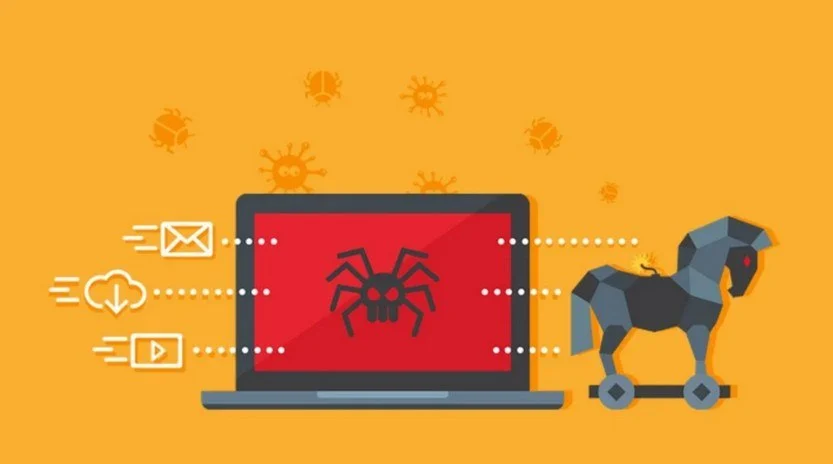
Scam Overview
The “Sign-in From Unauthorized Geolocation” scam involves fraudulent emails designed to alarm recipients by notifying them of a supposed sign-in attempt from an unfamiliar location. These emails often mimic legitimate security alerts from reputable service providers, making them particularly deceptive.
Characteristics of the Scam Email
- Subject Line: Typically, the subject line reads something like “Unusual mail sign-in from unauthorized geolocation,” aiming to grab immediate attention.
- Sender Information: The email appears to come from a trusted source, such as your email provider or a well-known company. However, upon closer inspection, the sender’s email address may reveal inconsistencies or slight misspellings indicating it’s a spoofed address.
- Message Content: The body of the email usually includes details such as:
- Date and Time: A specific timestamp of the alleged sign-in attempt.
- Location: An unfamiliar country or region, often one that raises concern.
- Device/Platform: Information about the device or platform used, such as “One UI” or a specific browser.
- IP Address: An IP address purportedly linked to the unauthorized access.
- Call to Action: The email urges the recipient to take immediate steps, such as:
- Reset Your Password: A prompt to change your account password.
- Review Security Info: Encouragement to check and update security settings.
- Secure Your Account: General advice to enhance account security.
- Links and Attachments: The email includes links that direct to phishing websites designed to steal login credentials or attachments that may contain malware.
Variations of the Scam
Scammers continually adapt their tactics, leading to various iterations of this scam:
- Different Service Providers: While many of these emails target users of popular email services like Gmail or Outlook, others may impersonate banks, social media platforms, or online retailers.
- Language and Tone: Some emails may adopt a formal tone, while others might use urgent or threatening language to prompt immediate action.
- Visual Elements: Incorporation of official logos, branding, and formatting to enhance credibility.
Psychological Manipulation
These scams exploit common psychological triggers:
- Fear and Urgency: By suggesting that your account is compromised, scammers create a sense of urgency, compelling you to act swiftly without thorough consideration.
- Authority: Impersonating reputable organizations lends an air of legitimacy, making recipients more likely to comply.
- Curiosity: Details about unfamiliar sign-in attempts pique curiosity, leading individuals to seek more information by clicking on provided links.
Real-World Examples
Instances of such scams have been reported widely:
- Microsoft Users: Some users received emails claiming unusual sign-in activity on their Outlook accounts, prompting them to click on malicious links to secure their accounts.
- Google Accounts: Phishing emails mimicking Google’s security alerts have been used to trick users into revealing their login credentials.
How the Scam Works
Understanding the mechanics of this scam can aid in its detection and prevention. Here’s a step-by-step breakdown:
- Creation of Spoofed Emails: Scammers craft emails that closely resemble legitimate security notifications from trusted organizations. They may use official logos, similar email addresses, and professional language to enhance authenticity.
- Inclusion of Alarming Content: The email informs the recipient of a suspicious sign-in attempt from a foreign location, providing specific details like IP address, device type, and timestamp to add credibility.
- Call to Action with Malicious Links: Recipients are urged to take immediate action by clicking on links labeled “Reset Your Password” or “Review Security Info.” These links lead to phishing websites designed to capture login credentials.
- Deployment of Phishing Websites: The malicious links direct users to counterfeit login pages that mimic the legitimate website’s appearance. Unsuspecting users enter their usernames and passwords, unknowingly providing them to the scammers.
- Credential Harvesting: Once the login information is submitted, scammers gain unauthorized access to the victim’s account, which can be used for various malicious purposes, including identity theft, financial fraud, or further phishing attacks.
- Potential Malware Installation: Some scam emails may include attachments or prompt downloads that contain malware, such as keyloggers or ransomware, compromising the security of the victim’s device.
What to Do If You’ve Fallen Victim to This Scam
If you suspect that you’ve been targeted or have engaged with a “Sign-in From Unauthorized Geolocation” scam email, take the following steps immediately:
- Change Your Passwords: Update the passwords for the compromised account and any other accounts that use the same or similar credentials. Ensure that new passwords are strong, unique, and not easily guessable.
- Enable Two-Factor Authentication (2FA): Activate 2FA on all accounts that offer it. This adds an extra layer of security by requiring a second form of verification beyond just a password.
- Scan Your Device for Malware: Use reputable antivirus and anti-malware software to perform a comprehensive scan of your device to detect and remove any malicious software that may have been installed.
- Monitor Account Activity: Regularly review your account activity and statements for any unauthorized transactions or changes. Report any suspicious behavior to the appropriate service provider immediately. Most platforms allow you to view login history, active sessions, and recent security events.
- Report the Scam
- Report the phishing email to your email provider (e.g., Gmail, Outlook) using their built-in “Report phishing” or “Report spam” features.
- File a report with your local cybercrime authority. In the U.S., you can contact the FTC or use IC3.gov to report internet-related crimes.
- Inform your workplace IT department if the email was received on a business account.
- Reclaim Your Accounts
- If you’ve lost access to your email or another account, use the provider’s account recovery process.
- Most services will send a recovery link to a backup email or phone number you previously registered.
- If that fails, contact the service’s support team directly with proof of account ownership.
- Check for Identity Theft or Financial Fraud
- If the compromised email account is linked to sensitive services (banking, healthcare, etc.), review those accounts carefully.
- Contact your financial institutions and consider placing a fraud alert or credit freeze with a credit bureau.
- Educate Yourself and Others
- Familiarize yourself with common phishing tactics and red flags.
- Share your experience with friends, family, or coworkers to raise awareness and prevent further victims.
- Update Your Security Information
- Review and update your account’s recovery email, phone number, and security questions to ensure they are current and secure.
- Remove any unknown or outdated devices linked to your account.
- Enable Alerts and Notifications
- Activate login alerts for all critical accounts. These notifications will inform you of any suspicious login attempts or changes to your account settings.
How to Spot a “Sign-in From Unauthorized Geolocation” Scam Email
Even with all the right tools and precautions, awareness remains your best defense. Here’s how to spot these scam emails before falling into the trap:
1. Check the Sender Email Address
Scammers often use email addresses that look like legitimate domains (e.g., “support@gmali.com” instead of “support@gmail.com”). Hover over the sender’s name to view the full email address and look for typos or inconsistencies.
2. Look Closely at the URL
If there’s a link to “secure your account,” hover over it without clicking. The actual URL should match the official site (e.g., https://accounts.google.com/). If it doesn’t — for example, if it points to secure-google-login.info or a random IP address — it’s a scam.
3. Poor Grammar and Spelling
While not always present, poor grammar or unnatural language is a red flag. Official emails from major platforms go through rigorous editing and are unlikely to contain obvious mistakes.
4. Unusual Attachments
Legitimate security notifications never include attachments. If the email contains a file (especially one ending in .zip, .exe, or .html), don’t open it.
5. Urgency and Fear Tactics
Scammers want you to panic. Phrases like “your account has been compromised,” “immediate action required,” or “your data is at risk” are designed to make you act without thinking.
Real-World Reports and Examples
Cybersecurity watchdogs and IT forums have documented a noticeable increase in these types of scam emails in early 2025. Some notable trends:
- Use of obscure browsers: Scam messages reference little-known browsers like Naenara to make the sign-in seem more suspicious and foreign.
- Geopolitical triggers: Many emails claim the login attempt came from politically sensitive or high-alert countries (e.g., North Korea), further increasing fear.
- Mobile-focused design: The scam websites are increasingly mobile-optimized, reflecting the high number of users checking emails on phones.
FAQ: “Sign-in From Unauthorized Geolocation” Scam
What is the “Sign-in From Unauthorized Geolocation” scam?
This scam is a phishing attempt disguised as a security alert. It warns you of a suspicious sign-in from a foreign location and urges you to take immediate action—usually by clicking a fake link or downloading a malicious attachment. The goal is to steal your login credentials or infect your device.
Why does the email mention places like North Korea or other suspicious locations?
Scammers use alarming and unlikely locations to trigger panic and make the threat seem more urgent. The goal is to create fear so you’ll act quickly without verifying the legitimacy of the message.
How can I tell if the email is fake?
Look for red flags like poor grammar, strange sender email addresses, mismatched URLs, or unexpected attachments. Legitimate security emails rarely ask you to click a link or open a file to fix your account.
What happens if I click the link in the scam email?
You’ll likely be taken to a fake login page that looks nearly identical to your email provider’s site. If you enter your login information, it goes straight to the scammers. In some cases, clicking may trigger a malware download instead.
What should I do if I already entered my password?
Immediately change your password and enable two-factor authentication. Scan your device for malware and check your account activity for unauthorized access. Notify your provider and report the incident as phishing.
Is this type of scam common?
Yes. Phishing scams that mimic security alerts are very common because they play on fear and urgency. Cybercriminals know people are more likely to respond quickly to messages that appear to threaten their personal data.
Why would scammers want access to my email?
Your email account is often the key to everything else—bank accounts, social media, cloud storage, and more. Once compromised, it can be used to reset passwords, commit fraud, or launch further attacks on your contacts.
Are attachments in these emails dangerous too?
Yes. Some versions of the scam include attachments that contain malware or ransomware. Never open unexpected attachments, especially if they claim to be invoices, account reports, or security logs.
Can my email provider stop these scams?
Most providers filter out many phishing emails, but some still get through. That’s why it’s important to recognize the warning signs and never rely solely on spam filters for protection.
How can I report a phishing email like this?
Use your email provider’s “Report phishing” feature, or forward the message to the appropriate abuse email (e.g., phishing@google.com). Reporting helps improve spam filters and prevents others from falling victim.
Is there a way to check if my credentials have been stolen?
Yes. Use tools like Have I Been Pwned to see if your email address or passwords have been part of known data breaches. This won’t catch everything, but it’s a good place to start.
Should I tell others about this scam?
Absolutely. These scams spread quickly and target people of all ages. Sharing information about what to look for can help others stay safe, especially those who may be less tech-savvy.
The Bottom Line
The “Sign-in From Unauthorized Geolocation” scam is a growing threat, crafted to exploit your sense of security and urgency. While the emails may look convincing, understanding how the scam operates and knowing what red flags to watch for can make all the difference.
If you ever receive an unexpected login alert, don’t click. Instead, go directly to your account settings through your browser and check for suspicious activity from there.
Staying vigilant, proactive, and informed is the best way to protect yourself — and help others do the same.

Join the discussion
0 commentsShare your experience or ask a question about this article.
Discussion
Start the conversation
Have a question or something useful to share? Add the first comment.