


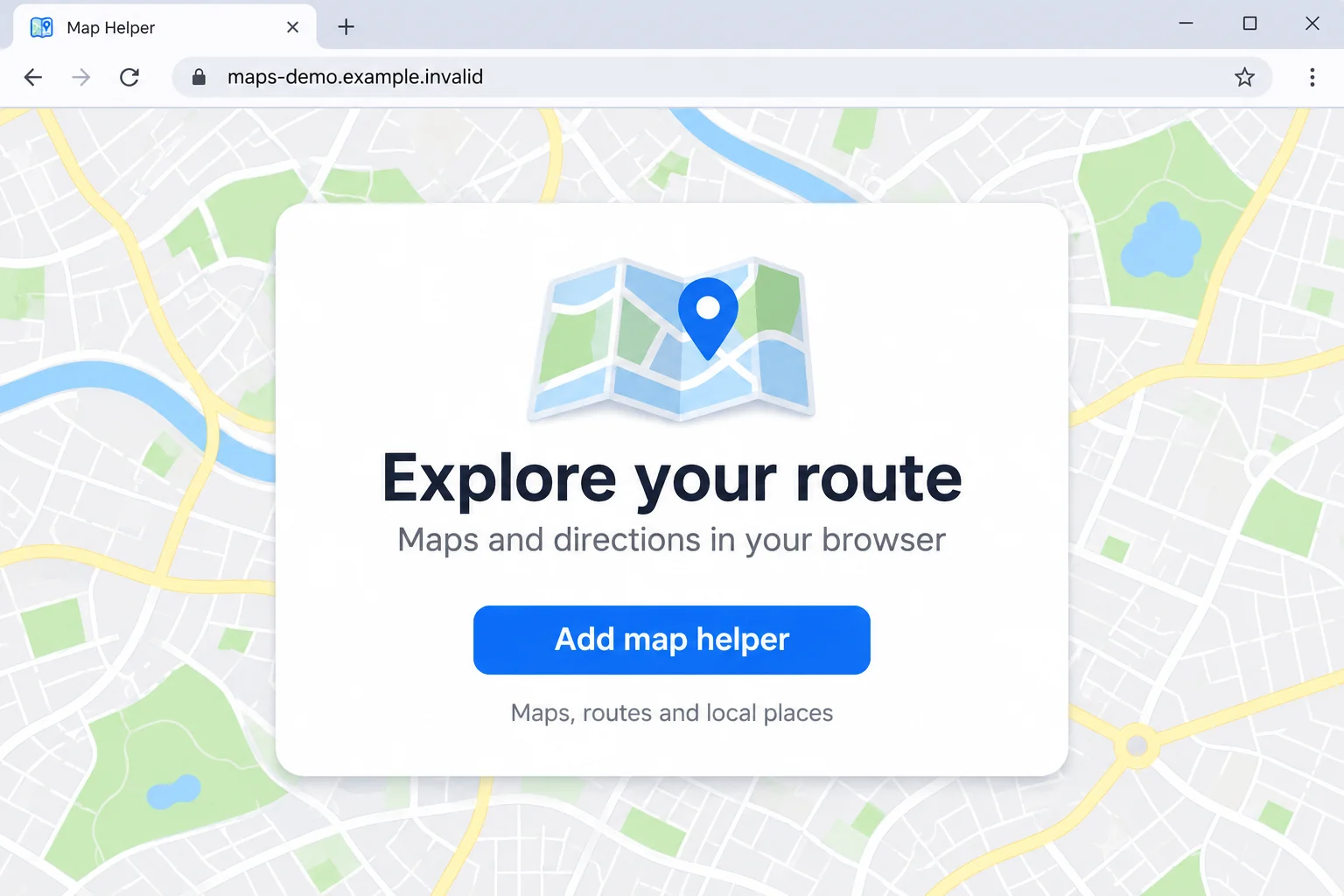
You wanted a map, a recipe, or a quick way to track a package. A small browser helper seemed easier than searching again every time.
Now extra tabs are appearing, or the helper’s name has turned up in a warning. Before changing everything, start with the extension you actually installed.
Overview
A working widget can still hide unwanted behavior
Microsoft identified SleeperWidget as extensions with hidden browsing-data collection and advertising changes.
View Point 3D Earth is one example. A working map does not settle what an extension does behind it.
Turning off visible advertising is not the same as removal
Uninstalling removes the tool. Switching off an advertising option may change only what you see, so do not confuse the controls.
That distinction matters if you already tried the switch and thought the problem was settled. A quieter browser is not the same as a removed extension.
Check the installed item before assuming a wider breach
- A matching extension: Record its identity, then remove it from each affected browser profile.
- Unexpected tabs: Note when they started and what you installed beforehand. The timing is useful, but not proof by itself.
- Work or school access: Tell the administrator before changing a managed browser or removing evidence.
- Suspicious account activity: Handle it through the account provider, separately from uninstalling the helper.
The instructions below start with ordinary browser controls. There is no need to buy a cleanup package simply to remove a browser extension.
How to Remove SleeperWidget from Your Browser
Step 1: Pause sensitive browsing and record the extension
Use a different, trusted browser or device for sensitive activity while checking the affected profile. Don’t sign into an important account just to test the helper.
On a managed computer, contact IT first. Tell them the extension’s name, which browser you used, and whether you arrived through an advertisement.
Open the browser’s extension-management page. Look for the installed item, then record its name, version, store address, and identifier where available.
Use Microsoft’s original indicator list to compare exact identifiers. A familiar name or a similar icon is not a reliable match.
The Edge example is mfmgmgocbldnnanccchdmngckohenkmg. Compare the browser as well as the name, since corresponding extensions in different stores can have different identifiers.
Keep a private screenshot of the extension card and any warning. Avoid capturing passwords, personal messages, or sensitive information from other tabs.
You do not need to download the extension’s files, reinstall a removed copy, or visit a campaign server to establish what was installed.
Step 2: Disable and remove the item in Microsoft Edge
Type edge://extensions into Edge’s address bar and press Enter. This opens the browser’s own controls, not a website supplied by the helper.
Find the relevant card. Use its switch to turn the extension off while recording any remaining details you need.
Select Remove, then confirm the removal. Hiding the toolbar icon does not uninstall anything.
The picture shows the controls on a harmless demonstration extension. Use those controls on the item you have identified, not on unrelated tools.
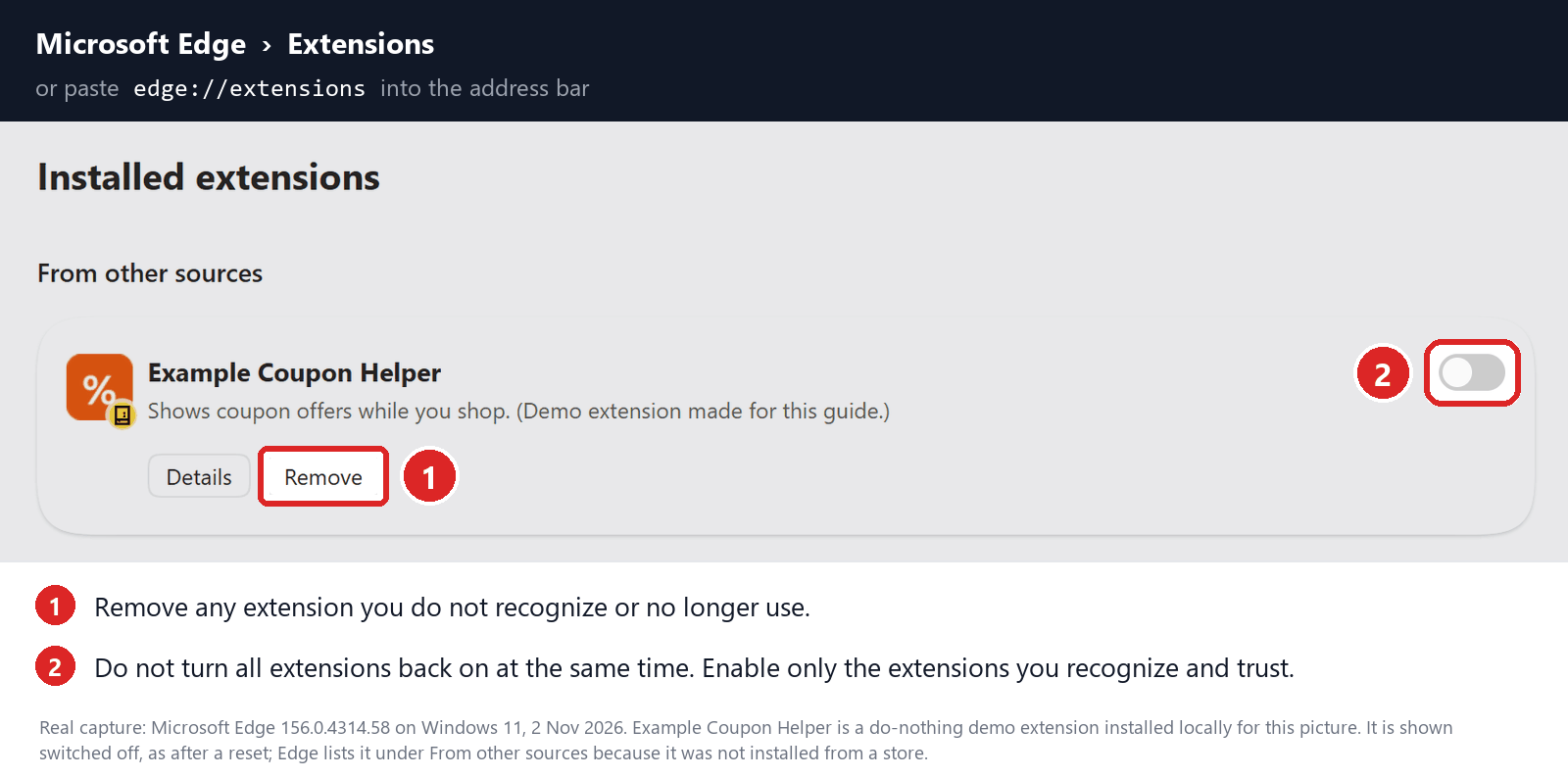
Edge also provides removal through the extension’s toolbar menu. Select Remove from Microsoft Edge and confirm Remove.
If the browser already disabled the item, leave it disabled and remove it. Don’t reinstall it from another website to bypass the warning.
When Remove is missing or blocked, stop before editing policies. An administrator may legitimately control the browser, or something else may need investigation.
Step 3: Remove matching copies in Chrome or Firefox
In Google Chrome
Type chrome://extensions into the address bar. Find the unwanted extension and open Details if you need to record its information.
Developer mode can display extension identifiers on this page. Turning that view on does not require installing developer software or running a command.
Turn off the identified item, select Remove, and confirm. Follow Chrome’s native extension controls rather than a cleanup button supplied by an unfamiliar page.
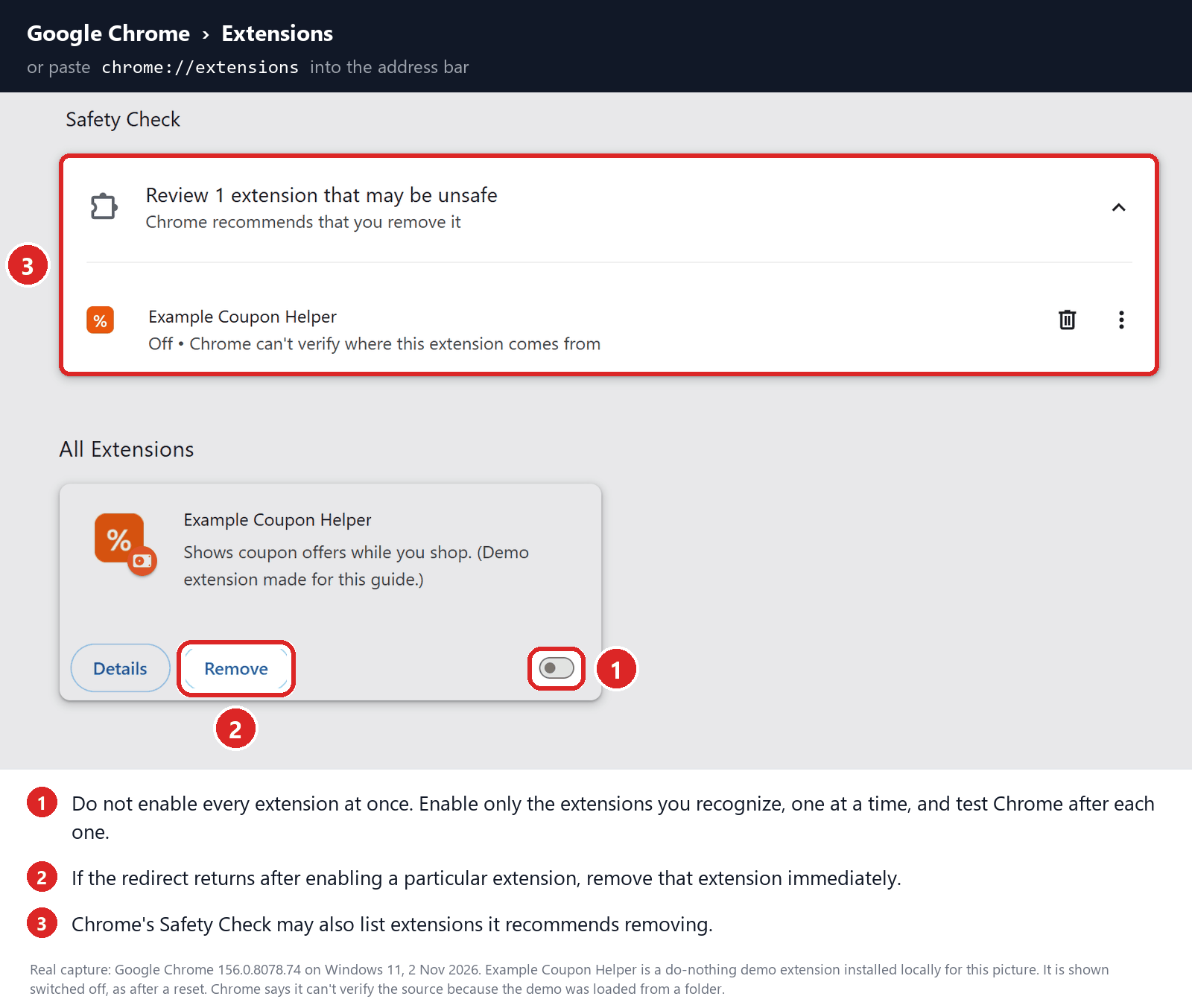
A toolbar icon disappearing is not enough. Return to the extension list and check that the item itself is gone.
In Mozilla Firefox
Open Firefox’s menu and select Add-ons and themes, then Extensions. You can also enter about:addons in the address bar.
Find the relevant extension. Its toggle disables it; the three-dot menu beside it provides Remove. Confirm any removal prompt.
Mozilla’s instructions explain the difference between disabling and removing an add-on. Neither action requires refreshing your whole Firefox profile first.
If an extension cannot be removed, use Mozilla’s linked troubleshooting guidance or contact your administrator. Don’t delete profile folders because a stranger suggested it.
Step 4: Check other profiles and devices you actually use
A browser profile is its own workspace. Removing an extension from your personal profile does not establish that it is absent from a separate work profile.
Use the profile selector, switch to each relevant profile, and inspect its extension list. Repeat the removal only where you find the unwanted item.
Check other computers where you use the same browser account. Record what you find instead of assuming every device received the same installation.
Be especially careful on a shared computer. Let other users know which browser profile is being checked so they don’t resume sensitive browsing during cleanup.
If the item returns, review extension synchronization and installed software with a trusted helper. Temporarily pausing extension sync may help isolate reappearance.
Keep legitimate work settings intact. Signing out everywhere, deleting every browser profile, or wiping all local data is not an appropriate first response.
Step 5: Repair remaining settings only where needed
After removal, inspect the startup page, search provider, and site-notification permissions if unwanted behavior remains. Change only settings you can identify as unwanted.
Removing a browser extension and revoking a website’s notification permission are different actions. A remaining notification does not necessarily mean the extension is still installed.
Do not reset the browser automatically. First check whether the extension is gone and whether the unwanted tabs or advertising have stopped.
If a reset becomes necessary, read its confirmation carefully. Browser resets can disable extensions, change settings, and clear site data, with effects varying by browser.
Firefox’s Refresh feature changes the profile more substantially than uninstalling one extension. Plan what you need to retain before using it.
There is no reason here to paste an all-profile cleanup script into PowerShell. Ordinary extension removal should not begin by moving browser databases or deleting folders.
Step 6: Relaunch, update, and watch for reappearance
Close and reopen the affected browser, finish any normal browser update, and revisit its extension-management page.
Open a familiar, nonsensitive page and check whether unwanted tabs return. Do not visit a suspicious advertising destination as a test.
If the extension reappears or settings remain locked, save the exact message and ask for help. Mention any separate installer you ran.
Windows users can bring those details to the MalwareTips removal-help forum. For a managed device, keep the organization’s security team involved.
Successful removal stops that installed copy from continuing its activity. It does not recall information already sent elsewhere or resolve unrelated account problems.
How SleeperWidget’s Hidden Behavior Starts
Step 1: An everyday task leads to a promoted helper
The documented route begins with paid promotion for a useful-looking extension.
You may be looking for directions, not making a conscious decision about browser-wide access.
That mismatch is worth noticing before any installation. A quick route lookup should not become an open-ended decision about which pages another tool may examine.
Step 2: The advertising page supplies an activation ticket
An advertising page stores activation data for the installed extension. The tested direct-store route did not supply that ticket.
This helps explain why two people can describe different experiences with the same-looking utility. One uneventful installation does not settle what another installation did.
Step 3: The real widget gives you a reason to keep it
The map itself works. A useful feature can make an installed helper feel less urgent to question.
A useful feature and an acceptable privacy arrangement are separate questions. You can appreciate the first without agreeing to the second.
Step 4: Background reporting and monetization begin
Activated samples sent page URLs and titles to campaign servers and opened advertising or affiliate destinations.
The concern is not simply that an extension earns money. It is what happens beyond the task you chose and what information leaves the browser.
Step 5: A quieter interface can hide continued reporting
Disabling Sponsored content left navigation reporting active in the tested sample. Some family extensions also shared an identifier.
That is why the practical response is to remove identified copies, including ones in other profiles, rather than judge success solely by the absence of advertisements.
What Browsing Data Can Reveal, and What It Does Not Prove
A full page address can contain more than a website’s name. It may include a search phrase or the specific page you opened.
Think about a search for a medical appointment or a personal financial question. The interest itself may be sensitive even without the contents of a form.
A page title can supply additional context. That is why navigation information deserves attention without being exaggerated into a claim that every password was captured.
This case does not establish that all your saved passwords, messages, or files were stolen. Those would require evidence about different capabilities or actual account activity.
Likewise, an affiliate tag on a shopping destination does not, by itself, prove that someone charged your card or changed the goods in your order.
Match the response to the evidence. A privacy exposure, a false sign-in page, and an unauthorized transaction call for different follow-up.
If sensitive work information appeared in page addresses or titles, tell the responsible organization what you know. Do not try to resolve a workplace incident alone.
What to Do After Using an Affected Extension
-
Keep a short record, then complete removal.
Record the extension identity, browser profile, approximate installation time, and any relevant warning. Finish the native removal steps above instead of continuing to experiment.
Write down whether you used an advertisement, downloaded a separate program, or saw unexpected pages. These details help someone assess the actual exposure.
-
Consider the browsing activity that needs attention.
Think about sensitive pages opened while the extension was active. Use your own history privately if it helps establish the period.
Do not publish a complete browsing-history export. A helper needs the relevant facts, not every personal page you visited.
If work or client information may be involved, contact the appropriate security or privacy team. Describe what was visible in navigation information without guessing about stolen files.
-
Secure accounts when there is a concrete reason.
If you entered credentials on an unfamiliar destination, noticed an unauthorized sign-in, or reused an exposed password, open the genuine service independently.
Follow its recovery process, replace affected passwords, review active access, and correct unfamiliar recovery settings. Do not use a support link supplied by the suspicious page.
For Google accounts, the compromised-account guide covers security activity, devices, connected access, and relevant Gmail settings.
The point is to address a real account concern, not declare every account compromised merely because an unwanted extension was present.
-
Check purchases against the actual transaction record.
If a shopping redirect led you to order something, compare the merchant, quantity, amount, and receipt with what you intended.
Report an unfamiliar charge promptly through your bank’s or card issuer’s verified support route. Keep the order and transaction references.
A legitimate purchase reached through an unwanted affiliate redirect is a different issue from an unauthorized payment. Explain the discrepancy accurately when asking for help.
-
Report the extension without exposing more personal information.
Provide the store with the exact identifier and a concise description of unexpected behavior. Include the original listing address if you kept it.
Redact private searches, account identifiers, and personal messages from screenshots before sharing them publicly. Keep an unedited private copy if a trusted responder needs evidence.
Do not send identification documents or passwords to an unknown operator in exchange for a promise to erase browsing records.
-
Get help when the browser will not stay repaired.
Returning extensions, blocked removal, and unexplained management settings need investigation. Give a trusted technician or your organization’s administrator the saved details.
Tell them about any separately installed application. That may change the required cleanup, but the extension alone does not establish a Windows-wide infection.
Reject unsolicited offers that demand remote control, payment, or a terminal command before explaining what they intend to repair.
Frequently Asked Questions
Is View Point 3D Earth simply a broken map tool?
No. The issue is hidden extension behavior, not whether its map works. Useful features do not excuse undisclosed browsing-data reporting.
Is turning off Sponsored content enough?
No. Remove the identified extension. A display preference is not an uninstall control or an assurance that every background function has stopped.
Does this mean every map extension is malicious?
No. Match the specific extension against the original identifiers. A similar name, category, or icon is not enough to accuse a different tool.
Did SleeperWidget necessarily steal all my passwords?
No. Reported URL and title collection is not proof of every password being captured. Investigate actual sign-in concerns or credentials entered on an unfamiliar page.
Do I have to reset my computer?
Not automatically. Begin with the relevant browser extension and profile checks. Persistent software or blocked removal needs further assessment, not an immediate wipe.
Can a removed store listing still matter to me?
Yes. Check the browser itself rather than assuming an unavailable listing settles your installation. Record any existing warning and leave a flagged extension disabled.
The Bottom Line
Remove identified SleeperWidget extensions instead of relying on the Sponsored content switch. Hidden browsing-data collection is reason enough to stop using the helper.
If you already used one, check other affected profiles and follow up on specific privacy, account, or payment concerns. Removal does not erase information already collected.
For a simple map or lookup, use a trusted website directly when you can. If the extension returns, seek help before resuming sensitive browsing.

Join the discussion
0 commentsShare your experience or ask a question about this article.
Your progress
Did these steps help?
Let us know how the guide worked for you.
Describe what you see and the step you reached. Keep passwords and other private information out.
Discussion
Start the conversation
Have a question or something useful to share? Add the first comment.