


A payment advice arrives with a familiar bank’s name. If you’re waiting for money, the attachment deserves a closer look.
It seems like routine bookkeeping. Before processing it on autopilot, check a few details that are easy to miss.
Overview
A bank-payment notification hides a mailbox login request
The Standard Chartered payment advice email scam uses an apparent SWIFT document to lure recipients into an attachment that requests their email credentials.
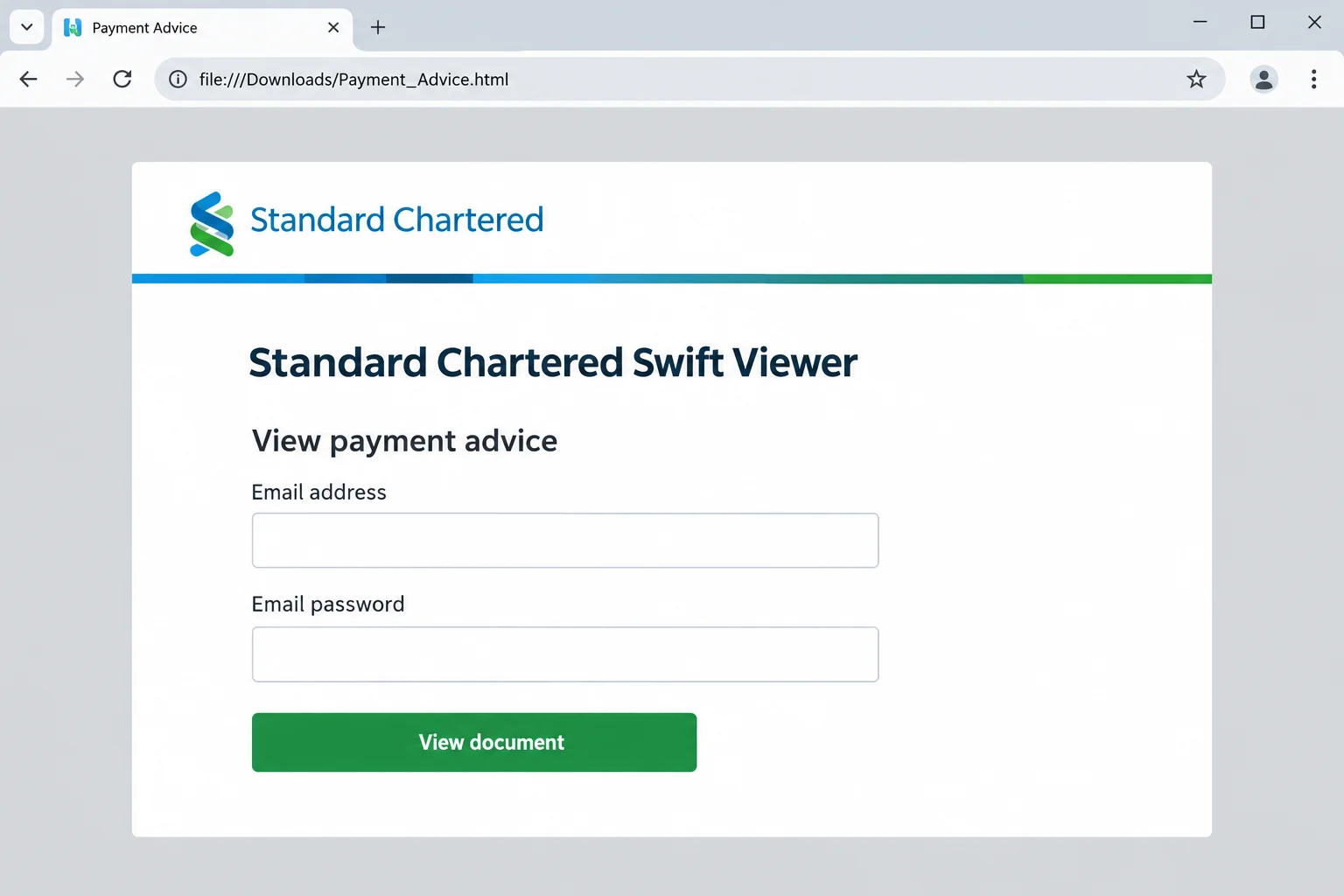
The reported message describes a PDF, but the attached file is HTML. Opening it produces a bank-themed form labeled Standard Chartered Swift Viewer.
Do not enter your mailbox password there. A document claiming to describe a bank transfer does not need the secret protecting your correspondence.
The HTML attachment is the important mismatch
The email’s document language makes the attachment sound familiar. The request inside it changes the task from reading payment information to surrendering account access.
- The message presents the file as payment advice rather than a new account-registration request.
- The actual attachment opens as a web-style interface, not the promised ordinary PDF.
- The form asks for an email password, which is different from a document-opening password.
- Bank branding and a reference to Adobe do not authenticate the attachment.
The genuine bank is being impersonated
Standard Chartered is a real financial institution. The fraudulent message borrows its identity; the warning is about the impersonator, not the legitimacy of the bank.
Check any expected incoming payment through your own banking channel. If a customer sent the advice, confirm it using contact details you already held.
The image depicts a fictional local HTML viewer. Its example filename and design explain the trap, rather than reproduce a bank-issued document or an original recipient’s attachment.
Payment Advice Is Not the Same as Money in Your Account
A payment advice generally describes a payment. It is not, by itself, proof that funds have settled and are available to you.
For a seller, that distinction can prevent a second loss. Do not release goods merely because an attachment displays a bank name or transfer reference.
Use the transaction information visible through your own financial institution. When a payment is missing, investigate with the payer through an established relationship.
A criminal can make a convincing-looking notice without sending money. The document’s polish and the reality of the transfer are separate questions.
The same distinction applies when no sale is involved. An unexpected payment notification is not a reason to unlock your email for its sender.
Take a moment to establish what you were expecting before following a viewer’s instructions. That is often easier than sorting out unfamiliar technical language afterward.
How the Standard Chartered Payment Advice Email Scam Works
Step 1: Banking language gives the attachment a business purpose
The message uses a credit-advice story and a bank identity. Those details make opening the attachment feel like checking evidence, not responding to a stranger.
SWIFT terminology can add authority even when the recipient does not know how the underlying payment was sent. A recognizable financial term is doing persuasive work.
However, a transfer reference can be typed into any email. It needs to be matched to information from a trustworthy banking or business source.
If the sender is unfamiliar, do not ask them for another version of the same proof. Reach the alleged payer through a separate verified channel.
Step 2: A PDF promise leads to an HTML interface
The reported attachment is a web document despite the email’s PDF description. A browser opens it, and its layout resembles a specialized banking viewer.
An HTML file can display headings, images, text boxes, and buttons. Looking like a document portal does not make it a portal operated by the bank.
File extensions help reveal the distinction. A PDF-looking icon or a long document name may distract from the actual extension at the end.
Do not reopen a suspicious attachment simply to check its appearance. Your reporting team can examine the original file without asking you to interact with its form.
Step 3: Document protection becomes a request for an email password
The message introduces password language before the viewer appears. That prepares the reader to regard a later password prompt as an expected security feature.
But an email address used as a document password and the password for the email account are not the same secret.
Entering your address into a document-password field would not authenticate a bank document either. The surrounding request still needs independent verification.
The dangerous escalation is supplying your actual mailbox credentials to an untrusted form. Do not try several passwords because the first attempt produces an error.
A failed-looking login can still have transmitted what you entered. A page does not need to show success for a criminal to receive the submitted information.
Step 4: Mailbox access can expose the conversation behind a payment
A stolen mailbox password gives the attacker something more useful than a single forged advice. It may open correspondence showing who owes money to whom.
That context can support a convincing follow-up. For example, an intruder could imitate a party in a genuine invoice conversation and propose different payment details.
Such misuse is a possible consequence, not proof that every recipient has experienced payment fraud. Check actual account activity and business communications.
Recover the mailbox and investigate any financial changes separately. Removing the attachment from your computer does not remove an intruder’s access to an online account.
Why a File on Your Computer Can Still Be a Phishing Page
A local address is not a trust certificate
You may see a file address rather than a normal website in the browser. That only tells you where the displayed HTML was opened.
A local document can still contain code or a form that attempts to communicate elsewhere. Local storage does not establish that its author is trustworthy.
Do not assume that disconnecting afterward erases information already submitted. If the device was connected when you entered credentials, treat those credentials as exposed.
A recognizable logo does not verify a document’s author
Bank colors, logos, copyright lines, and a viewer title can be copied. None creates a verified relationship between the file and the institution it names.
Likewise, a mention of Acrobat Reader is not Adobe’s approval of the attachment. Verify a software download independently if you genuinely need a reader.
A notice asking you to install a special banking viewer adds another risk. Do not grant that permission to complete an unverified payment check.
An attachment is not automatically a full computer infection
The documented mechanism is credential phishing. It should not be described as proof that a remote-control trojan was installed merely because the HTML opened.
If another file ran or security settings changed, investigate that additional exposure. The response should follow what happened, not the frightening possibilities listed in an advertisement.
Checks for Accounts Receivable and Small Businesses
Keep the original customer’s details separate from the new email. A genuine-looking name is not enough when the requested action involves credentials or payment routing.
If the notification supposedly relates to a particular invoice, compare the amount and reference with your records without interacting with its attached form.
Call a previously verified contact when payment instructions change. Do not adopt the phone number included in the disputed message as your verification source.
Give staff a reporting path that does not require them to diagnose HTML. They should be able to say that a payment attachment unexpectedly requested their mailbox password.
If you are expecting several payments, avoid matching the notice to whichever invoice seems closest. Confirm the payer, amount, and destination through records you already trust.
A convincing reference number can be copied from earlier correspondence or simply invented. Its presence should help a real verification, not replace one.
For shared accounts, identify who opened the document and whether credentials were typed. Avoid a group message encouraging everyone to try opening it.
Standard Chartered’s security centre discusses phishing and business-email compromise. Use the bank’s established channels rather than contact details supplied by an impersonator.
What to Do If You Opened the Fake SWIFT Advice
Leave the attachment closed. Stop entering information and decline any further request to install a viewer, approve a login, or supply a security code.
If nothing was entered or run, preserve the email for reporting and remove the risky attachment from your everyday workflow.
Replace any mailbox password you submitted. Reach your provider through its normal app or a trusted saved address. Use a fresh, unique replacement.
Use an unaffected device if you also installed software. Change the same exposed password wherever else you used it.
Review access that can survive a password change. Check signed-in devices, recovery contacts, application access, delegates, and mailbox rules.
Look for unfamiliar forwarding destinations or filters hiding security notices. For business mail, ask the administrator to help revoke unauthorized sessions.
Check the payment story against real records. Confirm whether money actually arrived and whether any bank-detail changes were requested during the affected period.
Alert your bank promptly about unauthorized transactions. If a customer or supplier was targeted through your mailbox, contact them through a different established channel.
Assess software exposure without confusing it with password recovery. Investigate any executable, extension, or extra viewer the message persuaded you to install.
Malwarebytes can help examine unwanted software. AdGuard adds filtering against some malicious advertising and sites, but neither invalidates a stolen mailbox session.
Report the actual message, not a rewritten summary alone. Use your organization’s reporting system or the legitimate bank’s published security route.
Retain the original attachment privately if requested by a trusted investigator. Do not upload customer banking documents or full message headers to public forums.
Watch for a second approach. Someone may claim they can release the payment or repair your account if you pay a fee.
Keep your response within the real bank, mail provider, and known business relationship. Do not give another stranger remote access to resolve the first deception.
Is Your Device Infected? Run a Free Malware Scan
Slow performance, constant pop-ups, or strange behavior? These are classic signs of a malware infection. A quick way to check is to scan your device with Malwarebytes Free, one of the most trusted malware removal tools available. If you only visited a scam page and didn’t download or install anything, this scan is optional.
The free version detects and removes the most common threats, including:
- Adware — the cause of those annoying pop-ups
- Browser hijackers — unwanted redirects and changed homepages
- Trojans and spyware — hidden programs stealing your data
- Potentially unwanted programs (PUPs) — software you never asked for
👉 Select your device below — Windows, Mac, or Android — then follow the simple steps to download Malwarebytes, scan your system, and remove any threats it finds. The scan usually takes 5 to 20 minutes.
Run a Malware Scan with Malwarebytes for Windows
Malwarebytes is one of the most popular and trusted anti-malware tools for Windows — and it’s completely free for removing infections. It catches threats that many antivirus programs miss, including adware, browser hijackers, and trojans. Follow the steps below to scan your PC and remove what Malwarebytes finds.
Download Malwarebytes
Click the button below to download the latest version of Malwarebytes for Windows from the official source. The free version is all you need — it will scan your computer and remove adware, browser hijackers, and other malicious software at no cost.
Download MalwarebytesOfficial installer for Windows 11 and 10. Your download starts right away.Want real-time protection? See Malwarebytes Premium Malwarebytes Free for WindowsScans and removes malware at no cost
-
Install Malwarebytes
When the download finishes, open your Downloads folder and double-click the MBSetup file. If Windows shows a User Account Control pop-up, click “Yes” to allow the installation.

Follow the On-Screen Prompts to Install Malwarebytes
The setup wizard will walk you through a few quick screens:
-
Choose where you’re installing the program — “Personal Computer” or “Work Computer” — then click Next.

-
Malwarebytes will now install on your device. This usually takes under a minute.

-
When installation is complete, the “Welcome to Malwarebytes” screen will open automatically.

-
On the final screen, click Open Malwarebytes to launch the program.

-
Optional: Check for rootkits with a Custom Scan
You don’t need to change any settings for a normal scan. The standard Threat Scan in the next step is enough for most problems, so you can go straight to it.
If you also want to check for rootkits, use a Custom Scan. In current versions of Malwarebytes, rootkit scanning is only available there:
- On the Scanner tile, click the three-dot menu and select Advanced Scan.
- Choose Custom Scan. In its options, check Scan for rootkits.
- Select your system drive (usually C:\) as the location to scan, then start the scan. It takes longer than a Threat Scan.
- When it finishes, review and quarantine the results as described in the steps below.
Rootkit scanning isn’t available on Windows devices with ARM processors.
Start the Scan
Click the blue Scan button. Malwarebytes will automatically update its virus database and start checking your computer for malware.

-
Wait for the Scan to Finish
The scan checks your entire system for browser hijackers and other malicious programs, so it can take 5 to 20 minutes depending on your computer. Feel free to do something else — just check back occasionally to see the progress.

-
Quarantine the Detected Threats
When the scan is done, you’ll see a list of everything Malwarebytes found — malware, adware, and potentially unwanted programs. Click the “Quarantine” button to remove all of them at once.

Malwarebytes will now remove the malicious files and registry entries and move them safely into quarantine.

-
Restart Your Computer
Some threats can only be fully removed after a reboot. If Malwarebytes asks you to restart, click Yes. Once you’re logged back in, Malwarebytes has finished removing the threats it found.

When the scan is done, check whether the problems you noticed have stopped. If they continue, see the options below.
If you are still having problems with your computer after completing these instructions, then please follow one of the steps:
- Run a computer scan with ESET Online Scanner
- Ask for help in our Windows Malware Removal Help & Support forum.
Run a Malware Scan with Malwarebytes for Mac
Malwarebytes for Mac is a free on-demand scanner that removes the malware other security software tends to miss — adware, browser hijackers, and unwanted programs included. Cleaning an infected Mac with Malwarebytes has always been completely free, and it’s our go-to recommendation. Follow the steps below to scan your Mac and remove what Malwarebytes finds.
-
Download Malwarebytes for Mac
Click the button below to download the latest version of Malwarebytes for Mac.
Download MalwarebytesOfficial installer for macOS. Your download starts right away.Want real-time protection? See Malwarebytes PremiumMalwarebytes Free for MacScans and removes malware at no cost -
Open the Malwarebytes setup file
When the download finishes, open your Downloads folder and double-click the setup file to begin the installation.

-
Follow the On-Screen Prompts to Install Malwarebytes
The Malwarebytes for Mac Installer will guide you through a few quick screens. Click “Continue” and keep following the prompts until the installation completes.



When the installation is complete, Malwarebytes opens to the Welcome to Malwarebytes screen. Click “Get started“.
Malwarebytes needs Full Disk Access to check your whole Mac. When it asks, open System Settings > Privacy & Security > Full Disk Access, turn on Malwarebytes (it may be listed as Malwarebytes Protection), and confirm with your password or Touch ID. Then return to Malwarebytes. On macOS Monterey and earlier, this setting is in System Preferences > Security & Privacy > Privacy.
-
Select “Personal Computer” or “Work Computer”
Malwarebytes will ask what type of computer you’re installing it on. Click either Personal Computer or Work Computer, whichever applies.

-
Start the Scan
Click the “Scan” button. Malwarebytes will automatically update its detection database and begin checking your Mac for malware.

-
Wait for the Scan to Finish
Malwarebytes will scan your Mac for adware, browser hijackers, and other malicious programs. This can take a few minutes, so feel free to do something else — just check back occasionally to see the progress.

-
Quarantine the Detected Threats
When the scan is done, you’ll see a list of everything Malwarebytes found. Click the “Quarantine” button to remove all the threats at once.

-
Restart Your Mac
Malwarebytes will now remove all the malicious files it found. Some threats can only be fully removed after a reboot — if Malwarebytes asks you to restart, allow it. Once you’re logged back in, check whether the problems you noticed have stopped. If they come back, save the scan report and ask for help in our forum.

If the problems you noticed continue after the scan, see the options below.
If you are still experiencing problems while trying to remove a malicious program from your computer, please ask for help in our Mac Malware Removal Help & Support forum.
Run a Malware Scan with Malwarebytes for Android
Malwarebytes for Android scans your phone or tablet for malware, adware, and potentially unwanted apps. The free version scans only when you start a scan. Real-time protection, which checks apps automatically, is part of the paid Premium version.
-
Download Malwarebytes for Android.
You can download Malwarebytes for Android by clicking the link below.
Get Malwarebytes for AndroidOpens Google Play in a new tab.Want real-time protection? See Malwarebytes Premium for AndroidMalwarebytes for AndroidScans your phone and removes malware at no cost -
Install Malwarebytes for Android on your phone.
In the Google Play Store, tap “Install” to install Malwarebytes for Android on your device.

When the installation process has finished, tap “Open” to begin using Malwarebytes for Android. You can also open Malwarebytes by tapping on its icon in your phone menu or home screen.

-
Follow the on-screen prompts to complete the setup process
When Malwarebytes opens, it walks you through a short setup. Tap Get started and follow the prompts. If you see an offer for a trial or a paid plan, read it before you accept. You can skip it and keep using the free scanner.
Malwarebytes will ask for permission to access the files on your phone so it can scan them. Tap Allow, or turn on the permission in the Android screen that opens, then return to Malwarebytes.
-
Run a scan with Malwarebytes for Android
On the main screen, tap Scan now. In some versions, you open the menu, tap Scanner, and then tap Run a scan.
-
Wait for the Malwarebytes scan to complete.
Malwarebytes will now start scanning your phone for adware and other malicious apps. This process can take a few minutes, so we suggest you do something else and periodically check on the status of the scan to see when it is finished.

-
Remove the detected apps.
When the scan has been completed, you will see a list of the threats that Malwarebytes for Android has detected. Next to each detected item, tap the menu icon (three dots), then choose to uninstall the app or delete the file. Android then asks you to confirm. Tap OK or Uninstall to remove the app.
-
Restart your phone.
When the detected apps are removed, restart your phone if Malwarebytes asks you to. Then check whether the problems you noticed have stopped.
If the problems you noticed continue after the scan, see the options below.
If you are still having problems with your phone after completing these instructions, then please follow one of the steps:
- Ask for help in our Mobile Malware Removal Help & Support forum.
- Only as a last resort, reset your phone to factory settings. Read the warning below first.
- Back up your photos, videos, files, and messages, for example to your Google account or a computer.
- Make sure you know your Google account email and password. The phone asks for them after the reset. If you changed the password recently, Google recommends waiting 24 hours before you reset.
- On a Samsung phone, also make sure you know your Samsung account password.
- If you use an authenticator app for two-step verification, move your accounts to another device or save your backup codes first.
Stay Protected: Block Ads and Malicious Sites
No scan can prove a device is completely clean, so it helps to block threats before they reach you. Most infections start with a malicious ad or a fake download button — so blocking them at the source is your best defense.
We recommend AdGuard, which blocks malicious ads, phishing pages, and dangerous redirects before they can reach you.
👉 Download AdGuard and browse safely
Keep Document Passwords Separate From Account Passwords
Some legitimate financial documents are password protected. That fact should not be used to make every document-password prompt sound fraudulent.
The practical distinction is what opens the document versus what opens your account. You should not give an unfamiliar attachment your mailbox password.
If you do not know the genuine document-opening procedure, ask the issuing institution using a verified route. Do not guess by trying your usual secrets.
For a business, document the approved procedure so employees know what to expect. Clear examples make unusual prompts easier to report before credentials are entered.
If the institution confirms no advice was sent, stop troubleshooting the attachment. There is no legitimate document access problem left to solve.
What to Keep When Reporting This Message
A screenshot can show the visual trick, but it does not preserve everything an investigator needs. Keep the original email in the format your reporting team requests.
The attachment’s actual name, the sender address, and the time received can help connect related reports. Record those details without reopening the form or submitting test credentials.
If you typed a password, say so plainly and include the approximate time. Your administrator can then compare that window with suspicious sign-ins and mailbox changes.
If you entered several passwords after repeated errors, identify every affected account privately. Reporting only the last attempt can leave an earlier exposed credential unchanged.
For a shared mailbox, note which staff members interacted with the file. One person’s password reset will not address another person’s separate submission.
Do not forward the active attachment casually to colleagues as an example. Use the organization’s safe reporting method so an awareness message does not spread the original trap.
Customer information needs protection during reporting too. A public screenshot should not expose invoice addresses, account numbers, or complete correspondence just to demonstrate that the message looked convincing.
Frequently Asked Questions
Is Standard Chartered responsible for this email scam?
The campaign impersonates the bank. Its use of banking names and presentation does not establish that the genuine institution sent or authorized the message.
Why does a payment viewer want my email password?
That is the phishing objective. Your mailbox credentials protect correspondence, not access to an unknown payment attachment.
Is an HTML attachment the same as a PDF?
No. HTML is a web-document format that a browser can display. A misleading filename or description does not turn it into the promised PDF.
Does file:/// in the address bar mean the form is safe?
No. It indicates a local file location. The form’s author and behavior still matter, including whether submitted information can be sent elsewhere.
What if I entered only my email address?
That is different from exposing a password. Expect possible targeted follow-ups, but do not assume your mailbox was taken over without additional evidence.
Should I ship an order after receiving this advice?
Confirm the actual payment through your own financial records and normal business controls. A bank-themed attachment alone is not proof of available funds.
The Bottom Line
Do not put your email password into the Standard Chartered Swift Viewer attachment. The payment-advice story is a route to mailbox credentials, not a trustworthy banking check.
Verify expected funds independently. If you already submitted credentials, recover the mailbox and examine related payment conversations before treating the incident as resolved.

Join the discussion
0 commentsShare your experience or ask a question about this article.
Discussion
Start the conversation
Have a question or something useful to share? Add the first comment.