


The first Swalnean warning can look like any other message that slides into the corner of your screen. Then you notice what it’s asking about.
An alert that mentions an unauthorized download can make you stop what you’re doing. The part worth looking at first is also the easiest to miss.
Overview
What the Swalnean notification says
Swalnean.com is associated with deceptive browser notifications. In a documented example, a site acting like a human verification page encouraged visitors to give it permission to send them.
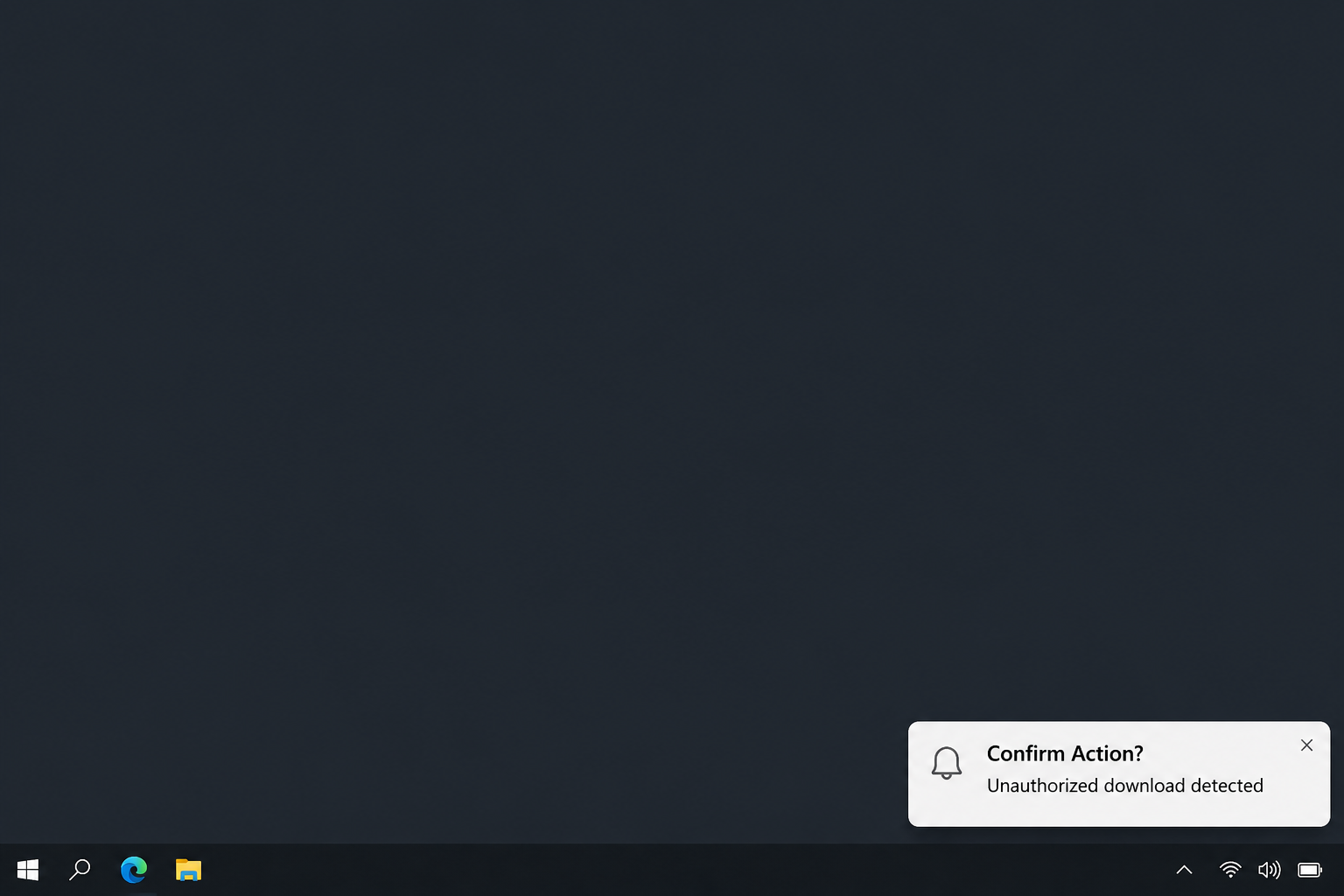
A later notification used the title “Confirm Action?” and claimed a download was unauthorized. It asked whether the recipient was responsible, offering two responses to a problem it hadn’t established.
That claim came from a website notification, not an independent inspection of the computer. The wording is not evidence that anything was downloaded or installed.
The warning’s placement is part of its power. A site can send a notification through the browser, so its message can look like something Windows or security software created.
The clues you can check without touching the alert
Look at the notification’s small source information, if it’s still visible. It may include a browser name and the site that supplied the message.
- The message mentions an unauthorized download but doesn’t establish what file was downloaded.
- The heading asks you to confirm an action rather than pointing to a real download record.
- The website name may have additional characters before Swalnean.
- The alert may arrive after you’ve left the original page.
- You can inspect browser permissions without answering anything in the notification.
Don’t open more alerts to compare them. The original permission can be found in the browser’s settings, which gives you a more useful record than the button label.
What permission does and does not explain
Allowing notifications authorizes a website to send messages to that browser profile. It does not automatically give the website access to your files or install a program.
The notification is a route to other pages. Those pages could ask for money, passwords, software downloads, or other actions, but the notification alone doesn’t show which happened.
If you followed an alert, your next step depends on what you did there. Turning off notifications stops one route back to you but cannot undo a separate disclosure.
The direct remedy for the alerts themselves is to block the site in the browser. A scan or a reset is not the first fix for notification permission alone.
How the Swalnean Notification Scam Works
Step 1: A webpage poses as a human verification check
The first screen borrows the language of a familiar web checkpoint. Instead of asking you to solve a puzzle, it tells you to allow something in the browser.
In the documented version, the page was dark and sparse. That left little on the screen to distract you from the instruction or explain what the page actually offered.
The clue is in the prompt, not the backdrop. A notification permission request is about what a site can send you, not whether you’re a human.
If you don’t need notifications from that specific site, you can block the request and leave. You don’t owe an unfamiliar page a permission to continue browsing.
Step 2: The browser records a permission that outlasts the tab
The prompt itself may be a real browser control. What makes the interaction deceptive is the page’s explanation of what that control does.
Once you authorize notifications, closing the page does not automatically undo that choice. Depending on the browser and system settings, messages may keep arriving while you’re doing something else.
That gap between the original page and the later warning can make it difficult to remember where the alerts started, especially if you use multiple browsers.
Permissions can also be specific to the browser profile. A work profile and a personal profile may show a different list even on the same computer.
Step 3: A download warning shows up in a familiar place
The message about an unauthorized download frames the alert as a security check you need to answer. It looks urgent even if you haven’t recently tried to download anything.
A real notification area can display messages from untrusted sites alongside legitimate apps. Placement and visual style don’t turn the site’s claim into a system finding.
Open your browser’s download history yourself if you want to check what it recorded. Do not follow the alert to a page that claims it can check for you.
If the alert is still there, dismiss it using its normal close control or clear it through the notification center. Leave the choices inside the alert untouched.
Step 4: Either response can take you away from the alert
The choice looks like a way to tell the computer whether the download belongs to you. The notification is deceptive, so neither response needs to honor that promise.
A destination can change, and not everyone’s click will necessarily go to the same place. Treat a support number, a login prompt, or a download offer as a separate decision.
If a page starts showing supposed scan results, close it instead of reading it as your antivirus report. Use software already on the device to check genuine alerts.
A stranger asking you to install a remote support tool is not part of a browser notification fix. Contact your actual support provider through an established number if necessary.
Revoke Swalnean’s Notification Permission
You can make these changes without returning to Swalnean. It’s usually better to block the relevant site rather than turn off all browser notifications you depend on.
Chrome and Microsoft Edge
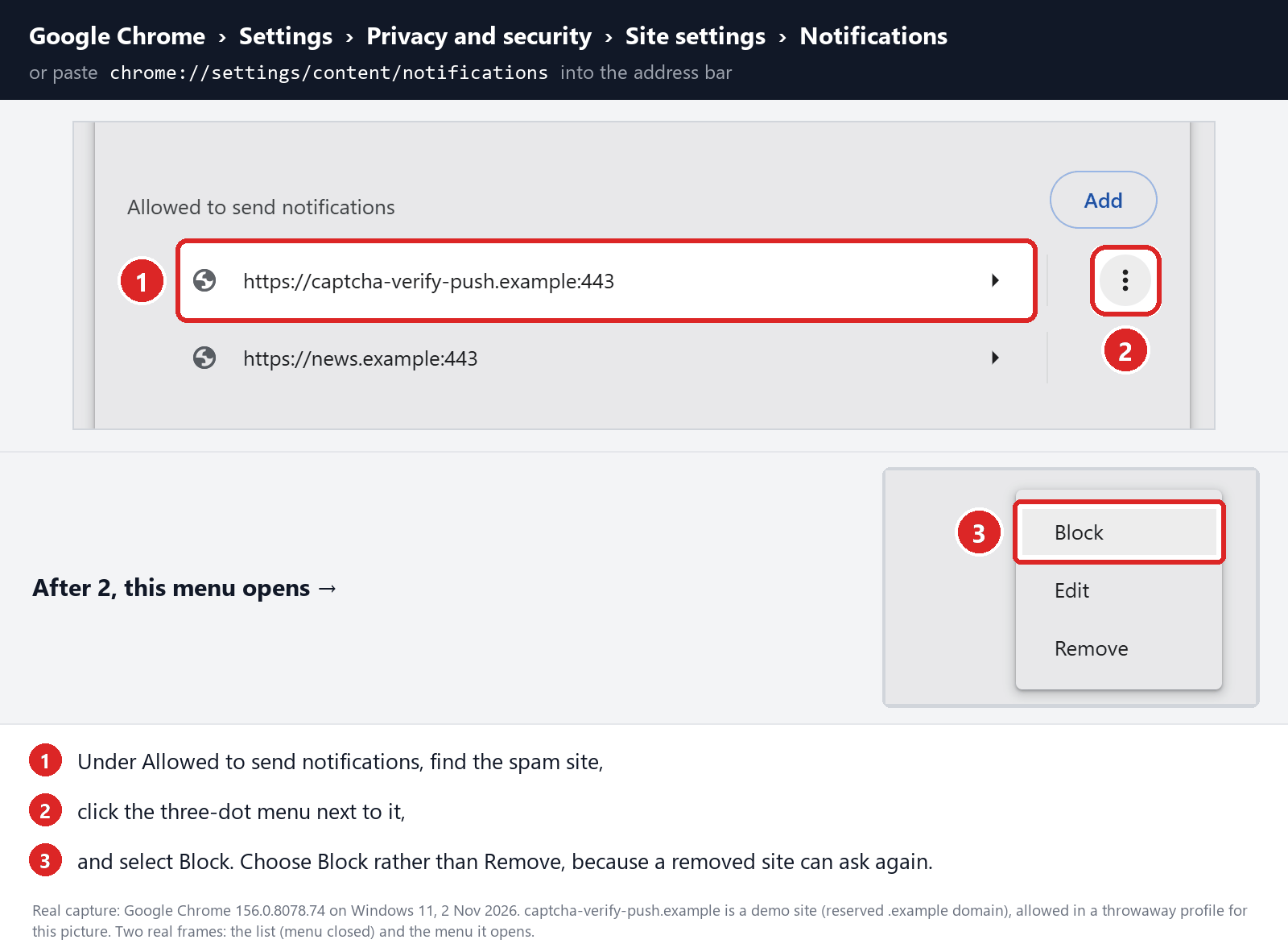
In Chrome, open the three-dot menu and choose Settings. Go to Privacy and security, then Site settings, then Notifications. Look under sites allowed to send notifications.
Find the Swalnean entry and use its menu to block it. Check for variations with an added subdomain, and repeat for clearly related entries that were separately allowed.
In Edge, open Settings and look under Privacy, search, and services for Site permissions. Select the relevant entry from All sites and block its notification permission.
If the labels aren’t the same in your version, use the settings search box for Notifications. The browser makers have Chrome instructions and Edge instructions.
Firefox and Safari
In Firefox, use Settings to find the Permissions section and its Notifications controls. Look for the site’s entry, change it to Block, and save your changes.
If your Firefox menus differ, Mozilla’s web push help explains where to find and manage the list of websites with permission.
On a Mac using Safari, open Safari Settings, select Websites, and choose Notifications in the sidebar. Locate the site and set it to Deny.
Apple’s Safari notification help also explains why a site notice can arrive after you close its webpage.
Check whether new alerts actually stop
Once the entry is blocked, clear the old notifications. A message that remained in the notification center before you blocked the site doesn’t mean a new one got through.
If another alert appears, note its source this time. It may be coming from a different browser, an additional profile, another site, or an app that has similar wording.
For a quick follow-up check, reopen the permissions list and confirm the entry stayed blocked. An old permission in a second profile won’t show in the one you just fixed.
If the warnings are visible only inside one open tab and never in the notification center, closing that tab may be enough. A page overlay doesn’t need notification permission.
Leave permissions alone for the services you recognize. Blocking one site should not stop your calendar, team chat, or other apps from sending their own reminders.
On shared computers, check the browser profile whose icon appears beside the alert if you can identify it. Ask the profile owner before making changes to their settings.
On a managed computer, ask your support desk for help if the browser prevents you from changing a setting. Don’t override policies or remove extensions needed for work.
Avoid wiping all browser data simply to make a single alert stop. A broader repair may be appropriate if other unwanted changes remain, but first identify what is affected.
What to Do if You Have Fallen Victim to This Scam
-
If you only accepted notifications, block the site.
Find the permission in the browser settings and check that new warnings stop after you clear the old ones. Don’t answer the notification to turn it off.
Receiving a notification after granting permission isn’t, on its own, a reason to reset every password or assume there is an infection.
-
If you clicked an alert, check what the browser actually did.
Close the page and look at download history through the browser menu. If it lists an unexpected file, don’t open it to identify it.
On a work computer, report which alert you clicked and whether you found a download. Preserve the file for IT only if your organization asks for it.
-
If you entered a password or payment details, respond to that exposure.
Open the affected service from a known device and address. Change an exposed password, check active sessions, and make sure the recovery settings still belong to you.
If you entered card details, contact your card issuer through its app or the number on the card. Ask what to do about pending charges and card replacement.
-
If you ran software or gave someone remote access, get device help.
End the remote connection and disconnect the device from the network if you can do so safely. Use another device to reach your support team or bank.
For a personal Windows computer, use your security software or Malwarebytes Free. Review the scan results before closing it. A clean result doesn’t undo remote access.
-
If the pop-ups continue, check the source before changing more settings.
Compare the browser name and site shown in the new notice. Another allowed site or another browser profile can stay active after you block Swalnean.
AdGuard may help reduce exposure to malicious advertising on other pages. It isn’t a substitute for revoking a website permission you already gave.
-
Keep details only if you need to report what happened.
A screenshot of the source line and the time of the alert is enough to start. Crop out unrelated messages and don’t share any confidential information.
If you paid anyone or let someone into your computer, report that as part of the incident. Keep the payment or support-session record on a trusted device.
Frequently Asked Questions
Does “Unauthorized download detected” mean Swalnean found a real file?
The alert isn’t evidence of a real download. It is text supplied by a website, so it can show up whether or not your browser downloaded anything.
Open download history without using the alert. If you find an unfamiliar file, don’t run it. If you already ran it, take the device steps above.
Can a Swalnean alert appear after I close the original tab?
Yes, a notification permission can remain in effect after the original page closes. That explains why a notice can arrive later while you’re doing unrelated work.
It doesn’t mean you need to reopen the tab to remove the permission. You can do that entirely through your browser’s settings.
Should I click No if I don’t recognize the download?
Don’t pick either answer in a suspicious website’s warning. The button’s label does not tell you what clicking it will open or whether it has any relationship to downloads.
Dismiss the alert through the notification interface instead. Review the browser’s own download history if you want to confirm whether any file was recorded.
What if I cannot find Swalnean in the allowed websites?
Check another profile or browser if you use more than one. The notice may list an added subdomain, or another source could be sending a similar message now.
Try searching for the site name as it appears in the next notification without opening it. If it comes from an app, investigate that app rather than browser permissions.
Will clearing the browsing history stop the alerts?
Clearing history by itself doesn’t necessarily revoke notification permissions. History tracks pages you visited, while notification permissions are a separate setting managed by the browser.
A dedicated block also avoids making you sign in again everywhere or wiping unrelated data. Start there unless you have evidence of a wider browser problem.
Do notifications mean Swalnean installed malware on my device?
A permission change alone does not establish a malware infection. The page could send you alerts without installing anything on your device.
If you downloaded and ran a file, installed an extension, or let someone connect remotely, treat that as a separate incident. Simply blocking the site won’t resolve those risks.
The Bottom Line
The Swalnean warning doesn’t need an answer. Block the site’s notification permission and check your browser’s download history if you want to know whether a file arrived.
If you did more than allow notifications, respond to the action you took. A password entered on a page, a card submitted, and a program run each need different help.

Join the discussion
0 commentsShare your experience or ask a question about this article.
Community experiences
Did this happen to you?
Your experience could help someone recognize the same scam. Submit a private report for our team to review.
I experienced this tooReports are reviewed before publication. Sharing publicly is always your choice.
Discussion
Start the conversation
Have a question or something useful to share? Add the first comment.