


An email about a spam problem can be more convincing than a dozen obvious junk messages. It sounds like the person writing is trying to keep your inbox working.
This notice comes with a deadline and a pair of unusually technical choices. Neither tells you much about the problem it’s supposed to solve.
Overview
What the Mailbox Protection Alert claims
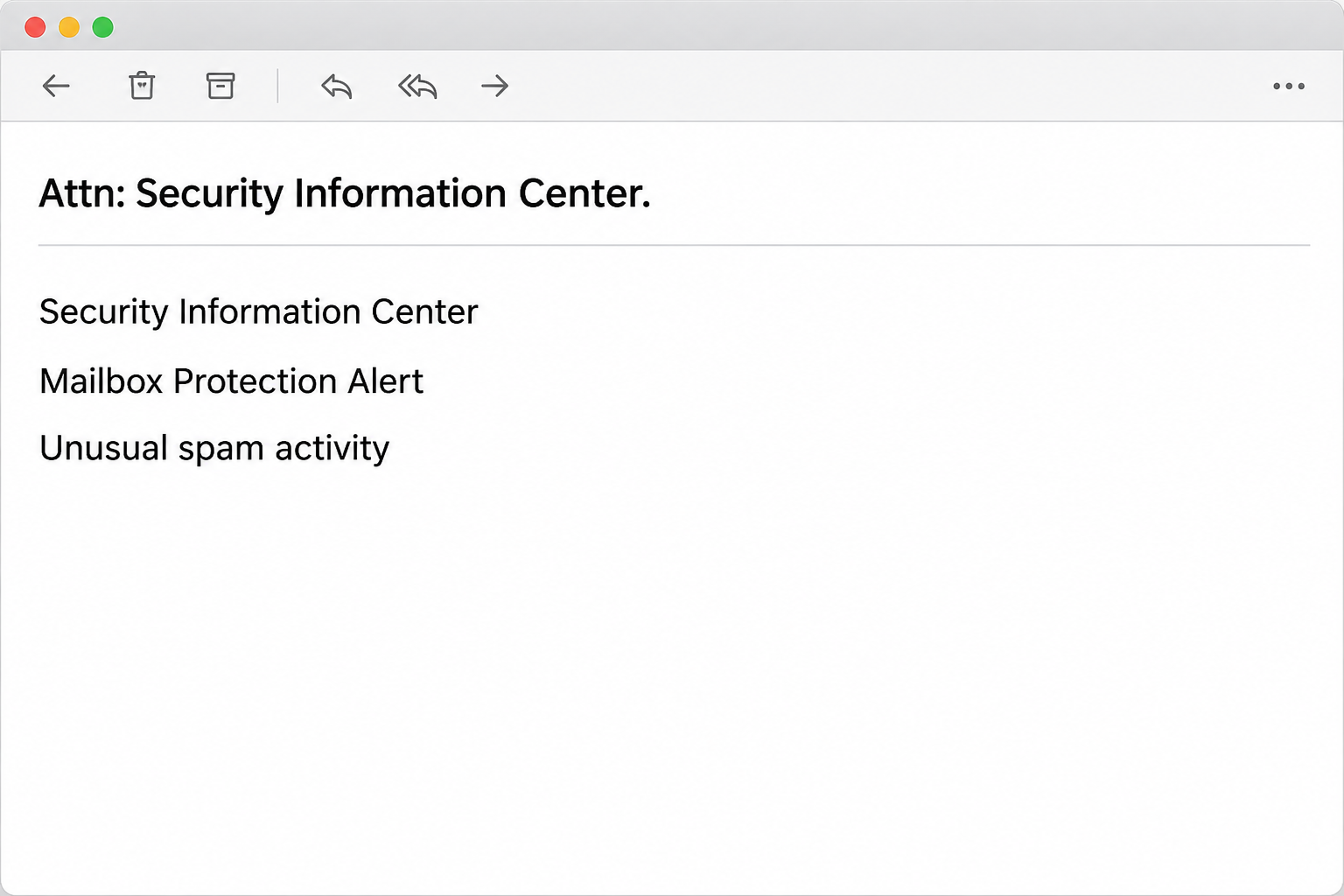
The Unusual Spam Activity email scam presents itself as a security notice saying your mailbox is sending or receiving suspicious messages. The example calls its sender the Security Information Center.
The note threatens a temporary suspension of sending and receiving if the recipient waits more than 24 hours. It also raises the possibility of being blacklisted.
Its proposed fix is to resynchronize mailbox protection or purge a supposed spam queue. Those are the two choices it offers, even though they would normally describe different tasks.
The documented links led to a fake email sign-in. The message does not establish that your mail server ever detected suspicious traffic or that your account is on a blocklist.
The subject and buttons to look for
If you want to compare the notice with one you received, start with what it says about your email. You don’t have to open the link to do that.
- The subject in the specimen was “Attn: Security Information Center.”
- The body presents the notice as a mailbox protection alert about unusual spam activity.
- It refers to suspicious inbound and outbound messages and makes a one-day deadline sound urgent.
- The controls are labeled “Sync Mailbox Security” and “Purge Spam Queue.”
- The process asks for an email account sign-in instead of producing a trusted mail security record.
A suspicious copy can reach a company with a working spam filter. Good filtering reduces exposure, but the arrival of the message doesn’t mean the filter is broken.
A fake suspension is not a diagnosis of your mail system
Real outbound spam can lead providers to restrict an account. An email invoking that consequence has not proved it will happen, especially when no known administrator confirms it.
This campaign borrows the vocabulary of mail administration but gives the recipient no independently verified queue or server record to inspect. The fake sign-in is the concrete risk.
Receiving the message doesn’t mean you sent spam. Conversely, if a legitimate administrator points to unusual sends, investigate through their normal channel without following the email’s proposed fix.
There is no evidence in the documented stage that clicking alone installed software. The credential request, not a malware download, is the mechanism this article addresses.
How the Unusual Spam Activity Email Scam Works
Step 1: A problem that normally belongs to administrators is assigned to you
The notice makes the account holder responsible for an issue described in infrastructure terms. It asks an ordinary reader to fix certificates, filters, and message handling.
The sample even names SpamAssassin, a real filtering tool. That name doesn’t make the sender your administrator or give the page authority to request a mailbox password.
That role reversal isn’t always obvious to a recipient. Many people are used to solving account warnings themselves and may not know who manages outgoing mail.
On a work system, responsibility usually belongs to the people with access to mail logs and provider controls. Ask them whether they can see evidence of the claimed issue.
At home, start with the provider’s regular security activity feature. You can also check whether you received genuine delivery failures from an email you actually sent.
Step 2: The warning makes inaction feel risky to the whole organization
A mailbox restriction can sound especially damaging if you rely on it for a business. The threat in this notice is framed around keeping messages flowing and protecting reputation.
The 24-hour limit prompts you to solve the problem now, before your next shift or before colleagues log off. The note does not independently support that deadline.
You don’t need to race the clock set by an unfamiliar sender. Contact the mail administrator or open the official dashboard even if it takes a few minutes.
If a customer says they aren’t receiving your mail, deal with that separately. An actual delivery failure still doesn’t authenticate the email that offers to purge a queue.
Step 3: The two choices disguise a single credential risk
Synchronizing a security setting and deleting queued spam sound like different actions. The labels make the email look as if it offers a choice tailored to the reader.
The documented route was a reauthentication page designed to capture email credentials. Neither label is a safe way to view a real queue or change a mail certificate.
A provider’s familiar colors or logo aren’t enough to establish that the reader is at its real sign-in page. Use a bookmark or the normal app instead.
If you’re already signed in to your provider, an unrelated browser page asking for your mailbox password should give you a reason to check the request before entering anything.
Step 4: The account itself can become the next source of suspicious mail
If someone captures the password and obtains account access, the mailbox can be used to send messages from a real name or hijack an existing thread.
An intruder might also set a forwarding rule or delete replies that would alert the account owner. Those are useful things to check after an exposure, not established outcomes here.
If you use the claimed affected mailbox to reset other services, take its security seriously. An attacker with a working session may see those reset messages.
The original email’s warning about outgoing spam was a claim, not a finding. If you do see unfamiliar sent mail afterward, use actual account records to investigate it.
What a Real Mail Restriction Leaves You to Check
Start with the provider’s own alerts, then look for a delivery failure you can connect to a specific message you sent. Give your administrator that timestamp if there’s a match.
In an organization, the mail team can check send activity, restrictions, message traces, policy alerts, or reports from other recipients. A real report starts with records like those.
Spam in the inbox and spam attributed to the account are separate issues. Getting junk mail does not mean your account was the one sending it.
A restriction can also have a mundane cause such as sending limits or a mistaken bulk mailing. Don’t conclude there’s a compromise without checking the available records.
If your account really is restricted, ask which control imposed the restriction and how the provider wants it resolved. There should be a supported process outside the disputed link.
For business accounts, Microsoft’s compromised mailbox guidance explains what administrators can look for when there is an actual cause for concern.
Distinguish a delay, a block and a real account incident
A delayed message can still be queued normally. Before assuming that it disappeared, check whether your own mail app reports it as pending or shows a delivery error.
For an actual rejection, keep the non-delivery report from a message you sent. Its timestamp and technical details can help support determine which server refused the delivery.
An unexpected non-delivery report for a message you never sent is a different clue. Share it with the mail team, but don’t assume it proves your password was used.
Someone can forge a return address on a message. The fact that a bounce mentions your address doesn’t prove the original mail came from your account.
If an administrator confirms a compromise, ask whether you need to review shared inboxes or accounts that rely on this address to reset their passwords.
Check both outcomes separately: whether accounts were secured and whether normal sending was restored. Passing a delivery test does not prove that no one retained mailbox access.
You can arrange an alternative contact route while the mailbox is being investigated. Tell colleagues how to verify requests without using any of the notice’s reply details.
If you have an old personal account you rarely use, recovery details may need attention before support can restore access. Handle that through the provider’s verified recovery options.
Keep one example of a legitimate delivery problem and one report of the suspicious notice if both exist. That lets support separate a real service fault from the lure.
What to Do if You Have Fallen Victim to This Scam
-
Flag the notice without trying to purge anything.
Use your mail client’s phishing control or your work reporting process. The subject and time help your administrator locate copies that reached other people.
If you were already having trouble sending, report that separately so IT can check those deliveries without assuming the message diagnosed the problem.
-
If you clicked, close the landing page and note what it showed.
Say whether you saw a form, autofilled a field, entered a password, or approved a notification. Don’t revisit the page to take a better screenshot.
If you didn’t submit anything or approve access, send your report and ask the administrator whether the organization needs any additional information from you.
-
If you submitted a password, recover the account through the actual provider.
Use a known login route on a trusted device. Change the exposed credential, check recovery settings, and ask how to sign out sessions you don’t recognize.
Replace the same password wherever else you used it. Give first priority to accounts with access to work, money, or identity records.
-
Look for mail changes that you didn’t make.
Check forwarding, filters, delegated users, connected apps, and recent sent messages. On a managed account, ask the administrator to review account activity and mail flow.
Check deleted items and rules that move particular replies. If a new rule looks suspicious, preserve details before removing it when your IT team needs evidence.
-
Let affected people know through another channel if the account sent messages.
Tell people what to ignore and where to verify legitimate requests. Don’t forward another copy of the malicious link as your explanation.
If the mailbox handles invoices or sensitive records, alert the appropriate team. Ask them to verify payment changes or disclosure requests through an authorized channel.
-
Treat a separate download or permission as a separate incident.
Don’t run a file merely because a follow-up asks you to complete the repair. If you did run one, tell your support team immediately.
If the only action was giving away a password, account recovery is the main fix. Scanning the computer doesn’t change the password or close a stolen session.
If the mailbox no longer sends, don’t authorize repairs from anyone who offers help in a reply to the alert. Contact the provider by an independent route.
Frequently Asked Questions
Does “Unusual Spam Activity” mean my mailbox is already blacklisted?
No, the message makes that claim without proving a restriction. Check your administrator’s records or the real service interface for any limits on the account.
If another person reports delivery trouble, ask which message they missed and when. The real data is more useful than the email’s deadline.
Are “Sync Mailbox Security” and “Purge Spam Queue” genuine provider controls?
They are the labels used in the suspicious notice, not proof the buttons are connected to normal mail administration. The documented route was a fake sign-in.
If you need to manage a queue, use the controls supplied by your actual provider. On a work system, that’s usually a task for an authorized administrator.
What if my real provider sends alerts about outbound spam?
Providers can send legitimate alerts when an account is restricted or suspicious traffic is detected. That makes it important to verify the alert in a separate trusted place.
Don’t decide just from the existence of a real alert category. Ask whether there is an event for your account and whether further action is required.
Does the 24-hour deadline mean I should change my password immediately?
If you submitted your password on the fake page, change it promptly through the real provider. That urgency comes from the exposure, not from the message’s countdown.
If you never entered any details or approved access, a deadline in the notice isn’t a reason to follow it. Report the message and verify any real restriction independently.
Can I tell whether the account sent spam by looking at Sent Items?
Sent Items may show unexpected messages and is a useful start. It is not a definitive record of everything an account or connected application sent.
An administrator may have more complete records and can also look for malicious rules. Tell them what you noticed rather than removing evidence indiscriminately.
Why would a spam cleanup page need my normal mailbox password?
The page may invoke the password to make the request appear like a routine security confirmation. That doesn’t make the page a trusted place to receive it.
Check your real account dashboard before supplying any credential. If you’ve already signed in on the suspicious page, review sessions and account settings as well as changing the password.
The Bottom Line
Don’t try to fix the “Unusual Spam Activity” warning through either button. Check any actual sending trouble with your account provider or administrator using the normal route.
A submitted password needs a prompt response. Start with account recovery, then check whether the mailbox settings or messages changed after the exposure.

Join the discussion
0 commentsShare your experience or ask a question about this article.
Community experiences
Did this happen to you?
Your experience could help someone recognize the same scam. Submit a private report for our team to review.
I experienced this tooReports are reviewed before publication. Sharing publicly is always your choice.
Discussion
Start the conversation
Have a question or something useful to share? Add the first comment.