

TikTok is being flooded with fake celebrity photo and video leak videos aimed at driving user downloads and Temu referral code signups. These videos pretentiously offer access to scandalous and explicit photos and videos of various celebrities if users download the Temu shopping app and enter the referrer’s promo code.
This article will provide an in-depth look at this emerging scam on TikTok, how it works, the potential risks, and most importantly, what you should do if you encounter one of these fake celebrity leak videos.

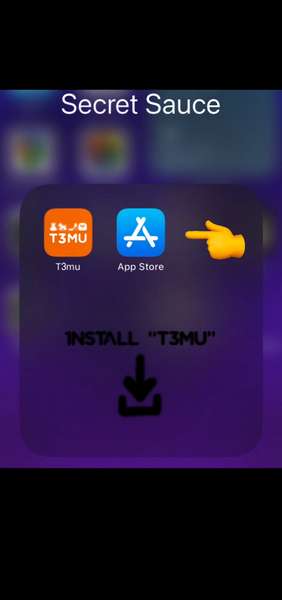
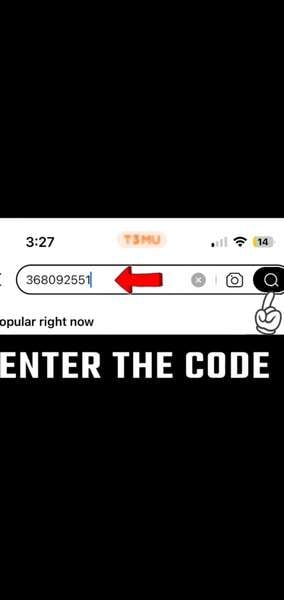
Overview of the TikTok fake celebrity photo leak scam
Temu is a new online shopping platform that offers extremely low prices on millions of products shipped directly from China.
The site allows customers to create custom referral codes and links to share with friends and on social media. For each referral signup, both the referrer and referee get Temu Points redeemable for store credit and other rewards.
To promote referral code shares, Temu utilizes a multi-level marketing style rewards system. This system lets you play mini games and complete tasks to earn Temu Points for cash rewards or to spend on site products.
The problem is that this referral rewards system is now being abused by TikTok users.
They are creating and sharing fake celebrity photo and video leak videos that entice viewers with the promise of accessing scandalous content.
The videos tell viewers to download the Temu app and enter the referrer’s promo code to unlock the leaked photos or videos. But of course, there is no actual leaked content, only a referral code signup.
Examples of fake leak videos for Temu referrals
Here are some examples of the types of fake celebrity leaks being propagated on TikTok to get app downloads and promo code signups:
- “Olivia Rodrigo nudes leaked!! Download T3mu and use code _ to see them all!”
- “Jenna Ortega sex tape just leaked! Get it on T3mu with referral code _ before its taken down”
- “Leaked Brooke Monk photos showing everything! Download now and enter _ to see!”
- “OMG Hailie Deegan’s private photos got leaked! Download T3mu and enter code _ to see them all before they get deleted!”
The videos typically contain suggestive imagery and captions like “I can’t believe she did this!” or “I thought she was innocent” to entice viewers. Most have a caption overlay prompting Temu download and code entry.
How the TikTok fake leak and Temu referral scam works
The fraudsters behind these fake leak videos are leveraging the appeal of celebrity gossip and scandal to drive app downloads and promo code signups.
While deceptive, the scam process is quite simple:
- The scammer creates a fake celebrity photo or video leak video for TikTok. This uses suggestive imagery and captions claiming a famous person’s intimate photos or videos got leaked.
- The video instructs viewers to download the Temu app and enter the scammer’s referral code. This is presented as necessary to gain access to the fake leaked content.
- Users who install Temu and enter the code help the scammer earn free Temu Points.
- The scammer accumulates Temu Points from their referrals to get store credit and cash rewards.
- Users who installed the app and entered the code find there is no real leaked celebrity content. It was just a ploy to get app downloads and referrals.
So while not malicious per se, the scam relies on tricking TikTok users with the lure of celebrity scandal and explicit content. The fakery and deception help the scammers earn rewards through their referral program.
Dangers and risks
While not directly malicious, the fake celebrity leak videos for Temu referrals still pose some risks and concerns users should be aware of.
Wasting time and effort
First, the videos simply waste a person’s time and effort under false pretenses. Viewers are deceived into downloading the app and entering codes thinking they will access scandalous celebrity material.
When none exists, it leads to frustration at best or outrage at worst for being manipulated.
Data harvesting
There’s also the standard privacy issues that come with new app installs. Temu requires access to contacts, files, location and more.
Users must scrutinize the permissions requested and be wary of what data is collected and shared from their device.
Normalizing deception
In addition, the proliferation of fake leak videos helps normalize deception and social engineering on social media platforms.
The more these manipulative tactics succeed, the more they will be used for potentially more nefarious purposes by others.
Slippery slope
There is a slippery slope effect here too. While fake celebrity leaks for Temu referrals seem relatively harmless now, this tactic could easily evolve into more dangerous scams or ways to distribute malware.
What to do if you encounter a fake celebrity photo leak video
If you come across one of these fake videos on TikTok, YouTube, or elsewhere, here are some tips:
- Don’t download any apps or enter any referral codes. The promised leaked content does not exist.
- Flag and report the video in the app you find it. Alert the platform so they can remove it.
- Warn others by commenting that it’s a scam in the video. Spread awareness about the deceptive tactic.
- Check permissions before downloading any app. Only install from official app stores like Google Play.
- Use antivirus software and keep devices updated to catch any potential malware.
- Avoid “too good to be true content” on social media tied to taking a desired action like app installs or code entry.
- Never enter personal information to access supposed leaked or explicit content online.
- Consult reputable news and media sources for confirmation before believing any supposed “leaked” materials.
What to do if you already entered a Temu referral code from a fake video
If you already fell for one of these fake celebrity photo leak videos, here’s what to do next:
Uninstall Temu if not needed
If you have no use for Temu, uninstall it. This will stop any data collection and reverse any permissions granted during install.
On an iPhone, delete the app just as you would any other.
On Android, go to Settings -> Apps -> Temu and tap Uninstall.
Reset advertising ID
Apps use your advertising ID to track activity across apps and websites. Reset your ad ID after removing Temu so your actions are no longer tied together.
On iPhone, go to Settings -> Privacy -> Tracking -> Reset Advertising Identifier.
On Android, go to Settings -> Google -> Ads -> Reset advertising ID.
Revoke app permissions
While uninstalling Temu will remove its access to contacts, storage, location, etc., resetting permissions can act as an extra precaution.
On iPhone:
- Settings -> Privacy -> Contacts -> Temu -> toggle off
- Settings -> Privacy -> Photos -> Temu -> toggle off
- Settings -> Privacy -> Location Services -> Temu -> toggle off
On Android:
- Settings -> Apps -> Temu -> Permissions -> toggle off for Contacts, Storage, Location, etc.
Monitor accounts and credit cards
Keep an eye out for any suspicious charges or activity in your online accounts tied to your mobile number or payment methods.
While highly unlikely in this scam, monitoring statements is always advised when inputting data into new apps.
Change passwords as a precaution
Consider changing passwords for your main accounts like email, Amazon, social media, and financial accounts in case of a worst case data breach.
Again highly unlikely but changing passwords regularly is just good security practice.
Run antivirus scans
Run full system scans using updated and trusted antivirus software like Malwarebytes, ESET, etc. This will detect and remove any adware, spyware or other threats that may have hitched a ride with the app install.
Catching and removing any threats promptly can prevent bigger issues down the line.
Is Your Device Infected? Run a Free Malware Scan
Slow performance, constant pop-ups, or strange behavior? These are classic signs of a malware infection. The fastest way to find out is to scan your device with Malwarebytes Free — one of the most trusted malware removal tools available.
The free version detects and removes the most common threats, including:
- Adware — the cause of those annoying pop-ups
- Browser hijackers — unwanted redirects and changed homepages
- Trojans and spyware — hidden programs stealing your data
- Potentially unwanted programs (PUPs) — software you never asked for
👉 Select your device below — Windows, Mac, or Android — then follow the simple steps to download Malwarebytes, scan your system, and remove any threats it finds. The scan usually takes 5 to 20 minutes.
Run a Malware Scan with Malwarebytes for Windows
Malwarebytes is one of the most popular and trusted anti-malware tools for Windows — and it’s completely free for removing infections. It catches threats that many antivirus programs miss, including adware, browser hijackers, and trojans. Follow the steps below to scan and clean your PC in just a few minutes.
Download Malwarebytes
Click the button below to download the latest version of Malwarebytes for Windows from the official source. The free version is all you need — it will scan your computer and remove adware, browser hijackers, and other malicious software at no cost.
Download MalwarebytesOfficial installer for Windows 11 and 10. Your download starts right away.Want real-time protection? See Malwarebytes Premium Malwarebytes Free for WindowsScans and removes malware at no cost
-
Install Malwarebytes
When the download finishes, open your Downloads folder and double-click the MBSetup file. If Windows shows a User Account Control pop-up, click “Yes” to allow the installation.

Follow the On-Screen Prompts to Install Malwarebytes
The setup wizard will walk you through a few quick screens:
-
Choose where you’re installing the program — “Personal Computer” or “Work Computer” — then click Next.

-
Malwarebytes will now install on your device. This usually takes under a minute.

-
When installation is complete, the “Welcome to Malwarebytes” screen will open automatically.

-
On the final screen, click Open Malwarebytes to launch the program.

-
Enable “Scan for Rootkits”
Before scanning, turn on rootkit detection so Malwarebytes can find even the most hidden threats. Click the Settings gear icon on the left side of the screen.

In the settings menu, find “Scan for rootkits” and click the toggle so it turns blue.

Done? Click “Dashboard” in the left pane to return to the main screen.
Start the Scan
Click the blue Scan button. Malwarebytes will automatically update its virus database and start checking your computer for malware.

-
Wait for the Scan to Finish
The scan checks your entire system for browser hijackers and other malicious programs, so it can take 5 to 20 minutes depending on your computer. Feel free to do something else — just check back occasionally to see the progress.

-
Quarantine the Detected Threats
When the scan is done, you’ll see a list of everything Malwarebytes found — malware, adware, and potentially unwanted programs. Click the “Quarantine” button to remove all of them at once.

Malwarebytes will now remove the malicious files and registry entries and move them safely into quarantine.

-
Restart Your Computer
Some threats can only be fully removed after a reboot. If Malwarebytes asks you to restart, click Yes. Once you’re logged back in, Malwarebytes has finished removing the threats it found.

That’s it — your Windows PC is now clean of trojans, adware, and other malware, and should be back to running smoothly.
If you are still having problems with your computer after completing these instructions, then please follow one of the steps:
- Run a computer scan with ESET Online Scanner
- Ask for help in our Windows Malware Removal Help & Support forum.
Run a Malware Scan with Malwarebytes for Mac
Malwarebytes for Mac is a free on-demand scanner that removes the malware other security software tends to miss — adware, browser hijackers, and unwanted programs included. Cleaning an infected Mac with Malwarebytes has always been completely free, and it’s our go-to recommendation. Follow the steps below to scan and clean your Mac in just a few minutes.
-
Download Malwarebytes for Mac
Click the button below to download the latest version of Malwarebytes for Mac.
Download MalwarebytesOfficial installer for macOS. Your download starts right away.Want real-time protection? See Malwarebytes PremiumMalwarebytes Free for MacScans and removes malware at no cost -
Open the Malwarebytes setup file
When the download finishes, open your Downloads folder and double-click the setup file to begin the installation.

-
Follow the On-Screen Prompts to Install Malwarebytes
The Malwarebytes for Mac Installer will guide you through a few quick screens. Click “Continue” and keep following the prompts until the installation completes.



When the installation is complete, Malwarebytes opens to the Welcome to Malwarebytes screen. Click “Get started“.
-
Select “Personal Computer” or “Work Computer”
Malwarebytes will ask what type of computer you’re installing it on. Click either Personal Computer or Work Computer, whichever applies.

-
Start the Scan
Click the “Scan” button. Malwarebytes will automatically update its detection database and begin checking your Mac for malware.

-
Wait for the Scan to Finish
Malwarebytes will scan your Mac for adware, browser hijackers, and other malicious programs. This can take a few minutes, so feel free to do something else — just check back occasionally to see the progress.

-
Quarantine the Detected Threats
When the scan is done, you’ll see a list of everything Malwarebytes found. Click the “Quarantine” button to remove all the threats at once.

-
Restart Your Mac
Malwarebytes will now remove all the malicious files it found. Some threats can only be fully removed after a reboot — if Malwarebytes asks you to restart, allow it. Once you’re logged back in, your Mac is clean.

That’s it — your Mac is now free of adware, rogue browser extensions, and other potentially harmful software.
If you are still experiencing problems while trying to remove a malicious program from your computer, please ask for help in our Mac Malware Removal Help & Support forum.
Run a Malware Scan with Malwarebytes for Android
Malwarebytes for Android automatically detects and removes dangerous threats like malware and ransomware so you don’t have to worry about your most-used device being compromised. Aggressive detection of adware and potentially unwanted programs keeps your Android phone or tablet running smooth.
-
Download Malwarebytes for Android.
You can download Malwarebytes for Android by clicking the link below.
Get Malwarebytes for AndroidOpens Google Play in a new tab.Want real-time protection? See Malwarebytes Premium for AndroidMalwarebytes for AndroidScans your phone and removes malware at no cost -
Install Malwarebytes for Android on your phone.
In the Google Play Store, tap “Install” to install Malwarebytes for Android on your device.

When the installation process has finished, tap “Open” to begin using Malwarebytes for Android. You can also open Malwarebytes by tapping on its icon in your phone menu or home screen.

-
Follow the on-screen prompts to complete the setup process
When Malwarebytes will open, you will see the Malwarebytes Setup Wizard which will guide you through a series of permissions and other setup options.
This is the first of two screens that explain the difference between the Premium and Free versions. Swipe this screen to continue.
Tap on “Got it” to proceed to the next step.
Malwarebytes for Android will now ask for a set of permissions that are required to scan your device and protect it from malware. Tap on “Give permission” to continue.
Tap on “Allow” to permit Malwarebytes to access the files on your phone.
-
Update database and run a scan with Malwarebytes for Android
You will now be prompted to update the Malwarebytes database and run a full system scan.

Click on “Update database” to update the Malwarebytes for Android definitions to the latest version, then click on “Run full scan” to perform a system scan.

-
Wait for the Malwarebytes scan to complete.
Malwarebytes will now start scanning your phone for adware and other malicious apps. This process can take a few minutes, so we suggest you do something else and periodically check on the status of the scan to see when it is finished.

-
Click on “Remove Selected”.
When the scan has been completed, you will be presented with a screen showing the malware infections that Malwarebytes for Android has detected. To remove the malicious apps that Malwarebytes has found, tap on the “Remove Selected” button.

-
Restart your phone.
Malwarebytes for Android will now remove all the malicious apps that it has found. To complete the malware removal process, Malwarebytes may ask you to restart your device.
That’s it — your Android phone is now clean — no more malicious apps, adware, or browser redirects.
If you are still having problems with your phone after completing these instructions, then please follow one of the steps:
- Restore your phone to factory settings by going to Settings > General management > Reset > Factory data reset.
- Ask for help in our Mobile Malware Removal Help & Support forum.
Stay Protected: Block Ads and Malicious Sites
Now that your device is clean, keep it that way. Most infections start with a malicious ad or a fake download button — so blocking them at the source is your best defense.
We recommend AdGuard, which blocks malicious ads, phishing pages, and dangerous redirects before they can reach you.
👉 Download AdGuard and browse safely
Frequently Asked Questions
What are these fake celebrity photo and video leaks on TikTok?
People are creating and sharing videos that pretend to offer access to scandalous or explicit photos and videos of celebrities. However, it’s completely fake. The videos tell you to download the Temu shopping app and enter the video creator’s referral code to access the supposed leaked content. But there is no actual leaked content, it’s just a ploy to get app downloads and referral code signups.
Why are people making these fake leak videos?
To get referral codes entered into Temu. For each referral signup, the person who created the code gets points towards Temu store credit, cash rewards, and other incentives.
What happens when you enter one of the referral codes in Temu?
The person who created the code and video gets credit for referring you. You will not actually gain access to any real leaked photos or videos of celebrities. There are no actual nude celebrity leaks, it’s all clickbait deception.
Can these videos spread malware?
Potentially yes. While these current videos are not designed to spread malware, opening apps from unknown sources carries inherent malware risks. Stick to downloading apps only from official app stores like Google Play and the App Store.
Is Temu itself dangerous or malicious?
There is no evidence that Temu is malicious software or a scam itself. But users should be cautious with any app that requests access to a lot of data, contacts, and phone functionality. Scrutinize permissions and data access.
Can children be exposed to these videos?
Yes. TikTok bans adult content but these videos stay up until reported and reviewed. Adult supervision is highly advised when children use TikTok and social media. Talk to them about media literacy and safe app install practices.
What should I do if I see one of these fake leak videos?
Do not download the app or input any codes. Flag and report the video to get it removed. Comment to warn others it’s fake. And avoid “too good to be true” content tied to specific app installs or code entry.
What if I already downloaded Temu and entered a code?
If you installed Temu, uninstall it and reset your ad ID and permissions. Monitor accounts and devices closely for any suspicious activity and run antivirus scans. See the full article for more tips.
Who makes the videos and why haven’t they been removed?
Individual users create the videos to earn Temu referral rewards, often using clickbait tactics. Social platforms like TikTok rely on user reporting to catch policy-violating content. Report any fake leak videos you see.
Conclusion
The flood of fake celebrity photo and video leak videos on TikTok and elsewhere to gain Temu app installs and referral codes highlights the evolving threats on social media.
What may seem like a harmless ploy for store credit can normalize bigger risks like malware distribution and access fraud.
The key takeaways are:
- Avoid downloading apps or entering codes tied to “too good to be true” leaked content offers.
- Report and spread awareness about fake videos to get them removed.
- Scrutinize app permissions and install only from official stores.
- Monitor accounts and devices and run antivirus scans if you installed a suspicious app.
- Reset ad IDs and revoke permissions to protect data and privacy.
Staying vigilant for manipulative social media scams and moving quickly if encountered can help limit any risks or damages. But prevention is always best – don’t feed into hyped content tied to specific actions, and exercise caution sharing any personal data needed to access supposed leaked materials.

Join the discussion
0 commentsShare your experience or ask a question about this article.
Discussion
Start the conversation
Have a question or something useful to share? Add the first comment.