

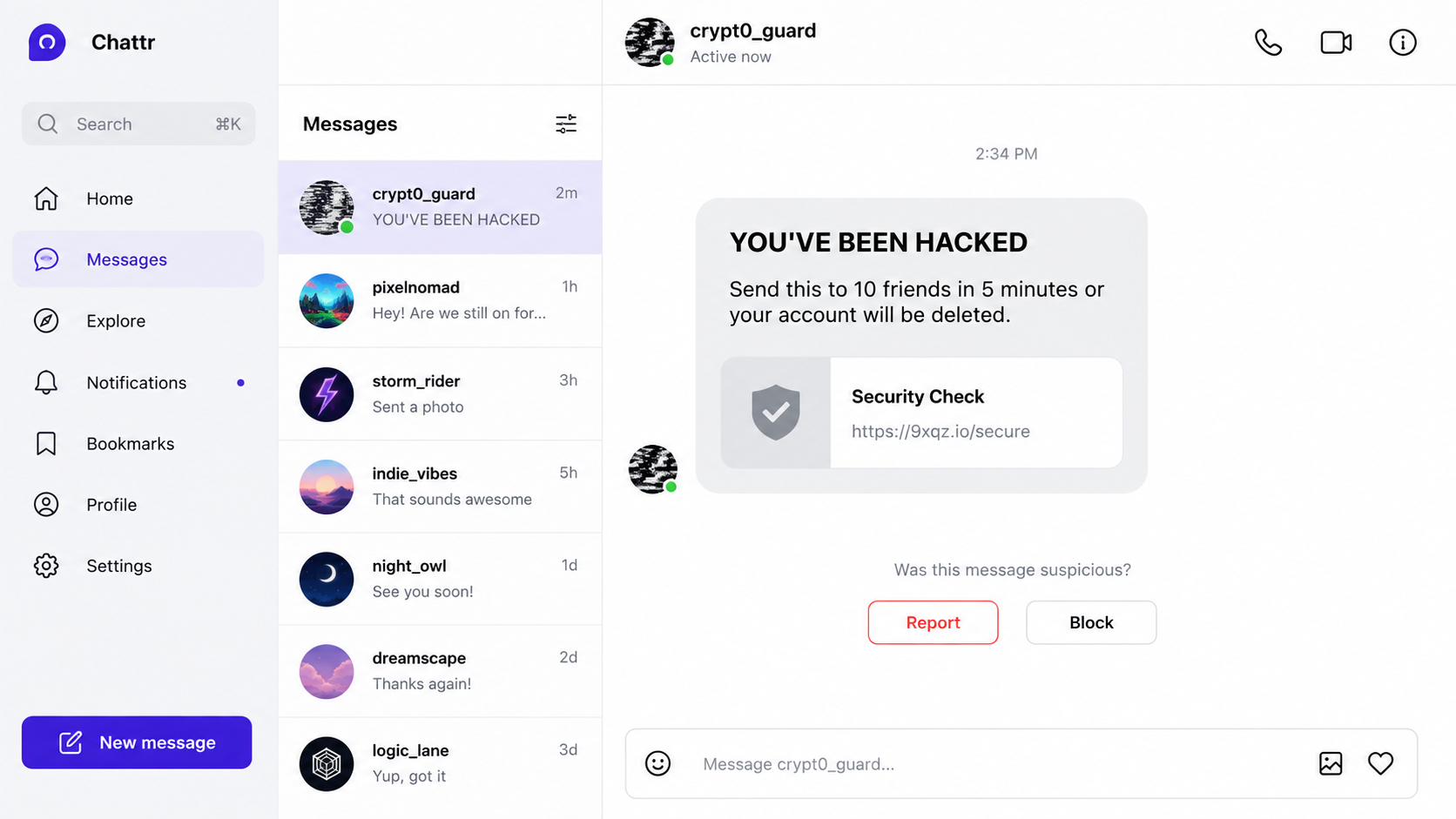
A direct message suddenly announces that your TikTok account has been hacked. It may arrive from a friend, a stranger, or an account you recognize.
The wording is dramatic, the deadline is short, and the message urges you to forward it or open a “security” link before something terrible happens.
Overview
Most forwarded “You’ve Been Hacked” messages are chain spam
A common version says the recipient has been hacked and must send the warning to several friends within minutes.
Other versions claim an account will be deleted, a profile will be exposed, or a mysterious game will punish anyone who stops forwarding.
Those statements have no power over a TikTok account. Forwarding a message cannot repair a breach, preserve a profile, or satisfy an official security check.
The message spreads because frightened recipients distribute it for the sender. Each person becomes the next delivery mechanism.
Some variants are harmless pranks, while others carry real phishing links
Not every chain message contains malware or a credential-stealing page. Some are jokes, engagement bait, or invitations to a mini-game.
The same format can be weaponized. Attackers add a shortened link, fake appeal form, login page, verification request, or downloadable file.
That difference is crucial. The alarming text may be false, but clicking its destination can create a genuine account-security problem.
Treat the content and the link separately. A silly story does not make an attached website safe.
A real warning appears through account controls, not social pressure
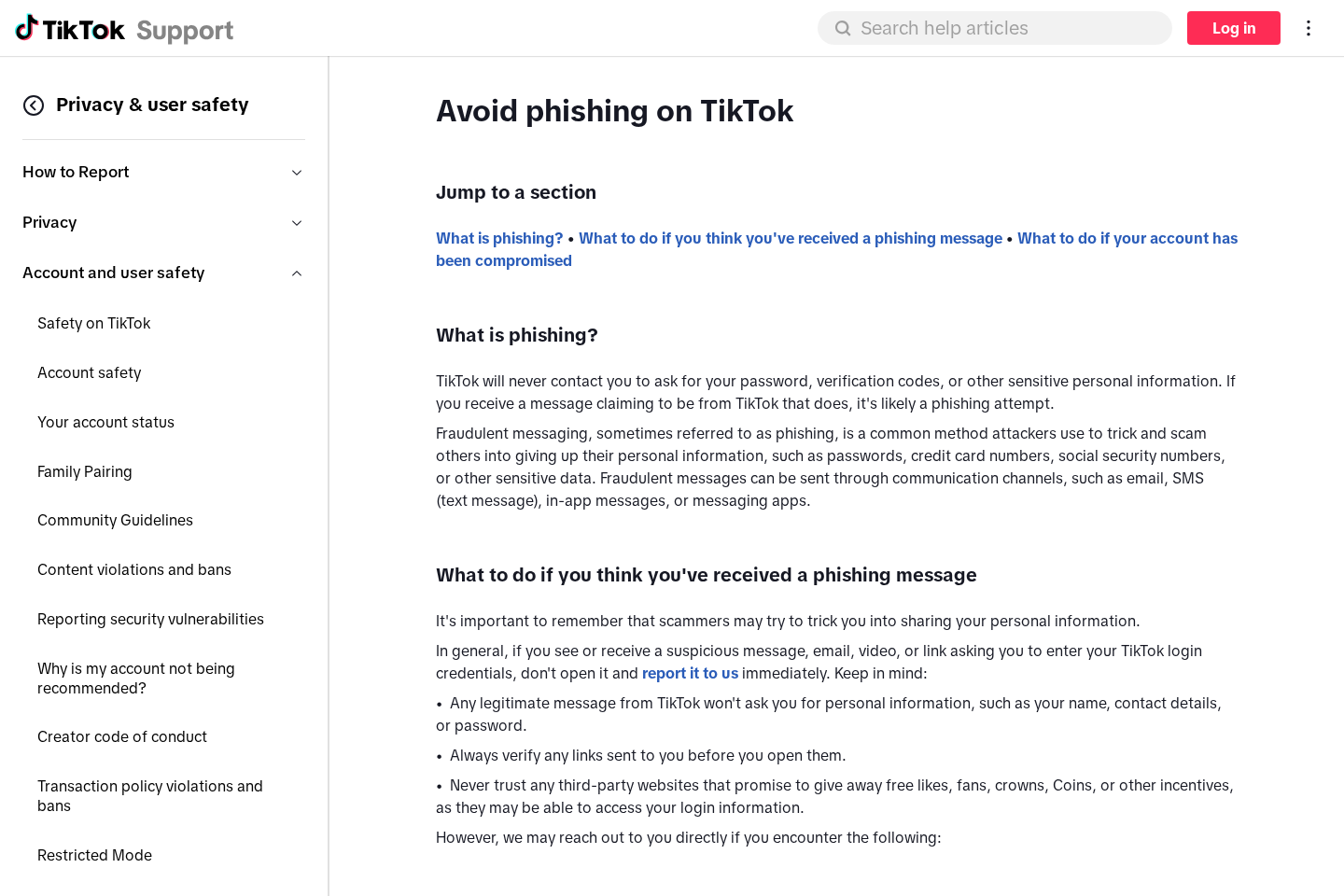
TikTok says it will never contact users asking for passwords, verification codes, or other sensitive personal information.
Official guidance tells users to inspect security alerts, review logged-in devices, change compromised passwords, and enable two-step verification.
No legitimate recovery procedure requires forwarding a message to ten friends, playing a game, or proving loyalty to another user.
The warning signs can be summarized quickly:
- The message announces a hack without account-specific evidence.
- A countdown pressures the recipient to act immediately.
- Forwarding to friends is presented as a security step.
- The sender threatens deletion, embarrassment, or bad luck.
- A shortened link hides the destination domain.
- A page outside TikTok requests login details.
- The sender asks for a verification code.
- The message promises free likes, followers, Coins, or account recovery.
What These Messages Look Like
Chain messages change constantly because copying them costs nothing. Spelling, punctuation, account names, and supposed deadlines vary between versions.
One message may say, “You’ve been hacked. Send this to ten friends in five minutes.” Another describes a challenge that exposes inactive participants.
A prank version usually relies entirely on forwarding. It does not know the recipient’s password, device list, email address, or actual security status.
A phishing version adds a button labeled Security Check, Appeal, Restore Account, Verify Now, or Cancel Deletion.
The destination may imitate TikTok’s colors and login form. A copied logo cannot authenticate the registered domain shown in the address bar.
Some pages request a username first, then display a fake scanning animation. The delay makes the site appear to inspect the account.
Every visitor may receive the same result. The page then asks for a password, email code, SMS code, recovery phrase, or payment.
Other variants lead to survey loops, app-install offers, notification permissions, or affiliate pages promising free Coins and followers.
The original sender may also be a victim. A compromised account can automatically message friends, making the warning appear to come from someone trustworthy.
Do not accuse a friend immediately. Contact that person through another channel and ask whether they intentionally sent the message.
How to Tell a Hoax From a Real Compromise
A chain message is not evidence by itself. Look for security events inside the app and account controls you open independently.
Warning signs of an actual compromise include an unknown device, changed email, changed telephone number, altered password, unfamiliar posts, or messages you did not send.
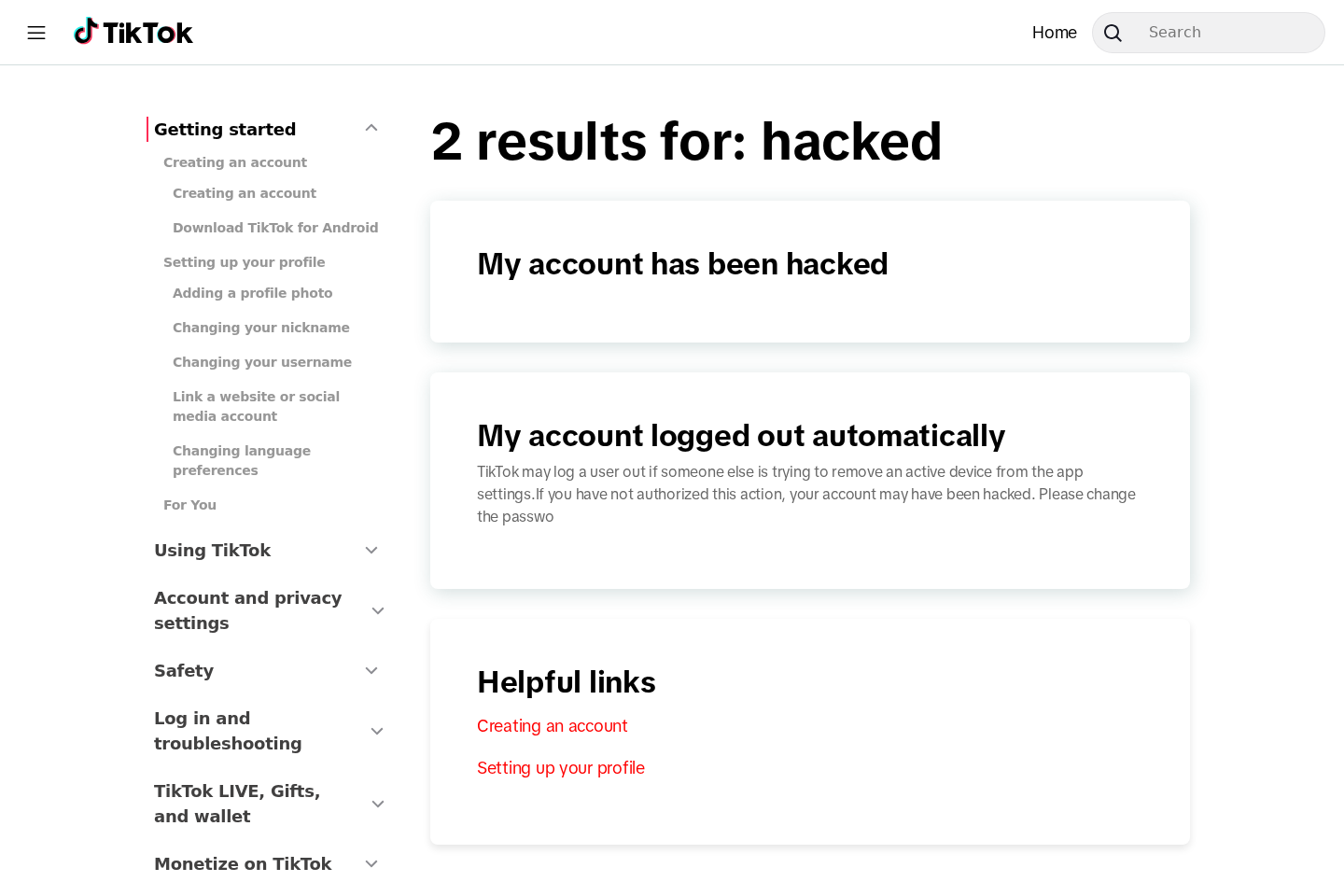
Unexpected logout can matter. TikTok says a user may be logged out if another person tries to remove an active device.
Check whether your email provider reports a new login or password reset. Because email controls recovery, securing it is just as important.
A genuine TikTok page uses the expected TikTok domain and is reached through the app or a typed official address.
Even a convincing page should not receive a verification code from an unsolicited message. Codes exist to confirm a login attempt, not cancel a threat.
If the app works normally, no unknown device appears, and no settings changed, the forwarded warning probably did not reveal a breach.
Still delete it, report it when appropriate, and avoid forwarding. Breaking the chain protects friends from a later version containing a malicious link.
How the TikTok “You’ve Been Hacked” Message Scheme Works
Step 1: A frightening claim interrupts an ordinary conversation
The recipient sees a blunt warning rather than a normal greeting. Words such as hacked, deleted, exposed, or banned create immediate anxiety.
The message rarely includes verifiable evidence because it was written for thousands of unrelated accounts.
A vague threat lets each reader imagine the data, photographs, contacts, or reputation they fear losing most.
Step 2: A deadline blocks calm verification
The sender allows five minutes, one hour, or the end of the day. Nothing technical explains that timing.
Real account systems do not calculate security status by watching whether a private message reaches ten friends.
The countdown exists to prevent the recipient from checking devices, searching the wording, or asking official support.
Step 3: Forwarding turns victims into distributors
The message orders users to copy, repost, tag friends, or send a screenshot.
Each recipient sees the warning from someone familiar, increasing trust more effectively than a message from an unknown account.
This self-propagating design explains why a nonsense statement can move quickly without expensive advertising or technical hacking.
Step 4: A malicious variant introduces a security link
Once the story becomes familiar, a new version adds a link that supposedly verifies, protects, scans, or restores the account.
A shortener hides the final domain. Multiple redirects can further obscure which operator receives the visitor.
The page may copy TikTok’s design while using a domain that has no connection to the company.
Step 5: The fake page captures credentials or monetizes traffic
A phishing page records the username and password. Another asks for the one-time code needed to complete an attacker-controlled login.
Survey versions collect personal details or earn referral payments for app installs and paid offers.
Notification prompts can create a continuing stream of browser advertisements even after the original page closes.
Step 6: The compromised account restarts the cycle
With valid credentials and a verification code, an attacker may change recovery details, message contacts, post cryptocurrency offers, or demand money.
Friends recognize the victim’s profile and trust the next message. The campaign gains another authentic-looking sender.
The attacker may also test reused passwords against email, shopping, gaming, or payment accounts.
Why the Mini-Game Version Causes Confusion
Some versions imitate a playful challenge. They ask the recipient to choose a number, answer a question, or copy a sentence into another chat.
The result may be only embarrassment or unwanted spam. That harmless ending trains users to dismiss visually similar messages later.
Attackers benefit from that ambiguity. A malicious link can be introduced after several ordinary prompts, when the conversation already feels familiar.
The friend forwarding it may not understand the final destination. They could be following instructions without intentionally deceiving anyone.
A compromised friend can also send the same language. Familiar profile photographs and previous chat history make the request feel safer than it is.
Never judge a security request by the sender name alone. Verify unusual requests through another channel before opening links or sharing codes.
Forwarding chain messages has a wider cost. It floods inboxes, alarms younger users, and hides authentic account warnings among repeated false claims.
It can also reveal which contacts respond quickly. A scammer controlling an account learns who is trusting, active, and willing to follow instructions.
The safest response is quiet verification. Do not forward the message, threaten the sender, or enter a public argument beneath the original post.
Use TikTok’s settings to inspect active devices and security alerts. Then contact the friend separately if their behavior appears unusual.
If the message contains a link, copy nothing from the destination. Report the conversation and remove it after preserving evidence.
Parents should explain the difference between receiving a frightening sentence and losing control of an account. Fear makes young users easier to manipulate.
A real compromise leaves observable signs, such as changed credentials, unfamiliar sessions, altered profile details, unexpected posts, or messages the owner never sent.
When none appear, the message itself remains the evidence to examine. Its demand for forwarding is a strong sign of chain behavior.
Some TikTok users receive “You’ve been hacked” as part of a playful message sequence. The recipient responds, chooses an option, or forwards a prepared script.
In that form, the sender may intend entertainment rather than theft. Calling every copy a phishing attack would be inaccurate.
The problem is that recipients cannot judge intent from the first line. A prank and a credential trap can begin with identical wording.
Normal games explain their rules without demanding passwords, codes, outside logins, downloads, payment, or urgent mass forwarding.
If participation requires any of those actions, stop. No social game needs account-recovery information.
Young users may forward the message because they fear losing videos or friendships. Parents should explain why chain threats are technically meaningless.
Encourage children to show an adult suspicious links without embarrassment. Punishing curiosity can make future incidents harder to disclose.
The safest response to an unclear version is simple: do not click, do not forward, and ask the sender through another route.
If the sender confirms it was a joke, the chain can end harmlessly. If they deny sending it, both accounts deserve immediate security checks.
A message that only contains text cannot install software by being read. Risk begins with interaction, disclosure, downloads, permissions, or reused credentials.
Company, Address, and Fulfillment Checks
The real platform is not the message sender
TikTok provides the communication service, but an individual account creates or forwards the chain message.
A TikTok logo, interface, or username does not mean the company’s support team authored the warning.
Use in-app security settings and the official help center rather than contact details contained inside the message.
The sender’s profile is not proof of identity
Accounts can be impersonated, compromised, renamed, or copied. A familiar photograph may belong to a stranger controlling the profile.
Verify suspicious messages through a telephone call or another account already known to belong to the friend.
Do not send passwords, screenshots of codes, identification, or payment information while checking.
The link domain identifies the actual destination
Pressing text can display one label while opening an unrelated registered domain.
Long-press or inspect a link without opening it, then compare the hostname with TikTok’s genuine domains.
A padlock only encrypts the connection. It does not make an imitation page legitimate.
There is no company or fulfillment operation behind a chain hoax
Ordinary chain spam has no product warehouse, return address, or customer-service department. Its “service” is an invented security action.
If a linked page sells protection, recovery, followers, or Coins, identify that separate merchant before considering payment.
Anonymous sellers using only messaging accounts, cryptocurrency, or gift cards offer little practical recourse.
What to Check Inside Your TikTok Account
Open TikTok yourself. Do not use the link from the warning, even if the page preview looks familiar.
Review Security alerts for login attempts or account changes you do not recognize.
Open the device list and remove unfamiliar phones, tablets, browsers, or locations.
Check the connected email address and telephone number. An attacker may replace one while leaving the account temporarily accessible.
Inspect recent posts, drafts, direct messages, profile biography, links, privacy settings, and followed accounts.
Change the password to a unique phrase not used elsewhere. A reused password turns one exposed site into several compromised accounts.
Enable two-step verification with methods you control. Store backup information securely rather than inside a public note or shared chat.
Secure the associated email account with its own unique password and multi-factor authentication.
Tell contacts if unauthorized messages were sent. A short warning can stop friends from entering credentials into the same page.
Do not pay an account-recovery specialist who contacts you privately. Recovery scams frequently target people already worried about losing access.
What to Do if You Have Fallen Victim to This Scam
- Close the page immediately. Do not submit another field, install an app, allow notifications, or contact a number shown by the link.
- Change your TikTok password. Use the official app, choose a unique password, and force unknown devices out through security settings.
- Protect the recovery email. Change its reused password, inspect forwarding rules, review recent sessions, and enable multi-factor authentication.
- Review account changes. Restore your email, telephone number, biography, privacy settings, posts, and connected applications where needed.
- Warn your contacts. Tell friends not to trust recent messages or links from your profile until you confirm control is restored.
- Contact payment providers. If a page collected card details or money, report the transaction and ask about replacement or dispute options.
- Run a security scan. Use Malwarebytes if you downloaded a file, installed an application, accepted an extension, or noticed device changes.
- Remove unwanted browser permissions. Revoke suspicious notifications, site permissions, profiles, and extensions from the affected device.
- Block malicious advertising. AdGuard can reduce dangerous redirects and deceptive ads, although it cannot recover an account or stolen payment.
- Report the message and profile. Use TikTok’s in-app reporting tools and include the link, username, screenshots, and approximate time.
Is Your Device Infected? Run a Free Malware Scan
Slow performance, constant pop-ups, or strange behavior? These are classic signs of a malware infection. The fastest way to find out is to scan your device with Malwarebytes Free — one of the most trusted malware removal tools available.
The free version detects and removes the most common threats, including:
- Adware — the cause of those annoying pop-ups
- Browser hijackers — unwanted redirects and changed homepages
- Trojans and spyware — hidden programs stealing your data
- Potentially unwanted programs (PUPs) — software you never asked for
👉 Select your device below — Windows, Mac, or Android — then follow the simple steps to download Malwarebytes, scan your system, and remove any threats it finds. The scan usually takes 5 to 20 minutes.
Run a Malware Scan with Malwarebytes for Windows
Malwarebytes is one of the most popular and trusted anti-malware tools for Windows — and it’s completely free for removing infections. It catches threats that many antivirus programs miss, including adware, browser hijackers, and trojans. Follow the steps below to scan and clean your PC in just a few minutes.
Download Malwarebytes
Click the button below to download the latest version of Malwarebytes for Windows from the official source. The free version is all you need — it will scan your computer and remove adware, browser hijackers, and other malicious software at no cost.
Download MalwarebytesOfficial installer for Windows 11 and 10. Your download starts right away.Want real-time protection? See Malwarebytes Premium Malwarebytes Free for WindowsScans and removes malware at no cost
-
Install Malwarebytes
When the download finishes, open your Downloads folder and double-click the MBSetup file. If Windows shows a User Account Control pop-up, click “Yes” to allow the installation.

Follow the On-Screen Prompts to Install Malwarebytes
The setup wizard will walk you through a few quick screens:
-
Choose where you’re installing the program — “Personal Computer” or “Work Computer” — then click Next.

-
Malwarebytes will now install on your device. This usually takes under a minute.

-
When installation is complete, the “Welcome to Malwarebytes” screen will open automatically.

-
On the final screen, click Open Malwarebytes to launch the program.

-
Enable “Scan for Rootkits”
Before scanning, turn on rootkit detection so Malwarebytes can find even the most hidden threats. Click the Settings gear icon on the left side of the screen.

In the settings menu, find “Scan for rootkits” and click the toggle so it turns blue.

Done? Click “Dashboard” in the left pane to return to the main screen.
Start the Scan
Click the blue Scan button. Malwarebytes will automatically update its virus database and start checking your computer for malware.

-
Wait for the Scan to Finish
The scan checks your entire system for browser hijackers and other malicious programs, so it can take 5 to 20 minutes depending on your computer. Feel free to do something else — just check back occasionally to see the progress.

-
Quarantine the Detected Threats
When the scan is done, you’ll see a list of everything Malwarebytes found — malware, adware, and potentially unwanted programs. Click the “Quarantine” button to remove all of them at once.

Malwarebytes will now remove the malicious files and registry entries and move them safely into quarantine.

-
Restart Your Computer
Some threats can only be fully removed after a reboot. If Malwarebytes asks you to restart, click Yes. Once you’re logged back in, Malwarebytes has finished removing the threats it found.

That’s it — your Windows PC is now clean of trojans, adware, and other malware, and should be back to running smoothly.
If you are still having problems with your computer after completing these instructions, then please follow one of the steps:
- Run a computer scan with ESET Online Scanner
- Ask for help in our Windows Malware Removal Help & Support forum.
Run a Malware Scan with Malwarebytes for Mac
Malwarebytes for Mac is a free on-demand scanner that removes the malware other security software tends to miss — adware, browser hijackers, and unwanted programs included. Cleaning an infected Mac with Malwarebytes has always been completely free, and it’s our go-to recommendation. Follow the steps below to scan and clean your Mac in just a few minutes.
-
Download Malwarebytes for Mac
Click the button below to download the latest version of Malwarebytes for Mac.
Download MalwarebytesOfficial installer for macOS. Your download starts right away.Want real-time protection? See Malwarebytes PremiumMalwarebytes Free for MacScans and removes malware at no cost -
Open the Malwarebytes setup file
When the download finishes, open your Downloads folder and double-click the setup file to begin the installation.

-
Follow the On-Screen Prompts to Install Malwarebytes
The Malwarebytes for Mac Installer will guide you through a few quick screens. Click “Continue” and keep following the prompts until the installation completes.



When the installation is complete, Malwarebytes opens to the Welcome to Malwarebytes screen. Click “Get started“.
-
Select “Personal Computer” or “Work Computer”
Malwarebytes will ask what type of computer you’re installing it on. Click either Personal Computer or Work Computer, whichever applies.

-
Start the Scan
Click the “Scan” button. Malwarebytes will automatically update its detection database and begin checking your Mac for malware.

-
Wait for the Scan to Finish
Malwarebytes will scan your Mac for adware, browser hijackers, and other malicious programs. This can take a few minutes, so feel free to do something else — just check back occasionally to see the progress.

-
Quarantine the Detected Threats
When the scan is done, you’ll see a list of everything Malwarebytes found. Click the “Quarantine” button to remove all the threats at once.

-
Restart Your Mac
Malwarebytes will now remove all the malicious files it found. Some threats can only be fully removed after a reboot — if Malwarebytes asks you to restart, allow it. Once you’re logged back in, your Mac is clean.

That’s it — your Mac is now free of adware, rogue browser extensions, and other potentially harmful software.
If you are still experiencing problems while trying to remove a malicious program from your computer, please ask for help in our Mac Malware Removal Help & Support forum.
Run a Malware Scan with Malwarebytes for Android
Malwarebytes for Android automatically detects and removes dangerous threats like malware and ransomware so you don’t have to worry about your most-used device being compromised. Aggressive detection of adware and potentially unwanted programs keeps your Android phone or tablet running smooth.
-
Download Malwarebytes for Android.
You can download Malwarebytes for Android by clicking the link below.
Get Malwarebytes for AndroidOpens Google Play in a new tab.Want real-time protection? See Malwarebytes Premium for AndroidMalwarebytes for AndroidScans your phone and removes malware at no cost -
Install Malwarebytes for Android on your phone.
In the Google Play Store, tap “Install” to install Malwarebytes for Android on your device.

When the installation process has finished, tap “Open” to begin using Malwarebytes for Android. You can also open Malwarebytes by tapping on its icon in your phone menu or home screen.

-
Follow the on-screen prompts to complete the setup process
When Malwarebytes will open, you will see the Malwarebytes Setup Wizard which will guide you through a series of permissions and other setup options.
This is the first of two screens that explain the difference between the Premium and Free versions. Swipe this screen to continue.
Tap on “Got it” to proceed to the next step.
Malwarebytes for Android will now ask for a set of permissions that are required to scan your device and protect it from malware. Tap on “Give permission” to continue.
Tap on “Allow” to permit Malwarebytes to access the files on your phone.
-
Update database and run a scan with Malwarebytes for Android
You will now be prompted to update the Malwarebytes database and run a full system scan.

Click on “Update database” to update the Malwarebytes for Android definitions to the latest version, then click on “Run full scan” to perform a system scan.

-
Wait for the Malwarebytes scan to complete.
Malwarebytes will now start scanning your phone for adware and other malicious apps. This process can take a few minutes, so we suggest you do something else and periodically check on the status of the scan to see when it is finished.

-
Click on “Remove Selected”.
When the scan has been completed, you will be presented with a screen showing the malware infections that Malwarebytes for Android has detected. To remove the malicious apps that Malwarebytes has found, tap on the “Remove Selected” button.

-
Restart your phone.
Malwarebytes for Android will now remove all the malicious apps that it has found. To complete the malware removal process, Malwarebytes may ask you to restart your device.
That’s it — your Android phone is now clean — no more malicious apps, adware, or browser redirects.
If you are still having problems with your phone after completing these instructions, then please follow one of the steps:
- Restore your phone to factory settings by going to Settings > General management > Reset > Factory data reset.
- Ask for help in our Mobile Malware Removal Help & Support forum.
Stay Protected: Block Ads and Malicious Sites
Now that your device is clean, keep it that way. Most infections start with a malicious ad or a fake download button — so blocking them at the source is your best defense.
We recommend AdGuard, which blocks malicious ads, phishing pages, and dangerous redirects before they can reach you.
👉 Download AdGuard and browse safely
Frequently Asked Questions
Does receiving a “You’ve Been Hacked” message mean my account is hacked?
No. The message alone proves nothing. Check security alerts, devices, recovery details, unfamiliar posts, and login activity inside the official app.
Can reading the message install malware?
Plain text normally cannot install software merely by appearing. Risk rises when you open links, download files, grant permissions, or enter information.
Why does the message ask me to forward it?
Forwarding lets the chain spread through trusted relationships. Real account security does not depend on sending warnings to friends.
Could the message be only a mini-game?
Yes, some copies are jokes or games. Stop immediately if the interaction requests credentials, codes, downloads, money, or an outside login.
Will TikTok ever ask for my verification code by direct message?
TikTok says legitimate messages will not ask for passwords, verification codes, or sensitive personal information through an unsolicited contact.
What if the message came from my friend?
Contact the friend another way. Their account may be compromised, or they may have forwarded a hoax without understanding the risk.
The Bottom Line
The viral warning is usually chain spam, not proof of a breach. Its danger changes when a link, login request, download, payment, or verification code appears.
Do not forward it. Open TikTok independently, inspect account security, report suspicious content, and help the apparent sender verify whether their profile remains under control.

Join the discussion
0 commentsShare your experience or ask a question about this article.
Discussion
Start the conversation
Have a question or something useful to share? Add the first comment.