


A link called TokReviews.com sounds close enough to TikTok to make a paid-reviewing opportunity feel familiar. That impression can carry you surprisingly far.
Before you enter an email address or chase the next signup screen, take a moment to ask where this particular link is leading.
Overview
TokReviews.com Currently Shows a Parked Domain
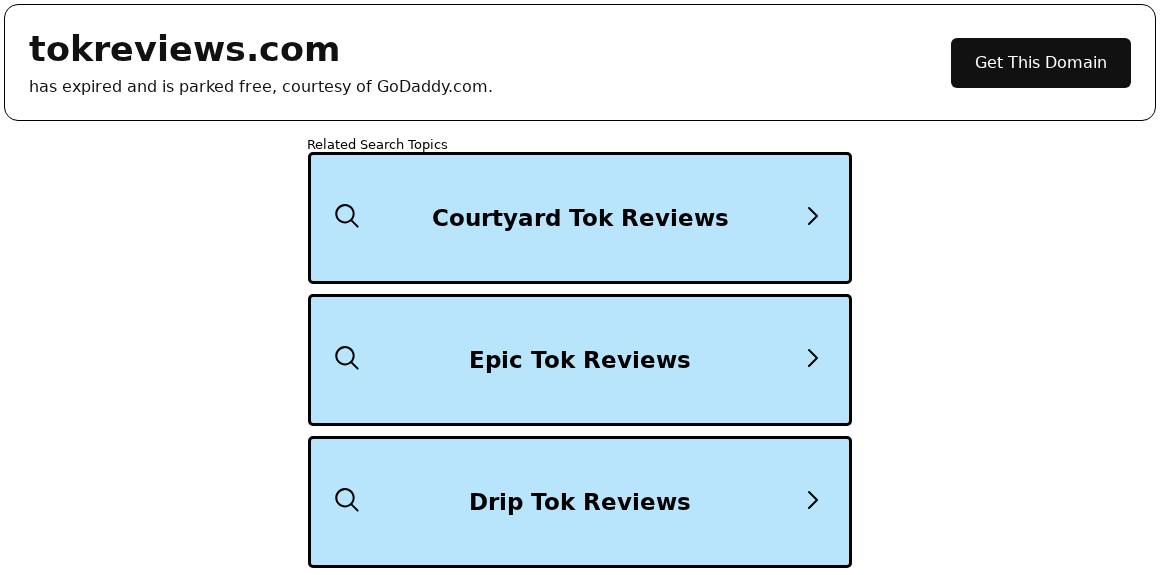
TokReviews.com currently displays a GoDaddy parking notice, not a TikTok recruitment page. The notice identifies the domain as expired and offers related searches.
Its central message says the domain “has expired and is parked free.” There is no reviewer vacancy or employment agreement on that screen.
Do not interpret the search buttons as tasks you must finish to qualify. They belong to the parking page, not to an authenticated hiring process.
An Outward Route Can Become a Different Service
A route from the domain has also led to NewJobsLooker, a general job-search destination. That destination describes marketing-data sharing rather than a TikTok payroll relationship.
The distinction matters if you arrived expecting paid video reviews. Joining a job-alert or advertising service does not mean somebody has offered you that work.
Before continuing, separate these questions:
- Which domain is in the address bar now, rather than in the original advertisement?
- Who is offering an actual position, with specified duties and compensation?
- What contact permissions or commercial terms does the new page request?
- Will you be paid for work, or contacted about other offers?
The Recommendation Is Not to Apply Through This Link
Do not use TokReviews.com as a route into a supposed TikTok reviewing job. Its current parking page cannot establish an employer or wages.
This is a warning about an unsuitable job-search route, not proof that every subsequent job listing, creator, or marketing company is fraudulent.
If you already responded, identify the actual destination and any consent or purchase you accepted. That is where the practical follow-up starts.
What TokReviews.com’s Parking Page Means
The Domain Name Survives After the Original Pitch
An old recommendation can continue circulating after a website changes. Search results, saved posts, and messages may keep referring people to the same address.
A working page is therefore not enough. You need to establish whether it still provides the opportunity you expected, rather than simply loading successfully.
Here, the domain notice is explicit. A parking service occupies the page, with search topics rather than a role description, recruiter identity, or application record.
GoDaddy’s name identifies that parking service. It is not a hiring recommendation, and a service rating shown alongside its branding is not TokReviews employee feedback.
Search Topics Are Not an Employment Menu
Several buttons use review-related words. Others concern unrelated subjects, such as property. Similar wording does not make these buttons stages of a reviewer application.
If a button takes you elsewhere, you are entering another service. Its operator, permissions, and terms need considering separately.
There is no good reason to keep following unrelated links in the hope that enough clicks will eventually reveal your supposed employer.
For your records, save the initial advertisement and the final address separately. They answer different questions about what was promised and what you actually encountered.
NewJobsLooker: Job Searching Versus Marketing Consent
The Homepage Does Not Describe a TikTok Reviewer Position
NewJobsLooker presents a general career-search interface, with job keywords, a ZIP code field, and career articles. Its branding is different from TikTok’s hiring website.
The footer identifies it as a job-search engine and says listed employers do not endorse, sponsor, or affiliate with its content.
That is important context. Seeing a recognizable employer’s name in search results does not mean the employer selected you or approved the page bringing you there.
Read the next screen as a fresh decision. You are entitled to leave without subscribing to alerts or providing more details.

The Privacy Policy Makes the Marketing Role Clear
NewJobsLooker’s privacy policy says information may be disclosed or sold to selected advertising and marketing partners, with compensation possible. It specifies explicit consent for telemarketing sharing.
This is materially different from sending a résumé directly to a particular hiring team. Your decision concerns data use as well as job searching.
Consider whether the form asks only what a vacancy needs or invites broad promotional contact. Read the consent beside the submission button before proceeding.
Do not give a government identification number, bank login, or payment card merely to explore an undefined opportunity. A general search does not require blind trust.
Unsubscribing and Privacy Requests Are Different Actions
The destination provides an unsubscribe page covering email, SMS, and browser notifications. Its privacy policy lists contact@newjobslooker.com for privacy inquiries and requests.
The SMS section’s description also mentions emails. Specify exactly which channel you want stopped, rather than assuming one unsubscribe control covers every type of contact.
Keep a dated copy of any request. If another company contacts you, record its name and ask it directly to stop unwanted marketing.
Review each permission on its own. Stopping email does not necessarily revoke browser notifications, cancel a purchase, or remove data held by another service.
How the TokReviews Job Link Can Change Your Journey
Step 1: A Reviewing Pitch Creates a Work Expectation
You may reach the domain after hearing that watching or reviewing short videos can become easy paid work. The familiar platform name makes the premise appealing.
At this point, the missing detail is the job itself. Look for a named employer, actual responsibilities, eligibility, and a written explanation of payment.
An impressive weekly amount or a screenshot of earnings cannot replace those details. It tells you what somebody wants you to expect, not what they owe.
Step 2: The Address Opens Parking or an Advertising Route
The current TokReviews page replaces that work expectation with a domain notice and search links. An outward route can lead to another destination instead.
Stop when the service changes. A new screen should earn your trust independently, rather than inherit it from a promise made somewhere else.
In particular, a general job-search form does not resolve the missing reviewer vacancy. It starts another interaction with another set of terms.
Step 3: Contact Details Become the Requested Contribution
A signup may ask for an email address, phone number, or permission to send alerts. That information has a purpose even if employment never follows.
Where the page describes marketing-partner sharing, understand that permission before supplying your details. Do not assume all later messages come from a hiring manager.
A real notification can still be advertising. Read who sent it, which service you joined, and whether it identifies an actual vacancy.
Step 4: Extra Requirements Need a Separate Decision
If a subsequent offer asks you to buy a membership, begin trials, or make deposits, evaluate that request independently. It is not automatically part of hiring.
Especially reject a demand to pay before receiving supposed earnings. A task balance and a withdrawal button can be displayed without representing recoverable wages.
The FTC’s task-scam warning describes demands for deposits to release apparent earnings. Recognize that escalation instead of accepting a later payment demand as ordinary hiring.
Step 5: Follow-Up Messages Extend the Interaction
After submitting details, you may encounter alerts or promotional contact rather than a work assignment. Check the sender and consent instead of automatically following another link.
A stranger claiming to finish your application or recover a payment should not receive login codes, identity scans, or another fee.
Your useful next move is to close unnecessary signups and document actual charges. Repeatedly revisiting an expired domain will not create an employment relationship.
Real TikTok Work, Review Services, and Charzreviews
Genuine Employment Has a Verifiable Hiring Channel
TikTok’s official careers search is a starting point for positions at the company. Professional content-related jobs should be evaluated as specific roles.
Verify a staffing firm separately if it claims to recruit for another employer. Ask for the vacancy and confirm the relationship using independently obtained contact details.
TikTok itself warns about unsolicited job and task messages using its name, including offers involving follows, likes, and comments.
You do not need to install an unfamiliar app, disclose a login code, or buy consumer offers to establish whether a recruiter really represents that role.
Good Review Services for TikTok Ads Are a Different Business
A brand can commission product demonstrations or advertising videos from a creator. That is a content-production arrangement, not an open payroll program for watching TikTok.
If you are buying such a service, request deliverables, usage rights, disclosure arrangements, revision limits, and payment terms. A provider’s follower count is not the contract.
Ask whether you are purchasing original footage, ad placement, or creative consulting. Those are different services with different responsibilities and costs.
Promises of guaranteed positive customer reviews deserve particular scrutiny. Do not confuse an advertising testimonial with independent feedback from a genuine buyer.
Charzreviews Is a Specific Creator Name, Not This Domain
The @charzreviews TikTok profile describes food, home, lifestyle, and product content. Its linked profile information identifies a creator presence, not TokReviews.com.
Do not accuse that person of operating a job funnel merely because searches contain similar words. A reviewer username and a domain are different identifiers.
If you meant that creator, use the exact handle and its own linked contact details. If you meant paid employment, verify the employer instead.
A genuine creator’s popularity also cannot authenticate a separate recruiter using their name or photograph. Verify the specific message before responding.
What to Do If You Entered Details or Paid
The response depends on what you actually supplied. Reading a page is different from entering a password, agreeing to marketing, purchasing a trial, or installing software.
- Map the route you followed.
Save the advertisement, the initial domain, the destination, and confirmation emails. Include any recruiter messages and receipts, keeping private documents out of public posts.
Make a simple timeline so you can identify which service received each piece of information.
- Withdraw unwanted marketing permissions.
Use the relevant sender’s unsubscribe channel. For NewJobsLooker, review its privacy and unsubscribe pages and retain a copy of any request.
State clearly whether you want email, SMS, notification permission, or data-sharing choices addressed. Do not submit extra sensitive information just to ask a question.
- Secure any account whose password was exposed.
Open the real account directly, choose a fresh password, review active sessions, and enable available multifactor authentication. Replace reused passwords on other accounts too.
If you supplied only an email address, concentrate on recognizing follow-up phishing rather than assuming the mailbox password was stolen.
- Review purchases independently of job messages.
Find the merchant on receipts, your card statement, or app-store subscription list. Ask that merchant to cancel any unwanted renewal and confirm the effective date.
Contact your payment provider promptly about unauthorized or misleading charges. Explain the circumstances accurately and ask what evidence and dispute deadlines apply.
- Respond to identity-document exposure.
If a form obtained your identification or financial-access details, keep the record and contact the relevant institution through its established channels.
For suspected identity misuse in the US, IdentityTheft.gov provides recovery guidance. Avoid anyone selling a guaranteed instant repair.
- Deal with downloads and notifications only if relevant.
Remove unwanted permissions and unfamiliar installations. Malwarebytes can help assess software exposure; AdGuard can reduce risky advertising, but neither withdraws consent or reverses a payment.
Do not factory-reset a device just because you visited a job link. Seek device-specific assistance before taking steps that could erase important data.
- Report the actual promotion.
Send the hosting platform the original advertisement or account details. US readers can also report misleading employment pitches through ReportFraud.ftc.gov.
Decline further deposits or recovery fees. Someone promising to release missing wages after another payment is giving you another reason to stop.
The optional scan guide below applies to an unwanted installation or continuing device symptoms, not simply to an expired-domain notice.
Is Your Device Infected? Run a Free Malware Scan
Slow performance, constant pop-ups, or strange behavior? These are classic signs of a malware infection. A quick way to check is to scan your device with Malwarebytes Free, one of the most trusted malware removal tools available. If you only visited a scam page and didn’t download or install anything, this scan is optional.
The free version detects and removes the most common threats, including:
- Adware — the cause of those annoying pop-ups
- Browser hijackers — unwanted redirects and changed homepages
- Trojans and spyware — hidden programs stealing your data
- Potentially unwanted programs (PUPs) — software you never asked for
👉 Select your device below — Windows, Mac, or Android — then follow the simple steps to download Malwarebytes, scan your system, and remove any threats it finds. The scan usually takes 5 to 20 minutes.
Run a Malware Scan with Malwarebytes for Windows
Malwarebytes is one of the most popular and trusted anti-malware tools for Windows — and it’s completely free for removing infections. It catches threats that many antivirus programs miss, including adware, browser hijackers, and trojans. Follow the steps below to scan your PC and remove what Malwarebytes finds.
Download Malwarebytes
Click the button below to download the latest version of Malwarebytes for Windows from the official source. The free version is all you need — it will scan your computer and remove adware, browser hijackers, and other malicious software at no cost.
Download MalwarebytesOfficial installer for Windows 11 and 10. Your download starts right away.Want real-time protection? See Malwarebytes Premium Malwarebytes Free for WindowsScans and removes malware at no cost
-
Install Malwarebytes
When the download finishes, open your Downloads folder and double-click the MBSetup file. If Windows shows a User Account Control pop-up, click “Yes” to allow the installation.

Follow the On-Screen Prompts to Install Malwarebytes
The setup wizard will walk you through a few quick screens:
-
Choose where you’re installing the program — “Personal Computer” or “Work Computer” — then click Next.

-
Malwarebytes will now install on your device. This usually takes under a minute.

-
When installation is complete, the “Welcome to Malwarebytes” screen will open automatically.

-
On the final screen, click Open Malwarebytes to launch the program.

-
Optional: Check for rootkits with a Custom Scan
You don’t need to change any settings for a normal scan. The standard Threat Scan in the next step is enough for most problems, so you can go straight to it.
If you also want to check for rootkits, use a Custom Scan. In current versions of Malwarebytes, rootkit scanning is only available there:
- On the Scanner tile, click the three-dot menu and select Advanced Scan.
- Choose Custom Scan. In its options, check Scan for rootkits.
- Select your system drive (usually C:\) as the location to scan, then start the scan. It takes longer than a Threat Scan.
- When it finishes, review and quarantine the results as described in the steps below.
Rootkit scanning isn’t available on Windows devices with ARM processors.
Start the Scan
Click the blue Scan button. Malwarebytes will automatically update its virus database and start checking your computer for malware.

-
Wait for the Scan to Finish
The scan checks your entire system for browser hijackers and other malicious programs, so it can take 5 to 20 minutes depending on your computer. Feel free to do something else — just check back occasionally to see the progress.

-
Quarantine the Detected Threats
When the scan is done, you’ll see a list of everything Malwarebytes found — malware, adware, and potentially unwanted programs. Click the “Quarantine” button to remove all of them at once.

Malwarebytes will now remove the malicious files and registry entries and move them safely into quarantine.

-
Restart Your Computer
Some threats can only be fully removed after a reboot. If Malwarebytes asks you to restart, click Yes. Once you’re logged back in, Malwarebytes has finished removing the threats it found.

When the scan is done, check whether the problems you noticed have stopped. If they continue, see the options below.
If you are still having problems with your computer after completing these instructions, then please follow one of the steps:
- Run a computer scan with ESET Online Scanner
- Ask for help in our Windows Malware Removal Help & Support forum.
Run a Malware Scan with Malwarebytes for Mac
Malwarebytes for Mac is a free on-demand scanner that removes the malware other security software tends to miss — adware, browser hijackers, and unwanted programs included. Cleaning an infected Mac with Malwarebytes has always been completely free, and it’s our go-to recommendation. Follow the steps below to scan your Mac and remove what Malwarebytes finds.
-
Download Malwarebytes for Mac
Click the button below to download the latest version of Malwarebytes for Mac.
Download MalwarebytesOfficial installer for macOS. Your download starts right away.Want real-time protection? See Malwarebytes PremiumMalwarebytes Free for MacScans and removes malware at no cost -
Open the Malwarebytes setup file
When the download finishes, open your Downloads folder and double-click the setup file to begin the installation.

-
Follow the On-Screen Prompts to Install Malwarebytes
The Malwarebytes for Mac Installer will guide you through a few quick screens. Click “Continue” and keep following the prompts until the installation completes.



When the installation is complete, Malwarebytes opens to the Welcome to Malwarebytes screen. Click “Get started“.
Malwarebytes needs Full Disk Access to check your whole Mac. When it asks, open System Settings > Privacy & Security > Full Disk Access, turn on Malwarebytes (it may be listed as Malwarebytes Protection), and confirm with your password or Touch ID. Then return to Malwarebytes. On macOS Monterey and earlier, this setting is in System Preferences > Security & Privacy > Privacy.
-
Select “Personal Computer” or “Work Computer”
Malwarebytes will ask what type of computer you’re installing it on. Click either Personal Computer or Work Computer, whichever applies.

-
Start the Scan
Click the “Scan” button. Malwarebytes will automatically update its detection database and begin checking your Mac for malware.

-
Wait for the Scan to Finish
Malwarebytes will scan your Mac for adware, browser hijackers, and other malicious programs. This can take a few minutes, so feel free to do something else — just check back occasionally to see the progress.

-
Quarantine the Detected Threats
When the scan is done, you’ll see a list of everything Malwarebytes found. Click the “Quarantine” button to remove all the threats at once.

-
Restart Your Mac
Malwarebytes will now remove all the malicious files it found. Some threats can only be fully removed after a reboot — if Malwarebytes asks you to restart, allow it. Once you’re logged back in, check whether the problems you noticed have stopped. If they come back, save the scan report and ask for help in our forum.

If the problems you noticed continue after the scan, see the options below.
If you are still experiencing problems while trying to remove a malicious program from your computer, please ask for help in our Mac Malware Removal Help & Support forum.
Run a Malware Scan with Malwarebytes for Android
Malwarebytes for Android scans your phone or tablet for malware, adware, and potentially unwanted apps. The free version scans only when you start a scan. Real-time protection, which checks apps automatically, is part of the paid Premium version.
-
Download Malwarebytes for Android.
You can download Malwarebytes for Android by clicking the link below.
Get Malwarebytes for AndroidOpens Google Play in a new tab.Want real-time protection? See Malwarebytes Premium for AndroidMalwarebytes for AndroidScans your phone and removes malware at no cost -
Install Malwarebytes for Android on your phone.
In the Google Play Store, tap “Install” to install Malwarebytes for Android on your device.

When the installation process has finished, tap “Open” to begin using Malwarebytes for Android. You can also open Malwarebytes by tapping on its icon in your phone menu or home screen.

-
Follow the on-screen prompts to complete the setup process
When Malwarebytes opens, it walks you through a short setup. Tap Get started and follow the prompts. If you see an offer for a trial or a paid plan, read it before you accept. You can skip it and keep using the free scanner.
Malwarebytes will ask for permission to access the files on your phone so it can scan them. Tap Allow, or turn on the permission in the Android screen that opens, then return to Malwarebytes.
-
Run a scan with Malwarebytes for Android
On the main screen, tap Scan now. In some versions, you open the menu, tap Scanner, and then tap Run a scan.
-
Wait for the Malwarebytes scan to complete.
Malwarebytes will now start scanning your phone for adware and other malicious apps. This process can take a few minutes, so we suggest you do something else and periodically check on the status of the scan to see when it is finished.

-
Remove the detected apps.
When the scan has been completed, you will see a list of the threats that Malwarebytes for Android has detected. Next to each detected item, tap the menu icon (three dots), then choose to uninstall the app or delete the file. Android then asks you to confirm. Tap OK or Uninstall to remove the app.
-
Restart your phone.
When the detected apps are removed, restart your phone if Malwarebytes asks you to. Then check whether the problems you noticed have stopped.
If the problems you noticed continue after the scan, see the options below.
If you are still having problems with your phone after completing these instructions, then please follow one of the steps:
- Ask for help in our Mobile Malware Removal Help & Support forum.
- Only as a last resort, reset your phone to factory settings. Read the warning below first.
- Back up your photos, videos, files, and messages, for example to your Google account or a computer.
- Make sure you know your Google account email and password. The phone asks for them after the reset. If you changed the password recently, Google recommends waiting 24 hours before you reset.
- On a Samsung phone, also make sure you know your Samsung account password.
- If you use an authenticator app for two-step verification, move your accounts to another device or save your backup codes first.
Stay Protected: Block Ads and Malicious Sites
No scan can prove a device is completely clean, so it helps to block threats before they reach you. Most infections start with a malicious ad or a fake download button — so blocking them at the source is your best defense.
We recommend AdGuard, which blocks malicious ads, phishing pages, and dangerous redirects before they can reach you.
👉 Download AdGuard and browse safely
Keep Similar Names and Separate Offers Straight
MalwareTips maintains a separate TikReview.com investigation. Its current page also uses GoDaddy parking, a shared service rather than proof of shared control.
The broader TikTok reviewer story explains the recurring job hook. The fake TikTok APK report concerns a different risk, an unofficial download.
Match an allegation to the exact domain, message, or transaction. That makes a complaint more useful and avoids blaming an unrelated creator or legitimate employer.
Frequently Asked Questions
Is TokReviews.com a Legitimate TikTok Reviewer Job?
Do not apply through it. The current domain displays parking rather than a verifiable reviewer vacancy, and an outward advertising route does not establish employment.
Why Does TokReviews.com Show a Domain Notice?
GoDaddy’s page identifies the domain as expired and parked. Related searches are parking-page links, not hiring tasks or confirmation that you qualified.
Does NewJobsLooker Mean TikTok Accepted My Application?
No. It describes a general job-search service with marketing permissions. A job-alert signup is different from acceptance by a named employer.
Are Good Review Services for TikTok Ads the Same Opportunity?
No. Commissioning creator content or advertising services is a commercial agreement. It does not authenticate a stranger’s offer to pay everyone for watching videos.
Is Charzreviews Connected to TokReviews.com?
A similar review-related name does not establish a connection. @charzreviews identifies a creator profile; verify that exact account rather than attributing this domain to it.
What Should I Do After Signing Up?
Identify the service you joined, withdraw unwanted marketing permissions, and check any actual subscription or charge. Secure an account if its password was disclosed.
The Bottom Line
Do not pursue a TikTok reviewing job through TokReviews.com. A parked domain or general job-marketing destination gives you no verified work agreement or wages.
Use an independently confirmed hiring channel instead. If you already supplied details or paid, deal with the actual recipient, permissions, and merchant without sending another fee.

Join the discussion
0 commentsShare your experience or ask a question about this article.
Discussion
Start the conversation
Have a question or something useful to share? Add the first comment.