

The ZeroAccess trojan is a dangerous threat that has been circulating for several years. In the time that ZeroAccess has been in the wild there have been a number of revisions, with modifications to its functionality, infection strategy and its persistence mechanisms on an infected machine. However, the core purpose has remained: to assume full control of the machine by adding it to the ZeroAccess botnet and to monetize the new asset by downloading additional malware.
![[Image: Trojan.Zeroaccess!inf4 (Norton)]](https://malwaretips.com/blogs/wp-content/uploads/mwt-media/a1/a16827da641a8122e75f85558515bcb9dce4806263b16a639cf58bd0d533b062/340cbc03006ce060cc88473ec9bc76f37f90143f564db9768721942f3b5628fe-600.webp "Trojan.Zeroaccess!inf4 (Norton)")
Primarily, Trojan ZeroAccess is a kernel-mode rootkit, similar in ethos to the TDL family of rootkits. It uses advanced techniques to hide its presence, is capable of functioning on both 32 and 64-bit flavors of Windows from a single installer, contains aggressive self defense functionality and acts as a sophisticated delivery platform for other malware.
Trojan ZeroAccess remains hidden on an infected machine while downloading more visible components that generate revenue for the botnet owners. Currently the downloaded malware is mostly aimed at sending spam and carrying out click fraud, but previously the botnet has been instructed to download other malware and it is likely that this will be the case again in the future.
Trojan ZeroAccess has been observed being distributed by exploits and programs that promote software-piracy, such as ‘keygens’ and ‘cracks’ (programs designed to bypass software licensing).
Variants of Trojan ZeroAccess may also be dropped or installed by other malware, including variants of the Trojan:Win32/Necurs family.
In the wild, newer Trojan ZeroAccess variants have been observed dropping the following two files to a chosen directory, for example, C:\recycler\s\:
- “@” – this file contains information that Sirefef can use to find other infected computers
- “n” – this file contains the malicious code for peer-to-peer (P2P) communication
These newer variants then make the following changes to the registry to ensure that Sirefef runs each time you start your computer:
In subkey: HKLM\Software\Classes\clsid\{5839fca9-774d-42a1-acda-d6a79037f57f}\InprocServer32
Modifies value: “(Default)”
From data: “\wbem\wbemess.dll”
With data: “” (for example, “c:\recycler\s\\n”)
In the wild, the Trojan ZeroAccess may be detected by antivirus products as:
- Win64/Sirefef.W (ESET)
- ZeroAccess.BX (AVG)
- Win64/Sirefef.AE (ESET)
- Trojan.Zeroaccess.B (Ikarus)
- ZeroAccess.C (McAfee)
- HEUR.Backdoor.Win64.Generic (Kaspersky)
- Troj/Sirefef-AQ (Sophos)
- Trojan.Zeroaccess!inf2 (Symantec)
- Trojan:Win32/Sirefef (Microsoft)
- W32/Troj_Generic.UUZF (Norman)
- Rootkit.ZeroAccess.Gen.4 (VirusBuster)
- Trojan horse Crypt.AQLW (AVG)
- TR/Sirefef.BV.2 (Avira)
- Trojan.Sirefef.BV (BitDefender)
- BackDoor.Maxplus.3710 (Dr.Web)
- Trojan.Sirefef.C (Ikarus)
- ZeroAccess.B (McAfee)
- Troj/ZAccess-AH (Sophos)
- Trojan.Zeroaccess!inf4 (Norton)
- TROJ_ZACCESS.CQJ (Trend Micro)
Trojan ZeroAccess is a dangerous threat that uses advanced stealth techniques in order to hinder its detection and removal. As a consequence of being infected with this threat, you may need to repair and reconfigure some Windows security features.
How to remove ZeroAccess Trojan virus (Virus Removal Guide)
Please perform all the steps in the correct order. If you have any questions or doubt at any point, STOP and ask for our assistance.
-
To remove ZeroAccess Trojan, follow these steps:
- STEP 1: Use ESETSirfefCleaner tool to remove ZeroAccess Trojan
- STEP 2: Use RKill to stop the ZeroAccess Trojan malicious processes
- STEP 3: Scan your computer with Malwarebytes Anti-Malware to remove ZeroAccess Trojan
- STEP 4: Double-check for malicious programs with HitmanPro
- (OPTIONAL) STEP 5: Use Zemana AntiMalware Portable to remove ZeroAccess Trojan
STEP 1: Use ESETSirfefCleaner tool to remove ZeroAccess Trojan
In this first step, we will use the ESETSirefefCleaner tool to remove the ZeroAccess Trojan from your computer.
- You can download ESETSirefefCleaner from the below link.
Download ESET Sirefef CleanerYour download starts right away.Unable to download “ESETSirefefCleaner.exe contained a virus and was deleted”.
More recent variants of Sirefef might prevent you from downloading this removal tool. If you cannot download the tool, follow the steps below:- Click Start → Computer → Local Disk (C:) → Program Files.
- Right-click the Windows Defender folder and select Rename from the context menu.
- Add a unique variation to the filename, such as .old (for example, Windows Defender.old).
- Click the link above to download the ESETSirefefCleaner tool.When the download is complete, make sure to rename the Windows Defender folder back to its original filename before running the ESET SirefefCleaner tool.
- Double-click on ESETSirefefCleaner.exe to start this utility. You may be presented with an User Account Control pop-up asking if you want to allow this to make changes to your device. If this happens, you should click “Yes” to continue.
- The message “Win32/Sirefef.EV found in your system” will be displayed if an infection is found. To remove ZeroAccess Trojan from your computer, press the Y key on your keyboard
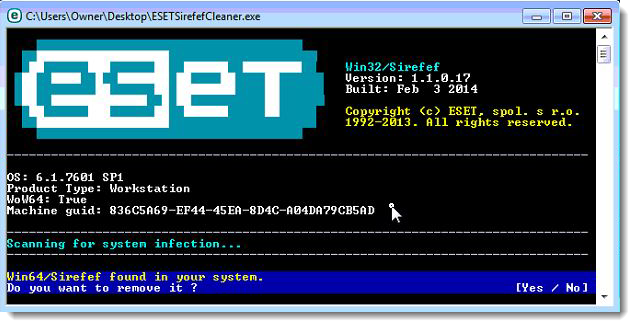
- Once the tool has run, you will be prompted to restore system services after you restart your computer. Press Y on your keyboard to restore system services and restart your computer.
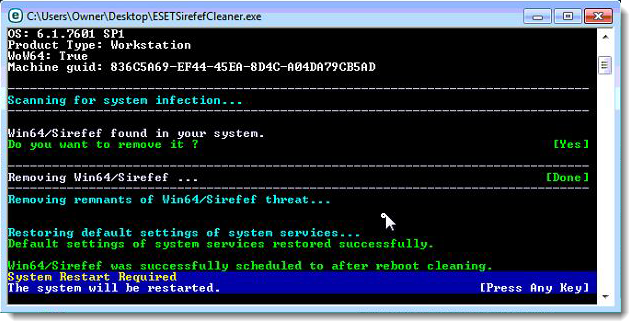
- Once your computer has restarted, if you are presented with a security notification click Yes or Allow. and then continue wit the next step.
STEP 2: Use RKill to stop the ZeroAccess Trojan malicious processes
RKill is a program that will attempt to terminate all malicious processes associated with ZeroAccess Trojan, so that we will be able to perform the next step without being interrupted by this malicious software.
- You can download Rkill from the below link.
Download RKillOpens the download page in a new tab. - Double click on Rkill program to stop the malicious programs from running.
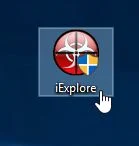
- RKill will now start working in the background, please be patient while this utiltiy looks for malicious process and tries to end them.
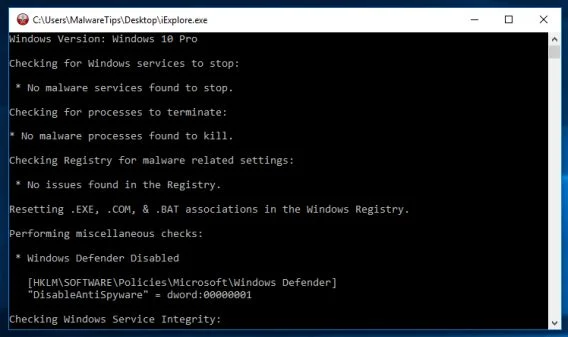
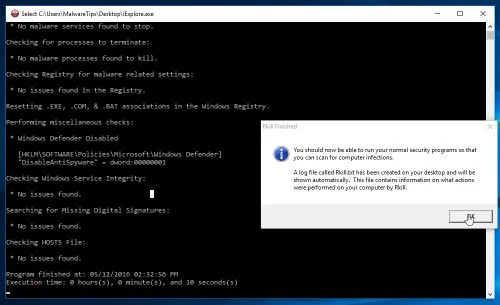
- When the Rkill tool has completed its task, it will generate a log. Do not reboot your computer after running RKill as the malware programs will start again.
STEP 3: Scan your computer with Malwarebytes Anti-Malware to remove ZeroAccess Trojan
Malwarebytes Anti-Malware is a powerful on-demand scanner which should remove the ZeroAccess Trojan virus from your machine. It is important to note that Malwarebytes Anti-Malware will run alongside antivirus software without conflicts.
- You can download download Malwarebytes Anti-Malware from the below link.
Download MalwarebytesFree official installer. Your download starts right away. - When Malwarebytes has finished downloading, double-click on the “mb3-setup-consumer” file to install Malwarebytes Anti-Malware on your computer.
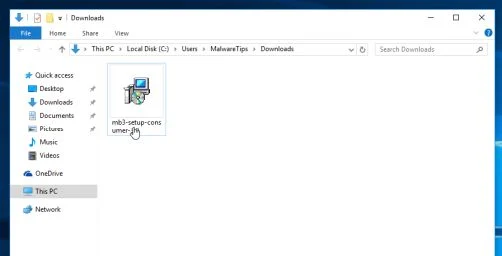
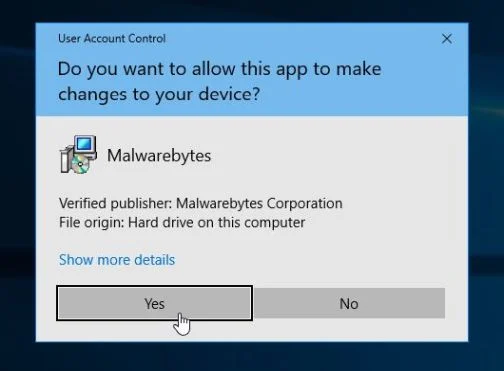
You may be presented with an User Account Control pop-up asking if you want to allow Malwarebytes to make changes to your device. If this happens, you should click “Yes” to continue with the installation.
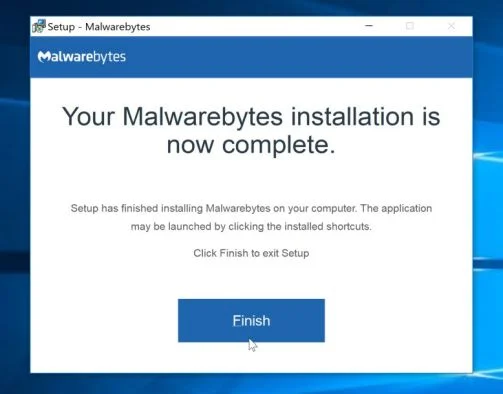
- When the Malwarebytes installation begins, you will see the Malwarebytes Setup Wizard which will guide you through the installation process.
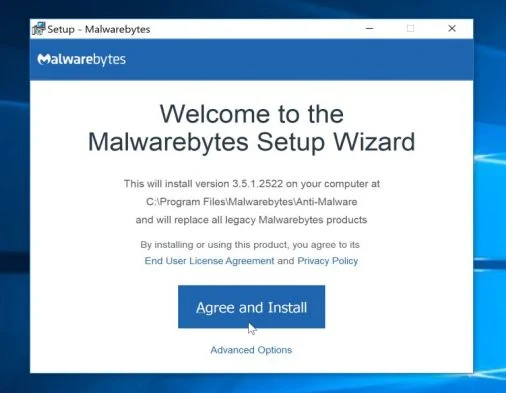
To install Malwarebytes Anti-Malware on your machine, keep following the prompts by clicking the “Next” button.
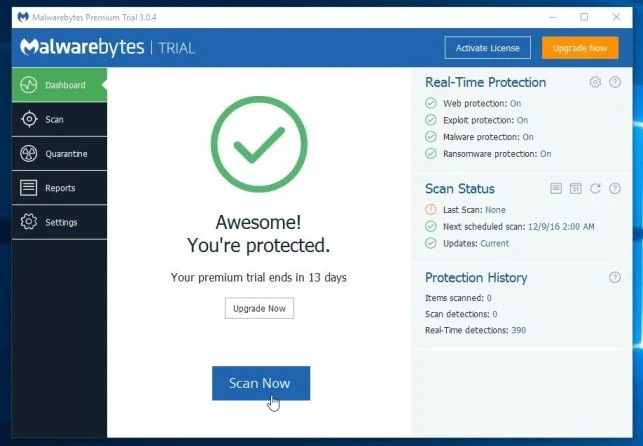
- Once installed, Malwarebytes will automatically start and update the antivirus database. To start a system scan you can click on the “Scan Now” button.
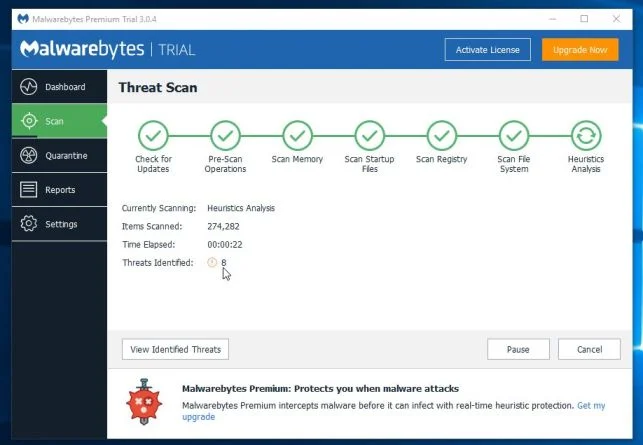
- Malwarebytes Anti-Malware will now start scanning your computer for malicious programs.
This process can take a few minutes, so we suggest you do something else and periodically check on the status of the scan to see when it is finished.
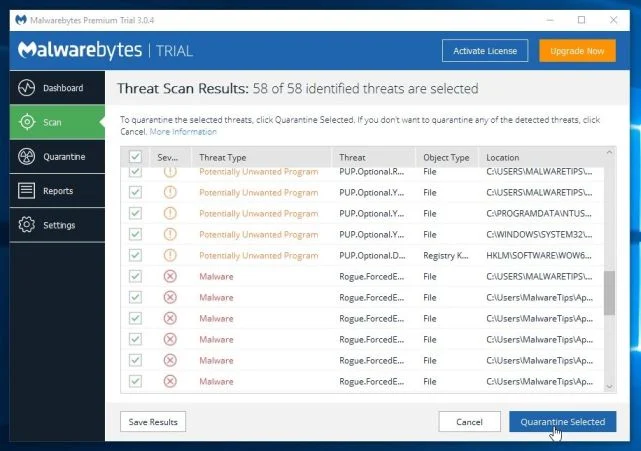
- When the scan has completed, you will be presented with a screen showing the malware infections that Malwarebytes Anti-Malware has detected.
To remove the malicious programs that Malwarebytes has found, click on the “Quarantine Selected” button.
- Malwarebytes Anti-Malware will now quarantine all the malicious files and registry keys that it has found.
To complete the malware removal process, Malwarebytes may ask you to restart your computer.
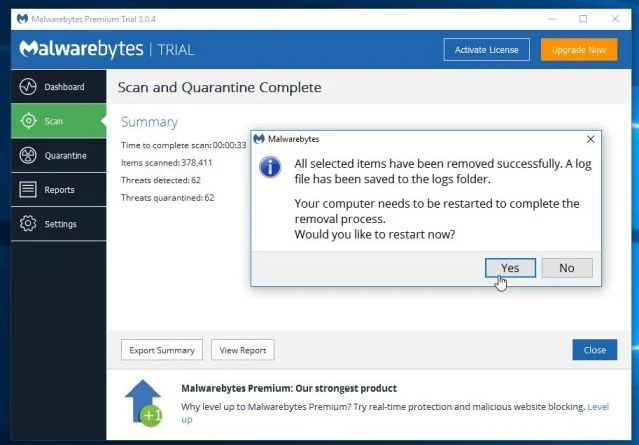
When the malware removal process is complete, you can close Malwarebytes Anti-Malware and continue with the rest of the instructions.
STEP 4: Double-check for malicious programs with HitmanPro
HitmanPro can find and remove malware, adware, bots, and other threats that even the best antivirus suite can oftentimes miss. HitmanPro is designed to run alongside your antivirus suite, firewall, and other security tools.
- You can download HitmanPro from the below link:
Download HitmanProOfficial Sophos download. Free scan, free 30-day trial to remove threats. - When HitmanPro has finished downloading, double-click on the “hitmanpro” file to install this program on your computer.
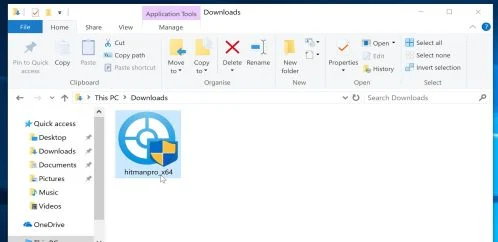
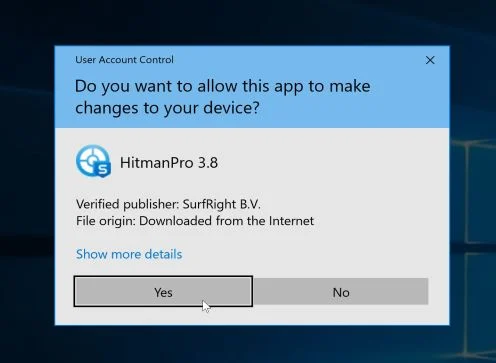
You may be presented with an User Account Control pop-up asking if you want to allow HitmanPro to make changes to your device. If this happens, you should click “Yes” to continue with the installation.
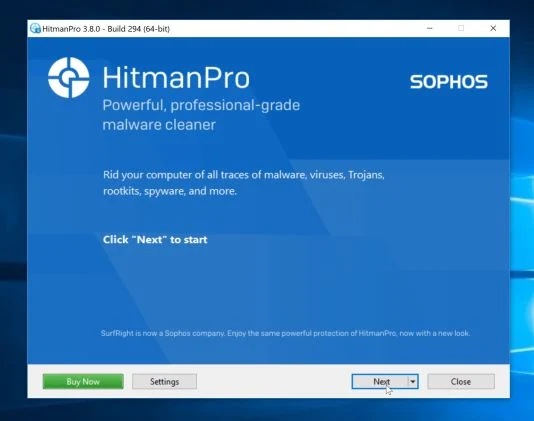
- When the program starts you will be presented with the start screen as shown below. Now click on the Next button to continue with the scan process.
- HitmanPro will now begin to scan your computer for malware.
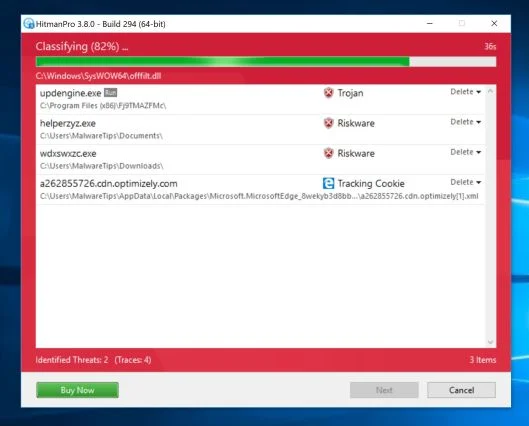
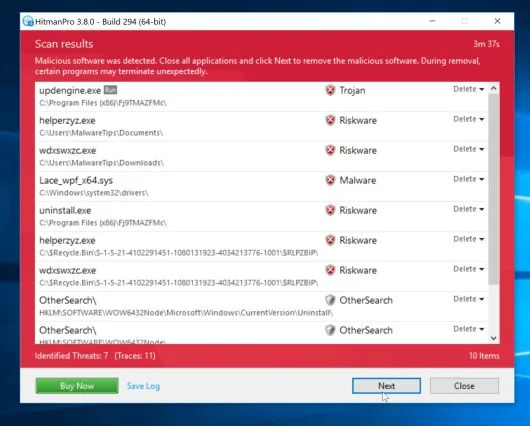
- When it has finished it will display a list of all the malware that the program found as shown in the image below. Click on the “Next” button, to remove malware.
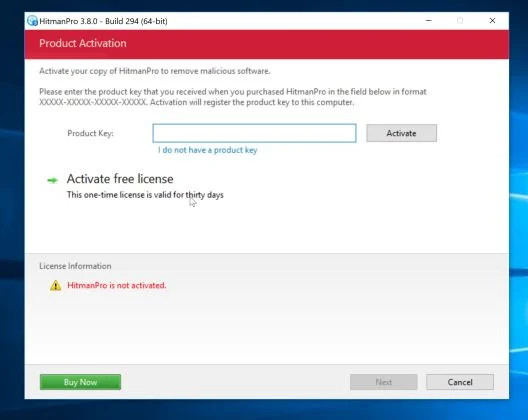
- Click on the “Activate free license” button to begin the free 30 days trial, and remove all the malicious files from your computer.
When the process is complete, you can close HitmanPro and continue with the rest of the instructions.
(OPTIONAL) STEP 5: Use Zemana AntiMalware Portable to remove ZeroAccess Trojan
This step should be performed only if your issues have not been solved by the previous steps.
- You can download Zemana AntiMalware Portable from the below link:
Download Zemana AntiMalwareOpens the download page in a new tab. - Double-click on the file named “Zemana.AntiMalware.Portable” to perform a system scan with Zemana AntiMalware Free.
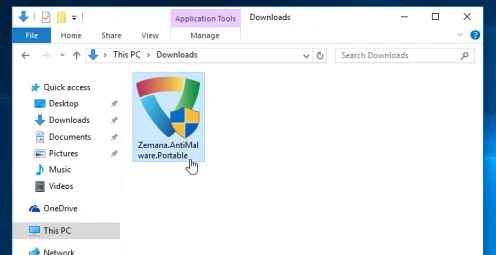
You may be presented with a User Account Control dialog asking you if you want to run this program. If this happens, you should click “Yes” to allow Zemana AntiMalware to run.
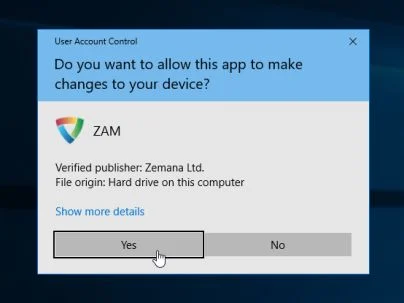
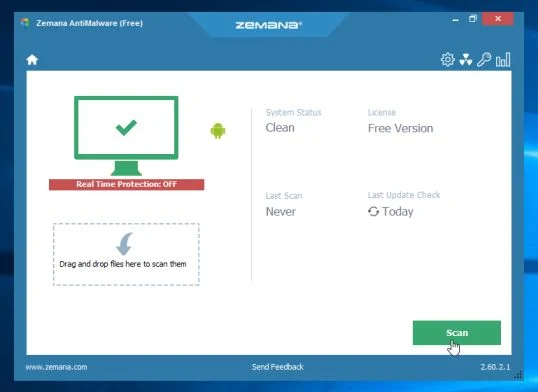
- When Zemana AntiMalware will start, click on the “Scan” button to perform a system scan.
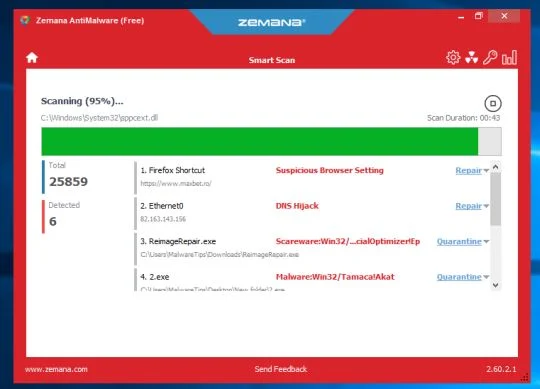
- Zemana AntiMalware will now scan your computer for malicious programs. This process can take up to 10 minutes.
- When Zemana has finished finished scanning it will show a screen that displays any malware that has been detected. To remove all the malicious files, click on the “Next” button.
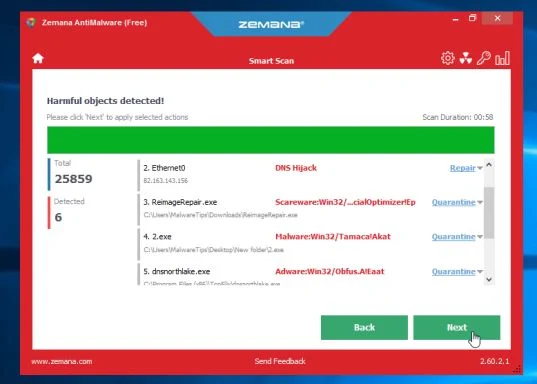
Zemana AntiMalware will now start to remove all the malicious programs from your computer.

Join the discussion
12 commentsShare your experience or ask a question about this article.
Your progress
Did these steps help?
Let us know how the guide worked for you.
Describe what you see and the step you reached. Keep passwords and other private information out.
Discussion
You’re a lifesaver! I didn’t realise how open my laptop was to threats and now I’m going to make sure it doesn’t happen again =)
Stelian – Thank you. I used your instructions, and they worked perfectly to fix my issue. Could only make a small donation at this time, but hopefully I can send you a little more in the future. What you do is a great service to community.
I’d just like to say that I have not had the opportunity to follow this guide, but I DO know that simply using bootable CDs from symmantec and kaspersky, and the bootable removal tools provided by symmantec and mcafee, are not sufficient. I’m going to follow this guide and report the results. Thanks so much for the time you spent creating the massive and easy to understand guide.
Hello,
Yes, you should uninstall Combofix as it’s an advance utility which needs to be used only in some very rare cases.
Stay safe!
Hello Ralph,
This is one of the most agressive forms of malware for Windows. It will corrupt critical files, stop Windows process and other kinds of malicious behavior.
Usually to remove malware from Windows you will need to run a utility or two, however this infection is one of the worst.
Hello,
Download again TDSSkiller, and this time do not rename it. If you will still experience this issue, go ahead with the other steps.
Stay safe!
I have a question, Norton Anti-Virus blocked this Trojan, but it still gives me messages that I have it, but Norton still keeps blocking it, I ran the first step, but it says there was no rootkit, is this a good or bad thing?
In reply to Charles
Hello.
Can you show me a screenshot of the alert or the path that Norton is saying that is infected.
Stay safe!
thanks for all your effort in putting all of this together. I certainly benefited from it.
Thank you for the help. I was finally able to remove the file with HitmanPro. The error messages from the virus have been driving my husband crazy. We are glad to have them gone!
Hi Stelian-
My McAfee security package failed in both protecting me from what it identifies as zeroaccess, I am also unable to download the McAfee removal tool. I get a Windows labeled download message telling me that the removal tool has a virus and has been deleted. I find your site and try to download the Kaspersky TDSS Killer and I get the same result. The file is deleted as soon as it is downloaded. How do I implement your removal strategy if I am unable to download the tools and what can I do to enable the downloading of these applications. Thanks in advance.
In reply to SteveComp2
Hello,
You have new variant of this infection. Please follow Option 1 from this guide: http://malwaretips.com/blogs/file-contained-a-virus-and-was-deleted-removal/