


Windows shows two antivirus apps, but their badges seem to tell different stories. One offers a scan while another says your computer is protected.
Before removing either program, compare what each screen actually measures. A few carefully chosen records can explain the difference without disturbing protection.
Overview
Two installed apps do not describe their jobs
An application can remain installed without providing continuous antivirus protection. Another tool might perform occasional checks while your primary antivirus watches files during everyday use.
The useful question is not which logo appears twice. You need to identify the intended antivirus provider and confirm its current protection state.
Compare records that answer different questions
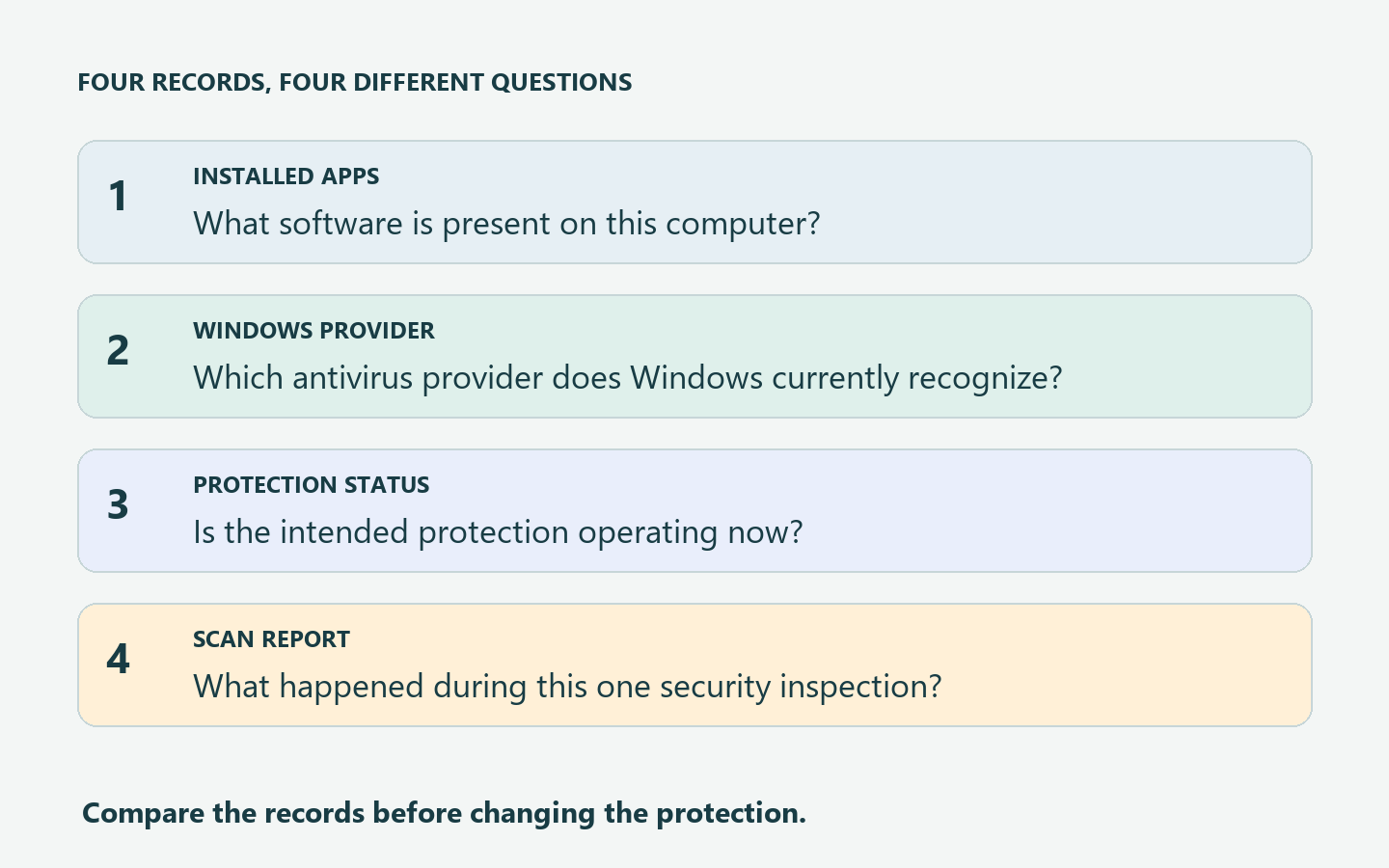
- The installed-app list tells you which software remains on the computer.
- The antivirus provider panel identifies the security product reported to Windows.
- The product dashboard describes its current protection and update condition.
- The account screen separates paid entitlement, trial access, and expired licensing.
- A scan report describes one completed inspection, not tomorrow’s protection.
A disagreement deserves checking before changing anything
Start with Windows Security and the relevant app, opened independently. Preserve the wording and timing when the records disagree rather than forcing them into agreement.
This guide concerns personal Windows computers. Workplace management, Windows Server, and advanced endpoint configurations require their administrator’s interpretation rather than a home-computer repair recipe.
Build a Five-Record Picture of Your Protection
Installed means the application is present
An installed entry is an inventory clue. It helps identify a product name and version, but it does not establish an active protection layer.
A shortcut might survive a subscription change, and a scanner might intentionally remain available for manual use. Neither situation can be resolved by counting icons.
Write the exact product names rather than a family description such as security suite. Different editions from one vendor may have different roles.
Similar Microsoft labels can refer to different products. The Microsoft Defender app included with Microsoft 365 is distinct from Windows Security and its built-in Defender Antivirus.
Microsoft’s Defender introduction explains that distinction. Identify which application you opened before assuming its subscription message concerns the built-in antivirus engine.
You do not need to find Defender Antivirus as a separately purchased installed application. Start with the Windows Security provider record rather than a shopping or subscription dashboard.
Registered means Windows recognizes a provider
Open Windows Security from Start, choose Settings, and select Manage providers. Expand Antivirus and record the named provider and displayed condition.
Microsoft’s Windows Security settings instructions distinguish Antivirus, Firewall, and Web protection categories. Read the antivirus category specifically rather than borrowing another category’s result.
A firewall entry answers a networking question. A web-protection entry answers another question, so neither alone establishes who provides the computer’s antivirus protection.
Active means the intended engine is protecting now
Open the named antivirus directly and inspect its protection status, warnings, and update state. Compare those observations with the Windows record from the same session.
A product’s registration and its feature controls are related but distinct. Malwarebytes documents a Windows Security Center registration setting; this guide does not ask you to change it.
Record any warning about unavailable protection before dismissing it. That wording is more useful to support than the assumption that both applications must be running.
Licensed means a particular entitlement exists
A renewal receipt describes a purchase, while the installed app reports its recognized entitlement. A mismatch needs account support, not another payment made through a pop-up.
Keep the account email, renewal information, and product edition in your private notes. Never publish license keys or complete receipts when asking for help.
Scanned means one inspection occurred
A scan result has a time, scope, and outcome. It cannot answer whether the same tool was watching files before or after that inspection.
For example, a clean Downloads-folder check says nothing about continuous monitoring throughout the day. The report and the protection dashboard serve different purposes.
Use the Records Together, Not as a Vote
The following worksheet is a reading aid, not a Windows screen. Each row pairs an observation with the question it can actually answer.
| Record | Useful observation | Question still unanswered |
|---|---|---|
| Installed applications | Two named security products remain installed. | Which product is providing antivirus protection now? |
| Windows antivirus provider | Windows identifies the intended antivirus provider. | Does its own dashboard report an unresolved warning? |
| Vendor protection dashboard | The intended product reports its current protection state. | Does that agree with Windows during this session? |
| Account or subscription page | The app recognizes a particular subscription or trial. | Are the relevant protection features actually available? |
| Manual scan report | A recorded inspection finished with a stated result. | Who protects the computer between manual inspections? |
Do not total the reassuring entries and treat four green messages as proof. One unresolved warning about the intended antivirus can outweigh several unrelated successes.
Conversely, one expired optional product does not cancel another provider’s verified protection. Evaluate the role that changed rather than assuming the entire computer lost protection.
Three Computers With the Same Two App Icons
These fictional household examples show how identical inventories can lead to different decisions. They describe possible records, not tests of particular computers.
Computer one: a primary antivirus and a manual scanner
Alex sees Windows Security and Malwarebytes available. Windows identifies Defender Antivirus as the provider, while Malwarebytes shows free features and a recently completed manual scan.
Malwarebytes’ current feature comparison includes free Custom scanning, while continuous Real-Time Protection requires paid access.
Alex’s scan therefore does not establish that Malwarebytes became the resident antivirus. The next check is whether Defender’s displayed protection condition agrees with Windows.
If those records agree, the two icons have an understandable explanation. One product has the primary role, and the other remains available for occasional inspection.
Computer two: a recognized paid provider and a quieter Defender panel
Morgan sees both applications, but Windows identifies a compatible third-party antivirus as the provider. That vendor’s dashboard reports protection operating with no unresolved warning.
The changed Defender panel feels alarming because Morgan remembers different controls. However, familiar controls are not the acceptance test when another product has the assigned role.
On Windows clients without Defender for Endpoint, Microsoft generally documents automatic Defender disablement when a compatible non-Microsoft antivirus becomes primary.
Windows 11 Smart App Control introduces documented qualifications, so the presence of Defender components cannot establish a second primary antivirus by itself.
Morgan keeps the functioning arrangement unchanged and checks the applicable Microsoft compatibility guidance if a precise engine-state question remains.
Computer three: an expired license and an unconfirmed handoff
Riley’s vendor app reports an expired subscription. The installed-app list still contains that vendor, but nobody has checked the current Windows antivirus provider.
Those observations establish a licensing issue, not an infection and not a verified protection gap. Riley now needs the missing provider and protection records.
Microsoft says Defender can automatically resume when another antivirus expires or stops protecting. Riley checks the actual result instead of assuming that transition occurred successfully.
A provider screenshot taken before expiration cannot confirm what happened afterward. Riley needs a current observation, even if an evening manual scan finished successfully.
If Windows reports Defender protecting and its status agrees, Riley can separately decide whether to renew the optional product. Purchasing is not the diagnostic step.
If Windows reports no active antivirus or an unresolved warning, Riley pauses new downloads and seeks supported help. An expired badge cannot explain away that warning.
A receipt showing a recent renewal adds another possibility. Malwarebytes documents that an expired notice after renewal can reflect unsynchronized license information rather than a failed purchase.
Riley preserves the receipt and contacts the vendor through its independently opened support route. Buying another subscription would obscure the account problem without proving protection works.
Identify the Warning Behind the Colored Icon
Suppose Dana sees a red Malwarebytes tray dot while Windows identifies another antivirus as active. The color alone cannot explain whether those records conflict.
Malwarebytes’ icon-status guide lists several reasons for red: never running a scan, a Real-Time Protection layer turned off, or VPN kill-switch blocking.
Each reason sends Dana toward a different question. Read the actual alert in the app rather than treating every red dot as failed antivirus registration.
A never-scanned notice concerns scan history. It can appear alongside another product’s continuous protection, so Dana does not change the antivirus provider to resolve that category.
A protection-layer warning needs the layer’s name and the product’s intended role. That information belongs in a support request when the current arrangement remains unclear.
A VPN connectivity warning concerns a different component again. Dana should keep security controls intact and use the vendor’s networking support rather than modifying antivirus registration.
The same guide describes green as VPN connected without alerts. It is not a substitute for the antivirus provider record merely because green feels reassuring.
When requesting assistance, Dana also needs a precise software version. This avoids comparing instructions for a different release with the installed application’s actual controls.
The tray-menu documentation identifies an Info tab with subscription, last-update, application-version, and package-version information. Record those details without changing protection switches.
Check Which Account and Device a Dashboard Describes
Signed out is not the same as locally deactivated
Harper notices an account sign-in invitation and assumes Malwarebytes stopped protecting the computer. However, sign-in status and local subscription activation are not identical records.
Malwarebytes documents an option to remain protected after signing out. Its sign-out flow distinguishes keeping the subscription active from deactivating that device’s subscription.
Harper should not sign out again to investigate. Instead, read the app’s subscription details and protection condition, then ask support about any unexplained mismatch.
A purchase receipt cannot reveal which choice somebody previously made on this machine. Likewise, an invitation to sign in cannot establish that somebody selected deactivation.
A family dashboard may describe another computer
The Microsoft Defender app can show multiple devices and shared family security information. Its broader dashboard therefore requires a device-identity check before comparing records.
For example, a parent may be reading a laptop’s security summary while troubleshooting a different desktop. Apparently inconsistent product names could concern two legitimate installations.
Confirm which device the dashboard entry describes, then collect the local Windows Security provider record on the computer being discussed. Keep these identifying device details private.
If the device cannot be identified confidently, do not transfer the remote summary into your local worksheet. Ask the account holder or support to establish the match.
Why Defender Mode Needs Its Own Context
Words such as active, passive, and disabled describe engine behavior. They should not become labels for the entire computer’s safety or the user’s purchasing choice.
Microsoft’s current table separates personal-client behavior from devices onboarded to Defender for Endpoint. It also includes Windows 11 Smart App Control conditions.
With another antivirus, that table lists passive mode for Smart App Control On or Evaluation, and disabled mode when it is Off without Endpoint onboarding.
These qualifications are why a process name or leftover Defender page cannot settle the provider question. Read the complete arrangement rather than applying one remembered rule.
Managed Endpoint features can add further detection and response capabilities. Do not transplant their server instructions, registry settings, or organizational policies onto a household computer.
When the Screens Disagree
Compare records captured close together before investigating a conflict. Yesterday’s screenshot and today’s renewal notice may describe different states rather than a simultaneous contradiction.
Write down any recent installation, renewal, product update, or requested restart. These events give support a timeline without requiring you to guess their technical cause.
Complete an ordinary restart only when there is no active incident or unsaved work and the product’s supported instructions request it. Then compare both protection screens again.
If a conflict persists, preserve the before-and-after observations. Repeatedly changing provider settings makes the original problem harder to reconstruct and can introduce another problem.
Ask the vendor a specific question: does this edition currently provide antivirus protection, and why does Windows report this different condition?
Include versions and exact warning text privately, with sensitive account details removed. A support worker can investigate a concrete mismatch more effectively than two app names.
Open the support-note checklist before contacting the vendor
- Record the Windows version and whether an organization manages this computer.
- Copy the antivirus provider name and the current displayed condition.
- Record the vendor app’s protection warning and its update condition.
- Note the recognized license state without sharing the activation key.
- Add the latest change and the time these observations were collected.
What to Do When Two Antivirus Apps Appear
-
Identify whether this is your personal computer or an organization-managed device. For a managed device, send the conflicting records to IT before changing protection.
-
Open Windows Security independently and read Settings, Manage providers, then Antivirus. Record its provider name and displayed status without altering the configuration.
-
Open that provider directly and compare its protection condition. Check any update or activation warning through the app, not a browser advertisement.
-
Inspect the second application’s role and recognized edition. A manual scan, trial offer, and continuous-protection dashboard are different observations requiring different interpretations.
-
Resolve purchase mismatches through the vendor’s official account or support route. Keep payment questions separate from proving that the intended antivirus currently operates.
-
If no antivirus can be confirmed active, avoid new installers and sensitive work on that computer. Obtain supported help before making configuration changes.
-
Save a short baseline after the records agree. Recheck after the next product transition so an expected handoff does not become another unexplained surprise.
This is a provider check, not malware removal. A named threat, unexpected execution, or unauthorized account activity needs an incident-specific response beyond reconciling these records.
Frequently Asked Questions
Does seeing two antivirus apps mean both are protecting me?
No, because installation does not establish current protection. Compare the Windows antivirus provider with both applications’ actual roles rather than counting shortcuts.
Can a free scanner remain beside my primary antivirus?
A manual scanner and a resident antivirus have different jobs. Check the particular vendor’s compatibility guidance and edition rather than assuming every installed combination behaves identically.
Does a clean manual scan identify my active antivirus?
A completed scan only documents that inspection. It does not identify which application continuously protects the computer between scans or confirm its current update state.
Does an expired subscription prove that malware disabled protection?
An expired entitlement is not evidence of infection. Verify the actual provider handoff and investigate any separate protection warning before drawing conclusions about compromise.
Should I change Defender settings until every control appears?
Different provider arrangements can change available controls. Preserve working protection and seek an explanation for conflicting records instead of modifying services or registration.
What should I send support when the records conflict?
Send the provider name, exact warning, software versions, license condition, and change timeline. Remove activation keys, personal account information, and unrelated private details first.
The Bottom Line
Choose the protection arrangement by its verified role, not its icons. Windows’ provider record and the intended antivirus dashboard should tell a consistent, understandable story.
If that story remains unresolved, preserve the records and get supported help before changing security. Treat licensing decisions separately, and never infer infection from expiration alone.

Join the discussion
0 commentsShare your experience or ask a question about this article.
Community experiences
Did this happen to you?
Your experience could help someone recognize the same scam. Submit a private report for our team to review.
I experienced this tooReports are reviewed before publication. Sharing publicly is always your choice.
Discussion
Start the conversation
Have a question or something useful to share? Add the first comment.