
Same here. I like the 7.x branch so much better than 8.x.Changed to sockfilter earlier today, all smoooth


Open MalwareTips from your Home Screen or desktop. Follow discussions, find answers and pick up where you left off.
If you cannot find an install option, update your browser or use its bookmark option to keep MalwareTips close.
After installation, open the app and sign in. Enable push notifications in Preferences if you want alerts. On iPhone and iPad, push requires a Home Screen web app and iOS or iPadOS 16.4 or later.
Sign in to manage notificationsInstallation is optional. Your notification settings stay under your control.
 Thread starter
Petrovic
Thread starter
Petrovic
Same here. I like the 7.x branch so much better than 8.x.Changed to sockfilter earlier today, all smoooth

Have you ever noticed how the app crashes even when you have a freshly updated version? Well, notice no more! This hotfix solves that problem. From now on, just pure ad blocking all the way.

 github.com
Your feedback helps us improve faster. This patch addresses issues reported during the use of the experimental SockFilter driver introduced in v7.22.4, including BSOD reports on GitHub and problems affecting Discord. We’ve also updated the WFP driver to improve overall stability and performance.
github.com

Here’s an additional technical update following the previous one. In it, we’ve fixed bugs and kept working on the app stability.
github.com
This is a technical update aimed to increase the app stability and fix minor bugs.
github.com
we serve you a hotfix with a resolved problem #6035 and fine-tuned operation.
github.com

A brand-new version, a new major number, a fresh design — and, most importantly, truly system-wide protection. AdGuard for Windows v8.0 doesn’t just look different: it gives you clearer control over the traffic on your computer and makes the most important settings easier to reach.
Truly system-wide protection
Alongside the DNS filtering you already had, AdGuard offers full-fledged network-level filtering. This means stronger protection and more control: you can filter all Internet traffic on your device, so your protection is system-wide.
AdGuard uses a special network driver that handles the actual sending and receiving of data, allowing us to filter traffic from every app on your device.
While DNS filtering is still there, it is less flexible, and some tracking requests can still get through. This is where HTTPS filtering becomes essential. With it enabled, AdGuard can inspect traffic within Windows apps. This allows us to distinguish between legitimate content and tracking requests, even when they come from the same domain. By decrypting the traffic, AdGuard can identify the full URL and block only the tracking requests while leaving the rest of the app working just fine.
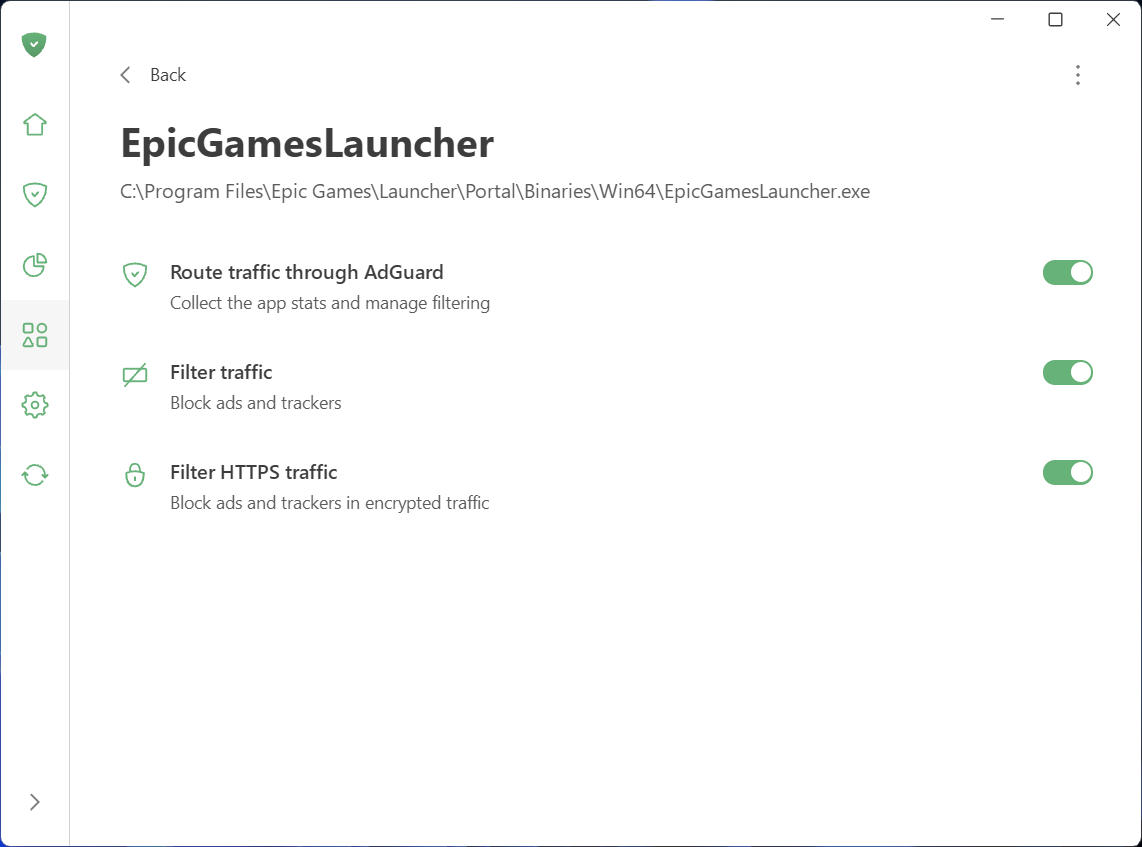
While HTTPS filtering is enabled for browsers by default, it is disabled for most other apps to ensure better compatibility. You can always enable it for extra protection: just select the application you want to filter in App management and toggle on Filter HTTPS traffic.
See what your apps are doing and take control
To make managing traffic easier and give you a clear picture of what’s happening on your device, we’ve added two new sections: App management and Statistics.
App management
App management lets you control how each app accesses the Internet. By default, AdGuard filters everything. As soon as an app goes online, it appears in App management, and its traffic is routed through AdGuard. From there, you can configure what to do with the app and how to filter it:
Decide which apps have their traffic routed through AdGuard
Choose to block ads and trackers in specific apps
Enable HTTPS filtering in apps of your choice
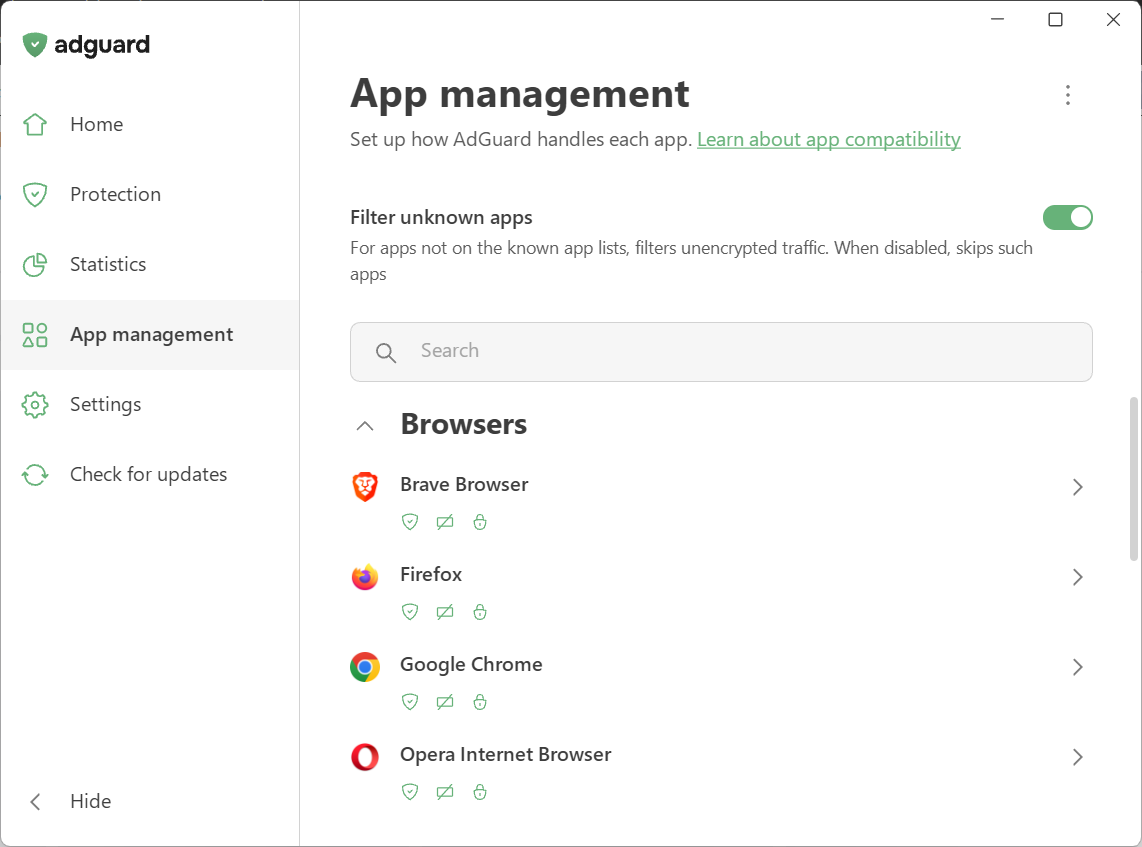
We’ve also introduced Filter unknown apps, a new setting for handling apps that are not yet in the compatibility or exclusion lists. It’s on by default — new apps get regular filtering, while HTTPS interception stays off to avoid affecting app behavior.
Statistics
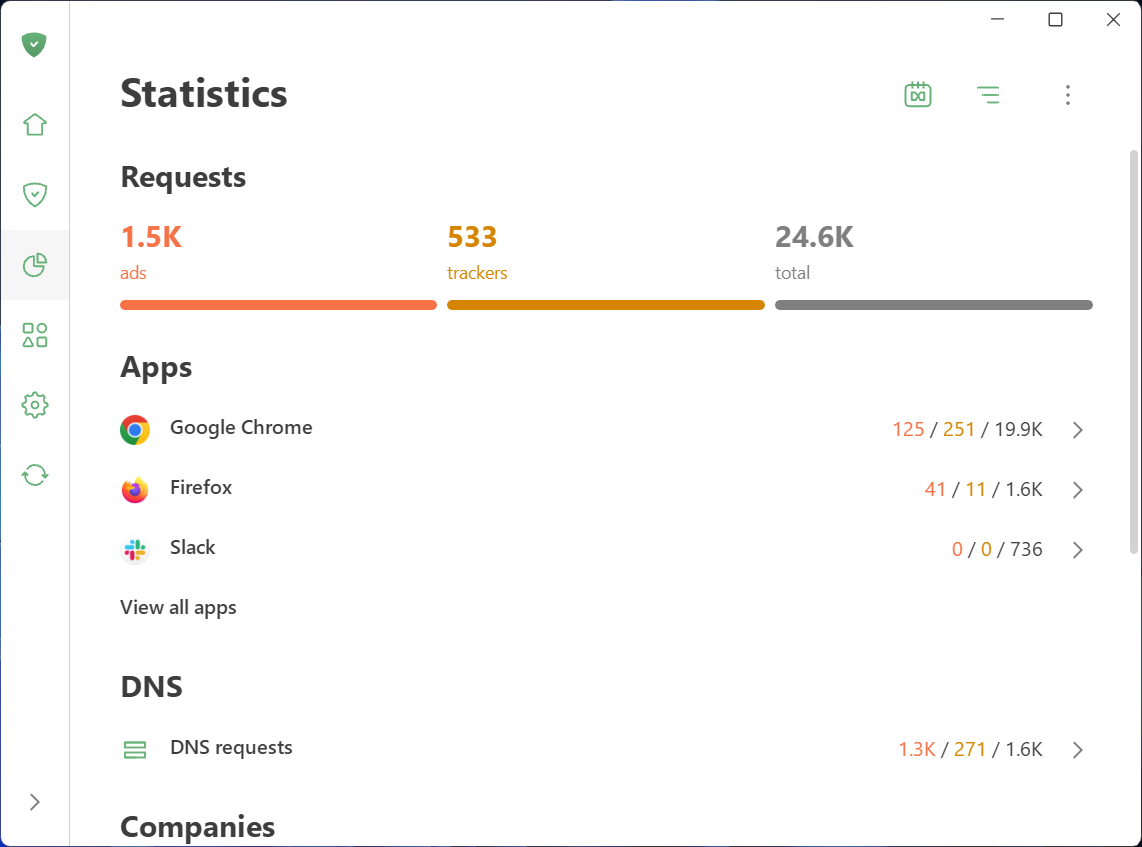
Statistics show detailed network activity. The Companies section provides a perspective on all the companies that your device has sent requests to, while in Apps and Domains you see the stats specific traffic data for every app routed through AdGuard. You can quickly identify and block anything suspicious.
Not only inside updates: A complete redesign
AdGuard for Windows has been completely redesigned. Our focus was on simplicity and ease of use. The most important tools are now front and center, while advanced settings are still available — just tucked away so they don’t overwhelm new users.
Key settings in plain sight
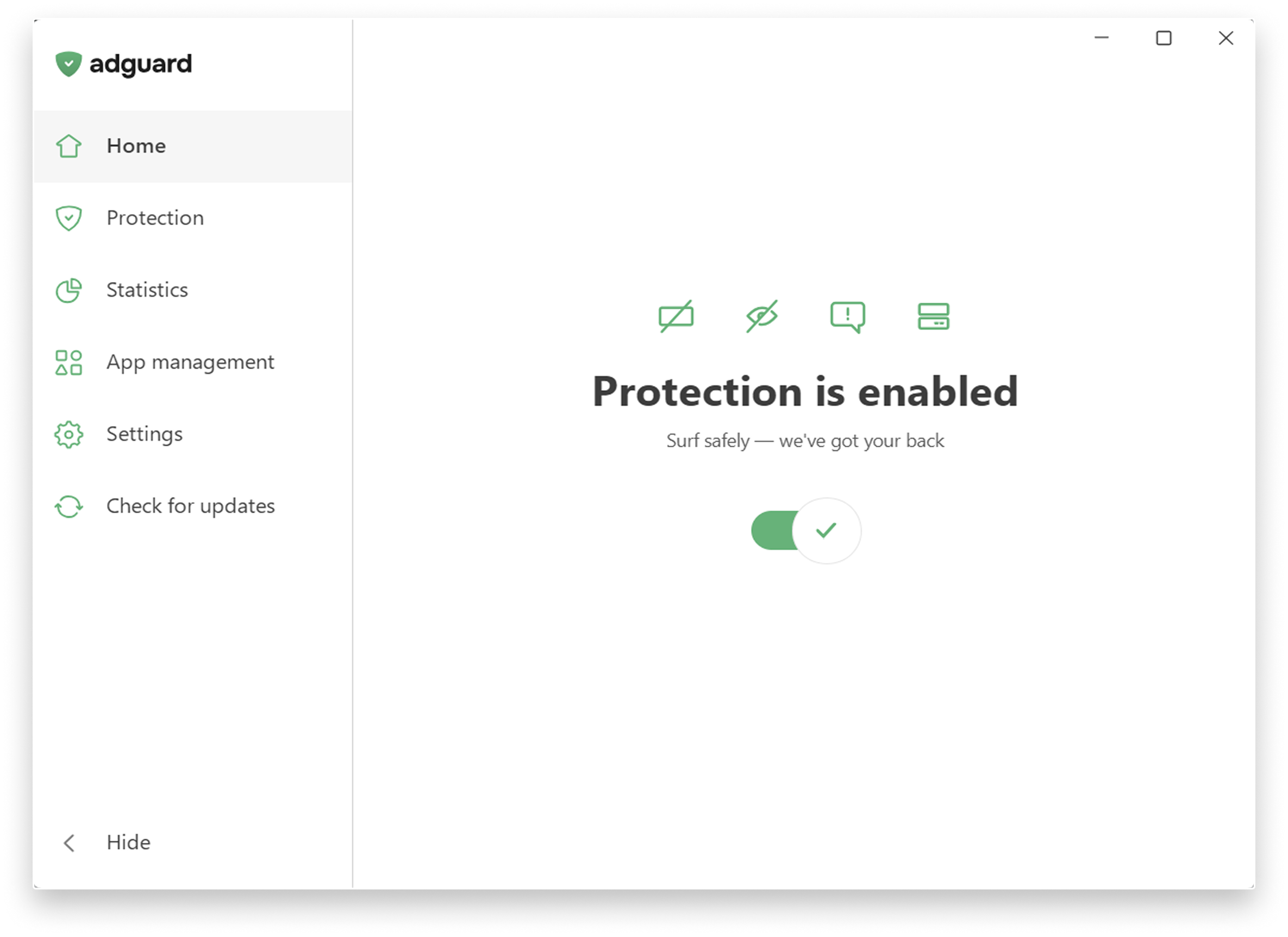
The app is designed to let you enable everything you need straight from the first screen. Just click the symbols you see — they stand for blocking ads and trackers, handling cookie notices and similar annoyances, and DNS protection.
Fine-tune your protection: Head to the Protection section, where settings are clearly categorized, explained in simple terms, and enabled by one toggle.
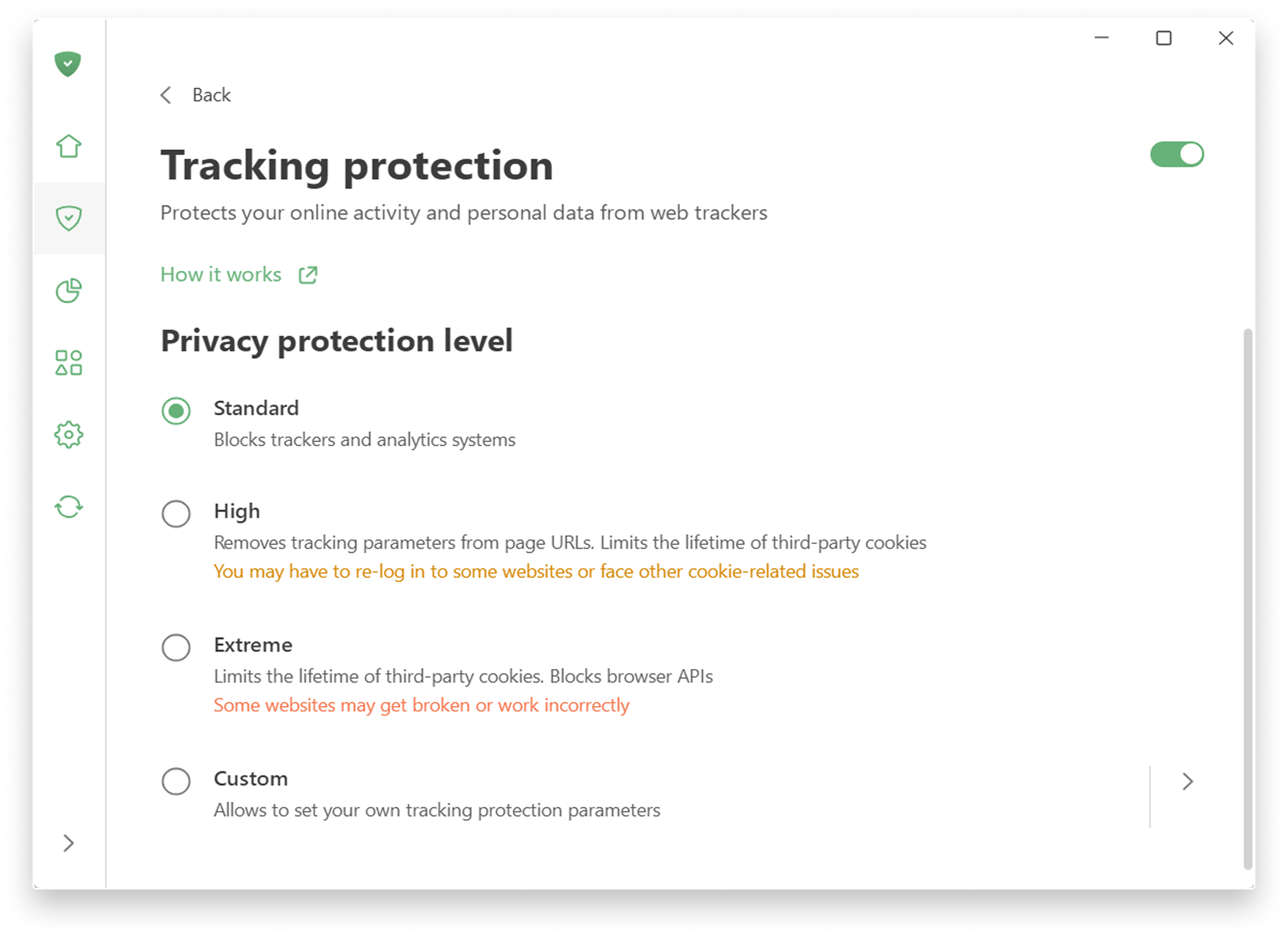
Tracking protection: Choose a level of protection — from a simple, comfortable experience to a more advanced one, which includes deleting cookies for enhanced privacy. There is also a custom level where you can freely fine-tune everything to suit your preferences: like blocking notifications from websites or enabling anti-DPI protection.
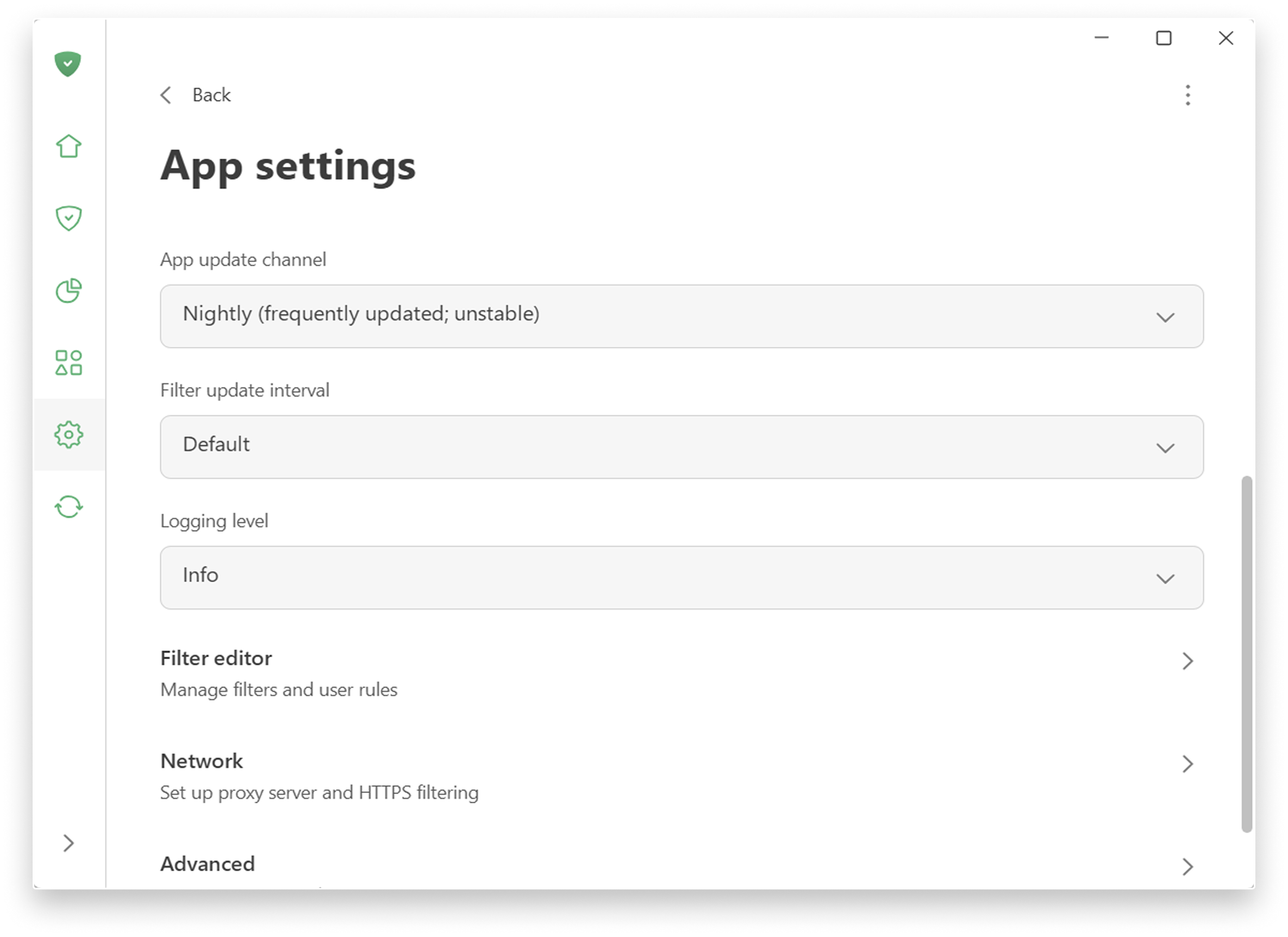
Advanced approach to filtering: You can find low-level and network settings in Settings → App settings.
For more details on new features, check the Knowledge Base.
It’s been a huge overhaul, and we can’t wait to hear what you think. Share your thoughts and send improvement ideas via GitHub Issues.

Is this still a pre-release? I installed Adguard a few hours ago and I still have not received the new update.AdGuard for Windows 8.0
August 20, 2026
Versions history | AdGuard
Download and learn about AdGuard versions — latest version, release date, version history, patches, features, etc.adguard.com

Nope. Updated on two of my computers. Didn't check the others.Is this still a pre-release? I installed Adguard a few hours ago and I still have not received the new update.
I have a couple of Electron-based apps and have not noticed anything upnormal in Adguard.Is version 8 still eating memory with the different webview2 processes? Last time I checked was with a beta version and it was horrible.
github.com
October 1, 2026
Here’s an additional technical update following the previous one. In it, we’ve fixed bugs and kept working on the app stability.
Changelog
Fixes
- AdGuard v8.1.0 nightly (5671) fails to start after update with SockFilter enabled #6225
github.com
Members who viewed this thread in the last 5 minutes


