Infection undetected by malware, anti-virus & rootkit software

Agate

New Member
Cheers,

Any ideas or guidance will be much appreciated!

Am not opposed to a manual CMOS battery reset, but saving that as my last resort :)

Thank you kindly!
 

Attachments

Hello,


51a46ae42d560-malwarebytes_anti_malware.png
Scan with Malwarebytes' Anti-Malware

Please download Malwarebytes Anti-Malware and save it to your desktop.
  • Install the progam and select update.
  • Once updated, click the Settings tab, in the left panel choose Protection and tick Scan for rootkits.
  • Click the Scan tab, choose Threat Scan is checked and click Start Scan.
  • If threats are detected, click the Apply Actions button. You will now be prompted to reboot. Click Yes.
  • Upon completion of the scan (or after the reboot), click the Reports tab.
  • Double-click the Scan Log.
  • At the bottom click Export and choose Text file.
Save the file to your desktop and include its content in your next reply.
 
Cheers,

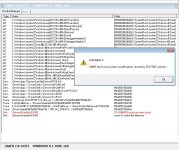
Thank you kindly for your prompt response!! I am running that scan currently, and also found an MBR check at gmer which returned rootkit activity 'TDL4@MBR code has been found'

Attaching screenshot. When malwarebytes scan wraps up, I'll send it over :)

Thank you much!
 

Attachments

  • gmer found root kit no one else could so far.PNG
    gmer found root kit no one else could so far.PNG
    209.6 KB · Views: 4
TDSSKiller_Kaspersky.png
Scan with TDSSKiller

Please download TDSSKiller by Kaspersky and save it to your desktop.

  • Right-click on
    TDSSKiller_Kaspersky.png
    icon and select
    RunAsAdmin.jpg
    Run as Administrator to start the tool.
  • Click on Change parameters and put a checkmark beside Loaded modules. A reboot will be needed to apply the changes, allow it to do so.
  • Your machine may appear very slow and unusable after that - it's normal.
  • TDSSKiller will run automaticaly. Click on Change parameters and click OK.
  • Click the Start Scan button and wait patiently.

If anything will be found follow this guidelines:
  • If a suspicious object is detected, the default action will be Skip, click on Continue.
  • If malicious objects are found, they will show in the Scan results - Select action for found objects and offer three options.
    Ensure Cure (default) is selected, then click Continue > Reboot now to finish the cleaning process.
    If Cure is not available, please choose Skip instead.
  • Do not choose Delete unless instructed!

A report will be created in your root directory, (usually C:\ drive) in the form of TDSSKiller.[Version]_[Date]_[Time]_log.txt. Please include the contents of that file in your next post.
 

Recently browsing

Members who viewed this thread in the last 5 minutes

Back
Top