I've been encountering a different error, 0x80004005, for several months when trying to update from 23H2 to 24H2 or now 25H2. It seems to be pretty common since there are many videos and articles about how to get past it, but I've tried all of the potential fixes and it repeatedly fails with the same error. Seems like the only option left for me it to do a clean install.


The MalwareTips app
Your community, one tap away.
Open MalwareTips from your Home Screen or desktop. Follow discussions, find answers and pick up where you left off.
- Home Screen access
- Optional push alerts
- Your community
You're ready to explore.Explore what's new
Installation instructions
iPhone & iPad
- Open MalwareTips in Safari and tap Share. You may need to open the Page Menu first.
- Choose Add to Home Screen. If it is not listed, use Edit Actions to add it.
- Keep Open as Web App enabled if shown, then tap Add.
Android
- Open MalwareTips in Chrome or another browser that supports app installation.
- Open the browser menu and look for Install app, Install and create shortcut, or Add to Home screen.
- Choose Install and confirm. Wording varies by browser.
Desktop
- Chrome: use the install icon in the address bar, or the menu under Cast, save and share.
- Edge: open the menu, then More tools, Apps and Install this site as an app.
- Safari on Mac: choose Share or File, then Add to Dock. Firefox on Windows: look for the web apps button in the address bar.
If you cannot find an install option, update your browser or use its bookmark option to keep MalwareTips close.
Keep up with your conversations
After installation, open the app and sign in. Enable push notifications in Preferences if you want alerts. On iPhone and iPad, push requires a Home Screen web app and iOS or iPadOS 16.4 or later.
Sign in to manage notificationsInstallation is optional. Your notification settings stay under your control.
You are using an out of date browser. It may not display this or other websites correctly.
You should upgrade or use an alternative browser.
You should upgrade or use an alternative browser.
New Update Microsoft releases Windows 11 version 25H2
- Thread starter Gandalf_The_Grey
- Start date
- Featured
Windows 11
58 Replies
9,624 Views
F
ForgottenSeer 94738
Have you tried reinstalling your current version using Windows Update? This will retain your apps, settings, and files. Then try updating to Windows 25H2 again.

Thanks for the suggestions @Oldie1950 and @Sunqfu, I've tried both of those and many more but the update still fails with error code 0x80004005.

Updated yesterday and everything works perfectly.

Thank you ErzCrz, that what worked for me. And you're right, it did take a long time, and a manual restart (just to be sure) after it went through its process. I'm now up to dateI had the same error with mine and ended up doing a windows repair through update but that did take 3-4 hours (see below) which worked and didn't affect anything installed etc, just took forever to download and install even on my gaming laptop. But I would suggest try the various methods first and see if they work for you first.
View attachment 292273


After many attempts, finally I updated one of my Test Machines running on W11 ARM64. Keeps having driver error PNP watchdog after multiple attempts upgrading using ISO. Reset, upgrade all failed.
What worked is after a reset, I used the 25H2 Enablement Package.
What worked is after a reset, I used the 25H2 Enablement Package.

So far really not going well with the last 2 updates!!! I'v had to perform 2 clean installs for the last 2 updates. If this next update fails to install Microsoft and intel might make me put my face through my laptop I'v once again did a clean install hopefully no more!
I'v once again did a clean install hopefully no more!Advice for people having problems, I suggest an in place upgrade to 25H2 burning the 25H2 .iso to a USB stick using Rufus which you can get here Rufus - Create bootable USB drives the easy way. If your having troubles updating the 25H2 .iso while updating and it gets stuck at 46% then disconnect or put your internet into airplane mode and do a offline upgrade. I had problems with the 25H2 getting stuck at 46% while upgrading due to MS bullshit. Offline mode installed/upgraded/updated fine to 25H2 & WU install correctly with no errors. 24H2 turned into a shitshow, multiple WU errors/fail to update and multiple BSODs. 25H2 fixed WU errors.
Still having problems with the latest Intel GPU drivers, new release driver just fails to install. No fix for this error. Just does not install.
Still having problems with the latest Intel GPU drivers, new release driver just fails to install. No fix for this error. Just does not install.
I have to do a clean install every update so far it's annoying as heck! Everything is good now until Microsoft releases a new update.Advice for people having problems, I suggest an in place upgrade to 25H2 burning the 25H2 .iso to a USB stick using Rufus which you can get here Rufus - Create bootable USB drives the easy way. If your having troubles updating the 25H2 .iso while updating and it gets stuck at 46% then disconnect or put your internet into airplane mode and do a offline upgrade. I had problems with the 25H2 getting stuck at 46% while upgrading due to MS bullshit. Offline mode installed/upgraded/updated fine to 25H2 & WU install correctly with no errors. 24H2 turned into a shitshow, multiple WU errors/fail to update and multiple BSODs. 25H2 fixed WU errors.
Still having problems with the latest Intel GPU drivers, new release driver just fails to install. No fix for this error. Just does not install.
 They have had more than enough time to fix this! I'm going to start calling these 2 comodo with the product quality these 2 companies have been producing.
I'm getting exhausted of Windows Repair constantly reinstalling itself. 


We recommend checking (if this happens every time you boot PC):
Code:
chkdsk c: /f /r
Code:
sfc /scannow
F
ForgottenSeer 123960
Hey @lokamoka820
The advice to run sfc isn't bad, but the sequence matters, and there's a crucial missing step for this specific Windows Update issue. Always run DISM before SFC. SFC pulls fresh files from a hidden backup folder to fix your system, but if that backup folder is corrupted, SFC will fail. DISM fixes that backup folder first so SFC actually has healthy files to work with.
Here is the sequence that should make the fix stick and stop the loop.
Repair the core image
Open Command Prompt as an Administrator, then run these one at a time:
DISM /Online /Cleanup-Image /RestoreHealth
(Let this finish entirely; it might pause at certain percentages for a while).
sfc /scannow
Clear the corrupted update cache
Since this keeps looping in Windows Update, the downloaded repair files are likely corrupted and stuck in your cache.
Open your Start menu, type Services, and hit Enter.
Scroll down to Windows Update, right-click it, and select Stop.
Open File Explorer and navigate to C:\Windows\SoftwareDistribution\Download
Delete everything inside that Download folder (this is completely safe; it's just a temporary cache).
Go back to the Services window, right-click Windows Update, and select Start.
Give your PC a restart after that and check for updates again. Let us know if it finally clears out that prompt!
The advice to run sfc isn't bad, but the sequence matters, and there's a crucial missing step for this specific Windows Update issue. Always run DISM before SFC. SFC pulls fresh files from a hidden backup folder to fix your system, but if that backup folder is corrupted, SFC will fail. DISM fixes that backup folder first so SFC actually has healthy files to work with.
Here is the sequence that should make the fix stick and stop the loop.
Repair the core image
Open Command Prompt as an Administrator, then run these one at a time:
DISM /Online /Cleanup-Image /RestoreHealth
(Let this finish entirely; it might pause at certain percentages for a while).
sfc /scannow
Clear the corrupted update cache
Since this keeps looping in Windows Update, the downloaded repair files are likely corrupted and stuck in your cache.
Open your Start menu, type Services, and hit Enter.
Scroll down to Windows Update, right-click it, and select Stop.
Open File Explorer and navigate to C:\Windows\SoftwareDistribution\Download
Delete everything inside that Download folder (this is completely safe; it's just a temporary cache).
Go back to the Services window, right-click Windows Update, and select Start.
Give your PC a restart after that and check for updates again. Let us know if it finally clears out that prompt!
Microsoft Begins Automatic Windows 11 25H2 Rollout to Unmanaged Home and Pro Devices

 www.ghacks.net
Microsoft has begun automatically rolling out Windows 11 25H2 to unmanaged Home and Pro devices running Windows 11 24H2, according to notices posted on the Windows release health pages for both versions. The update is linked to the end of support for Windows 11 24H2, which is set for October 13, 2026.
In the 24H2 release health notice, Microsoft states: "Devices running Home and Pro editions of Windows 11, version 24H2 that are not managed by IT departments will receive the Windows 11, version 25H2 update automatically. You can choose when to restart your device or postpone the update."
Microsoft Begins Automatic Windows 11 25H2 Rollout to Unmanaged Home and Pro Devices - gHacks Tech News
Microsoft is automatically upgrading unmanaged Windows 11 24H2 Home and Pro devices to 25H2 ahead of 24H2's October 2026 end of support.
www.ghacks.net
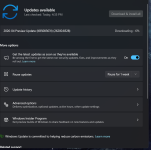
Installing preview updates is not advised; turning off "Get the latest updates as soon as they're available" option in Windows 11 makes it more stable.

Try rebooting.
Constant update problems consult Copilot, it's answers are pretty solid advice.Try rebooting.
If all else fails this seems to work
sfc /scannow
DISM /Online /Cleanup-Image /RestoreHealth
The latest Windows update installed successfully. I’m not sure what caused the earlier issue, but everything is now working properly. Next, I’ll run a disk cleanup to remove any leftover files from the update.Installing preview updates is not advised; turning off "Get the latest updates as soon as they're available" option in Windows 11 makes it more stable.
Recently browsing
Members who viewed this thread in the last 5 minutes
