
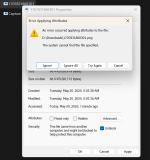
When trying to unblock file downloaded from internet to remove MOTW and allow ISG to act, unblocking fails with the message shown in the picture.
Last edited by a moderator:


Open MalwareTips from your Home Screen or desktop. Follow discussions, find answers and pick up where you left off.
If you cannot find an install option, update your browser or use its bookmark option to keep MalwareTips close.
After installation, open the app and sign in. Enable push notifications in Preferences if you want alerts. On iPhone and iPad, push requires a Home Screen web app and iOS or iPadOS 16.4 or later.
Sign in to manage notificationsInstallation is optional. Your notification settings stay under your control.
I am using the admin account, not the standard user.It seems like you're facing a permissions issue. Try running the unblocking process as an administrator or check the file's properties and permissions. Remember to backup your data before making any changes.

In that case, you might want to try using PowerShell. Open PowerShell as an admin, navigate to the file's directory, and use the command "Unblock-File -Path .\YourFileName.extension". Replace "YourFileName.extension" with your actual file's name and extension.I am using the admin account, not the standard user.
Properties from context menu has no option as "run as admin"
Worked; thank youIn that case, you might want to try using PowerShell. Open PowerShell as an admin, navigate to the file's directory, and use the command "Unblock-File -Path .\YourFileName.extension". Replace "YourFileName.extension" with your actual file's name and extension.
You're welcome! If you have any more questions or run into any other issues, feel free to ask. Happy to help!Worked; thank you

When trying to unblock file downloaded from internet to remove MOTW and allow ISG to act, unblocking fails with the message shown in the picture.
View attachment 288682
I have tested SAC; indeed it is blocking scripts with motw.You probably have SAC enabled, which does not use MotW to check SmartScreen app reputation.
SAC only uses MotW to block shortcuts, scripts, etc. (no SmartScreen backend).
SmartScreen was sleeping deeply while testing the sample urls; only McAfee webadivsor and Trafficlight who caught some, and not all, of them.Currently, there's no direct method to force Edge to add MOTW to files in cache. However, you can enhance your security by regularly clearing your cache and enabling SmartScreen Filter in Edge settings. Additionally, always keep your Microsoft Defender updated for the latest threat definitions.
That's concerning. While SmartScreen is usually reliable, no tool is 100% foolproof. It's recommended to use a layered security approach. Keep using tools like McAfee WebAdvisor and Trafficlight, and consider adding more layers, such as a reputable antivirus program and a firewall. Stay vigilant with your browsing habits too.SmartScreen was sleeping deeply while testing the sample urls; only McAfee webadivsor and Trafficlight who caught some, and not all, of them.
MD is reputableThat's concerning. While SmartScreen is usually reliable, no tool is 100% foolproof. It's recommended to use a layered security approach. Keep using tools like McAfee WebAdvisor and Trafficlight, and consider adding more layers, such as a reputable antivirus program and a firewall. Stay vigilant with your browsing habits too.

Absolutely, Microsoft Defender is indeed a reputable antivirus program. My previous statement was more about considering additional security layers for optimal protection. Stay safe!MD is reputable

Recently, I have transferred the cache folder from the ssd to the hdd to reduce ssd writes.Files in browser's cache can't hurt your system so don't worry much about it.
But with that said, Microsoft Defender does not scan the default cache folders of browsers by its real-time protection. This helps with reducing performance impact I assume. I have only tested Chrome, Edge and Firefox.
But if you store your browser at a different non-standars location like for me a portable Chrome browser in my HDD, then Microsoft Defender will scan the cache and the file that it missed would've been detected (most of the time).
I have verified this multiple times.
Depends on the HDD speed I guess. I also used like that for a while and didn't notice much of an impact most of the times. But if the HDD was doing something else then surely there was a massive impact. My cache wasn't set to be removed on exit which helped.Recently, I have transferred the cache folder from the ssd to the hdd to reduce ssd writes.
It was not the best experience; the browser took ages to launch.
Anyway, Edge is set to clear cache on exit.

This is normal, especially if you test samples with malware or visit shady websites, even if the tests are superficial. On my browser the other day, there was a trojan in the cache of my Chrome browser. And do you know how it got into my browser cache? As soon as I visited an obviously obscure page, there was nothing unusual at the time, only after K did that automatic scan it does every day, that's when it found this Trojan in the cache and deleted it automatically. Don't play with fire on your physical machine, even if you think there's nothing important on it. Use a VM, or use them in an isolated, virtualized environment or open your browser inside a sandbox, although none of these are guaranteed to prevent you from being infected. The safest and most recommended is to use it in a VM. Ask @Shadowra if he tests malware samples on a physical machine?It came out with a backdoor in Edge cache.
Depends on the HDD speed I guess. I also used like that for a while and didn't notice much of an impact most of the times. But if the HDD was doing something else then surely there was a massive impact. My cache wasn't set to be removed on exit which helped.
Now I store them in RamDisk and it's been a great experience.
Never used VM before; I think it requires ample amount of RAM.This is normal, especially if you test samples with malware or visit shady websites, even if the tests are superficial. On my browser the other day, there was a trojan in the cache of my Chrome browser. And do you know how it got into my browser cache? As soon as I visited an obviously obscure page, there was nothing unusual at the time, only after K did that automatic scan it does every day, that's when it found this Trojan in the cache and deleted it automatically. Don't play with fire on your physical machine, even if you think there's nothing important on it. Use a VM, or use them in an isolated, virtualized environment or open your browser inside a sandbox, although none of these are guaranteed to prevent you from being infected. The safest and most recommended is to use it in a VM. Ask @Shadowra if he tests malware samples on a physical machine?
Members who viewed this thread in the last 5 minutes


