

The MalwareTips app
Your community, one tap away.
Open MalwareTips from your Home Screen or desktop. Follow discussions, find answers and pick up where you left off.
- Home Screen access
- Optional push alerts
- Your community
You're ready to explore.Explore what's new
Installation instructions
iPhone & iPad
- Open MalwareTips in Safari and tap Share. You may need to open the Page Menu first.
- Choose Add to Home Screen. If it is not listed, use Edit Actions to add it.
- Keep Open as Web App enabled if shown, then tap Add.
Android
- Open MalwareTips in Chrome or another browser that supports app installation.
- Open the browser menu and look for Install app, Install and create shortcut, or Add to Home screen.
- Choose Install and confirm. Wording varies by browser.
Desktop
- Chrome: use the install icon in the address bar, or the menu under Cast, save and share.
- Edge: open the menu, then More tools, Apps and Install this site as an app.
- Safari on Mac: choose Share or File, then Add to Dock. Firefox on Windows: look for the web apps button in the address bar.
If you cannot find an install option, update your browser or use its bookmark option to keep MalwareTips close.
Keep up with your conversations
After installation, open the app and sign in. Enable push notifications in Preferences if you want alerts. On iPhone and iPad, push requires a Home Screen web app and iOS or iPadOS 16.4 or later.
Sign in to manage notificationsInstallation is optional. Your notification settings stay under your control.
You are using an out of date browser. It may not display this or other websites correctly.
You should upgrade or use an alternative browser.
You should upgrade or use an alternative browser.
PPTiCehecker
-
Thread starter Rain Drop
- Start date
- 7 Replies
- 2,145 Views


Hi,
Please download zoek.zip or zoek.rar by smeenk (
 ) from here or here and save it to your Desktop.
Unpack the archive...
Please download zoek.zip or zoek.rar by smeenk (
Unpack the archive...
- Close any open browsers
- Temporarily disable your AntiVirus program. (If necessary)
If you are unsure how to do this please read this or this Instruction.
- Double click on zoek.exe to run the tool .
Please wait while the tool does not start...
- Copy the text present inside the code box below and paste it into the large window in the zoek tool:
NOTICE: This script was written specifically for this user, for use on that particular machine. Running this on another machine may cause damage to the operating system
Code:createsrpoint; gpt.ini;z C:\Windows\System32\GroupPolicy;v C:\Windows\SysWOW64\GroupPolicy;v StandardSearch; emptyfolderscheck; installer-list; installedprogs; uninstall-list; - Click on button.

Please wait until a logreport will open (this can be after reboot)
- Save notepad to your Desktop and attach here zoek-results.log
Note: It will also create a log in the C:\ directory named "zoek-results.log"
Re-run Zoek again with this script
Code:
C:\Windows\System32\GroupPolicy\GPT.INI;f
C:\Windows\SysWOW64\GroupPolicy\gpt.ini;f
C:\Windows\System32\GroupPolicy\Machine;fs
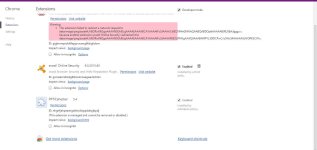
nhgnfjahpeaangolkmdioppddnpjbpdj;chr
C:\Windows\System32\GroupPolicy\User;fs
autoclean;
emptyalltemp;
emptyclsid;
ipconfig /flushdns;b
Can you attach Zoek report for me to see...
If everything is good, no need to do it:
We need one final scan:
Please download Malwarebytes AntiRootkit (MBAR) and save it to your desktop.
For full instructions how MBAR works, read this article
> Doubleclick on the MBAR file
 and allow it to run.
• Click OK on the next screen, to allow the package to extract the contents of the file to its own folder named mbar.
• mbar.exe will launch automatically. On some systems, this may take a few extra seconds. Please be patient and wait for the program to open.
• After reading the Introduction, click Next if you agree.
• On the Update Database screen, click on the Update button. Once you see 'Success: Database was successfully updated' click on Next
• Under Scan Targets ensure all boxes are ticked. Then click the Scan button.
Notice: with some infections, you may see two messages boxes:
- 'Could not load protection driver'. Click 'OK'.
- 'Could not load DDA driver'. Click 'Yes' to this message, to allow the driver to load after a restart. Allow the computer to restart. Continue with the rest of these instructions.
>> If malware is not detected, click the Exit button to close the program and post the mbar-log-year-month-day.txt and system-log.txt reports.
>> If an infection/s are found ensure Create Restore Point are ticked. Then select the "Cleanup! button to remove threats.
• The clean up procedure will be scheduled for process, pop-up will be shown.
Select the Yes button and the system should re-boot to complete the cleaning process.
>> Notice: only if an RootKit are detected, ensure to run fixdamage.exe tool located in mbar folder, \Plugins\fixdamage.exe
- Run fixdamage.exe, at the black window to continue type Y (alias for Yes). Wait few seconds for execution ...
- When you see "press any key to exit" fix is completed, press any key to close the window. Reboot the system.
> The following reports will be created in mbar folder:
1. mbar-log-year-month-day (hour-minute-second).txt
2. system-log.txt
Please post both logs in your next reply.
We need one final scan:
Please download Malwarebytes AntiRootkit (MBAR) and save it to your desktop.
For full instructions how MBAR works, read this article
> Doubleclick on the MBAR file
• Click OK on the next screen, to allow the package to extract the contents of the file to its own folder named mbar.
• mbar.exe will launch automatically. On some systems, this may take a few extra seconds. Please be patient and wait for the program to open.
• After reading the Introduction, click Next if you agree.
• On the Update Database screen, click on the Update button. Once you see 'Success: Database was successfully updated' click on Next
• Under Scan Targets ensure all boxes are ticked. Then click the Scan button.
Notice: with some infections, you may see two messages boxes:
- 'Could not load protection driver'. Click 'OK'.
- 'Could not load DDA driver'. Click 'Yes' to this message, to allow the driver to load after a restart. Allow the computer to restart. Continue with the rest of these instructions.
>> If malware is not detected, click the Exit button to close the program and post the mbar-log-year-month-day.txt and system-log.txt reports.
>> If an infection/s are found ensure Create Restore Point are ticked. Then select the "Cleanup! button to remove threats.
• The clean up procedure will be scheduled for process, pop-up will be shown.
Select the Yes button and the system should re-boot to complete the cleaning process.
>> Notice: only if an RootKit are detected, ensure to run fixdamage.exe tool located in mbar folder, \Plugins\fixdamage.exe
- Run fixdamage.exe, at the black window to continue type Y (alias for Yes). Wait few seconds for execution ...
- When you see "press any key to exit" fix is completed, press any key to close the window. Reboot the system.
> The following reports will be created in mbar folder:
1. mbar-log-year-month-day (hour-minute-second).txt
2. system-log.txt
Please post both logs in your next reply.
Recently browsing
Members who viewed this thread in the last 5 minutes
You may also like...
-

-
- P
-
 Hot Take AI and Programming.
 -
 Serious Discussion Is Defender enough with Malwarebytes Free on Windows 11?
