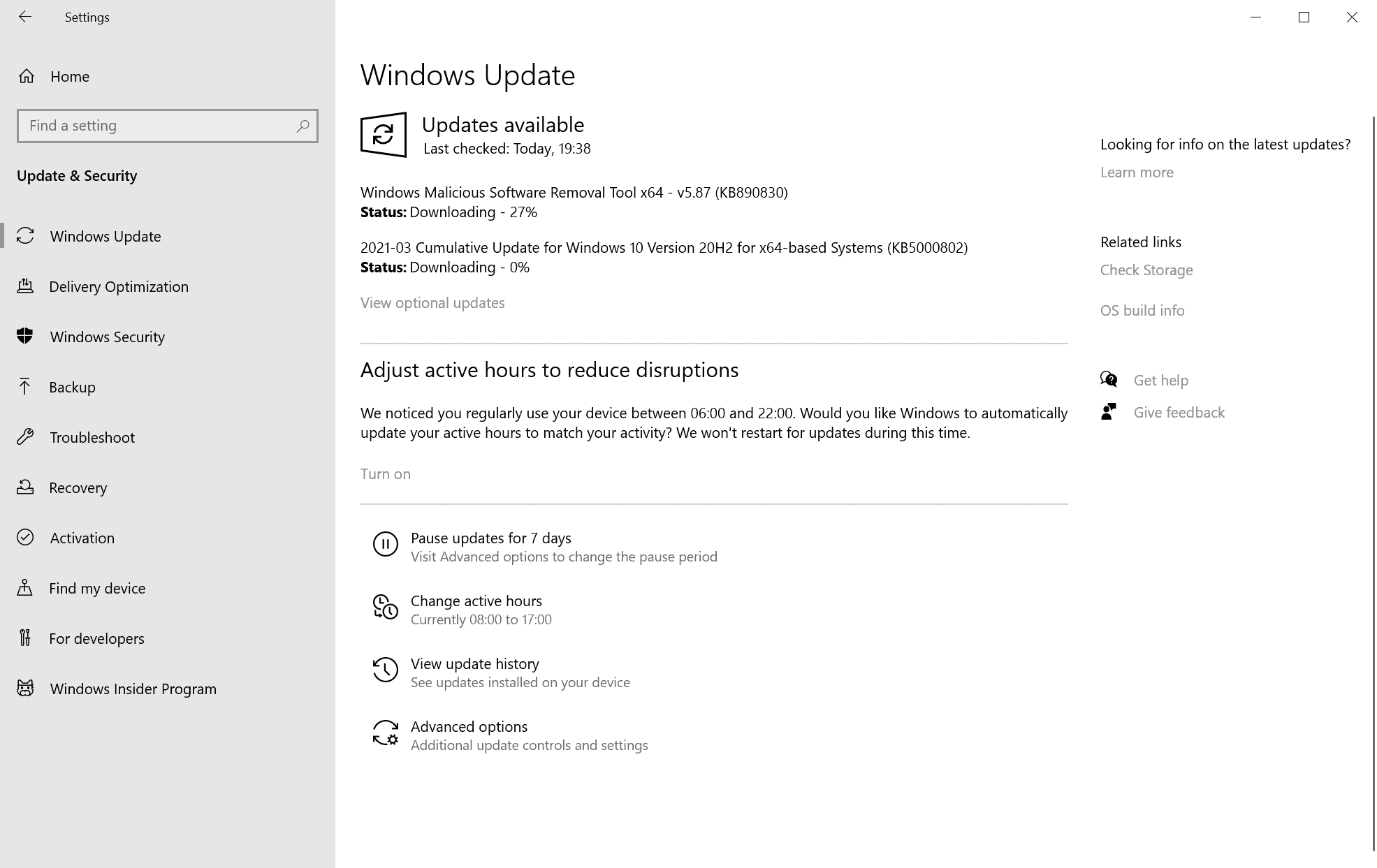
Windows 10 Cumulative Updates KB5000808 & KB5000802 released

silversurfer

Super Moderator
Verified
Top Poster
Staff Member
Malware Hunter
Forum Veteran
As part of the March Patch cycle, Microsoft is rolling out a new cumulative update for all supported version of Windows.


The cumulative update with security fixes is rolling out to PCs with October 2020 Update, May 2020 Update, November 2019 Update, and May 2019 Update. In this month's update, there are only security enhancements for the system, browsers, core components and other basic functions.

Like every Windows Update, you can open the Settings app and click on the Windows Update option to install the patches. If you own multiple PCs or if you would like to patch the PCs manually, you can learn more about it here.
Below is the list of all new updates for Windows 10:
 
Overviews are found on Bleeping Computer, Ghacks and The Zero Day Initiative:
 
Microsoft has confirmed that Windows 10 devices might crash with a Blue Screen of Death (BSOD) when printing under certain conditions after applying the March KB5000802 cumulative update.

"After installing KB5000802, you might receive an APC_INDEX_MISMATCH error with a blue screen when attempting to print to certain printers in some apps," Microsoft explains on the Windows 10 health dashboard.

Affected platforms include both client and server Windows versions:
  • Client: Windows 10, version 20H2; Windows 10, version 2004; Windows 10, version 1909; Windows 10, version 1809; Windows 10 Enterprise LTSC 2019; Windows 10, version 1803
  • Server: Windows Server, version 20H2; Windows Server, version 2004; Windows Server, version 1909; Windows Server, version 1809; Windows Server 2019; Windows Server, version 1803
Microsoft is currently investigating the newly acknowledged issue and will provide an update after more information is available.
 

After installing KB5000802, you might receive an APC_INDEX_MISMATCH error with a blue screen when attempting to print to certain printers in some apps. This issue affects a subset of Type 3 printer drivers and does not affect printer drivers that are Type 4. If you are unsure which type your printer driver is, use the following steps:
  1. Press the Windows key+r or select Start and type run and select it.
  2. Type printmanagement.msc and press enter or select the OK button.
  3. If Print Management opens, continue to step 4. If you receive the error, Windows can not find 'printmanagement.msc'. then select Start and type manage optional features and select it. Select Add a Feature and type print, select the check box next to Print Management Console and select install. You will now need to start at step 1 again.
  4. Expand Print Servers, expand your computer's name, and select Printers.
  5. You can now see the Driver Type for each of your installed printer drivers.
Workaround: To mitigate the issue, follow the instructions in this video. The Command Prompt commands from the video are as follows (you will need to replace KX driver for Universal printing with the name of your printer, as explained in the video):
  • rundll32 printui.dll,PrintUIEntry /Xg /n “KX driver for Universal printing”
  • rundll32 printui.dll,PrintUIEntry /Xs /n "KX driver for Universal printing" attributes +direct
Affected platforms:
  • Client: Windows 10, version 20H2; Windows 10, version 2004; Windows 10, version 1909; Windows 10, version 1809; Windows 10 Enterprise LTSC 2019; Windows 10, version 1803
  • Server: Windows Server, version 20H2; Windows Server, version 2004; Windows Server, version 1909; Windows Server, version 1809; Windows Server 2019; Windows Server, version 1803
Next steps: We are working on a resolution and estimate a solution will be available in the coming week.
Source (Microsoft): Windows 10, version 2004 and Windows Server, version 2004
 

Recently browsing

Members who viewed this thread in the last 5 minutes

Back
Top