

An American Airlines email says your account information has changed. You don’t remember updating anything, and the message offers a link to find out what happened.
When travel plans and saved miles are involved, that is hard to ignore. Take a moment before using the account-review option inside the notice.
Overview
The alert makes an unspecified change sound urgent
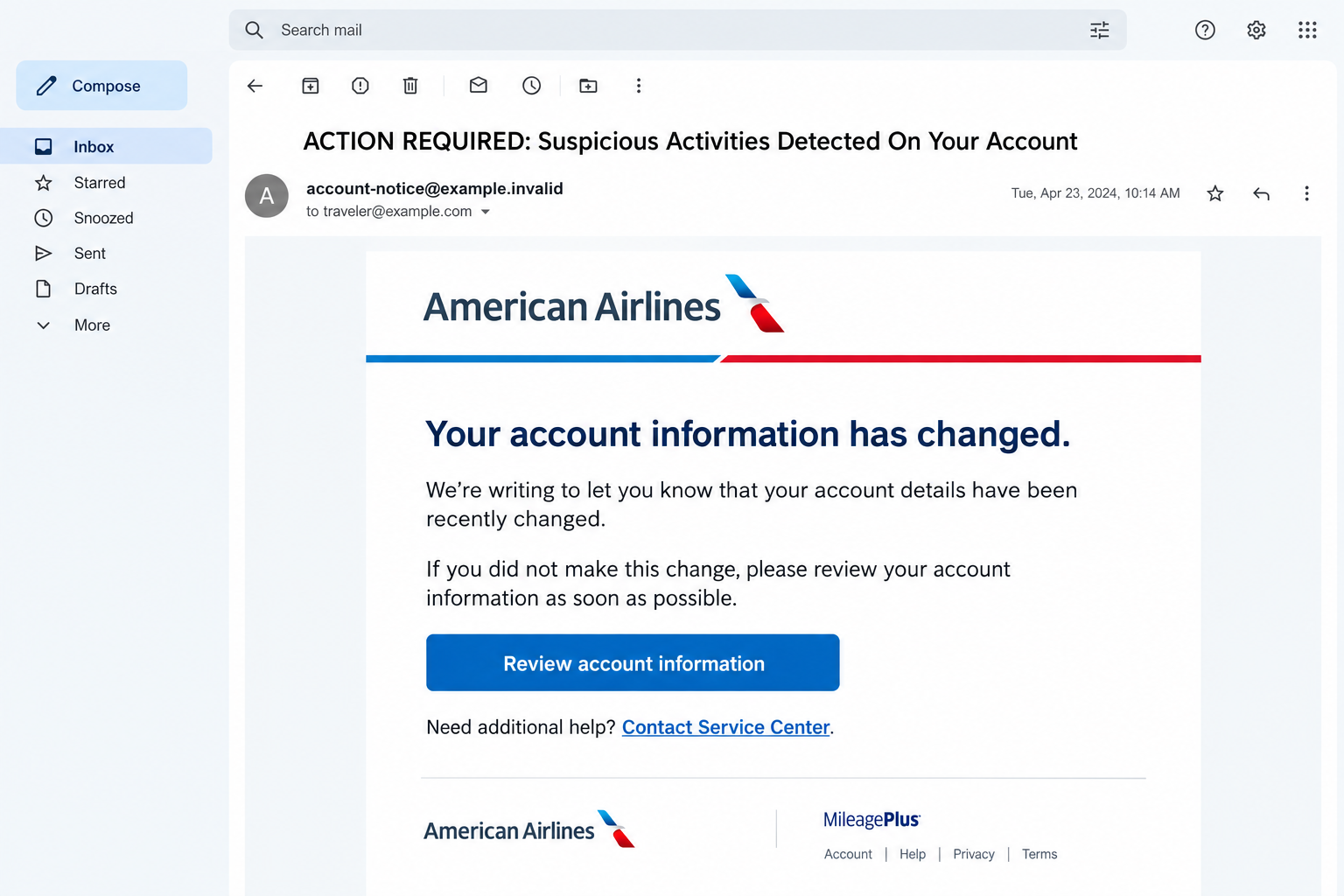
The American Airlines account changed email scam impersonates an account-security notification. It claims personal details were updated but withholds the exact change for supposed security reasons.
That leaves the reader with a problem they cannot evaluate inside the message. Reviewing the account appears to be the obvious next step.
A real account change deserves attention. The unsafe part is trusting this email to supply the route for checking it.
Both offered routes lead toward an impostor login
The reported message includes account-review and service-center links. Both lead to a counterfeit AAdvantage sign-in page associated with nolix[.]cyou.
The form seeks an AAdvantage number or username and a password. It is a credential request dressed as a response to a security problem.
American Airlines is being impersonated, not identified as the operator. The purpose of the false notice is access to the traveler’s account.
Account protection should happen through the airline itself
Open the airline’s established app or type aa.com yourself. Check the profile and recent activity there instead of following either link in the unexpected notice.
The original destination could not be captured for this article. The image is an illustrative email example, not a record of changes to a real traveler’s account.
- The message claims an account change without identifying the affected field.
- Its links direct the reader toward a separate credential page.
- A mismatched loyalty-program reference appears in the reported footer.
- Independent account access allows you to check the claim without trusting the email.
Why This Alert Can Catch Even a Careful Traveler
Travel accounts are easy to overlook between trips. An unexpected notice can make you wonder whether an old password or forgotten booking has become a problem.
The message doesn’t need to know your itinerary to trigger that concern. A generic account-change claim leaves you to supply the worrying possibilities.
Perhaps a phone number changed. Perhaps someone replaced the password. Because the email doesn’t say, clicking can feel like the quickest way to regain certainty.
That is precisely why the route matters. A security concern should move you toward a trusted account, not make you less selective about where you sign in.
The danger isn’t limited to the mileage balance. An airline profile can contain contact details and travel-related information that you would not want a stranger accessing.
What an attacker can actually do depends on the account, its protections, and any further verification. A password alone doesn’t guarantee every possible misuse will succeed.
You don’t need to settle that question before acting. If the credential went into an impostor form, treat it as exposed and begin recovery through the airline.
How the American Airlines Account Changed Email Scam Works
Step 1: An account-change notice creates uncertainty
The subject emphasizes suspicious activity, while the message says account information has changed. This combines a security warning with a vague description of the alleged event.
The recipient is told they can disregard the notice if they made the update. That familiar wording helps the message resemble ordinary account correspondence.
But recognizing a common notification format doesn’t authenticate this sender. A scammer can reproduce the same conditional instructions without knowing whether anything changed.
Check your own actions first. If you recently updated a profile, that coincidence still doesn’t make an unrelated email link safe.
Step 2: The message offers two apparent ways to resolve it
One link invites you to review account information. Another appears to contact the service center. They seem like different options for a cautious reader.
In the reported case, both direct the reader into the fraudulent journey. Choosing the more official-sounding label does not create an independent support channel.
The destination matters more than the words printed on a link. A contact label can open a page just as easily as an account-review button.
Leave the email and open the known app instead. For support, use details obtained inside that app or from the airline’s established website.
Step 3: A familiar-looking form asks for the credential
The counterfeit page imitates the airline’s loyalty sign-in experience. Branding and familiar field names make entering a username and password feel like ordinary troubleshooting.
This is where the supposed security check changes direction. Instead of protecting the account, the reader is giving its login information to an unverified destination.
The reported host is not aa.com. A padlock, convincing layout, or the correct airline name elsewhere in the address would not repair that identity mismatch.
A password manager that normally fills the real account may refuse to fill a different site. Do not override that useful warning simply to complete the email’s instructions.
Step 4: Exposed credentials can put miles and profile information at risk
An operator can attempt to use the supplied login at the genuine service. Whether access succeeds depends on protections and any additional checks.
If access is obtained, possible targets include mileage activity, account details, and travel bookings. Those are potential consequences, not transactions observed in this case.
Reusing the password elsewhere creates another concern. A credential stolen from a travel-themed form can be tried against an unrelated service where it also works.
An error page after submission is not reassurance. The form may already have received what you typed before displaying a failure or returning you elsewhere.
Respond based on what you entered, not whether the page appeared to finish. Changing an exposed password is more useful than repeatedly testing the suspicious form.
The Footer Mistake and What It Does, and Doesn’t, Prove
The reported email includes MileagePlus branding in an American Airlines notice. That is inconsistent with the AAdvantage account the message asks the reader to review.
This kind of mismatch can reveal reused material. It is a reason to stop and question the message, not a clue you should investigate by signing in.
The larger problem remains the counterfeit credential request. Even a version with a corrected footer would still require independent verification of its destination.
Conversely, a formatting mistake in an ordinary message is not enough by itself to prove a complete account-theft operation. Look at the requested action and route together.
Do not use a street address or copyright line as a substitute for that check. Public business details are easy to reproduce in a template.
Nor should a familiar greeting settle the question. A message can know your name without having authority to request your account password.
How to Check Your AAdvantage Account Without Using the Email
Start from the app you already use or a bookmark you created previously. Avoid sponsored search results offering urgent airline-account help.
Once inside, look for unexpected profile changes and activity relevant to your account. Compare the information with your own records instead of the email’s claim.
Check a pending trip separately. An alarming security notice doesn’t establish that a reservation was canceled or that you need to buy another ticket.
If something is wrong, contact the airline through its real support channels. Explain the account issue and the suspicious message as two related but distinct facts.
A useful record lists the field that changed, when you noticed it, and any confirmation messages you received. Don’t include your new password in that record.
If the account looks normal, that answers the email’s immediate claim but not an exposed password. A submitted credential still needs replacing even before misuse appears.
American’s communication and email-security guidance warns against unsolicited requests for security changes and personal information.
That page also provides a security-reporting contact. Obtain it there rather than trusting a contact copied into an unfamiliar email.
For password access problems, use the airline’s official technical-support information. A separate account page shouldn’t require the suspicious message to function.
What to Do If You Responded to the Fake Airline Alert
Leave the counterfeit page. Don’t enter another password or supply a verification code. If you only viewed it, record the URL without returning to interact.
Merely receiving this email doesn’t establish account access. Focus the response on whether you submitted information, downloaded anything, or found real unauthorized activity.
Replace the exposed airline password. Open the genuine service independently. Choose a password you haven’t used for another account.
If sign-in no longer works, use the airline’s recovery process or contact support. Don’t ask the email sender to unlock the account.
Tell American about any account misuse. Report unexplained mileage redemptions, profile changes, or bookings through its established channels.
Keep confirmation numbers and screenshots. Ask what can be investigated or restricted, without assuming a particular refund or mileage-restoration outcome.
Check where recovery messages will arrive. Confirm that the account’s registered email and phone details still belong to you before relying on them for recovery.
If those details changed, explain that to the airline. A reset sent to an attacker’s contact address will not give you dependable control.
Secure the email address connected to the account. This matters especially if you reused its password or disclosed email credentials during a later step.
Review recovery settings and unfamiliar access through the actual email provider. Protecting the mailbox helps prevent an attacker from intercepting recovery messages.
Change reused passwords at the other affected services. Don’t simply add a digit to the stolen password. Use separate credentials or a reputable password manager.
If an unexpected approval request arrives, deny it. Contact the real service when you aren’t sure which sign-in attempt triggered it.
Contact your card issuer if payment information was exposed or misused. Use its official app or the number printed on your card.
Describe the information supplied and any actual charges. An airline-login theft does not automatically mean the full card number was stolen.
Investigate downloads or installed software separately. If the page led you to run a file or add an extension, check the device before using sensitive accounts.
Malwarebytes is useful for checking unwanted software. AdGuard can reduce some malicious-ad exposure, but neither reverses mileage activity or replaces account recovery.
Preserve and report the message. Save the original email if possible, with its links and headers intact for the airline’s security team.
Use your inbox’s phishing-report option. If coworkers received the same notice, warn them without circulating an active link or your private travel information.
Is Your Device Infected? Run a Free Malware Scan
Slow performance, constant pop-ups, or strange behavior? These are classic signs of a malware infection. The fastest way to find out is to scan your device with Malwarebytes Free — one of the most trusted malware removal tools available.
The free version detects and removes the most common threats, including:
- Adware — the cause of those annoying pop-ups
- Browser hijackers — unwanted redirects and changed homepages
- Trojans and spyware — hidden programs stealing your data
- Potentially unwanted programs (PUPs) — software you never asked for
👉 Select your device below — Windows, Mac, or Android — then follow the simple steps to download Malwarebytes, scan your system, and remove any threats it finds. The scan usually takes 5 to 20 minutes.
Run a Malware Scan with Malwarebytes for Windows
Malwarebytes is one of the most popular and trusted anti-malware tools for Windows — and it’s completely free for removing infections. It catches threats that many antivirus programs miss, including adware, browser hijackers, and trojans. Follow the steps below to scan and clean your PC in just a few minutes.
Download Malwarebytes
Click the button below to download the latest version of Malwarebytes for Windows from the official source. The free version is all you need — it will scan your computer and remove adware, browser hijackers, and other malicious software at no cost.
Download MalwarebytesOfficial installer for Windows 11 and 10. Your download starts right away.Want real-time protection? See Malwarebytes Premium Malwarebytes Free for WindowsScans and removes malware at no cost
-
Install Malwarebytes
When the download finishes, open your Downloads folder and double-click the MBSetup file. If Windows shows a User Account Control pop-up, click “Yes” to allow the installation.

Follow the On-Screen Prompts to Install Malwarebytes
The setup wizard will walk you through a few quick screens:
-
Choose where you’re installing the program — “Personal Computer” or “Work Computer” — then click Next.

-
Malwarebytes will now install on your device. This usually takes under a minute.

-
When installation is complete, the “Welcome to Malwarebytes” screen will open automatically.

-
On the final screen, click Open Malwarebytes to launch the program.

-
Enable “Scan for Rootkits”
Before scanning, turn on rootkit detection so Malwarebytes can find even the most hidden threats. Click the Settings gear icon on the left side of the screen.

In the settings menu, find “Scan for rootkits” and click the toggle so it turns blue.

Done? Click “Dashboard” in the left pane to return to the main screen.
Start the Scan
Click the blue Scan button. Malwarebytes will automatically update its virus database and start checking your computer for malware.

-
Wait for the Scan to Finish
The scan checks your entire system for browser hijackers and other malicious programs, so it can take 5 to 20 minutes depending on your computer. Feel free to do something else — just check back occasionally to see the progress.

-
Quarantine the Detected Threats
When the scan is done, you’ll see a list of everything Malwarebytes found — malware, adware, and potentially unwanted programs. Click the “Quarantine” button to remove all of them at once.

Malwarebytes will now remove the malicious files and registry entries and move them safely into quarantine.

-
Restart Your Computer
Some threats can only be fully removed after a reboot. If Malwarebytes asks you to restart, click Yes. Once you’re logged back in, Malwarebytes has finished removing the threats it found.

That’s it — your Windows PC is now clean of trojans, adware, and other malware, and should be back to running smoothly.
If you are still having problems with your computer after completing these instructions, then please follow one of the steps:
- Run a computer scan with ESET Online Scanner
- Ask for help in our Windows Malware Removal Help & Support forum.
Run a Malware Scan with Malwarebytes for Mac
Malwarebytes for Mac is a free on-demand scanner that removes the malware other security software tends to miss — adware, browser hijackers, and unwanted programs included. Cleaning an infected Mac with Malwarebytes has always been completely free, and it’s our go-to recommendation. Follow the steps below to scan and clean your Mac in just a few minutes.
-
Download Malwarebytes for Mac
Click the button below to download the latest version of Malwarebytes for Mac.
Download MalwarebytesOfficial installer for macOS. Your download starts right away.Want real-time protection? See Malwarebytes PremiumMalwarebytes Free for MacScans and removes malware at no cost -
Open the Malwarebytes setup file
When the download finishes, open your Downloads folder and double-click the setup file to begin the installation.

-
Follow the On-Screen Prompts to Install Malwarebytes
The Malwarebytes for Mac Installer will guide you through a few quick screens. Click “Continue” and keep following the prompts until the installation completes.



When the installation is complete, Malwarebytes opens to the Welcome to Malwarebytes screen. Click “Get started“.
-
Select “Personal Computer” or “Work Computer”
Malwarebytes will ask what type of computer you’re installing it on. Click either Personal Computer or Work Computer, whichever applies.

-
Start the Scan
Click the “Scan” button. Malwarebytes will automatically update its detection database and begin checking your Mac for malware.

-
Wait for the Scan to Finish
Malwarebytes will scan your Mac for adware, browser hijackers, and other malicious programs. This can take a few minutes, so feel free to do something else — just check back occasionally to see the progress.

-
Quarantine the Detected Threats
When the scan is done, you’ll see a list of everything Malwarebytes found. Click the “Quarantine” button to remove all the threats at once.

-
Restart Your Mac
Malwarebytes will now remove all the malicious files it found. Some threats can only be fully removed after a reboot — if Malwarebytes asks you to restart, allow it. Once you’re logged back in, your Mac is clean.

That’s it — your Mac is now free of adware, rogue browser extensions, and other potentially harmful software.
If you are still experiencing problems while trying to remove a malicious program from your computer, please ask for help in our Mac Malware Removal Help & Support forum.
Run a Malware Scan with Malwarebytes for Android
Malwarebytes for Android automatically detects and removes dangerous threats like malware and ransomware so you don’t have to worry about your most-used device being compromised. Aggressive detection of adware and potentially unwanted programs keeps your Android phone or tablet running smooth.
-
Download Malwarebytes for Android.
You can download Malwarebytes for Android by clicking the link below.
Get Malwarebytes for AndroidOpens Google Play in a new tab.Want real-time protection? See Malwarebytes Premium for AndroidMalwarebytes for AndroidScans your phone and removes malware at no cost -
Install Malwarebytes for Android on your phone.
In the Google Play Store, tap “Install” to install Malwarebytes for Android on your device.

When the installation process has finished, tap “Open” to begin using Malwarebytes for Android. You can also open Malwarebytes by tapping on its icon in your phone menu or home screen.

-
Follow the on-screen prompts to complete the setup process
When Malwarebytes will open, you will see the Malwarebytes Setup Wizard which will guide you through a series of permissions and other setup options.
This is the first of two screens that explain the difference between the Premium and Free versions. Swipe this screen to continue.
Tap on “Got it” to proceed to the next step.
Malwarebytes for Android will now ask for a set of permissions that are required to scan your device and protect it from malware. Tap on “Give permission” to continue.
Tap on “Allow” to permit Malwarebytes to access the files on your phone.
-
Update database and run a scan with Malwarebytes for Android
You will now be prompted to update the Malwarebytes database and run a full system scan.

Click on “Update database” to update the Malwarebytes for Android definitions to the latest version, then click on “Run full scan” to perform a system scan.

-
Wait for the Malwarebytes scan to complete.
Malwarebytes will now start scanning your phone for adware and other malicious apps. This process can take a few minutes, so we suggest you do something else and periodically check on the status of the scan to see when it is finished.

-
Click on “Remove Selected”.
When the scan has been completed, you will be presented with a screen showing the malware infections that Malwarebytes for Android has detected. To remove the malicious apps that Malwarebytes has found, tap on the “Remove Selected” button.

-
Restart your phone.
Malwarebytes for Android will now remove all the malicious apps that it has found. To complete the malware removal process, Malwarebytes may ask you to restart your device.
That’s it — your Android phone is now clean — no more malicious apps, adware, or browser redirects.
If you are still having problems with your phone after completing these instructions, then please follow one of the steps:
- Restore your phone to factory settings by going to Settings > General management > Reset > Factory data reset.
- Ask for help in our Mobile Malware Removal Help & Support forum.
Stay Protected: Block Ads and Malicious Sites
Now that your device is clean, keep it that way. Most infections start with a malicious ad or a fake download button — so blocking them at the source is your best defense.
We recommend AdGuard, which blocks malicious ads, phishing pages, and dangerous redirects before they can reach you.
👉 Download AdGuard and browse safely
If You’re Traveling Soon, Separate the Urgent Tasks
A departure deadline can make any account warning feel more pressing. Start by checking the real reservation rather than following the message’s proposed fix.
Use the airline’s established contact details if you cannot access an essential booking. Keep the reservation reference available, but don’t post it publicly.
If an employer or travel agent arranged the trip, confirm changes through the contact you already know. A forwarded email isn’t a substitute for that conversation.
Keep a booking reference private. Sharing it alongside a name or itinerary can reveal more about a trip than the account-warning screenshot alone.
When requesting help publicly, remove barcodes, ticket numbers, and dates that aren’t necessary. Send the fuller record only through the airline’s established support process.
For a shared family booking, tell the other travelers about any genuine change affecting them. Avoid presenting the unverified email’s claims as confirmed cancellation instructions.
Account recovery and flight assistance may need different teams. Tell each what actually happened so a phishing report doesn’t become confused with a routine booking change.
You shouldn’t need to send a stranger remote-access permission to inspect an airline profile. Reject any follow-up that turns travel support into access to your computer.
Once the immediate trip is secure, finish the password and account review. A working boarding pass does not by itself mean an exposed credential has been contained.
Frequently Asked Questions
Is every American Airlines account-change email fake?
No. This warning concerns the impersonating notice and its counterfeit login. Check any genuine concern through aa.com or the established app without using the email’s links.
What is suspicious about nolix[.]cyou?
It is the reported host associated with this counterfeit sign-in. It is not the airline’s established aa.com domain, regardless of branding displayed on the page.
Why does the message mention MileagePlus?
The reported footer contains mismatched loyalty branding. That inconsistency strengthens the warning, but the credential destination remains more important than any single template mistake.
Can someone steal miles with an exposed password?
Unauthorized access can put mileage activity at risk. Additional protections may limit what succeeds, so report the exposure rather than assuming either certain theft or complete safety.
I entered the password, but the page returned an error. Am I safe?
No conclusion follows from that error. Treat the submitted credential as exposed and replace it through the real airline account.
Will a malware scan secure my AAdvantage account?
A scan checks the device, not the airline’s account records. Password replacement, account review, and direct contact about unauthorized activity are separate tasks.
The Bottom Line
Do not use this account-change email to sign in or reach support. Open American Airlines independently and inspect the account there.
If you supplied a password, replace it now and report any unexpected mileage or booking activity. The correct response protects your travel account without trusting the alert that frightened you.

Join the discussion
0 commentsShare your experience or ask a question about this article.
Discussion
Start the conversation
Have a question or something useful to share? Add the first comment.