


An Android app looks faded, refuses to open immediately, and still seems to occupy a place on your home screen.
Before deleting anything, work out whether Android archived the app or whether another storage setting changed. The difference matters when the app contains something worth keeping.
Overview
An archived icon is not an installed app
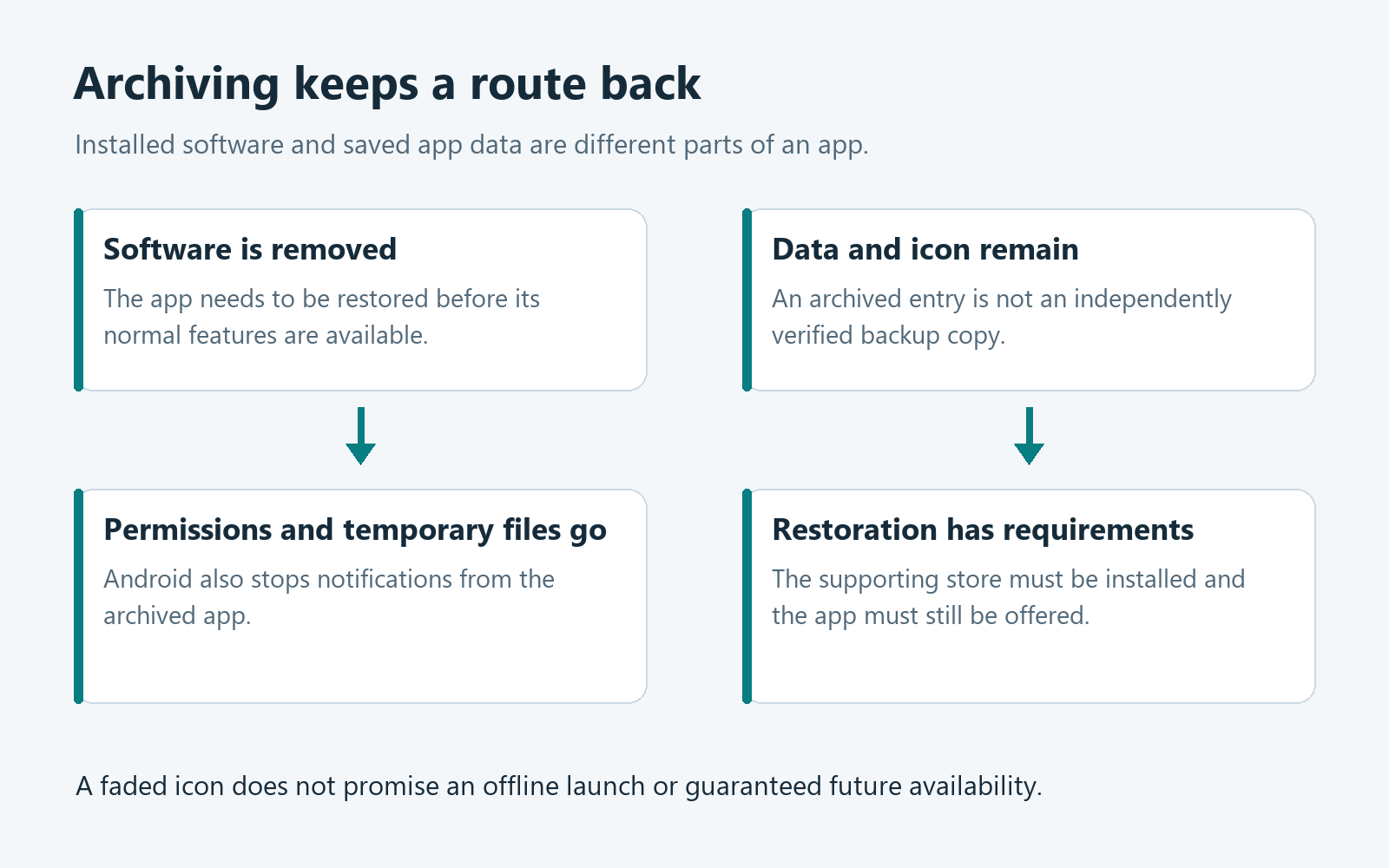
Archiving separates an app’s software from the information Android keeps for it. The icon can remain even though opening the app first requires restoring its software.
Google’s Android archiving instructions describe a faded icon with an archive indicator. Some instructions require Android 15 or later and supporting hardware.
Different storage controls preserve different things
Archiving, clearing cache, clearing storage, and uninstalling are not interchangeable shortcuts. Choosing the largest-looking cleanup button without reading its effect can remove information you wanted.
The useful starting question is whether you want the app available, its information retained, or its local information removed. Each goal calls for a different decision.
Restoring depends on more than the icon
An archived app needs an installed supporting app store, continued download availability, and enough space to reinstall. Retaining an icon does not guarantee every requirement remains satisfied.
- Identify the app and its actual storage state first.
- Preserve important information before choosing a destructive control.
- Check the relevant app store before depending on restoration.
- Verify important features after the app becomes available again.
Archiving is not your only backup plan
Keeping local app data is different from keeping an independent recoverable copy. Confirm the app’s export or backup options before relying on one phone.
Compare the Four Controls Before Touching Anything
A storage problem can tempt you to try several controls together. That makes it harder to understand which change helped and what information disappeared.
Instead, choose the smallest change matching your goal. Read any confirmation carefully, particularly when the phone uses wording different from another manufacturer’s instructions.
| Control | Its practical purpose | The question to ask first |
|---|---|---|
| Archive | Remove app software while retaining its icon and data. | Will the app still be available when needed? |
| Clear cache | Remove temporary app data without choosing the full storage-erasure operation. | Is temporary storage actually the problem here? |
| Clear storage or app data | Permanently remove the app data covered by that local control. | What information would need restoring or recreating afterward? |
| Uninstall | Remove app software and its app-specific local files, unlike archiving. | Have important data and account access been protected first? |
Google’s storage guidance distinguishes temporary cache removal from permanently clearing app data. Manufacturer menus can differ, so read the actual option rather than guessing.
Neither a storage number nor an app icon tells you everything about account data. Some information may exist on the phone, in an online account, or both.
Android’s app-specific storage documentation states that uninstalling removes files held there. Shared files, exported copies, and information in online accounts are separate questions.
For example, a note visible on one phone may not have been synchronized anywhere else. Opening the same service elsewhere is a better check than assuming synchronization.
What Android Changes When It Archives an App
Android removes the archived app’s software, permissions, and temporary files, and stops its notifications. It retains the app icon and its data for possible restoration.
This explains why the faded icon is useful rather than contradictory. It provides a route back to an app whose software is no longer present normally.
It also explains why archiving is a poor choice for an app you need immediately. Restoration introduces a download dependency before you can use its features.
Imagine needing a travel tool in a station without reliable connectivity. Saved information may remain, but that does not mean the missing software can display it.
Keep essential tools installed and test them before a trip. Do not discover at the point of use that a familiar icon needs another download.
The stopped notifications matter for the same reason. If you depend on a particular app for timely alerts, confirm its availability rather than assuming retained data preserves notifications.
What to Do Before You Change an App’s Storage
-
Find the exact app name and publisher before changing storage settings. Similar icons can belong to different apps, particularly when several tools serve the same purpose.
-
Look for the faded icon and archive indicator described by Android. A missing shortcut alone does not establish that the underlying app was archived.
-
Open Settings, select Apps, and inspect that app’s information. Follow the menu your device actually provides instead of treating another phone’s screenshot as universal.
-
Check the Android version and manufacturer guidance if the expected option is absent. Feature availability depends on software and hardware support, not simply the app’s age.
-
If the app appears deleted rather than archived, investigate its normal reinstall options separately. Do not promise yourself that an archive must exist somewhere.
This check is especially useful on a shared family device. Another person may have removed a shortcut, uninstalled an app, or changed its storage settings.
Ask what changed before trying repairs. A short description of the last action often prevents an unnecessary second change that makes recovery more difficult.
Restore an Archived App Without Erasing Its Data
Google describes selecting the faded icon and tapping the app to reinstall it. Restoration is also available through supported App info or Play Store app-detail views.
Use the route actually offered by your device. Do not clear the app’s storage merely because reinstalling takes longer than expected or the first attempt fails.
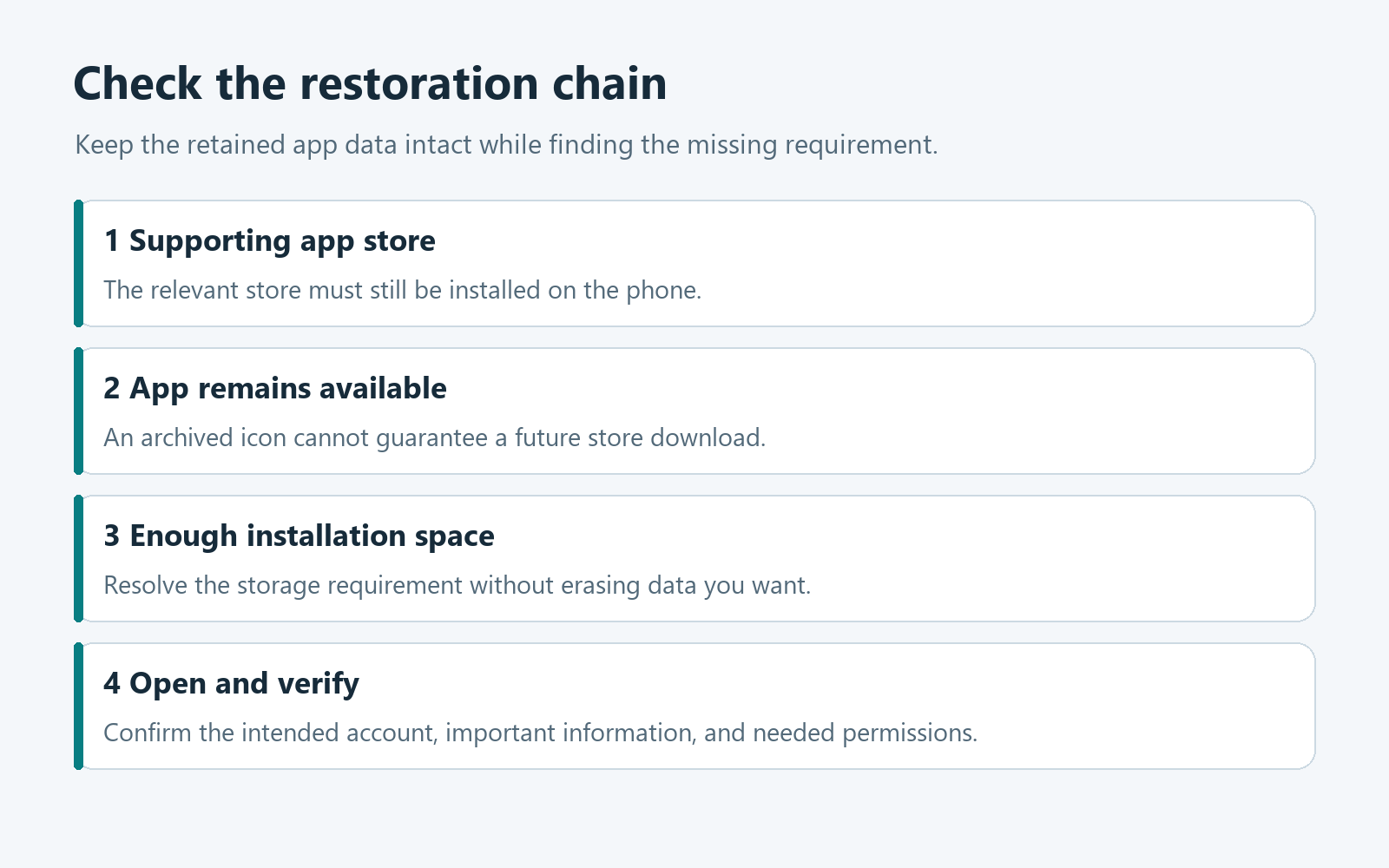
First confirm that the supporting store is installed and the app remains available there. Then check whether the phone has enough storage for the installation.
If Android asks you to manage storage, review other removable items carefully. Avoid solving the problem by erasing the very app data you hoped to preserve.
After restoration, open the app and inspect information that matters to you. A successful download is not the same as confirming a particular document or account.
Check the selected account if the app presents a sign-in screen. An empty view can reflect a different account rather than proof that every saved item disappeared.
Review any permissions the app requests again before granting them. Decide whether each request fits the feature you intend to use, rather than approving everything automatically.
If the expected information remains missing, consult the app provider’s recovery instructions. Keep the current state intact while checking, instead of repeatedly clearing data and reinstalling.
Keep account access separate from app availability
Restoring app software does not prove that you remember its account password or control its recovery method. Check those dependencies before removing an essential tool.
Decide Which Situation Matches Your Goal
Choose the situation below for a focused next action. These explanations run only inside this article and do not inspect or change your phone.
I want more space but expect to need this app again
Archiving may fit an infrequently used app when important data is protected and restoration requirements are understood. Check store availability before relying on that future return.
Keep apps installed when delayed access would cause practical trouble. An emergency, travel, or communication need is a poor moment to depend on a fresh download.
I need this archived app to work right now
Use its offered restore route and check the supporting store, availability, network connection, and free storage. Leave the retained data alone while investigating a failed installation.
After it opens, verify the intended account and important information. Deal with any missing content through the provider’s recovery process instead of treating storage erasure as troubleshooting.
I want the app’s private information removed from this phone
Archiving deliberately retains app data, so it does not meet that goal by itself. Review the provider’s sign-out, local-data, and device-transfer instructions before deciding what to remove.
A local change also does not automatically delete information held in an online account. Treat device preparation and closing an account as separate tasks.
Prevent Automatic Archiving Where Reliability Matters
Supporting app stores can archive apps automatically when they are not used regularly. That can be convenient until an infrequently opened tool becomes unexpectedly important.
Google’s instructions describe opening Settings, choosing Apps, selecting the app, and turning off Manage app if unused when blocking automatic archiving after opting in through Play Store.
Check your device’s wording and whether the feature is supported. Do not change every app indiscriminately simply because one app needs to remain immediately available.
For a useful selection, think about consequence rather than frequency. An app used only occasionally might still be essential when you suddenly need its stored information.
After adjusting the relevant setting, return later and verify the intended app state. A remembered choice is less helpful than confirming the app still opens when needed.
Automatic archiving is not a reason to disable Android updates or normal app protection. Storage management and security maintenance solve different problems.
Do Not Confuse Storage Space With Working Memory
Read the phone’s actual warning before deciding to archive anything. A message about unavailable storage and a problem with an app running slowly are not identical.
Android uses storage for retained information and memory for running software. Removing an app’s installed software addresses storage, not every possible cause of poor performance.
Check Settings and the Storage category when space is the concern. Identify what is consuming space rather than assuming the largest-looking icon represents the largest installed app.
Photos, downloaded media, and other files may need their own review. Archiving one app is not an instruction to delete unrelated files or clear everything automatically.
If an app crashes after restoration, record its actual error. Consult the provider’s troubleshooting advice before changing another storage setting that could discard useful information.
Finally, compare storage before and after your chosen action. Retained app data explains why archiving does not necessarily recover every byte previously associated with that app.
Four Common Mistakes That Make the Problem Harder
Clearing storage before checking for a recoverable copy
A cleanup screen may place several actions near each other. Pause when an option says it removes data, even if another article calls it a quick fix.
Look for an export, synchronization status, or provider-supported backup first. A saved login elsewhere is not proof that a particular unsynchronized file is protected.
Assuming a subscription disappears with the software
Removing or archiving software is not the same as ending a paid agreement. Google explicitly says uninstalling does not cancel a Play subscription.
Check the actual billing provider and its cancellation procedure if payment is your concern. A service purchased elsewhere may not be billed through Google Play.
This distinction matters even when you no longer use the app. Keep confirmation of a cancellation separately from any screenshot showing the app’s storage state.
Treating archiving as a complete security cleanup
An unwanted app and a compromised account require their own assessment. Retaining app data does not resolve every possible consequence of suspicious software or earlier account access.
If a security warning prompted your concern, follow the relevant official warning and targeted removal guidance. Do not substitute a convenient storage feature for that investigation.
Expecting restoration after the app becomes unavailable
Google makes continued store availability a condition of restoration. An archived entry is not a permanent entitlement to download software that the store no longer provides.
Do not search random download sites when that happens. Ask the genuine provider about supported alternatives and recovery options before exposing retained information to unfamiliar software.
A Simple Storage Decision You Can Repeat Safely
Write down the app you intend to change and the result you need. That small step helps separate a full phone from an unwanted account or subscription.
Then identify what cannot be lost: local drafts, saved work, login access, or timely notifications. Protect that dependency before choosing a storage action.
Make one appropriate change and verify its result. If the goal was immediate access, open the app; if it was more space, inspect storage again.
Keep a note of any remaining limitation rather than repeating unrelated cleanup steps. When restoration is blocked, the useful question is which prerequisite failed.
Frequently Asked Questions
Does archiving an Android app delete all its data?
No, Android describes retaining the app’s data and icon while removing software and other specified components. That retention still should not replace an independent backup.
Why is the app icon faded instead of missing?
A faded icon with an archive indicator can identify an archived app. Check its app information rather than assuming every unusual icon means the same thing.
Can I restore it without the supporting app store?
Google says the relevant app store must be installed and the app must remain available there. Enough device storage is another practical restoration requirement.
Will an archived app keep sending its notifications?
Android says archiving stops the app’s notifications. Keep important tools available and check their operation rather than expecting retained data to preserve notification delivery.
Is clearing cache the same as clearing app storage?
No, Google distinguishes temporary cache data from permanently clearing app data. Read the specific control and protect important information before choosing storage erasure.
Should every Android phone show the Archive button?
No, some archiving instructions require Android 15 or later and supporting hardware. Consult your device manufacturer when the expected setting is unavailable or named differently.
The Bottom Line
Archive an app when saving space while retaining its information fits your needs. Keep essential apps installed, and protect irreplaceable information before changing storage.
If an archived app will not return, check its store, availability, and storage requirements first. Do not erase the retained data while trying to restore access.

Join the discussion
0 commentsShare your experience or ask a question about this article.
Community experiences
Did this happen to you?
Your experience could help someone recognize the same scam. Submit a private report for our team to review.
I experienced this tooReports are reviewed before publication. Sharing publicly is always your choice.
Discussion
Start the conversation
Have a question or something useful to share? Add the first comment.