


A banking problem and a phone problem can arrive in the same afternoon. When you aren’t sure which came first, it’s tempting to keep testing both on the same screen.
Bazuka is one name you might come across while trying to make sense of both problems. It helps to keep track of which signs came from where.
Overview
Bazuka is a framework, not the name of one convincing app
ThreatFabric’s Bazuka analysis describes Android malware with different capabilities that can be used at different times. A sample’s feature list does not establish what happened to each person.
Researchers reported access to screen activity, text entered on the phone and some messages. They also found features relevant to contactless card data and copied cryptocurrency addresses.
There wasn’t one public installer name that would reliably let every reader find the malware. Use your own detection, app history and permission changes to narrow down the device.
The AI component belongs to the operator’s tools
The original report describes an AI feature on the operator’s side. It doesn’t establish that a chatbot has to appear on the victim’s phone or that AI made the payment.
The researchers distinguished broad remote-control and targeting features from automated payment execution. Treat an unauthorized transaction as something the bank should investigate, not as proof of a particular module.
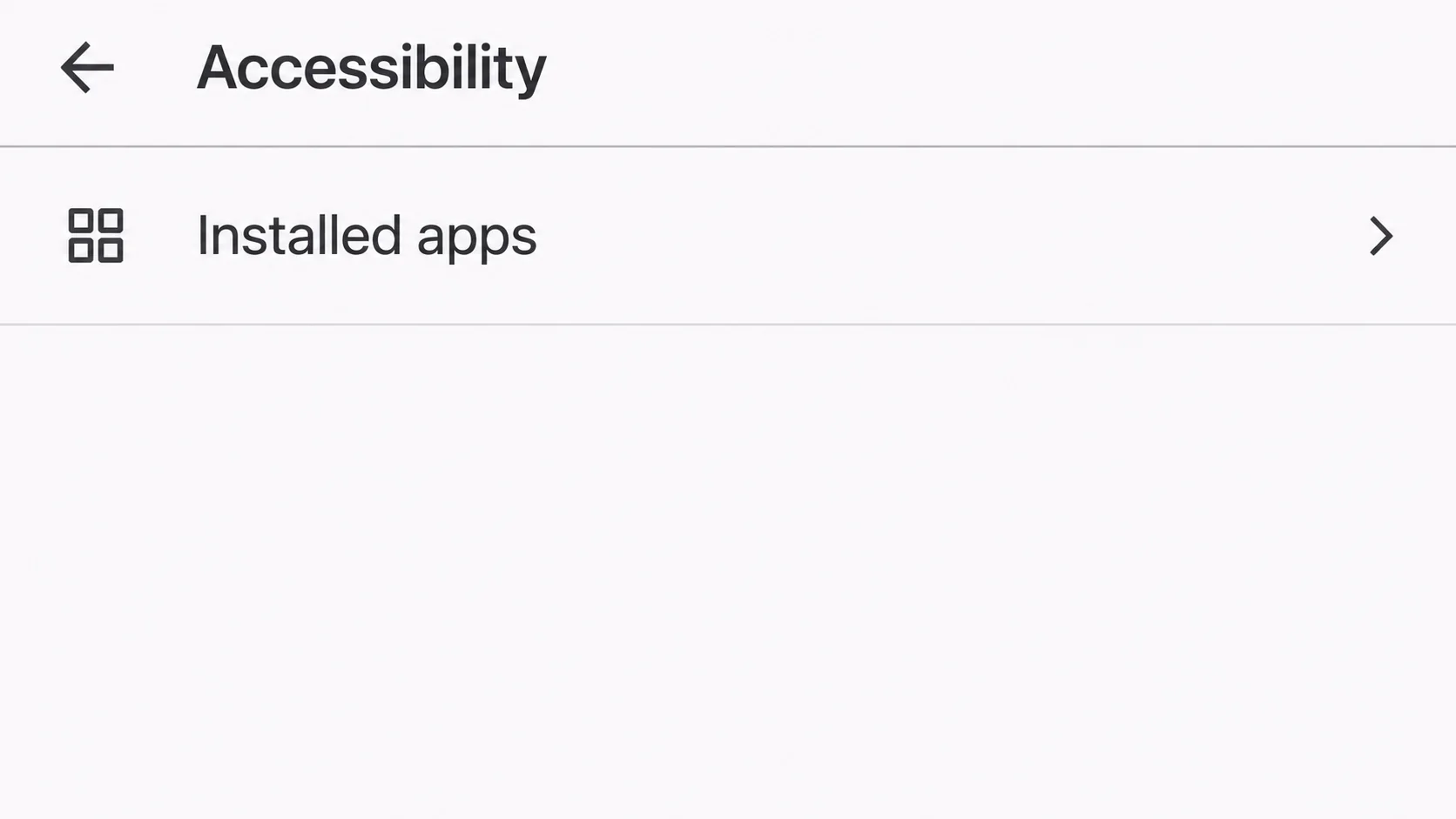
The settings image is a reconstruction of a permission category. Many legitimate Android tools use accessibility features, and seeing an entry there doesn’t identify malware.
Phone, bank and wallet evidence mean different things
The phone may show evidence of an unfamiliar app or changed setting. The bank can tell you how it recorded a payment, which helps you decide what to dispute.
Clipboard risk is different from account takeover. A copied address that changes unexpectedly calls for verification of the actual recipient even if your exchange password never left your control.
Use what you can verify to choose the first call:
- Suspicious point-of-sale activity or a banking notification calls for your card issuer or bank.
- Unrequested account recovery activity calls for the relevant provider from a different device.
- Unfamiliar wallet transfers call for a separate check of the transaction and the wallet’s setup.
- Settings that change again after removal call for manufacturer support or qualified help, not another round of random app deletions.
What Bazuka Can Expose on an Android Phone
Accessibility privileges can affect what the phone does
The researchers observed Bazuka using Accessibility Services. Android’s accessibility tools are essential for many people, but any unfamiliar app with those privileges is worth investigating carefully.
In the reported samples, the privileges could be abused to interfere with security settings or make removal harder. It’s not a reason to disable a screen reader you depend on.
An app vanishing from familiar places is also not a reliable diagnosis.
Use the list of apps in Settings and any existing scanner record rather than judging by the home screen.
A missing code is not the only clue to account trouble
Bazuka’s reported features include access to SMS messages. That raises concern if you see a sign-in attempt elsewhere or if a service records a verification you didn’t request.
A slow carrier, a message filter or an incorrect phone number can also explain a delayed text.
Give your provider evidence about the specific login or payment rather than the symptom alone.
If you need to authorize recovery, don’t rely only on a code arriving on the suspect phone. Ask the provider what other verified recovery method it supports.
A card transaction isn’t the same thing as a leaked password
The original research reported a feature capable of relaying contactless card information.
A suspicious payment is still a matter for the issuer, regardless of how the attacker may have obtained access.
Check whether the bank classifies the transaction as in-person, online, pending or posted. You don’t need to decide whether it was a relay before reporting a payment that wasn’t yours.
The card itself may still be in your possession. Say so when you file the report, but don’t use that fact to rule out misuse.
A changed destination can invalidate a legitimate transfer
The researchers reported that Bazuka can replace copied wallet addresses. The sender can believe the instructions came from the right person while authorizing a transfer to a different address.
If you haven’t confirmed a transfer, stop and independently verify the complete destination from a trusted device. Don’t compare just the first or last few characters.
If the transfer went through, retain its identifier, the network, and the destination shown in the transaction record.
Don’t paste a wallet recovery phrase into any service that offers to trace it.
What to Do if You Suspect Bazuka Malware
-
Put the affected phone aside for sensitive tasks. Keep banking, payments, account resets and wallet operations on another trusted device while you establish what happened.
If you can operate the phone safely, use airplane mode and check that Wi-Fi stays disconnected. Notify workplace security instead if your employer manages the handset.
-
Call the bank about transactions, not the malware name. Use its genuine app on a separate device or a number you obtained independently of the issue.
Ask which transactions are awaiting approval and how to restrict the exposed card, devices or payment access. Record the case reference and the process for disputed transfers.
-
Review recovery options with the provider that issued them. Start with the email and phone services you use to regain access to other accounts.
Change exposed passwords from the other device, check unfamiliar sessions and ask whether an alternate sign-in method is available. Don’t approve a new security prompt on the affected handset.
-
Review wallet use separately if applicable. Compare intended recipient information with the actual transaction.
If a wallet secret may have been typed or stored on the phone, seek provider-specific recovery advice.
An exchange login and the recovery secret for a self-managed wallet are different kinds of access. A password reset may not be the right response for both.
-
Record signs that matter for cleanup. Note install times, security alerts, settings that changed unexpectedly and anything the phone refused to let you do.
Keep dates and device information, but avoid sharing account numbers, messages or recovery codes in open support threads. Bring the details to a verified technician if needed.
How to Remove Bazuka From an Android Phone
Step 1: Find the suspicious app from system settings
Start with Settings > Apps, then choose the option to see all installed apps. Record the exact app name or detection if you can find it without launching the app.
Look for an app connected to your own install history, a permission request or a trusted security finding. Don’t treat an app as Bazuka just because its name is unfamiliar.
If the phone keeps closing Settings or you can’t control it reliably, stop and use another device to contact support. The removal process should not require accepting a new prompt.
Step 2: Review permissions before trying to uninstall
Open Settings > Accessibility and look for Installed apps, Downloaded apps or the equivalent on your phone. Disable the service for an app you’ve identified as malicious.
Use Settings search for Device admin apps if removal is blocked. If the known unwanted app appears and is active, deactivate its administration before returning to the apps list.
Only remove privileges from an app you can identify. Do not remove work-device management, screen readers or manufacturer services simply because they have broad access.
Step 3: Uninstall the identified app and check unexpected access
In Settings > Apps, select the identified app, tap Uninstall and confirm. Reopen the app list and verify that the item disappeared.
If a trusted technician tells you that debugging settings were unexpectedly enabled, ask them to check that any unauthorized pairing or setting is removed.
Don’t enable developer settings to look for it.
An app that returns after you remove it is a reason to escalate. Write down what happened and ask about a clean reset instead of making more unrelated changes.
Step 4: Restore Play Protect and use a trusted second check
When it is safe to connect, open Google Play Store, tap your profile and choose Play Protect. Check that app scanning is enabled and start the available check.
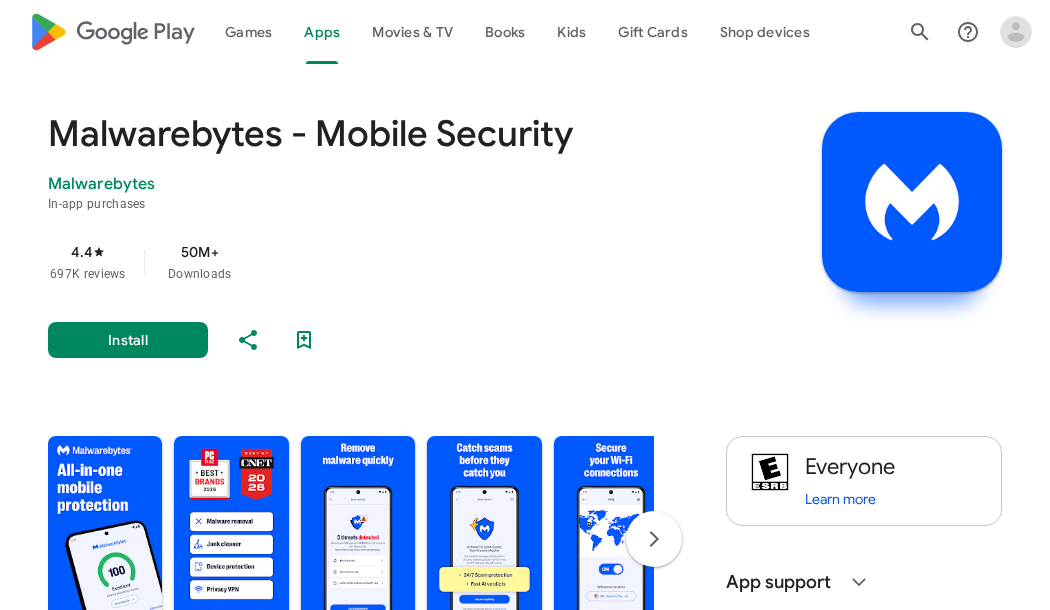
If you use a second scanner, open the official Malwarebytes listing on Google Play. Check the publisher and install from that listing, not a downloaded package.
The Malwarebytes Android product link is an optional affiliate link. You do not need to buy a subscription to contact your bank or seek removal support.
Step 5: Follow the scanner result through a restart
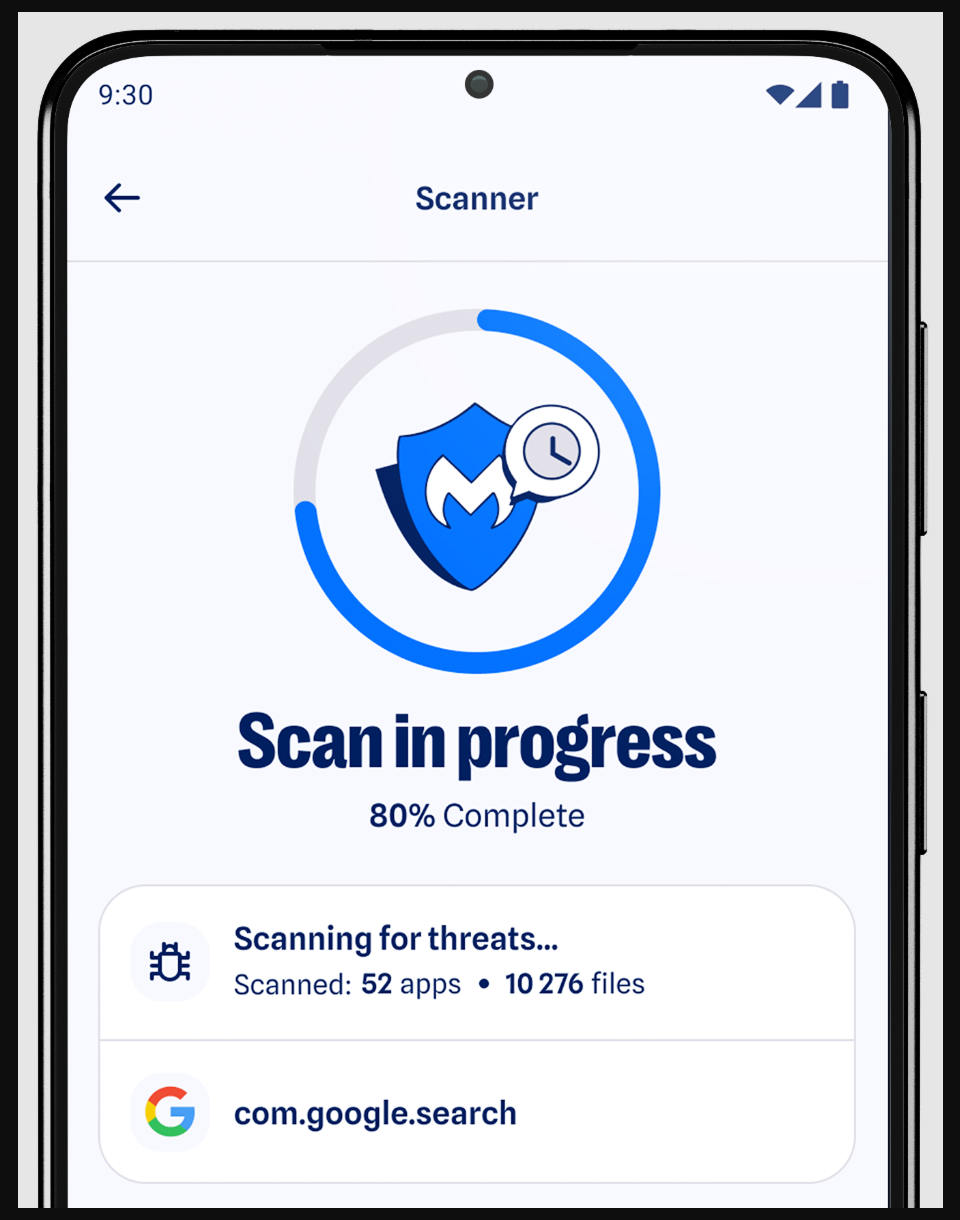
In Malwarebytes, open Device and choose Scan now. Read its results rather than assuming the lack of a notification means nothing was found.
If an item is identified, use the displayed removal action where available. Then check the app list and relevant permissions again after restarting if it is safe to do so.
Keep a private record of any detection that returns. If it does, use the MalwareTips mobile help forum or manufacturer support before relying on the phone again.
Step 6: Set up a clean return without restoring the suspect app
Install Android security updates from the Settings menu after the device has been cleared for normal use. Check for Google Play updates as well as the system update.
If qualified help recommends erasing the phone, make a plan for photos, account recovery and two-factor access first. Verify a clean backup from a separate device if possible.
Avoid restoring every old app and setting automatically. Reinstall only the apps you know you need from trusted listings, and hold off on banking until you have confirmed account access.
How to Tell When It Is Safe to Bank Again
Don’t make a small transfer on the restored phone just to see whether it works. Ask the bank to confirm that exposed sessions or authorizations have been dealt with.
Before logging in, compare the phone’s current state with the problems you saw earlier. Confirm the identified app isn’t present and Play Protect remains on after a restart.
If your card issuer replaced a card, update any payment wallets by following its official instructions. Verify that no unexplained enrollments or changed transfer destinations appear on your account.
Keep monitoring the bank’s own activity view, not just alerts delivered by text. You can have a clean phone and still need to dispute activity from before the cleanup.
What to Ask the Carrier When Texts or Calls Changed
A banking code that didn’t arrive can be a delivery problem, an account issue or a possible security event. Don’t assume the phone’s malware history gives you the whole answer.
From an unaffected device, ask your carrier whether your number or SIM service recently changed. If the review raised forwarding concerns, ask how to verify forwarding status.
Write down what the carrier can confirm and when it happened. An account note is more helpful than a guess based on which message appeared first on the phone.
If a fraud specialist asks for a fresh number to secure an account, make the change through the service’s verified process. Don’t approve it from a pop-up.
For a work number, check with the person who manages the mobile account before changing service. An urgent reset can affect access to shared systems and employee recovery.
Even if the carrier finds nothing unusual, keep checking with providers who reported account changes. A problem with the device doesn’t have to involve a change to your SIM.
Frequently Asked Questions
Is Bazuka the name that will appear in Settings?
Not necessarily, because the report uses a research name for the framework. Use an exact detection, installation event or verified permission finding rather than searching for only that name.
Can Bazuka spend money automatically in every case?
The original research did not establish automatic payment execution. It described capabilities that may help an operator, and your bank must still assess the disputed payment and available evidence.
Do all contactless payments indicate a Bazuka infection?
A payment alone doesn’t identify a malware family. Report any transaction you didn’t authorize and ask the issuer to describe how it was processed.
Can I turn off every Android accessibility service to make it safe?
Don’t remove legitimate tools you need or depend on. Investigate each unfamiliar service, preserve details and disable only access linked to the unwanted app.
Do I need to replace my phone if the app is removed?
You don’t have to replace the phone automatically. If settings keep changing afterward, ask a qualified technician whether a clean reset or a replacement makes sense.
Will malware removal bring back a wallet transfer?
Removing an app won’t reverse a payment that already happened. Record the transaction and contact a relevant provider from a separate trusted device.
The Bottom Line
Keep the suspect Android phone out of banking and account recovery while you investigate. Report any unauthorized activity to the service that can verify it.
Remove identified malware and check for recurring changes before relying on the device again.
If permissions or settings won’t stay corrected, get help rather than putting account access back at risk.

Join the discussion
0 commentsShare your experience or ask a question about this article.
Your progress
Did these steps help?
Let us know how the guide worked for you.
Describe what you see and the step you reached. Keep passwords and other private information out.
Discussion
Start the conversation
Have a question or something useful to share? Add the first comment.