


The meeting opens, but the audio sounds wrong. You can see the room and recognize what the controls are supposed to do, so waiting feels more natural than leaving.
Then a prompt interrupts the call again. The meeting still looks familiar, but now you have to decide whether to trust what it is asking.
Overview
The meeting room was part of the disguise
Malwarebytes investigated a campaign in which an imitation Zoom meeting displayed apparent audio problems. The page presented an update as the way to fix the call.
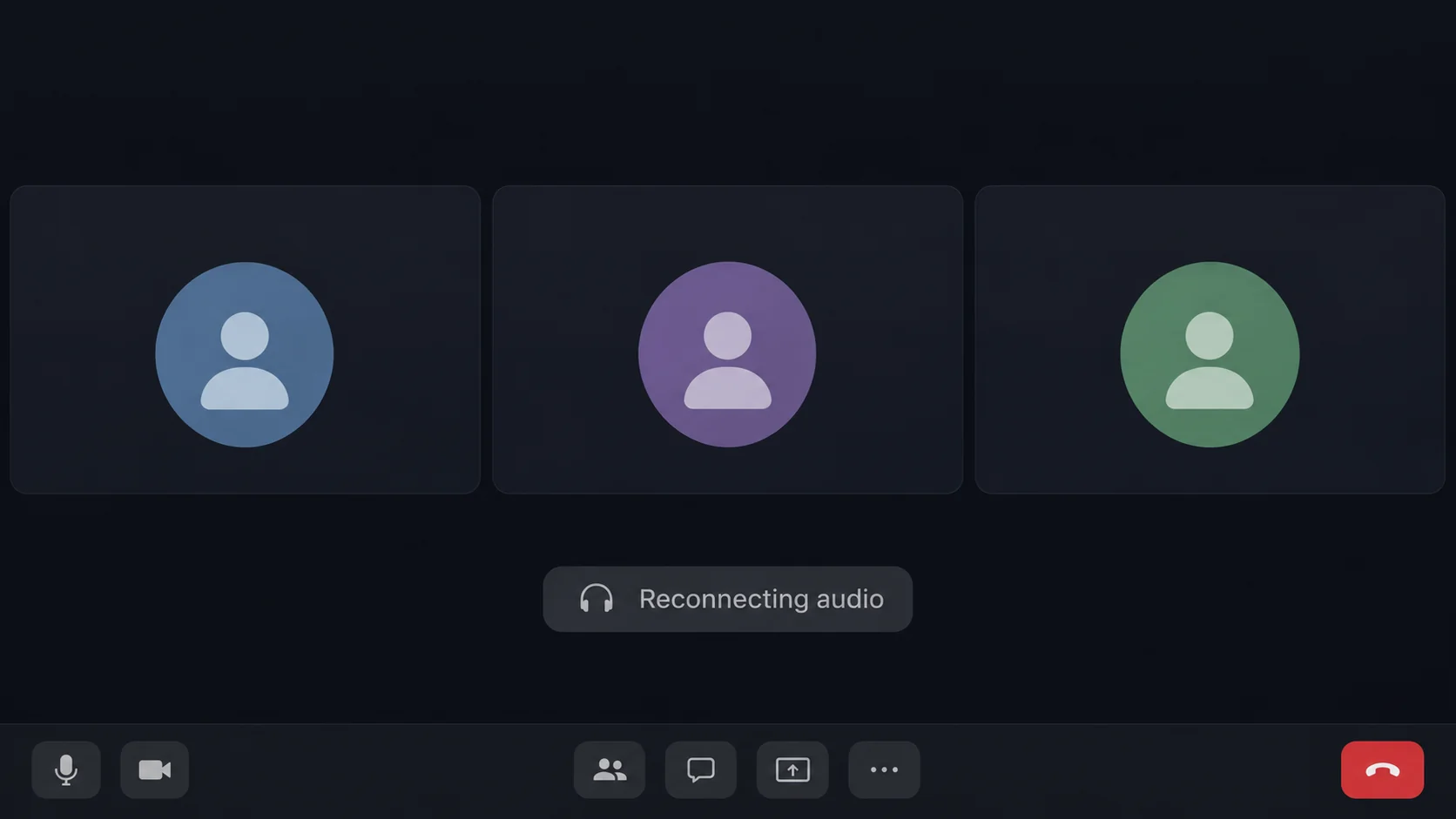
The visual above recreates that setting without copying the original meeting page. It is not a Zoom error message, a live invitation or a picture of an actual participant.
A page can look like a meeting without connecting you to the host you expected. Visible participant tiles are not a substitute for confirming the invitation somewhere else.
The Windows installer did something different
Instead of updating Zoom, the investigated installer deployed unauthorized monitoring software based on Teramind. The report does not say that Zoom’s genuine client or delivery service was compromised.
Teramind is a real provider whose software organizations can deploy for authorized monitoring. This case concerns a repackaged deployment installed without permission through an impostor meeting.
An approved company agent and an installation controlled by someone else can have similar names. Your organization’s software inventory and incident team are better evidence than the name alone.
A missing program entry doesn’t answer whether it ran
Malwarebytes reported a quiet installation with no ordinary visible indicator in the tested case. The guide isn’t limited to removing an app from the Windows Apps list.
The unauthorized setup could expose activity such as typed text or information on screen. Those capabilities aren’t a list of the specific information taken from any individual visitor.
What matters first is how far you got:
- A meeting invitation in your mailbox isn’t evidence that software installed.
- A page that played audio or showed a countdown isn’t the same as an executed installer.
- A saved installer needs to be handled safely, even if you did not open it.
- Opening the installer warrants a closer review of both the machine and the accounts you used afterward.
How the Fake Zoom Meeting Update Scam Works
Step 1: A routine call makes the link feel normal
A calendar invite, interview or project meeting can make an unfamiliar link feel less suspicious. You already have a reason to expect a video room.
The presence of a real appointment doesn’t verify a newly sent meeting link. Check amendments and new invitations with the host through a conversation you already trust.
If the invitation came from a new recruiter or client, check the organization using its existing contact information. Don’t assume the person in the same email thread can verify themselves.
Step 2: The apparent audio problem keeps you engaged
In the reported campaign, the room appeared populated and played meeting audio. That makes the inconvenience look familiar, even though an imitation site is controlling the experience.
The page didn’t have to show that an official Zoom session was active. Its job was to give you a reason to stay long enough to accept the offered fix.
The safest place to diagnose a true audio issue is inside an already trusted app or a verified settings panel.
A web page shouldn’t be the final authority on your computer.
Step 3: The promised update becomes a separate download
The fake meeting offered an installer that supposedly fixed the sound. A filename can mention Zoom without coming from the company that makes Zoom.
The reported installation was for Windows. Don’t assume it ran merely because your browser saved something, and don’t open the file to work out whether it is safe.
If you really do need to update the client, use the trusted app you already have or the official Zoom Download Center. A managed computer may require IT approval instead.
Step 4: A quiet install can outlast the call
After execution, the unauthorized software could run without the signs a person might expect from an ordinary new desktop app. Closing the meeting therefore does not answer what ran.
Think about the time after the download as well as the call itself. Tell a responder which browser, account and user profile were active and what sensitive work followed.
If a security product reports a different finding on the system, preserve the exact name. The attack described here doesn’t explain every other program on your PC.
Verify the Meeting Without Returning to the Fake Page
Separate the real appointment from the link you opened
Find the original appointment in a work calendar or the earliest trusted correspondence. Identify who actually organized it and contact that person through another verified channel.
Ask the host whether the start time, meeting service and joining details changed. Don’t send the suspicious link to a public chat to ask people whether it works.
If you have a separately verified meeting ID and joining instructions, open the known meeting client and use them there. Do not copy data out of an unverified prompt.
Work out whether the file stopped at Downloads
Open the browser’s Downloads view without clicking the suspicious file. Note the filename and approximate download time so you can compare those details with security history.
Think back to whether you opened the item, approved a Windows prompt or saw the installer launch.
You may not remember everything; tell support what you know and what you don’t.
For a personal computer, leave an unexecuted download alone until you know what to preserve. Organizations may have their own process for collecting a suspect installer safely.
Protect the next person without spreading the file
If other invitees are expecting the same meeting, alert the organizer from another device. A short note naming the incident and approximate time is more useful than forwarding the attachment.
On a work system, use the organization’s incident-reporting route and ask how it wants the invitation preserved. Do not paste a full calendar entry into a public request for help.
What to Do if You Have Fallen Victim to This Scam
-
Close the imitation meeting and don’t run its installer. If it already ran, disconnect the affected Windows computer and use another trusted device.
If your employer manages the computer, report it promptly and leave isolation, evidence collection and cleanup decisions to the appropriate team.
-
Report the invitation and the installation as separate events. Record when you received the invitation, when the file arrived and whether you opened the installer.
Explain if you typed a password or worked with sensitive material after the incident. An unknown password or token exposure needs a different response from simply seeing the page.
-
Secure accounts from a different device. Begin with the work or personal email account used to receive the invitation and any account used after the installer ran.
Check sessions and forwarding where applicable. Sign out unfamiliar sessions when possible, then reset exposed credentials using verified recovery options.
-
Ask the employer to verify managed monitoring tools. If the system shows a Teramind-related detection, tell IT about the fake meeting and ask it to compare the approved installation.
Do not remove genuine endpoint monitoring or disable corporate security tools yourself. A legitimate installation name is not a reason to ignore an unapproved installer either.
-
Warn people who may receive related messages. If the meeting organizer’s actual account sent the message, notify them separately and let them check that account.
Keep a copy of your own incident notes. Avoid sending the setup file to other participants, even if they’re trying to decide whether the invitation was real.
How to Remove the Unauthorized Teramind Setup From Windows
Step 1: Confirm who can safely make changes
Leave an employer-managed device isolated and follow your organization’s directions. Some settings and app names will belong to genuine work software that should stay in place.
On a personal computer, check security history first and write down exact names. If your alert says something was blocked, note what was blocked rather than assuming nothing else happened.
Since the reported package could run quietly, ask an experienced technician for help if the scope is unclear. A normal-looking desktop doesn’t tell you how the installation behaved.
Step 2: Check installed software and relevant startup changes
Start in the Windows Settings > Apps > Installed apps menu. Use its uninstall option if a verified unwanted program appears there.
You can also check Settings > Apps > Startup for an identified unwanted entry. Don’t disable every unfamiliar item, and don’t rely on these views to rule out a hidden service.
If you suspect a hidden component, do not remove system files or alter service settings by guesswork. Give the responder the security finding and the time the installer ran.
Step 3: Install a verified scanner when the device is ready
From a known good PC, obtain the Windows Malwarebytes setup file. Get IT approval rather than installing it yourself on managed equipment.
Check the publisher in the Windows prompt and complete setup. If an installer tries to open from the original meeting or the sign-in page, do not run it.
Keep the scanner separate from the counterfeit installer in your records. If setup needs connectivity, ask a technician how to avoid putting the suspect PC back on the ordinary network.

Step 4: Scan and record what was actually identified
Open Malwarebytes, find the Scanner card and choose Scan. Review the results and quarantine verified unwanted items rather than dismissing the whole list.
When restart is permitted, check the scan history and look for recurring signs. A follow-up finding is a reason to investigate further, not a reason to repeat an unchanged plan.
The Malwarebytes Premium Windows offer is optional and uses an affiliate link. Buying protection is not a requirement for getting assistance with this incident.

Step 5: Establish a clean destination for future work
If the presence or duration of external monitoring can’t be established, ask whether a clean Windows installation is appropriate. Let IT choose the approved rebuild plan for work equipment.
Restore trusted documents and approved applications rather than copying the old Downloads directory wholesale. Do not reintroduce the invitation file into the restored computer.
For a personal device with recurring alerts, ask for help in the MalwareTips support area. Provide the alert, timeline and affected Windows version, with passwords and private data removed.
What Your IT Team Needs to Know About a Shared Computer
Tell the responder if more than one person used the Windows machine after the meeting. Each person may have opened accounts that weren’t in use during the call.
If a browser profile was shared, list which services may have been open. Don’t have every user sign back into the computer to check which profile they were using.
An organization may also need to inspect approved monitoring separately from the suspect installation. Give it the installer time and the approved software name, if you know it.
If your work depends on a deadline, ask for a known clean device or an approved temporary access route. Don’t bring the suspicious file along to explain what happened.
Keep the account status separate from the machine status in your notes. IT can confirm a rebuild while an email administrator is still investigating messages sent from your account.
If the meeting was with an outside partner, tell your own security team before sharing details with them. It can work out what that partner needs to know.
Frequently Asked Questions
Did the regular Zoom client install the surveillance software?
The reported campaign used an impostor meeting page and unauthorized Windows installer. It does not establish a compromise of Zoom’s official desktop application or normal update service.
Is every Teramind installation a sign of the scam?
The legitimate product can be used with authorization. Review who installed the software, what generated the alert and whether you used an installer from a suspicious meeting page.
Can the file install itself if I never ran it?
The reported setup followed execution of the downloaded installer. If you’re uncertain whether it was opened, preserve the details and let a trusted technician check what Windows recorded.
Will closing the meeting stop unauthorized monitoring?
Closing the page stops your interaction with the fake room. Software that already ran on Windows needs to be investigated separately from the browser tab.
How can I tell what was recorded?
You may not be able to tell from a home scan. Document which apps or accounts you used after installation and give that timeline to the person assessing the computer.
Why can’t I just uninstall the tool from Settings?
The investigated deployment did not necessarily leave an ordinary visible program entry. Check detections and get qualified support if the app list doesn’t explain the evidence.
The Bottom Line
Don’t install an update from an unexpected meeting page. Verify the invitation separately and use the official client or company software catalog if an update really is needed.
If you ran the installer, isolate the PC and tell support what happened.
Check exposed accounts on another device and don’t depend on an empty app list to clear the computer.

Join the discussion
0 commentsShare your experience or ask a question about this article.
Your progress
Did these steps help?
Let us know how the guide worked for you.
Describe what you see and the step you reached. Keep passwords and other private information out.
Discussion
Start the conversation
Have a question or something useful to share? Add the first comment.