


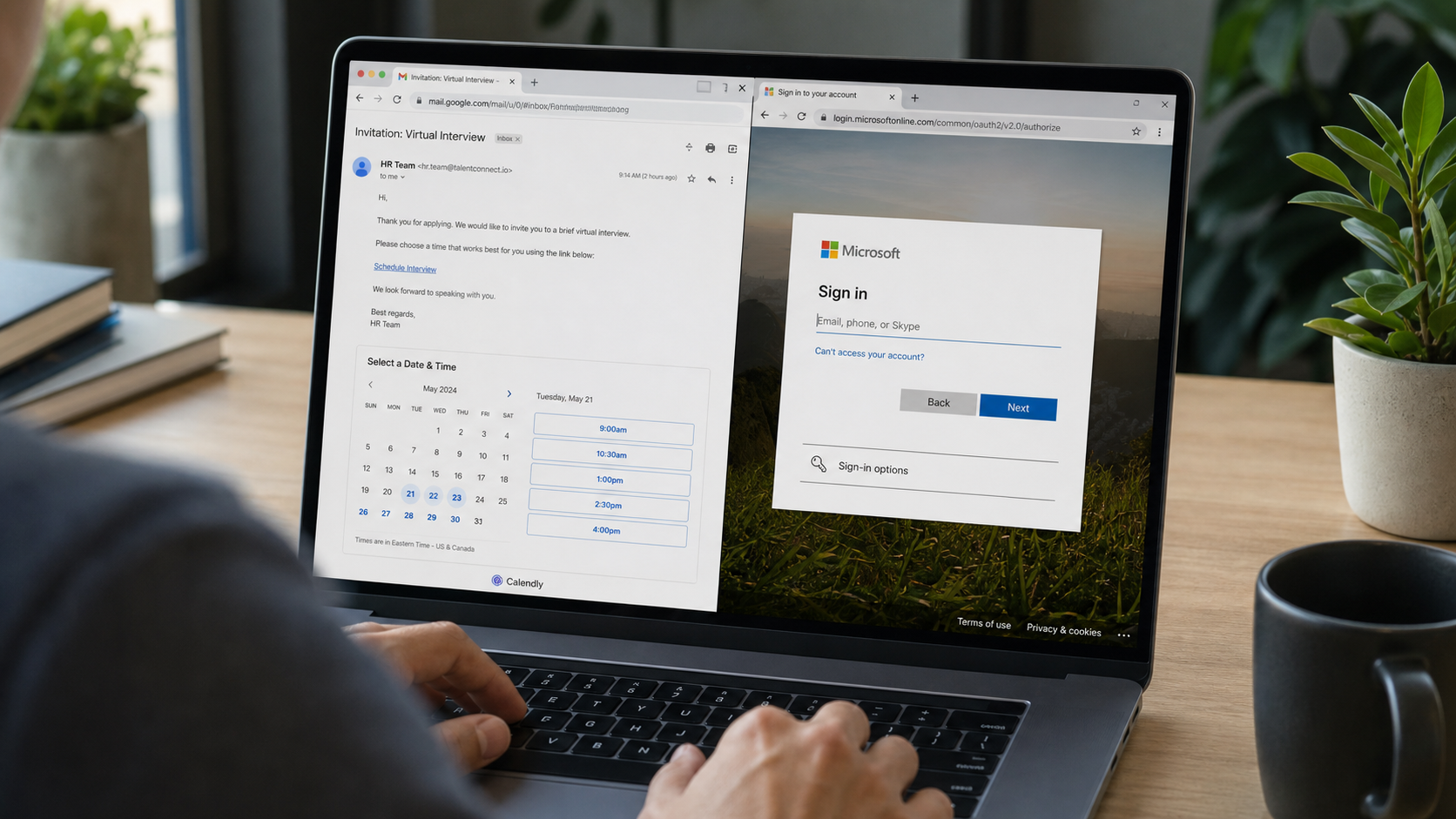
A recruiter sends a Calendly link and invites you to choose an interview time. The scheduling page looks familiar, the company sounds credible, and the next screen asks you to sign in so the meeting can be confirmed.
The calendar may be real. The person behind it, the job, and the page that follows can still be fake.
Overview
Scammers can use genuine scheduling tools
Calendly scams misuse meeting invitations, booking pages, descriptions, reminders, and external links to support phishing, fake jobs, sales fraud, or impersonation. A link on calendly.com may belong to an ordinary user whose identity and claims have not been verified.
The scheduling service can legitimately arrange a time, send a confirmation, and create a calendar event. Those normal functions do not prove that the host represents the named employer, bank, client, or business.
Some campaigns use lookalike Calendly domains instead. Others place a malicious external link inside a real booking page or meeting description.
The meeting creates a reason to sign in or download something
A fake recruiter may say authentication is required to view the interview, resume feedback, job description, or video conference. The link opens a cloned Microsoft 365, Google, or company login page.
Warning signs include:
- An interview for a job you never applied for
- A recruiter using an unrelated or free email address
- A Calendly host name that does not match the employer
- A request to sign in again after choosing a time
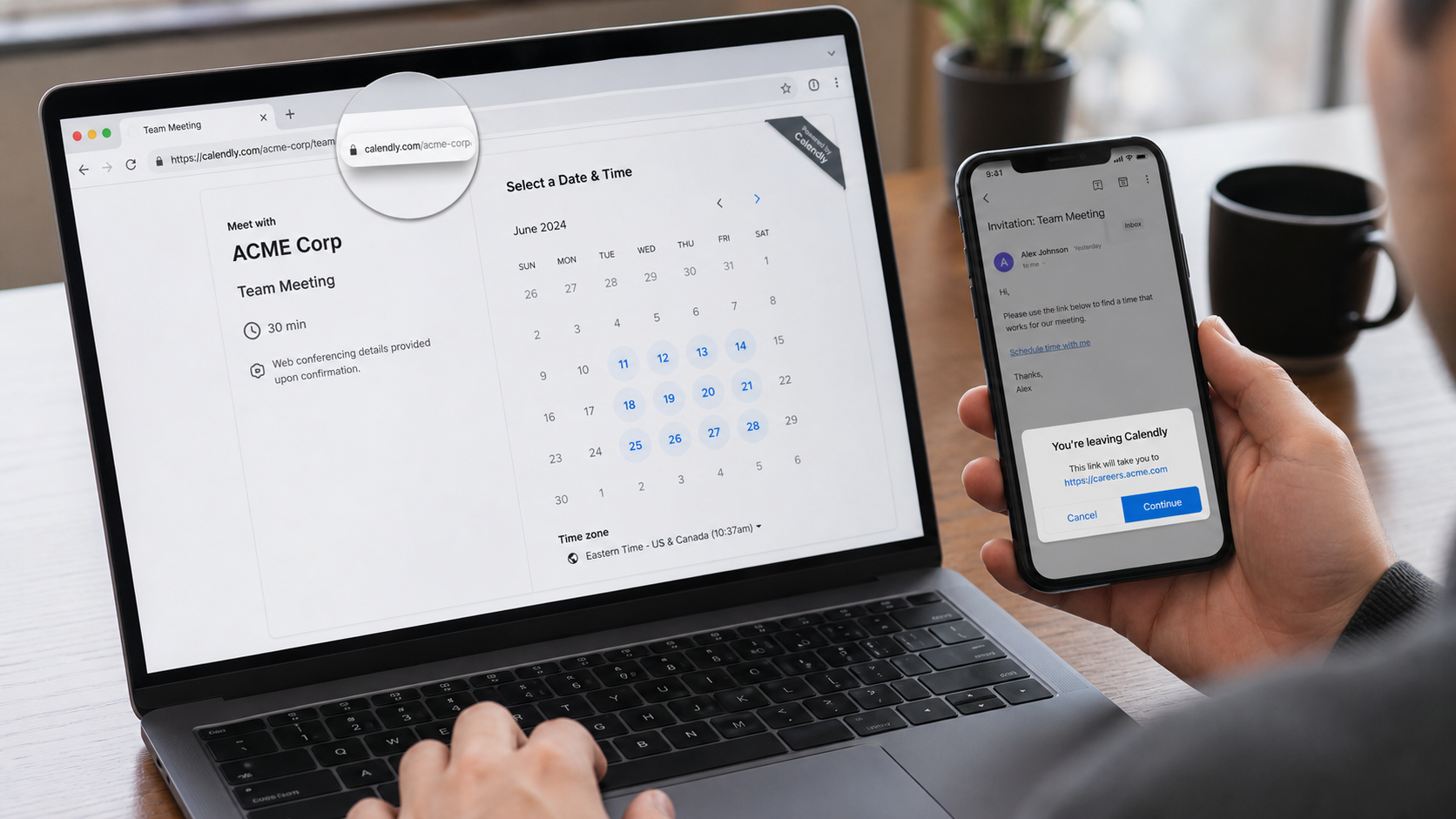
- An external link that leaves calendly.com unexpectedly
- Software, documents, or tests from an unknown domain
- A job offer made without a genuine interview
The final loss may involve credentials, money, or malware
A phishing page can steal an email password and verification code, giving the attacker access to mail, files, contacts, and business systems. A download may install remote-access or information-stealing malware.
Fake job versions may request equipment payments, cryptocurrency, gift cards, bank details, identity documents, or a check deposit. Business versions can lead to invoice fraud after the attacker enters the employee’s mailbox.
Treat the invitation as an introduction, not proof. Verify the sender and organization separately before signing in, downloading, paying, or sharing sensitive information.
How a Real Calendly Page Can Be Used in a Scam
Scheduling accounts are available to many legitimate users, but a criminal can create one too. The profile name, photograph, company title, event description, and meeting questions are information supplied by the account holder.
A scammer can place a link in the confirmation or event details. That destination may be a phishing page even though the calendar step occurred on the authentic platform.
Calendly says it scans saved links and may display warnings for harmful destinations. A neutral “leaving Calendly” notice simply means the link goes elsewhere; it does not guarantee the external page is safe.
Security controls reduce risk but cannot verify every business story. The recipient still needs to confirm who sent the invitation and why.
How the Scam Works
Step 1: An attractive reason for a meeting is introduced
The target receives a job interview, sales lead, investment discussion, client request, podcast invitation, account review, or executive meeting. The opportunity is selected to fit the recipient.
LinkedIn profiles and company websites provide enough detail for a personalized message. Familiar names and projects make an unsolicited invitation feel expected.
Step 2: A scheduling link lowers suspicion
The recipient sees a recognizable booking interface with available times, time zones, and automated confirmations. Normal platform behavior gives the surrounding claim borrowed credibility.
A lookalike domain may also imitate the interface. Check the full address before entering even basic information.
Step 3: Booking questions collect useful information
The form may ask for a telephone number, employer, job title, email, project details, or reason for the meeting. Criminals can use those answers to refine the next stage.
Do not place passwords, identity numbers, banking data, or confidential company information into scheduling questions.
Step 4: The confirmation leads to an external page
A description or follow-up email says the user must review documents, authenticate, join a secure portal, complete an assessment, or install a meeting application.
The destination may resemble Microsoft, Google, Zoom, Teams, or an employer system. Its domain, not its design, reveals where the credentials are going.
Step 5: Credentials or malware give the attacker access
The fake login records the username, password, and sometimes a one-time code. An attachment or download may install a remote tool or information stealer.
With email access, the criminal can reset accounts, read private conversations, and send convincing messages from a trusted mailbox.
Step 6: The fake meeting advances the financial story
A person may appear on video and conduct a plausible interview or consultation. Live conversation confirms only that someone is present, not that the identity or employer is genuine.
The caller may request payment for equipment, training, background checks, software, taxes, investments, or account protection.
Step 7: Stolen trust is reused against other people
A compromised mailbox sends more meeting invitations to colleagues, customers, and vendors. Recipients are more likely to trust the familiar sender.
The attacker can study real calendars and conversations to time invoice changes, executive impersonation, and password-reset attacks.
How to Verify a Calendly Invitation
Confirm that the booking page uses calendly.com with correct spelling. A secure padlock means the connection is encrypted; it does not establish that the account holder is honest.
Contact the supposed host through the employer’s official website or a telephone number you already know. Do not reply only to the message that delivered the link.
Search the company’s careers page for the role and confirm the recruiter’s employment. A copied LinkedIn profile can be part of the impersonation.
Read any page that warns you are leaving Calendly. Inspect the destination before continuing, and cancel if it requests an unexpected login or download.
Real Verification Codes Versus Stolen Codes
Calendly may use an email verification code to confirm that an invitee controls the address entered during booking. A code requested and entered on the genuine Calendly flow can be normal.
The code should not be read to a recruiter or entered on an unrelated site. Examine the message to see which service issued it and what action it authorizes.
A scammer may trigger a Microsoft or Google code while claiming it completes the Calendly reservation. That code protects the email account, not the meeting.
Never approve a login prompt you did not initiate. Stop if the service named in the code does not match the action you are performing.
Company, Address, and Fulfillment Checks
The host must be connected to the named organization
Verify employment through an official company contact. A logo, title, and profile photo on the booking page can be copied.
The booking and destination domains need separate checks
A real calendly.com page can link to an unsafe external site. Inspect both addresses instead of transferring trust from one to the other.
The job or business opportunity should exist independently
Check the official careers page, vendor relationship, or prior conversation. An unexpected invitation should not be its own proof.
Payments and equipment must follow verified processes
Employers do not need new hires to buy equipment with a check or send crypto. Confirm every expense with official human resources.
How to Report Abuse Without Losing Evidence
Take screenshots of the invitation, profile, event name, URL, external links, sender address, and message headers. Preserve the calendar file and confirmation.
Calendly’s abuse guidance identifies spam, phishing links, harmful content, and impersonation as reportable activity. Submit the details through its support process.
Report the sender to the email provider, employer being impersonated, and relevant platform. Do not keep revisiting the external page to collect more evidence.
If the invitation targeted a workplace, alert the security team. Other employees may have received the same personalized approach.
Common Calendly Scam Scenarios
A fake recruiter offers remote work with excellent pay and rapid hiring. The scheduled interview moves to text chat, then the applicant receives a fraudulent equipment check or payment request.
A supposed executive assistant books time with finance staff. The meeting establishes urgency before a fake leader requests a confidential wire or gift cards.
A new client schedules a consultation and places a document link in the event description. The file page steals Microsoft or Google credentials from the professional.
An investment promoter uses a booking page to look organized. The video call leads to a fake platform, cryptocurrency deposit, or advance fee.
A support impersonator schedules an account-security review. The caller requests screen sharing, one-time codes, or changes to recovery settings.
A vendor sends a calendar update that appears to continue a real project. The external link carries a changed invoice or malicious archive.
The scheduler is only the bridge. Evaluate the request that follows with the same caution you would apply to an unsolicited email.
How Workplaces Can Reduce Meeting-Based Phishing
Employees should verify unexpected external meetings through a known contact, especially when the invitation concerns payments, credentials, confidential documents, or executive requests.
Calendar descriptions and attachments deserve the same filtering as email. A meeting accepted automatically can still contain a dangerous link.
Use password managers because they normally refuse to fill credentials on lookalike domains. That hesitation is a valuable warning, not an inconvenience to bypass.
Restrict software installation and remote-access tools. A recruiter or client should not decide which program gains control of a company device.
Create an easy reporting channel for suspicious invitations. Fast internal warnings can protect colleagues who received the same campaign.
Review delegated calendar access after an account compromise. Attackers can create invitations, alter meetings, and observe business relationships through calendar data.
After resetting credentials, revoke active sessions and application permissions. A password change alone may not remove a previously authorized connection.
What to Check During the Video Meeting
Ask specific questions about the organization, role, reporting manager, location, and hiring process. Compare the answers with information obtained from the official company.
Do not share the screen while email, password managers, financial accounts, customer records, or internal tools are visible. Close unrelated applications before any verified call.
Refuse requests to install a special codec, assessment tool, remote-support program, or browser extension during the meeting. Verify software with the company’s security team first.
A blurred office, professional clothing, and fluent conversation are not identity checks. A scammer can prepare for common questions and use a copied employee biography.
End the meeting if the host objects to independent verification or changes the conversation toward money, gift cards, crypto, banking access, or secret assignments.
After a suspicious call, document the display name, meeting ID, participant names, chat links, and claims. Do not continue recording if local law requires consent; preserve the evidence already available.
Ask a colleague to review the invitation before proceeding. A second person often notices a mismatched domain, title, or request that excitement concealed.
What to Do if You Have Fallen Victim to This Scam
- Close the page and stop contact. Do not attend another meeting, download more files, or send a verification payment.
- Change stolen credentials immediately. Secure email first, use a trusted device, revoke unknown sessions, and replace reused passwords.
- Notify the workplace security team. Report any company account, document, calendar, or customer information exposed.
- Contact financial institutions. Stop checks, card charges, wires, crypto purchases, or transfers and ask about recovery options.
- Remove downloads and scan the device. Disconnect suspicious systems and run a full Malwarebytes scan for remote tools and information stealers.
- Block malicious destinations. AdGuard can reduce access to known phishing sites and deceptive redirects, but credentials still must be changed.
- Preserve evidence. Save URLs, emails, event details, meeting recordings, chat logs, payment instructions, and transaction records.
- Report the account and impersonation. Notify Calendly, the named employer, the email provider, ReportFraud.ftc.gov, and IC3.gov.
- Watch for follow-up fraud. Ignore recovery services, revised interview links, and urgent messages from contacts who may have been compromised.
Is Your Device Infected? Run a Free Malware Scan
Slow performance, constant pop-ups, or strange behavior? These are classic signs of a malware infection. A quick way to check is to scan your device with Malwarebytes Free, one of the most trusted malware removal tools available. If you only visited a scam page and didn’t download or install anything, this scan is optional.
The free version detects and removes the most common threats, including:
- Adware — the cause of those annoying pop-ups
- Browser hijackers — unwanted redirects and changed homepages
- Trojans and spyware — hidden programs stealing your data
- Potentially unwanted programs (PUPs) — software you never asked for
👉 Select your device below — Windows, Mac, or Android — then follow the simple steps to download Malwarebytes, scan your system, and remove any threats it finds. The scan usually takes 5 to 20 minutes.
Run a Malware Scan with Malwarebytes for Windows
Malwarebytes is one of the most popular and trusted anti-malware tools for Windows — and it’s completely free for removing infections. It catches threats that many antivirus programs miss, including adware, browser hijackers, and trojans. Follow the steps below to scan your PC and remove what Malwarebytes finds.
Download Malwarebytes
Click the button below to download the latest version of Malwarebytes for Windows from the official source. The free version is all you need — it will scan your computer and remove adware, browser hijackers, and other malicious software at no cost.
Download MalwarebytesOfficial installer for Windows 11 and 10. Your download starts right away.Want real-time protection? See Malwarebytes Premium Malwarebytes Free for WindowsScans and removes malware at no cost
-
Install Malwarebytes
When the download finishes, open your Downloads folder and double-click the MBSetup file. If Windows shows a User Account Control pop-up, click “Yes” to allow the installation.

Follow the On-Screen Prompts to Install Malwarebytes
The setup wizard will walk you through a few quick screens:
-
Choose where you’re installing the program — “Personal Computer” or “Work Computer” — then click Next.

-
Malwarebytes will now install on your device. This usually takes under a minute.

-
When installation is complete, the “Welcome to Malwarebytes” screen will open automatically.

-
On the final screen, click Open Malwarebytes to launch the program.

-
Optional: Check for rootkits with a Custom Scan
You don’t need to change any settings for a normal scan. The standard Threat Scan in the next step is enough for most problems, so you can go straight to it.
If you also want to check for rootkits, use a Custom Scan. In current versions of Malwarebytes, rootkit scanning is only available there:
- On the Scanner tile, click the three-dot menu and select Advanced Scan.
- Choose Custom Scan. In its options, check Scan for rootkits.
- Select your system drive (usually C:\) as the location to scan, then start the scan. It takes longer than a Threat Scan.
- When it finishes, review and quarantine the results as described in the steps below.
Rootkit scanning isn’t available on Windows devices with ARM processors.
Start the Scan
Click the blue Scan button. Malwarebytes will automatically update its virus database and start checking your computer for malware.

-
Wait for the Scan to Finish
The scan checks your entire system for browser hijackers and other malicious programs, so it can take 5 to 20 minutes depending on your computer. Feel free to do something else — just check back occasionally to see the progress.

-
Quarantine the Detected Threats
When the scan is done, you’ll see a list of everything Malwarebytes found — malware, adware, and potentially unwanted programs. Click the “Quarantine” button to remove all of them at once.

Malwarebytes will now remove the malicious files and registry entries and move them safely into quarantine.

-
Restart Your Computer
Some threats can only be fully removed after a reboot. If Malwarebytes asks you to restart, click Yes. Once you’re logged back in, Malwarebytes has finished removing the threats it found.

When the scan is done, check whether the problems you noticed have stopped. If they continue, see the options below.
If you are still having problems with your computer after completing these instructions, then please follow one of the steps:
- Run a computer scan with ESET Online Scanner
- Ask for help in our Windows Malware Removal Help & Support forum.
Run a Malware Scan with Malwarebytes for Mac
Malwarebytes for Mac is a free on-demand scanner that removes the malware other security software tends to miss — adware, browser hijackers, and unwanted programs included. Cleaning an infected Mac with Malwarebytes has always been completely free, and it’s our go-to recommendation. Follow the steps below to scan your Mac and remove what Malwarebytes finds.
-
Download Malwarebytes for Mac
Click the button below to download the latest version of Malwarebytes for Mac.
Download MalwarebytesOfficial installer for macOS. Your download starts right away.Want real-time protection? See Malwarebytes PremiumMalwarebytes Free for MacScans and removes malware at no cost -
Open the Malwarebytes setup file
When the download finishes, open your Downloads folder and double-click the setup file to begin the installation.

-
Follow the On-Screen Prompts to Install Malwarebytes
The Malwarebytes for Mac Installer will guide you through a few quick screens. Click “Continue” and keep following the prompts until the installation completes.



When the installation is complete, Malwarebytes opens to the Welcome to Malwarebytes screen. Click “Get started“.
Malwarebytes needs Full Disk Access to check your whole Mac. When it asks, open System Settings > Privacy & Security > Full Disk Access, turn on Malwarebytes (it may be listed as Malwarebytes Protection), and confirm with your password or Touch ID. Then return to Malwarebytes. On macOS Monterey and earlier, this setting is in System Preferences > Security & Privacy > Privacy.
-
Select “Personal Computer” or “Work Computer”
Malwarebytes will ask what type of computer you’re installing it on. Click either Personal Computer or Work Computer, whichever applies.

-
Start the Scan
Click the “Scan” button. Malwarebytes will automatically update its detection database and begin checking your Mac for malware.

-
Wait for the Scan to Finish
Malwarebytes will scan your Mac for adware, browser hijackers, and other malicious programs. This can take a few minutes, so feel free to do something else — just check back occasionally to see the progress.

-
Quarantine the Detected Threats
When the scan is done, you’ll see a list of everything Malwarebytes found. Click the “Quarantine” button to remove all the threats at once.

-
Restart Your Mac
Malwarebytes will now remove all the malicious files it found. Some threats can only be fully removed after a reboot — if Malwarebytes asks you to restart, allow it. Once you’re logged back in, check whether the problems you noticed have stopped. If they come back, save the scan report and ask for help in our forum.

If the problems you noticed continue after the scan, see the options below.
If you are still experiencing problems while trying to remove a malicious program from your computer, please ask for help in our Mac Malware Removal Help & Support forum.
Run a Malware Scan with Malwarebytes for Android
Malwarebytes for Android scans your phone or tablet for malware, adware, and potentially unwanted apps. The free version scans only when you start a scan. Real-time protection, which checks apps automatically, is part of the paid Premium version.
-
Download Malwarebytes for Android.
You can download Malwarebytes for Android by clicking the link below.
Get Malwarebytes for AndroidOpens Google Play in a new tab.Want real-time protection? See Malwarebytes Premium for AndroidMalwarebytes for AndroidScans your phone and removes malware at no cost -
Install Malwarebytes for Android on your phone.
In the Google Play Store, tap “Install” to install Malwarebytes for Android on your device.

When the installation process has finished, tap “Open” to begin using Malwarebytes for Android. You can also open Malwarebytes by tapping on its icon in your phone menu or home screen.

-
Follow the on-screen prompts to complete the setup process
When Malwarebytes opens, it walks you through a short setup. Tap Get started and follow the prompts. If you see an offer for a trial or a paid plan, read it before you accept. You can skip it and keep using the free scanner.
Malwarebytes will ask for permission to access the files on your phone so it can scan them. Tap Allow, or turn on the permission in the Android screen that opens, then return to Malwarebytes.
-
Run a scan with Malwarebytes for Android
On the main screen, tap Scan now. In some versions, you open the menu, tap Scanner, and then tap Run a scan.
-
Wait for the Malwarebytes scan to complete.
Malwarebytes will now start scanning your phone for adware and other malicious apps. This process can take a few minutes, so we suggest you do something else and periodically check on the status of the scan to see when it is finished.

-
Remove the detected apps.
When the scan has been completed, you will see a list of the threats that Malwarebytes for Android has detected. Next to each detected item, tap the menu icon (three dots), then choose to uninstall the app or delete the file. Android then asks you to confirm. Tap OK or Uninstall to remove the app.
-
Restart your phone.
When the detected apps are removed, restart your phone if Malwarebytes asks you to. Then check whether the problems you noticed have stopped.
If the problems you noticed continue after the scan, see the options below.
If you are still having problems with your phone after completing these instructions, then please follow one of the steps:
- Ask for help in our Mobile Malware Removal Help & Support forum.
- Only as a last resort, reset your phone to factory settings. Read the warning below first.
- Back up your photos, videos, files, and messages, for example to your Google account or a computer.
- Make sure you know your Google account email and password. The phone asks for them after the reset. If you changed the password recently, Google recommends waiting 24 hours before you reset.
- On a Samsung phone, also make sure you know your Samsung account password.
- If you use an authenticator app for two-step verification, move your accounts to another device or save your backup codes first.
Stay Protected: Block Ads and Malicious Sites
No scan can prove a device is completely clean, so it helps to block threats before they reach you. Most infections start with a malicious ad or a fake download button — so blocking them at the source is your best defense.
We recommend AdGuard, which blocks malicious ads, phishing pages, and dangerous redirects before they can reach you.
👉 Download AdGuard and browse safely
Frequently Asked Questions
Does a calendly.com link prove the sender is real?
No. It proves the page uses Calendly, not that the host’s identity, employer, or offer has been verified.
Can a real booking page contain a phishing link?
Yes. External links in descriptions or follow-ups may lead elsewhere. Read warnings and inspect every destination.
Is an email verification code normal?
It can be normal on the genuine booking flow. Never share it or use a code from a different service.
Should a job interview require my Microsoft password?
An ordinary scheduling step should not require credentials on an unfamiliar domain. Verify the recruiter and access the employer portal independently.
What if I booked but clicked nothing else?
Cancel or ignore the meeting, report the account, and remain alert. Basic details submitted may lead to more targeted phishing.
How do I report a malicious Calendly user?
Use Calendly support’s abuse-reporting process and include the booking URL, event, sender, screenshots, and external destination.
The Bottom Line
Calendly scams borrow trust from a familiar scheduler to support fake jobs, phishing pages, malware, and payment requests.
Verify the host independently, inspect every domain, and remember that a real calendar invitation cannot prove the opportunity behind it is real.

Join the discussion
0 commentsShare your experience or ask a question about this article.
Discussion
Start the conversation
Have a question or something useful to share? Add the first comment.