

A text promising thousands of dollars in grocery and utility benefits can look like welcome help to an older adult living on a fixed income. The message may mention Medicare, over-the-counter allowances, or a familiar-sounding name such as Century Med.
The offer is not harmless advertising when its real purpose is to obtain a Medicare number, Social Security number, insurance details, or authorization that can be used to bill for medical equipment the person never requested.
Overview
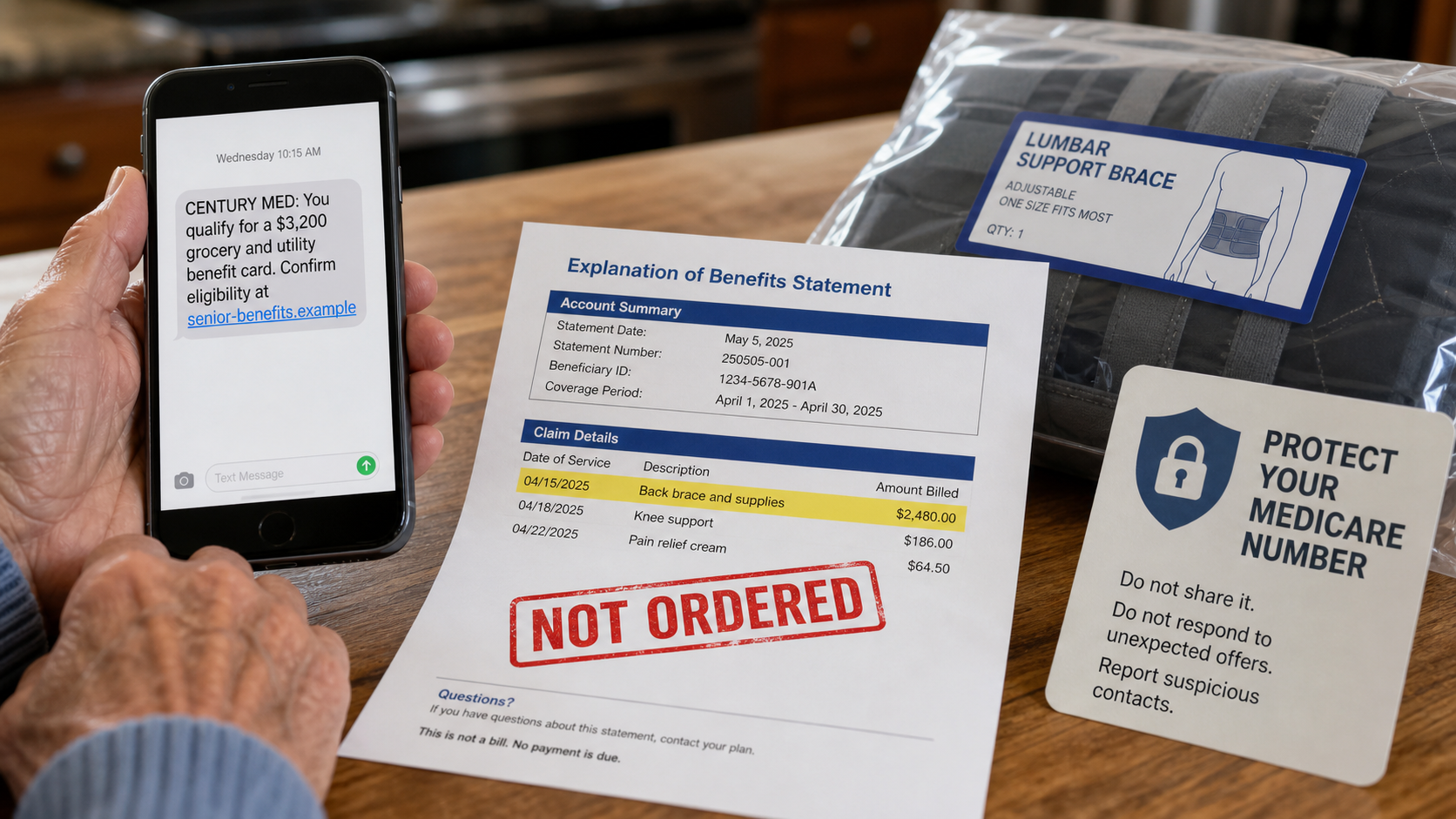
The Century Med scam is a name used in warnings about messages, calls, and advertisements that promote fake senior benefit cards, request Medicare information, or lead to questionable medical-supply billing.
The name is not enough to identify a single legal business. Similar names can belong to legitimate medical organizations, and criminals routinely borrow professional-sounding names. Judge the specific contact, web address, company identity, and billing activity.
One version advertises a prepaid card supposedly worth $2,000, $3,200, or more for groceries, utilities, rent, or over-the-counter products. The recipient is told that seniors or Medicare beneficiaries automatically qualify.
The linked page or caller requests a Medicare number, Social Security number, date of birth, insurance plan, address, physician information, and permission to review benefits.
Some offers are pure identity theft. Others generate insurance leads. A more damaging version uses the information to arrange orders or submit claims for durable medical equipment such as back braces, knee braces, catheters, or related supplies.
The beneficiary may receive an unwanted package, see unfamiliar claims on a Medicare Summary Notice, or discover that Medicare paid a supplier they have never used.
The HHS Office of Inspector General has warned about schemes that offer supposedly free braces, collect Medicare information, send unneeded equipment, and bill Medicare.
Medicare says it will not call to sell products and only asks for personal information by phone in limited circumstances, such as returning a call initiated by the beneficiary.
A genuine health plan may offer legitimate supplemental benefits. The safe response is to contact the plan using the number on the membership card, not a number or link in an unsolicited Century Med message.
What the fake message may say
CENTURY MED BENEFITS NOTICE
You qualify for a $3,200 grocery and utility benefit card.
Confirm your eligibility today. Have your Medicare card available.
Benefits may expire if you do not respond.
The amount, benefit type, and company name may change. Large round numbers are used to capture attention, while the deadline prevents careful verification.
Common variations of the message
- “Get a $3,200 senior grocery allowance”
- “Medicare beneficiaries qualify for a utility card”
- “Activate your over-the-counter benefit before it expires”
- “Receive a free back or knee brace at no cost”
- “Confirm your Medicare number to check eligibility”
- “A medical supply order is waiting for physician approval”
- “Your benefits increased for the new plan year”
- “Speak to a licensed benefit specialist now”
- “You were referred by your health plan”
- “Remote customer-service work available with Century Med”
Fake job listings can also use the name. Applicants may be asked for identity documents, bank information, money for equipment, or permission to deposit a fraudulent check.
Real supplemental benefits are plan-specific
Some Medicare Advantage plans provide legitimate allowances for eligible groceries, over-the-counter items, transportation, or utilities. Eligibility and amounts depend on the actual plan, benefits, health conditions, and rules.
There is no universal card giving every Medicare beneficiary thousands of dollars simply for responding to a social ad or text.
Call the number on the back of the plan card and ask whether the exact benefit exists. The plan can explain who qualifies, how the card is issued, and which merchants accept it.
Why a Medicare number is valuable
A Medicare number can be used like a medical identity credential. Combined with a name, date of birth, address, and physician details, it can support fraudulent claims or further identity theft.
Unlike a promotional code, a Medicare number should not be given to an unsolicited advertiser. Share it with known healthcare providers, insurers acting on your behalf, and trusted official assistance programs when appropriate.
Once compromised, the number may circulate among lead generators, telemarketers, and fraudulent suppliers. One response can lead to repeated calls about braces, genetic tests, pain creams, catheters, or other products.
How unknown claims affect the beneficiary
Fraudulent billing wastes public funds, but it can also cause personal complications. Records may show equipment already supplied, which can interfere when a doctor later orders something genuinely needed.
The beneficiary may receive bills, coinsurance notices, packages, calls, or paperwork connected to a supplier they never chose.
Medical identity theft can also introduce inaccurate provider and treatment information into records, requiring time and documentation to correct.
What to check on a Medicare Summary Notice
A Medicare Summary Notice is not a bill. It lists services and supplies billed to Original Medicare, what Medicare paid, and the maximum amount the beneficiary may owe.
Compare every provider, date, item, and quantity with your calendar and receipts. Look for braces, catheters, test kits, pain products, or recurring supplies that no doctor ordered.
Medicare’s official online account can show processed claims sooner than waiting for a paper notice. Beneficiaries with Medicare Advantage should review statements and claims through their plan.
The remote-job version uses a different promise
A fake recruiter may claim Century Med is hiring remote data-entry, billing, or customer-service staff. The interview takes place through text or a messaging app, and the applicant receives an immediate offer with unusually high pay.
The scammer requests a Social Security number, driver’s licence, bank information, or a direct-deposit form before providing verifiable employment documents. Another version sends a fraudulent check and instructs the applicant to buy office equipment from a selected vendor.
The bank may initially show the check as available, but that does not mean it is valid. When the check is returned, the applicant loses the money sent to the fake vendor.
Verify any employer through an independently located official website and phone number. A real employer does not require a new hire to forward money from a check to an unknown equipment seller.
Caregivers can add an important layer of protection
Fraudulent benefit calls often reach people who manage several medications, plans, providers, and statements. The volume of legitimate healthcare communication makes a fake contact harder to recognize.
With the beneficiary’s permission, a trusted relative or caregiver can help maintain a calendar of services, review claim notices, and verify calls. They should not take control without consent or expose the Medicare number unnecessarily.
A simple household rule helps: no Medicare number is given during an unexpected call. The person hangs up, checks the plan card, and calls the official number with a trusted person present.
Caregivers should also watch for unexplained packages and repeated calls after the first response. Those follow-ups can show that the beneficiary’s information entered a lead network, even before an unfamiliar claim appears.
Keep the discussion calm. Shame makes people hide mistakes, while a quick, supportive review of statements and contact details gives the best chance to stop further misuse.
How The Operation Works
1. The campaign targets people likely to respond
Ads, texts, robocalls, direct mail, and social posts are aimed at older adults, caregivers, veterans, and people searching for benefit information.
The offer combines financial relief with healthcare authority. Grocery and utility money feels practical, while the word “medical” makes the sender sound official.
2. A large benefit creates immediate interest
The message says that new legislation, a plan-year change, or an unclaimed allowance makes money available. The dollar figure is large enough to motivate a call.
Fine print, if present, may describe insurance marketing or eligibility conditions very differently from the headline.
3. A questionnaire collects identity and insurance data
The operator asks age, ZIP code, insurance status, medical conditions, physician, Medicare number, and whether the person has certain pain or mobility needs.
Questions may be framed as eligibility screening, but the answers can be used to build a valuable medical-insurance lead.
4. The lead is transferred or sold
Information may pass to insurance marketers, call centres, telehealth operations, or medical-equipment suppliers. The person receives additional calls from companies they never contacted directly.
Consent language may be broad, hidden, or not meaningfully explained. The recipient thinks they applied for one card but becomes a lead for multiple products.
5. A medical order is manufactured
In an equipment-billing scheme, a caller asks about back, knee, or joint pain and recommends a brace. A telemedicine interaction or questionable documentation may be used to obtain an order.
The equipment may be unnecessary, unwanted, low quality, or never delivered. The supplier can still attempt to bill Medicare or private insurance.
6. Claims appear under unfamiliar supplier names
The claim may not say Century Med. It can use the legal name of a supplier, billing company, laboratory, telehealth provider, or medical practitioner involved later in the chain.
That is why beneficiaries should investigate every unfamiliar claim, not only one company name from the original message.
7. Follow-up callers protect the scheme
A caller may insist the item was requested, say returning it will cause problems, or ask the beneficiary to confirm receipt. Another may offer a different benefit and collect more information.
Do not sign delivery or medical forms you do not understand. A trusted physician should determine whether equipment is medically necessary.
How to verify a benefit or supply offer
- Call the number on your health-plan or Medicare card.
- Ask whether the exact allowance exists and who qualifies.
- Confirm that the caller or website is an authorized plan representative.
- Discuss equipment with your regular physician before ordering.
- Do not give a Medicare number to an unsolicited caller.
- Reject gifts, cash, or prepaid cards offered in exchange for medical information.
- Check Medicare.gov claims and plan statements regularly.
- Keep a calendar of appointments, tests, equipment, and supplies.
What To Do If You Shared Information or Found Unknown Claims
- End contact with the unsolicited operator. Do not click more links, sign forms, or provide additional codes or insurance details.
- Call 1-800-MEDICARE through the official number. Report that your Medicare number may be compromised and ask about suspicious claims or replacement steps.
- Contact your Medicare Advantage or private insurer. Use the number on the membership card and ask the fraud team to review claims and authorizations.
- Compare every statement with your records. Highlight unfamiliar suppliers, dates, equipment, tests, quantities, and physicians.
- Contact your regular doctor. Ask whether the office signed or received requests for equipment you did not discuss.
- Refuse unwanted equipment when possible. If a package arrives, do not use it. Record the sender, tracking number, and date, and get official guidance about return or evidence preservation.
- Report suspected healthcare fraud. Medicare accepts reports through its official fraud channels, and HHS OIG operates a fraud hotline and online reporting system.
- Protect other identity information. If a Social Security number, bank account, or card was shared, contact the relevant institution and use IdentityTheft.gov for a tailored recovery plan.
- Save all evidence. Keep texts, voicemails, websites, advertisements, caller numbers, package labels, statements, and case numbers.
- Tell trusted family or caregivers. Scammers often call again. A shared plan makes it easier to pause and verify future offers.
Reporting an unknown claim is not accusing your doctor or insurer of wrongdoing. It gives the program a chance to determine who submitted the claim and whether it was authorized.
Is Your Device Infected? Run a Free Malware Scan
Slow performance, constant pop-ups, or strange behavior? These are classic signs of a malware infection. The fastest way to find out is to scan your device with Malwarebytes Free — one of the most trusted malware removal tools available.
The free version detects and removes the most common threats, including:
- Adware — the cause of those annoying pop-ups
- Browser hijackers — unwanted redirects and changed homepages
- Trojans and spyware — hidden programs stealing your data
- Potentially unwanted programs (PUPs) — software you never asked for
👉 Select your device below — Windows, Mac, or Android — then follow the simple steps to download Malwarebytes, scan your system, and remove any threats it finds. The scan usually takes 5 to 20 minutes.
Run a Malware Scan with Malwarebytes for Windows
Malwarebytes is one of the most popular and trusted anti-malware tools for Windows — and it’s completely free for removing infections. It catches threats that many antivirus programs miss, including adware, browser hijackers, and trojans. Follow the steps below to scan and clean your PC in just a few minutes.
Download Malwarebytes
Click the button below to download the latest version of Malwarebytes for Windows from the official source. The free version is all you need — it will scan your computer and remove adware, browser hijackers, and other malicious software at no cost.
Download MalwarebytesOfficial installer for Windows 11 and 10. Your download starts right away.Want real-time protection? See Malwarebytes Premium Malwarebytes Free for WindowsScans and removes malware at no cost
-
Install Malwarebytes
When the download finishes, open your Downloads folder and double-click the MBSetup file. If Windows shows a User Account Control pop-up, click “Yes” to allow the installation.

Follow the On-Screen Prompts to Install Malwarebytes
The setup wizard will walk you through a few quick screens:
-
Choose where you’re installing the program — “Personal Computer” or “Work Computer” — then click Next.

-
Malwarebytes will now install on your device. This usually takes under a minute.

-
When installation is complete, the “Welcome to Malwarebytes” screen will open automatically.

-
On the final screen, click Open Malwarebytes to launch the program.

-
Enable “Scan for Rootkits”
Before scanning, turn on rootkit detection so Malwarebytes can find even the most hidden threats. Click the Settings gear icon on the left side of the screen.

In the settings menu, find “Scan for rootkits” and click the toggle so it turns blue.

Done? Click “Dashboard” in the left pane to return to the main screen.
Start the Scan
Click the blue Scan button. Malwarebytes will automatically update its virus database and start checking your computer for malware.

-
Wait for the Scan to Finish
The scan checks your entire system for browser hijackers and other malicious programs, so it can take 5 to 20 minutes depending on your computer. Feel free to do something else — just check back occasionally to see the progress.

-
Quarantine the Detected Threats
When the scan is done, you’ll see a list of everything Malwarebytes found — malware, adware, and potentially unwanted programs. Click the “Quarantine” button to remove all of them at once.

Malwarebytes will now remove the malicious files and registry entries and move them safely into quarantine.

-
Restart Your Computer
Some threats can only be fully removed after a reboot. If Malwarebytes asks you to restart, click Yes. Once you’re logged back in, Malwarebytes has finished removing the threats it found.

That’s it — your Windows PC is now clean of trojans, adware, and other malware, and should be back to running smoothly.
If you are still having problems with your computer after completing these instructions, then please follow one of the steps:
- Run a computer scan with ESET Online Scanner
- Ask for help in our Windows Malware Removal Help & Support forum.
Run a Malware Scan with Malwarebytes for Mac
Malwarebytes for Mac is a free on-demand scanner that removes the malware other security software tends to miss — adware, browser hijackers, and unwanted programs included. Cleaning an infected Mac with Malwarebytes has always been completely free, and it’s our go-to recommendation. Follow the steps below to scan and clean your Mac in just a few minutes.
-
Download Malwarebytes for Mac
Click the button below to download the latest version of Malwarebytes for Mac.
Download MalwarebytesOfficial installer for macOS. Your download starts right away.Want real-time protection? See Malwarebytes PremiumMalwarebytes Free for MacScans and removes malware at no cost -
Open the Malwarebytes setup file
When the download finishes, open your Downloads folder and double-click the setup file to begin the installation.

-
Follow the On-Screen Prompts to Install Malwarebytes
The Malwarebytes for Mac Installer will guide you through a few quick screens. Click “Continue” and keep following the prompts until the installation completes.



When the installation is complete, Malwarebytes opens to the Welcome to Malwarebytes screen. Click “Get started“.
-
Select “Personal Computer” or “Work Computer”
Malwarebytes will ask what type of computer you’re installing it on. Click either Personal Computer or Work Computer, whichever applies.

-
Start the Scan
Click the “Scan” button. Malwarebytes will automatically update its detection database and begin checking your Mac for malware.

-
Wait for the Scan to Finish
Malwarebytes will scan your Mac for adware, browser hijackers, and other malicious programs. This can take a few minutes, so feel free to do something else — just check back occasionally to see the progress.

-
Quarantine the Detected Threats
When the scan is done, you’ll see a list of everything Malwarebytes found. Click the “Quarantine” button to remove all the threats at once.

-
Restart Your Mac
Malwarebytes will now remove all the malicious files it found. Some threats can only be fully removed after a reboot — if Malwarebytes asks you to restart, allow it. Once you’re logged back in, your Mac is clean.

That’s it — your Mac is now free of adware, rogue browser extensions, and other potentially harmful software.
If you are still experiencing problems while trying to remove a malicious program from your computer, please ask for help in our Mac Malware Removal Help & Support forum.
Run a Malware Scan with Malwarebytes for Android
Malwarebytes for Android automatically detects and removes dangerous threats like malware and ransomware so you don’t have to worry about your most-used device being compromised. Aggressive detection of adware and potentially unwanted programs keeps your Android phone or tablet running smooth.
-
Download Malwarebytes for Android.
You can download Malwarebytes for Android by clicking the link below.
Get Malwarebytes for AndroidOpens Google Play in a new tab.Want real-time protection? See Malwarebytes Premium for AndroidMalwarebytes for AndroidScans your phone and removes malware at no cost -
Install Malwarebytes for Android on your phone.
In the Google Play Store, tap “Install” to install Malwarebytes for Android on your device.

When the installation process has finished, tap “Open” to begin using Malwarebytes for Android. You can also open Malwarebytes by tapping on its icon in your phone menu or home screen.

-
Follow the on-screen prompts to complete the setup process
When Malwarebytes will open, you will see the Malwarebytes Setup Wizard which will guide you through a series of permissions and other setup options.
This is the first of two screens that explain the difference between the Premium and Free versions. Swipe this screen to continue.
Tap on “Got it” to proceed to the next step.
Malwarebytes for Android will now ask for a set of permissions that are required to scan your device and protect it from malware. Tap on “Give permission” to continue.
Tap on “Allow” to permit Malwarebytes to access the files on your phone.
-
Update database and run a scan with Malwarebytes for Android
You will now be prompted to update the Malwarebytes database and run a full system scan.

Click on “Update database” to update the Malwarebytes for Android definitions to the latest version, then click on “Run full scan” to perform a system scan.

-
Wait for the Malwarebytes scan to complete.
Malwarebytes will now start scanning your phone for adware and other malicious apps. This process can take a few minutes, so we suggest you do something else and periodically check on the status of the scan to see when it is finished.

-
Click on “Remove Selected”.
When the scan has been completed, you will be presented with a screen showing the malware infections that Malwarebytes for Android has detected. To remove the malicious apps that Malwarebytes has found, tap on the “Remove Selected” button.

-
Restart your phone.
Malwarebytes for Android will now remove all the malicious apps that it has found. To complete the malware removal process, Malwarebytes may ask you to restart your device.
That’s it — your Android phone is now clean — no more malicious apps, adware, or browser redirects.
If you are still having problems with your phone after completing these instructions, then please follow one of the steps:
- Restore your phone to factory settings by going to Settings > General management > Reset > Factory data reset.
- Ask for help in our Mobile Malware Removal Help & Support forum.
Stay Protected: Block Ads and Malicious Sites
Now that your device is clean, keep it that way. Most infections start with a malicious ad or a fake download button — so blocking them at the source is your best defense.
We recommend AdGuard, which blocks malicious ads, phishing pages, and dangerous redirects before they can reach you.
👉 Download AdGuard and browse safely
The Bottom Line
Century Med messages promising large grocery, utility, or over-the-counter benefit cards should not be trusted simply because they use medical language or mention Medicare.
The operation can collect valuable identity and insurance information, generate marketing leads, or support billing for braces and supplies the beneficiary did not request.
Verify every benefit through the phone number on your real plan card, let a trusted physician approve medical equipment, and review claims regularly. If an unknown item appears, report it quickly and protect the Medicare number like any other sensitive identity credential.

Join the discussion
0 commentsShare your experience or ask a question about this article.
Discussion
Start the conversation
Have a question or something useful to share? Add the first comment.