


You close your browser and get back to work. Later, a security alert names a process you don’t recognize, even though nothing unusual appeared on the screen.
That gap between what’s visible and what’s running is worth investigating. The first step is figuring out which activity belongs to you.
Overview
ChimeraWire turned a Windows PC into a source of artificial visits
Doctor Web documented ChimeraWire as Windows malware that could use a browser to generate traffic to selected sites. The activity could happen without a visible browser window.
The purpose described in that investigation was to simulate browsing and boost apparent popularity. It is not a reason to accuse an individual website owner without separate evidence.
If a scan names ChimeraWire, the unwanted activity belongs on your incident list even if it wasn’t aimed at your password or bank account.
The browser itself is not what makes it a Trojan
The research described a separate browser copy controlled by the malware. An ordinary Google Chrome installation is not evidence that your PC was involved.
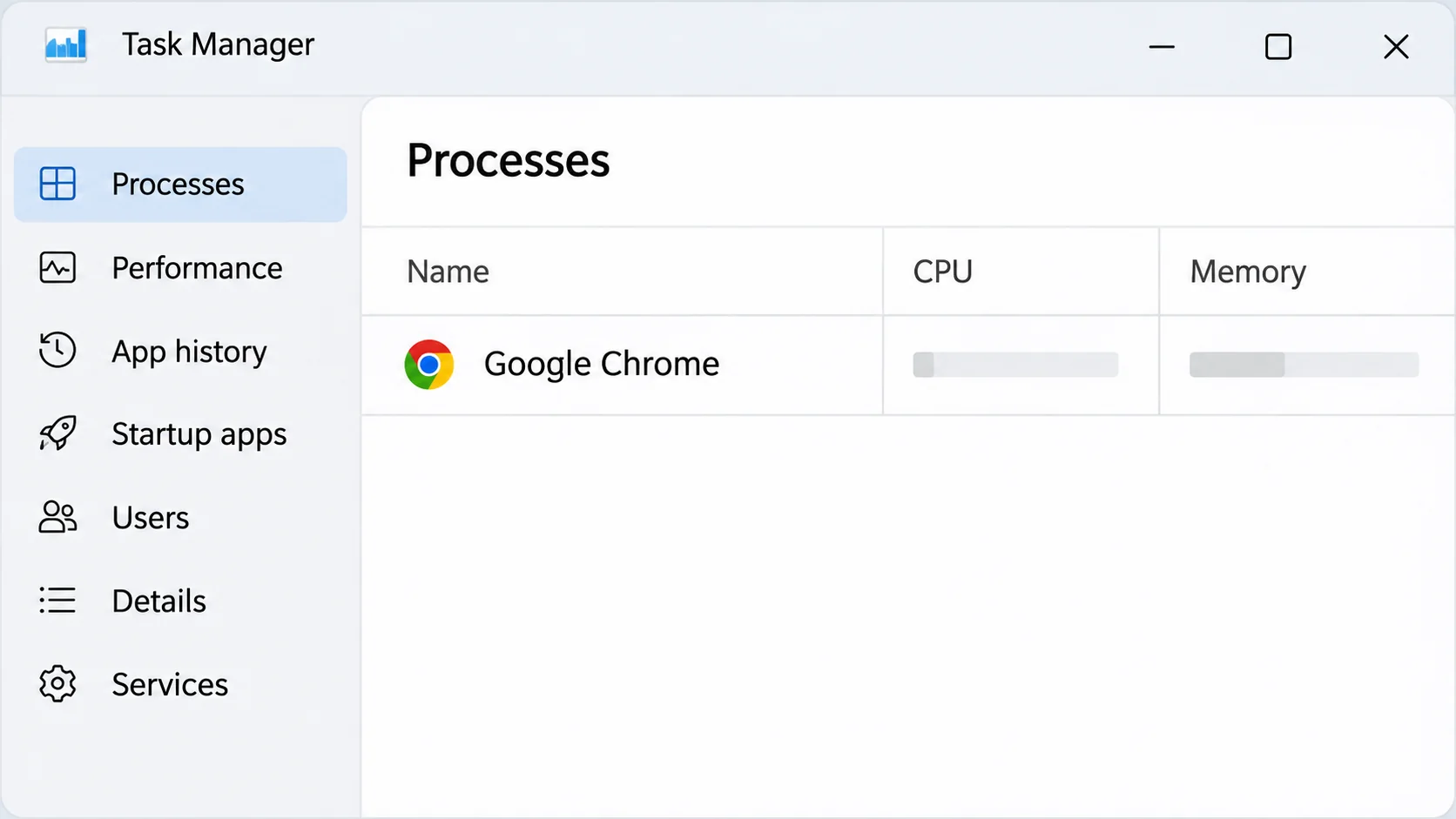
The image recreates a familiar Task Manager view. It shows a normal process name, not a trick for diagnosing ChimeraWire from a single line.
A family computer might have several browsers or test profiles for perfectly normal reasons. Identify which application and file a security alert actually refers to before making changes.
Publishers and owners of affected computers see different evidence
A site operator might notice an unexpected traffic shift. A computer owner may have a Windows alert naming a specific item but know nothing about its destination.
Neither observation establishes the complete case alone. Analytics anomalies do not identify the malware family, and a Windows alert doesn’t show whether any site’s ranking changed.
Before taking action, separate the evidence you have:
- Note the exact detection name and security action before trying to remove files.
- Check whether an ordinary browser or managed test job explains an unfamiliar process.
- Keep traffic data and endpoint evidence separate when reporting a possible incident.
- If a trusted tool identifies unwanted activity, protect the computer even when ordinary browsing still works.
What Researchers Found on Affected PCs
Real browser software can perform unwanted work
The reported samples used a browser to carry out automated visits. A page may have seen ordinary browser activity although the person who owned the computer wasn’t involved.
That distinction is useful when you’re reviewing a process list. The same familiar browser name can appear whether the app was launched by you or by something else.
Look for case-specific information such as a scanner finding, an unfamiliar installed package or a process path your technician can identify. Don’t try to infer intent from the name.
The activity may not be in your usual Chrome history
A different browser copy or profile doesn’t have to share the history in your personal Chrome window. An empty History view therefore isn’t a useful way to clear the PC.
The same applies to open tabs. Closing every tab you’ve opened may not affect the process that your security product reported.
If you noticed a warning while no browser was open, record that circumstance.
A technician can compare the time with installation and security records instead of asking you to reproduce it.
The first point of entry still needs evidence
The sample analysis shows what the malware did when executed. It does not establish that a particular browser download, extension page or email infected every affected device.
Report unfamiliar installations that occurred near the first detection, but don’t make guesses sound like findings. A setup file you never opened may be unrelated.
A verified detection is enough to start containment. Finding the initial route can help prevent a repeat, but you shouldn’t delay protection until the entire history is clear.
How to Read a Possible ChimeraWire Alert
Compare the item and the action, not just the threat name
A security tool can alert on a file it blocked before it was used. Another alert might refer to activity that began before your tool intervened.
Use the original detection record to check how it was handled. If the tool reports a completed quarantine, note which item was quarantined and whether there are additional detections.
Save the path privately for someone qualified to inspect it. Do not double-click a file or run it from the path just to decide whether it belongs there.
Check for work that someone else authorized
On a managed PC, administrators or developers may use browser automation for testing. Your organization’s inventory or change records can distinguish that work from an unexpected installation.
Ask the owner of the device before stopping a process used by another team. An authorized job and an unrelated malware detection may appear close together in time.
If it’s a personal PC, consider what updates or software you knowingly installed. The point is to establish an explanation, not to disable every background browser item.
If you manage a site, keep analytics as evidence rather than a verdict
Save a private copy of the affected period, including dates, time zones and the sources visible in your reporting tools. Compare the change with your own release or promotion schedule.
If advertising or billing is affected, contact the provider with your records. Do not claim that ChimeraWire targeted you simply because sessions changed suddenly.
Check conversions and other relevant outcomes separately. Traffic that does not match normal reader behavior can justify investigation without naming the tool or actor responsible.
What to Do if You Suspect ChimeraWire on Windows
-
Stop using the affected PC for sensitive work. If the alert shows active unwanted behavior, disconnect it from your network and use another device while you investigate.
If it is managed equipment, tell IT which tool raised the alert and what you were doing. Follow the organization’s directions before changing files or processes.
-
Save useful details from the original detection. Record the name, path, time and whether Windows or another product blocked or quarantined an item.
Get the information from detection history rather than reopening the suspicious item. Avoid photographing unrelated work or showing a full path publicly if it contains your name.
-
Check for other findings before deciding what accounts need attention. Look for unrecognized sign-ins or separate malware alerts using a trusted device. Treat those findings on their own evidence.
Artificial browsing alone doesn’t prove that passwords were stolen. If the PC also ran a stealer or you entered details into a suspicious page, review that exposure separately.
-
Keep publishing or analytics concerns separate from the device response. Work with your hosting, analytics or advertising provider if its data shows unexplained activity.
Use restricted reports rather than sharing raw server logs broadly. Ask the provider what it can confirm before attributing traffic or costs to a specific Trojan.
-
Get help if the alert keeps returning after removal. A recurring result can mean the underlying item wasn’t removed or another component is restoring it.
Keep the later result and compare it with the first one. A trusted technician can decide whether the PC needs deeper review or a clean reinstall.
How to Remove ChimeraWire From a Windows PC
Step 1: Check Protection History for the item already identified
If Windows Security raised the warning, open Virus & threat protection > Protection history and locate the relevant entry. If you use another scanner, check its equivalent detection history.
Use the action and timestamp from that record. A name associated with a family doesn’t give you permission to delete every Chrome process or profile.
Make a separate note if you saw the same item after a restart. That gives the next scan or technician something concrete to compare.
Step 2: Review a verified unwanted program without removing Chrome by default
Open Settings > Apps > Installed apps and check for an unwanted entry identified by your responder. If present and confirmed, select its uninstall action.
On a machine you own, use Task Manager only to observe unfamiliar activity and note process details. Don’t end processes solely because they use CPU when Chrome is closed.
A Windows program can generate activity without appearing as an installed app. Use a security tool to find confirmed items rather than deleting whole folders based on a process name.
Step 3: Obtain a legitimate Windows scanner
From an unaffected PC, get the Malwarebytes Windows installer. Keep the verified file separate from anything flagged by the original detection.
Follow the verified package’s setup prompts, and check the publisher when Windows requests permission. Do not install a tool from a warning that appeared on a suspicious page.
If the Windows computer’s network access was restricted, ask a trusted technician how to run the scan without reconnecting it to a sensitive network prematurely.

Step 4: Check the result and look for recurrence
Open Malwarebytes and select Scan from the Scanner card. Review which entries were found before using the quarantine action.
When requested and safe, restart the PC and review the detection history again. If the unwanted item returns or another family appears, preserve the report and ask for help.
The Malwarebytes Premium Windows link is an optional affiliate offer. The relevant evidence is what the scan finds and removes, not whether you buy a plan.

Step 5: Confirm which browser setup you intend to keep
Check the browsers you normally use and verify their publisher or managed status. If your organization manages extensions, ask before changing policy settings.
Remove only an extension independently identified as unwanted. A new profile or standard browser update doesn’t replace a Windows assessment if the original detection came from elsewhere.
Find help through the MalwareTips support area or workplace security if alerts persist. Describe the recorded finding rather than assuming that all browser activity had one cause.
What To Do With an Existing Backup
If the technician recommends rebuilding, make a file list before restoring anything. An old installer or unfamiliar browser archive can bring back material you don’t want.
Recover documents from a copy you’re confident predates the problem, then install approved software directly. Do not restore background tasks or whole application profiles merely for convenience.
Check the first few items before you reconnect accounts or browser sync. You want a known good computer, not an exact replica of an unexplained setup.
If you need to compare a new alert with the old one, preserve the first report independently. That record can save time without forcing you to keep the original file.
What You Can Document Without Visiting a Suspicious Site
If your security software shows a browser-related item, note its path and the name of the user profile when asked by a responder.
Keep private directory details out of public requests.
Write down what other apps were running and whether the alert repeated. That can help a technician distinguish a one-time blocked file from behavior that resumes after a restart.
If a reporting tool shows irregular visits, save the relevant report period before adjusting filters. Label any exports so your provider can distinguish raw observations from a later analysis.
For a business PC, investigate interruptions affecting the device separately from any third-party billing discussion.
An unexpected traffic report does not tell you who generated it or whether it cost money.
Ask the analytics provider what it can verify and whether it has a standard invalid-traffic reporting process.
Write down when you changed a reporting filter or restricted access. Keeping that date separate from the first sign of trouble makes later comparisons easier to interpret.
Don’t reinstall or run the suspect browser to compare its activity with your reports.
Frequently Asked Questions
Does seeing Chrome in Task Manager mean I have ChimeraWire?
No, Chrome is normal software and may run background processes. Use a verified security finding and the specific item it identified before treating a process as malicious.
Does a website traffic spike prove someone installed this Trojan?
No, a spike can have many explanations. A site’s analytics generally do not establish which software was running on the machines that generated the visits.
Will clearing my browser history remove the malware?
No, clearing browser history only removes certain records from that profile. It does not quarantine a different browser copy or unwanted Windows software.
Can the Trojan work without opening an obvious window?
The reported samples used a browser without ordinary visible activity. An empty desktop therefore isn’t enough to judge which processes are running.
Should I delete every automation extension I see?
Identify the item and whether it belongs to an approved workflow first. The existence of legitimate browser automation does not make every extension or process malicious.
Does ChimeraWire mean I lost money or passwords?
The documented case concerned artificial browsing and popularity signals. Look for separate evidence of credential exposure, payment activity or other software before making a different claim.
The Bottom Line
Take a verified ChimeraWire alert seriously, but don’t use an ordinary browser process or a website traffic spike as a diagnosis. Record exactly what the security tool found.
Isolate a PC with active unwanted behavior and follow a trusted cleanup plan.
Confirm findings don’t recur before restoring normal use, and report separate account or billing concerns through the appropriate service.

Join the discussion
0 commentsShare your experience or ask a question about this article.
Your progress
Did these steps help?
Let us know how the guide worked for you.
Describe what you see and the step you reached. Keep passwords and other private information out.
Discussion
Start the conversation
Have a question or something useful to share? Add the first comment.