


An unfamiliar app says your account needs one more layer of protection. It uses a name you recognize, and the screen makes the extra step look routine.
If you bank with mBank, that request can be hard to ignore. Before trusting it, distinguish what your bank asked you to do from what the phone is showing.
Overview
The supposed security key was not an mBank app
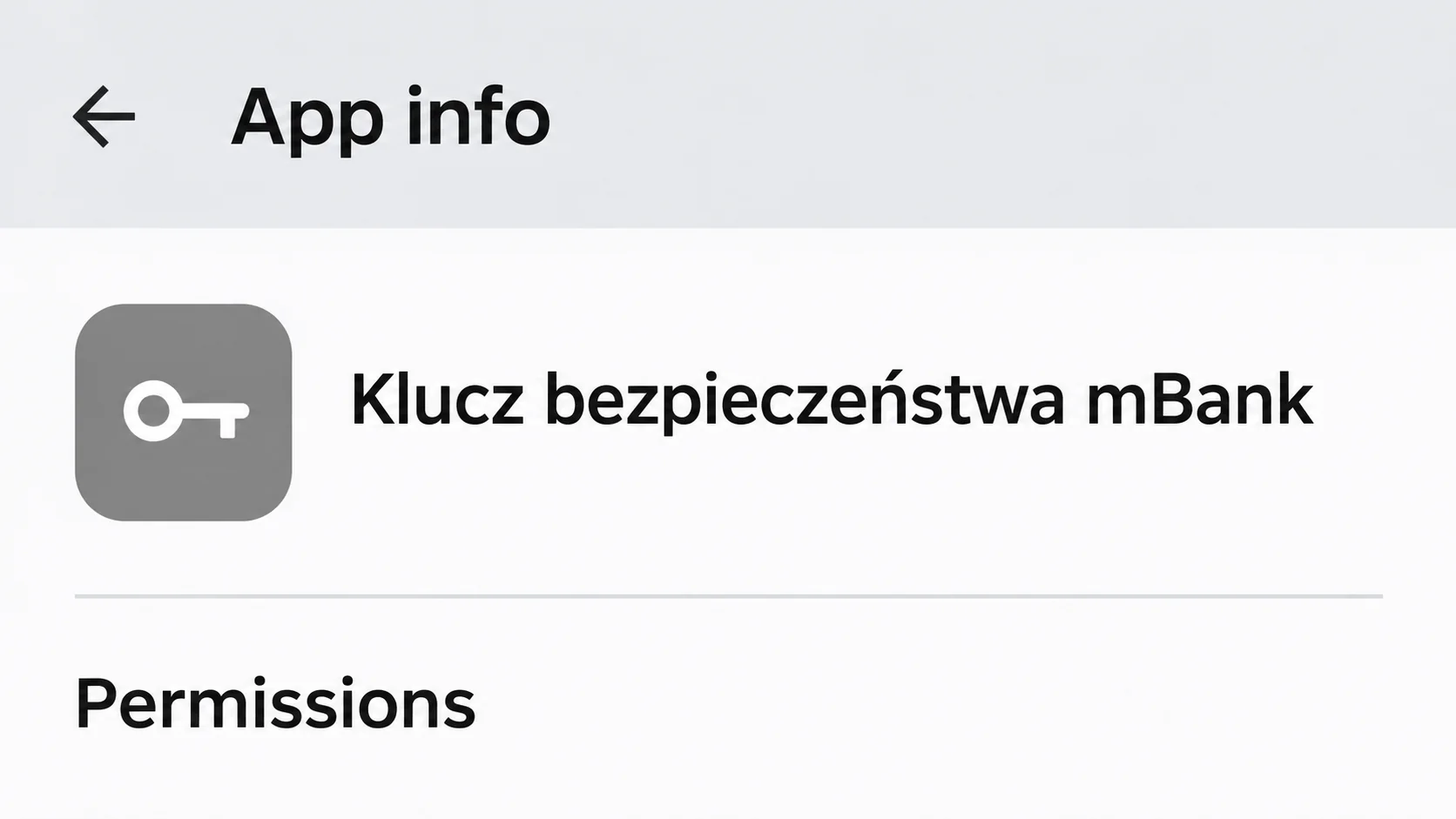
FvncBot is malware that targets Android devices. Researchers in Poland documented the use of “Klucz bezpieczeństwa mBank,” roughly “mBank security key,” to make an unrelated installation look official.
This was impersonation of a real bank, not evidence that its official app was compromised. The genuine app and the lookalike should not be treated as interchangeable.
The image is a reconstruction of where an app label could appear. Its purpose is to make the naming trick recognizable, not to identify an installed package from its picture.
Later reporting described an SGB-branded variation of the same scheme. It used a different security label, so blocking the mBank name alone won’t keep you from seeing another imitation.
A second component is another decision, not a routine detail
The fake key asked the reader to obtain an additional component. The wording suggested that the extra installation was there to help the first app run safely.
A label that invokes Play isn’t enough to show that Google published the software or that the download came through the genuine store. Verify the bank’s official listing separately.
If you find the request on a family member’s phone, ask what they remember doing. Downloading an item, installing it and granting it access are different events.
Overlay risk means the screen is not always a reliable witness
The malware could display a misleading screen above another app. A reader might recognize the bank app they opened without recognizing that the screen on top came from elsewhere.
Researchers also reported features that could capture activity or let an operator manipulate the phone. Those capabilities are not documentation of a payment made from any particular account.
In practice, start with what happened to you:
- If the message stayed in your inbox, don’t install anything from it or use its contact information.
- If you installed the imitation, stop using that phone to check balances or approve payments.
- If you entered credentials or approved something, contact the bank from a device you trust.
- If you see a payment you don’t recognize, report the payment itself and save its reference from a safe account view.
How the Fake mBank Security Key Scam Works
Step 1: A familiar name gives a new app a reason to exist
A banking security key sounds like the kind of feature a real institution might introduce. That’s why an unexpected update or registration request can feel plausible.
The reported name borrowed mBank’s identity while applying it to unrelated software. A familiar word, icon or topic doesn’t tell you who published an installed Android app.
If your bank has actually added a requirement, you should be able to verify it without the package. Open the genuine bank app or use an established support channel.
Step 2: Another installation is framed as part of maintenance
The documented imitation asked readers to install another component. That request is a useful stopping point even if the first screen looked convincing.
On a real banking phone, you may already see software from your bank and Google. Neither identity belongs to every app that puts the same words on a button.
Do not complete the second installation to see what happens next. If a file was saved, leave it unopened and record where it appeared in your download history.
Step 3: The phone is asked to grant unrelated access
The investigated malware made use of Android accessibility permissions. Identifying the particular service matters more than assuming those permissions are always suspicious.
Accessibility features can help people use their phones. An unverified banking add-on asking for unusually broad control has a very different purpose from a screen reader you deliberately installed.
If you already granted permissions, don’t return to the app for a demonstration. From a separate device, ask for help checking which services are active.
Step 4: A familiar application opens beneath an unfamiliar screen
The reported capabilities include overlays that can interfere with what a person sees while using another app. Seeing a familiar color scheme doesn’t establish which app controls the screen.
If a banking prompt suddenly changes or you didn’t ask for the displayed action, stop using that handset. Don’t test by entering a different password or a small payment.
The bank can see how it recorded the transaction or login. Explain exactly what you saw, but avoid claiming the malware made a transfer before the provider reviews it.
How to Verify an mBank Request From a Different Device
Start with a banking route you did not receive in the message
Use the bank’s mobile security guidance to reach the correct service. Don’t follow an install link sent by someone claiming to resolve the problem.
If you call, use a contact published by the bank or one you already used safely. End any ongoing call before opening the app on a trusted device.
Explain that the other phone may have run software with access to its screen. That is a more useful starting point than asking whether a particular logo looks real.
Give the bank a timeline instead of describing everything as one click
Tell the bank which actions you remember: opening a message, saving a package, starting an installation, granting permission, signing in or confirming a banking request.
Record when these happened and which payment is in question. If you can’t remember a step, say so rather than assuming the software did it silently.
If you have more than one bank account on the same phone, think about those accounts separately.
An app using mBank’s identity does not limit the device’s potential exposure to mBank.
Don’t give a second caller control of the cleanup
Someone who knows the name of the fake app might sound like a fraud investigator. That detail alone doesn’t tell you where the call came from.
If a caller wants you to install a remote support tool, share the screen or move money for safety, stop and reach your own bank instead.
Review any later approval in the context of the action you initiated. Genuine banking notifications can still display an action started by someone else.
What to Do if You Have Fallen Victim to This Scam
-
Keep the affected phone out of banking. Use another device to contact your bank. If you can operate the affected phone safely, disconnect it from mobile data and Wi-Fi.
For a managed phone, notify the organization before changing settings. Give support the app name and approximate installation time, not the phone’s passwords or codes.
-
Tell the bank what you entered or approved. Explain whether you shared login information, card details or approved a request inside a genuine app.
Ask how to review or revoke mobile authorizations and whether a card or other access should be restricted. Check recent transactions through an unaffected device.
-
Report unauthorized payments and retain the reference. Record the nature, time and amount of each payment after the bank confirms it is visible in its own records.
Keep the incident reference and the bank’s dispute instructions. The same response may not apply to card payments, bank transfers and an approval you stopped before completion.
-
Secure recovery accounts you used on the phone. Check email and other accounts involved in banking recovery. Use a separate device to reset exposed passwords and revoke unfamiliar sessions.
If you’re unsure whether SMS access was affected, ask relevant providers what other trusted recovery methods they allow. Don’t relay codes to callers who offer to inspect the phone.
-
Preserve the installation record without reopening the malware. Note the warning you saw, the displayed app name and what Android allowed you to install.
Share that information privately with a technician or incident handler if asked. Avoid sending the package itself through an ordinary group chat.
How to Remove FvncBot From an Android Phone
Step 1: Find suspicious items in the system app inventory
Open Settings > Apps and choose the full app list. Check the identified fake key and any later app documented by your own installation history or a trusted detection.
A similar display name is not enough to remove a real bank app. If you cannot identify something, record it and ask the device maker or an authorized technician.
If the affected handset is difficult to control, don’t keep returning to the home screen and starting over. Continue the bank response from a different device.
Step 2: Revoke access from an identified unwanted app
Open Settings > Accessibility and look for the list of installed or downloaded accessibility apps. Disable the identified unwanted service if it appears there.
If uninstall is unavailable, search Settings for Device admin apps and check whether the confirmed unwanted app has administration. Official work management or accessibility services should remain untouched.
Use the phone maker’s instructions if those menus look different. Keep a record of the setting you changed, especially if the same privilege is enabled again unexpectedly.
Step 3: Remove the confirmed app and any identified second component
Return to the system app list, open the confirmed malicious entry and select Uninstall. Repeat only for a second item that is linked to the incident.
Review which apps can install unknown apps and turn off any permission that you enabled for the suspicious installation. Do not enable any permission to test a package.
If the phone interrupts removal or the same entry returns, stop the cleanup attempt and ask for qualified help. Leave banking and password changes on clean equipment.
Step 4: Check Play Protect and install a reputable scanner
When it is safe to connect, open Google Play, tap your profile and choose Play Protect. Make sure scanning is enabled and run the available check.
For a second opinion, check the developer on the official Malwarebytes Google Play listing and install from there, not through an alert or a browser download.
The Malwarebytes Android product page is an optional affiliate link. A subscription is not needed to block an exposed bank card or request official support.
Step 5: Use the manual scan and verify what changed
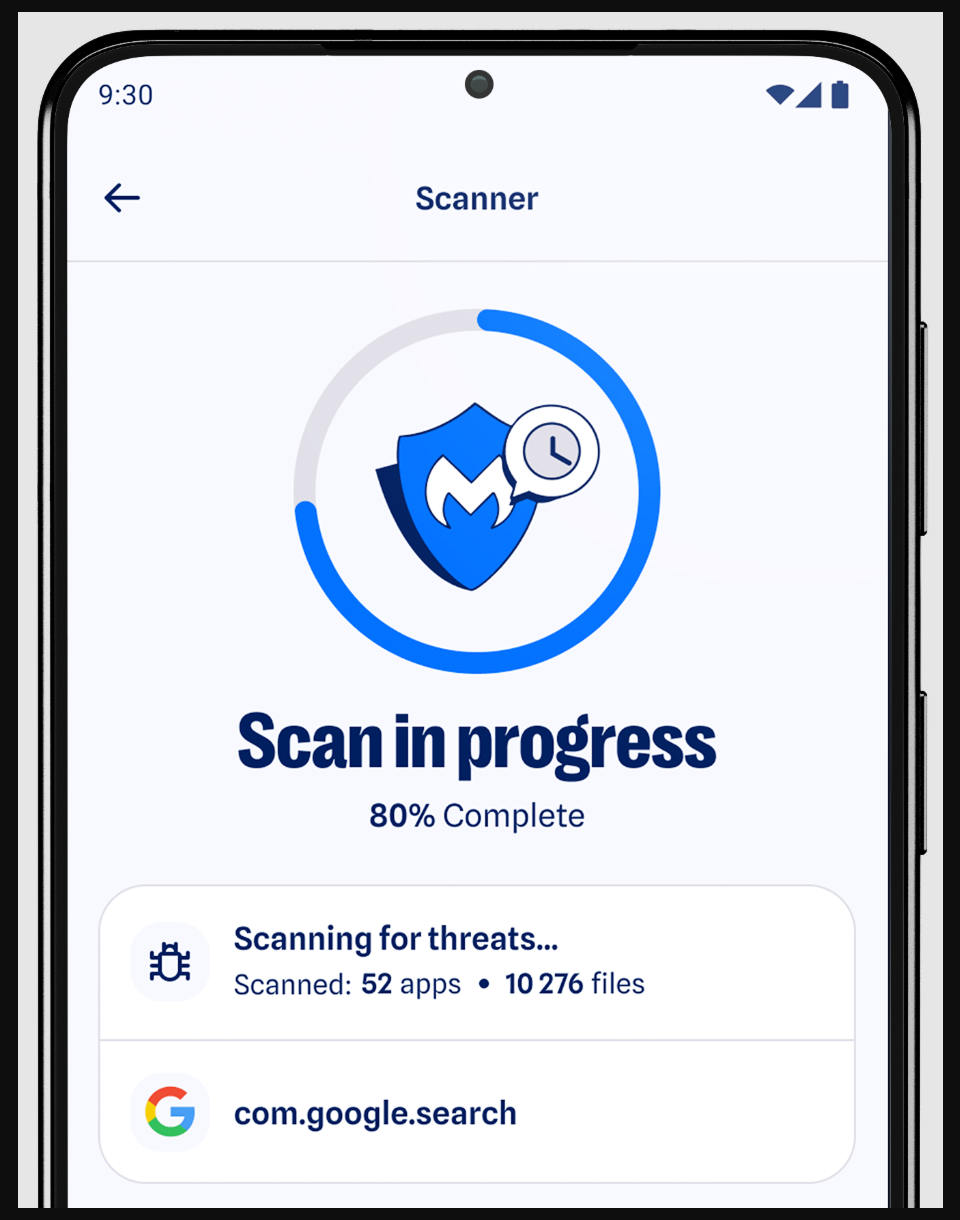
Open Malwarebytes, select Device and tap Scan now. Learn which item it identified before following the removal option it displays.
When appropriate, restart the phone and check that the app or permission didn’t return. Review the detection history instead of relying on how the phone feels.
Use MalwareTips mobile removal support or trusted manufacturer support if an identified component is still present. A scanner can’t tell you whether an earlier approval moved money.
Step 6: Return to the real app only after cleanup
Install security updates from Android settings. If a technician recommends resetting the phone, establish how you will recover your account access and essential files before starting.
Avoid restoring a full bundle of old apps just to get up and running faster. Confirm that the genuine bank app comes through the route your bank recommends.
Ask the bank whether old authorizations need to be reissued before enrolling the cleaned phone again. Confirm account activity during the cleanup period from another device.
What to Check Before You Enroll Banking on a Clean Phone
If the bank asks you to authorize a replacement phone, note how it expects the enrollment to begin. Don’t use a message linked to the old installation as a shortcut.
Ask whether other people share that account or use an approved business device. Review what can be revoked without accidentally locking out an account holder who still needs access.
When the genuine app is back, read the action shown in each approval. A new device should make it easier to verify requests, not make every future notification trustworthy.
Keep the original fraud reference separate from the new enrollment. The bank may still be investigating a payment even after it confirms the old phone no longer has access.
Frequently Asked Questions
Did the real mBank app distribute FvncBot?
The documented campaign used a separate impostor app that borrowed the bank’s name. That does not establish an issue with the genuine mBank app.
Is every app that asks for accessibility a banking Trojan?
No, legitimate features can need that access. Identify who published the app and why you enabled it before revoking anything from a service you use.
Can I tell if an overlay stole my password?
You may not be able to tell from looking at the phone later. If you entered a password in a suspicious context, tell the provider and use its recovery process.
What if I installed the fake key but didn’t see a second app?
A missing icon doesn’t answer what installed. Check your installation sequence and security history, and ask for help identifying unwanted entries without launching them.
Is a black screen on my phone proof of FvncBot?
No, an ordinary problem can look similar. A known installation, an unexpected permission or a verified bank event is better evidence than a blank screen alone.
Can a scan undo a payment I didn’t make?
The scanner can help with the device, not with reversing a payment. Report the transaction promptly through the bank’s verified channel and follow its dispute instructions.
The Bottom Line
Don’t install the supposed mBank security key or its extra component. Check new banking requirements through the real app, trusted support or your branch.
If you installed anything or approved an action, keep the phone out of banking while you report it. Review device access and financial activity as separate problems.

Join the discussion
0 commentsShare your experience or ask a question about this article.
Community experiences
Did this happen to you?
Your experience could help someone recognize the same scam. Submit a private report for our team to review.
I experienced this tooReports are reviewed before publication. Sharing publicly is always your choice.
Discussion
Start the conversation
Have a question or something useful to share? Add the first comment.