


A website asks to connect to your keyboard, printer, or another nearby device. The request looks official, but you were only trying to complete an ordinary task.
Before selecting a device, check which website is asking and what it needs to do. A browser permission can cross a different boundary from plugging something in.
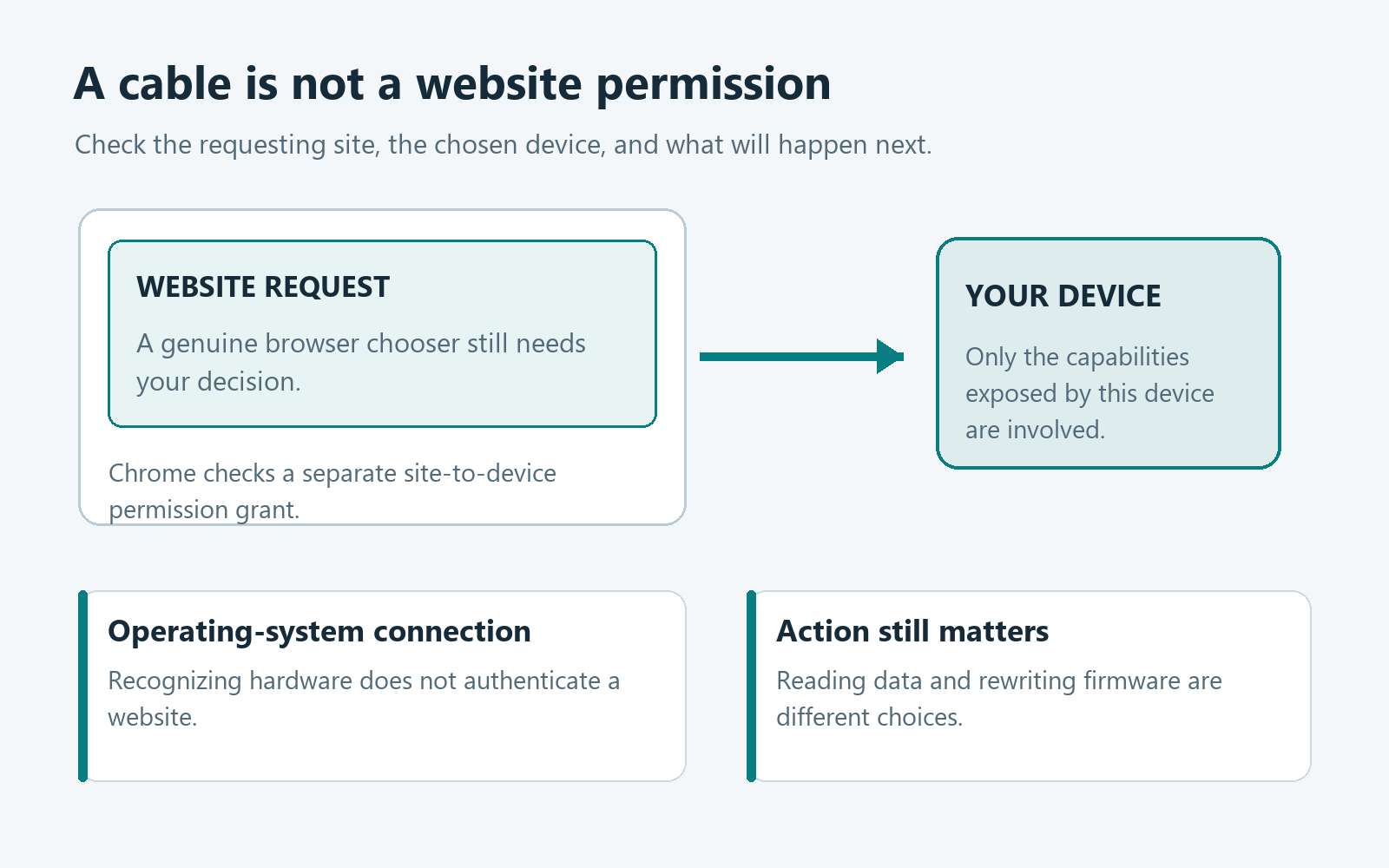
Overview
A connected peripheral is not automatically shared with every website
Your computer recognizing a device and a website receiving access are different events. Chrome provides permission controls for websites that communicate with supported hardware.
The important relationship is between the requesting site and the particular device. A familiar device name does not establish that the website should receive access.
The requested capability matters as much as the device name
USB, Serial, HID, and Bluetooth requests can support legitimate work. Their usefulness also depends on what the device exposes and what the website attempts to do.
Reading a measurement and changing device firmware are very different activities. Neither should become acceptable simply because the browser displays a genuine permission window.
Canceling is a reasonable first decision
If you cannot explain the connection, cancel the request and verify the task first. A permission prompt is an opportunity to decide, not an instruction to agree.
- Check the real website in the address bar.
- Identify the particular device the task actually needs.
- Understand whether the operation reads or changes information.
- Remove unnecessary access using the relevant Chrome controls.
Device access can include consequential changes too
Google warns that a connected website may obtain device information or reprogram supported hardware. Verify the genuine provider before allowing configuration or firmware work.
Separate the Four Layers of a Device Connection
This guide focuses on desktop Chrome. Mobile hardware connections can use different permissions and platform restrictions, so do not assume these desktop menus apply everywhere.
Start with the physical device and its intended job. A cable, wireless connection, or powered indicator tells you little about which website should communicate with it.
The operating system is another layer. It can recognize hardware, manage drivers, or maintain Bluetooth pairing without automatically endorsing a website’s request.
Chrome then applies its own website permission boundary. The browser may ask you to choose one device for a particular site’s supported feature.
Finally, the device determines which operations are possible. A browser grant does not turn every peripheral into an unrestricted copy of your computer’s storage.
| Layer | What you are checking | What it does not establish |
|---|---|---|
| Physical or wireless connection | The intended hardware is connected or discoverable. | That an unfamiliar website deserves access. |
| Operating system | The computer recognizes and supports that device. | That its browser permission has been granted. |
| Website permission | A particular site can communicate through the allowed connection. | That the site is trustworthy or its proposed action is safe. |
| Device capabilities | The exposed functions fit the action you intended. | That every device supports identical reading or writing operations. |
These layers explain why a device may work in its normal app but not a webpage. Do not disable unrelated protections merely to make the chooser show something.
Understand What Chrome Is Asking to Connect
USB requests concern a particular hardware connection
A manufacturer’s browser-based utility may legitimately communicate with supported USB equipment. Confirm the manufacturer’s actual website and the precise device model before continuing.
Google’s USB, Serial, and HID guidance explains the device chooser and available permission categories. A device should fit your deliberate task, not an unrelated pop-up’s instructions.
Serial requests can involve configuration or specialized equipment
Serial communication can be used with equipment such as microcontrollers and printers. The useful question is what that particular tool intends to send or receive.
An ordinary document download does not become a reason to connect a serial device. Pause if the requested hardware has no sensible relationship to your task.
HID requests are not ordinary website typing
HID means Human Interface Device and includes equipment such as keyboards and game controllers. Websites can use supported functions beyond receiving ordinary text typed into a page.
A legitimate configuration utility might adjust a device feature. That is different from assuming every website needs a special device connection to accept keyboard input.
Bluetooth access is distinct from normal operating-system pairing
A site can use supported Bluetooth communication for a particular purpose, such as displaying readings from compatible equipment. Verify the equipment and the information being shared.
Google’s Bluetooth connection instructions describe Bluetooth Low Energy support and platform limits. Do not assume every Bluetooth accessory will work through the same browser feature.
What to Do When an Unexpected Device Chooser Appears
-
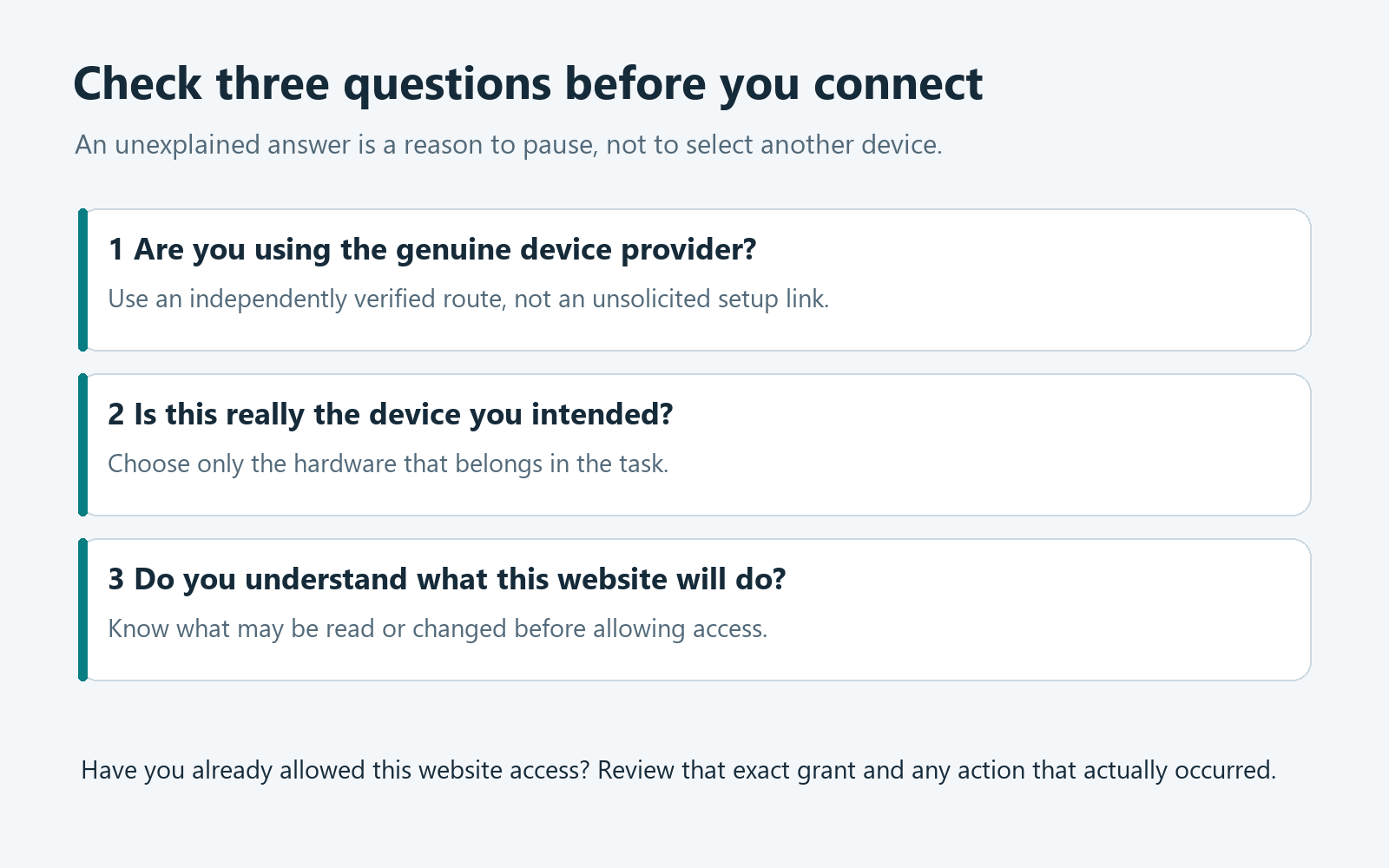
Cancel the request if you were not trying to connect hardware. Do not choose the first familiar name merely to make the window disappear.
-
Read the website address independently of its logo. If a vendor utility is expected, navigate through the genuine provider’s established product or support route.
-
Match the intended task with the exact device. An unnecessary peripheral should not receive access because another device is missing from the list.
-
Check what the provider says will happen after connecting. Configuration changes, firmware updates, and access to sensitive readings deserve more attention than a vague Continue button.
-
If the request remains unexplained, leave the page and consult the genuine provider. Keep any error text, but avoid publishing device identifiers or other private details.
This is also sensible when an apparently genuine page was reached through an advertisement or unsolicited message. Verify the provider independently instead of trusting that arrival route.
A browser chooser can be genuine while the website behind it is misleading. Chrome presenting the choice does not authenticate the website’s story.
Review a Website’s Existing Device Access
For USB, Serial, and HID connections, Google’s instructions describe opening the site’s information beside the address and removing the relevant device entry.
Read the device type and the site carefully before removing it. The goal is to change one unnecessary relationship, not disrupt every device on the computer.
Chrome also exposes device-type defaults under Settings, Privacy and security, Site settings, and Additional permissions. Look for the relevant USB, Serial, or HID category.
Default behavior and an existing permission are different checks. Review both when you no longer want a particular website connecting to your equipment.
The general Chrome site-permission instructions explain site-specific settings and resetting permissions when that control is available. Read its effect before resetting other permissions you still need.
For a Bluetooth connection, distinguish ending the current connection from reviewing future website access. Do not assume that an operating-system unpair action and browser permission removal are identical.
If your Chrome version does not expose an expected device entry, consult its current help and the device provider. Avoid installing an unfamiliar cleanup extension as a workaround.
Removing permission does not undo earlier actions
Revoking access cannot retrieve information already shared or reverse a completed device change. Record what you allowed and seek device-specific help when something consequential happened.
Choose the Situation That Matches Your Task
Open the matching explanation for a focused next step. These branches do not scan for nearby devices, change permissions, or ask for any device identifiers.
I was only browsing and did not expect hardware access
Cancel the chooser and verify the website’s purpose. A page asking for an unnecessary connection is a reason to stop, not a reason to experiment with available devices.
If you did not grant access or run anything, do not assume the request itself proves infection. Address what actually happened instead of following a compulsory scanner pitch.
I deliberately opened a genuine device setup tool
Confirm the correct provider, supported model, and proposed operation. Select only the device you intended to configure and follow the vendor’s current instructions.
Save existing settings or work when the provider recommends it. Do not interrupt firmware work or improvise a different device merely because the expected one is unavailable.
I already connected equipment to a website I no longer trust
End unnecessary activity and review the site’s device permission. Record which device was selected, what the page did, and whether you supplied sensitive information.
Use the genuine device provider for checking settings or firmware concerns. Protect any exposed account separately rather than assuming device disconnection resolves every consequence.
When a Device Does Not Appear in the List
A missing entry does not automatically mean malware or a broken browser. Start by checking whether the provider supports your device, operating system, and Chrome feature.
Google states that iPhone and iPad do not support these website-to-USB, Serial, or HID connections in Chrome. Its Bluetooth guidance also identifies limits on those platforms.
Check the cable, power, and relevant operating-system status without changing security settings indiscriminately. A charging-only connection and a supported data connection are not interchangeable assumptions.
For Bluetooth, follow the manufacturer’s discoverability instructions and Chrome’s compatibility guidance. Do not connect to an unfamiliar nearby device simply because your own device is absent.
Some environments need additional platform-specific setup. On managed work or school devices, ask the administrator rather than editing policy or drivers to bypass a restriction.
Keep the exact error and device model for support. Those details are more useful than repeatedly approving different permission categories and hoping something changes.
Recognize the Point Where Permission Becomes an Action
Suppose a genuine controller tool needs access to adjust a button assignment. The device and task match, but you should still understand which settings it will change.
Now consider an unexpected page claiming your computer needs urgent repair. A demand to connect unrelated equipment does not become reasonable because it uses a similar chooser.
For sensitive devices, also consider the information involved. A reading sent to a website may be more private than the device’s ordinary product name suggests.
Permission should therefore follow a verified task, not replace one. Ask what will be read, what might be written, and whether another supported route is available.
If the provider’s instructions require experimental flags or unusual driver changes, verify them with the provider directly. Do not copy commands from an unrelated forum reply.
After legitimate work finishes, review whether the site still needs its permission. Keep useful access intentionally rather than accumulating grants you no longer understand.
Use the Actual Exposure to Choose Your Response
The chooser opened, but you selected nothing
A page requesting a device and you completing the selection are different events. Note what happened instead of describing an unanswered request as a confirmed hardware compromise.
If the interruption came from an unfamiliar page, leave it and return through a known route. Do not approve a second request to investigate the first.
You connected the intended device without changing anything
Check what information the page displayed or received. A device name appearing in the chooser is different from a website obtaining measurements after a connection.
Consider the sensitivity of that information before sharing screenshots for help. A support request should not expose personal readings or identifiers that the troubleshooting does not require.
Remove access that is no longer needed, then verify the ordinary device function through its supported route. Avoid unrelated resets merely because you feel uncertain.
You allowed a configuration or firmware operation
Write down the operation, device model, and website before seeking help. The correct response depends on what actually changed, not merely which permission category appeared.
Use the genuine manufacturer’s recovery instructions if configuration now behaves differently. A browser reset cannot be assumed to restore settings or firmware stored on separate hardware.
When an update is still running, follow the provider’s instructions about power and disconnection. Do not improvise an interruption simply to close an uncomfortable-looking browser window.
If the device belongs to an employer or another person, involve its owner before attempting recovery. Preserving the current state can matter more than trying several speculative fixes.
Frequently Asked Questions
Does plugging in a USB device give every website access?
No, the physical connection and a website’s browser permission are separate. Check the specific site, selected device, and supported feature before granting a connection.
Is a real Chrome device chooser proof the website is safe?
No, a genuine browser control can appear during an untrustworthy website’s request. The chooser lets you decide; it does not verify the website’s promises.
Why would a legitimate website request HID access?
A supported device utility may need specialized functions such as controller configuration. Verify the genuine provider and intended operation rather than assuming ordinary typing requires that grant.
Can all Bluetooth accessories connect through a webpage?
No, Chrome’s guidance describes supported Bluetooth Low Energy connections and platform limitations. Check the provider’s compatibility requirements instead of assuming normal operating-system pairing proves browser compatibility.
Does removing access reverse a device configuration change?
No, stopping later access does not undo information already shared or a completed change. Use the genuine provider’s instructions to investigate the particular device.
Should I run a scanner because a chooser appeared?
A permission request alone does not establish infection. Base any further response on what you allowed, what executed, and whether there are actual signs of compromise.
The Bottom Line
Allow hardware access only when the website, selected device, and proposed operation match a task you understand. Cancel unexplained requests before experimenting with your equipment.
If you already granted unnecessary access, review that specific permission and any actual consequences. Keep device repair, account protection, and browser settings as separate decisions.

Join the discussion
0 commentsShare your experience or ask a question about this article.
Community experiences
Did this happen to you?
Your experience could help someone recognize the same scam. Submit a private report for our team to review.
I experienced this tooReports are reviewed before publication. Sharing publicly is always your choice.
Discussion
Start the conversation
Have a question or something useful to share? Add the first comment.