


A used Acer Chromebook 311 can look like a sensible choice for school. The awkward part is that several different machines were sold under that name.
One line on the listing can change how long you should expect updates, and whether the apps you need will still be there.
Overview
The model code matters more than the name on the lid
A seller may accurately describe the screen size, memory and condition without identifying which generation you are buying. Look for the manufacturer’s full model code alongside the familiar name.
For Acer’s Chromebook 311, C722 and C725 are not interchangeable. Google lists different support dates for them, even though either seller could reasonably shorten the description to “Chromebook 311.”
A second owner inherits a schedule, not ten fresh years
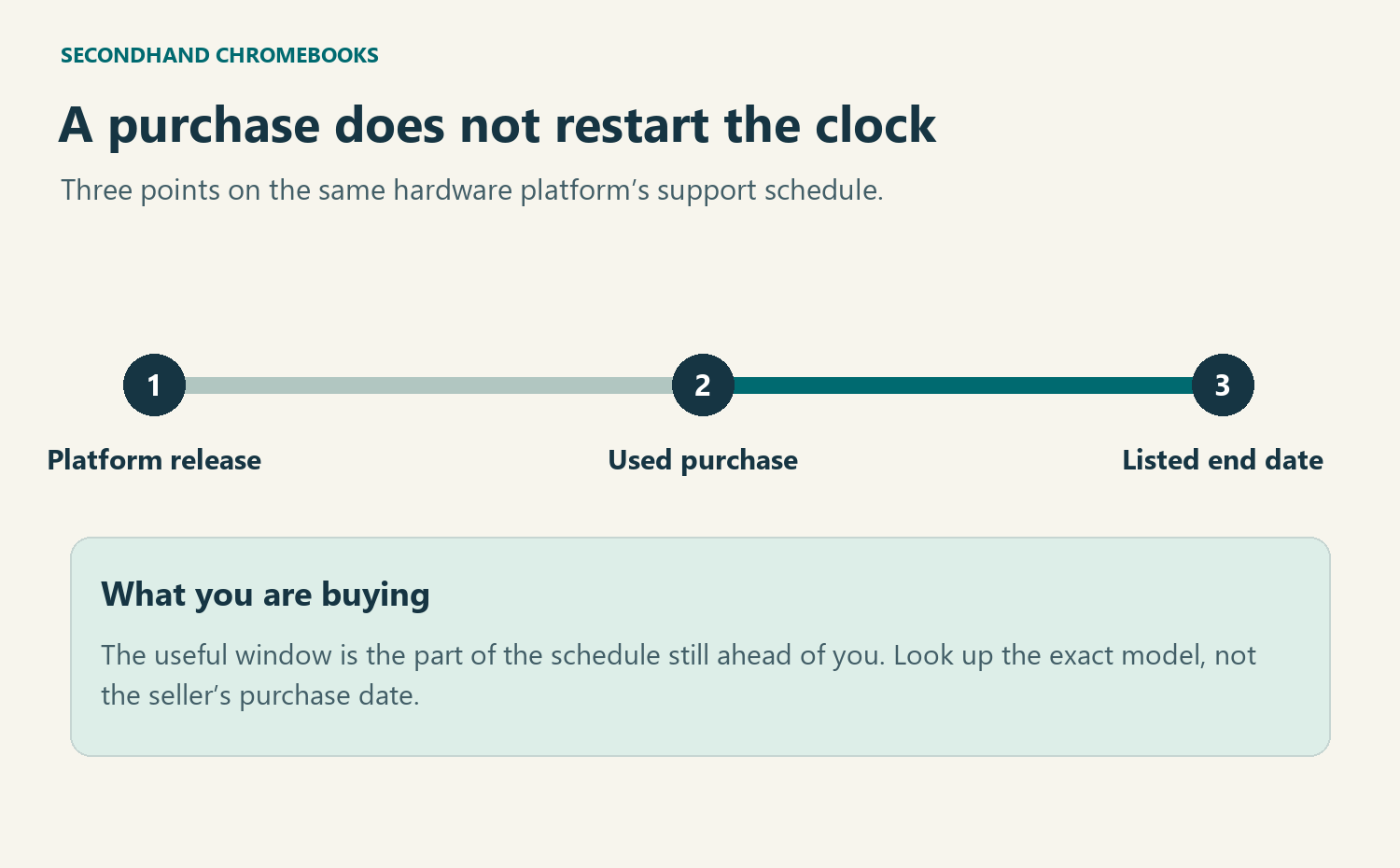
Google bases its ten-year update policy on the release of the hardware platform. The clock does not start when you buy the computer, register it, or first unpack it.
A machine stored unopened for years could have less support remaining than an obviously used laptop built on a newer platform. Cosmetic condition cannot settle that difference.
A starred date may come with a choice about Android apps
On certain older models, the last part of the published update period requires a one-way decision. That matters if your reason for buying depends on the Play Store.
- Ask for the precise model, not just the product family.
- Read the date and any asterisk on Google’s corresponding row.
- Compare that result with the update schedule on the actual machine.
- Check whether your essential app survives the available update path.
Why nearly identical listings can describe different purchases
Consider two sellers offering an Acer Chromebook 311 with a charger. One gives the model as C722; the other shows C725 on the manufacturer’s label.
Google’s official ChromeOS update policy and model directory lists June 2030 for the C722/C722T group and June 2036 for the C725 group.
That six-year difference belongs to those particular rows. It is not an estimate based on how carefully either seller treated the battery or keyboard.
There is another trap in the same family. Google lists both C733 and C721 variants through June 2029, but the C721 row carries an asterisk.
Two listings can therefore offer the same end month without offering the same route to reach it. Keep the entire model string and the footnote together.
| Acer model on the unit | What Google’s current row tells you |
|---|---|
| Chromebook 311, C722 or C722T | The published automatic update period runs through June 2030. |
| Chromebook 311, C725 family | The corresponding C725 group currently lists June 2036. |
| Chromebook 311, C733 family | The June 2029 entry does not carry the extended-update asterisk. |
| Chromebook 311, CB311-10H or C721 | The June 2029 entry requires the extended-update choice. |
These rows show how to read the directory; they are not a shopping list. Check the current row for the device in front of you before committing.
If an advertisement says only “311 series, guaranteed updates,” ask which code supports that promise. A photograph of the exact label is more useful than another stock product picture.
How to check the Chromebook before you pay
Step 1: Match the listing to the physical model
Look for a model designation on the unit or its original packaging. If the box is separate, ask the seller to confirm that it belongs to this particular computer.
A useful request is simple: “What model code is printed on this unit, and what month and year does its update schedule show?”
Ask the seller to leave out serial numbers, account names and email addresses. The public model code identifies the product variant; you do not need somebody’s private account.
Be particularly careful when a refurbisher has several machines in stock. A photograph can genuinely represent the batch without establishing that your specific unit has the photographed model number.
If the seller offers to substitute an equivalent model, put the required support date and any Android requirement into your buying decision. A similar-looking substitute may not meet either.
Step 2: Read Google’s row rather than a reseller’s estimate
Open the official directory, choose the manufacturer, and find the exact code. Read any alternative model codes inside parentheses before moving across to the date.
Do not stop at the first matching number from your browser’s page search. A similar sequence can appear inside another model’s longer designation.
A missing match is a reason to clarify, not evidence that updates ended. Ask for a clearer label or the precise manufacturer designation before translating the gap into a verdict.
Google’s policy distinguishes the device’s supported hardware platform from its retail history. A newer battery, more storage or a recent refurbishment does not restart the published period.
A manufacturer’s end-of-sale date answers a different question again. Google explicitly distinguishes that date from eligibility for automatic updates; a store’s clearance date is not your support deadline.
Step 3: Ask to see the unit’s own schedule
Google’s instructions for checking a Chromebook’s update schedule start with the time in the lower-right corner. Open Settings, then find About ChromeOS.
Choose Additional details and read the month and year under Update schedule. The installed software version elsewhere on the page is not the information you requested.
For a remote sale, ask for a tightly cropped picture of that section. In person, the owner can show it without giving you their password or opening personal files.
A photo of a recent update completing shows that the machine installed an update. It does not show how many years Google expects to keep sending new ones.
If the screen and directory appear to disagree, keep both observations. Recheck the model suffix, the asterisk and the seller’s description before concluding which date applies.
There is no need to enroll the device in anything to settle a purchase inquiry. If the seller cannot reconcile a material mismatch, leave the deal open.
Step 4: Compare the remaining support with your actual plans
A family buying a laptop for several school years needs to cover the final term, not just the first day of classes. Write down the last month you need.
Suppose you need updates through spring 2031. A June 2030 row falls short even if the machine works perfectly during the seller’s demonstration.
A longer-dated model clears that particular hurdle, not every hurdle. It might still have a poor battery, be unsuitable for required software or remain managed by another organization.
A short-term purchase can produce a different answer. If the verified window covers the whole project and the required software works, a shorter window is not automatically disqualifying.
What an extended-update offer removes from an older Chromebook
The asterisk matters most to someone choosing between a long update window and a particular Android app. This is not a routine update that simply takes longer to install.
Google’s extended updates explanation applies to eligible platforms released before 2021. Their extended period brings the total to ten years from platform release.
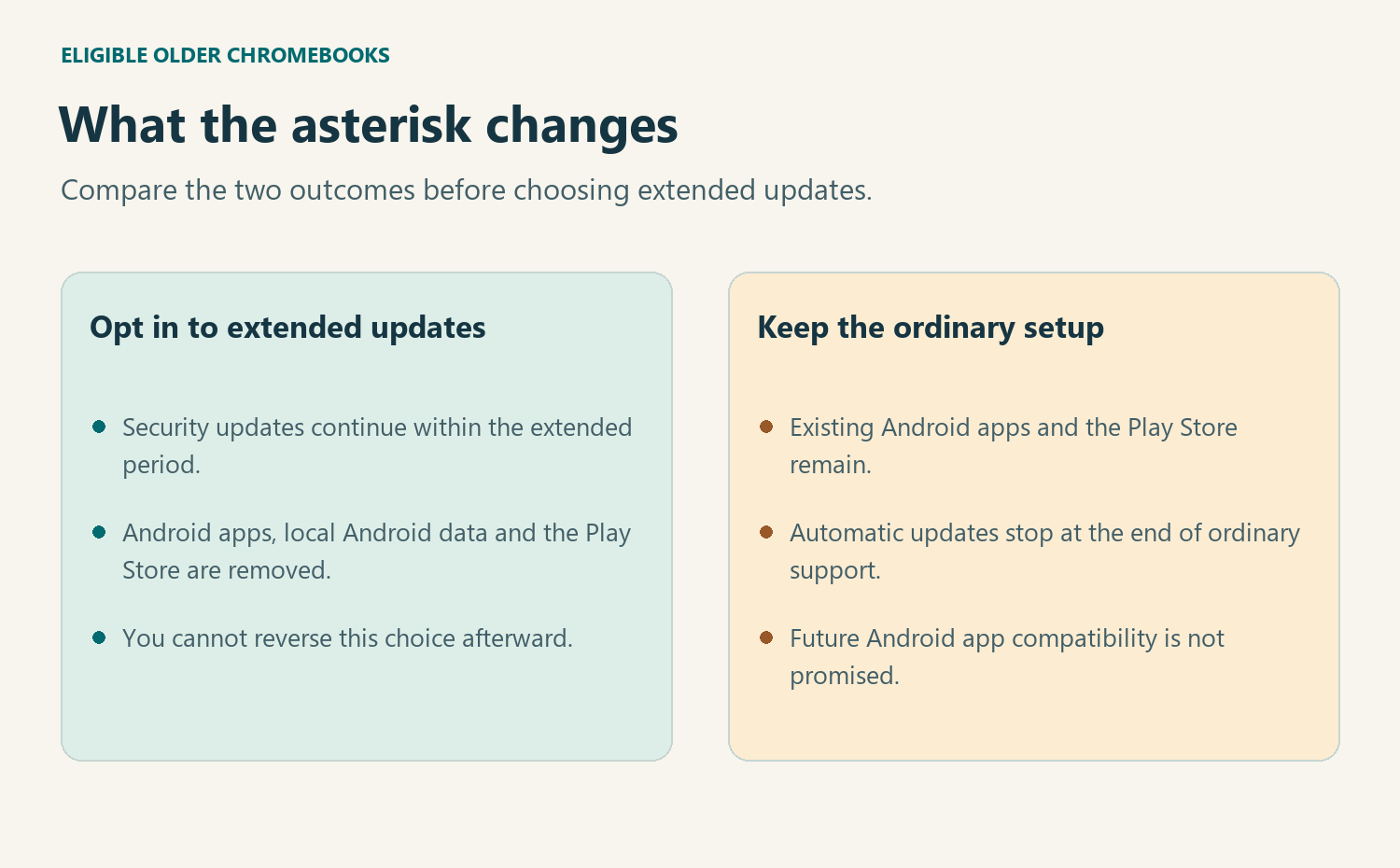
Accepting extended updates removes Android apps, their on-device data, and the Google Play Store from that Chromebook. Google says the choice cannot be reversed.
The decision concerns only that particular Chromebook. Google says Android apps and data on your other devices are unaffected. That does not guarantee that every local file exists somewhere else.
Imagine a drawing app holding sketches that were never exported. Having the same app installed on a phone does not establish that the drawings are already on that phone.
If you already own the Chromebook, open any export or backup you expect to use elsewhere before choosing extended updates. Check the actual drawings, not just the account name.
A Play Store subscription needs separate attention. Google says to manage subscriptions on the web after opting in; losing the store does not cancel a subscription.
If you decline the extension, the installed Android apps and store remain, but automatic updates do not continue beyond the ordinary support period. Developers may stop supporting those apps later.
This leaves an awkward but useful buying decision: if your essential app has no workable web alternative, choose different hardware that supports both requirements.
What still works after the last software update?
The end of automatic updates is not a remote power switch. A Chromebook can still start, display the desktop and open a familiar website after its support period ends.
Google’s final-update notice concerns future ChromeOS and browser updates. That includes security fixes, bug fixes and new features; some apps increasingly require newer versions.
A website loading during a sale demonstrates today’s behavior, not next year’s compatibility. For a required school portal, check the school’s current browser requirements as a separate question.
Verified Boot is another distinction worth making. It can check system integrity during startup, but verifying an older system does not give that system fixes released afterward.
That explains why a clean-looking startup screen and an expired support date can both tell the truth. They measure different things about the same computer.
For a primary device used for banking, email or school accounts, choose hardware that will receive updates throughout the intended use. A working keyboard is not compensation for missing fixes.
Former school ownership poses a separate question
A refurbisher may sell a classroom device with years of support left. An accurate update date still does not tell you whether the former school released its administrative control.
Google’s guidance on purchasing previously managed ChromeOS devices says the previous organization must deprovision the machine to remove that control completely.
If the seller offers a reset instead, ask whether the previous organization completed the release. A clean-looking setup screen is not the same evidence as deprovisioning.
Do not attempt a factory reset on a seller’s equipment or sign in using somebody’s credentials. The seller and former administrator are the people who can resolve this.
For a personal purchase, make successful release a condition of sale. For an organization acquiring a batch, verify that the devices can be enrolled under the intended management.
Which listing detail is still missing?
Choose the description that matches your seller’s evidence. These branches explain the next question without requesting a serial number, a screenshot, or a login.
The listing gives only a product family
Ask for the model code on the actual unit and its update-schedule month. If several variants are available, establish which one the seller will ship.
The official row includes an asterisk
Identify whether you depend on an Android app or its local files. Ask about the unit’s current state without authorizing the seller to change it.
The Chromebook has already received its final update
Do not buy it as an actively supported primary computer on the strength of a browsing demonstration. Look for another exact model with a suitable window.
The device belongs to a former school fleet
Check its update schedule and its release from management separately. Ask the seller to resolve outstanding organization control before you accept the machine.
What to Do If You Already Bought the Chromebook
-
Read the actual unit’s update schedule and compare it with the saved listing. Keep the model code and any specific support promise together.
-
If the device differs from what was advertised, contact the seller through your order record. Explain the exact mismatch and check the applicable return process.
-
If the update choice would remove an essential app, preserve any local work first. Decide whether a web version or different device actually meets your needs.
-
If management remains from a previous owner, request deprovisioning through the seller. Do not erase the machine or attempt to bypass the organization’s controls.
Frequently Asked Questions
Does purchasing a refurbished Chromebook restart the ten years?
Google measures the update period from the platform’s release. Refurbishment may improve the physical machine, but it does not reset that starting point.
Which label should I request from a remote seller?
Ask for the model identifier and the update-schedule section from that particular unit. The seller can conceal personal accounts, serial numbers and unrelated information.
Can two Acer laptops named Chromebook 311 really differ?
Yes, Google’s directory separates several model codes within that family. Match the full code before comparing the listed end month or extended-update condition.
Will opting in delete Android apps on my phone too?
Google limits this change to the Chromebook receiving extended updates. Check where your important files actually live before relying on another device for recovery.
Can the seller prove future support by installing an update?
An installation shows one update was available, not how far the schedule extends. Ask to see the update-schedule date rather than a progress bar.
Should I reject every Chromebook with a short window?
Compare the final supported month with your planned use. A brief project differs from several school years, but an already expired device cannot offer current automatic support.
The Bottom Line
Buy the used Chromebook only when its exact model, update deadline and required apps fit your plans. If a seller cannot identify the variant, leave the purchase unfinished.
If you already own it, check the schedule before accepting an irreversible extension. Protect local Android work and resolve any leftover management separately with the seller.

Join the discussion
0 commentsShare your experience or ask a question about this article.
Community experiences
Did this happen to you?
Your experience could help someone recognize the same scam. Submit a private report for our team to review.
I experienced this tooReports are reviewed before publication. Sharing publicly is always your choice.
Discussion
Start the conversation
Have a question or something useful to share? Add the first comment.