


An Android phone that keeps restarting is frightening, especially when your photos, messages, and sign-in codes are trapped behind an unreachable lock screen.
GhostMap brings a different concern into that familiar situation. Understanding what researchers actually demonstrated helps you avoid both risky downloads and damaging attempts at recovery.
Overview
The name describes research into an Android flaw
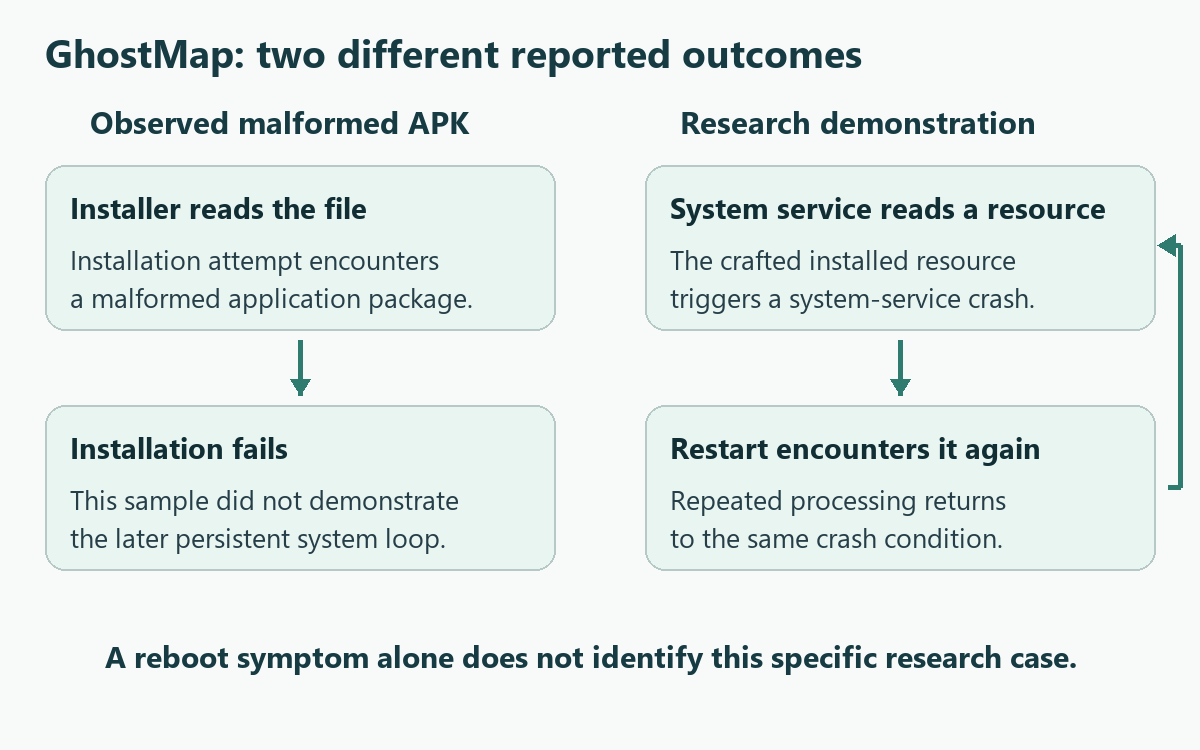
Bitdefender’s GhostMap research began with a malformed APK that crashed during installation. Researchers then developed a separate demonstration causing a persistent system-service crash loop.
The report does not describe an observed extortion campaign using that persistent demonstration. A phone restarting unexpectedly is therefore not enough to diagnose this particular problem.
Installing and opening an app are different events
Android processes application files during installation and other system activity. The demonstrated failure does not depend on somebody opening the installed app and approving its permissions.
This matters when deciding whether a download is safe. Waiting to see which permissions an unfamiliar app requests cannot address every risk associated with installing it.
Protecting access to your data comes first
A functioning phone allows prevention and backup checks. A phone trapped in a persistent loop needs device-specific support, especially before any action that erases local information.
- Do not install an APK to reproduce the research.
- Keep available Android and application updates current.
- Verify important backups before a problem develops.
- Discuss data preservation before authorizing a reset.
What the GhostMap Demonstration Actually Means
The difficult part is not an impressive-looking app screen. A specially malformed file can cause trouble when an operating-system component tries to interpret its contents.
In the research demonstration, that component crashes and restarts, then encounters the problematic resource again. Repeating this sequence can prevent normal access to the device.
Think of a service repeatedly trying to process a damaged item in its work queue. Restarting the service does not necessarily remove the item waiting there.
That comparison explains the persistence without implying the file is executing hidden instructions. A processing failure and a program running attacker commands are different security outcomes.
The published work demonstrates denial of service, not a demonstrated ability to steal your messages or remotely take over every affected Android device.
Keep those consequences separate when reading alarming summaries. Losing access to essential data is serious enough without adding capabilities the research did not establish.
Why the Difference Between a Sample and a Demonstration Matters
A file found outside a laboratory can reveal an unexpected software defect. Researchers may then construct another file to test how far that defect could go.
Those events answer different questions: whether a crash occurred naturally and whether a more disruptive result can be deliberately reproduced under controlled conditions.
Bitdefender explicitly separates the original failed installation from its subsequent persistent demonstration. Treating them as one observed attack would overstate what happened to actual users.
For a reader, the practical conclusion is straightforward. Take installation sources seriously, but do not interpret every application crash as evidence of a targeted GhostMap attack.
A similar caution applies to reports about testing on particular Android versions. A research configuration is not a complete inventory of every manufacturer’s current device builds.
Use the manufacturer’s current support information for your exact model. An Android version label alone does not describe every software component or available manufacturer update.
How to Reduce Exposure While Your Phone Still Works
Choose the installation source before opening the file
An APK is an Android application package. Installing one obtained through an unsolicited message gives that file a role in the device’s software environment.
Prefer the legitimate distribution channel for the application you intended to obtain. A copied logo, familiar filename, or message from a known contact cannot authenticate an attachment.
If a message claims you need an urgent banking update, open the bank’s established app or website independently. Do not let the message choose your installation source.
For work-required applications, ask the employer’s administrator for the approved route. Personal experimentation with a package is not a useful substitute for that confirmation.
Keep Play Protect enabled without treating it as a guarantee
Google Play Protect checks for harmful behavior and can warn about or remove potentially harmful applications. Leave its normal scanning protection switched on.
Open the Play Store, select your profile, then Play Protect and its settings. Confirm that scanning remains enabled rather than bypassing a warning to finish an installation.
A favorable check is useful information, not permission to trust every unexpected APK. No security product’s general protection claim establishes that a specific file is harmless.
Maintain supported updates, not unofficial patches
Use Android’s supported update checks to review your version and available software updates. Manufacturer paths can differ between models.
Check About phone for version information and System for software updates. Follow your device’s instructions, including any required restart to make an installed update active.
Ordinary updates remain worthwhile, but do not call an update a GhostMap fix unless the relevant vendor documents that relationship for the affected software.
The researchers reported Google’s disclosure responses in their publication. That account should not be converted into a permanent claim that no future vendor release can change anything.
Check Your Backup Before You Need It
A backup setting is not the same as a completed backup
Open the phone’s Google backup settings and check the selected account, data categories, and latest available status. Make sure the account is one you can still access.
Google’s backup guidance notes that not every application backs up or restores all its settings and data. Check each important app’s own backup arrangements.
Photos, work documents, chat histories, authenticator recovery, and application-specific records may follow different backup arrangements. Do not assume one enabled switch covers all of them.
Where possible, verify an important item from a separate trusted device. Seeing the expected photo or document there is more useful than remembering an old backup notification.
Prepare an alternative way to sign in
If this phone supplies all your verification codes, consider how you would access accounts while it is unavailable. Follow each provider’s legitimate recovery or backup-method options.
Keep recovery information somewhere protected and independent of the phone. A screenshot stored only on the same inaccessible device does not provide an independent recovery route.
Do not send backup codes or account passwords to a person offering remote repair. Those secrets can grant account access regardless of what caused the restart problem.
Know what your workplace manages
A company-owned phone or a personal device with work management may have different backup rules. Ask the administrator before copying business files into a personal cloud account.
Record the device model and support route in a place you can access elsewhere. That small preparation avoids searching a locked phone for its own help information.
What to Do If Your Android Phone Keeps Restarting
-
Write down what happened immediately beforehand. Note an installation, update, physical damage, low-storage warning, or other change without assuming that the most recent event caused everything.
Keep the approximate time and any visible error wording. Do not reinstall a suspicious package merely to capture a better screenshot or confirm your memory.
-
Establish whether you still have usable access. If the phone reaches Settings reliably, prioritize important backups and stop installing additional software while you investigate.
If the interface never remains available, use another device to obtain the manufacturer’s support instructions. Repeated guessing at recovery options can create avoidable confusion.
-
Use only appropriate troubleshooting that preserves your data. Follow manufacturer restart guidance and check whether a supported update or known device issue explains the symptoms.
Android’s ordinary safe-mode troubleshooting can help diagnose some app problems. It is not a universal solution for persistent system-level failures.
-
Tell support that preserving data matters. Provide the exact model, observed symptoms, and recent installation history. Ask which proposed actions erase storage and which are diagnostic only.
If the device belongs to an employer, contact its support team first. Its management policy and evidence requirements may change the correct response.
-
Review backup and account access before a reset. Confirm what exists off-device and whether you know the Google account credentials and screen-lock information needed afterward.
Read Google’s factory-reset warnings and the manufacturer’s model-specific procedure. Resetting erases local data; it is not an ordinary harmless restart.
-
Restore cautiously after an authorized recovery. Obtain applications from their legitimate sources and avoid restoring the same untrusted installation package that preceded the problem.
Check essential records and sign-in methods before treating recovery as finished. If instability returns, preserve the new symptoms and return to qualified support.
Why Safe Mode and Antivirus Are Not Magic Recovery Buttons
Safe mode is valuable because it changes which software runs during startup. That helps distinguish certain downloaded-app problems from issues that continue without normal app activity.
However, a system component can still need to interpret installed resources. The GhostMap researchers found that their persistent demonstration continued in safe mode.
If your phone remains inaccessible, an antivirus application cannot present its ordinary controls for you to use. Do not promise yourself a one-tap scan from outside the interface.
Similarly, enabling USB debugging is not a general recommendation for people concerned about this research. It changes the device’s debugging access and does not make a crash harmless.
The report’s narrowly conditioned ADB recovery possibility is not an easy consumer fix. Blindly copying deletion commands can damage data and fail to address the actual problem.
Choose help that explains prerequisites, consequences, and the device model involved. Avoid anyone who promises a guaranteed GhostMap cure after an upfront payment or security-disable request.
When a Reset Is Being Considered
Ask what will be lost
A factory reset may restore usability by clearing local software and data, but the cost can include files that never reached a backup service.
Have support explain the proposed operation in ordinary language. Recovery mode, a factory reset, firmware installation, and data recovery are different procedures with different consequences.
If irreplaceable data remains only on the phone, say so before approving work. The right decision may require specialist advice rather than the fastest available restart method.
Separate the device problem from account compromise
An unavailable phone does not automatically mean somebody knows your Google password. Change credentials when there is a reason, rather than treating a boot loop as proof.
If you also see unfamiliar account activity, handle that through the provider’s real recovery process on another trusted device. Do not use links supplied by strangers.
These tasks can run alongside hardware support, but they answer different questions. One restores a usable device; the other addresses access to your online accounts.
Do not pay an invented ransom to fix a research headline
A stranger claiming responsibility for your phone’s symptoms still needs independent verification. Threatening messages can exploit a real technical problem without having caused it.
Keep those messages as evidence, avoid sending money, and seek legitimate support. A payment promise does not establish that the sender can recover your data.
Prepare a Useful Support Request Without Sharing Secrets
A precise description helps support choose a safe starting point. Include what you can observe directly, rather than presenting an internet diagnosis as an established fact.
- Give the exact model and available software-build information.
- Describe whether the lock screen ever becomes usable.
- Note whether the problem follows a particular installation.
- Explain which important records lack an independent backup.
- State any troubleshooting already attempted and its result.
Tell support if a work-management profile or accessibility setup is important to you. Those details can affect the consequences of a proposed reset or replacement.
Remove passwords, notification codes, private messages, and account identifiers from any screenshots you provide. A technician should explain why particular diagnostic information is needed.
Ask for the proposed operation and its data-loss warning in writing before authorizing destructive work. Keep the case number and the manufacturer’s genuine contact route.
If somebody requests the suspicious APK, ask for an approved secure submission method. Do not circulate the file casually to friends who might install it.
Frequently Asked Questions
Is GhostMap a confirmed ransomware campaign?
The publication describes vulnerability research and distinguishes its persistent demonstration from the original sample. It does not establish an observed GhostMap extortion campaign against users.
Does a restarting Android phone prove GhostMap exposure?
Restart problems have multiple possible explanations. Record the symptoms and recent changes, then use manufacturer support rather than diagnosing this specific flaw from a headline.
Can checking requested permissions make every APK safe?
Permission review is useful, but installation involves processing application files before normal use. Obtain software from trusted sources instead of relying on a permission list alone.
Should I factory reset a phone that still works?
Do not erase a functioning device solely because you read about GhostMap. Update supported software, check backups, and seek advice if you have actual symptoms.
Will all my applications restore after a reset?
Backup and restoration support varies by application and device. Verify essential records and each application’s arrangements before authorizing an operation that erases local storage.
Should I install a sample to check my model?
Never install a suspected malformed package as a personal experiment. Research demonstrations can disrupt devices, and your own test would put access and data at risk.
The Bottom Line
GhostMap is a reason to take application sources and recoverable backups seriously, not a reason to diagnose every Android reboot as a criminal attack.
Do not install test APKs or rush into erasing a device. If your phone is already trapped in a loop, seek model-specific support and discuss data preservation first.

Join the discussion
0 commentsShare your experience or ask a question about this article.
Community experiences
Did this happen to you?
Your experience could help someone recognize the same scam. Submit a private report for our team to review.
I experienced this tooReports are reviewed before publication. Sharing publicly is always your choice.
Discussion
Start the conversation
Have a question or something useful to share? Add the first comment.