


A video plays normally until you drag it into a larger window. You open Firefox’s troubleshooting menu, where a restart prompt leads to another choice.
One button gives you a different way to run the same test. The other can change the browser you spent months setting up.
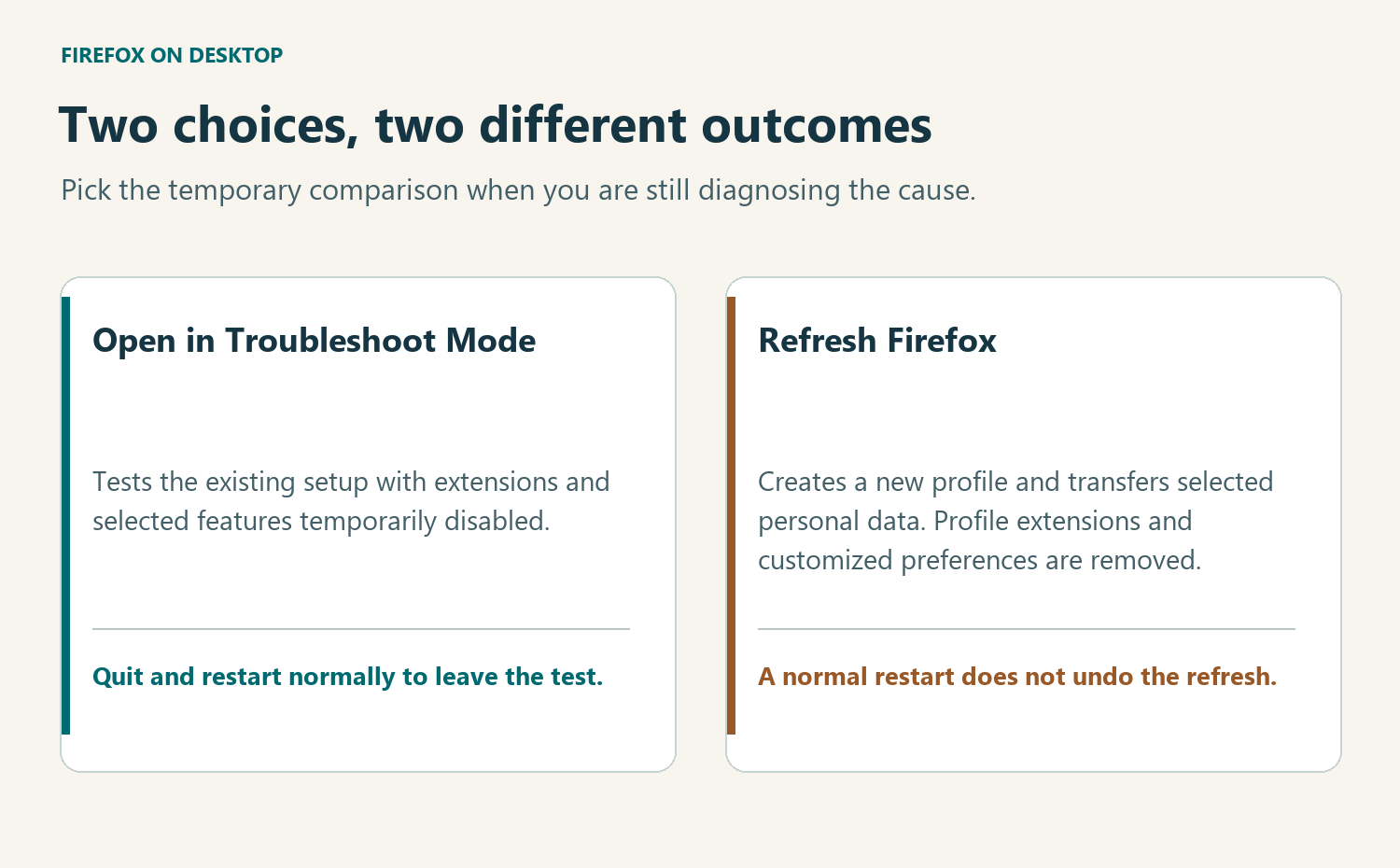
Overview
Use Open when you want an experiment
In the Troubleshoot Mode startup window, Open starts a temporary diagnostic session. Firefox changes several things at once, including how it handles extensions, the theme and graphics acceleration.
Your job is to reproduce one ordinary problem you have already seen. You are not being asked to judge whether the entire browser feels better.
Refresh has consequences after the next restart
Refresh Firefox creates a new profile and transfers selected personal information. That can preserve bookmarks and saved passwords while removing extensions, their data and customized settings.
If you rely on a reading aid, a carefully arranged toolbar or a particular extension’s saved configuration, that difference is more than cosmetic.
Decide what result would count before restarting
- Choose a harmless action that reliably shows the problem.
- Note what happens during an ordinary Firefox session.
- Repeat the same action under the temporary conditions.
- Return to normal operation before changing anything else.
This guide covers Firefox on a desktop or laptop. A temporary improvement can narrow the investigation; it cannot identify a particular bad extension without another comparison.
Start with a symptom you can actually compare
“The map labels turn black after I zoom in twice” is a better starting point than “Firefox is broken.” It gives you something observable to repeat.
Pick a public page that does not require payment, personal documents or a new login. If testing requires private work, ask your organization’s support team for an appropriate example.
For a playback problem, note the same clip, approximate moment and window size. A different clip could use a different player, making the comparison less useful.
For a missing button, first check whether the page finished loading and whether you were signed in before. A public visitor and a subscriber may see different controls.
Write down the short sequence that produces the symptom. A few precise words are more useful than a recording that exposes your inbox or account details.
Now repeat it once in an ordinary session. If the issue already disappeared, you have not proved any repair, but you have learned that it is intermittent.
Restarting Firefox can change what is currently loaded. If a plain restart solves the problem, stop there unless it returns; there is no reason to alter a functioning profile.
Before any restart, save unfinished forms or drafts you care about. A restored tab is not a promise that a website will restore text you never submitted.
How to run the Firefox comparison
Step 1: Start the temporary session deliberately
Open the Firefox application menu, enter the Help section, and choose Troubleshoot Mode. Depending on the version, the Help menu may also mention reporting.
Choose Restart when Firefox offers to restart in this mode. In the next window, choose Open to perform the test.
Mozilla’s guide to starting and leaving Troubleshoot Mode distinguishes those two confirmations from the separate Refresh option. Older material may call the temporary setting Safe Mode.
If Firefox closes before you can reach the menu, Mozilla also documents holding Shift while launching it on Windows, or Option while launching it on a Mac.
Release the key once the startup choice appears. If you are unsure which dialog you opened, read its labels before confirming anything that mentions a refresh.
Step 2: Repeat the same harmless action
Go back to the page you chose and reproduce the original steps. Keep the window size, account state and other obvious conditions as similar as practical.
Notice which part of the problem changed. A video might play without broken colors while a missing caption button remains absent; those observations need not have the same cause.
The diagnostic session can also remove a feature you normally rely on. A password manager’s toolbar button disappearing is expected while its extension is disabled.
If that missing extension makes a private task impossible to reproduce, do not type sensitive information into another service as a substitute. Pick a safer example or stop.
A browser extension that normally protects your browsing may also be inactive. Use a familiar benign page, not an unknown download or a suspicious site.
Step 3: Leave the mode and check ordinary behavior
Use the browser’s Exit or Quit command, then launch Firefox the way you normally do. On a Mac, closing the last window is not necessarily quitting the application.
Try the same action once more. If it failed before, worked during the comparison and now fails again, you have a more useful pattern than one successful reload.
Otherwise, record what you actually saw. A result that changes on every run is not strong evidence against the extension you happened to install most recently.
Step 4: Pick the smallest useful follow-up
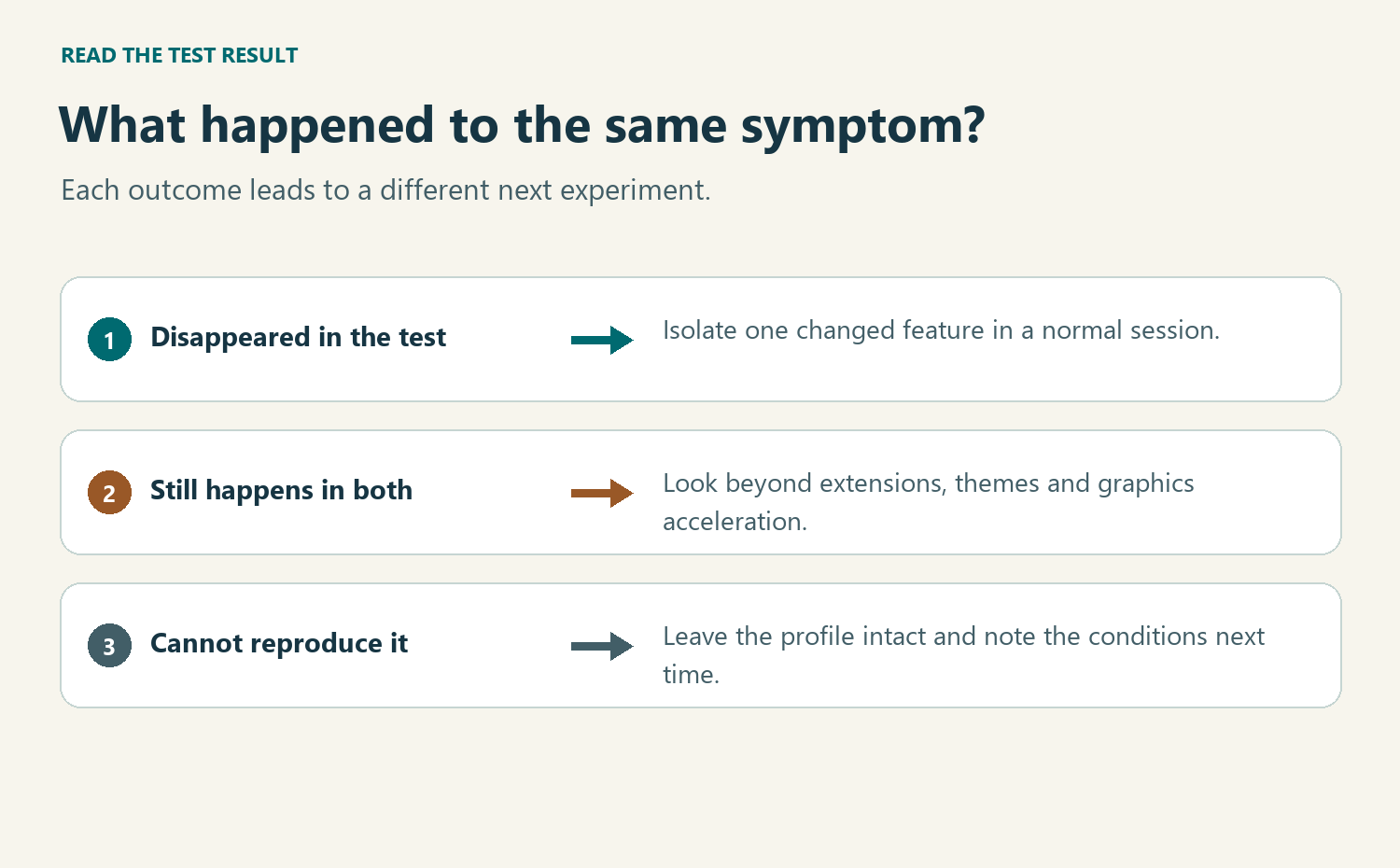
When the temporary session changes the outcome, isolate one candidate in normal Firefox. When the same problem persists, investigate something that remained active instead.
If you have a work-managed installation, tell support what you reproduced before adjusting anything managed for you. A missing or disabled setting can be an intentional policy.
What Firefox changes during the test
Troubleshoot Mode changes a group of features, not just add-ons. That is why a cleaner-looking page does not identify which component was responsible.
| What changes temporarily | How that affects the comparison |
|---|---|
| Extensions | A feature supplied by an extension can disappear without the extension being uninstalled. |
| Theme | The default appearance helps separate a theme issue from the page’s own styling. |
| Graphics acceleration | Rendering can change even when no installed extension caused the original problem. |
| Other customizations | Window or sidebar layout and certain custom styles can differ during the test. |
Mozilla notes that modified preferences can still affect Firefox in Troubleshoot Mode. A persistent symptom therefore does not prove that every part of your profile is healthy.
Likewise, the mode is not an anonymous browser or a security scan. It does not revoke an account session, inspect every file or establish who owns a website.
When a problem disappears: narrow the cause without dismantling Firefox
Consider a diagram with unreadable labels. If it looks right in the temporary session, the interaction between Firefox and your graphics setup deserves consideration alongside your extensions.
Open Firefox Settings and find Performance under General or Tabs and browsing, depending on your version. Mozilla’s troubleshooting guide shows how to reveal the acceleration setting.
Note which performance options are active. Where offered, clear Use recommended performance settings, turn off Use hardware acceleration when available, and fully restart Firefox before comparing the same page.
If the labels still misbehave, restore your previous settings and restart before moving on. Leaving several unsuccessful changes in place makes the next improvement harder to explain.
If acceleration alone consistently changes the result, report it as a rendering issue associated with that setting. That is not a diagnosis of a broken graphics card.
A theme is another reasonable lead when toolbar text blends into its background. Open the extensions and themes manager, choose Themes, and switch to the System theme.
Record which theme you previously used. Restart normally and compare the same toolbar element, rather than looking for differences inside an unrelated website.
For a suspected extension, use its enable switch rather than uninstalling it on the first pass. Removing the extension can complicate recovery of its configuration.
In the extensions manager, note which entries were enabled beforehand. If you disable several for comparison, restore only those that were originally enabled when you finish.
Suppose the issue disappears with the extensions off. Enable a single likely candidate, restart normally, then repeat the exact action before enabling the next one.
One extension can interact with another. If the symptom occurs only when both are enabled, record that combination instead of blaming either extension alone.
Once you identify a reproducible combination, check whether the extension has an update through Firefox’s manager. A change in compatibility does not by itself make an extension malicious.
When the symptom stays: change the question
If the same symptom reliably survives Troubleshoot Mode, reinstalling each add-on is not the most informative next test. Look at factors the comparison did not remove.
For example, a known site that reports an outage may show the same error in every browser. Check its official status information independently rather than changing your local settings.
A single account can also have a service-side problem. A message denying access to a document may mean you lack permission, not that Firefox failed to draw a button.
Conversely, if several unrelated websites show the same issue only in Firefox, that narrows the scope in another direction. Include that observation when asking for help.
Mozilla’s broader troubleshooting guide separates program files from profile data. Reinstalling the application and rebuilding your personal configuration are different operations.
Those are later choices, not required next clicks. You can seek support with your comparison results before reinstalling software, clearing saved site data or creating another profile.
What a Firefox Refresh keeps and what it leaves behind
A profile is where Firefox stores settings and personal information separately from the browser program. Refresh creates a new profile and copies selected information into it.
If Refresh is missing, check the version before assuming Firefox is damaged. Mozilla notes that its newer profile manager can hide this feature on versions earlier than 150.
According to Mozilla’s Refresh guide, retained items include bookmarks, saved passwords, browsing and download history, cookies, saved form information and your personal dictionary.
Retaining download history means retaining the browser’s record. Do not read that list as a guarantee about any files you moved or deleted yourself.
The new profile loses modified preferences, website permissions, toolbar customizations and add-ons normally stored inside the old profile, along with extension data.
Some add-ons installed outside the profile can remain, although changed preferences reset. Avoid promising somebody that a refresh will remove every extension installed by an organization.
Think about what those categories mean for your setup. Preserving a bookmark for a reading service does not preserve the extension settings that made its pages accessible.
If you depend on specialized accessibility settings, ask how you would restore them before refreshing. Having your saved password is no substitute for being able to operate the browser.
Mozilla’s manual profile backup instructions explain how to locate the profile and copy it while Firefox is completely closed. That copy contains personal information and belongs somewhere private.
After a refresh, Mozilla normally places the previous profile in a desktop folder named Old Firefox Data. Never share that folder publicly because it can contain sensitive information.
If something important is missing, preserve that folder while you identify what needs recovery. Do not overwrite a working profile or copy everything back merely to recover one item.
Choose the result that matches your test
Open the branch describing your observation, not the explanation you first suspected. More than one issue can exist, so compare the same symptom each time.
The same page works only in Troubleshoot Mode
Return to normal Firefox and test a single likely cause. Pick a graphics setting for rendering trouble, a theme for toolbar colors, or a relevant extension for changed page behavior.
The same problem happens in both sessions
Record the page, action and error without personal details. Check whether the service is available and whether Mozilla’s broader troubleshooting guidance fits what remains.
I cannot reproduce the original problem consistently
Leave the profile intact and wait for a repeatable example. Note the conditions next time, especially whether the affected feature actually came from an extension.
I chose Refresh instead of opening the test
If you confirmed the refresh, protect the previous profile and inspect what transferred. Reopening Firefox normally will not reverse changes that Refresh already made.
What to Do Before You Ask Someone to Review the Problem
-
Describe one repeatable action and its visible effect. Include the Firefox version and operating system, but leave out account identifiers and private links.
-
State the result in ordinary Firefox, in Troubleshoot Mode and after restarting normally. Say whether each result happened once or repeatedly.
-
List any individual setting or extension you tested afterward. Explain whether you restored its original state before starting the next comparison.
-
If you already refreshed, say so plainly and keep the old profile private. Ask about the specific missing information rather than posting the folder.
Frequently Asked Questions
Does Troubleshoot Mode uninstall my Firefox extensions?
The mode temporarily disables them instead of uninstalling them. After quitting and starting Firefox normally, the settings affected by the mode return to their previous state.
Does a working video prove that my ad blocker caused the problem?
No single component is isolated by this first test. Hardware acceleration, themes and other extensions also change, so a normal-mode comparison is needed before assigning blame.
Can I use this comparison on Firefox for iPhone?
These startup controls are for desktop Firefox. A mobile browser problem needs guidance for that platform rather than attempts to find a missing desktop menu.
Will Refresh keep the settings inside my extensions?
Do not count on retaining data from extensions stored in the profile. Before refreshing, check any extension-specific export options for settings you cannot easily recreate.
Where did my old settings go after I confirmed Refresh?
Look for the Old Firefox Data folder on your desktop. Keep it private while consulting Mozilla’s recovery guidance for the specific information you need.
What if the test changes how my accessibility tools behave?
Stop if you cannot navigate or interpret the result reliably. Quit and reopen Firefox normally, then ask for a test that preserves the assistance you need.
The Bottom Line
Choose Open for the temporary Firefox test, reproduce one harmless symptom, and compare it again after a normal restart. Let that result determine the next change.
Reserve Refresh for a deliberate profile decision. If you have already confirmed it, protect Old Firefox Data and recover the particular information you need rather than starting over again.

Join the discussion
0 commentsShare your experience or ask a question about this article.
Community experiences
Did this happen to you?
Your experience could help someone recognize the same scam. Submit a private report for our team to review.
I experienced this tooReports are reviewed before publication. Sharing publicly is always your choice.
Discussion
Start the conversation
Have a question or something useful to share? Add the first comment.