


If you’re waiting for a tax refund, an email asking for one last signature can sound like an answer. The promise of a deposit makes the request feel worth opening.
Look closely at what happens when the message moves from signing a document to asking you to put something on your computer.
Overview
The email puts two familiar names on the same request
The message imitates Adobe Acrobat Sign and says the Canada Revenue Agency needs a signature for direct deposit. It promises money within 48 hours after the form is validated.
Those are claims made by the message, not a CRA processing deadline. Genuine Adobe signing software and CRA tax services are not responsible for the bait.
The subject needs more than a spell check. It’s asking you to trust a document because you may already be expecting the money it mentions.
The alleged Reader update does something different
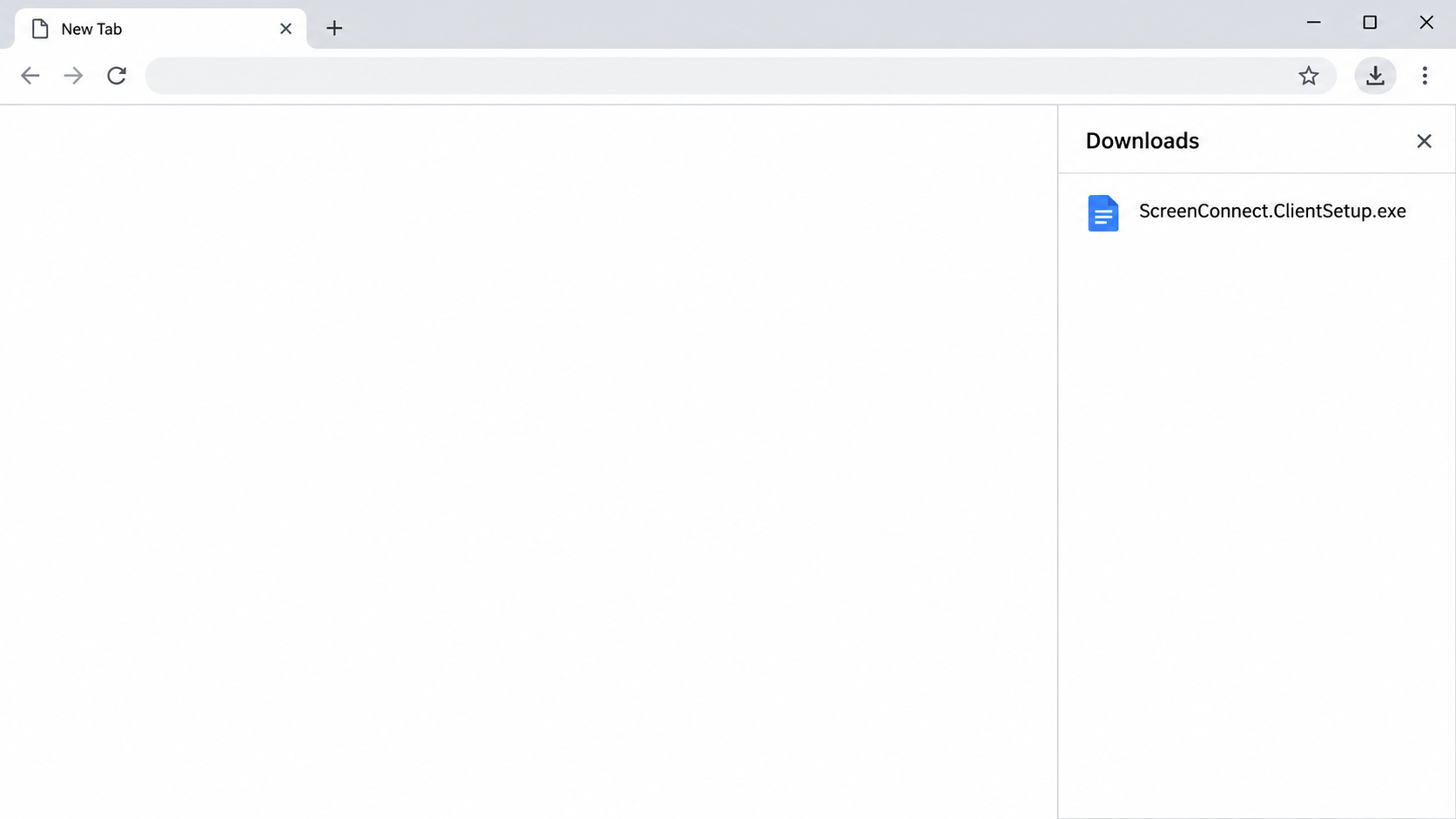
The page reportedly presents a protected-document notice and pushes a download called ScreenConnect.ClientSetup.exe. It has the name of a remote-support installer, not a PDF or Adobe Reader update.
The image above is a reconstruction of that filename in a download view. It isn’t a capture of an installation or evidence of access on your computer.
ScreenConnect, also known as ConnectWise Control, is real remote support software. This reported installer was distributed without authorization through the fake update route, not through Adobe.
Access to your computer is a separate risk from tax fraud
Running an installer like this can allow an unauthorized person to reach the computer. There is no need to assume any particular file was read to take the exposure seriously.
- Receiving a signing request doesn’t change your actual CRA direct deposit details.
- Seeing a saved installer is different from letting it run.
- A ScreenConnect entry can be legitimate on a work PC, so confirm ownership before removing it.
- A real change to your bank details or tax account needs to be investigated separately.
Nothing in the reported email proves a breach of Adobe, CRA, or ConnectWise. It shows how their names or tools can appear in the same fraudulent approach.
How the Fake CRA Adobe Sign Scam Works
Step 1: The sender promises a deposit with one requirement left
The email presents a direct deposit form as the missing piece between you and a payment. The promised 48-hour turnaround makes a signature feel like a routine administrative step.
If you recently filed a return, that timing may seem plausible. An email can guess correctly about what you’re waiting for without having access to your tax file.
Check your actual benefit or refund status before taking the request at face value. A payment that really belongs to you can be reviewed through CRA’s normal channels.
Step 2: The signing request sends you outside the expected workflow
The review button takes the recipient to a page presented as an Adobe document viewer. Instead of a tax form, it claims the document needs a software update.
An authentic update is normally something you can verify independently of the document. A random page shouldn’t decide where Adobe software comes from.
This is the handoff to notice. At the start, the task was signing a form. At this point, the site is trying to introduce software to your Windows computer.
Step 3: An installer appears before the reader sees a document
The reported page serves a Windows executable. The extension and remote-support name are visible clues even if the page itself looks professional.
The existence of a genuine ScreenConnect product doesn’t authorize the copy supplied by this page. Remote software needs approval from the person or organization responsible for the computer.
If your browser saved the file, close the page and leave it unopened. Don’t search for another copy of the same installer to see if the first one was genuine.
Step 4: An installation can outlast the signing page
If an unauthorized remote access program is installed, closing the browser won’t necessarily stop it. The browser window and the installed software are different parts of the incident.
Remote access can expose onscreen information, files, and accounts used on the machine. What actually happened requires device evidence and, where available, provider or organization records.
Isolate the PC if the installer ran. Call CRA or the bank from a different device instead of giving a stranger another remote session.
How to Check Your CRA Direct Deposit Safely
Find the tax message in the account that should hold it
Open Canada.ca and choose the established route to CRA My Account, not the signing link. Once signed in, check Mail for notices and the applicable tax or benefits area.
Match any credit, refund, or notice to the relevant period. If you find no request, don’t let the email’s countdown push you into running an update.
Some alerts only tell you there is mail waiting. CRA’s scam guidance explains the situations in which it sends an email and what the message won’t ask for.
Look for actual changes to your profile
From a device you trust, check the contact information and direct deposit details in your CRA account. Compare them with what you intended to have on file.
Review currently authorized representatives if you have any. A real change you don’t recognize calls for CRA support, even if the refund in the email doesn’t exist.
Use the contact route published on Canada.ca or in your signed-in account. Don’t send your Social Insurance Number to somebody who offers to finish the signature by email.
Work out who owns the device before touching remote support software
A business computer may already have a support agent installed for a good reason. Ask IT what the existing client looks like and whether its install date fits the incident.
On a personal computer, put the unrequested installation time in your notes. If a technician set up legitimate support in the past, ask that provider through a known contact.
Write down the difference between an installer in Downloads and a connected remote access client. A stale legitimate entry is not evidence that the new file ran.
What to Do After the Fake CRA Signing Request
-
If you only got the notice, report it without using its links. Open your real tax account to check whether you have anything to review.
On a work mailbox, use its phishing reporting process. You’ll need the original message and time, not somebody else’s copy of a CRA form.
-
If you landed on the fake update page, close it. Check the download record without clicking the item and note whether the browser blocked or saved the file.
A saved file is not the same as a completed install. Don’t run it to see which stage you actually reached.
-
Disconnect Windows if you ran the installer. Stop any active session by disconnecting Wi-Fi and Ethernet if safe. Use another device to call verified support.
A managed computer should stay with the response team. It can determine which access client is authorized and whether evidence needs to be collected before any reboot.
-
Address actual tax or banking exposure from elsewhere. If you shared identifying information or find changed direct deposit details, follow CRA account security guidance.
Contact your bank if your account information was visible in an unauthorized session or a transfer appears. Explain whether the exposure was entered details, remote access, or confirmed activity.
-
Review the accounts in use while the computer was at risk. Secure email, tax, and financial sessions through their respective providers, starting with access that can reset other passwords.
Save alert times and provider reference numbers. They can help distinguish something that happened during the suspected session from an unrelated notice that arrived later.
How to Remove Unauthorized Remote Access After the Fake Adobe Update
Step 1: Identify the unauthorized entry without guessing
Stay isolated while you work out what was installed. For a personal Windows 11 PC, open Settings > Apps > Installed apps and check for ScreenConnect or ConnectWise Control.
Record the displayed name and install date where available. The installer filename by itself doesn’t identify every registered client, and businesses may have an approved installation with a similar name.
When you find the specific unauthorized entry on a PC you own, use its menu to choose Uninstall and complete the prompt. Don’t remove an unknown organization-managed client yourself.
Check whether the specific entry is gone afterward. If it comes back, there is no uninstall option, or you cannot tell which entry belongs to this incident, ask qualified support.
Step 2: Install a trusted scanner without returning to normal use
Use the Malwarebytes Windows installer on a personal machine. Use an approved way to obtain it if the affected computer still needs to be offline.
Follow the verified package’s setup prompts. The screenshot shows the normal installation stage for the scanner, not a request to take any support session.
Removing a remote access client doesn’t check for other changes. The next scan is intended to look for threats that uninstalling that one program wouldn’t address.

Step 3: Scan, review, and record the outcome
Start Malwarebytes and choose Scan from Scanner. Inspect the completed report and quarantine confirmed threats if you have authority to do so.
Save the results before agreeing to a requested restart. Scan again afterward, and write down any detection or remote-support entry that returns.
Do not assume an empty result can reconstruct screen or file access. The investigation on your real tax, bank, and email accounts still matters.

Step 4: Get help if you still can’t trust the PC
If remote access reappears or security controls are altered, a trusted technician should assess whether to rebuild Windows. Don’t use an installer from the email as a diagnostic tool.
The MalwareTips help forum can assist with a sanitized home-device report. Keep tax notices and any direct deposit records out of the thread.
If you want ongoing Windows protection, the Malwarebytes Premium offer is optional and uses an affiliate link. It won’t check the tax profile for you.
What to Tell Support About an Unfamiliar Remote Session
Report what you observed without filling in gaps
Tell support whether you authorized the installer, saw a consent prompt, noticed the pointer move, or found a new program later. You don’t have to identify the operator yourself.
If you had a refund notice or bank app open at the time, tell the relevant provider what was visible. Don’t assume that every account on the computer was accessed.
Check whether your employer or a family member already uses remote support. Ask for the provider name, usual time, and expected client rather than accepting a surprise call.
Keep a separate record of tax profile changes
If a new bank account appears in your CRA profile, note the displayed details privately and call CRA. Don’t replace the evidence with a screenshot shared publicly.
Record what you asked CRA and the bank to review. Tell both if the refund was already issued before you try to submit anything new.
If another person helps manage your taxes, alert that person through known contact details. An unauthorized change can affect mail, banking, or representatives even when no suspicious debit appears.
Get independent help before allowing any second session
A caller who offers to remove the bad software may ask for the same kind of access the original download sought. Verify support by calling an established number yourself.
Tell the technician you’re asking for an incident assessment, not document-signing help. That gives them the context to check for leftover software and exposures outside the browser.
Frequently Asked Questions
Did the Canada Revenue Agency send this Adobe form?
The reported message uses the CRA name to support a counterfeit signing request. Check for an actual notice from your own CRA account instead.
Does a ScreenConnect filename automatically mean malware?
ScreenConnect is a genuine remote support product. The unsafe context is an unverified installer pushed by a fake Reader page, not any legitimate use of the software.
Does visiting the fake page grant remote access by itself?
The reported path delivers an installer. If you stopped after landing on the page, check whether something downloaded or ran before concluding that remote access was established.
Why does it say my deposit will arrive within 48 hours?
That is part of the email’s pitch. Use CRA’s expected timing and your own account records, not a deadline attached to a surprise signature request.
Can I remove all ScreenConnect entries to be safe?
Don’t remove authorized support software on a managed computer. On a device you control, identify the specific unauthorized entry and get help if the evidence isn’t clear.
Should I enter bank information just to see whether the form works?
Never test a suspect form using real financial details. Start any direct deposit check or correction inside official CRA channels on a device you trust.
The Bottom Line
Don’t sign through this email or run its supposed Adobe update. Check the refund or payment from CRA’s own account instead.
If you executed the installer, separate the PC from the network and have the unauthorized access assessed. Check your tax and financial accounts from a different device.

Join the discussion
0 commentsShare your experience or ask a question about this article.
Community experiences
Did this happen to you?
Your experience could help someone recognize the same scam. Submit a private report for our team to review.
I experienced this tooReports are reviewed before publication. Sharing publicly is always your choice.
Discussion
Start the conversation
Have a question or something useful to share? Add the first comment.