

The message looks ordinary enough: answer a few questions about CVS, choose a valuable reward, and pay only a small delivery charge.
That familiar sequence is precisely what makes the offer persuasive. The decisive details appear after the survey has already earned the visitor’s trust.
Overview
A survey designed to borrow CVS trust
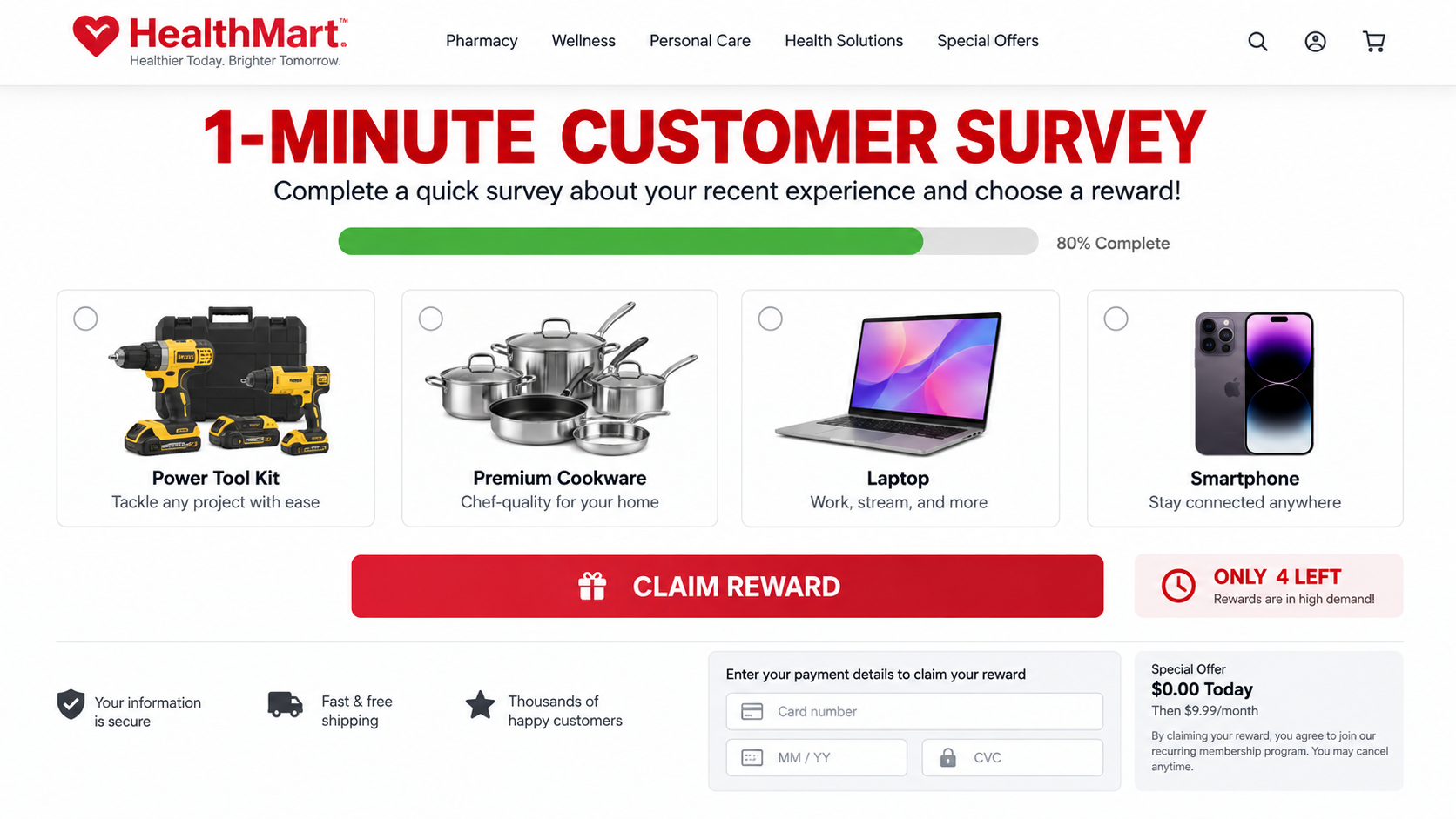
The fake CVS survey campaign uses the pharmacy chain’s name, colors, store familiarity, and customer-service language to make an unrelated promotion feel official.
Recipients may arrive through email, text messages, social advertisements, pop-ups, or redirects from low-quality websites. The invitation often claims they were specially selected.
CVS is not responsible for these deceptive pages. Its identity provides the credibility, while separate operators control the redirects, offer selection, and payment form.
The reward changes, but the route stays similar
Investigated versions have promoted cookware, tools, electronics, food boxes, generators, phones, and other desirable products after a short questionnaire.
Changing the prize helps the campaign match current trends and advertising inventory. It also makes warnings about one specific product age quickly.
The constant feature is the request for a small shipping payment. That charge turns a casual survey response into a card transaction.
What the checkout may conceal
The customer expects to pay perhaps $6.95 for delivery. Fine print can instead enroll the card in a trial or recurring digital membership.
Those subscriptions may be described as ebooks, apps, entertainment, educational materials, discount clubs, or online courses unrelated to the advertised prize.
- The invitation impersonates a recognized retailer without authorization.
- The questionnaire creates commitment before the important payment terms appear.
- Redirects move visitors across several unrelated domains.
- The “shipping only” amount can initiate recurring monthly billing.
- The advertised reward may be low quality, delayed, substituted, or never delivered.
This is not a normal CVS customer survey. It is a marketing and billing funnel wrapped in the appearance of retailer appreciation.
Is the CVS Survey and Prize Offer Real?
A genuine company can ask customers for feedback and occasionally provide incentives. That fact does not validate a random page carrying its logo.
In this campaign, the web addresses, redirect behavior, rotating rewards, and subscription-style checkout do not match a straightforward retailer survey.
The safest assumption is that an unexpected CVS prize invitation is fraudulent until independently confirmed through the retailer’s official website or published support number.
Do not use contact details inside the invitation for verification. The same operator that created the page can answer the listed telephone number or chat.
A legitimate prize does not require the winner to purchase access, pay a membership, or submit card details for an unexplained trial.
Even when a small item eventually arrives, that delivery does not legitimize impersonation or a recurring charge that was not clearly understood.
How the Fake CVS Survey Scam Works
Step 1: A message announces a limited reward
The approach may claim that CVS selected the recipient because of a recent purchase, loyalty status, customer anniversary, or geographic eligibility.
The message usually includes urgency. A timer, limited quantity, or expiration warning discourages the recipient from checking the sender and destination first.
Some versions mention a familiar local store. Location data can be inferred from an internet connection or advertising profile without access to purchase records.
Step 2: The link passes through tracking domains
Clicking rarely opens one stable destination. The browser may travel through advertising trackers, traffic brokers, and filtering pages before reaching the questionnaire.
Observed campaigns have used disposable domains and paths that disappear quickly. New addresses can reproduce the same layout after warnings reach search results.
Redirect chains help operators count conversions, separate countries, avoid security scanners, and send different visitors toward different offers.
Step 3: Easy questions create momentum
The survey asks harmless questions about shopping frequency, product availability, cleanliness, or service. Almost every answer still leads to a reward.
That is a clue. Real market research needs meaningful responses, while a conversion funnel mainly needs the visitor to finish.
A progress bar reinforces commitment. After clicking through several screens, abandoning the promised prize feels like wasting completed effort.
Step 4: The page announces that the visitor qualifies
The result is presented as an achievement, though eligibility was effectively predetermined. Confetti graphics, congratulations, and stock counters heighten excitement.
The site may display comments claiming other shoppers received their packages. Those comments can be static page elements rather than real social activity.
A countdown restarts when the page reloads in many deceptive funnels. A timer that never truly expires exists to accelerate payment.
Step 5: A rotating prize creates perceived value
The campaign can substitute a power tool, premium pan set, smartphone, generator, or food bundle. The item’s supposed retail price makes shipping seem trivial.
This contrast is deliberate. A visitor who believes an $800 product costs only $6.95 is less likely to inspect a dense disclosure.
Pictures may come from legitimate manufacturers even when the seller has no relationship with those companies and no intention of shipping the pictured model.
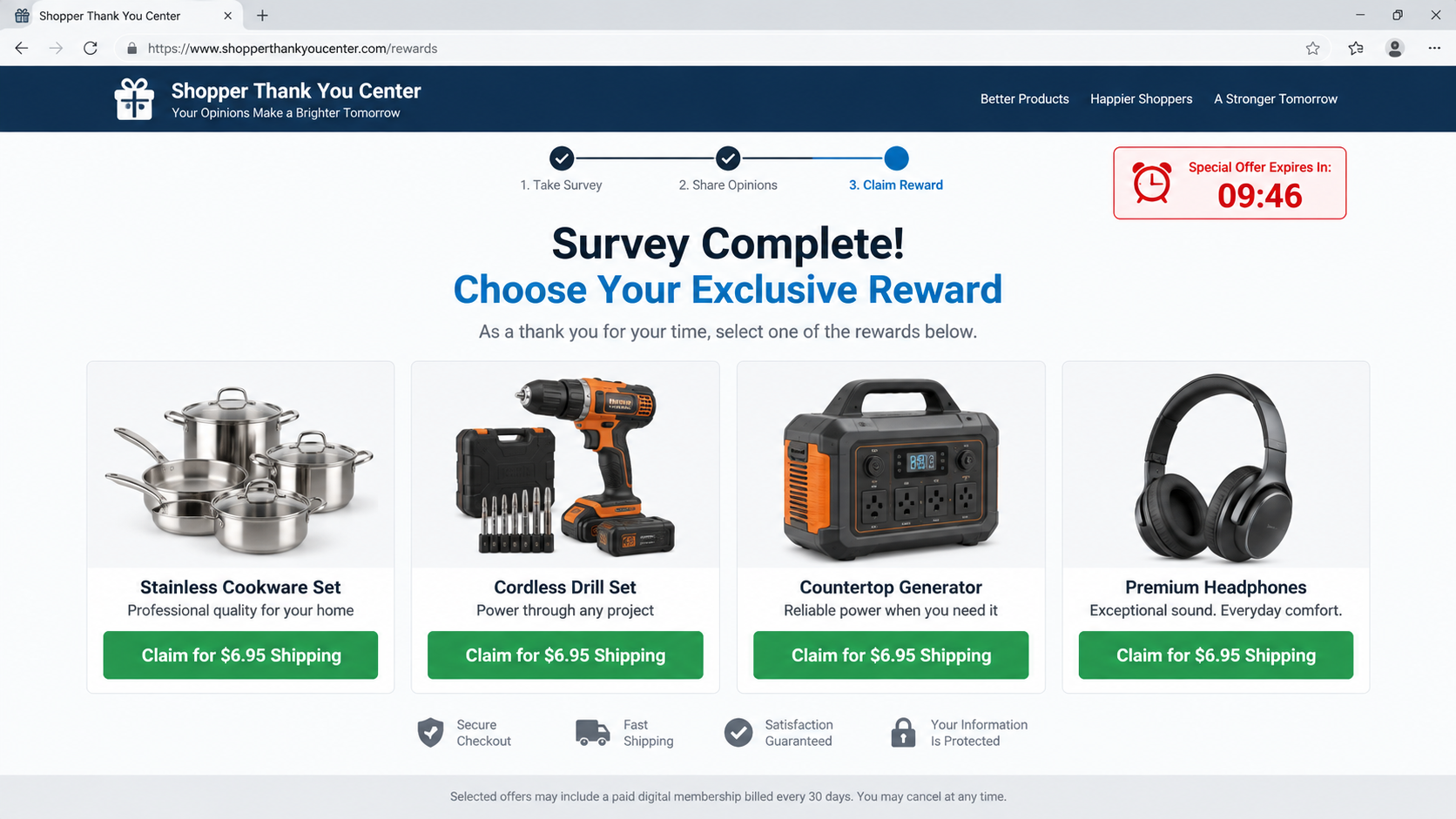
Step 6: The shipping form collects payment and identity data
The checkout requests a name, address, email, telephone number, and card. That combination has value beyond the immediate transaction.
The information can support targeted calls, follow-up offers, account testing, or resale to marketing partners. A failed order does not mean the data vanished.
Inspect the merchant name, total, terms, checkbox state, and sentence near the button. Print the page before entering anything.
Step 7: Fine print introduces a paid membership
Instead of charging only postage, the page may start a brief trial that renews at $29.99 or another monthly amount.
The membership may have no obvious connection to CVS or the reward. Its generic digital content reduces delivery costs while generating continuing card revenue.
A disclosure at the page bottom does not guarantee informed consent when headlines repeatedly describe the transaction as a free prize with shipping.
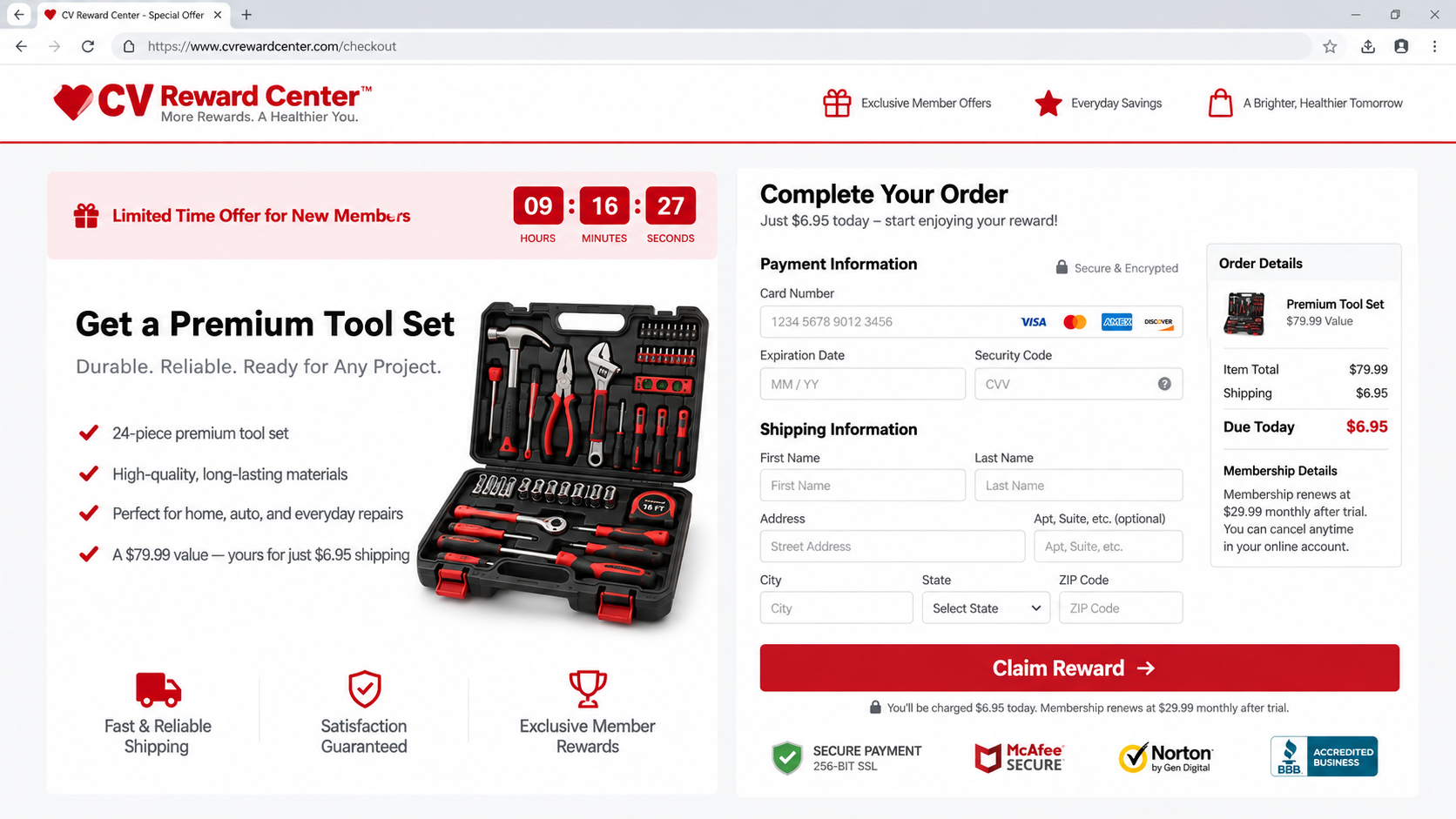
Step 8: Cancellation sends the customer through another maze
The statement descriptor can differ from the survey domain, making the charge difficult to identify. Support details may appear only in the original confirmation email.
Some victims cancel one membership and later find another charge connected to a separate trial accepted during the same redirect sequence.
Operators can close a domain while keeping billing accounts active. That is why bank records and screenshots matter more than revisiting the original link.
Why These Fake Surveys Are So Convincing
CVS serves millions of customers, so a message does not need stolen purchase data to feel plausible. Many recipients have visited a store recently.
The survey format is also familiar. Retail receipts routinely invite feedback, which lowers suspicion when an unsolicited message copies the same language.
A small shipping fee seems reasonable because physical prizes need delivery. The request does not initially resemble a large theft attempt.
The scam divides decisions into tiny steps. Clicking a link, answering one question, selecting a box, and entering an address each feels less serious than “join a subscription.”
By the time the card form appears, the visitor has been congratulated, shown high-value merchandise, and warned that time is running out.
Mobile screens make disclosure problems worse. A recurring term may sit below the button or require scrolling past prominent reward imagery.
The Domains and Brands Can Change Overnight
One documented route used a page described as CVSPromo before forwarding visitors through an unrelated ambercrown2.com subdomain and onward to prize websites.
Other observed destinations included techsnagged.com, savingsyoucantbeat.com, findgreatitemsnow.com, and overthetopprizes.com. These addresses may already be inactive or repurposed.
Do not treat that list as complete. Fraud operators register new domains continually and can clone a design within hours.
The reward brands also rotate. Omaha Steaks, Dyson, Stanley, HexClad, HP, Apple, and Milwaukee imagery has reportedly appeared in related funnels.
Those companies should not be assumed to sponsor the pages. Brand graphics can be copied without permission just as easily as the CVS name.
Focus on behavior instead of a single URL: unsolicited survey, guaranteed qualification, expensive gift, small fee, card request, and buried renewal.
What Happens to the Information You Enter
A survey page can record the internet address, browser type, approximate location, device characteristics, referring advertisement, and every button pressed.
Adding an email and telephone number converts anonymous browsing into a marketable lead. Future messages can reference the original reward to sound familiar.
A delivery address helps operators estimate property value, household profile, and time zone. It also makes later calls appear more personally informed.
Card details create the greatest immediate risk. Even when a processor handles payment, the merchant can initiate charges under the checkout agreement.
Some forms ask for passwords to “verify membership” or connect a loyalty account. CVS login credentials should never be entered on an unrelated domain.
Security questions can be disguised as survey questions. Avoid sharing birth dates, pet names, former addresses, or other account-recovery information.
Browser notifications deserve attention too. Clicking Allow lets an impostor send persistent alerts after the original tab has closed.
Remove notification permission through browser settings. Do not interact with the resulting pop-ups, even when they claim the reward remains available.
Marketing consent language may authorize partners to call or text. Revoking permission in writing helps document why later contact should stop.
Data already shared cannot be recalled completely. The practical response is reducing its usefulness by changing passwords and monitoring financial activity.
Expect tailored follow-ups. A second message may mention package trouble, unpaid postage, subscription cancellation, or a refund requiring another card.
Each follow-up should be treated as a new verification problem. Prior knowledge of your name or order does not prove the sender is trustworthy.
Keep a simple incident log with dates, merchant names, amounts, and actions. Organized notes make later bank conversations faster and more accurate.
Company, Address, and Fulfillment Checks
The checkout company may be hidden
Search the payment page for the legal entity accepting the card. A campaign that identifies only “Reward Center” leaves customers without meaningful accountability.
Compare the footer, terms, privacy notice, confirmation email, and statement descriptor. Several unrelated names can indicate a layered affiliate operation.
The return location may solve nothing
If merchandise arrives, the label may point to a warehouse or forwarding center. That address does not identify who designed the survey or controls subscription billing.
Never mail a return to an unverified address copied from a package. Obtain written authorization and confirm whether tracking, unopened status, or a reference number is required.
Phone and email support can disappear
Disposable campaigns frequently use generic inboxes, outsourced agents, or numbers that handle several unrelated brands. Test contact details without disclosing additional personal data.
A support agent who cannot name the product, merchant, renewal amount, and cancellation date is not providing a dependable remedy.
Unknown merchandise deserves caution
Cheap electronics, tools, cosmetics, or supplements may lack the safety testing implied by borrowed brand images. Do not use an item merely because it arrived.
Inspect labels, manufacturer details, electrical certification, ingredients, and recall information. A fulfillment center can ship goods without verifying advertising accuracy or product safety.
How to Tell a Genuine CVS Message From an Impostor
- Open the CVS app or type cvs.com yourself instead of following the embedded link.
- Check whether the survey appears in your authenticated account or on an original receipt.
- Compare the sender domain character by character, including letters after the final dot.
- Reject a “prize” that needs card data for shipping, verification, tax, or activation.
- Be suspicious when every survey response produces the same winning result.
- Close pages that bounce across unrelated domains or repeatedly prevent the back button.
- Do not trust comments, countdowns, stock counters, or security seals that exist only inside the page.
When uncertain, contact CVS through a number printed on a valid receipt or the official website. Describe the exact message without opening it again.
Forwarding a screenshot can help the retailer investigate impersonation. Remove card numbers and other sensitive details before sharing evidence publicly.
What to Do if You Fell Victim to the Fake CVS Survey
- Save the complete trail. Capture the message, sender, redirect history, checkout, terms, receipt, merchant descriptor, and advertised reward before pages disappear.
- Call the card issuer now. Explain that a fake retailer survey obtained the card and may have created recurring charges.
- Review pending and posted transactions. Look for small shipping debits, trial amounts, and unfamiliar monthly descriptors from multiple merchants.
- Cancel every identified subscription. Send written cancellation to each billing entity and keep confirmation. Closing only the survey tab accomplishes nothing.
- Dispute charges accurately. Separate the shipping payment you entered from renewals or additional transactions you did not knowingly authorize.
- Replace compromised credentials. Change reused passwords, enable multifactor authentication, and alert the email provider if the same password was submitted.
- Expect follow-up contact. Ignore callers claiming to recover the prize, refund the fee, secure the card, or finish the survey.
- Scan the device. Use Malwarebytes after downloads or suspicious redirects, and install AdGuard to reduce malicious ads and repeat pop-ups.
- Report the impersonation. Notify CVS, the advertising platform, the domain host, and relevant consumer-protection agencies with non-sensitive evidence.
Is Your Device Infected? Run a Free Malware Scan
Slow performance, constant pop-ups, or strange behavior? These are classic signs of a malware infection. The fastest way to find out is to scan your device with Malwarebytes Free — one of the most trusted malware removal tools available.
The free version detects and removes the most common threats, including:
- Adware — the cause of those annoying pop-ups
- Browser hijackers — unwanted redirects and changed homepages
- Trojans and spyware — hidden programs stealing your data
- Potentially unwanted programs (PUPs) — software you never asked for
👉 Select your device below — Windows, Mac, or Android — then follow the simple steps to download Malwarebytes, scan your system, and remove any threats it finds. The scan usually takes 5 to 20 minutes.
Run a Malware Scan with Malwarebytes for Windows
Malwarebytes is one of the most popular and trusted anti-malware tools for Windows — and it’s completely free for removing infections. It catches threats that many antivirus programs miss, including adware, browser hijackers, and trojans. Follow the steps below to scan and clean your PC in just a few minutes.
Download Malwarebytes
Click the button below to download the latest version of Malwarebytes for Windows from the official source. The free version is all you need — it will scan your computer and remove adware, browser hijackers, and other malicious software at no cost.
Download MalwarebytesOfficial installer for Windows 11 and 10. Your download starts right away.Want real-time protection? See Malwarebytes Premium Malwarebytes Free for WindowsScans and removes malware at no cost
-
Install Malwarebytes
When the download finishes, open your Downloads folder and double-click the MBSetup file. If Windows shows a User Account Control pop-up, click “Yes” to allow the installation.

Follow the On-Screen Prompts to Install Malwarebytes
The setup wizard will walk you through a few quick screens:
-
Choose where you’re installing the program — “Personal Computer” or “Work Computer” — then click Next.

-
Malwarebytes will now install on your device. This usually takes under a minute.

-
When installation is complete, the “Welcome to Malwarebytes” screen will open automatically.

-
On the final screen, click Open Malwarebytes to launch the program.

-
Enable “Scan for Rootkits”
Before scanning, turn on rootkit detection so Malwarebytes can find even the most hidden threats. Click the Settings gear icon on the left side of the screen.

In the settings menu, find “Scan for rootkits” and click the toggle so it turns blue.

Done? Click “Dashboard” in the left pane to return to the main screen.
Start the Scan
Click the blue Scan button. Malwarebytes will automatically update its virus database and start checking your computer for malware.

-
Wait for the Scan to Finish
The scan checks your entire system for browser hijackers and other malicious programs, so it can take 5 to 20 minutes depending on your computer. Feel free to do something else — just check back occasionally to see the progress.

-
Quarantine the Detected Threats
When the scan is done, you’ll see a list of everything Malwarebytes found — malware, adware, and potentially unwanted programs. Click the “Quarantine” button to remove all of them at once.

Malwarebytes will now remove the malicious files and registry entries and move them safely into quarantine.

-
Restart Your Computer
Some threats can only be fully removed after a reboot. If Malwarebytes asks you to restart, click Yes. Once you’re logged back in, Malwarebytes has finished removing the threats it found.

That’s it — your Windows PC is now clean of trojans, adware, and other malware, and should be back to running smoothly.
If you are still having problems with your computer after completing these instructions, then please follow one of the steps:
- Run a computer scan with ESET Online Scanner
- Ask for help in our Windows Malware Removal Help & Support forum.
Run a Malware Scan with Malwarebytes for Mac
Malwarebytes for Mac is a free on-demand scanner that removes the malware other security software tends to miss — adware, browser hijackers, and unwanted programs included. Cleaning an infected Mac with Malwarebytes has always been completely free, and it’s our go-to recommendation. Follow the steps below to scan and clean your Mac in just a few minutes.
-
Download Malwarebytes for Mac
Click the button below to download the latest version of Malwarebytes for Mac.
Download MalwarebytesOfficial installer for macOS. Your download starts right away.Want real-time protection? See Malwarebytes PremiumMalwarebytes Free for MacScans and removes malware at no cost -
Open the Malwarebytes setup file
When the download finishes, open your Downloads folder and double-click the setup file to begin the installation.

-
Follow the On-Screen Prompts to Install Malwarebytes
The Malwarebytes for Mac Installer will guide you through a few quick screens. Click “Continue” and keep following the prompts until the installation completes.



When the installation is complete, Malwarebytes opens to the Welcome to Malwarebytes screen. Click “Get started“.
-
Select “Personal Computer” or “Work Computer”
Malwarebytes will ask what type of computer you’re installing it on. Click either Personal Computer or Work Computer, whichever applies.

-
Start the Scan
Click the “Scan” button. Malwarebytes will automatically update its detection database and begin checking your Mac for malware.

-
Wait for the Scan to Finish
Malwarebytes will scan your Mac for adware, browser hijackers, and other malicious programs. This can take a few minutes, so feel free to do something else — just check back occasionally to see the progress.

-
Quarantine the Detected Threats
When the scan is done, you’ll see a list of everything Malwarebytes found. Click the “Quarantine” button to remove all the threats at once.

-
Restart Your Mac
Malwarebytes will now remove all the malicious files it found. Some threats can only be fully removed after a reboot — if Malwarebytes asks you to restart, allow it. Once you’re logged back in, your Mac is clean.

That’s it — your Mac is now free of adware, rogue browser extensions, and other potentially harmful software.
If you are still experiencing problems while trying to remove a malicious program from your computer, please ask for help in our Mac Malware Removal Help & Support forum.
Run a Malware Scan with Malwarebytes for Android
Malwarebytes for Android automatically detects and removes dangerous threats like malware and ransomware so you don’t have to worry about your most-used device being compromised. Aggressive detection of adware and potentially unwanted programs keeps your Android phone or tablet running smooth.
-
Download Malwarebytes for Android.
You can download Malwarebytes for Android by clicking the link below.
Get Malwarebytes for AndroidOpens Google Play in a new tab.Want real-time protection? See Malwarebytes Premium for AndroidMalwarebytes for AndroidScans your phone and removes malware at no cost -
Install Malwarebytes for Android on your phone.
In the Google Play Store, tap “Install” to install Malwarebytes for Android on your device.

When the installation process has finished, tap “Open” to begin using Malwarebytes for Android. You can also open Malwarebytes by tapping on its icon in your phone menu or home screen.

-
Follow the on-screen prompts to complete the setup process
When Malwarebytes will open, you will see the Malwarebytes Setup Wizard which will guide you through a series of permissions and other setup options.
This is the first of two screens that explain the difference between the Premium and Free versions. Swipe this screen to continue.
Tap on “Got it” to proceed to the next step.
Malwarebytes for Android will now ask for a set of permissions that are required to scan your device and protect it from malware. Tap on “Give permission” to continue.
Tap on “Allow” to permit Malwarebytes to access the files on your phone.
-
Update database and run a scan with Malwarebytes for Android
You will now be prompted to update the Malwarebytes database and run a full system scan.

Click on “Update database” to update the Malwarebytes for Android definitions to the latest version, then click on “Run full scan” to perform a system scan.

-
Wait for the Malwarebytes scan to complete.
Malwarebytes will now start scanning your phone for adware and other malicious apps. This process can take a few minutes, so we suggest you do something else and periodically check on the status of the scan to see when it is finished.

-
Click on “Remove Selected”.
When the scan has been completed, you will be presented with a screen showing the malware infections that Malwarebytes for Android has detected. To remove the malicious apps that Malwarebytes has found, tap on the “Remove Selected” button.

-
Restart your phone.
Malwarebytes for Android will now remove all the malicious apps that it has found. To complete the malware removal process, Malwarebytes may ask you to restart your device.
That’s it — your Android phone is now clean — no more malicious apps, adware, or browser redirects.
If you are still having problems with your phone after completing these instructions, then please follow one of the steps:
- Restore your phone to factory settings by going to Settings > General management > Reset > Factory data reset.
- Ask for help in our Mobile Malware Removal Help & Support forum.
Stay Protected: Block Ads and Malicious Sites
Now that your device is clean, keep it that way. Most infections start with a malicious ad or a fake download button — so blocking them at the source is your best defense.
We recommend AdGuard, which blocks malicious ads, phishing pages, and dangerous redirects before they can reach you.
👉 Download AdGuard and browse safely
Frequently Asked Questions
Does CVS give prizes for online surveys?
CVS may run legitimate feedback programs, but an unexpected expensive reward requiring card details should be verified independently through official CVS channels.
Why did the survey ask for $6.95?
The small amount is presented as shipping. In deceptive funnels, it also supplies a valid card that can be enrolled in recurring billing.
Will I receive the advertised product?
Some buyers may receive a substitute or low-value item, while others report delays or nothing. Delivery does not cancel an undisclosed membership.
How can I identify the subscription company?
Check the receipt, page terms, card descriptor, confirmation email, and bank contact details. The billing name may differ completely from the survey.
Is answering the questions itself dangerous?
Basic answers carry limited risk, but the page can collect tracking data. Danger increases sharply when personal, login, or payment information is submitted.
Can the retailer reverse the charge?
CVS generally cannot refund a transaction processed by an unrelated impersonator. The card issuer and actual billing merchant must handle the payment dispute.
The Bottom Line
The fake CVS survey converts a trusted retail name and a harmless questionnaire into a hidden subscription opportunity controlled by unrelated operators.
Ignore the countdown, verify through cvs.com, and never fund a supposed reward. A real thank-you should not require surrendering control of your card.

Join the discussion
0 commentsShare your experience or ask a question about this article.
Discussion
Start the conversation
Have a question or something useful to share? Add the first comment.