


A caller says someone added a recovery address to your Google Account. You ask for proof. The caller tells you to check Google’s own support page.
At first there’s nothing there. Then a case appears.
Overview
The caller pointed to a case on Google’s own site
The Google support case scam uses an unsolicited call about account security and then points to something that appears in the account holder’s real support history.
In a public report, the caller claimed to work in Legal Investigations Support and said someone had added an unauthorized recovery address. The recipient initially saw no case.
After the call ended, the recipient refreshed the page and said a case had appeared. That was the point at which the caller’s story looked most convincing.
Google confirms a real case can be part of a scam
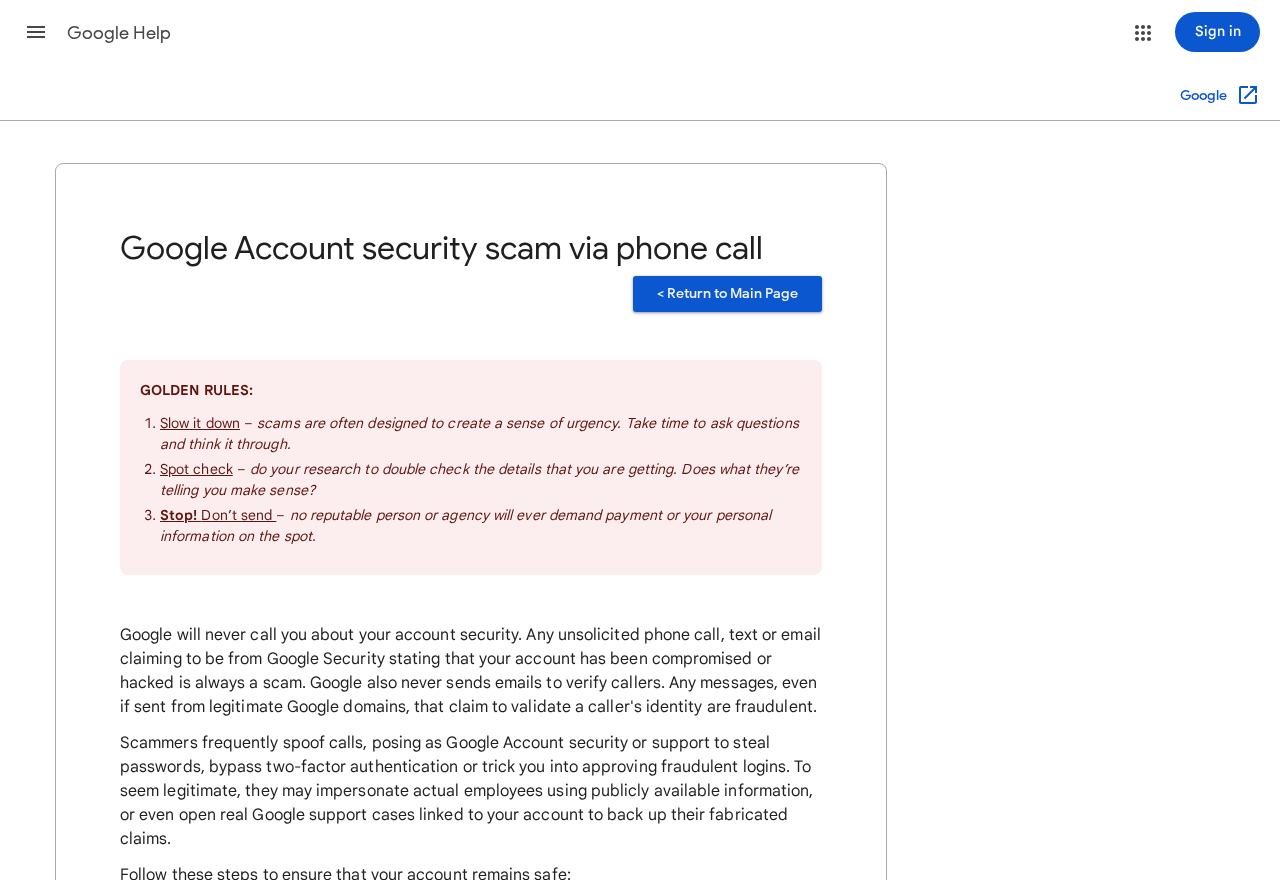
Google’s account security scam warning, shown above, says impostors may use genuine support cases to lend credibility to false claims. It also says Google does not make unsolicited account-security calls.
Google separately warns that a message from a legitimate Google domain can be misused to vouch for a caller. The report describes what the sender appeared to be.
The published evidence leaves open how this specific case was created. The recipient reported refusing instructions and sharing no passwords or codes. No unauthorized sign-in was established.
Use account security records to answer account security questions
- An unsolicited caller claims someone changed your recovery settings.
- They want a support case or a follow-up email to prove who they are.
- They ask you to act while you are still in the call.
- A password, verification code or device prompt becomes part of the conversation.
Close the call and go to the account’s security settings yourself. Check whether the change the caller described actually appears there.
Why a Support Case Can Make You Doubt Yourself
It makes sense to ask for proof when a stranger claims to work for Google.
A case visible on a site you recognize seems like a better answer than an employee number.
The case has a narrower meaning. It shows that a support record exists in the place you checked. It doesn’t identify the person who called you.
That distinction matters when the caller tells you that someone changed your recovery email. The place to check for that is the account’s security settings and activity history.
In the reported incident, the new record appeared after the call. Its timing gave the caller’s story a final piece of apparent evidence even after they were gone.
If that happens to you, write down the reference. Use Google’s own support and security channels to ask about it. Leave the caller’s follow-up instructions alone.
How the Google Support Case Scam Works
Step 1: Someone calls about a change you never made
The call sounds as if it came from a team that noticed trouble on your behalf. In this case the subject was an unfamiliar recovery email address.
The story works because the consequence feels immediate. Losing access to Gmail can affect messages, photos, personal records and accounts that send password resets there.
Put the call down and check the recovery information yourself. A stranger’s description gives you something to verify. The account settings tell you what is actually recorded.
Step 2: The caller gives a department name
The reported caller claimed to represent Legal Investigations Support. A department name sounds specific enough to check and can make an account issue feel like part of a formal process.
Anyone can say the name of a team. If they ask you to rely on the name, ask what independent account record would show the specific change they described.
There’s no need to ask that question aloud. End the call and check yourself. You can start with the security page from an app or bookmark you already trust.
Step 3: A real support page appears to confirm the story
The recipient said the caller pointed to Google’s support site. The case was absent at first and appeared after another visit.
Google’s warning explains why a genuine case can still accompany an impostor.
You can write down the support reference and keep a screenshot. Leave the conversation paused while you review your account separately.
If you started a real request earlier, return to the route you originally used. Keep that request distinct from anything a stranger wants you to accept over the phone.
Step 4: A message can add another layer of reassurance
The public account mentions an email that looked as if it came from a Google address. The email’s sender appearance was part of what made the caller sound credible.
Google says it does not send emails to authenticate the identity of an unsolicited caller. The safest way to act on a security concern is through your own account.
If the message contains a link, close it and open your usual Google sign-in independently. This also helps you avoid confusing a support message with an actual account setting.
Step 5: The risk rises if the caller gets a code or approval
Google warns that impersonators may try to get passwords, codes or device approvals. A prompt can relate to a sign-in or recovery action the caller wants you to accept.
Check the description on a prompt before touching it. If it relates to an action you did not start, deny it when the screen offers that choice.
Someone who declined a call is in a different position from someone who approved a sign-in.
If you did approve one, go straight to account recovery and review your security activity.
What to Check When You Open Google Account Security
Go to Security Checkup independently. Review recent security events and any recovery address or phone number you don’t recognize.
If a device looks unfamiliar, open its details. Several sessions can belong to one device.
A date, location estimate and browser can help you decide which entry you need to check.
If you have several Google Accounts, confirm the address displayed in the account selector.
Looking at the wrong account can make the relevant device or recovery setting seem to be missing.
Check what a mailbox could expose
Look for unexpected forwarding, filters or delegated access in Gmail. If someone changed a rule, a password reset or payment notice might stop appearing where you expect to see it.
Check sent messages and recent changes. If somebody sent messages as you, tell affected contacts through another trusted channel and ask them to ignore unusual links.
For a work or school mailbox, contact the organization’s own help desk. Give it the time of the call, the support case reference and anything you entered or approved.
Keep your recovery route under your control
If you can’t sign in, use Google’s compromised account instructions to reach the recovery page. Start from a device and connection you normally use when available.
If access still works, change an exposed password and check other accounts where you reused it. Then confirm that your recovery information is still yours.
Keep any security alerts that mention a change you didn’t make. They give you a timeline you can compare with the calls and the activity visible in your account.
Look at what changed, and when
Write down the approximate time of the call and when the case first appeared. Compare those times with the account’s recent security events.
If you see a change, check which address or device it belongs to. A real case can appear without showing the recovery change the caller claimed had happened.
If an unfamiliar address is listed, use the recovery or security page to handle it. Keep a private record of the change and the time you found it.
When you can still access the account, review third-party connections and any permissions you don’t recognize. Remove a connection you confirm you never authorized.
Check the accounts that use Gmail for password resets, especially if you find signs the mailbox was accessed. Start with banking, work and services where unusual messages or activity appeared.
Decide which messages need reporting
If a follow-up email gave instructions or asked for a code, keep it long enough to report. The message itself may contain details that a screenshot leaves out.
Use Gmail’s phishing reporting guidance for messages in the mailbox. For the case record, note where you saw it and contact Google through a channel you opened independently.
Avoid publishing the case number, full email address or a screenshot that exposes your recovery information. Give the details directly to the support channel handling your report.
If someone calls again quoting the same case, treat it as a continuation of the original approach. You can continue the official report separately without taking a second call.
When a work or school account is involved
Your administrator may see information about sign-ins and permissions that you can’t see yourself. Tell the help desk what you clicked, typed or approved and which device you were using.
If the caller mentioned a Google account tied to work, check the account address before changing anything.
Personal Gmail and a managed work account can be open on the same phone.
Ask how to provide the original message and case reference securely. If the help desk confirms suspicious activity, follow its account recovery instructions and warn affected contacts when appropriate.
Make your next sign-in easier to check
Keep an independent way to reach your Google Account settings. If you normally use an app, find where it opens Security and sign-in before another urgent message arrives.
Review the recovery address and phone number you expect to see. Make sure you can still reach the recovery email and that its own sign-in is protected.
If you change a password, review the next security notification yourself. Recognising what a change you initiated looks like helps when you receive a prompt you didn’t expect.
What to Do if You Have Fallen Victim to This Scam
-
End the call and stop replying. Open your Google Account through a familiar app, bookmark or a manually entered address.
-
If you shared a password or approved access, change the password right away. Use Google’s recovery process if you’ve already been locked out.
-
Review recent security events, signed-in devices and recovery information. Remove anything you confirm is unfamiliar and follow Google’s prompts for securing the account.
-
Inspect Gmail forwarding, filters and delegates. Check what other services use that email for recovery and secure the ones that show unusual activity.
-
For a work account, report the incident to your IT team. If banking or payment records were affected, call the financial institution directly.
-
Save the call time, caller number, original messages and support reference privately. Report the messages through the account or support channel you opened yourself.
Use a different trusted device if you installed software at the caller’s direction. An updated scan with Malwarebytes can help check a device that ran an unfamiliar file.
AdGuard can help reduce some deceptive web destinations and ads. The strongest safeguard here is making account changes only through the security page you opened yourself.
When you report the call, explain which parts appeared inside Google and which came from the stranger. That makes the timing easier to understand.
If you only answered the call, review the account before resetting everything. Prioritize any actual security change or unfamiliar session and keep the case reference for a follow-up.
Frequently Asked Questions
Does a real Google support case prove the caller was an employee?
Google warns that impersonators may use genuine case records to back up a false story. Hang up and check the account’s actual security settings independently.
Will Google call about a suspicious change to my recovery email?
Google says it doesn’t make unsolicited account-security calls. Review any claimed change by going straight to your account settings and checking recent activity.
What if the email appeared to come from Google?
Google says it doesn’t use email to vouch for unsolicited callers. Keep the message for reporting and verify the claimed account change through Security Checkup.
Does an unexpected support case mean somebody signed in?
Use your device and event lists to check for access you don’t recognize. A case and a sign-in are different records. Act on any security event you can verify.
What should I do if I approved a device prompt?
Secure the account immediately. Change the password or use recovery, then review active sessions, recovery information and any recent changes. Contact your administrator for a work account.
Should I read the caller a code to close the case?
Keep the code private and end the conversation. Use the official account page to handle any action you initiated.
Treat a code you didn’t request as a reason to check security.
The Bottom Line
Hang up on an unsolicited Google security caller even if a case appears on Google’s own site. Check the actual recovery settings and recent security events yourself.
If you shared a code or approved a sign-in, start securing the account now. Keep the case reference and call details so you can report what happened.

Join the discussion
0 commentsShare your experience or ask a question about this article.
Discussion
Start the conversation
Have a question or something useful to share? Add the first comment.