


123Movies-style clone sites are not safe just because the movie page loads.
That is the mistake many users make. They search for a movie, click a 123Movies result, see a familiar-looking streaming page, and assume the site is fine because the video player appears on screen.
But the real risk is not always the player.
The risk is the ecosystem around the player: fake play buttons, pop-ups, redirect chains, fake CAPTCHA pages, browser notification prompts, “HD player” downloads, Android APK offers, suspicious browser extensions, card verification pages, and files that may have nothing to do with the movie.
A page can look simple. The trap can be one click away.
So, is 123Movies safe?
No. Current 123Movies clone sites should be treated as risky. Some are aggressive ad farms. Some push phishing pages. Some try to make users allow browser notifications. Some redirect to fake virus alerts, fake VPN pages, fake adult pages, scam subscriptions, APK downloads, or malware-like installers.
If you only opened a page and closed it, the risk is usually lower. If you clicked prompts, allowed notifications, downloaded anything, installed anything, or entered card/login information, treat it as a cleanup and account-safety event.
The Original 123Movies Is Gone — The Clones Are the Problem
The original 123Movies brand is no longer a stable, official service users can rely on. Today, most 123Movies search results lead to clones, mirrors, lookalikes, or sites using the same name to capture traffic.
That makes the name “123Movies” almost useless as a trust signal.
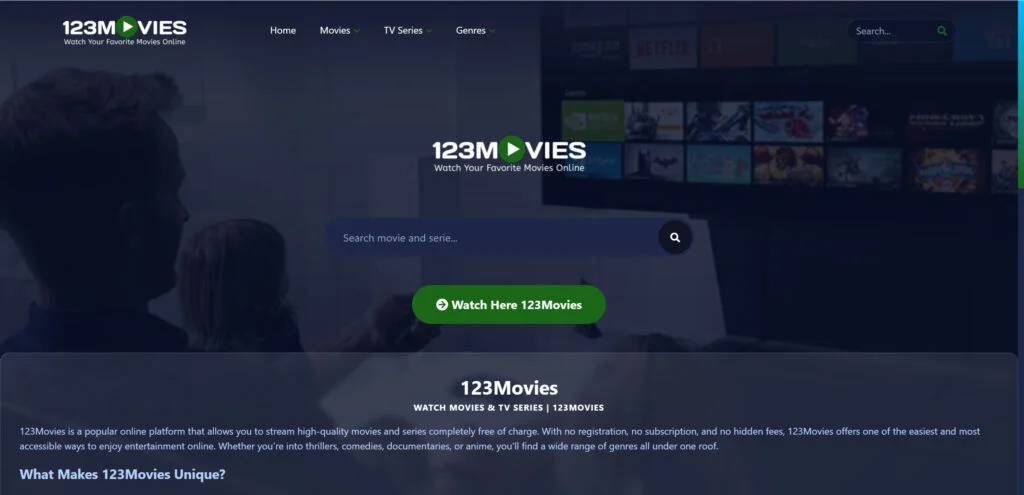
A clone site can copy the same layout, the same logo style, the same movie thumbnails, and the same “watch now” language. But behind the page, the site may use a completely different ad network, redirect chain, or download trap.
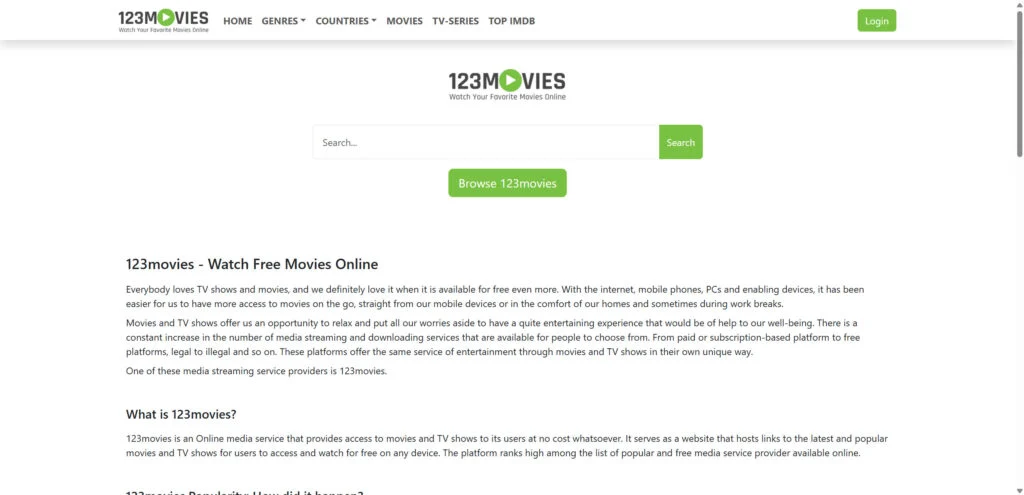
That means a 123Movies clone can look normal today and become more dangerous tomorrow.
One day it may show pop-ups.
The next day it may push fake virus alerts.
The next week it may send users to a fake VPN page.
Later it may offer an APK or browser extension.
The brand looks familiar. The infrastructure behind it can change constantly.
That is why the real question is not:
“Which 123Movies mirror works?”
The better question is:
“Can I trust the redirects, ads, scripts, prompts, and downloads around this player?”
In most cases, the answer is no.
The FTC has warned that illegal streaming apps can be used to spread malware and expose personal information. Research into illegal streaming ecosystems has also found exposure to deceptive ads, malicious browser extensions, scams, and extensive tracking.
Why 123Movies Clone Sites Are Risky
123Movies-style sites usually do not operate like legitimate streaming platforms. They are often monetized through aggressive ads, redirects, affiliate traps, push notification abuse, and download prompts.
That creates a dangerous funnel.
You click Play.
A new tab opens.
You click another Play button.
A fake CAPTCHA appears.
Then a notification prompt appears.
Then a fake warning says your phone or computer is infected.
Then the page tells you to install a player, codec, VPN, APK, or browser extension.
That is not normal streaming behavior.
That is a conversion funnel.
The goal may not be to show you a movie. The goal may be to make you click, allow, install, subscribe, or enter personal information.
Common 123Movies Scam Patterns
1. Fake Play Buttons
The most common trap is the fake play button.
You click what looks like the movie player, but instead of starting the video, the site opens a new tab. That tab may lead to ads, adult pages, scam offers, gambling sites, fake security warnings, or “continue watching” pages.
A legitimate video player does not need five play buttons, three new tabs, and a fake verification step.
2. Browser Notification Traps
Many clone sites push prompts like:
- “Click Allow to watch”
- “Click Allow to continue”
- “Press Allow to confirm you are not a robot”
- “Allow notifications to start video”
- “Click Allow to enable HD streaming”
This is a trick.
Browser notifications are not required to watch a movie. Once you allow them, the site can send alerts that look like system warnings, antivirus messages, prize notifications, delivery alerts, or account warnings.
Google’s Chrome Help specifically lists persistent pop-ups, unwanted redirects, fake virus alerts, and suspicious browser behavior as signs that unwanted software or malware may be present.
3. Fake CAPTCHA Pages
A fake CAPTCHA may ask you to click “Allow” to prove you are human.
Real CAPTCHA checks do not require you to enable browser notifications. If a page says you must allow notifications to continue, close it.
This trick is common because users are trained to obey CAPTCHA prompts quickly. Scammers abuse that habit.
4. Fake Virus Alerts
Some 123Movies clones redirect users to pages claiming:
- “Your device is infected”
- “5 viruses found”
- “Your browser is damaged”
- “Your phone has been hacked”
- “Your system will be locked”
- “Install this security app now”
These warnings are usually fake. They are designed to scare you into downloading an app, calling a fake support number, buying a fake cleaner, or installing unwanted software.
A real security warning from your operating system or antivirus does not appear inside a random movie-streaming tab with countdown timers and flashing buttons.
5. Suspicious Downloads
A 123Movies clone may offer files named like:
- HD Player
- Movie Player
- Video Codec
- Browser Update
- Flash Update
- VPN Setup
- Media Plugin
- Android APK
- Watch App
- Free Movies Extension
- ZIP/RAR archive
Do not open these files.
A streaming page should not require a random EXE, APK, ZIP, extension, or “codec” to play a movie. That is a major red flag.
6. Card Verification Scams
Some clone pages claim you need to enter card details for “free verification.”
Common lines include:
- “No charge today”
- “Card required to verify age”
- “Free account activation”
- “Create your free streaming account”
- “Verify to unlock HD”
- “Only $0.00 today”
Treat this as dangerous.
Card-verification pages on piracy-style streaming clones can lead to subscription traps, unauthorized charges, adult-site billing, or phishing.
7. Android APK Offers
Android users are often targeted with APK downloads because installing apps outside official stores is easier than on iOS.
A fake 123Movies page may tell users to install a “movie app,” “HD app,” “faster player,” or “Android streaming APK.”
Do not install it.
Google says Play Protect scans Android apps and helps prevent installation of harmful apps, and Chrome’s Android cleanup guidance recommends removing problematic apps and keeping Play Protect on.
123Movies Risk Signs To Take Seriously
| What you saw | Why it matters | What to do |
|---|---|---|
| Fake play button opened a new tab | Likely redirect/ad trap | Close the tab. Do not continue clicking. |
| Browser asked to allow notifications | Push notification spam risk | Block or revoke permission. |
| Fake CAPTCHA asked you to click Allow | Notification trick | Do not click Allow. Close page. |
| Fake virus alert appeared | Scareware or scam funnel | Close browser and scan device. |
| Site offered APK, EXE, ZIP, codec, or player | Malware/adware risk | Do not open it. Delete it. |
| Site asked for card verification | Possible billing or phishing scam | Do not enter payment data. |
| Site asked for login info | Credential theft risk | Change reused passwords if entered. |
| Browser keeps opening tabs | Possible permission abuse or adware | Check notifications, extensions, and startup apps. |
| Unknown extension appeared | Browser hijacker risk | Remove it and reset browser settings. |
| Child used the device | Higher accidental-click risk | Check downloads, apps, extensions, and permissions. |
Quick Decision Flow: What Did You Do?
You only opened the page
Risk level: lower
Do this:
- Close the tab.
- Do not restore the session.
- Check notification permissions.
- Clear suspicious downloads.
- Watch for pop-ups or redirects.
You clicked fake play buttons or redirects
Risk level: medium
Do this:
- Close all suspicious tabs.
- Check browser notifications.
- Block pop-ups and redirects.
- Review recent downloads.
- Remove unknown extensions.
- Scan if browser behavior changes.
You allowed notifications
Risk level: medium to high
Do this:
- Revoke notification permission immediately.
- Remove unknown sites from allowed notifications.
- Block pop-ups and redirects.
- Ignore fake virus alerts.
- Scan if alerts continue.
You downloaded but did not open a file
Risk level: medium
Do this:
- Delete the file.
- Empty trash/recycle bin.
- Do not open it to “check.”
- Scan the downloads folder if needed.
You opened or installed a file
Risk level: high
Do this:
- Disconnect from the suspicious site.
- Uninstall unknown programs/apps.
- Remove unknown extensions.
- Check startup items.
- Scan with Malwarebytes.
- Reboot.
- Scan again if symptoms return.
Malwarebytes AdwCleaner is designed to target adware, potentially unwanted programs, and browser hijackers, which are common categories involved in redirect and pop-up problems.
You entered card, login, email, or phone data
Risk level: high
Do this:
- Change reused passwords.
- Enable two-factor authentication.
- Revoke active sessions.
- Contact your card issuer if payment data was entered.
- Watch for phishing emails and SMS messages.
- Monitor card statements for small test charges or subscriptions.
Is Your Device Infected? Run a Free Malware Scan
Slow performance, constant pop-ups, or strange behavior? These are classic signs of a malware infection. A quick way to check is to scan your device with Malwarebytes Free, one of the most trusted malware removal tools available. If you only visited a scam page and didn’t download or install anything, this scan is optional.
The free version detects and removes the most common threats, including:
- Adware — the cause of those annoying pop-ups
- Browser hijackers — unwanted redirects and changed homepages
- Trojans and spyware — hidden programs stealing your data
- Potentially unwanted programs (PUPs) — software you never asked for
👉 Select your device below — Windows, Mac, or Android — then follow the simple steps to download Malwarebytes, scan your system, and remove any threats it finds. The scan usually takes 5 to 20 minutes.
Run a Malware Scan with Malwarebytes for Windows
Malwarebytes is one of the most popular and trusted anti-malware tools for Windows — and it’s completely free for removing infections. It catches threats that many antivirus programs miss, including adware, browser hijackers, and trojans. Follow the steps below to scan your PC and remove what Malwarebytes finds.
Download Malwarebytes
Click the button below to download the latest version of Malwarebytes for Windows from the official source. The free version is all you need — it will scan your computer and remove adware, browser hijackers, and other malicious software at no cost.
Download MalwarebytesOfficial installer for Windows 11 and 10. Your download starts right away.Want real-time protection? See Malwarebytes Premium Malwarebytes Free for WindowsScans and removes malware at no cost
-
Install Malwarebytes
When the download finishes, open your Downloads folder and double-click the MBSetup file. If Windows shows a User Account Control pop-up, click “Yes” to allow the installation.

Follow the On-Screen Prompts to Install Malwarebytes
The setup wizard will walk you through a few quick screens:
-
Choose where you’re installing the program — “Personal Computer” or “Work Computer” — then click Next.

-
Malwarebytes will now install on your device. This usually takes under a minute.

-
When installation is complete, the “Welcome to Malwarebytes” screen will open automatically.

-
On the final screen, click Open Malwarebytes to launch the program.

-
Optional: Check for rootkits with a Custom Scan
You don’t need to change any settings for a normal scan. The standard Threat Scan in the next step is enough for most problems, so you can go straight to it.
If you also want to check for rootkits, use a Custom Scan. In current versions of Malwarebytes, rootkit scanning is only available there:
- On the Scanner tile, click the three-dot menu and select Advanced Scan.
- Choose Custom Scan. In its options, check Scan for rootkits.
- Select your system drive (usually C:\) as the location to scan, then start the scan. It takes longer than a Threat Scan.
- When it finishes, review and quarantine the results as described in the steps below.
Rootkit scanning isn’t available on Windows devices with ARM processors.
Start the Scan
Click the blue Scan button. Malwarebytes will automatically update its virus database and start checking your computer for malware.

-
Wait for the Scan to Finish
The scan checks your entire system for browser hijackers and other malicious programs, so it can take 5 to 20 minutes depending on your computer. Feel free to do something else — just check back occasionally to see the progress.

-
Quarantine the Detected Threats
When the scan is done, you’ll see a list of everything Malwarebytes found — malware, adware, and potentially unwanted programs. Click the “Quarantine” button to remove all of them at once.

Malwarebytes will now remove the malicious files and registry entries and move them safely into quarantine.

-
Restart Your Computer
Some threats can only be fully removed after a reboot. If Malwarebytes asks you to restart, click Yes. Once you’re logged back in, Malwarebytes has finished removing the threats it found.

When the scan is done, check whether the problems you noticed have stopped. If they continue, see the options below.
If you are still having problems with your computer after completing these instructions, then please follow one of the steps:
- Run a computer scan with ESET Online Scanner
- Ask for help in our Windows Malware Removal Help & Support forum.
Run a Malware Scan with Malwarebytes for Mac
Malwarebytes for Mac is a free on-demand scanner that removes the malware other security software tends to miss — adware, browser hijackers, and unwanted programs included. Cleaning an infected Mac with Malwarebytes has always been completely free, and it’s our go-to recommendation. Follow the steps below to scan your Mac and remove what Malwarebytes finds.
-
Download Malwarebytes for Mac
Click the button below to download the latest version of Malwarebytes for Mac.
Download MalwarebytesOfficial installer for macOS. Your download starts right away.Want real-time protection? See Malwarebytes PremiumMalwarebytes Free for MacScans and removes malware at no cost -
Open the Malwarebytes setup file
When the download finishes, open your Downloads folder and double-click the setup file to begin the installation.

-
Follow the On-Screen Prompts to Install Malwarebytes
The Malwarebytes for Mac Installer will guide you through a few quick screens. Click “Continue” and keep following the prompts until the installation completes.



When the installation is complete, Malwarebytes opens to the Welcome to Malwarebytes screen. Click “Get started“.
Malwarebytes needs Full Disk Access to check your whole Mac. When it asks, open System Settings > Privacy & Security > Full Disk Access, turn on Malwarebytes (it may be listed as Malwarebytes Protection), and confirm with your password or Touch ID. Then return to Malwarebytes. On macOS Monterey and earlier, this setting is in System Preferences > Security & Privacy > Privacy.
-
Select “Personal Computer” or “Work Computer”
Malwarebytes will ask what type of computer you’re installing it on. Click either Personal Computer or Work Computer, whichever applies.

-
Start the Scan
Click the “Scan” button. Malwarebytes will automatically update its detection database and begin checking your Mac for malware.

-
Wait for the Scan to Finish
Malwarebytes will scan your Mac for adware, browser hijackers, and other malicious programs. This can take a few minutes, so feel free to do something else — just check back occasionally to see the progress.

-
Quarantine the Detected Threats
When the scan is done, you’ll see a list of everything Malwarebytes found. Click the “Quarantine” button to remove all the threats at once.

-
Restart Your Mac
Malwarebytes will now remove all the malicious files it found. Some threats can only be fully removed after a reboot — if Malwarebytes asks you to restart, allow it. Once you’re logged back in, check whether the problems you noticed have stopped. If they come back, save the scan report and ask for help in our forum.

If the problems you noticed continue after the scan, see the options below.
If you are still experiencing problems while trying to remove a malicious program from your computer, please ask for help in our Mac Malware Removal Help & Support forum.
Run a Malware Scan with Malwarebytes for Android
Malwarebytes for Android scans your phone or tablet for malware, adware, and potentially unwanted apps. The free version scans only when you start a scan. Real-time protection, which checks apps automatically, is part of the paid Premium version.
-
Download Malwarebytes for Android.
You can download Malwarebytes for Android by clicking the link below.
Get Malwarebytes for AndroidOpens Google Play in a new tab.Want real-time protection? See Malwarebytes Premium for AndroidMalwarebytes for AndroidScans your phone and removes malware at no cost -
Install Malwarebytes for Android on your phone.
In the Google Play Store, tap “Install” to install Malwarebytes for Android on your device.

When the installation process has finished, tap “Open” to begin using Malwarebytes for Android. You can also open Malwarebytes by tapping on its icon in your phone menu or home screen.

-
Follow the on-screen prompts to complete the setup process
When Malwarebytes opens, it walks you through a short setup. Tap Get started and follow the prompts. If you see an offer for a trial or a paid plan, read it before you accept. You can skip it and keep using the free scanner.
Malwarebytes will ask for permission to access the files on your phone so it can scan them. Tap Allow, or turn on the permission in the Android screen that opens, then return to Malwarebytes.
-
Run a scan with Malwarebytes for Android
On the main screen, tap Scan now. In some versions, you open the menu, tap Scanner, and then tap Run a scan.
-
Wait for the Malwarebytes scan to complete.
Malwarebytes will now start scanning your phone for adware and other malicious apps. This process can take a few minutes, so we suggest you do something else and periodically check on the status of the scan to see when it is finished.

-
Remove the detected apps.
When the scan has been completed, you will see a list of the threats that Malwarebytes for Android has detected. Next to each detected item, tap the menu icon (three dots), then choose to uninstall the app or delete the file. Android then asks you to confirm. Tap OK or Uninstall to remove the app.
-
Restart your phone.
When the detected apps are removed, restart your phone if Malwarebytes asks you to. Then check whether the problems you noticed have stopped.
If the problems you noticed continue after the scan, see the options below.
If you are still having problems with your phone after completing these instructions, then please follow one of the steps:
- Ask for help in our Mobile Malware Removal Help & Support forum.
- Only as a last resort, reset your phone to factory settings. Read the warning below first.
- Back up your photos, videos, files, and messages, for example to your Google account or a computer.
- Make sure you know your Google account email and password. The phone asks for them after the reset. If you changed the password recently, Google recommends waiting 24 hours before you reset.
- On a Samsung phone, also make sure you know your Samsung account password.
- If you use an authenticator app for two-step verification, move your accounts to another device or save your backup codes first.
Stay Protected: Block Ads and Malicious Sites
No scan can prove a device is completely clean, so it helps to block threats before they reach you. Most infections start with a malicious ad or a fake download button — so blocking them at the source is your best defense.
We recommend AdGuard, which blocks malicious ads, phishing pages, and dangerous redirects before they can reach you.
👉 Download AdGuard and browse safely
What To Do After Visiting a 123Movies Clone
If you only opened a 123Movies clone and did not click anything, panic is not necessary. A single page visit does not automatically mean your device is infected.
But do not ignore it either.
Take a few basic steps:
- Close the page.
- Do not click back through the redirect chain.
- Do not restore all tabs if the browser crashes.
- Check notification permissions.
- Remove unfamiliar allowed sites.
- Clear suspicious downloads.
- Scan the device if pop-ups, redirects, or fake alerts continue.
The biggest mistake is continuing to interact with the page.
If the site opens new windows, spawns tabs, traps the back button, or shows fake alerts, close the entire browser window. If needed, use Task Manager on Windows or Force Quit on macOS.
How To Remove 123Movies Notification Spam
Notification spam can look scary because the alerts may appear outside the website. Users often think the device itself is infected.
Sometimes it is just a browser permission.
Remove it first.
Chrome on desktop
Go to:
Settings → Privacy and security → Site settings → Notifications
Then remove unknown or suspicious sites from the allowed list.
Also check:
Site settings → Pop-ups and redirects
Make sure pop-ups and redirects are blocked.
Chrome on Android
Go to:
Chrome → Settings → Site settings → Notifications
Remove suspicious allowed sites.
Then check:
Android Settings → Apps → Chrome → Notifications
Disable suspicious categories if needed.
Google’s Android cleanup guidance also recommends removing problematic apps and using Play Protect when unwanted ads or malware-like behavior appears.
How To Check Browser Extensions
Streaming clones often push extensions disguised as:
- video downloaders
- movie search tools
- safe search tools
- coupon helpers
- VPN helpers
- streaming unlockers
- media players
- PDF/video converters
Remove anything you do not recognize.
Chrome
Go to:
chrome://extensions
Remove unknown extensions. Pay close attention to extensions installed around the same day you visited the streaming site.
Edge
Go to:
edge://extensions
Remove suspicious extensions.
Firefox
Go to:
about:addons
Remove unknown add-ons.
After removing suspicious extensions, restart the browser and check whether the homepage, search engine, and new tab page were changed.
Browser hijackers can modify browser settings without clear user consent and may change search settings, inject ads, or redirect users to unwanted destinations. Malwarebytes describes browser hijackers as malware that can alter browser settings and redirect users.
How To Check Installed Apps and Programs
If you downloaded or installed anything from a 123Movies clone, check installed programs.
Windows
Go to:
Settings → Apps → Installed apps
Sort by install date. Remove anything suspicious or unfamiliar.
Also check:
Task Manager → Startup apps
Disable unknown startup items.
macOS
Check:
Applications folder
Remove unfamiliar apps. Also check login items:
System Settings → General → Login Items
Android
Check:
Settings → Apps
Sort mentally by recent installs. Remove unknown apps, especially anything installed outside Google Play.
Do not trust an app just because it uses a normal name like “Video Player,” “Update,” “Cleaner,” or “Security.”
Should You Use Malwarebytes and AdGuard?
Yes, but use them for different jobs.
Malwarebytes is useful after something suspicious already happened: pop-ups, redirects, unwanted apps, browser hijackers, PUPs, or malware-like symptoms. It is a cleanup and scanning layer.
AdGuard is useful as a blocking layer. It can reduce exposure to ads, trackers, pop-ups, phishing, and malicious-site warnings, depending on the product and settings used. AdGuard says its apps block ads and trackers and help protect against phishing and malware, while its browsing security database is updated as new threats are discovered.
Use them together like this:
- AdGuard: block ads, trackers, pop-ups, malicious/phishing domains.
- Malwarebytes: scan and remove adware, browser hijackers, PUPs, and malware.
- Browser settings: revoke notification permissions and remove suspicious extensions.
- Password manager: change reused passwords and enable two-factor authentication.
No tool is perfect. But layered protection is much better than trusting a random streaming clone.
Examples of 123Movies-Style Clone Domains
Examples of 123Movies-style or free-movie clone domains include:
- ww8[.]123moviesfree[.]net
- movie152[.]com
- hdfull123movie[.]xyz
- hd123movie[.]xyz
- officialhdmovies[.]com
- me123movies[.]online
- hdmoviesonly[.]com
- 0123movies123[.]com
- moviehd2024[.]online
This list does not mean every domain behaves the same every minute of every day. Clone sites can change behavior quickly. A page that loads today may redirect differently tomorrow.
The safer rule is simple:
Do not trust the clone-site category.
If it uses a famous piracy-streaming name, pushes fake play buttons, asks for notification access, redirects aggressively, or offers downloads, treat it as unsafe.
What About FMovies, SFlix, Soap2Day, MoviesJoy, WCO, and KissAnime?
The same logic applies.
The risk is not only the brand name. The risk is the clone ecosystem.
FMovies, SFlix, Soap2Day, MoviesJoy, WatchCartoonOnline/WCO, KissAnime, and 123Movies searches often lead to the same safety problem:
- fake play buttons
- pop-ups
- redirects
- notification prompts
- fake CAPTCHA pages
- suspicious APKs
- browser extensions
- fake VPN pages
- fake virus alerts
- card verification scams
Different name. Same trap.
Do not ask, “Which mirror works?”
Ask, “What is this page trying to make me allow, install, or enter?”
That question will save you more trouble.
If a Child Used 123Movies on the Device
This needs extra attention.
Children may click faster, ignore warning signs, allow notifications, download files, or install apps without understanding the risk.
Check:
- browser history
- downloads folder
- notification permissions
- installed apps
- browser extensions
- homepage/search engine changes
- unknown desktop shortcuts
- fake antivirus alerts
- new apps installed that day
If the child used an Android device, check whether any APK was installed outside Google Play. Keep Play Protect enabled and remove unknown apps.
Also consider using DNS filtering, parental controls, and legal streaming apps instead of leaving a browser open to clone-site search results.
Full Cleanup Checklist After a 123Movies Clone Visit
Step 1: Close the page safely
- Close the tab.
- If the page traps navigation, close the whole browser window.
- If needed, force quit the browser.
- Do not click fake close buttons inside the page.
Step 2: Remove notification permissions
- Open browser notification settings.
- Remove unknown allowed sites.
- Block future notification prompts if needed.
- Ignore fake virus alerts sent by browser notifications.
Step 3: Check downloads
- Open the downloads folder.
- Delete suspicious files.
- Do not open unknown APK, EXE, ZIP, RAR, DMG, or extension files.
- Scan if you are unsure.
Step 4: Check extensions
- Remove unknown browser extensions.
- Pay attention to “video,” “search,” “VPN,” “safe browsing,” “coupon,” and “player” extensions.
- Restart the browser.
- Check homepage and search engine settings.
Step 5: Check installed apps
- Sort installed apps by date.
- Remove anything unfamiliar.
- Check startup apps.
- Reboot.
Step 6: Scan the device
- Run a Malwarebytes scan.
- Use AdwCleaner on Windows if adware/browser hijacker symptoms continue.
- Reboot and scan again if redirects return.
Step 7: Secure accounts
If you entered login information:
- Change the password.
- Change reused passwords elsewhere.
- Enable two-factor authentication.
- Log out of all active sessions.
- Check account recovery email and phone number.
Step 8: Secure payment data
If you entered card details:
- Contact the card issuer.
- Watch for small test charges.
- Cancel suspicious subscriptions.
- Request a replacement card if needed.
- Monitor statements.
Symptoms That Mean Cleanup Is Not Finished
Do more cleanup if you still see:
- pop-ups after closing the site
- fake antivirus alerts
- browser opening random tabs
- search engine changed
- homepage changed
- unknown extension returns
- unknown app returns after removal
- browser says “managed by your organization”
- redirects when clicking normal search results
- new desktop shortcuts
- slow browser with heavy ads
- antivirus/security tool warnings
These symptoms may mean the problem is no longer only the website. It may involve a browser extension, unwanted app, modified setting, scheduled task, or startup item.
Is 123Movies Legal?
This article focuses on safety, not legal advice. But there is a practical point users should not ignore: unofficial free-streaming sites often operate in a copyright gray area or illegal piracy environment depending on the country and the content.
That matters for security because illegal or unofficial streaming ecosystems tend to attract lower-quality ad networks, deceptive monetization, and more aggressive user manipulation.
In simple terms:
The cheaper the bait, the dirtier the funnel can become.
Final Verdict: Is 123Movies Safe or a Scam?
123Movies clone sites should not be considered safe.
A video page loading does not prove anything. The danger is what happens around the player: fake play buttons, redirect chains, browser notification traps, fake CAPTCHA prompts, fake virus alerts, APK downloads, browser extensions, and payment-verification scams.
If you only visited and left, remove suspicious permissions and move on carefully.
If you clicked, allowed notifications, downloaded, installed, or entered card/login data, treat it seriously.
Run cleanup.
Scan the device.
Remove unknown extensions.
Check installed apps.
Revoke notification permissions.
Change reused passwords.
Contact your card issuer if payment data was entered.
The safest rule is blunt:
Do not trust 123Movies clones. Do not install anything from them. Do not enter card details. Do not click “Allow.”
FAQ
Is 123Movies safe to use?
No. Current 123Movies-style sites should not be treated as safe. Most search results lead to clones, mirrors, or lookalike domains, not one stable official service. Even if a video page loads, the surrounding pop-ups, redirects, fake play buttons, notification prompts, APK offers, and download links can expose users to scams, malware, or unwanted software.
Is 123Movies a scam?
Many 123Movies clone sites behave like scam funnels. They may not always steal money directly, but they often push users toward risky actions: allowing notifications, clicking fake CAPTCHA pages, installing browser extensions, downloading fake players, or entering card details for “free verification.” Those are major red flags.
Can you get a virus from 123Movies?
Yes, especially if you download or install anything from a 123Movies clone. The biggest risks are fake video players, codecs, APK files, browser extensions, ZIP/RAR archives, and fake security tools. Simply opening a page is usually lower risk, but clicking prompts or running downloads can turn the visit into a real infection or adware problem.
What should I do if I only opened a 123Movies site?
Close the tab, do not restore the session, and check browser notification permissions. If you did not click anything, allow notifications, download files, or enter personal data, the risk is lower. Still, remove any unfamiliar site permissions and watch for pop-ups, redirects, or fake virus alerts.
What should I do if I allowed notifications from 123Movies?
Revoke the permission immediately. In Chrome, go to Settings → Privacy and security → Site settings → Notifications and remove unknown allowed sites. Notification spam can imitate antivirus alerts, delivery warnings, prize messages, or urgent account notices. Do not click those alerts.
What if 123Movies downloaded a file?
Do not open it. Delete the file, empty the trash or recycle bin, and scan the device if needed. Be especially careful with files labeled as players, codecs, APKs, extensions, installers, or archives. A streaming site should not require a random download to play a movie.
What if I installed something from a 123Movies clone?
Uninstall the program or app, remove unknown browser extensions, check startup apps, reboot, and scan with Malwarebytes. If pop-ups or redirects continue, the problem may involve adware, a browser hijacker, a scheduled task, or a modified browser setting.
What if I entered my card details?
Treat it as a payment-safety issue. Contact your card issuer, monitor transactions, cancel suspicious subscriptions, and consider replacing the card. “Free verification” pages on streaming clones are a major scam warning sign.
What if I entered my email or password?
Change the password immediately, especially if you reused it anywhere else. Enable two-factor authentication, check active sessions, and log out of unknown devices. Also watch for phishing emails or SMS messages after entering your information.
Are 123Movies alternatives like FMovies, SFlix, Soap2Day, MoviesJoy, WCO, and KissAnime safer?
Not necessarily. These names often lead to the same type of clone-site ecosystem: fake play buttons, redirects, notification prompts, fake virus warnings, APK offers, extensions, and scam forms. The brand name changes, but the risky behavior is often the same.
Why do 123Movies sites ask me to click “Allow”?
Usually to get browser notification permission. A site may pretend this is needed to verify you are human, unlock the video, or continue streaming. It is not. Once allowed, the site can send spam notifications even after you leave the page.
Should I use Malwarebytes after visiting 123Movies?
Use Malwarebytes if you downloaded or installed anything, saw fake virus alerts, noticed redirects, or keep getting pop-ups after leaving the site. It is useful for scanning and removing malware, adware, potentially unwanted programs, and browser hijackers.
Should I use AdGuard for 123Movies-style sites?
AdGuard can help block ads, trackers, pop-ups, phishing pages, and malicious domains. It is useful as a prevention layer, but it does not replace cleanup if you already installed something suspicious. Use AdGuard to block exposure and Malwarebytes to scan after suspicious activity.
Is it safe to watch without downloading anything?
It is still risky. Avoiding downloads lowers the danger, but clone sites can still push redirects, fake prompts, notification spam, phishing forms, and scam ads. The safest option is to avoid 123Movies clone sites completely.
What is the safest rule?
Do not click fake play buttons, do not allow notifications, do not install APKs or extensions, do not download players or codecs, and never enter card details on a 123Movies clone. If something already happened, clean the browser, scan the device, and secure your accounts.

Join the discussion
0 commentsShare your experience or ask a question about this article.
Community experiences
Did this happen to you?
Your experience could help someone recognize the same scam. Submit a private report for our team to review.
I experienced this tooReports are reviewed before publication. Sharing publicly is always your choice.
Discussion
Start the conversation
Have a question or something useful to share? Add the first comment.