


A message about next month’s leave can arrive at exactly the right moment. Employees may already be comparing dates, school calendars, and limited vacation coverage.
The invitation appears helpful rather than threatening, which is precisely why its button deserves a careful look before anyone requests time away.
Overview
A Routine Workplace Task Becomes the Bait
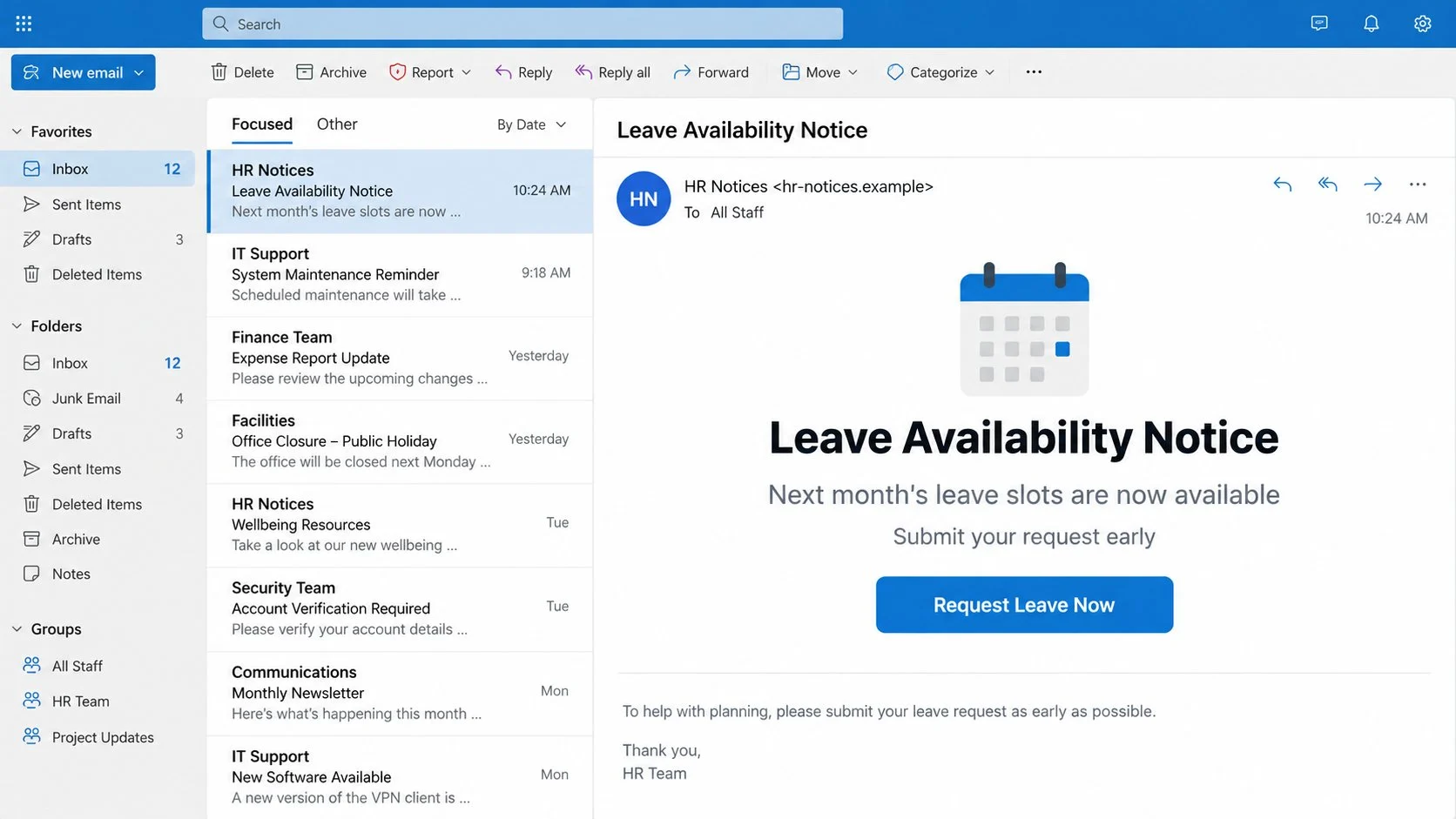
The Leave Availability Notice email pretends to come from an employer’s Human Resources or administration team.
It announces that vacation slots for the coming month are open and encourages staff to submit requests early before desirable dates disappear.
This is a clever theme because legitimate leave systems often operate on deadlines, staffing limits, and manager approval. The request therefore feels normal.
The message can include a notification time, reference field, and automated footer. These elements simulate an internal workflow without proving any employer involvement.
A “Request Leave Now” button is the real focus. The campaign uses workplace familiarity to make that external link feel like an approved employee portal.
A Cloud-Hosted Page Displays a False Session Error
The button sends recipients to content hosted through cloud infrastructure. A recognizable hosting provider can make the destination seem safer than an unknown standalone domain.
Legitimate cloud services allow customers to store many kinds of files. Their reputation does not guarantee that every uploaded page is honest.
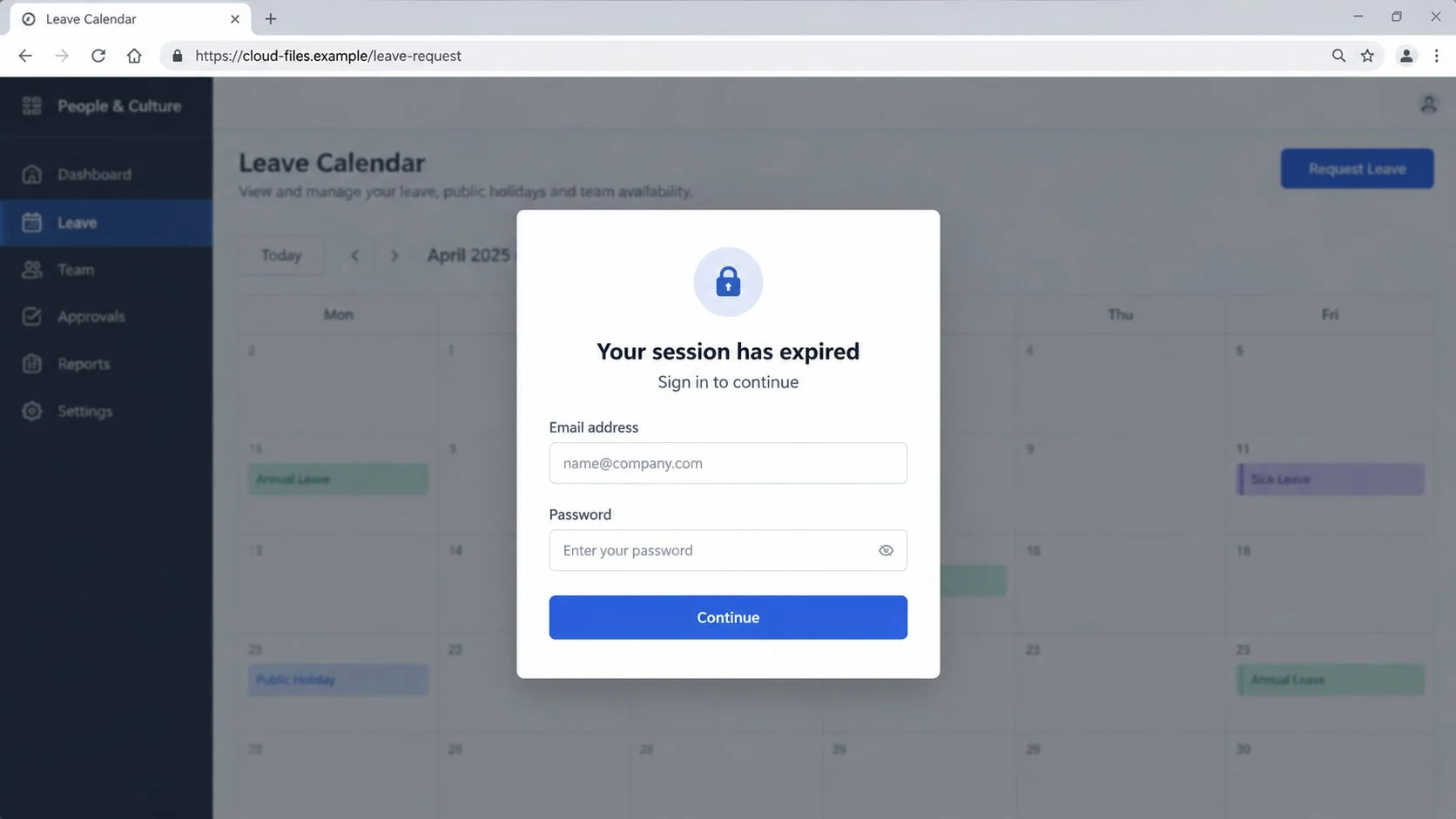
The promoted page resembles a leave calendar or document. A popup then says the session expired and requests another sign-in.
That interruption feels believable because workplace systems regularly time out. The copied workflow transforms suspicion into a familiar inconvenience.
The form asks for an email address and password. Submitted credentials go to the scammer rather than an employer, HR platform, or real identity provider.
Email Access Can Expose the Entire Workplace Identity
A corporate inbox contains far more than messages. It often anchors payroll access, document sharing, benefits portals, calendars, and password recovery.
Once criminals enter, they can study internal names and writing patterns. Later messages may imitate real managers or continue genuine conversations.
- The subject describes an ordinary HR activity.
- Scarce leave dates create subtle urgency.
- The sender name may look internal while the domain is external.
- A cloud-hosted link borrows trust from legitimate infrastructure.
- The fake portal claims an existing session expired.
- The form collects reusable workplace credentials.
- Stolen email can support payroll and invoice fraud.
Reading the email by itself usually causes no compromise. The principal danger is entering credentials or downloading unexpected content from the linked page.
A genuine HR department may announce leave windows, so wording alone cannot decide authenticity. The message must match known systems, policies, and sender patterns.
The safest response is to open the employee portal from a saved bookmark. If the opportunity is real, the same request should be visible there.
How the Leave Availability Notice Scam Works
Step 1: The Campaign Targets Workplace Inboxes
Criminals collect business addresses from company websites, professional profiles, breached lists, and earlier mailbox compromises.
They do not need to know the employer’s actual leave provider. Nearly every organization has some process for requesting time off.
The campaign can insert a company domain or recipient address automatically. Basic personalization helps the template resemble an internal notice.
Seasonal timing improves the lure. Messages sent before holidays, school breaks, or summer planning can attract more attention.
Step 2: Limited Availability Encourages a Fast Click
The email suggests colleagues may claim preferred dates first. That social pressure is gentler than a suspension threat, but still reduces careful thinking.
Employees may click because they fear losing a practical benefit, not because they fear punishment. Positive opportunities can be effective phishing bait.
A timestamp and reference line imitate automation. Missing or meaningless values often reveal that the template was never connected to a real HR database.
The greeting may address “staffs” or another unnatural group. Even polished variants remain suspicious when no employee number, department, or manager appears.
Step 3: The Sender Pretends to Be Internal Administration
The visible name might say HR Notices, People Operations, or Administration. Email display names can be changed freely by anyone sending a message.
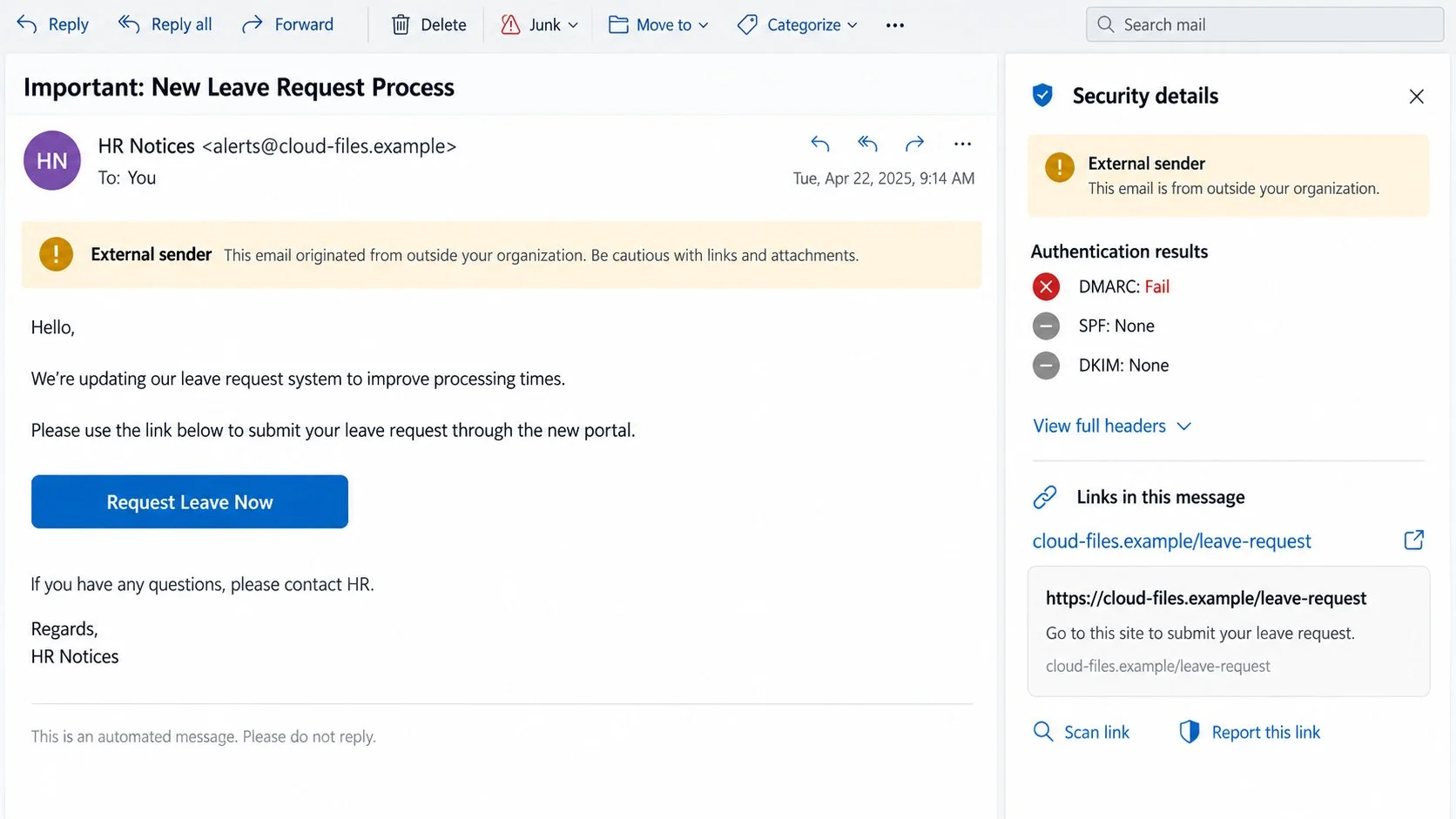
The actual From address may belong to an unrelated external domain. Reply-To and Return-Path values can reveal additional mismatches.
Some workplace clients display an external-sender banner. The scam relies on recipients overlooking that warning because the topic feels familiar.
A compromised supplier or employee mailbox could pass authentication. Verification must include the business context, not just technical pass indicators.
Step 4: A Trusted Cloud Service Hosts the First Page
Cloud storage offers reliable delivery and HTTPS. Those qualities help a malicious page load cleanly while avoiding visibly amateur hosting.
The link can point to a storage object, static website, or redirect. None of these locations automatically belong to the employer.
The page may show a blurred leave calendar behind a modal. The hidden background suggests sensitive information is waiting after authentication.
That visual promise keeps attention on the form instead of the address bar. The recipient assumes the portal already recognized their intended task.
Step 5: The Expired-Session Prompt Steals Credentials
The modal says the user must sign in again. Timeouts are common enough that many people enter a password without reconsidering the destination.
Real single sign-on should occur on an organization-approved identity domain. A login box embedded inside unrelated storage is a serious warning.
Some forms request two submissions or display a false incorrect-password message. The extra step can capture alternate passwords and reduce obvious failure.
After collection, the page may redirect to a legitimate service. That handoff can convince victims that the first login simply expired.
Step 6: Criminals Exploit the Corporate Account
The intruder searches mail for payroll notices, benefits documents, shared files, financial requests, and names of senior staff.
Mailbox rules can hide alerts while forwarding useful conversations. OAuth permissions may provide longer access than a normal browser session.
Using the account, scammers can send fake leave notices to coworkers. Internal origin and existing contact history make the repeated lure more persuasive.
They may also request direct-deposit changes or confidential employee data. A simple holiday message can become the opening for broader business fraud.
How to Verify an HR Leave Notice
Open the Employee Portal Independently
Use a saved bookmark, company intranet, or approved application. Do not begin from the email button.
Check whether a new leave window, policy notice, or open request appears. Genuine availability should exist inside the established system.
If the portal uses single sign-on, observe the normal identity domain. A new cloud-storage address should not suddenly replace that route.
Take no action when the request is absent. Contact HR through the directory or internal help desk for clarification.
Compare the Message With Previous HR Mail
Review earlier verified announcements. Compare the sender domain, footer, terminology, employee details, and link format.
Many organizations use a stable ticketing or HR platform. A sudden change should be announced through more than one trustworthy channel.
Check whether the email includes your department, leave year, policy name, or manager. Mass phishing often avoids details requiring internal knowledge.
Do not rely on logos or color. Those visual elements can be copied from public pages within minutes.
Inspect Headers and Link Ownership
Expand the full sender address and authentication results. An internal-looking name paired with an unknown external domain deserves investigation.
Hover over “Request Leave Now” and identify the registered domain. A cloud provider’s address is not the employer’s HR portal by default.
Look for redirect parameters carrying your email address. Those values may explain later personalization without proving account recognition.
Ask HR Through a Known Channel
Use the staff directory, known telephone extension, internal chat, or help-desk portal. Avoid replying to the questionable message.
Ask whether the department issued the exact subject and whether the link destination is approved. Provide the timestamp and sender address.
Managers can also confirm whether a new leave cycle opened. A short question is safer than assuming urgency means legitimacy.
Security teams should receive the original email with headers. They can block the campaign and determine whether other employees interacted.
What to Do If You Fell Victim to the Leave Notice Scam
Respond quickly without blaming yourself. This campaign imitates a routine process specifically because normal workplace habits can override caution.
- Notify the employer’s security team immediately.
Use the official incident channel and describe whether you clicked, entered credentials, approved multifactor prompts, or downloaded anything.
Early reporting lets administrators revoke sessions, search mail logs, and protect coworkers before the account is reused.
- Reset the work password from the approved portal.
Navigate independently to the real identity service. Choose a new password that is not used for any personal or business account.
If the same secret was reused elsewhere, replace those copies too. Personal email deserves priority because it can reset many accounts.
- Reject unexpected authentication requests.
Do not approve multifactor prompts you did not initiate. Tell IT if you already accepted one or shared a temporary code.
Review registered authenticators, security keys, recovery methods, and trusted devices. Remove entries you do not recognize.
- Review mailbox and cloud activity.
Inspect sign-ins, sent items, deleted messages, forwarding rules, delegates, and connected applications. Attackers often create quiet persistence.
Check shared-drive activity and recently opened documents. Corporate identity may provide access beyond the inbox.
- Verify payroll and employee information.
Contact HR or payroll if the account contained tax forms, identification, benefits records, or bank details. Ask whether change requests were submitted.
Monitor direct-deposit settings and future statements. Treat unexplained modifications as urgent fraud indicators.
- Check the device if files were opened.
A login page alone usually targets credentials, but attachments can carry malware. Run Malwarebytes after opening or installing anything unexpected.
AdGuard can reduce exposure to known phishing pages and hostile advertisements. Keep browser and operating-system protections current as well.
- Warn affected coworkers through a separate channel.
If the account sent new invitations, advise recipients not to click them. Security staff should handle organization-wide communication when possible.
Preserve the original message and incident number. Evidence can help with provider takedowns, insurance, and regulatory reporting.
Is Your Device Infected? Run a Free Malware Scan
Slow performance, constant pop-ups, or strange behavior? These are classic signs of a malware infection. The fastest way to find out is to scan your device with Malwarebytes Free — one of the most trusted malware removal tools available.
The free version detects and removes the most common threats, including:
- Adware — the cause of those annoying pop-ups
- Browser hijackers — unwanted redirects and changed homepages
- Trojans and spyware — hidden programs stealing your data
- Potentially unwanted programs (PUPs) — software you never asked for
👉 Select your device below — Windows, Mac, or Android — then follow the simple steps to download Malwarebytes, scan your system, and remove any threats it finds. The scan usually takes 5 to 20 minutes.
Run a Malware Scan with Malwarebytes for Windows
Malwarebytes is one of the most popular and trusted anti-malware tools for Windows — and it’s completely free for removing infections. It catches threats that many antivirus programs miss, including adware, browser hijackers, and trojans. Follow the steps below to scan and clean your PC in just a few minutes.
Download Malwarebytes
Click the button below to download the latest version of Malwarebytes for Windows from the official source. The free version is all you need — it will scan your computer and remove adware, browser hijackers, and other malicious software at no cost.
Download MalwarebytesOfficial installer for Windows 11 and 10. Your download starts right away.Want real-time protection? See Malwarebytes Premium Malwarebytes Free for WindowsScans and removes malware at no cost
-
Install Malwarebytes
When the download finishes, open your Downloads folder and double-click the MBSetup file. If Windows shows a User Account Control pop-up, click “Yes” to allow the installation.

Follow the On-Screen Prompts to Install Malwarebytes
The setup wizard will walk you through a few quick screens:
-
Choose where you’re installing the program — “Personal Computer” or “Work Computer” — then click Next.

-
Malwarebytes will now install on your device. This usually takes under a minute.

-
When installation is complete, the “Welcome to Malwarebytes” screen will open automatically.

-
On the final screen, click Open Malwarebytes to launch the program.

-
Enable “Scan for Rootkits”
Before scanning, turn on rootkit detection so Malwarebytes can find even the most hidden threats. Click the Settings gear icon on the left side of the screen.

In the settings menu, find “Scan for rootkits” and click the toggle so it turns blue.

Done? Click “Dashboard” in the left pane to return to the main screen.
Start the Scan
Click the blue Scan button. Malwarebytes will automatically update its virus database and start checking your computer for malware.

-
Wait for the Scan to Finish
The scan checks your entire system for browser hijackers and other malicious programs, so it can take 5 to 20 minutes depending on your computer. Feel free to do something else — just check back occasionally to see the progress.

-
Quarantine the Detected Threats
When the scan is done, you’ll see a list of everything Malwarebytes found — malware, adware, and potentially unwanted programs. Click the “Quarantine” button to remove all of them at once.

Malwarebytes will now remove the malicious files and registry entries and move them safely into quarantine.

-
Restart Your Computer
Some threats can only be fully removed after a reboot. If Malwarebytes asks you to restart, click Yes. Once you’re logged back in, Malwarebytes has finished removing the threats it found.

That’s it — your Windows PC is now clean of trojans, adware, and other malware, and should be back to running smoothly.
If you are still having problems with your computer after completing these instructions, then please follow one of the steps:
- Run a computer scan with ESET Online Scanner
- Ask for help in our Windows Malware Removal Help & Support forum.
Run a Malware Scan with Malwarebytes for Mac
Malwarebytes for Mac is a free on-demand scanner that removes the malware other security software tends to miss — adware, browser hijackers, and unwanted programs included. Cleaning an infected Mac with Malwarebytes has always been completely free, and it’s our go-to recommendation. Follow the steps below to scan and clean your Mac in just a few minutes.
-
Download Malwarebytes for Mac
Click the button below to download the latest version of Malwarebytes for Mac.
Download MalwarebytesOfficial installer for macOS. Your download starts right away.Want real-time protection? See Malwarebytes PremiumMalwarebytes Free for MacScans and removes malware at no cost -
Open the Malwarebytes setup file
When the download finishes, open your Downloads folder and double-click the setup file to begin the installation.

-
Follow the On-Screen Prompts to Install Malwarebytes
The Malwarebytes for Mac Installer will guide you through a few quick screens. Click “Continue” and keep following the prompts until the installation completes.



When the installation is complete, Malwarebytes opens to the Welcome to Malwarebytes screen. Click “Get started“.
-
Select “Personal Computer” or “Work Computer”
Malwarebytes will ask what type of computer you’re installing it on. Click either Personal Computer or Work Computer, whichever applies.

-
Start the Scan
Click the “Scan” button. Malwarebytes will automatically update its detection database and begin checking your Mac for malware.

-
Wait for the Scan to Finish
Malwarebytes will scan your Mac for adware, browser hijackers, and other malicious programs. This can take a few minutes, so feel free to do something else — just check back occasionally to see the progress.

-
Quarantine the Detected Threats
When the scan is done, you’ll see a list of everything Malwarebytes found. Click the “Quarantine” button to remove all the threats at once.

-
Restart Your Mac
Malwarebytes will now remove all the malicious files it found. Some threats can only be fully removed after a reboot — if Malwarebytes asks you to restart, allow it. Once you’re logged back in, your Mac is clean.

That’s it — your Mac is now free of adware, rogue browser extensions, and other potentially harmful software.
If you are still experiencing problems while trying to remove a malicious program from your computer, please ask for help in our Mac Malware Removal Help & Support forum.
Run a Malware Scan with Malwarebytes for Android
Malwarebytes for Android automatically detects and removes dangerous threats like malware and ransomware so you don’t have to worry about your most-used device being compromised. Aggressive detection of adware and potentially unwanted programs keeps your Android phone or tablet running smooth.
-
Download Malwarebytes for Android.
You can download Malwarebytes for Android by clicking the link below.
Get Malwarebytes for AndroidOpens Google Play in a new tab.Want real-time protection? See Malwarebytes Premium for AndroidMalwarebytes for AndroidScans your phone and removes malware at no cost -
Install Malwarebytes for Android on your phone.
In the Google Play Store, tap “Install” to install Malwarebytes for Android on your device.

When the installation process has finished, tap “Open” to begin using Malwarebytes for Android. You can also open Malwarebytes by tapping on its icon in your phone menu or home screen.

-
Follow the on-screen prompts to complete the setup process
When Malwarebytes will open, you will see the Malwarebytes Setup Wizard which will guide you through a series of permissions and other setup options.
This is the first of two screens that explain the difference between the Premium and Free versions. Swipe this screen to continue.
Tap on “Got it” to proceed to the next step.
Malwarebytes for Android will now ask for a set of permissions that are required to scan your device and protect it from malware. Tap on “Give permission” to continue.
Tap on “Allow” to permit Malwarebytes to access the files on your phone.
-
Update database and run a scan with Malwarebytes for Android
You will now be prompted to update the Malwarebytes database and run a full system scan.

Click on “Update database” to update the Malwarebytes for Android definitions to the latest version, then click on “Run full scan” to perform a system scan.

-
Wait for the Malwarebytes scan to complete.
Malwarebytes will now start scanning your phone for adware and other malicious apps. This process can take a few minutes, so we suggest you do something else and periodically check on the status of the scan to see when it is finished.

-
Click on “Remove Selected”.
When the scan has been completed, you will be presented with a screen showing the malware infections that Malwarebytes for Android has detected. To remove the malicious apps that Malwarebytes has found, tap on the “Remove Selected” button.

-
Restart your phone.
Malwarebytes for Android will now remove all the malicious apps that it has found. To complete the malware removal process, Malwarebytes may ask you to restart your device.
That’s it — your Android phone is now clean — no more malicious apps, adware, or browser redirects.
If you are still having problems with your phone after completing these instructions, then please follow one of the steps:
- Restore your phone to factory settings by going to Settings > General management > Reset > Factory data reset.
- Ask for help in our Mobile Malware Removal Help & Support forum.
Stay Protected: Block Ads and Malicious Sites
Now that your device is clean, keep it that way. Most infections start with a malicious ad or a fake download button — so blocking them at the source is your best defense.
We recommend AdGuard, which blocks malicious ads, phishing pages, and dangerous redirects before they can reach you.
👉 Download AdGuard and browse safely
Why the Leave Theme Is So Convincing
Time off is personal, valuable, and sometimes competitive. Those emotions encourage immediate action without the harsh threats used by ordinary account scams.
The topic also crosses departments. HR, managers, scheduling tools, and payroll systems can all legitimately discuss leave.
Employees may not know which platform owns the process. That uncertainty gives an unfamiliar portal room to appear plausible.
Remote and hybrid work increase dependence on emailed workflows. A digital form can feel more normal than visiting an internal office.
The campaign arrives as a benefit rather than a problem. Positive bait can lower defenses because recipients want the promised opportunity.
Cloud hosting adds another layer of borrowed legitimacy. Users often recognize the infrastructure name without checking who uploaded the content.
The expired-session story explains why credentials are needed. It turns an unexpected login request into a familiar workplace annoyance.
Understanding that sequence helps employees pause at the correct moment, before the password leaves the organization.
Practical Defenses for HR and IT Teams
Publish one consistent path for leave requests. Employees should never need to guess which portal or domain is approved.
Announce major workflow changes inside the intranet and staff meetings. Avoid introducing new authentication links through email alone.
Add external-sender labels and preserve them on mobile clients. Employees should understand that an HR display name does not override the banner.
Use phishing-resistant authentication for workforce accounts. Hardware-backed passkeys make stolen passwords much less useful.
Restrict unauthorized OAuth applications and monitor new forwarding rules. These controls target the persistence methods criminals commonly use after login theft.
Run training that includes ordinary business themes, not only invoices and password expirations. Leave, benefits, surveys, and policy updates deserve equal attention.
Create a no-blame reporting culture. Employees who report quickly can prevent far more damage than those who hide an honest mistake.
Security teams should block malicious storage objects while respecting legitimate cloud use. Context-aware controls work better than broad service bans.
Frequently Asked Questions
Can HR legitimately announce leave availability by email?
Yes. Confirm the notice inside the established employee portal or through a known HR contact before following any embedded link.
Is cloud storage always suspicious in an HR message?
No. Organizations use cloud services legitimately. The destination still must match approved systems, access patterns, and organizational ownership.
Why does the page say my session expired?
The claim makes a surprise password request feel routine. A real timeout should redirect through the organization’s recognized identity provider.
What if I clicked but did not sign in?
Close the page, report the email, check for downloads, and watch account activity. Credential recovery is urgent if information was submitted.
Could this affect payroll or benefits?
Yes. A compromised workplace identity may access connected HR services or support convincing requests for direct-deposit and personal-data changes.
Should I reply and ask whether the message is real?
No. Contact HR through the staff directory, internal portal, or known telephone number. Replying keeps the conversation inside an untrusted channel.
The Bottom Line
The Leave Availability Notice scam disguises credential theft as a timely employee benefit, then uses a false session timeout to collect workplace passwords.
Open the normal HR portal yourself, compare sender and destination details, and report inconsistencies before a convenient request becomes an account takeover.

Join the discussion
0 commentsShare your experience or ask a question about this article.
Discussion
Start the conversation
Have a question or something useful to share? Add the first comment.