


You found an old address on RecordsFinder, opened the privacy page and landed on a menu with several ways to opt out.
Before submitting anything, decide what you want to change: a public search result, the information the company holds, or a subscription charging your card.
Overview
Remove a specific search result without buying a report
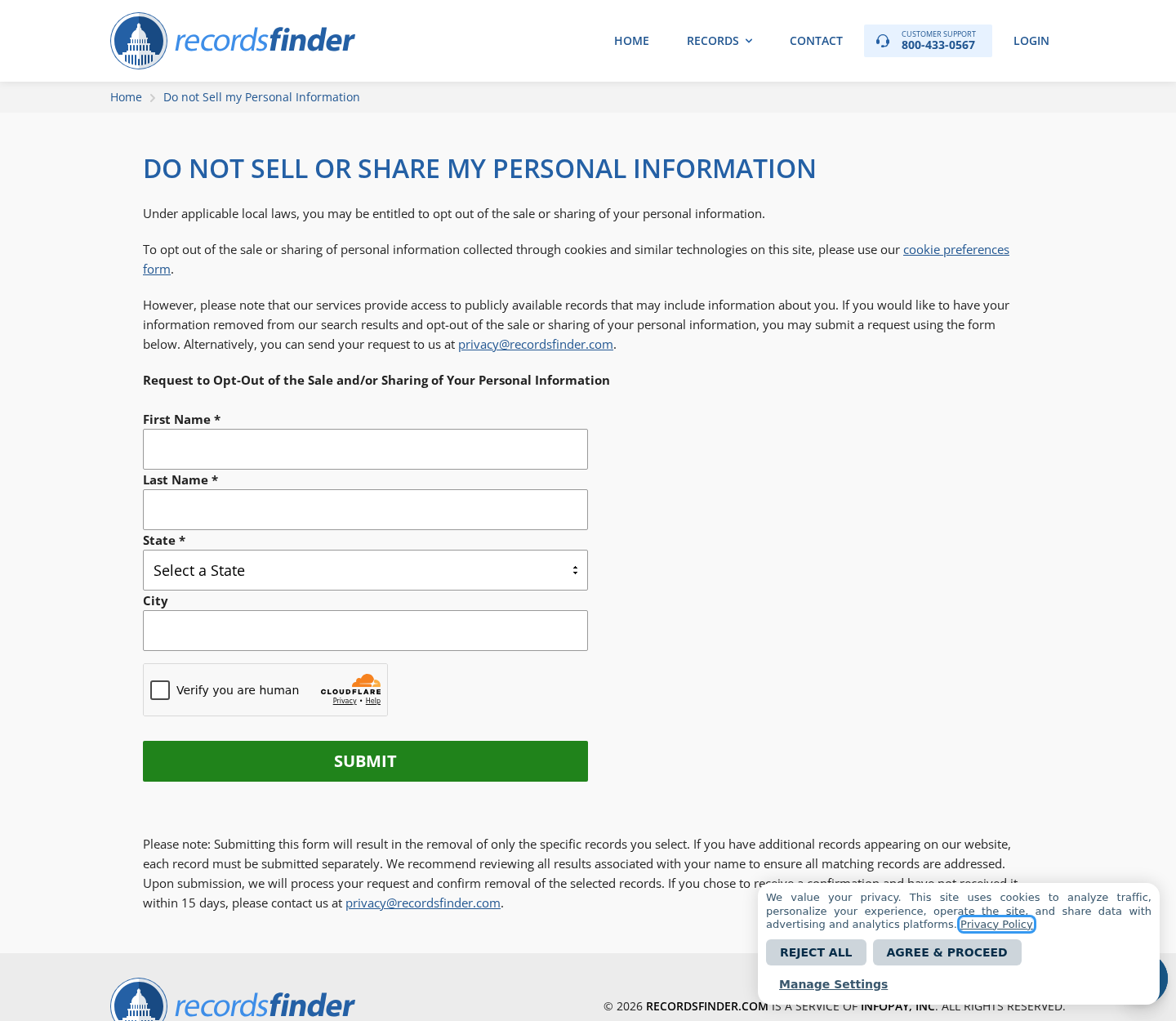
RecordsFinder’s public removal form asks for first name, last name and state, with city optional. The site says only the records you select are removed.
A broader privacy request goes through a different form
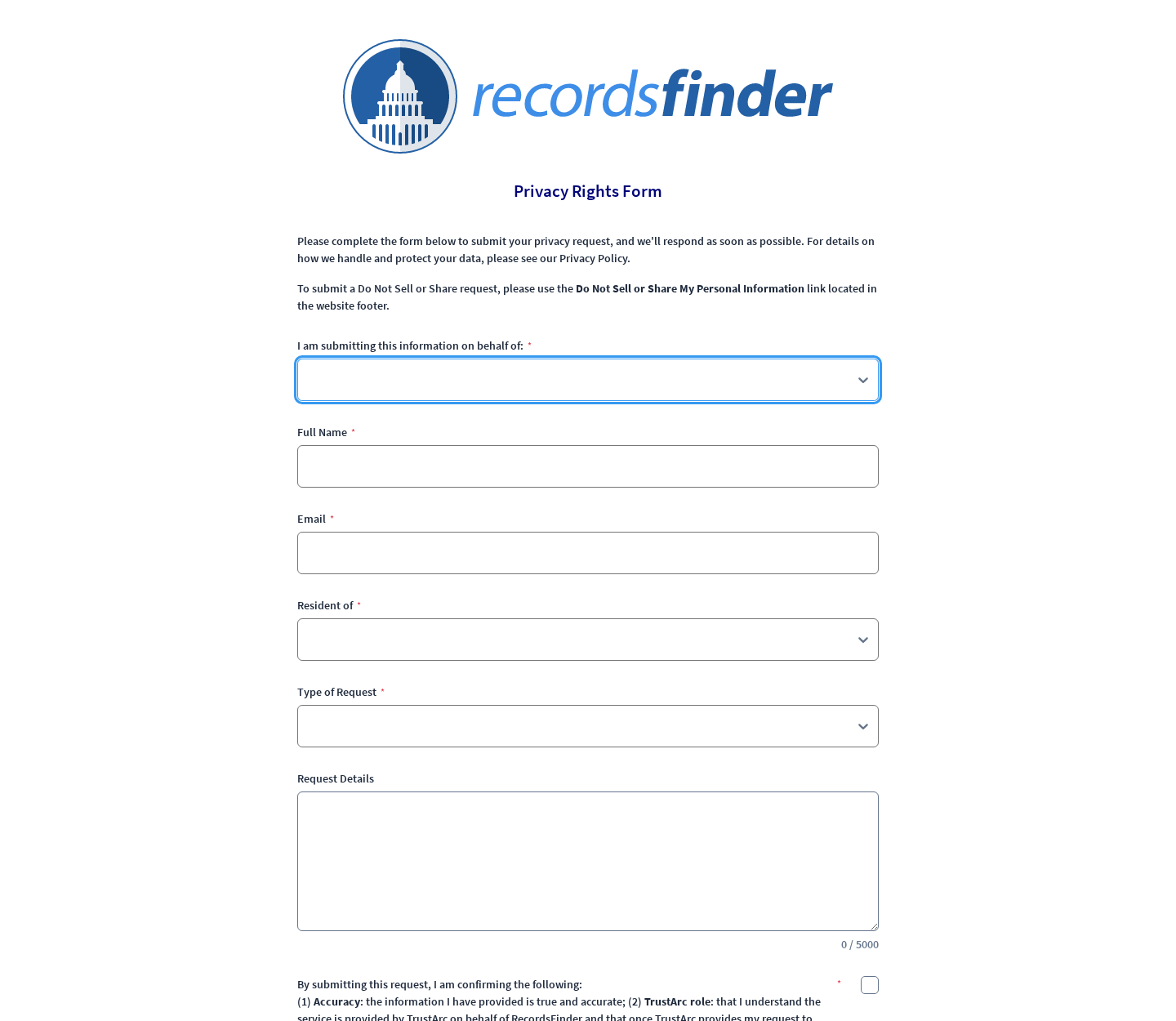
The Your Privacy Choices page links to a RecordsFinder-branded request form hosted by TrustArc. It is separate from both the listing form and the cookie controls.
Which confirmation should you look for?
- For a public result, look for confirmation tied to the record you selected and check that same result again.
- For deletion or correction, save the privacy request reference and look for a decision explaining what was changed or kept.
- For a subscription, keep the cancellation confirmation and check that the next scheduled payment is not taken.
How to Use the RecordsFinder Opt-Out Form
Step 1: Open the listing removal page
Start on recordsfinder.com, scroll to the footer and choose Do Not Sell / Share My Personal Information. The destination has a name-and-state form.
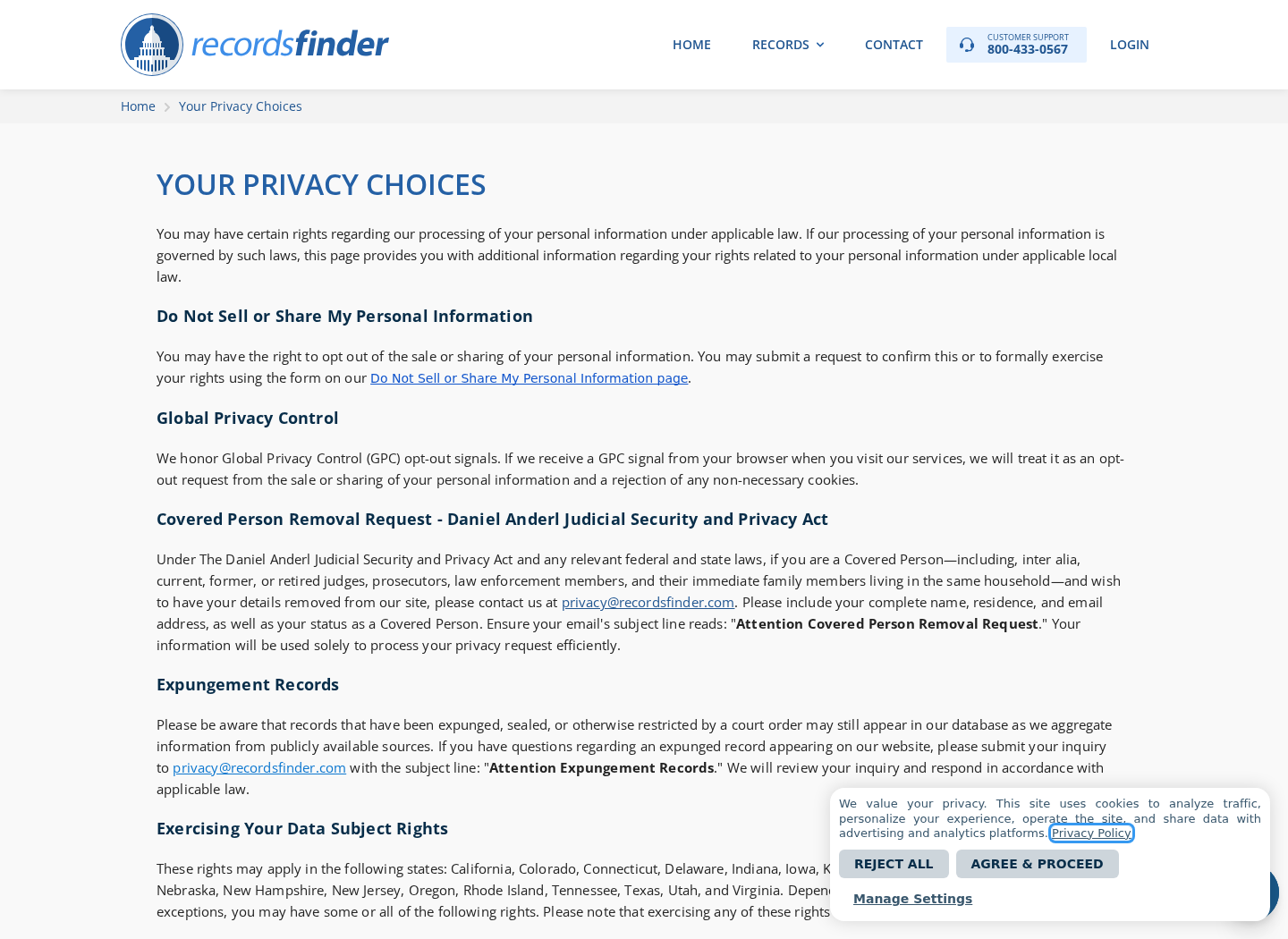
If you landed on Your Privacy Choices instead, follow its link to Do Not Sell or Share My Personal Information. Both pages sit under the same domain.
The site also offers to change your cookie preferences. That is the right control for certain tracking choices, not the form for taking your address out of search results.
Don’t start in a paid report preview. If you’re asked to choose a trial or enter payment details, go back to the privacy link in the footer.
Step 2: Search for the name the listing uses
Enter your first and last name, then select the state associated with the listing. Use the city field if you know which location the record shows.
If the form displays a human verification box, complete it on the site. Select Submit after confirming that you are searching for your own record.
A record tied to an old address may not appear when you search your current city. Remove the city filter first, then try the old state separately.
Use the name as it appears on the result you want removed. A former surname, a hyphenated name or an abbreviated first name can produce different matches.
Step 3: Match your record before asking to remove it
Check the locations associated with a result before selecting it. Don’t remove someone else’s listing simply because you share a name or live in the same state.
Select the checkbox on the confirmed row and use the removal control for that row. RecordsFinder says another listing needs another request, even if it is also yours.
Keep the report ID privately if the result shows one. It gives support a precise way to find the entry without asking you to describe your entire address history.
If you cannot tell which row is yours, stop there. Ask the privacy team how to identify the specific listing instead of submitting requests for every candidate.
Step 4: Save the confirmation and check the same listing again
If the form offers an email confirmation, give an address you can check. Save the notice on screen with the date and the record identifier, if shown.
If you requested an email confirmation, check the spam folder too. The form says to contact privacy@recordsfinder.com if nothing arrives within 15 days.
Compare the same search and listing, rather than relying on a search engine result alone. An old snippet and a live profile are different things to resolve.
If the result remains, tell support whether the original record is still live or the result has a second identifier that may need a new request.
What to Check When Your Address Still Appears
When RecordsFinder still shows the original address
Open the original listing again using its saved address in a private window. Don’t sign in or start a report just to see what an ordinary visitor sees.
If you see only a search form or a sign-in screen, that does not prove the entry was removed. Compare it with the public version you saw before.
When you follow up by email, put the listing address or report ID and the request date together in the message. Ask which entry the confirmation applied to.
If two requests were accepted, check both records individually. One confirmation may refer to a listing with your current city while leaving a second result for a previous address.
When Google shows old information that the source removed
Search for the result you saved, then open the actual page. Use the address shown for that result rather than copying the RecordsFinder homepage for the whole service.
If the page no longer shows the information, open Google’s outdated-content refresh instructions.
Choose Request refresh, open the Page tab, paste the URL of the specific result and select Submit.
Return to the same refresh tool to check the decision. This asks Google to update its result and does not file a new request with RecordsFinder.
If the source still shows your address, the outdated-content request is the wrong tool. Continue the listing request or use Google’s personal information route if it applies.
When the same information appears on another site
Open the other result and check its actual domain. A similar name, address and result layout do not mean that the second site is reading today’s RecordsFinder listing.
File a separate removal request through the site that displays the other copy. Keep one note per site so you can tell which confirmation matches which listing.
What RecordsFinder’s Other Privacy Options Actually Change
The browser setting does not choose a name or address
RecordsFinder says it treats a Global Privacy Control signal as an opt-out of sale or sharing and a refusal of unnecessary cookies on that visit.
That is useful if you’re limiting tracking. A browser signal does not select an old address from a list of people, so use the separate removal form for that.
The cookie banner on the removal page illustrates the difference. Using its preference controls leaves the blank name-and-state form untouched.
Use the privacy rights form for a broader request
To ask for access, correction or deletion beyond one displayed result, open Your Privacy Choices. Scroll to Exercising Your Data Subject Rights and open the linked request form.
The link opens the company’s branded form on TrustArc. Confirm you reached it from RecordsFinder, especially if an unsolicited email claims you must verify a pending request.
Choose who the request is for, complete the name and email fields, and select your residence. Under Type of Request, choose the option that matches the change you want.
Use Request Details to describe the specific scope, such as correcting an inaccurate address or deleting information the company holds, subject to the rights that apply to you.
Review the submission acknowledgment and save any receipt. RecordsFinder says it may ask verification questions and will respond within 45 days or tell you if it needs more time.
The annual figures do not measure listing removals
RecordsFinder’s privacy notice reports 169 California deletion requests in 2025, with 75 granted in full and 94 denied. Those are the company’s reported figures, not an independent audit.
The table tracks formal privacy requests. It does not say how many public search listings were removed or explain why a particular deletion request was denied.
If you get a denial, read the explanation and identify whether it concerns a missing match, eligibility or some other issue. The site lists a privacy address for appeals.
For an appeal, reference the earlier decision, state which part you are challenging and ask for a written response. Don’t send a second unrelated removal form instead.
Provide enough information to match the request without sharing unrelated documents. If the company asks for verification, confirm the request through the privacy contact you reached independently.
Ask whether verification can be completed with less sensitive evidence. Neither filling the public listing form nor filing an appeal requires giving someone your credit card number.
California residents can also use CalPrivacy’s DROP portal for requests covering active data brokers. It is a separate process and does not erase official public records.
Use the dedicated route for court-restricted records
RecordsFinder acknowledges that sealed, expunged or otherwise restricted information may still appear in its database. It publishes a separate email route for inquiries about those records.
For a record that was already restricted, write to privacy@recordsfinder.com with the subject Attention Expungement Records and identify the listing privately.
Don’t post a court document, residential address or report screenshot in a public complaint just to get the company’s attention. Ask what evidence is necessary through its verified privacy channel.
The same page gives certain covered individuals a separate removal contact using Attention Covered Person Removal Request. Read the eligibility and required information there before sending a request.
If an official record itself is wrong or you need its legal status changed, contact the court or agency that holds it. The broker cannot amend that original record.
For example, removing a result that reprints a county record does not change the county’s own register. Keep the broker confirmation separate from any response from the county.
What to Do If RecordsFinder Charged Your Card
The privacy process does not cancel paid searches. RecordsFinder says its billing descriptor may be SAFECART*RecordsFinder, INFOPAY or RecordsFinder, depending on the payment method.
INFOPAY on its own does not tell you which service made the charge. Match the receipt, purchase date and amount, or ask your card issuer to identify the merchant.
-
Find the actual purchase before contacting support. Search your email for the merchant, order number and amount. Check the trial deadline and renewal amount on your own receipt.
-
Cancel future charges through the billing channel. Go to the member portal, open Settings and select the cancellation link described in the site’s terms.
If you can’t sign in, open Contact on RecordsFinder, find the billing question about canceling a subscription, and use the support form, published phone number or published support email.
Give the order number if you have it. Ask when the cancellation takes effect and request a written confirmation that you can keep with your receipt.
-
Ask about any past payment separately. The help page says it does not refund the unused part of a monthly subscription. A disputed charge is a different question.
For a payment you think was wrong, state whether it followed a confirmed cancellation, was a duplicate, or was not authorized. Include the relevant receipt or confirmation.
-
Go directly to your card issuer for an unrecognized payment. Use the number on your card or the issuer’s app. Don’t wait for a privacy request to resolve billing.
The CFPB’s U.S. credit card dispute guide recommends calling promptly and explains the written billing-error notice deadline for preserving your rights.
RecordsFinder says its trial can become a monthly membership if you don’t cancel in time. Don’t assume that running no searches or closing the tab stops the next payment.
The exact renewal price is the one shown for your purchase. The public terms allow different options, and some premium reports may cost extra even with a membership.
RecordsFinder’s settings instructions are published terms, not a promise that a particular member account will open without errors. Use the official support route if the link is missing.
After canceling, keep the time and date of the request as well as the reply. A dated notice helps distinguish a payment already due from a new charge afterward.
Frequently Asked Questions
Do I need a RecordsFinder account to remove a listing?
The public listing form does not start with an account or payment screen. Use the form in the footer rather than opening a paid report to find your entry.
Does removal cover every listing under my name?
RecordsFinder says the public form acts on the specific records you select. Check different states or spelling variants if you know that more than one listing belongs to you.
Why did the privacy request link open TrustArc?
RecordsFinder links to the branded TrustArc form for broader privacy requests. The form itself points users back to the RecordsFinder footer for the separate sale or sharing opt-out.
Does the opt-out remove my address from Google?
It doesn’t instruct Google or any other search engine to update the results. Once the source listing changes, a stale result and a still-live page need different remedies.
Will canceling a trial hide my public results?
Canceling ends the paid arrangement, while the public removal form targets a listing. If both issues apply, keep separate confirmations for the subscription and the record.
Can I assume every charge marked INFOPAY is RecordsFinder?
Don’t rely on the descriptor alone. Verify the order against a receipt or ask your issuer for the underlying merchant before trying to cancel or dispute a transaction.
The Bottom Line
Use the RecordsFinder opt-out for the exact listing you want removed, then check it again. Don’t pay for a report just to take down your own information.
If you want broader deletion, choose the separate privacy rights form. If money is leaving your account, use the billing channel or contact your issuer instead of waiting.

Join the discussion
0 commentsShare your experience or ask a question about this article.
Community experiences
Did this happen to you?
Your experience could help someone recognize the same scam. Submit a private report for our team to review.
I experienced this tooReports are reviewed before publication. Sharing publicly is always your choice.
Discussion
Start the conversation
Have a question or something useful to share? Add the first comment.