


A suspicious file is no longer where it was downloaded, yet the security alert remains. Deleting what you can see may feel like the obvious next step.
With JelusRAT, that instinct can miss the important part. The threat’s design makes the sequence of events more useful than a quick search for one filename.
Overview
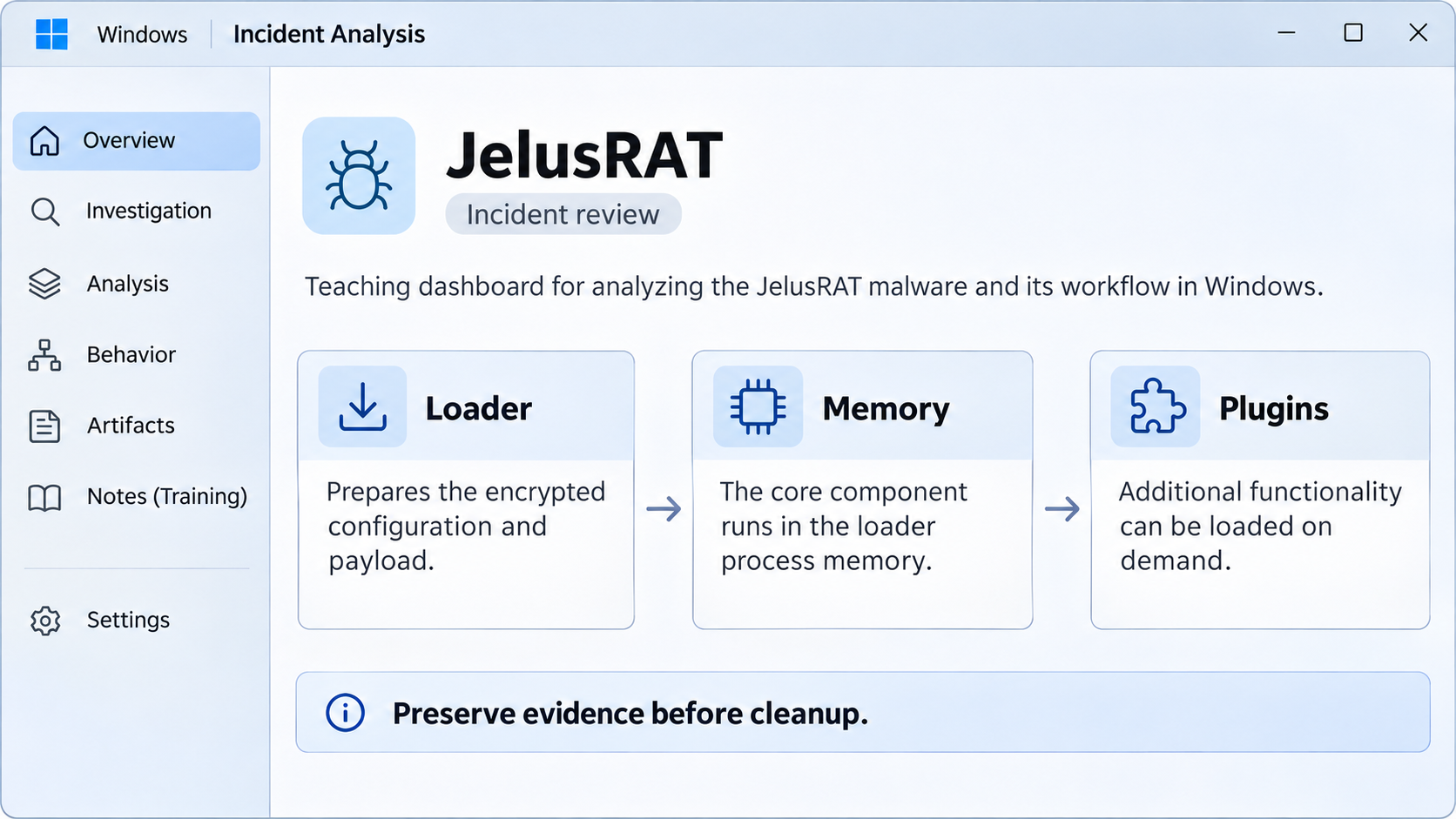
JelusRAT separates its loader from the running payload
JelusRAT is a two-stage Windows remote-access Trojan analyzed by WithSecure. Its loader decrypts the core payload and starts it inside its own process memory.
The reported sequence includes temporary key and configuration files, followed by deletion of those artifacts. A missing download does not demonstrate that the running threat has stopped.
In-memory execution is not magic or invisibility. Endpoint records, related files, network activity, and memory evidence can still help a qualified responder reconstruct the incident.
A supplied component can be more important than an obvious attachment
WithSecure investigated a trojanized ERP-software component associated with this implant. The company assessed a downstream software-delivery compromise, while the campaign’s full impact remained undetermined.
That finding belongs to the examined campaign. It does not make every ERP package unsafe or establish how a particular reader’s computer became infected.
For an organization, obtain software provenance and deployment records through the genuine vendor and internal IT team. Do not accept a replacement installer from an unsolicited helper.
The plugin design leaves important investigation questions
The core can obtain additional DLL plugins, but the original researchers did not recover plugin samples. Specific surveillance or ransomware functions cannot be assumed from that design alone.
The immediate response priorities are better established:
- Contain the affected Windows computer and preserve incident evidence.
- Identify the loader, its configuration chain, and related deployments.
- Investigate command access and any additional components actually present.
- Avoid blindly terminating a process that may have critical-process status.
How to Remove JelusRAT From Windows
JelusRAT can mark its process as critical, making forced termination crash Windows. Do not end unfamiliar processes manually. Use qualified assistance if cleanup causes crashes.
For a work or school computer, contact its IT or security team before installing tools or restarting. Its investigation may need evidence from the running system.
If remote access is suspected, disconnect Wi-Fi or Ethernet and stop using this PC for sensitive accounts. Arrange trusted downloads and updates before proceeding with cleanup.
Start with Malwarebytes. HitmanPro and ESET are optional second opinions for unresolved findings or continuing symptoms. Run one scanner at a time.
- STEP 1: Scan and quarantine threats with Malwarebytes
- STEP 2: Optional: Check unresolved threats with HitmanPro
- STEP 3: Optional: Run a second-opinion scan with ESET
Step 1: Scan and quarantine threats with Malwarebytes
Malwarebytes for Windows can scan for malware and quarantine detected threats. Use the free Custom Scan below; a paid plan is not required for this cleanup.
Download Malwarebytes
Click the button below to download Malwarebytes for Windows. Paid real-time protection is optional.
Download MalwarebytesMalwarebytes free scanner informationOfficial installer for Windows 11 and 10. Your download starts right away.Want real-time protection? See Malwarebytes PremiumMalwarebytes Free for WindowsScans and removes malware at no cost-
Install Malwarebytes
When the download finishes, open Downloads and double-click MBSetup. If Windows asks for permission, check that the prompt identifies Malwarebytes, then click Yes.

Follow the On-Screen Prompts to Install Malwarebytes
The setup wizard will walk you through a few quick screens:
Installer screens and optional offers vary. Skip unwanted Browser Guard, trial, or paid-plan offers. The free Custom Scan remains available; Threat Scan may require a paid plan.
-
Choose Personal for your own computer, then click Next. For a work-managed device, use your organization’s approved response instead.

-
Wait for installation to finish.

-
If the Welcome to Malwarebytes screen appears, click Get started and follow the remaining prompts.

-
On the final screen, click Open Malwarebytes to launch the program.

-
Choose the scan type and optional rootkit check
On the Scanner tile, click the three dots, choose Advanced Scan, then Custom Scan.
Expand the folder selector and select the C:\ system drive. Include any other drive where the suspicious files were stored.
If Scan for rootkits is available, you can enable it. This setting is unavailable on Windows ARM devices; leave Windows security protections enabled.
Review how potentially unwanted programs and modifications will be handled. Keep detection enabled rather than automatically ignoring these items.
Start the Scan
Click Start Custom Scan. Allow Malwarebytes to update its detection information if prompted.
-
Wait for the Scan to Finish
Wait for the Custom Scan to finish. The time required depends on the selected locations and the amount of data.
-
Quarantine the Detected Threats
When the scan finishes, review the detections and keep the threats you want removed selected. Click Quarantine.
If a detection is unclear, save the report and ask for help before excluding or restoring it.

Wait while Malwarebytes quarantines the selected items. Do not restore a file merely because an unfamiliar name appears in the results.

-
Restart Your Computer
If Malwarebytes asks for a restart, save your work and click Yes. After signing back in, reopen Malwarebytes and check the report for unresolved detections.

Step 2: Optional: Check unresolved threats with HitmanPro
HitmanPro is a second-opinion scanner for Windows. It examines suspicious files using cloud analysis, including SophosLabs. An internet connection is needed for that check.
Scanning is free. Removing detections requires an eligible one-time 30-day trial or a paid license.
A computer that already used its trial may not qualify again. You do not have to buy HitmanPro to follow the Malwarebytes cleanup above.
-
Download HitmanPro
Click the button below to download HitmanPro if you want a second opinion on unresolved symptoms or detections.
Download HitmanProFree scan. Removal requires an eligible 30-day trial or a paid license. Opens the official HitmanPro page in a new tab.HitmanProSecond-opinion malware scanner from Sophos -
Install HitmanPro
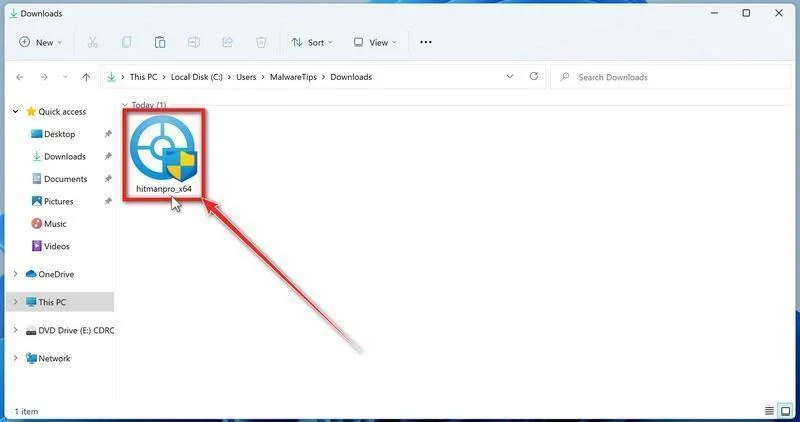
When the download finishes, open your Downloads folder and double-click the file: “hitmanpro.exe” on 32-bit Windows, or “hitmanpro_x64.exe” on 64-bit Windows.
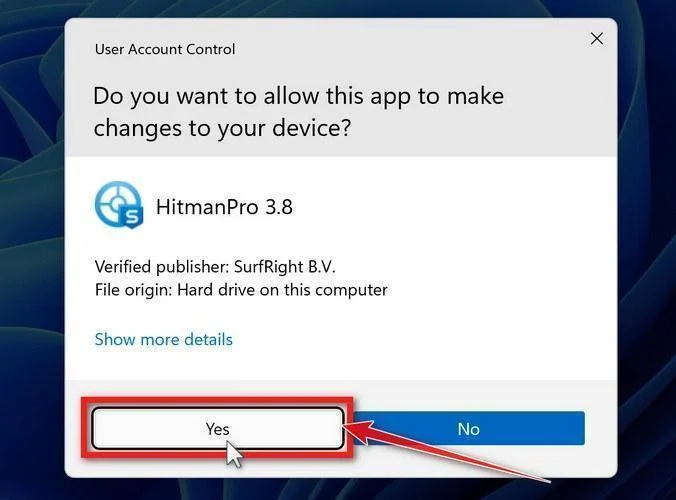
If a User Account Control pop-up asks whether HitmanPro can make changes to your device, click “Yes” to continue.
-
Follow the On-Screen Prompts
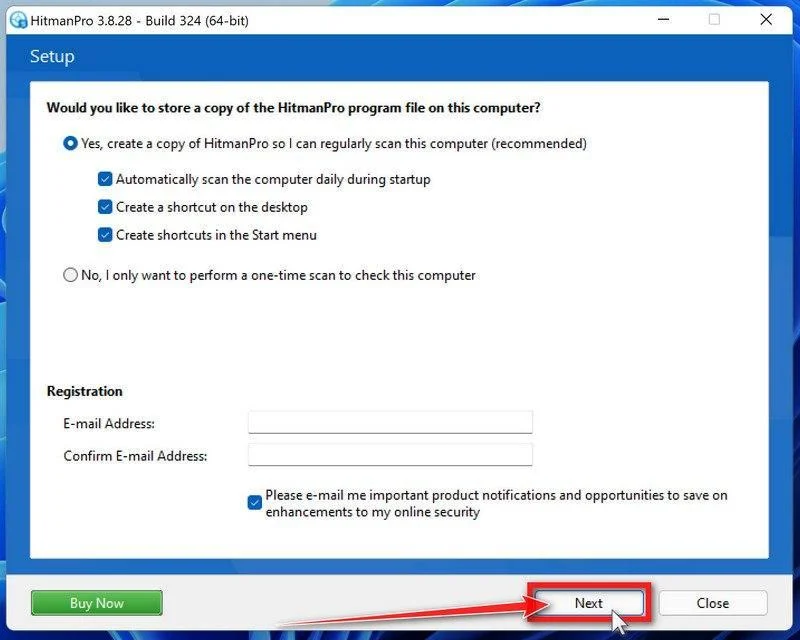
On the HitmanPro start screen, click Next. Read and accept the terms if you agree, then continue.
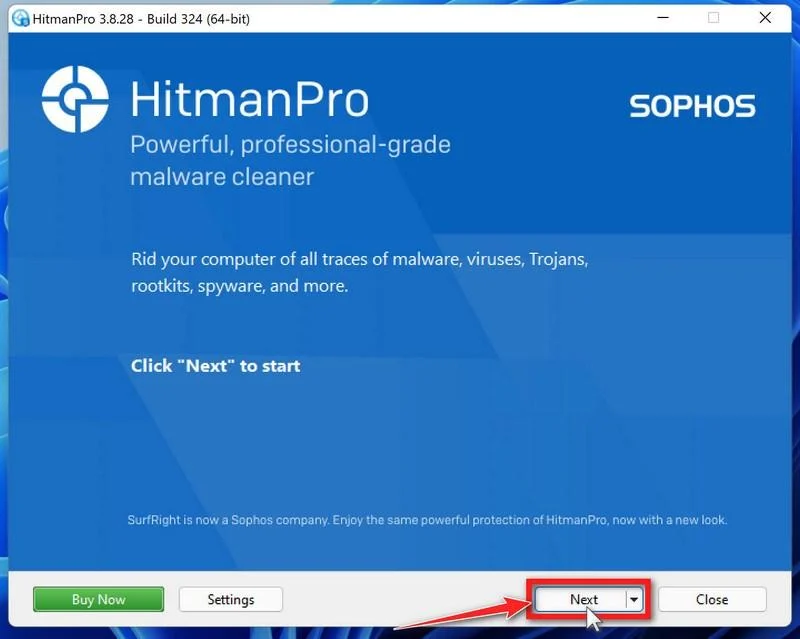
Choose whether to keep a copy for later use or run a one-time scan. Review optional startup and email preferences, then click Next.
-
Wait for the Scan to Finish
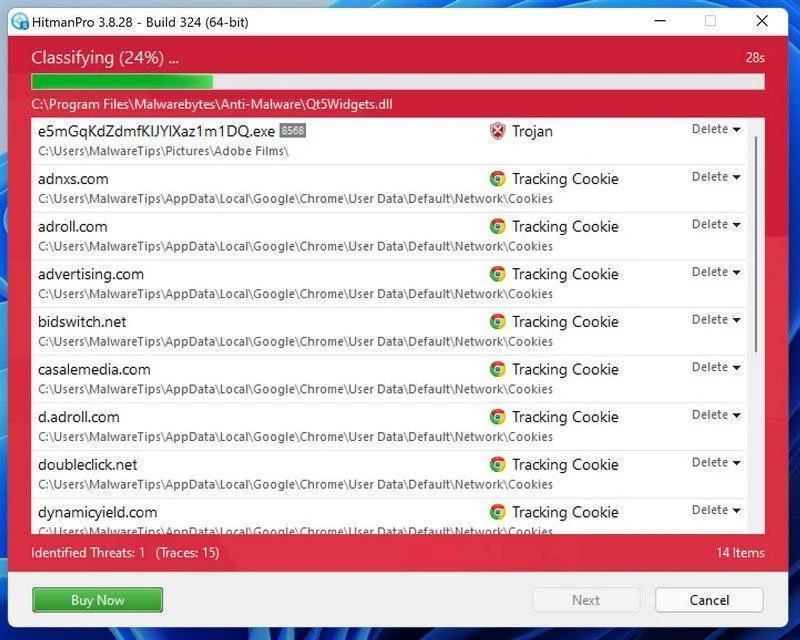
Let HitmanPro finish scanning. Review its findings once the scan has completed.
-
Review the Results and Click “Next”
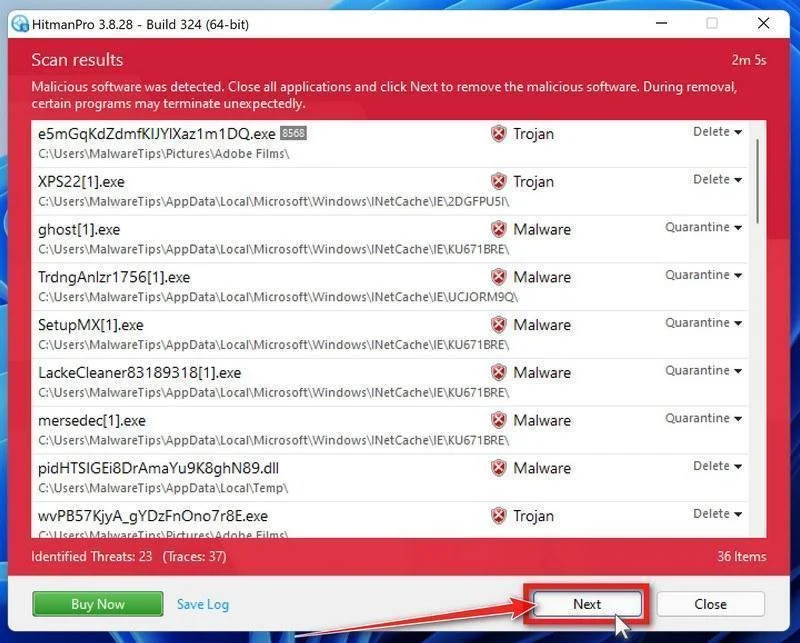
Review the detected items and their proposed actions. Save the log if you need help with an unfamiliar detection, then click Next to proceed.
-
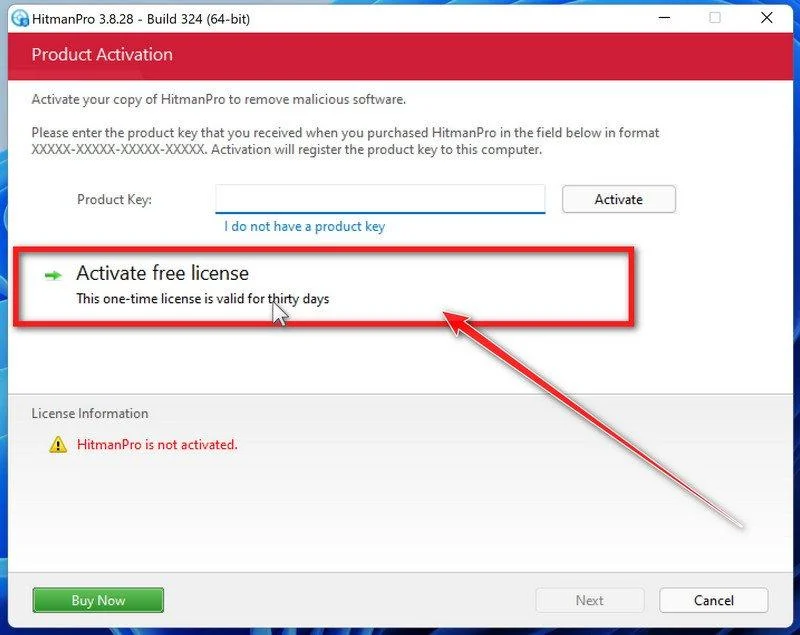
Click “Activate Free License”
If this computer qualifies, click Activate free license and follow the activation prompts.
If no trial is available, use an existing license or save the report for assistance. Do not assume a purchase is necessary to continue cleanup.
After removal, review the summary and click Next. Choose Reboot if requested, or Close if no restart is needed.
If detections return or the original symptoms persist, keep the reports and ask for help. A clean scan cannot rule out every threat.
Step 3: Optional: Run a second-opinion scan with ESET
ESET Online Scanner is a free second-opinion scanner for Windows. Use it if you need another check after cleanup, rather than running several scanners together.
-
Download ESET Online Scanner
Click the button below to download ESET Online Scanner.
Download ESET Online ScannerOpens the official download page in a new tab.ESET Online ScannerFree one-time malware scan from ESET -
Run the Installer
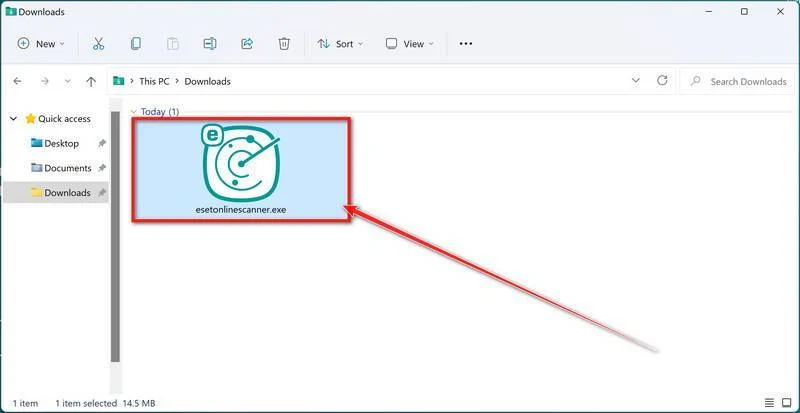
When the download finishes, open Downloads and double-click esetonlinescanner.exe. Approve the Windows permission prompt after checking that it identifies ESET.
-
Install ESET Online Scanner
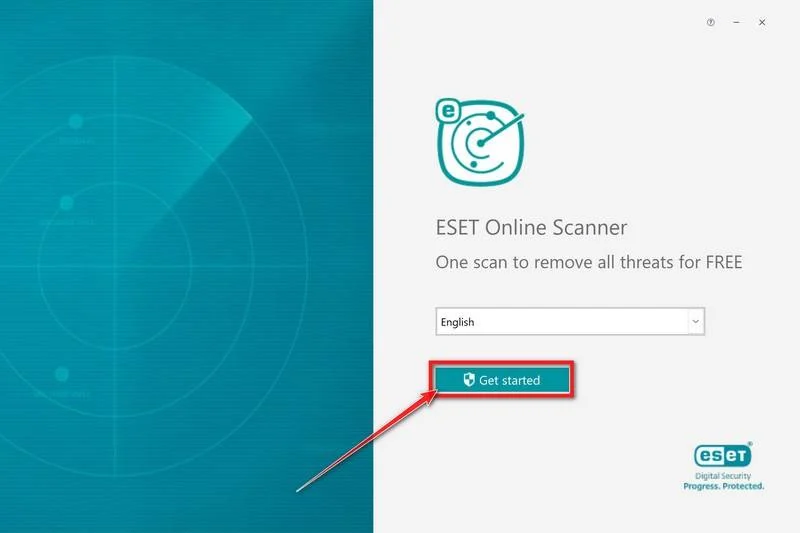
On the start screen, select your language from the drop-down menu and click Get started.
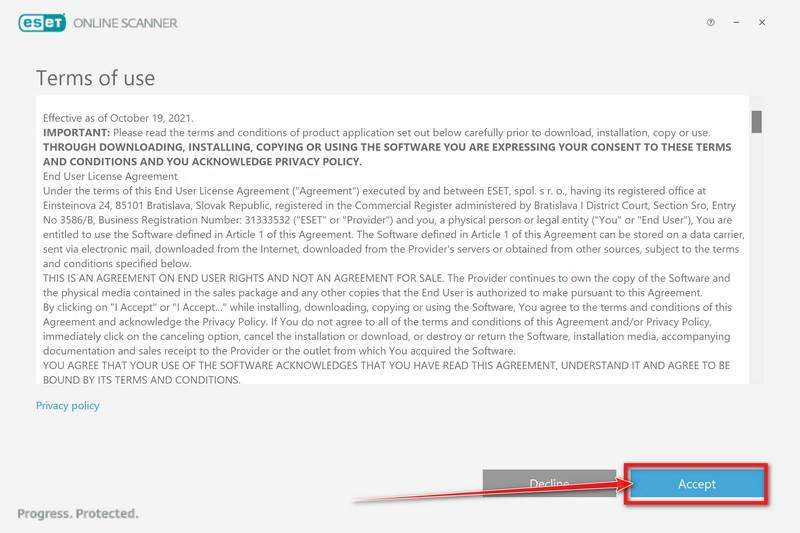
Read the Terms of use. Click Accept if you agree, then Get started if that screen appears again.
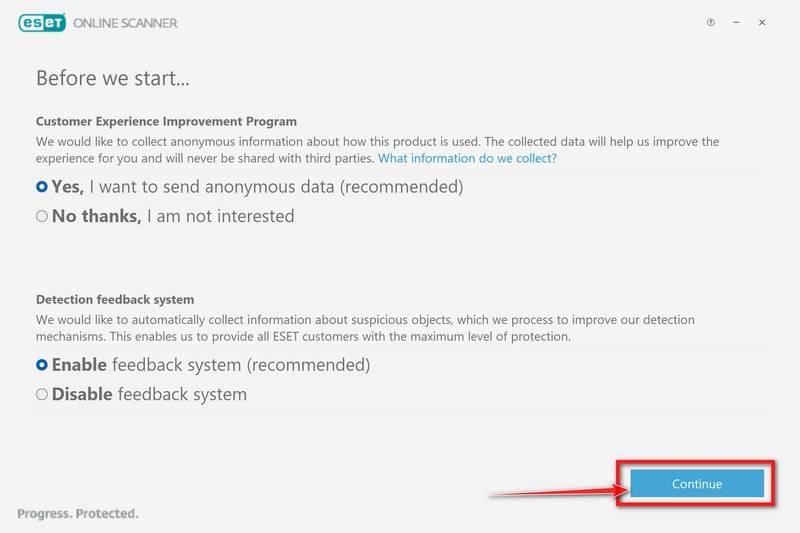
Choose your preferences for the Customer Experience Improvement Program and the Detection feedback system (either choice is fine), then click Continue.
-
Start a Full Scan
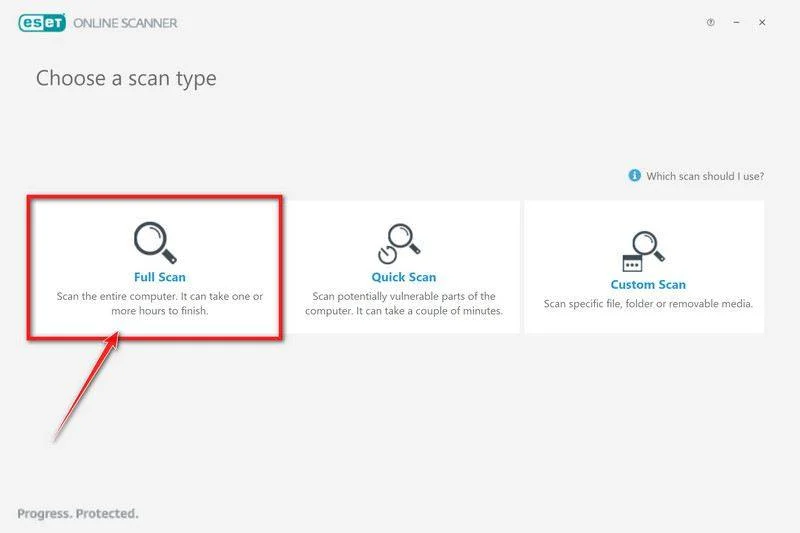
Click Full Scan for a broader check than the quick-scan option.
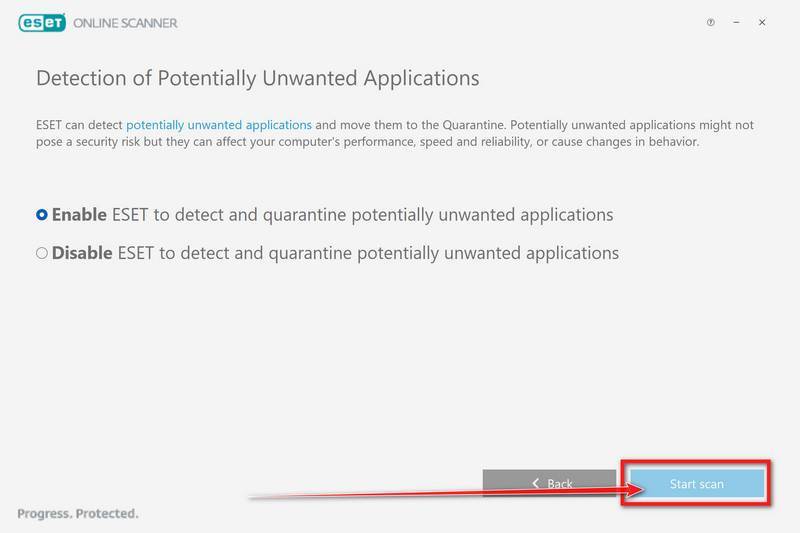
Select Enable for Detection of Potentially Unwanted Applications. Then click Start scan.
-
Wait for the Scan to Finish
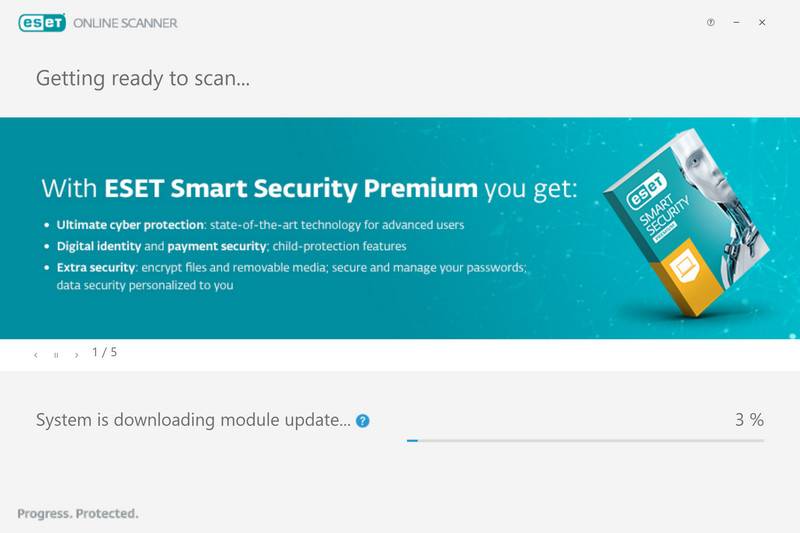
Allow the detection modules to download and update. The file scan begins afterward.
Leave the scan running until it finishes. A full scan can take an hour or longer, depending on your computer and the data being checked.
-
Review the Results
When the scan finishes, open View detailed results and check the action recorded for each detection.
ESET attempts to clean and quarantine detected threats. If an item remains unresolved, keep its details for assistance.
Click Save scan log to keep the results. Then click Continue.
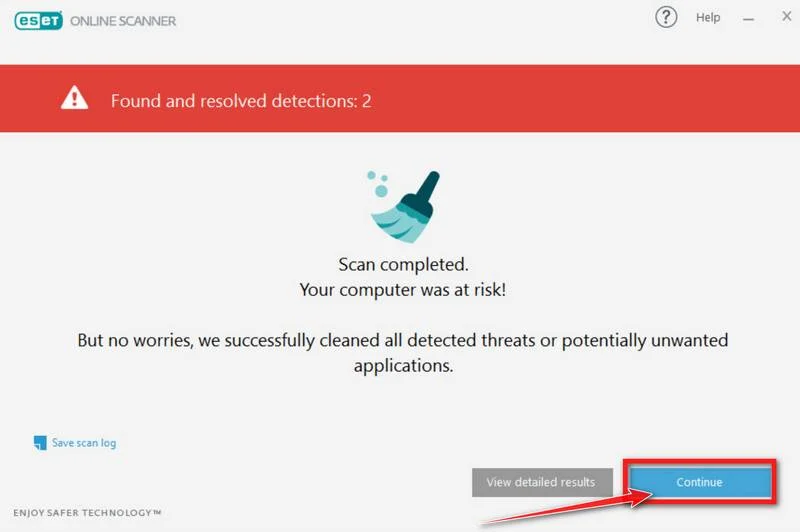
Restart if ESET requests it. Afterward, check whether detections or the original symptoms return.
If problems continue, keep the scan reports and ask for help in the MalwareTips removal forum. Do not repeatedly restore quarantined files.
Technical Details Worth Knowing
Local material unlocks the embedded payload
The analyzed loader needs an accompanying key file, key.ini. It reads and deletes that file while preparing the payload and its settings.
The configuration is written as Info.ini, then read by the core component and deleted. Those names describe analyzed artifacts, not safe targets for universal deletion.
The core continues in process memory
The loader decrypts the executable payload and loads it into its own memory. The loader’s on-disk file can then be removed through its self-deletion behavior.
A server handshake enables instructions and plugins
The core establishes its command relationship and accepts supported instructions. It can adjust timing, report responsiveness, and receive plugins that extend its behavior.
Critical-process behavior complicates improvised removal
JelusRAT supports a command that marks its process as critical. Terminating a process in that state can make Windows crash.
What an Organization Should Check About the Software Route
Identify the exact installed component, its approved source, version, and deployment time. Compare these with the vendor’s genuine communications and the organization’s software-management records.
A colleague receiving the same legitimate update is relevant context, not proof that their machine is also infected. Compare actual package and detection evidence.
If an update route is suspected, do not reinstall from that route before it is trusted again. Otherwise, a clean endpoint could receive the same compromised component.
Keep package copies and logs under the security team’s evidence procedures. Uploading business software to a public analysis service can disclose proprietary material.
WithSecure linked several tools and implants during its research. Their presence in a shared investigation does not prove that all were installed on every affected system.
What to Do If You Suspect JelusRAT
Separate the device from the network. Disconnect Wi-Fi and Ethernet. Continue any support discussion through an unaffected communication route.
Preserve the operating state when evidence matters. Tell responders about the alert before killing processes, deleting configuration files, or restarting a managed endpoint.
Collect the information already visible. Retain the detection report, software version, deployment history, and timestamps without reopening the suspected executable.
Restrict exposed access. Ask administrators to review credentials and sessions associated with the endpoint, particularly privileged accounts used during the suspected intrusion.
Use a deliberate remediation plan. The Windows scan instructions above suit personal devices. Enterprise systems may need forensic collection and rebuilding instead.
Check the source before restoring software. A clean installation is not durable if the same compromised delivery path is still being used.
Why a Restart or a Missing File Is Not the Whole Answer
Restarting can end a particular memory-resident process. It does not tell you what else executed, whether credentials escaped, or whether another component can restore access.
After cleanup, compare new alerts and software activity with the original incident. Repeated detections need explanation before the machine resumes sensitive use.
Ask about account scope separately from device scope. An administrator can revoke exposed sessions while a technical responder investigates the Windows installation.
Where trust cannot be established, plan a rebuild using known-good media and essential document backups. Preserve evidence first and understand that rebuilding can erase applications and data.
Restore business software only through a verified route. Do not copy executable components wholesale from a suspect system image merely because that is quicker.
Frequently Asked Questions
What is distinctive about JelusRAT?
Its documented loader prepares an in-memory payload, uses temporary configuration material, and supports additional plugins. Those stages complicate cleanup based on a single visible file.
Can I delete every key.ini or Info.ini file?
No. Those names are sample clues, not a deletion list. Their path, related process, and connection to the confirmed threat must be established.
Why should I avoid force-ending its process?
The RAT can mark itself critical, making termination crash Windows. Obtain suitable remediation help instead of experimenting with unfamiliar processes on an important machine.
Does JelusRAT definitely record my webcam or encrypt files?
The original researchers did not obtain its plugins. Do not treat hypothetical plugin behavior as a confirmed inventory of surveillance or encryption functions.
Was every ERP customer infected?
No such conclusion follows from the report. It assessed a software-delivery compromise but did not establish the campaign’s full scale or impact.
Will restarting permanently remove the infection?
A restart alone is not a complete remediation plan. Investigate delivered components, the installation route, and exposed access before relying on the device again.
The Bottom Line
Do not treat a vanished loader as proof that JelusRAT is gone. Contain the computer and avoid blind process termination or broad configuration-file deletion.
Complete evidence-aware cleanup or a planned rebuild, recover exposed access, and verify the software route before reinstalling components from the same source.

Join the discussion
0 commentsShare your experience or ask a question about this article.
Your progress
Did these steps help?
Let us know how the guide worked for you.
Describe what you see and the step you reached. Keep passwords and other private information out.
Discussion
Start the conversation
Have a question or something useful to share? Add the first comment.