


A familiar WhatsApp contact sends a work document, then asks you to open it on your computer. The request sounds ordinary enough to interrupt your day.
Before you try the attachment again, separate what happened in the conversation from what happened on your computer. Those details determine your next steps.
Overview
The request comes through a familiar conversation
Singapore Police warned about malicious WhatsApp attachments arriving from compromised accounts belonging to people recipients knew. Some messages asked recipients to involve their finance managers.
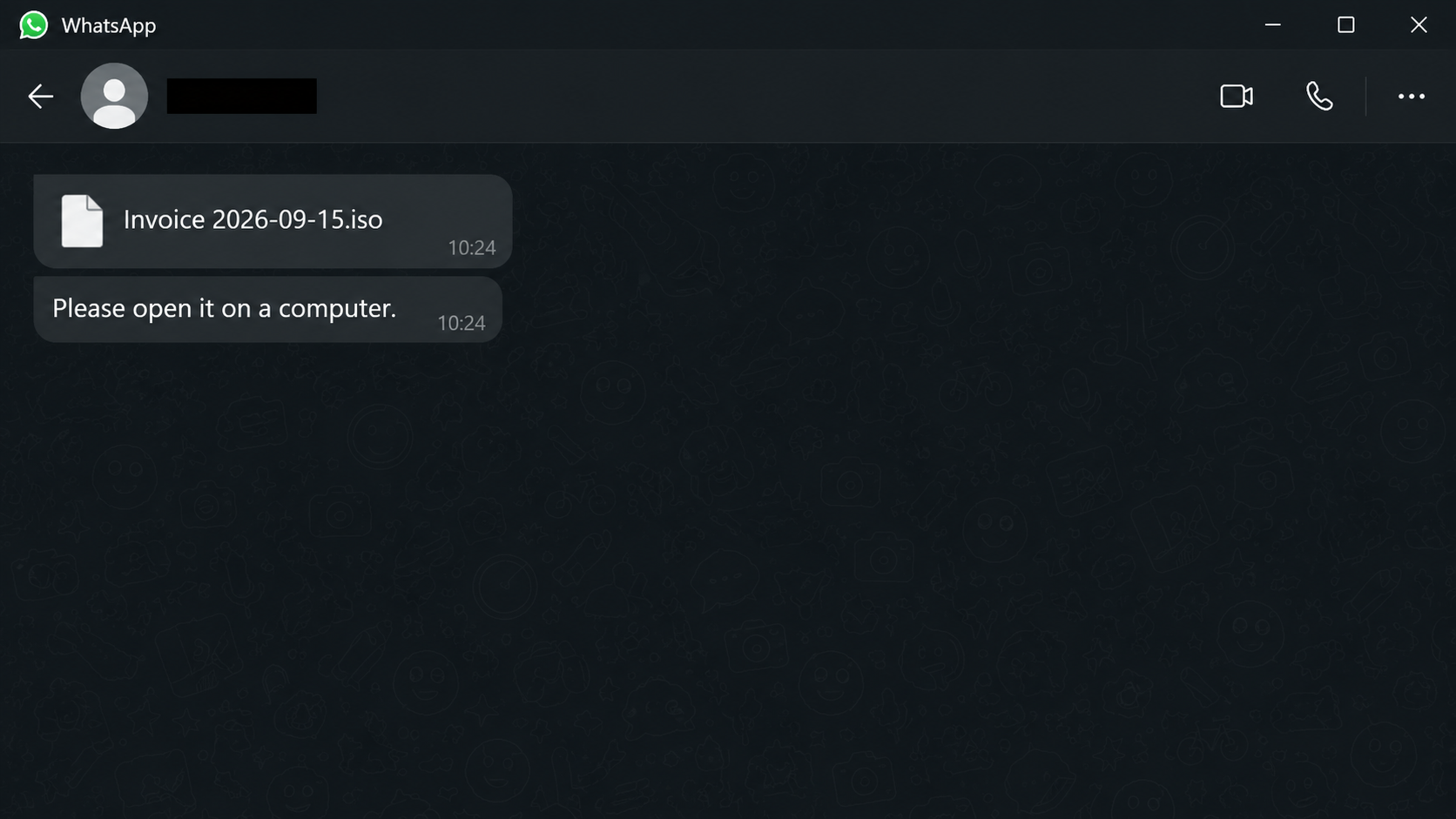
Reported filenames included Invoice 2026-09-15.iso, Statement of Account_54d3.zip, and Salary Revision.rar. A businesslike filename does not establish what the file actually contains.
The computer and the account need separate attention
The advisory described malware capable of recording keystrokes, taking screenshots, and contacting an external server. It also reported WhatsApp account takeovers and messages spreading onward.
The police warning reported no monetary losses at publication. That finding does not make an exposed account or computer safe.
This guide provides a Windows cleanup route
The warning concerns computers without identifying a malware family or limiting the campaign to Windows. The illustrated procedure below specifically addresses a personally owned Windows PC.
- Merely receiving a message does not establish that your computer became infected.
- Opening or running suspicious files warrants a closer review of the affected computer.
- Unwanted outgoing chats require account recovery alongside any necessary device cleanup.
- Company equipment belongs with your security team before consumer removal tools change evidence.
Remove Suspected WhatsApp Document Malware From Windows
If this is a work computer, stop here and contact your IT team through a trusted channel. Tell them exactly which attachment you opened.
On a Mac, obtain Mac-specific removal help instead of following Windows installation instructions. Downloading a Windows scanner will not clean another operating system.
Step 1: Contain the exposure and preserve useful details
Disconnect the affected computer from Wi-Fi or unplug its network cable. Stop using it for banking, password changes, private documents, or business approvals.
Use a separate, trusted device for urgent account protection. A suspected keylogger could capture replacement passwords entered on the same compromised computer.
Record the sender, time, attachment name, and what you clicked. Keep a screenshot of the conversation without publishing contact details or passing the attachment around.
Tell your IT team before restarting company equipment or deleting files. They may need running-process evidence that disappears after changes.
For a personal PC, avoid repeatedly opening the file to investigate it. A document that failed to display can still have launched something else.
Step 2: Obtain the legitimate Windows installer
Use the established download route below, not a repair link sent in the conversation. Malwarebytes offers manual scanning and quarantine without requiring paid real-time protection.
Download the Malwarebytes installer for Windows
If the direct download does not start, use the alternate Malwarebytes download page. Check the destination before downloading another installer.
If the affected PC cannot download safely, use a clean computer to obtain the installer. Transfer only that known installer, avoiding shared folders containing suspicious attachments.
Brief connectivity may be necessary for installation or security updates. Keep WhatsApp and other sensitive sessions closed; seek help if malware appears to block security tools.
Do not disable Windows protections, install a supposed codec, or approve unrelated remote access to make the document work. Those changes expand the original exposure.
Step 3: Install Malwarebytes without unnecessary extras
Open Downloads and locate the MBSetup installer you deliberately obtained. Double-click it, then approve the Windows permission prompt only when it identifies Malwarebytes.

Choose Install in the setup wizard. Select Personal for your household computer, then continue with Next; company-owned machines should already be with their administrator.
Read optional product screens before continuing. Skip offers you do not need, then use Open Malwarebytes when installation finishes.
A subscription activation screen is not a requirement to buy protection for this cleanup. Follow the available free-use path or consult official support if it differs.
The tutorial images illustrate the relevant controls, not a scan of this WhatsApp campaign. Detection names and counts on your computer will differ.
Step 4: Run a free Custom Scan and review its findings
Open Malwarebytes and allow available protection updates to finish. Its free-feature list includes Custom Scan, so a subscription is not needed for this route.
On Windows, open the Scanner tile’s three-dot menu and choose Advanced Scan. In the window that opens, select Custom Scan.
Under Configure Custom Scan, expand the file list using its arrow. Check the system drive, usually C:, rather than scanning only the downloaded attachment.
If the attachment was saved or extracted elsewhere, select that location too. Do not connect backup drives merely to include additional files.
Keep potentially unwanted programs and modifications set to be treated as malware. Select Start Custom Scan, then leave the suspicious attachment closed while scanning finishes.
Use the Windows Custom Scan instructions if your controls differ, rather than buying protection just to find a scan option.
Afterward, review detected objects and their locations, then save the scan report. A clean result from selected locations does not settle every possible exposure.
If your existing license or trial offers Threat Scan, that is another option. The older tutorial image shows its dashboard Scan control, not the Custom Scan menu.

Step 5: Quarantine detections and complete any requested restart
Malwarebytes may quarantine threats automatically after detection. If threats remain selected for action, choose Quarantine rather than ignoring them or adding the attachment to an allow list.

Quarantine separates detected objects from normal use. It does not restore information already stolen or cancel sessions an attacker established elsewhere.
If a detection seems mistaken, preserve the report and request qualified help before restoring it. Familiar filenames alone cannot establish that detected content is trustworthy.
Restart when the application requests it to finish removal. Afterward, open Malwarebytes again and check the report for actions that remain incomplete.
Do not promise yourself that one clean result settles everything. Reappearing detections, suspicious outgoing messages, or continued abnormal behavior require additional investigation.
Step 6: Resolve remaining symptoms before returning to normal use
Keep the attachment closed after scanning. Once evidence is no longer needed, remove its downloaded copies rather than extracting them again for another attempt.
Update Windows, your browser, and WhatsApp through their normal trusted update mechanisms. Updates reduce future exposure but cannot retroactively remove stolen information.
Do not randomly delete system files, run registry-cleaning commands, or uninstall applications solely because their names are unfamiliar. These actions can create unrelated failures.
If problems persist, use the Windows malware removal help forum and describe the attachment incident, detections, and attempted repairs.
Share diagnostic reports through the helper’s approved process, checking them for personal information first. Never publish passwords, registration codes, complete bank details, or private conversations.
High-impact compromise can warrant professional assessment or a carefully planned rebuild. Preserve legitimate documents separately, and do not restore unknown programs from a questionable backup.
Optional paid prevention is separate from these cleanup steps. Malwarebytes Premium adds protection features, but buying it does not recover an account.
MalwareTips may earn a commission through the linked Malwarebytes product pages. You do not need a purchase to follow the manual scan and quarantine procedure.
What to Do if Your WhatsApp Account Was Compromised
Complete account checks on a trusted phone or computer, not the suspect PC. Work through the actions that match what actually happened to you.
-
Review linked devices if you still have access. Open WhatsApp on your primary phone and find Linked devices in its settings or main menu.
Select an unfamiliar session and choose Log out. Also disconnect the affected computer while it remains under investigation, even when that session is genuinely yours.
Use WhatsApp’s device-unlinking guidance if you cannot find the control. Signing out of one browser does not inspect every other linked device.
-
Re-register your number if somebody has taken over. Follow the official app’s recovery process, using the verification method offered for your own number.
Never give a registration code to somebody claiming to help. Follow WhatsApp’s compromised-account instructions if an unfamiliar two-step PIN blocks recovery.
An unknown PIN can introduce a waiting period. Do not pay anyone promising to bypass it, and never share your screen while verification codes appear.
-
Warn contacts using another communication route. Explain that unexpected files or borrowing requests from your account should not be trusted until you confirm them separately.
Tell anyone who forwarded the attachment to stop distributing it. A short warning to the relevant team is more useful than sending everyone the suspicious file.
-
Secure accounts used on the affected computer. Prioritize email, banking, password management, and work access, especially if you entered secrets after opening the attachment.
Replace exposed passwords from a trusted device, review available sessions, and remove unauthorized access. Ask your employer to revoke work sessions instead of improvising administrative changes.
Enable appropriate multifactor protection after regaining control. Stronger future sign-in checks do not erase information somebody already copied from a compromised endpoint.
-
Handle financial exposure separately and promptly. If an unauthorized transfer occurred or a contact sent money, notify the relevant bank using a verified contact route.
Provide transaction references, timing, and the communication trail. Ask about the available response without assuming that malware removal guarantees reimbursement or reverses a completed transfer.
-
Keep a short incident record for follow-up. Note recovery actions, security alerts, suspicious recipients, and unresolved symptoms so you can recognize continuing misuse.
Report the incident to the appropriate local authorities. In Singapore, follow official police reporting channels; elsewhere, use your jurisdiction’s legitimate fraud or cybercrime service.
How the WhatsApp Work-Document Scam Works
The illustration near the beginning reconstructs the attachment request rather than reproducing a victim’s conversation. The important clues are the file type and the computer-opening request.
Step 1: A known account supplies borrowed trust
An existing conversation can make an unusual request feel routine. Recipients may recognize the account without realizing that somebody else is controlling it.
That is why checking only the profile picture or previous messages is insufficient. Confirm an unexpected file through a separately initiated call or established business channel.
Step 2: A work-related filename creates a reason to continue
Invoices and payroll documents give the recipient a plausible task. An archive or disk-image extension can hide behind the more familiar business words preceding it.
ZIP and RAR identify archives, while ISO commonly identifies a disk image. These formats are not inherently malicious, but their labels provide no assurance about their contents.
Downloading, extracting, mounting, and running a file are different actions. Describe which occurred when requesting help instead of assuming every attachment interaction has identical consequences.
Step 3: The request moves the task onto a computer
Moving a conversation into a business workflow changes who may encounter its files. Verify the request before involving another colleague who handles sensitive information.
A request to disable protection or bypass a warning would be an additional reason to stop. You do not need to complete the task to verify it.
Step 4: Device access can become further impersonation
Once malicious code runs, information exposed on that device may become accessible. Account misuse then gives the attacker another credible channel for approaching other people.
This explains the two separate recovery tracks above. Removing local software addresses one part of the incident; recovering account access interrupts further impersonation.
Recognize the Point Where Routine Work Becomes Risky
Check the request rather than challenging the contact
You can verify a file without accusing a colleague of wrongdoing. Ask which document they intended to send and whether your organization expected that file format.
Use a phone number or channel already held in your records. A contact detail supplied inside the suspicious message may simply return you to its sender.
Do not treat silence as a security verdict
A missing document window, frozen application, or ordinary-looking screen cannot confirm infection. Equally, the absence of an obvious error does not establish that execution was harmless.
Useful evidence includes the exact file action, a genuine security detection, unexpected sessions, or independently reported outgoing messages. Keep those observations separate from guesses about attribution.
Keep recovery helpers away from your secrets
A stranger offering account recovery may request codes, advance payment, or remote control. None of those requests becomes trustworthy because the original incident frightened you.
Use official account recovery and established technical help. A legitimate helper can explain what a diagnostic report contains without demanding your passwords or private verification codes.
Frequently Asked Questions
Does receiving the WhatsApp attachment mean I am infected?
Receiving a message alone does not establish infection. What happened after delivery, particularly opening or running its contents, determines the appropriate computer checks.
Is this a WhatsApp application vulnerability?
The police advisory describes malicious files and compromised accounts. It does not identify a WhatsApp software vulnerability as the entry point.
Will reinstalling WhatsApp remove malware from my computer?
Reinstalling the messaging application is not a complete endpoint cleanup. Investigate the computer separately, then address account sessions and any exposed credentials.
Can a clean scan recover stolen information?
A scan cannot retrieve information already copied elsewhere. You still need relevant account protection, contact warnings, and financial follow-up when exposure warrants them.
Should I use these Windows instructions on my Mac?
Use a procedure and installer matching your operating system. These illustrated Windows steps are not a claim that other computer platforms cannot be targeted.
Should I forward the attachment so someone can check it?
Do not distribute suspicious attachments through ordinary chats. Ask your security team or qualified helper for its safe evidence-submission process instead.
The Bottom Line
Do not open an unexpected work attachment simply because it arrives through a familiar WhatsApp account. Verify the request through another trusted route before proceeding.
If you already opened it, contain the affected computer and follow the appropriate cleanup path. Recover your WhatsApp access separately and warn contacts about further impersonation.
A useful recovery ends with both problems addressed: a properly assessed device and account access back under your control, not just a deleted conversation.

Join the discussion
0 commentsShare your experience or ask a question about this article.
Your progress
Did these steps help?
Let us know how the guide worked for you.
Describe what you see and the step you reached. Keep passwords and other private information out.
Discussion
Start the conversation
Have a question or something useful to share? Add the first comment.