


A new tab opens by itself, pushclk.com flashes in the address bar, and the page jumps somewhere else. Or an offer you never asked for pops up as a notification.
Pushclk.com is part of the machinery behind those push notification ads. You can stop them in minutes, and a visit to the domain doesn’t mean your device is infected.
Overview
A tracker for push notification ads
Its earliest archived homepage, from 2019, described the business as push notification advertising that helps publishers earn money by delivering targeted ads.
Why the address flashes past
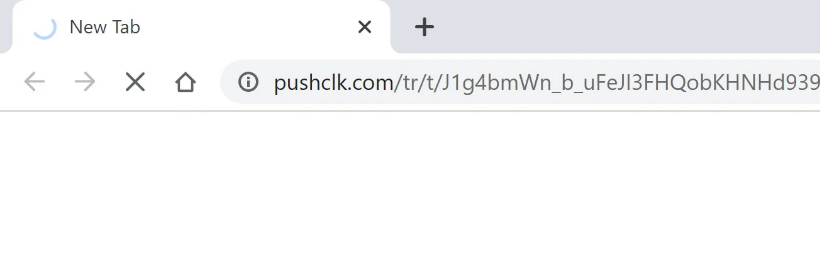
Addresses that start with pushclk.com/tr/t/ are click links. Each one counts the click and sends your browser on to an advertiser or another ad network within seconds.
What actually stops the alerts
The alerts come from a website that someone using your browser allowed to send notifications. Blocking that site ends them. Scanning is only needed if something keeps coming back.
- Find the website named on the notification and block it in your browser’s notification settings.
- Don’t click Allow on pages that ask you to prove you’re human or to press play.
- Close any page a notification opens without entering personal or card details.
- Check extensions and apps only if alerts or tabs return after that.
What Is Pushclk.com?
Pushclk.com is an advertising domain, not a website with something to sell. Today its home page loads as a blank sheet with no title and no text.
Nothing there is meant for visitors. The domain does its work through tracking addresses under /tr/, which people reach through ads rather than by visiting it.
The domain was registered through GoDaddy in February 2019 and is paid up until February 2027. It runs behind Cloudflare, with security certificates renewed as recently as September 2026.
In August 2019, archived copies show a simple homepage titled Push Ads, with a sales pitch to publishers and advertisers and a contact link, but nothing for ordinary visitors.

The same page loaded a script called push.js and asked visitors to subscribe to notifications. So even the network’s own front page tried to collect permission to send alerts.
Tracking links on the domain were archived from 2020 through 2025, plus three in February 2026. The domain still works, even with nothing on its home page.
What Is test.pushclik.com?
People also search for test.pushclik.com and test pushclick com. These are different spellings, and they point to different domains.
Pushclik.com, with an i, was registered in July 2024 through a different registrar. Its main address loads no website, and the test.pushclik.com host answers with a plain Not Found message.
Certificate records show pushclik.com certificates renewed regularly since 2024. Nothing public shows who runs it, and no record ties it to pushclk.com beyond the similar spelling.
Pushclick.com, spelled out in full, is an older domain registered in 2003. It shows no website, and test.pushclick.com doesn’t exist at all.
If any of these names appears in your browser’s notification list, the fix is the same. Remove it, along with any other site you don’t recognize.
How Pushclk.com Push Ads Reach Your Screen
Step 1: A website asks to send notifications
The process starts on another site. A box asks to show notifications, sometimes dressed up as a robot check or a play button.
Step 2: One click on Allow
Clicking Allow gives that site, and the ad network behind it, permission to send alerts through your browser. Nothing is installed, so no warning appears.
Step 3: Alerts arrive outside the page
The notifications show up in the corner of your screen or in your phone’s notification shade. They can arrive hours later, after the page is long closed.
Step 4: A click passes through pushclk.com
Tapping one of these alerts can open a pushclk.com/tr/t/ address in a new tab, like the one pictured above. The network logs the click and forwards you.
Where Pushclk.com Clicks Lead
The click links don’t show their destination, but archived copies record where several of them went. The mix explains why these alerts are hard to judge at a glance.
- In 2021 and again in 2024, clicks led to offer pages on the same random-looking .icu domain. The 2021 link carried the campaign tag cashapp-750.
- Other 2021 clicks went to a third-party tracker whose campaign names included push and btc.
- In 2023 and 2024, three clicks went through Taboola to ordinary ads, including a life insurance article for seniors and business phone quotes.
- Two later clicks, in 2024 and 2025, were handed on to other push ad systems.
Some destinations were mainstream advertisers. The .icu links carried empty name, email and ZIP code fields in the address. That’s no place to type your personal or card details.
You can’t tell which one you’ll get before clicking. That’s the practical reason to block the alerts rather than sort through them one at a time.
Is Pushclk.com Dangerous?
Pushclk.com isn’t a virus, and it can’t install anything by itself. It’s a redirect step inside an advertising system.
The risk comes from the pages it sends you to. A reward offer may ask for your phone number or card details, and a fake update may push a download.
Push alerts are also easy to disguise. They can be styled to look like system or security warnings, even though they come from a website.
Chrome says it automatically blocks notifications from sites with intrusive or misleading alerts. That protection helps, but new sites appear faster than any blocklist can catch them.
If you only saw a pushclk.com tab and clicked nothing on the page it reached, closing the tab is enough. If alerts keep arriving, remove the permission below.
How to Remove Pushclk.com Notifications
Use the steps for the browser and device where the alerts appear. You don’t need to work through every step on every device.
Permissions are stored separately for each browser and each profile. If you use two browsers, or share a computer, check each one.
Step 1: Remove the sender in Google Chrome
This works in Chrome on Windows, Mac and ChromeOS. Select the three-dot More menu at the top right, choose Settings, then Privacy and security, Site settings and Notifications.
Read the Allowed to send notifications list. Next to any site you don’t recognize, open its three-dot menu and choose Block.
Pushclk.com may not be on that list, since its addresses mostly handle clicks. Look for the website named on the notification itself, and block that one.
Google’s help page adds a second check. Go back to Site settings, open Pop-ups and redirects, and block any unfamiliar site listed under Allowed to send pop-ups and use redirects.
Step 2: Block the site in Microsoft Edge
Open Settings and more, the three dots in the top-right corner, and select Settings. Go to Privacy, search, and services, then Site permissions, then All sites.
Pick the website that sends the alerts. Find its Notifications setting and choose Block from the drop-down menu.
Microsoft notes that Edge notifications appear in the lower-right corner and in the notification center, and that they keep coming even when Edge is closed.
Step 3: Revoke the permission in Firefox
Open the menu button and choose Settings. Select Privacy & Security on the left (Permissions and data in some newer versions), then scroll to the Permissions section.
Click the Settings button next to Notifications and select the unwanted website from the list.
Remove Website revokes the permission but lets the site ask again later. Choosing Block from its Status menu stops it from asking at all. Click Save Changes when you finish.
Step 4: Turn off website alerts in Safari on a Mac
Choose the Apple menu, then System Settings, and click Notifications in the sidebar. Under Application Notifications, click the website and turn off Allow Notifications.
Apple says the site stays in that list afterward. To take it off completely, open Safari, choose Safari, then Settings, click Websites, then Notifications, and deny the site.
While you’re there, deselect Allow websites to ask for permission to send notifications. Safari then stops showing the request on every site you visit.
Step 5: Stop the alerts on an Android phone
Open Chrome, tap More to the right of the address bar, then Settings, Site settings and Notifications. Find the site that sends the alerts and block it.
If Chrome flags an alert as deceptive or spam, tap Unsubscribe on that notification. Google then offers Report spam to Chrome, which sends the alert and its address to Google.
On some phones, you can also swipe down, find the alert and tap Unsubscribe straight from the notification shade.
Samsung Internet, Firefox and other Android browsers keep their own lists. Look for site permissions or notifications in that browser’s settings and remove the site there as well.
Step 6: Stop web app alerts on an iPhone or iPad
On an iPhone, a website added to the Home Screen as a web app can send alerts. Apple says you receive notifications from web apps like any other app.
Open the Settings app, tap Notifications, then tap the web app under Notification Style. Turn off Allow Notifications. Deleting the web app’s icon from the Home Screen also works.
Step 7: Check extensions and apps, and scan only if the alerts keep returning
If alerts or new tabs continue after the browser steps, look for an add-on or app you didn’t knowingly install.
In Chrome, open the menu, then Extensions and Manage Extensions. In Edge, choose Extensions from the menu. In Firefox, open Add-ons and themes. Remove anything unfamiliar.
On Android, go to Settings, then Apps, and uninstall apps you don’t remember adding.
A scan is optional for push alerts. It makes sense when an unknown program, extension or app keeps reappearing after you remove it.
- Windows: Malwarebytes Free checks for adware and unwanted programs.
- Mac: Malwarebytes for Mac includes a free scan.
- Android: Malwarebytes for Android reviews installed apps.
Paid real-time protection isn’t required to clear notifications. If you want it anyway, see Malwarebytes Premium for Windows or Malwarebytes Premium for Mac.
Still stuck? Volunteers answer for free in our Windows, Mac and mobile malware removal forums.
Before You Reset Your Browser
A full browser reset is rarely needed for push alerts. Blocking the sender is faster and keeps everything else as it was.
If you do reset, know what you’ll lose first. Google says a Chrome reset restores the default search engine, homepage, new tab page and startup tabs, and unpins tabs.
It also clears content settings, cookies and site data, and turns off extensions and themes. Bookmarks and saved passwords stay, but you’ll be signed out of many websites.
A reset applies on every device signed in to your Chrome profile. First confirm you can sign back in to key accounts, and export your bookmarks.
Our Firefox refresh guide explains the Firefox version of a reset and what it keeps.
What to Do If You Clicked a Pushclk.com Notification
- Close the page that opened, and don’t install any update, extension or app it offers.
- Block the website that sent the alert, using the steps for your browser above.
- If you installed something from the page, uninstall it from your extensions page or your device’s app settings.
- If you typed a password on that page, change it on the real website and turn on two-step verification.
- If you entered card details, call your card issuer, ask about blocking the card and watch your statement for unfamiliar charges.
- If you shared your phone number or email, expect follow-up texts and calls, and don’t answer prize or delivery messages from unknown senders.
How to Keep Push Ads From Coming Back
- Treat a page that says click Allow to continue as an ad, never as a check.
- In Chrome, turn on quieter messaging, so sites can’t interrupt you with permission pop-ups.
- In Firefox, select Block new requests asking to allow notifications in the Notifications settings.
- Look over your allowed notifications list every few months and remove what you don’t use.
- Consider an ad blocker such as AdGuard to cut down on redirecting ads.
Chrome also prunes old permissions. Google says it may remove notification permission from sites you haven’t visited in a while, and it reminds you to review the rest.
Other Push Ad Domains We Have Covered
Pushclk.com is one of many domains behind push notification ads. The names change, but the permission they depend on is the same.
Our guides to Beklefkiom.com notifications and Pu4.biz pop-up ads cover two other notification domains, including the iPhone server warning tied to Pu4.biz.
Our Iadispatcher guide covers redirects that hijack ordinary searches, which call for different checks than notification alerts do.
Frequently Asked Questions
Is pushclk.com a virus?
No. It’s an advertising domain that tracks clicks on push notification ads and forwards you to the advertiser. The pages it leads to can be risky.
What is test.pushclik.com?
It’s a host on pushclik.com, a separate domain registered in July 2024. It shows only a Not Found message, and no record links it to pushclk.com.
Is pushclk.com the same as pushclick.com?
No. Pushclick.com is a separate domain registered in 2003, with no website and no visible link to the ad tracker, which uses the short spelling pushclk.
Why did pushclk.com open in a new tab by itself?
Most likely you tapped a push notification, or a page you visited opened an ad. The pushclk.com address records that click and forwards you within a second or two.
Do I need antivirus to remove Pushclk.com?
Usually not. Blocking the website that sends the alerts fixes most cases. A scan helps when an unknown extension, program or app keeps coming back.
Is pushclk.com still active?
Yes. The domain is registered until 2027, its certificates were renewed in 2026, and its click addresses still respond, even though the home page is blank.
The Bottom Line
Pushclk.com is a click tracker for push ads, not malware. Don’t click the alerts that lead to it, and never enter personal or card details on the pages they open.
Block the website named on the notification in your browser settings, and its alerts stop. Check extensions and apps only if they come back, and treat scanning as optional.
If you already typed a password or card number on a page it opened, change that password now and call your card issuer today.

Join the discussion
0 commentsShare your experience or ask a question about this article.
Your progress
Did these steps help?
Let us know how the guide worked for you.
Describe what you see and the step you reached. Keep passwords and other private information out.
Discussion
Start the conversation
Have a question or something useful to share? Add the first comment.