


You can close an installer and get back to work without ever learning what it did. The first thing that interrupts your day may be a sign-in alert somewhere else.
Put the installer aside before you try to explain that alert. Your download history and the affected account can tell you more without another attempt at setup.
Overview
What SantaStealer is designed to take
SantaStealer is a Windows information stealer. Rapid7 analyzed samples and linked the operation to an earlier project called BluelineStealer, a useful alias when comparing alerts and reports.
An information stealer is more interested in what your computer can already access than in making it visibly unusable. Windows can look ordinary while account information is at risk.
The researchers reported collection related to browsers, communications apps, and cryptocurrency wallets. What was present on the affected computer matters more than a list of every supported application.
A message from a game account, an unknown email session, and a wallet transaction call for different checks. You don’t have to wait to establish one to report another.
One reported lure involved a recording-software download
A reported November 2026 campaign used a site posing as a source for RØDECaster software. Someone looking for equipment controls or a setup app could land on the wrong page.
That concerns a deceptive copycat download, not the official RØDE distribution channel. If you own the hardware, use the product page you can reach from RØDE’s real website.
The fake source is one example, not a universal SantaStealer delivery route. A security detection with this name needs investigation even if you never looked for recording software.
If the only thing you did was visit an unfamiliar result, that’s different from opening its installer. Check whether there is a download you don’t recognize without running it.
If you didn’t get the file yourself, the person who sent it may only remember what they searched for.
Ask them to look up the existing download record, not search from scratch.
Account cleanup starts with the services you actually used
- Start with the main email account that can reset passwords elsewhere.
- Check any browser profile that stored work, personal, or household access.
- Review messaging and gaming accounts if another person saw activity you didn’t initiate.
- Contact your wallet or exchange independently if it was accessible during the incident.
- Report any unfamiliar business payout to the processor and the person responsible for the account.
If Windows protected several family members’ profiles, tell them what happened. Don’t rotate every credential from the affected computer simply because their saved logins are convenient to reach there.
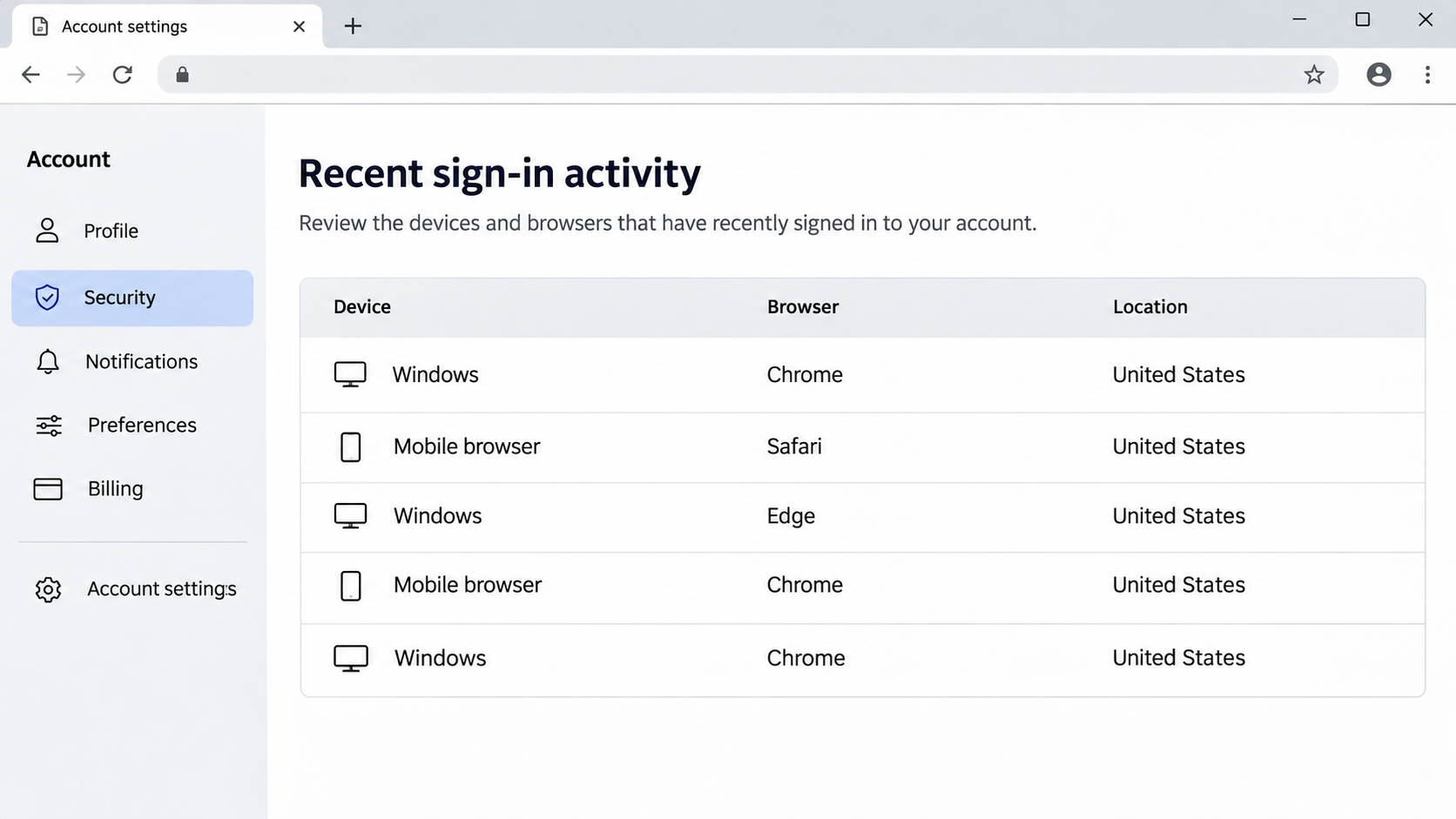
The sign-in view shown here is a general reconstruction. Check each account’s own device history rather than trying to match the illustration to a particular provider.
How the SantaStealer Infection Happens
Step 1: The download looks like the one you wanted
In the reported recording-software lure, the visitor already had a reason to find the software. A plausible product name in search doesn’t authenticate the company behind a download.
Start with the maker’s official support or downloads page.
If your product offers several tools, find the one for that exact model before trusting a stand-alone installer with a familiar label.
If you got the file through a workplace share, ask who put it there and where it came from.
The place where you downloaded it may not be its original source.
Step 2: Running the program creates a device incident
Depending on the campaign, the unsafe item can be packaged as something the user expects to run. Receiving a link or saving an installer isn’t equivalent to executing it.
If you opened the program and an installation prompt appeared, remember what you selected. A scan alert and a half-finished setup are both useful details for support.
You might not see the expected application afterward. Don’t run the original download again to settle whether the installer finished its advertised job.
Step 3: The stealer can look for information you already stored
Rapid7’s findings included browser-related information and wallet targets. A browser can remember sign-ins and autofill details even if you never used them while the installer was visible.
One kind of exposure involves a password someone can try again. Another involves a saved session, the piece of information that lets an account stay signed in after authentication.
The action you need depends on the service. Some have a dedicated session list or sign-out-everywhere control, while others ask an administrator or support agent to end access.
Step 4: The consequences may turn up on another device
If copied data is used, you may notice something while checking your inbox on your phone, not while sitting at the affected Windows computer.
An unfamiliar reset notice, recovery address, purchase, or outbound message deserves its own follow-up. It does not by itself identify the exact program or prove the full extent of exposure.
Keep any warning you already received, then open the service directly. A fake follow-up can look convincing when you are expecting to hear about unauthorized activity.
What to Do if You Think SantaStealer Ran on Windows
-
Stop using that PC to sign in. Disconnect Wi-Fi or Ethernet if you suspect the installer ran. Change over to another known-clean device for urgent work.
If the PC belongs to an employer or coworking studio, tell its administrator what happened before restarting or removing software. It may be able to check records you can’t see.
-
Save the timeline without reopening the download. Note the software you wanted, the installer name, when you ran it, and what Windows or your scanner reported.
If someone else downloaded it from a shared link, warn them not to open it. Send the name or screenshot without sending the executable itself.
-
Protect primary email and recovery settings. Go directly to the email provider you use.
Change potentially exposed credentials and review the addresses, devices, or methods that can be used for recovery.
Check recent sessions and end unfamiliar access where the service allows it. A reset notice may point to a second account that needs the same review.
-
Check the services the computer was actually signed in to. Review messages sent from your accounts, connected apps you didn’t authorize, and data or settings changed without your involvement.
Ask an administrator about business mail rules and shared records. If other accounts used the same password, change each one separately rather than choosing a common replacement.
-
Take money-related alerts to the responsible provider. Use the bank, exchange, or wallet maker’s independent support route. Tell it which access could have been exposed and which transactions look wrong.
A suspect wallet recovery phrase cannot be protected simply by moving its app to another computer. Without sharing the phrase, ask the wallet maker for its official compromise procedure.
-
Preserve evidence of activity that arrives later. Record the time, service, transaction identifier, or support case number on the clean device.
Don’t assume a paid service that offers to recover everything can reverse bank or blockchain transfers. Check the legitimate support channel before acting on new offers.
How to Remove SantaStealer From Windows
Step 1: Read the alerts Windows already recorded
Select Start, search for Windows Security, and open it. Under Virus & threat protection, choose Protection history and inspect entries around the time the program ran.
Use Microsoft’s Protection History explanation to tell a blocked file from a threat still requiring action. Don’t select Allow or Restore as a test.
If another antivirus reported the incident, review that tool’s history as well. Write down its detection name and affected location before dismissing the notification.
Step 2: Check actual installed software and startup entries
Open Settings > Apps > Installed apps on Windows 11. Compare recently added entries with what you intended to install, and leave unrelated items alone.
In Settings > Apps > Startup, look for confirmed unexpected software. If a component is unfamiliar but you can’t connect it to the incident, get help before disabling it.
After you preserve any evidence you need, remove the confirmed unwanted installer from Downloads on a personal computer. On a work PC, ask IT to make that decision.
Step 3: Install the verified Windows scanner
Use the Malwarebytes installer for Windows rather than another result promoted alongside the suspect software.
Download it from a clean system if support recommends that you keep the PC offline. Open only the verified installer and follow the setup screens.
Keep the normal Windows security configuration in place. If an unexpected screen tells you to switch protection off, stop and verify which installer is open.

Step 4: Review scan findings and handle any requested restart
Open Malwarebytes and select the Scan control on its dashboard. Let the scan finish and inspect the items reported, including any applications you did not expect.
Quarantine confirmed threats and save the report details if you need follow-up. If there are no findings, keep your account checks active rather than treating that result as a reversal.
When the tool asks for a restart, follow the prompt on a personal PC after saving your work. Then recheck detections rather than trying to recreate the original installation.

The optional Malwarebytes Premium option is an affiliate link. It offers ongoing protection, not a remedy for access already taken from the computer.
Step 5: Reestablish a known starting point
Install Windows and browser updates using their built-in update routes. Check whether the original application is available directly from its developer before reinstalling it.
If an alert returns or there was sensitive business exposure, don’t keep using the computer for logins. A technician or the MalwareTips support forums can help review the next option.
If rebuilding is necessary, first verify which backups were made before the incident. Restore trusted documents carefully rather than automatically bringing back every installer or browser profile.
Step 6: Check the next sign-in separately from the scan
On the clean device, confirm which services finished invalidating unfamiliar sessions. Record the services that ask for another step, such as a connected app review or an administrator’s action.
If you received suspicious messages at work, send a correction from a verified channel once the account is safe. Tell recipients how to confirm any payment instruction with you independently.
Don’t put new passwords into the browser on the affected PC until you have a reasonable basis to trust it again. Keep the recovery records somewhere you can still reach.
Make a plan for shared studios and household PCs
If a studio computer belongs to several people, write down whose Windows profile was active. It helps a technician check what was normally available in that session.
Don’t use the other profiles as a substitute for a clean device. Ask affected people to do their urgent account checks from another computer or phone they trust.
Check what installers or documents were stored in common folders. Someone might still have a copy of the download without knowing which program on the studio PC triggered the report.
Put a notice in the studio’s established booking or work channel if the computer is out of use.
Avoid sending an account warning from a mailbox that might still be compromised.
Verify which security changes reached each account
If your email provider lists recent sign-ins, keep a record of the one you reported.
Time zones, device names, and networks can make the same event look different from another screen.
If account recovery information changed, verify it against the addresses and devices you actually control.
A password reset may not undo a separate recovery change unless the provider says it did.
Write down which contacts can reach you if you lose access again. Use a trusted route to let key contacts know how to distinguish new instructions from a suspect account.
Frequently Asked Questions
Is BluelineStealer the same as SantaStealer?
Rapid7 reported a link between the SantaStealer operation and an earlier project known as BluelineStealer. Use the exact detection wording and device context when getting support.
Does the name refer to a holiday-only attack?
The name is a label for the malware, not a schedule. Don’t use the time of year to dismiss a current detection or an unexpected download.
Is it safe to install official RØDECaster software?
The reported lure impersonated a download source. Reach the genuine developer directly and choose the utilities for your actual device rather than accepting the search result that looks closest.
Why change a password I did not type that day?
The computer may already have had credentials or sessions saved before the program ran. Prioritize the accounts that were open or stored on that machine.
Can a clean scan confirm nobody used my accounts?
Only the account provider can help review its own sessions and actions. Check both sides of the incident rather than using the Windows result to interpret unrelated account activity.
Should I send my wallet recovery words to a helper?
Never provide that secret to someone posing as support. Reach the wallet maker independently and ask about its procedure for a phrase you believe someone else obtained.
The Bottom Line
Don’t install software from the copycat download route. Verify the maker’s own page even when you recognize the file name or needed the utility that day.
If SantaStealer may have run, move important account work to a clean device now. Then remove the threat and use each service’s own controls to check the access it remembers.

Join the discussion
0 commentsShare your experience or ask a question about this article.
Your progress
Did these steps help?
Let us know how the guide worked for you.
Describe what you see and the step you reached. Keep passwords and other private information out.
Discussion
Start the conversation
Have a question or something useful to share? Add the first comment.