


A notice about banking security can be hard to ignore, especially just before you need to make a payment. The warning can sound familiar even when the app name doesn’t.
If that happened to you, leave the notice where it is. Your bank can check your access without asking you to open the same download again.
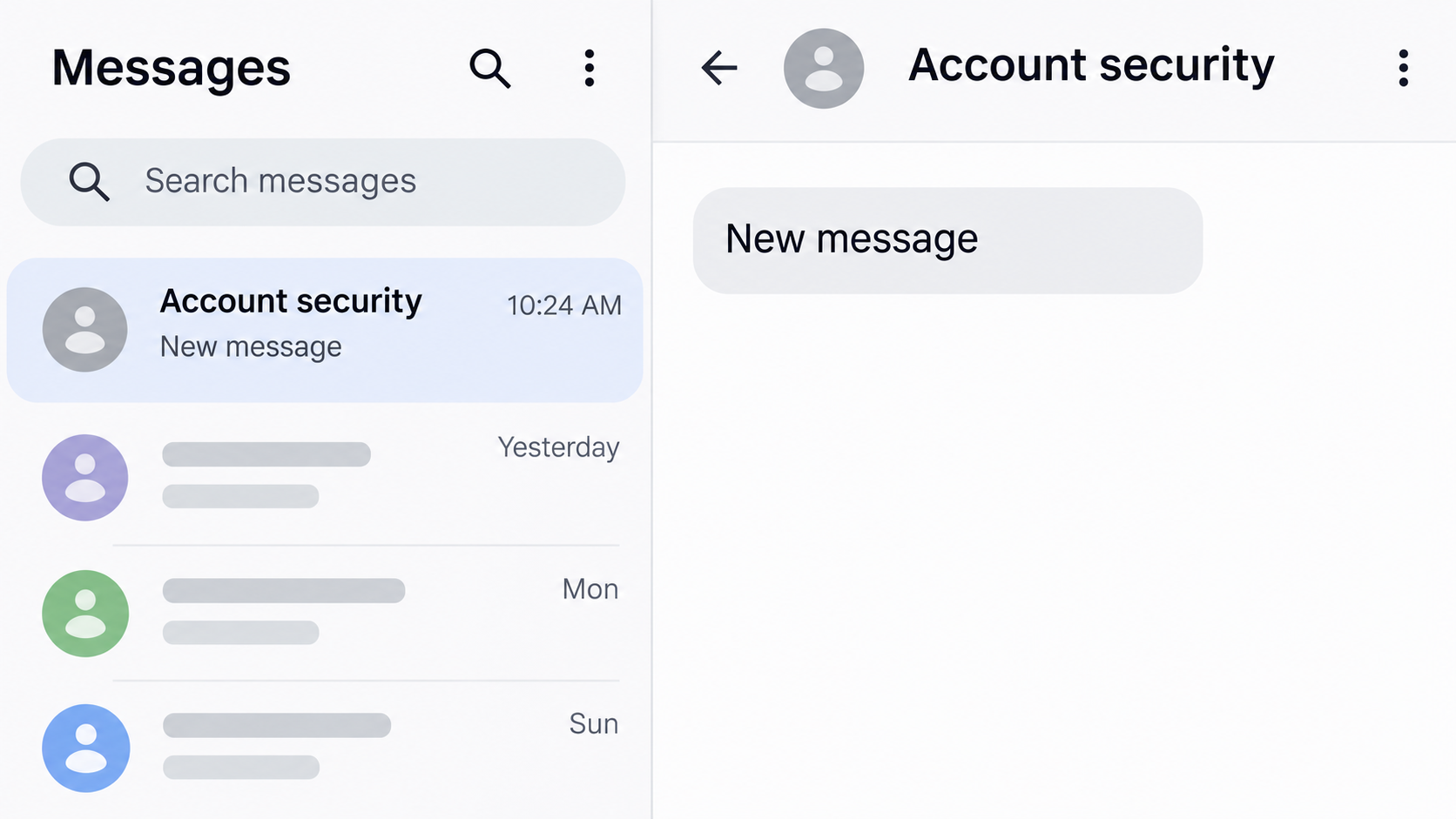
Overview
The story was protection, but the download wasn’t from the bank
Herodotus is an Android banking Trojan investigated by ThreatFabric. Researchers observed campaigns in Italy and Brazil that passed off a download as something meant to protect banking access.
The documented names included Banca Sicura and Modulo Seguranca Stone.
A name used by an impersonator does not implicate the real financial service or prove that its own systems were breached.
This is more than a text containing a fake banking link. The documented chain involves installing software that can interfere with what happens when you use the phone afterward.
The difference matters for the response. Someone who ignored the text and someone whose phone installed the app should not have to follow the same set of instructions.
Why familiar banking activity may still need review
ThreatFabric described ways the app could interact with a device and present imitation screens over real apps. The screen in front of you isn’t always what supplied the prompt.
The researchers also reported an attempt to make automated input look more like human activity. That is a design feature, not proof that it defeated every bank’s fraud controls.
Tell your bank if it describes a payment as having come from your regular phone.
The point is not to argue with the date or device, but to explain possible device control.
If you see a payment approval request you didn’t start, don’t approve it to make an alert disappear.
Report exactly which amount, recipient, and time it displayed, when you know them.
Useful distinctions when you speak to the bank
- Say whether you only saw the message, downloaded a file, or installed an app.
- Mention the accessibility request and whether it appeared while the new app was open.
- Distinguish an unexpected prompt from a payment you actually started yourself.
- If the phone is used for a merchant account, flag settlement and payout access.
- Confirm which number you should call again if the current incident needs follow-up.
The risk assessment should begin with what happened on your device. A report about Brazil or Italy is not a reason to dismiss the same evidence on a phone elsewhere.
For a small business, check which staff member actually received the message. Someone who uses an app every day may not be the person authorized to change its payout settings.
How the Herodotus Campaign Works
Step 1: A message says the banking setup needs attention
The documented approach steered people toward an Android installation outside their usual banking route. A security-themed name made the download sound like an update or extra safeguard.
The real question is whether the bank announced that change through a channel you can open independently. A sender name or app icon doesn’t answer it.
If a co-worker received it in a business setting, ask the person who manages payment access to check. Don’t put it in a group chat as a download recommendation.
Step 2: The app asks Android to grant more authority
Once a suspect app appears, the next request may be for accessibility access. A real accessibility service can help a person read the screen or interact with controls.
An unexpected banking tool should not receive that access because a prompt claims it needs to be verified. Close it and ask the actual provider what the app normally requires.
On a work phone, ask your administrator which apps and permissions belong there. A legitimate service might already be configured for accessibility, and its presence isn’t proof of malware.
Step 3: Your real app can become the place where the prompt appears
The researchers described imitation screens presented when particular apps were in use. Seeing a familiar logo in that situation does not tell you which application rendered it.
If your usual banking app suddenly asks for information it doesn’t normally request, leave it without entering an answer. Compare the request through another device.
Saving the screen with another camera can help in some cases. Do not capture a password or one-time code, and don’t return to the app to stage a second screenshot.
Step 4: The fraud can use that same device
With sufficient access, an operator can try to interact with banking functions on the phone. The documented behavior is why an unfamiliar payment needs attention even after the app closes.
Financial institutions can look at their own authorization and activity records.
Tell them if unusual prompts prevented you from seeing details, rather than trying to guess how an entry was created.
You don’t need to establish which malware family was involved to report a payment you didn’t authorize. Give the provider the evidence you have and let it trace the activity.
What to Do if You Installed a Suspect Herodotus App
-
Pause sensitive activity on the affected phone. If you can reach the usual controls, turn off Wi-Fi and mobile data. Keep the screen out of new payment approvals.
Use another trusted device for email, your financial provider, and any account that sends a security challenge. Don’t give a caller a code to clear an alert.
-
Reach the provider at a number you already trust. Choose the number on your card, the official customer support page, or an established merchant support contact.
Tell the fraud team whether you acted on a security-app prompt and whether it stopped you from using the real account screen. Ask what access the team can suspend.
-
Report transactions and device registration separately. Ask the provider to review incoming and outgoing activity, unknown beneficiaries, registered devices, and payment authorizations.
Give the identifiers and dates for the entries you dispute. Ask how to follow up and what evidence is needed rather than treating a single call as the whole process.
-
Review business payout and approval controls if they apply. If you process payments for a shop, tell the owner or finance administrator instead of changing settings unilaterally.
Check who can edit settlement details or approve payments during the investigation. A merchant portal and a personal banking app don’t always use the same protections.
-
Keep the original message and the order of events. Write down what text you received, whether you installed anything, and when the permissions appeared.
Don’t forward the app file outside an approved reporting route. The message, a safe screenshot, and the date are better starting points than a copy someone might open.
-
Decide how you will sign in during cleanup. Ask the provider about a verified alternate method if the affected phone normally approves transactions or signs in to everything.
Confirm recovery email and phone settings from a known-clean device. Avoid creating new login secrets on the same phone before the security issue has been addressed.
How to Remove Herodotus From an Android Phone
Step 1: Identify the outside app rather than the bank it imitates
Open Settings > Apps if you can safely use Android. Look for the app installed when the notice appeared, including any new item you approved after a permission screen.
Write down the displayed name and installation timing for support. Don’t uninstall a genuine bank app solely because an impersonator used a similar name.
If screen interference prevents using Settings, stop and work with the device maker or your organization. Try to preserve the evidence without following instructions from the unknown sender.
Step 2: Turn off the suspect app’s accessibility access and remove it
Search Android Settings for Accessibility, then open the installed or downloaded service list. Select the identified suspect service and turn it off without affecting genuine assistive tools.
In Settings, search for Install unknown apps and check the source you used for the suspect download. Remove that allowance if it’s unnecessary.
Return to Apps, select the confirmed unwanted app, and tap Uninstall. If Android says an administrator controls the action, take that warning to the authorized device administrator.
Step 3: Scan through the official store once it is safe
Open Google Play, tap your account icon, then choose Play Protect. Start the check and read any warnings about apps from outside the store.
For a second check, go to the verified Malwarebytes listing on Google Play. Verify the developer before using the Install button.
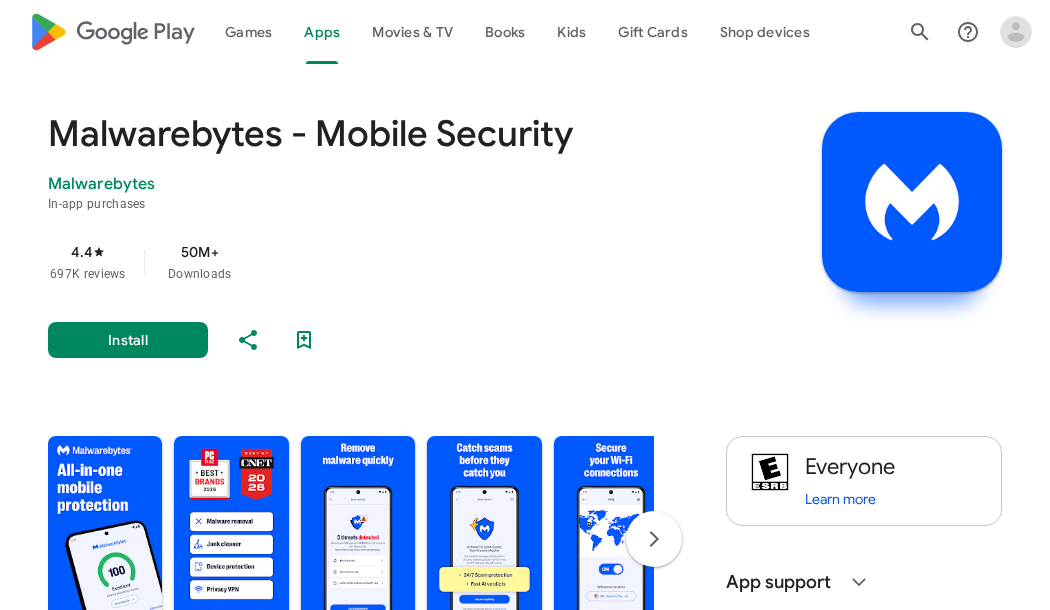
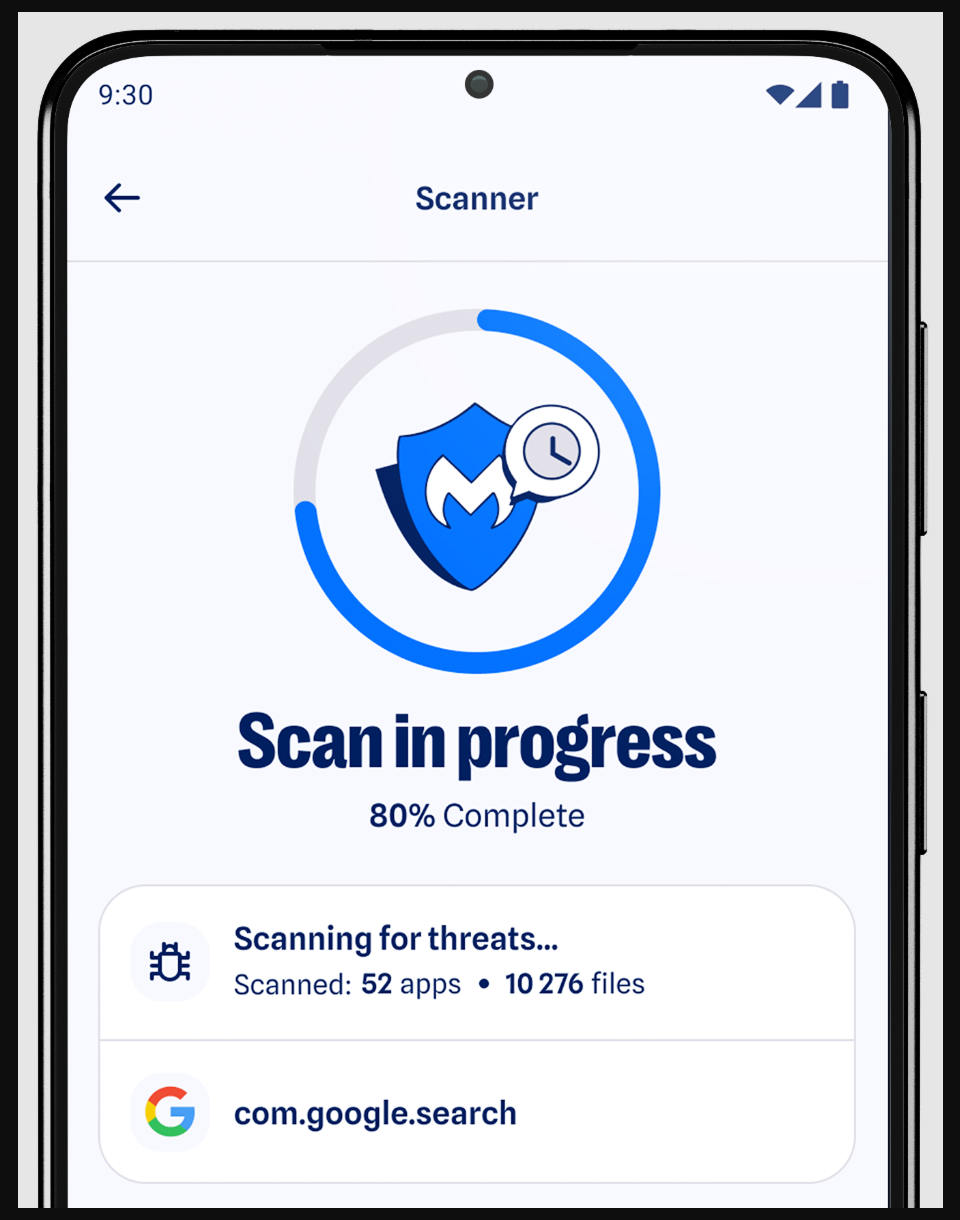
In the official app, choose Scan now under Device. Follow the Android scan guide if the scanner’s layout has changed.
Wait for the completed result, review each detection, and follow the uninstall action for a verified unwanted app. Record warnings if they don’t match an app you recognize.
Restart a personal phone after removing the threat, then check that the app and accessibility service do not return. A separate bank check still applies after successful device cleanup.
The Malwarebytes Android paid option is an affiliate link. The ongoing protection choice is separate from scanning and from the bank’s decision about disputed activity.
Step 4: Resolve a returning detection before re-enrolling the phone
Install system security updates from Android’s own Settings and check the permissions again. Don’t reauthorize downloads from the browser that supplied the suspect app.
If symptoms recur, contact the device maker or MalwareTips mobile malware support. Keep support screenshots free of customer names, financial details, and access codes.
Give your administrator a chance to preserve work records before any reset. On a personal phone, confirm the backup and associated Google Account before carefully considering an erase.
Step 5: Restore banking access under the provider’s direction
When you have a trusted phone, install the actual financial app from its official listing. Contact the provider to confirm which devices can still approve payments or change account settings.
If the provider moves access to a replacement phone, ask it to remove or restrict the older association as appropriate. Verify the result in the way it recommends.
Keep your fraud case active until you know which disputed entries the provider has resolved. Removal gets one device back under your control, not necessarily all your money.
Review a business account before your next settlement
From a separate trusted device, ask the account owner to view the current settlement destination. Compare it with the verified record the business used before the incident.
Check for pending rather than only completed changes. A recent address or contact update can matter even if the next payout hasn’t reached its deadline.
If multiple people approve payments, have each person review their own account access. Don’t share one new password as a way of quickly getting the staff online again.
If support can temporarily restrict payment edits, ask what that changes for ordinary business and how it will be lifted. Tell staff which alternate process is approved during that time.
Decide who should see the evidence
Save the customer’s name or payment details only when needed for the provider’s investigation. Redact unrelated customer data if you need to share a screenshot for malware support.
If another store or branch received the notice, give it the verified reporting route. Do not recycle the fake security prompt as a notice that workers should follow.
Keep a basic timeline of which devices were involved and which users had access. That helps distinguish a real banking issue from a problem shared across several suspected devices.
If the provider requests additional verification, reopen your case through its official route. A call arriving at the right moment isn’t necessarily from the team that owns the case.
Frequently Asked Questions
Is Banca Sicura a trusted Android security download?
That name appeared in a documented deception. Verify any supposed requirement with the real provider, and do not use a download merely because it carries a familiar phrase.
Was the genuine Stone service the malware?
The reported disguise used a name associated with Stone. The imitation doesn’t establish that the real company’s application or infrastructure was compromised.
Can my bank know which person used my usual phone?
The provider can review its own device and activity records. Tell it about the unverified installation and access so it can investigate without assuming every interaction was yours.
Does seeing a loading screen mean I was infected?
Loading screens are common and don’t diagnose a Trojan. An unexpected screen soon after installing an app with powerful permissions is a better reason to investigate.
Can I leave the banking app installed during cleanup?
Don’t use it for sensitive activity until you trust the device. Keep the focus on identifying and removing the confirmed unwanted app rather than guessing about legitimate software.
Does the same app affect every Android version?
Researchers documented specific samples and observed campaigns. Your device model, Android version, installation actions, and permissions determine which parts of the advice apply.
The Bottom Line
Do not install a security add-on offered by an unexpected banking message. Verify any real change with the provider through a route you already control.
If you installed it, do your banking and reporting from a separate trusted device. Remove the unwanted software, then ask the provider to verify the access and payments it recorded.

Join the discussion
0 commentsShare your experience or ask a question about this article.
Community experiences
Did this happen to you?
Your experience could help someone recognize the same scam. Submit a private report for our team to review.
I experienced this tooReports are reviewed before publication. Sharing publicly is always your choice.
Discussion
Start the conversation
Have a question or something useful to share? Add the first comment.