


When a phone starts getting warm and a verification message never arrives, it’s tempting to blame the connection. Those two clues may not even belong to the same problem.
Before requesting another code, check what changed on the phone. A recent download or unfamiliar app can give you a better question to ask support.
Overview
One Android threat with two different jobs
GhostGrab is Android malware that CYFIRMA examined in a sample combining financial data theft with cryptocurrency mining. One activity targets the owner’s information; the other uses the phone’s resources.
Group-IB identified GhostGrab as an older version of GhostBat. If a report mentions the newer name, compare the features it describes rather than assuming every version behaves the same way.
Mining here means putting the device to work to earn cryptocurrency for someone else.
The owner does not need to own or use crypto for that burden to affect the phone.
That can help explain background activity in a documented infection, but heat and battery use have many ordinary causes. Neither tells you which app, if any, is responsible.
A specific install, a strange permission request, and related bank or carrier activity give you more to work with than a battery reading alone.
The phone number deserves its own investigation
The researchers documented features for gathering SMS and SIM-related information. Some analyzed behavior also involved changing whether incoming calls were forwarded.
If you think the phone handled a security code you didn’t see, tell both the account provider and the carrier. They are responsible for different records.
Call forwarding sends calls to another destination.
A SIM swap changes which SIM or device receives service on the number, and neither is established just because the phone missed a call.
The carrier can explain whether it sees a change on the line. The phone’s battery or apps screen cannot answer that part of the question.
Start with the evidence you can check safely
- Identify a download or app installation you can connect with the problem.
- Check whether the phone asked for access to messages, calls, or notifications.
- Save notices from the bank about attempts or transactions you didn’t authorize.
- Ask the carrier about missed calls, forwarding, or changes you didn’t request.
- Keep backups separate from the questionable app package before considering a reset.
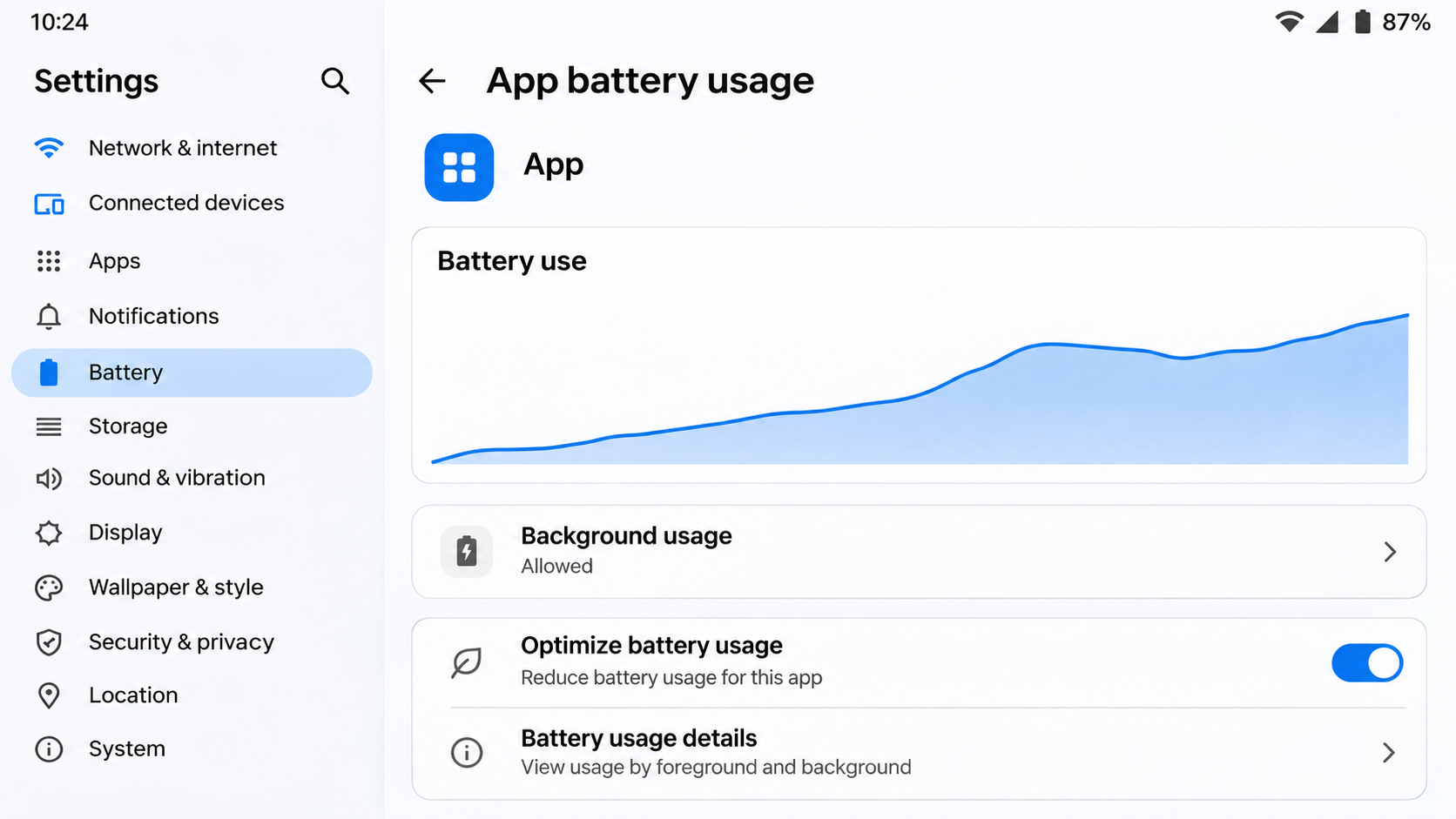
The opening settings screen is a reconstruction, not a diagnosis. If all you have noticed is battery drain, start with the phone’s own battery usage report and ordinary troubleshooting.
On a personal phone, open Settings > Battery and look for an app breakdown or battery usage list. Compare activity with the apps you actually used that day.
An app can consume power for normal reasons, such as uploading photos or updating maps. Don’t remove a legitimate app simply because it’s at the top after a long task.
If battery use and missed calls began at different times, note both. Your carrier needs the time of the missed calls even if an app update explains the battery issue.
How the GhostGrab Infection Happens
Step 1: A website leaves a download that wasn’t requested
CYFIRMA’s analysis described a web route that led to an Android app package. A browser can make a download available without installing an app from it.
Check Downloads to see whether a file arrived if you remember an unusual redirect. Don’t tap the file to find out whether it matches your memory.
If the web page asked you to install an update, compare that request with the device’s own update screen. An outside website does not manage the normal Android update process.
Step 2: The download presents a second request as routine setup
The investigated chain used an update disguise to get the person past a normal limit on installing apps outside Google Play. There could be more than one prompt.
Think back to what you allowed, not only the first filename.
The source app may have gained the ability to offer another installation even if you eventually removed the first one.
If you cannot remember a permission label, describe the screen or point in the sequence. You don’t need to grant the access again to fill in the missing detail.
Step 3: Different parts of the malware look for different information
The banking component could seek details through imitation screens and access information from the phone. Entering credentials into such a screen is a reason to call the bank independently.
Other functionality worked with messages or incoming calls.
Don’t assume an account is safe because a code was sent to your usual number while the affected phone was in your possession.
The mining activity is a separate concern. You can observe unusual resource use without knowing anything about who ultimately received the benefit from that work.
Step 4: A follow-up account problem may be visible somewhere else
Unauthorized activity may show up as a card charge or an unexpected login. The useful record is the provider’s activity history, not a screen supplied by a caller.
Use another trusted phone or computer to review that history.
Asking the affected Android phone to handle more banking codes can complicate the situation before you know what gave them access.
Likewise, don’t respond to an offer to repair call forwarding from an unknown sender. Use the carrier’s established fraud or customer service route.
What to Do if You Think GhostGrab Affected Your Phone
-
Move banking and account recovery off the phone. Stop requesting codes on the suspect device and turn off its network access if you can safely operate its ordinary controls.
Use a trusted phone or computer for bank and carrier calls. If the affected phone is managed, tell the administrator which apps or account access you used.
-
Tell your bank which information may have been visible. Report any real card activity or transactions you didn’t authorize. Explain whether you also typed details into an unexpected screen.
If you entered card details, ask about replacing the card. If you gave up banking credentials, ask about sessions and registered devices as well as changing the password.
-
Call your carrier from another line. Ask it to check changes to call forwarding, SIM or eSIM service, and access to your carrier account.
Don’t enter forwarding codes from a message or online comment. Have the carrier confirm which settings changed and how to remove an unauthorized destination.
-
Preserve evidence without passing the app around. Record when you visited the page, what download appeared, and which permissions or screens you remember.
Keep any payment notices, carrier ticket number, and detection label. Don’t attach banking texts to a public report if they still contain usable security information.
-
Check recovery methods for other important accounts. On the trusted device, review the email and accounts that rely on the affected number for sign-in or recovery.
End unknown sessions within each account where possible. Ask providers about alternatives if you’re not yet sure whether texts or calls to the number reach only you.
-
Keep an eye on changes after you regain access. Confirm with the bank and carrier what they put on hold or replaced.
Record the date when each action actually took effect.
If a support call arrives later, use a known number to call back. Don’t use the caller’s knowledge of your complaint as proof that it is legitimate.
How to Remove GhostGrab From an Android Phone
Step 1: Review special access before uninstalling
In Settings > Apps, find apps installed around the incident. The home screen alone may not list every app, so use the installed-apps view instead.
Use Settings search to find the device’s notification access and permission controls. Review SMS, Phone, and notification access for the exact unwanted app you can tie to the download.
If you enabled outside installation for the browser, review Install unknown apps and turn off the relevant source if you don’t need it.
Don’t change permissions for a managed work tool.
Return to the app’s information page and tap Uninstall for each confirmed unwanted component. If Android prevents removal or you cannot recognize the app, contact the device maker for help.
Step 2: Open trusted Android security tools
Once you can safely reconnect, open Google Play and select your profile icon, then Play Protect. Run its scan and read the result rather than stopping at the shield icon.
If you want a separate scan, use the official Google Play listing for Malwarebytes. Check the developer name on the listing before installing.
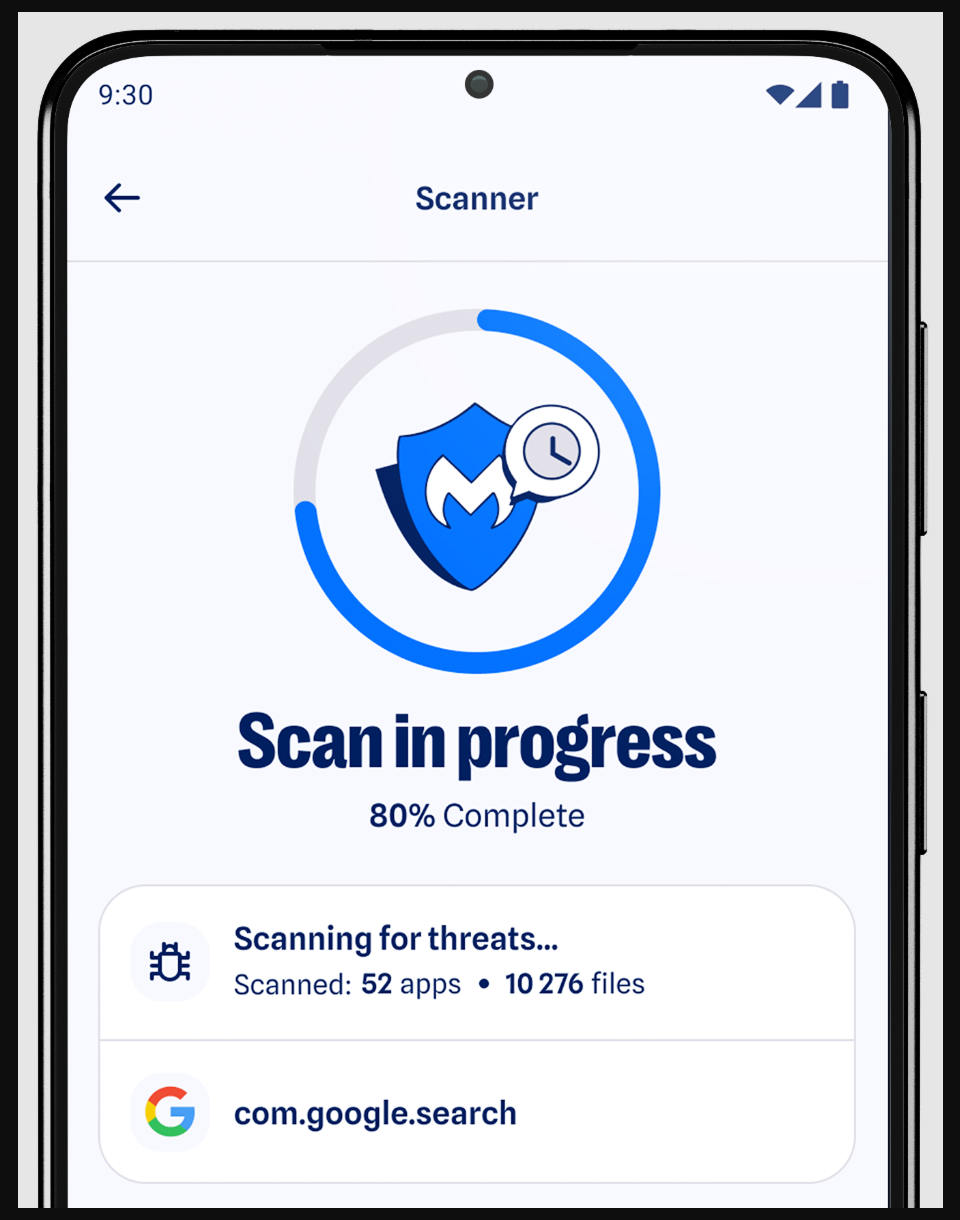
In Malwarebytes, open the dashboard and use Scan now under Device. The vendor’s Android guide shows the current controls and result path.
Wait until the scan finishes and inspect its findings. For a confirmed threat, follow the product’s uninstall instructions, then restart the personal phone and look for detections that return.
If the app or a special permission reappears, write down the change before trying another remedy. Repeated findings deserve help rather than repeated reinstallation of the scanner.
The optional Malwarebytes for Android upgrade is an affiliate link. It does not cancel call forwarding or report suspicious account activity to your bank.
Step 3: Check that the affected phone and line behave as expected
Apply Android security updates from Settings and review the suspect permissions again. In Battery settings, check which installed apps used power rather than relying on the temperature alone.
Arrange a simple test call with someone you trust after your carrier says the line is clear. Don’t use a fresh banking code as the first test.
When the phone still shows an unknown app or intercepts normal use, ask the manufacturer or MalwareTips mobile malware help for support. Leave the suspect installation package unopened throughout.
Step 4: Prepare carefully if a clean setup is needed
Before erasing a personal phone, confirm you can see essential backups from another device. Make sure you know the Google Account required to set the phone up again.
Read Google’s factory reset guidance before acting. A reset removes local data; it doesn’t clean up a dispute at the bank or changes to carrier service.
Once the device is trustworthy again, bring back necessary apps from their verified stores. Don’t restore the unknown APK or assume every backed-up item is safe to reinstall.
Compare the phone’s records with the provider’s records
Say which incoming calls or texts you expected and approximately when. If the carrier can’t verify a particular message, ask what it can tell you about changes to the line.
If the bank used SMS for a transfer or sign-in that you didn’t initiate, give its fraud team the real transaction reference.
Don’t send a fresh verification code to demonstrate the problem.
If service is on more than one SIM, say which number was used for the account. A change to one line doesn’t explain every notification you missed on the other.
Use the carrier’s own contact process to set or replace its account PIN if it advises that. Don’t confuse a carrier account PIN with the PIN that unlocks Android.
When the line is restored, confirm that a normal call reaches the correct device and leaves no unexpected forwarding notice.
Put bank verification back only after the provider says it is appropriate.
Distinguish an unexpected charge from the cost of background activity
Mining can consume power and data. An unusual bill can also reflect roaming, a plan change, or an app transferring large legitimate files, so look at itemized records.
Ask the carrier whether it can show which line or period drove the extra usage. It may not be able to tell which app produced any particular traffic.
Don’t buy an unknown utility that promises to identify every background app remotely. Use the phone’s Settings or a vetted scanner, then escalate confirmed recurring issues.
Frequently Asked Questions
Does a warm Android phone mean GhostGrab is mining?
Heat alone does not identify GhostGrab or any other malware. Look for a recent unverified install, changes in access, or a specific detection that supports investigating further.
Can GhostGrab affect a phone owner with no crypto wallet?
The mining function uses device resources whether or not the phone owner keeps cryptocurrency. The researched threat also had a separate focus on financial information.
Does losing one verification message mean my number was transferred?
A missing text is not proof of a SIM swap. Ask the carrier what changed on the line and tell the service that initiated the verification.
Does uninstalling an app remove every forwarding change?
Don’t assume uninstalling cleared forwarding at the carrier. Ask the carrier to verify whether call forwarding or another service on the number was changed and to confirm the result independently.
Should I trust a bank caller who knows the missing code?
Hang up and contact the bank at a number you independently verified. Someone’s knowledge of a code or recent alert is not a reliable way to authenticate a call.
Can I reset Android without checking cloud backups first?
Check before erasing the device. A phone setup password, cloud sync, and an app’s own backup are separate, so you may need several things to restore what matters.
The Bottom Line
Don’t use the suspect phone for bank logins or new verification codes while you investigate. You can check the accounts from a separate device without running the download again.
If GhostGrab may have run, clean up the Android app and verify what happened to your bank access and phone line. Those checks solve different parts of the incident.

Join the discussion
0 commentsShare your experience or ask a question about this article.
Your progress
Did these steps help?
Let us know how the guide worked for you.
Describe what you see and the step you reached. Keep passwords and other private information out.
Discussion
Start the conversation
Have a question or something useful to share? Add the first comment.