


An extension promising AI-powered web security sounds like something that should make online banking safer. Its name can seem reassuring when you notice it in Chrome.
If that extension is Traceguard, take a closer look before making your next payment. The important details extend beyond the button inside your browser.
Overview
The security label hides interference with banking
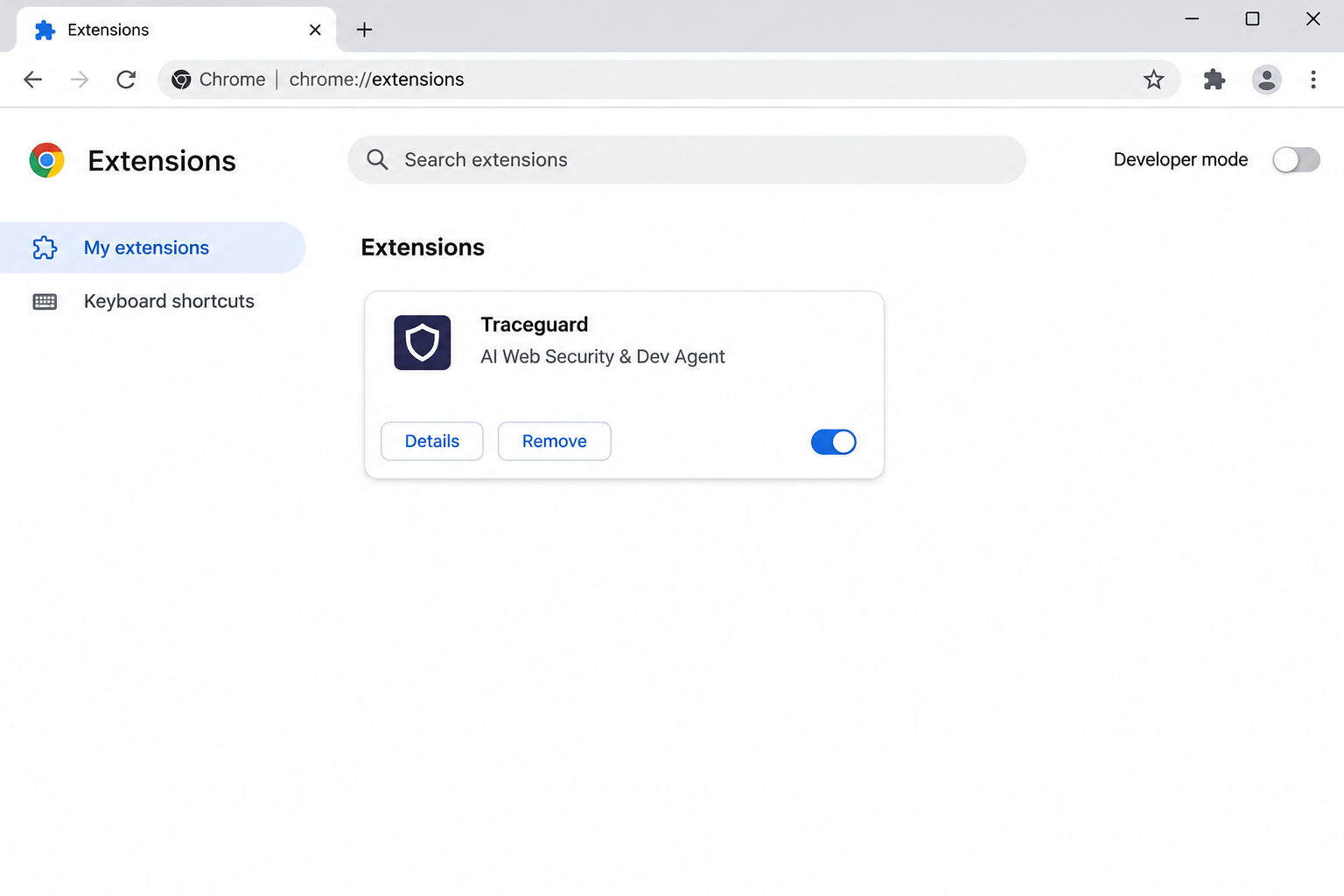
The malicious Traceguard extension presents itself as an AI Web Security and Dev Agent. Reported behavior includes changing transfer recipients or amounts while restoring the displayed details.
It can also misuse an existing banking session and show deceptive prompts for transaction-authorization codes. Do not make further payments through the affected Chrome installation.
The installation reaches outside Chrome
The reported installer, ATS_Installer.exe, places components in ChromeExtensionHost and uses Windows startup mechanisms and modified shortcuts to reload the extension.
This was not described as a Chrome Web Store installation. An ordinary extension-removal click may leave the Windows component that puts it back.
Your immediate priorities depend on whether you banked
- Stop using this browser for payments or authentication.
- Contact your bank independently about any questionable transfer.
- Clean Windows as well as the browser extension.
- Check banking access using a separate trusted device.
This warning concerns the identified malicious extension, not unrelated projects using a similar name. A shield icon or security-themed description does not establish legitimacy.
How to Remove the Malware From Windows
For an employer’s computer, contact the security team before scanning, restarting, or deleting files. Their investigation may need evidence that cleanup would change.
Do not use this computer to inspect or dispute a payment. Keep the bank conversation on another trusted device while cleaning Windows and Chrome.
Step 1: Disconnect the affected computer
Turn off Wi-Fi and unplug Ethernet. Stop using the computer for email, banking, shopping, password changes, or accessing your other devices.
Write down the alert’s detection name, file location, and time. Keep the antivirus report without reopening the suspect file or forwarding its attachment.
If you have already installed an updated scanner, use it offline first. Otherwise, obtain its installer on a clean device where practical.
Some installers require internet access to finish setup or obtain updates. If reconnecting is necessary, keep it brief and avoid signing into anything.
Step 2: Obtain the Windows scanner
Use the direct Windows installer link below. If your browser cannot retrieve it, use the separate free-scanner page to obtain the official download.
Download the Windows Malwarebytes Installer Directly
Open the Malwarebytes Free Scanner Download Page
The free version provides on-demand scanning and removal. Paid real-time protection is optional, and buying a subscription is not required to follow these cleanup instructions.
See optional Malwarebytes Premium protection for Windows
The linked Malwarebytes pages may support MalwareTips through affiliate commissions. This does not change which detected items you should review or quarantine.
Open File Explorer, select Downloads, and locate the Malwarebytes installer you obtained. Do not substitute the original suspicious installer or a similarly named attachment.

Step 3: Install and open Malwarebytes
Double-click MBSetup.exe and confirm the Windows permission prompt only when it identifies the expected Malwarebytes installer. Select Install to continue through setup.
Choose Personal for your own computer, then continue. Skip optional product offers if you do not want them, and select Open Malwarebytes when installation finishes.
You can run an on-demand scan without activating a paid subscription. Dismiss optional subscription offers and continue to the scanner rather than entering payment information.
Let the application retrieve available updates before scanning. If setup fails, save its exact error instead of disabling security features or trying unofficial download mirrors.
Step 4: Run the recommended Threat Scan
Open the dashboard and select Scan. Choose Threat Scan if your version presents several scan types, then allow the check to finish.
Threat Scan checks common infection locations. Use a Custom Scan afterward when a specific download folder, additional drive, or reported path needs separate examination.
Keep the results screen open after scanning finishes. You will need the detection names and affected paths when deciding which items to quarantine.

Step 5: Review findings and quarantine threats
Read the detection names and affected paths when scanning completes. Keep confirmed threats selected and use Quarantine to isolate the detected components.
A scanner may use a generic Trojan label instead of the family name. Save its report so a helper can examine the actual files involved.
Do not restore quarantined files simply because an application stops working. Ask the vendor or a trusted removal specialist to investigate a possible false positive.

Step 6: Restart when requested and scan again
Save any open work, then accept a requested restart. Reopen Malwarebytes afterward and review whether removal completed or any items still require attention.
Run another Threat Scan with current updates. Compare new findings with the earlier report rather than assuming a disappearing warning means everything is resolved.
A clean result is useful, but cannot guarantee that an attacker left no other software behind. Continue with the case-specific checks below.

Step 7: Get help if cleanup will not hold
Repeated detections, returning startup entries, blocked security tools, or fresh unauthorized activity require further investigation. Keep the computer isolated while deciding the next step.
Post the detection report and a description of the symptoms in the MalwareTips malware removal assistance forum, without passwords or private documents.
For confirmed remote control, professional assessment or a planned clean Windows installation may be safer than repeated manual deletion. Preserve documents carefully before any reset.
Rebuilding removes local software only when performed correctly. Account access, stolen information, and unauthorized payments still need their own response.
Remove Traceguard’s Browser Entry and Check Its Return Path
Close banking sessions before repairing Chrome
Keep the bank informed from another device while working on the PC. Do not reopen a banking tab to compare its transfer screen with this guide.
If a company manages the computer, let its administrators inspect the extension and Windows installation. Removing legitimate management settings can interrupt access and destroy useful evidence.
For your own computer, save the extension’s name and details before removing it. The description and installation source help distinguish this case from unrelated software.
Remove the identified extension through Chrome
Open Chrome’s three-dot menu, choose Extensions, and select Manage extensions. Locate the Traceguard entry associated with the malicious AI security description.
Select Remove, then confirm the removal prompt. Close Chrome completely afterward so the next launch can reveal whether an outside component reinstalls it.
Do not keep it enabled while testing a payment. The point of checking is to confirm cleanup, not to expose another real transaction.
Chrome’s extension management controls address the browser entry. Windows scanning remains necessary here because the reported installation is not confined to an extension.
Inspect the shortcut used to start Chrome
Right-click a Chrome desktop shortcut and open Properties. On the Shortcut tab, inspect the Target field without running anything written beside the normal browser path.
The reported installation uses a load-extension argument to load its files. Note any unexpected appended argument and the directory it references before making changes.
Do not remove every argument from an employer’s shortcut. Some organizations use legitimate launch options, and their administrators should determine what belongs there.
On a personal PC, ask a trusted helper to check an unexplained extension-loading argument. Repair the verified unwanted modification after the associated Windows components are removed.
Check other shortcuts you actually use, including the taskbar entry. Fixing one desktop shortcut will not explain a separate, still-modified way of opening Chrome.
Handle Windows components without deleting a whole directory tree
Press Windows + I, select Apps, then Installed apps. Look for an installer entry matching the incident and compare its installation time with your report.
If an identified unwanted app has an ordinary uninstall option, use that option and read its prompts. Continue scanning afterward rather than assuming uninstallation completed everything.
No visible app entry does not mean the installation is gone. Startup entries and tasks can exist without a friendly entry in Installed apps.
A folder named ChromeExtensionHost is a useful investigation clue in this case, not permission to delete every Chrome-related folder. Preserve those paths for qualified analysis.
When Traceguard returns after removal, keep the PC offline. A remaining startup component or modified launch path needs attention before that browser becomes trustworthy again.
How the Banking Deception Can Mislead You
The page you see may disagree with the transfer instruction
A transfer screen normally helps you confirm the recipient and amount. A malicious extension operating inside that browser can interfere with what the screen displays.
That makes a familiar bank logo a poor final check on an affected device. The genuine service and the compromised browser are different parts of the transaction.
Read a bank’s separate authorization message carefully, especially the amount and recipient it identifies. Never approve a mismatch simply because the browser looks correct.
If anything differs, stop and contact the bank. Do not let an extension, unexpected pop-up, or caller talk you into ignoring the independent payment details.
A transaction code is not a browser repair tool
Some banking systems use a transaction authentication number, often called a TAN. Such codes can authorize a payment, not merely confirm that you own a browser.
A request to supply one during supposed security maintenance deserves immediate suspicion. Treat the request according to what the bank says the code actually authorizes.
Do not paste codes into an extension window or repeat them to someone offering to reverse a charge. A genuine-looking window can still ask for the wrong thing.
When reporting the incident, tell your bank whether you entered or approved any code. That detail can help it reconstruct the authorization sequence.
Existing sign-ins can be part of the exposure
You might not have typed your bank password after the extension appeared. An already authenticated browser session can still deserve attention after this kind of compromise.
Ask the bank how to end online sessions and whether it needs to restrict digital access temporarily. Procedures differ, so follow its verified instructions.
Changing a password alone does not tell you whether a transfer was submitted. Review actual account records with the bank, including pending transactions and newly added recipients.
What a Chrome Reset Can and Cannot Fix
A reset can help restore altered browser settings after the malware is removed. It is not a substitute for cleaning the Windows mechanism that loads the extension.
In Chrome, open Settings, select Reset settings, then Restore settings to their original defaults. Read the confirmation before selecting Reset settings.
Expect extensions to be disabled and some settings to change. Bookmarks and saved passwords are retained, so reset is not equivalent to erasing a compromised profile.
Only re-enable extensions you have independently checked. Recreating the previous setup indiscriminately can undo the benefit of cleaning the browser.
A managed-browser notice is not automatically malicious. Workplaces and schools legitimately manage Chrome, and the notice alone cannot identify Traceguard.
If an unmanaged personal device unexpectedly reports management, review the source of that configuration with a trusted helper. Do not apply blanket policy-deletion scripts.
What to Do If Traceguard Was Installed
-
Call your bank using its genuine app, card number, or independently located website. Explain that a malicious browser extension may have altered payment instructions.
Provide the transfer date, reference, amount, and intended recipient. Ask whether pending transactions can be stopped and what investigation or recall options apply.
-
Check account activity from a separate device you trust. Look for unfamiliar beneficiaries, new transfers, changed contact information, and unexpected digital-banking authorizations.
Keep copies of the records the bank provides. The affected browser’s display should not be your only record of what happened.
-
Follow the bank’s instructions for securing access and revoking sessions. Replace credentials from the clean device, not from the Chrome profile under investigation.
Also review the email account that receives banking notices. An intruder who controls those messages may interfere with recovery or hide further alerts.
-
Complete both parts of removal: Windows cleanup and Chrome repair. Record whether the extension returns when you reopen the browser or restart the computer.
If it returns, stop troubleshooting through online banking. Seek malware-removal assistance with the scan report, extension details, and modified shortcut information.
-
For a work computer, send the incident details to your actual IT team through a known channel. Include any banking use without exposing account passwords.
The organization may need to check other affected profiles or devices. That investigation should not depend on your computer appearing normal after one restart.
-
Ignore anyone offering a guaranteed refund in exchange for an advance fee or remote access. A second scam can follow a real banking incident.
Let the bank or relevant payment provider explain recovery options. Keep the case reference and follow up through the same verified contact route.
Frequently Asked Questions
Is Traceguard a legitimate Chrome security extension?
The malicious extension covered here uses that description as its presentation. Its reported payment interference is incompatible with a trustworthy security tool.
Do not extend that verdict to unrelated software with a similar name. Match the actual extension and installation details before drawing conclusions.
Is clicking Remove enough to eliminate Traceguard?
Not necessarily, because the reported installer also changes Windows startup behavior and Chrome launch shortcuts. Those components can reload an extension after browser removal.
Can the bank website be genuine while the payment is altered?
Yes, an extension can interfere within a genuine browsing session. Use a separate trusted channel to confirm the bank’s actual transfer records and secure access.
Should I enter a TAN code to fix the extension?
No, a transaction-authorization code is not a browser-cleaning tool. Stop when an unexpected prompt asks for one, and verify its purpose directly with your bank.
Does resetting Chrome delete my saved passwords?
Chrome’s reset keeps saved passwords and bookmarks while changing other settings and disabling extensions. It neither revokes bank sessions nor removes a separate Windows installer.
Can a scan retrieve money from an altered transfer?
Scanning addresses the device, not the payment. Contact the bank promptly about any unauthorized transaction and ask which recovery process applies to your particular transfer.
The Bottom Line
Remove the malicious Traceguard installation before trusting this Chrome browser with another payment. Its security-themed name does not offset the reported banking interference.
If you used online banking while it was present, contact the bank from another device. Clean the Windows components and browser together, then verify account activity separately.

Join the discussion
0 commentsShare your experience or ask a question about this article.
Your progress
Did these steps help?
Let us know how the guide worked for you.
Describe what you see and the step you reached. Keep passwords and other private information out.
Discussion
Start the conversation
Have a question or something useful to share? Add the first comment.