New Update Announcing Windows 11 Insider Preview builds [Mega-Thread]

Hello Windows Insiders, today we are releasing Windows 11 Insider Preview Build 26200.5710 (KB5062676) to the Dev Channel. Changes in Dev Channel builds and updates are documented in two buckets: new features, improvements, and fixes that are being gradually rolled out for Insiders who have turned on the toggle to get the latest updates as they are available (via Settings > Windows Update*) and then new features, improvements, and fixes rolling out to everyone in the Dev Channel. For more information, see the Reminders section at the bottom of this blog post.
New Copilot+ PC experiences

New describe image action in Click to Do rolling out for AMD and Intel®-powered Copilot+ PCs

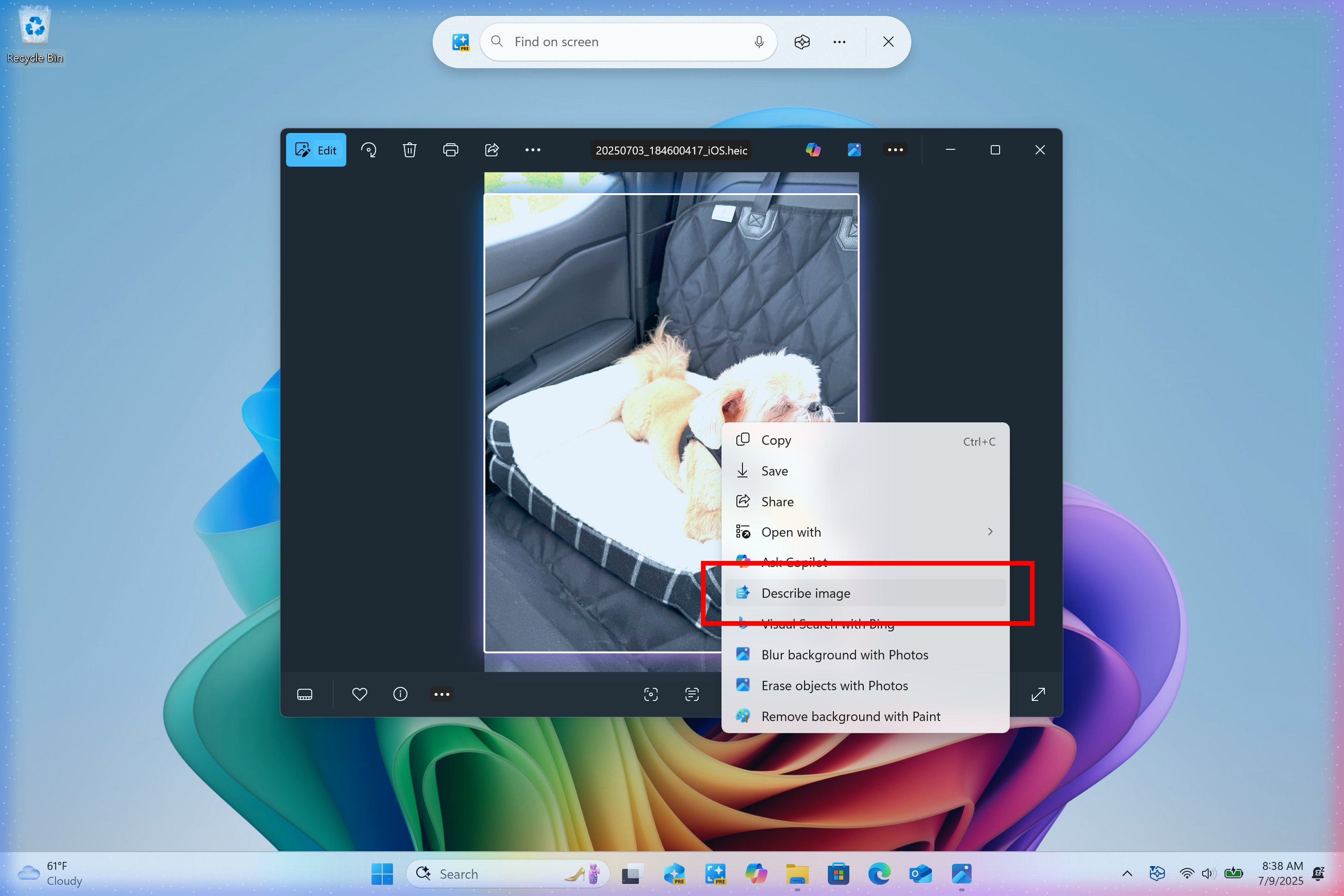
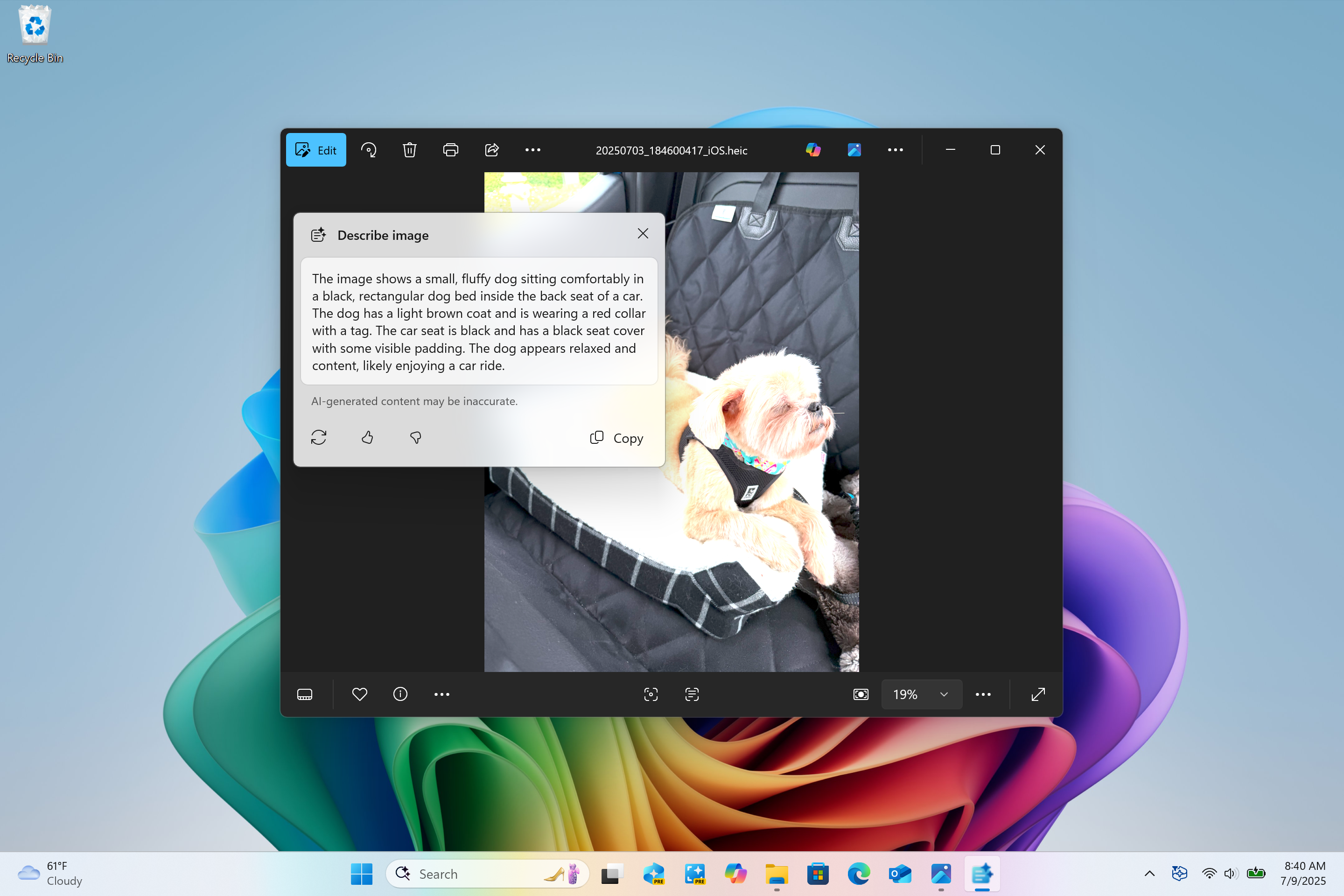
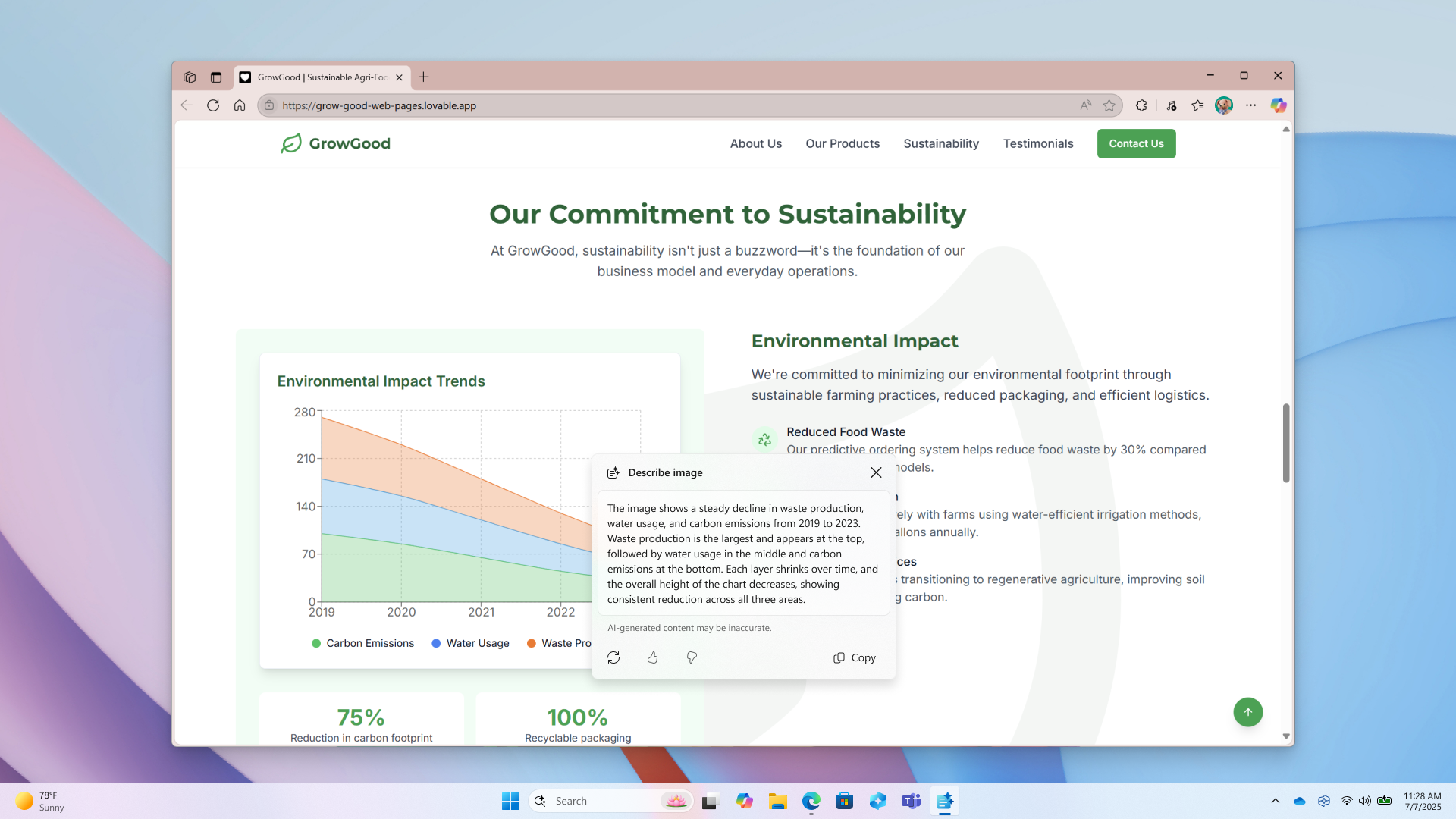
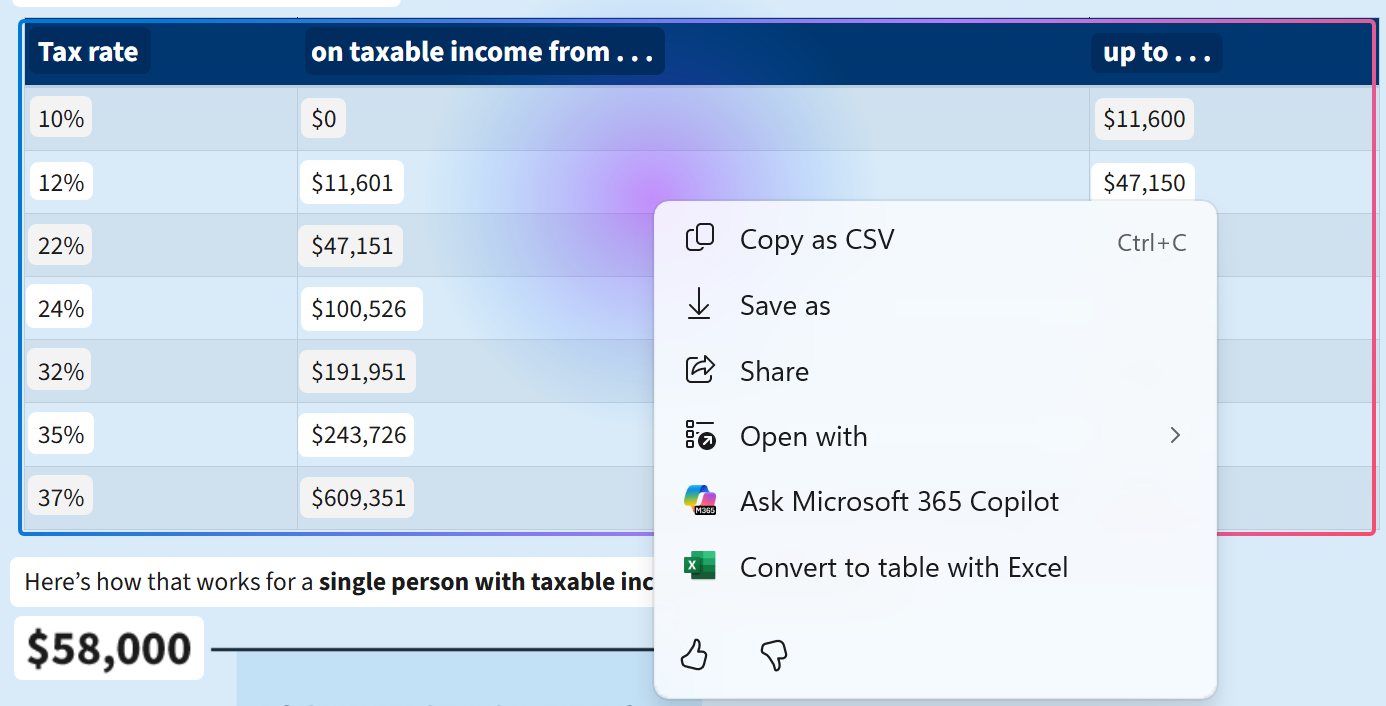
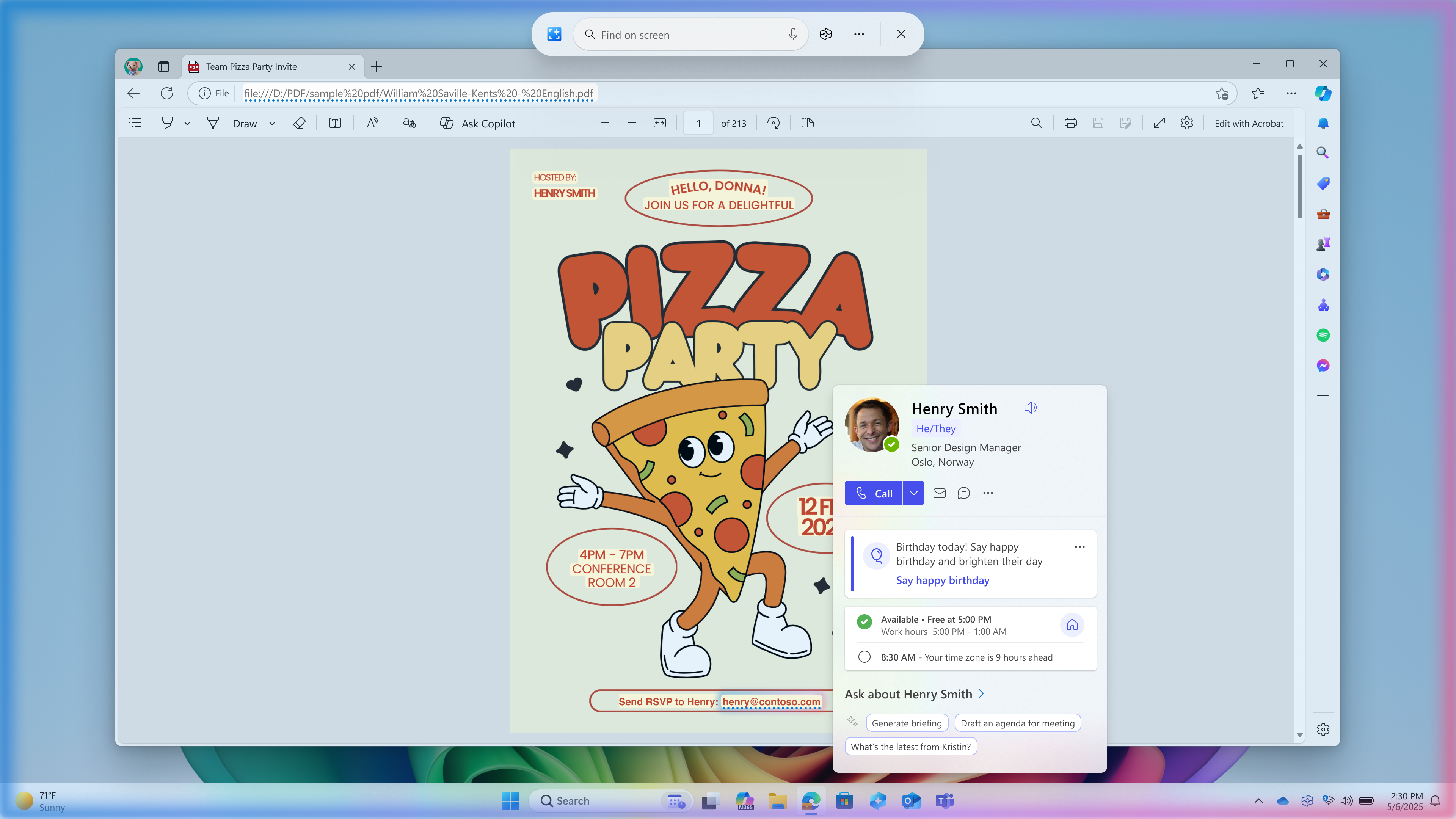
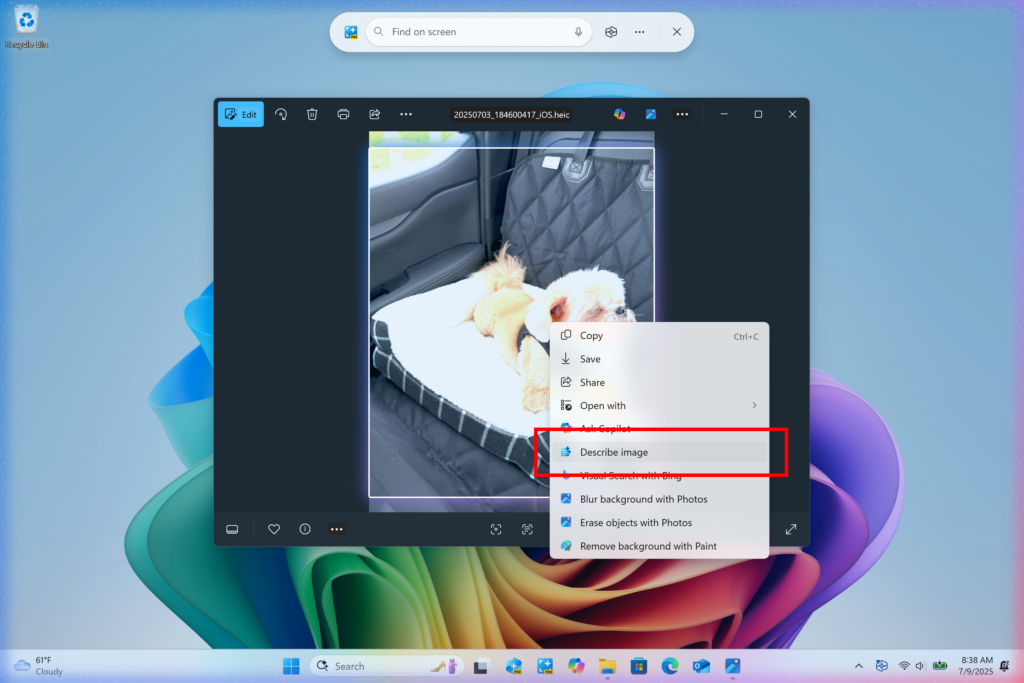
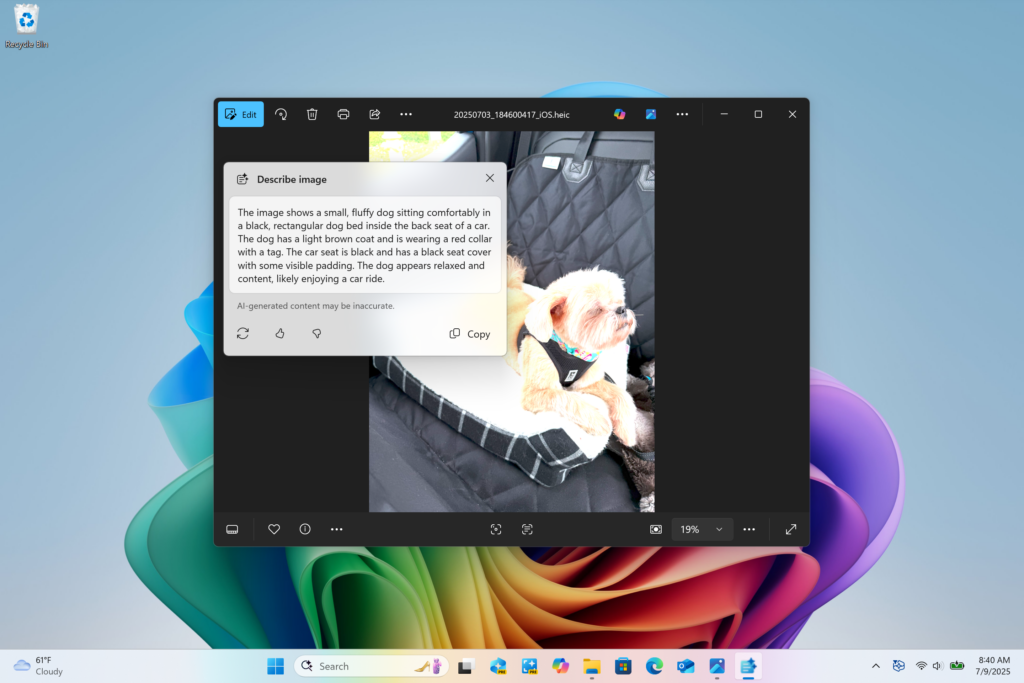
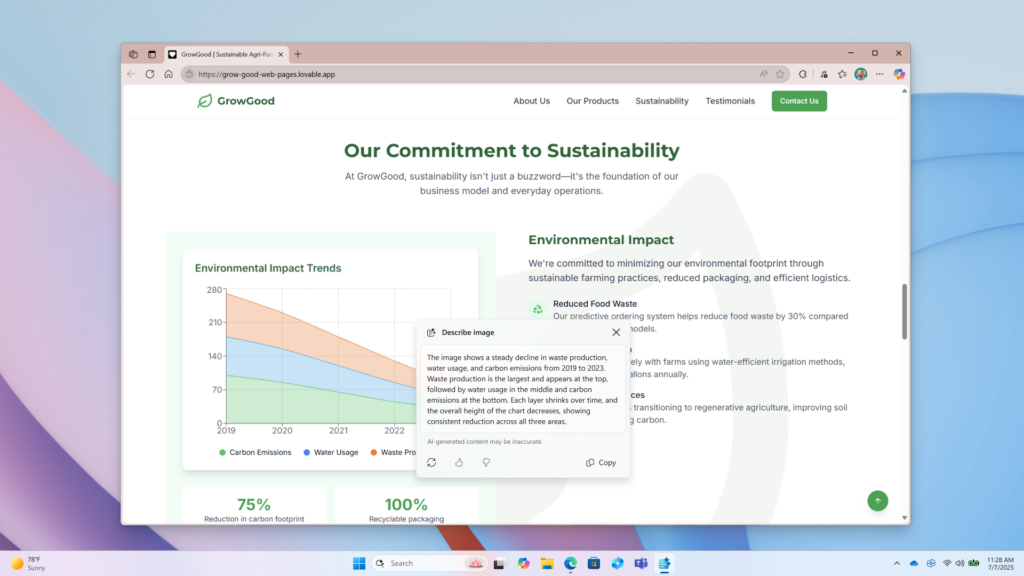
We are introducing a new “describe image” action in Click to Do to get detailed descriptions of images, charts and graphs for AMD and Intel®-powered Copilot+ PCs. This feature was introduced for Snapdragon-powered Copilot+ PCs in the previous Dev Channel flight. This feature is useful to get a quick overview of the visual content. This feature is designed to improve accessibility and can be used by everyone in scenarios like getting a quick overview of a graph or a chart, generating alt text for artefacts you create, etc. When you use the action for the first time, the required models are set up, and the descriptions are generated locally on your device making sure your sensitive data stays on your PC. [caption id="attachment_178057" align="alignnone" width="1024"]Describe image action in Click to Do menu highlighted in a red box. Describe image action in Click to Do menu highlighted in a red box.[/caption] [caption id="attachment_178059" align="alignnone" width="1024"]Image description dialog shown with text description of image of Brandon’s dog Kilo. Image description dialog shown with text description of image of Brandon’s dog Kilo.[/caption] [caption id="attachment_178069" align="alignnone" width="1024"]Image description dialog shown with text description of a graph. Image description dialog shown with text description of a graph.[/caption] You can learn more about using Click to Do here. You can check out frequently asked questions about rich image descriptions here. FEEDBACK: Please file feedback in Feedback Hub (WIN + F) under Desktop Environment > Click to Do.
Making visual content more accessible with image descriptions in Narrator

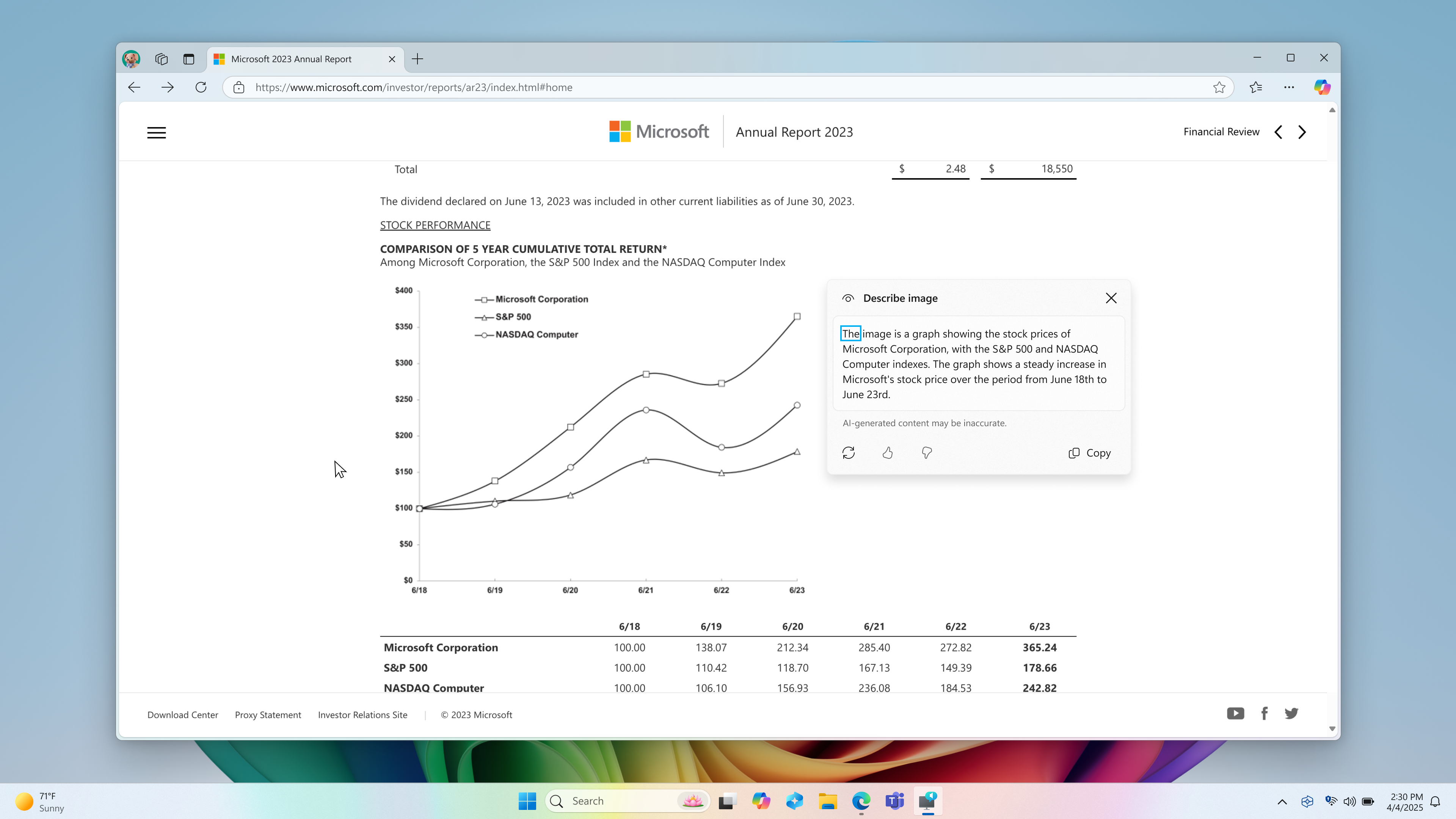
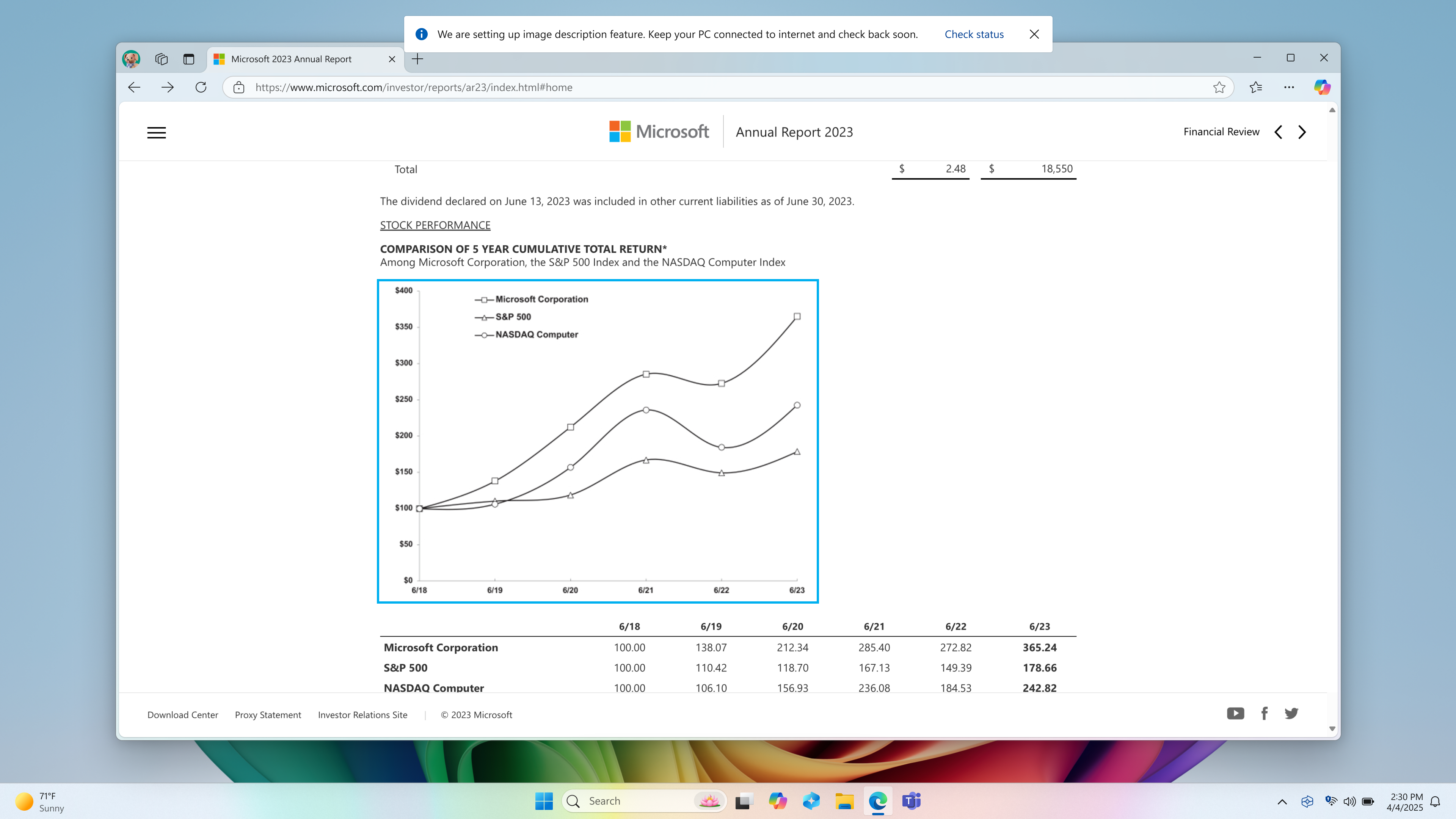
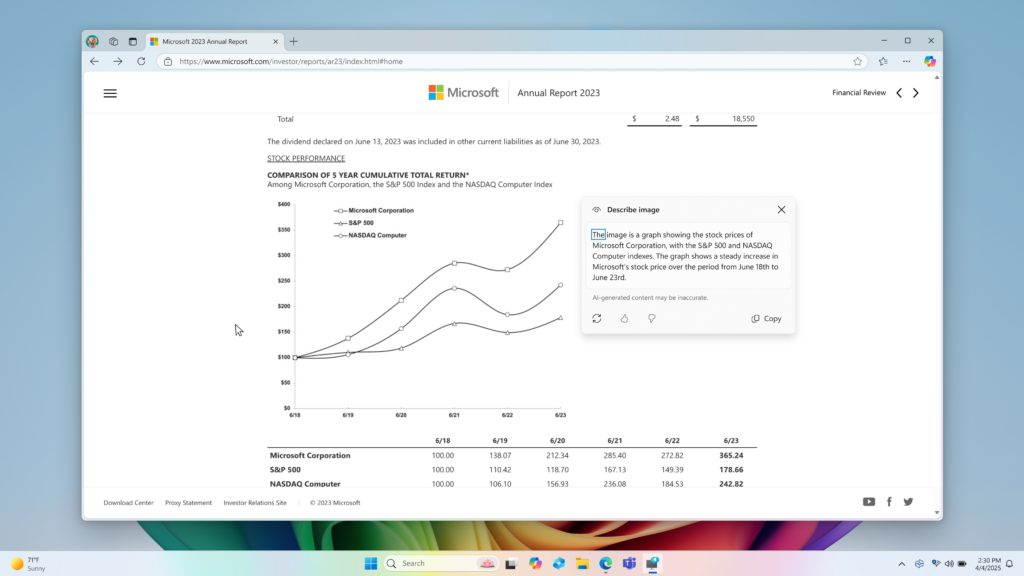
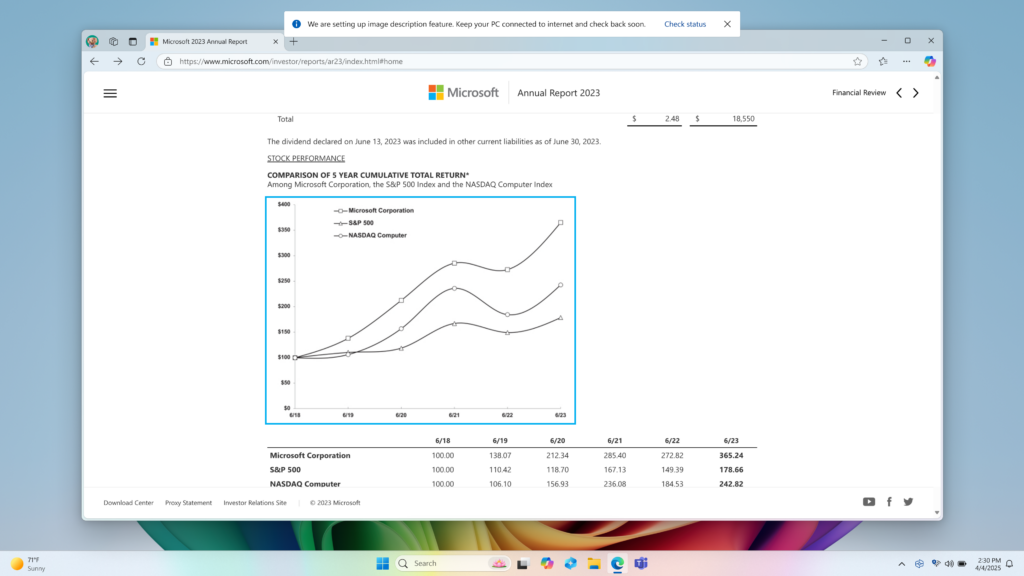
We are enhancing digital accessibility with the ability to get rich, detailed descriptions of images, charts, graphs in Narrator by using the power of AI on Copilot+ PCs. In today’s digital world, images are everywhere—on websites, apps, and documents. But for blind and low-vision users, many of these visuals remain inaccessible due to missing or inadequate alt text. After beginning the rollout for this feature for Snapdragon-powered Copilot+ PCs, we are also now rolling this feature out for AMD and Intel®-powered Copilot+ PCs. With this new feature that is beginning to roll out, Narrator will now generate richer image descriptions on your Copilot+ PC. Simply press Narrator key + Ctrl + D and Narrator will read out a contextual description of the image describing people, objects, colors, text, and numbers from the image. On non-Copilot+ PCs, this experience will continue to give you very basic image descriptions. For example, for an image about stock performance, users will get the following detailed description. The image is a graph showing the stock prices of Microsoft Corporation, with the S&P 500 and NASDAQ Computer indexes. The graph shows a steady increase in Microsoft’s stock price over the period from June 18th to June 23rd. [caption id="attachment_177792" align="alignnone" width="1024"]Screenshot of Edge browser containing an image of “stock performance graph” with “Describe image” window open next to it showing the description of the image. Screenshot of Edge browser containing an image of “stock performance graph” with “Describe image” window open next to it showing the description of the image.[/caption] The window also contains regenerate, like, dislike and copy button at the bottom. [caption id="attachment_177794" align="alignnone" width="1024"]Screenshot of Edge browser with Narrator’s focus on an image of graph. There’s an info bar on top of the screen which says, “We are setting up image description feature. Keep your PC connected to internet and check back soon.” along with a “Check status” button. Screenshot of Edge browser with Narrator’s focus on an image of graph. There’s an info bar on top of the screen which says, “We are setting up image description feature. Keep your PC connected to internet and check back soon.” along with a “Check status” button.[/caption] To turn Narrator on, you can press “Ctrl + Windows key + Enter” on your PC or search for “Narrator” in Windows search box. When you try the image descriptions feature for the first time using Narrator Key + Ctrl + D, we download the models required for getting image descriptions. You can check the download status via Settings > Windows update. If you are new to Narrator, you can find more information and learn about using Narrator from the complete guide to Narrator. Also check out frequently asked questions about rich image descriptions in Narrator here. FEEDBACK: Please file feedback in Feedback Hub (WIN + F) under Accessibility > Narrator.
Changes and Improvements gradually being rolled out to the Dev Channel with toggle on*

[General]

  • As part of our commitment to improving Windows performance, logs are now collected when your PC has experienced any slow or sluggish performance. Windows Insiders are encouraged to provide feedback when experiencing PC issues related to slow or sluggish performance, allowing Feedback Hub to automatically collect these logs, which will help us root cause issues faster. Use the Desktop > System Sluggishness category when filing feedback to allow Feedback Hub to automatically pick up these logs. These logs are stored locally (%systemRoot%\Temp\DiagOutputDir\Whesvc folder) and only sent to Microsoft via Feedback Hub when feedback is submitted.

[Click to Do (Preview)]

The following changes and improvements are rolling out for Click to Do on Copilot+ PCs:
  • We are trying out a change that removes the search box in the top bar of Click to Do.

[Lock screen]

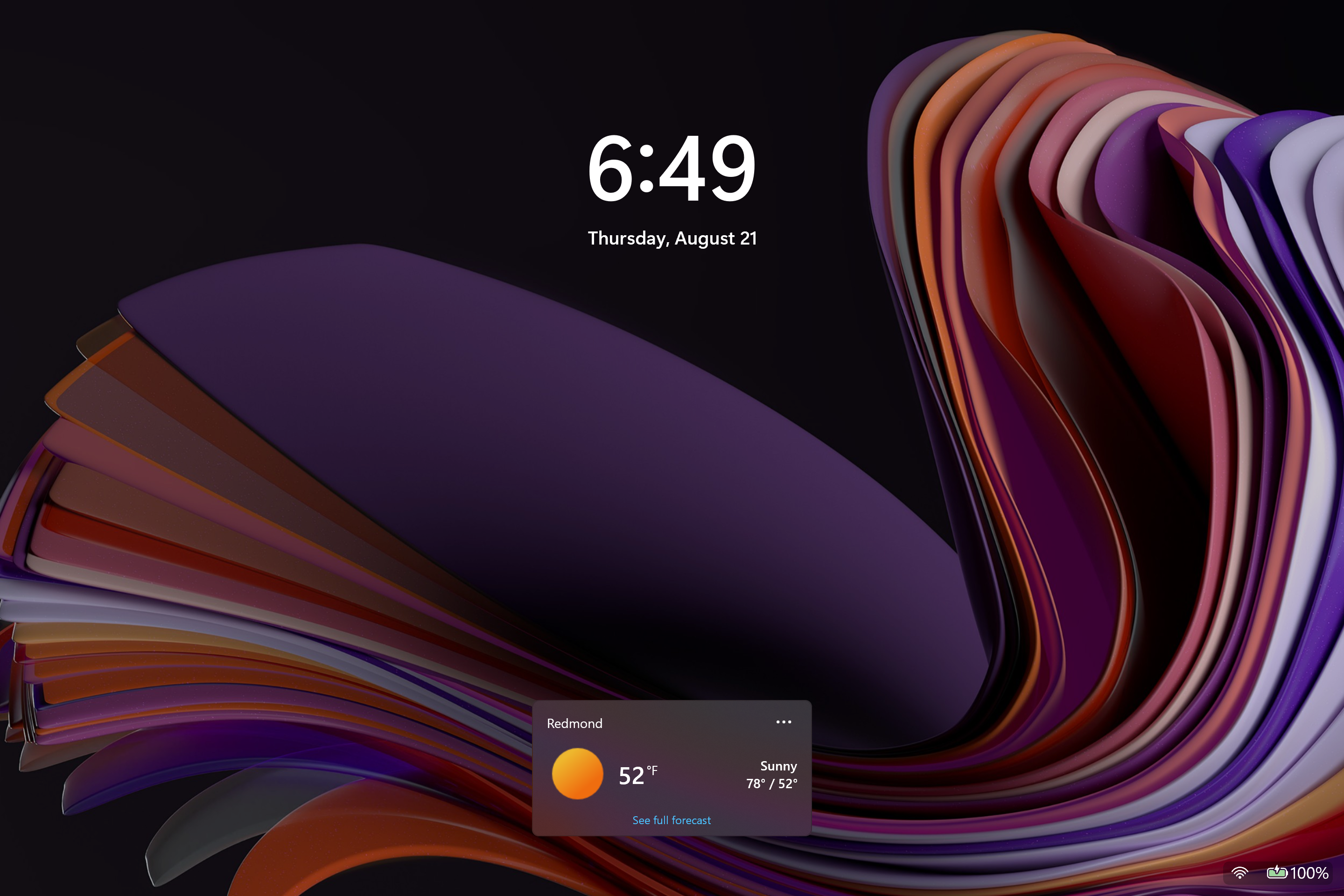
  • We're updating lock screen widgets experience for Windows Insiders in the Dev Channel, with widget suggestions to help you easily discover more widgets. This feature can be enabled or disabled with the “Discover widgets” toggle under Settings > Personalization > Lock screen. Please note this experience is still being refined and will change in future flights.

[Settings]

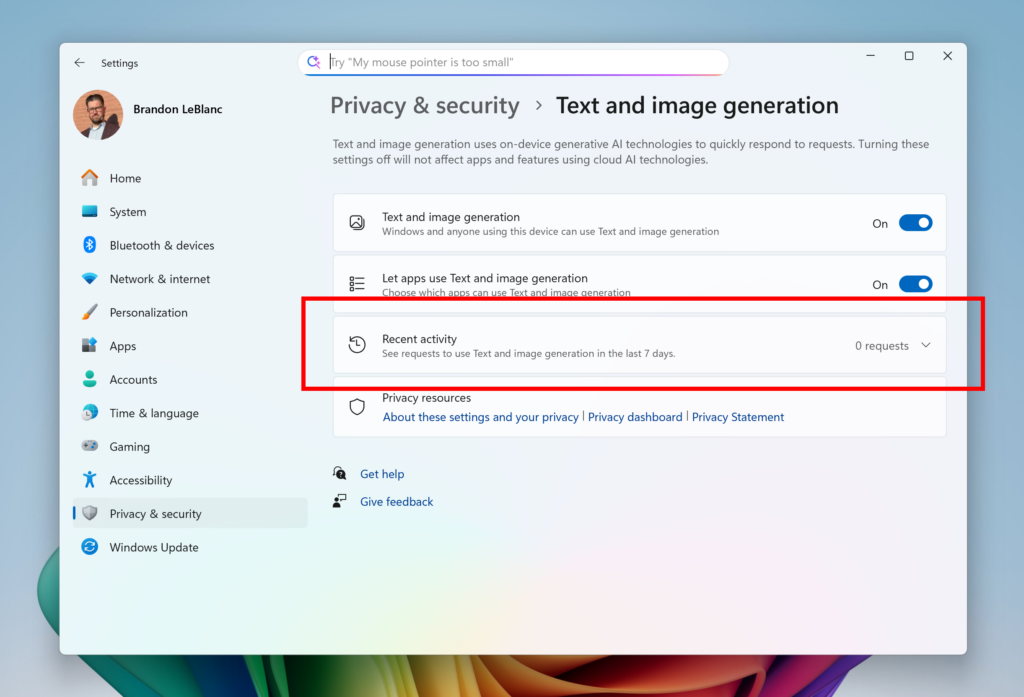
  • You can now visit the Settings > Privacy & security > Text and image generation to see which third-party applications recently used generative AI models provided by Windows. This page gives you visibility into the specific apps leveraging local Windows provided generative AI models and allows you to control which apps are permitted to use them—putting you in charge of your device’s AI experience. The UI is present in this flight today, however the functionality will light up in a upcoming flight.
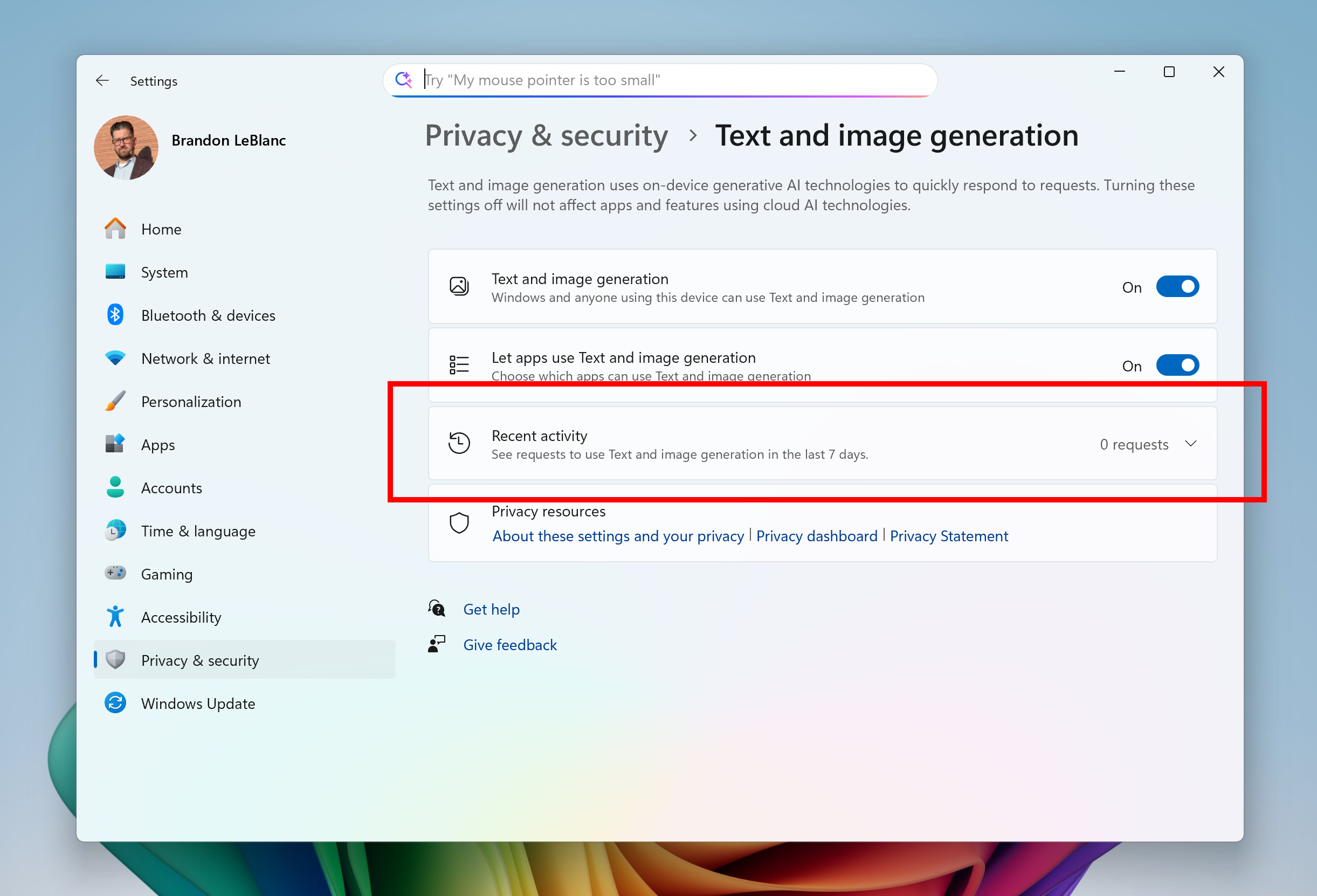
[caption id="attachment_178075" align="alignnone" width="540"]Text and image generation settings page with recent activity highlighted in a red box for seeing which apps use generative AI models provided by Windows. Text and image generation settings page with recent activity highlighted in a red box for seeing which apps use generative AI models provided by Windows.[/caption]

Fixes gradually being rolled out to the Dev Channel with toggle on*

[Notification Center]

[Other]

  • Fixed an underlying issue with dbgcore.dll, which could lead to explorer.exe and some other apps crashing recently.

Known issues

[General]

  • Some Windows Insiders may experience a rollback trying to install this update with a 0x80070005 in Windows Update. We’re working on a fix for Windows Insiders impacted. If you are impacted, using Settings > System > Recovery > “Fix issues using Windows update” may resolve the issue.
  • You may see multiple error pop ups about unexpected elements when opening Group Policy Editor.

[Start menu]

The following are known issues for Windows Insiders with the new Start menu:
  • Using touch to navigate the new Start menu may not work reliably. For example, it currently does not support the swipe-up gesture.
  • Drag and drop capabilities are limited from “All” to “Pinned.”

[Live Captions]

  • [NEW] Live captions may crash when attempting to use live translation on a Copilot+ PC.

[Xbox Controllers]

  • Some Insiders are experiencing an issue where using their Xbox Controller via Bluetooth is causing their PC to bugcheck. Here is how to resolve the issue. Open Device Manager by searching for it via the search box on your taskbar. Once Device Manager is open, click on "View" and then "Devices by Driver". Find the driver named "oemXXX.inf (XboxGameControllerDriver.inf)" where the "XXX" will be a specific number on your PC. Right-click on that driver and click "Uninstall".

[Click to Do (Preview)]

The following known issues will be fixed in future updates to Windows Insiders:
  • Windows Insiders on AMD or Intel®-powered Copilot+ PCs may experience long wait times on the first attempt to perform intelligent text actions in Click to Do after a new build or model update.

[Input]

  • The Microsoft Changjie Input method doesn’t work properly in this build - not able to select words. Reverting to the previous version of the IME in Settings should mitigate the issue while we work on a fix.

Reminders for Windows Insiders in the Dev Channel

  • Windows Insiders in the Dev Channel receive updates based on Windows 11, version 25H2 via an enablement package (Build 26200.xxxx). For more information on Windows 11, version 25H2 – see this blog post.
  • Many features in the Dev Channel are rolled out using Control Feature Rollout technology, starting with a subset of Insiders and ramping up over time as we monitor feedback to see how they land before pushing them out to everyone in this channel.
  • For Windows Insiders in the Dev Channel who want to be the first to get features gradually rolled out to you, you can turn ON the toggle to get the latest updates as they are available via Settings > Windows Update*. Over time, we will increase the rollouts of features to everyone with the toggle turned on. Should you keep this toggle off, new features will gradually be rolled out to your PC over time once they are ready.
  • Features and experiences included in these builds may never get released as we try out different concepts and get feedback. Features may change over time, be removed, or replaced and never get released beyond Windows Insiders. Some of these features and experiences could show up in future Windows releases when they’re ready.
  • Some features in active development we preview with Windows Insiders may not be fully localized and localization will happen over time as features are finalized. As you see issues with localization in your language, please report those issues to us via Feedback Hub.
  • Please note that some accessibility features may not work with features like Recall and Click to Do while in preview with Windows Insiders.
  • Because the Dev and Beta Channels represent parallel development paths from our engineers, there may be cases where features and experiences show up in the Beta Channel first.
  • Check out Flight Hub for a complete look at what build is in which Insider channel.
Thanks, Amanda & Brandon

Source: Announcing Windows 11 Insider Preview Build 26200.5710 (Dev Channel)
 
Hello Windows Insiders, today we are releasing Windows 11 Insider Preview Build 27909 to the Canary Channel. We are also not planning to release SDKs for 27xxx series builds for the time being.

Changes and Improvements

[General]

  • This update includes a small set of general improvements and fixes that improve the overall experience for Insiders running this build on their PCs.

Fixes

[Administrator Protection]

  • Fixed an underlying issue where the Xbox app wouldn’t launch when administrator protection was enabled. This may have also impacted other apps too, showing error 0xC0000142 or 0xC0000045.

[Settings]

  • Fixed an issue where the battery percentage was unexpectedly missing from the top of System > Power & Battery in the last few builds.

[Remote desktop]

  • Fixed an issue causing extreme graphical distortion and rendering issues using remote desktop on Arm64 PCs in the last couple builds.

[Other]

  • Fixed a high hitting pcasvc.dll crash in the previous build.
  • Fixed an underlying issue where if you disconnected the device you were casting to from outside of Media Player, Media Player would still show an option to disconnect from the device.
  • Fixed an issue which was causing Remote Credential Guard scenarios between the latest Windows 11 builds and Server 2022 (and below) to fail.

Known issues

[General]

  • [IMPORTANT NOTE FOR COPILOT+ PCs] If you are joining the Canary Channel on a new Copilot+ PC from the Dev Channel, Release Preview Channel or retail, you will lose Windows Hello pin and biometrics to sign into your PC with error 0xd0000225 and error message “Something went wrong, and your PIN isn’t available”. You should be able to re-create your PIN by clicking “Set up my PIN”.
  • There's an issue starting with the latest builds causing a small number of Insiders to experience repeated bugchecks with KERNEL_SECURITY_CHECK_FAILURE after upgrading.This may occur when connecting to VPN.
  • This Canary Channel flight comes with a delightful blast from the past and will play the Windows Vista boot sound instead of the Windows 11 boot sound. The fix should be coming in a future Canary Channel flight soon.

[Settings]

  • We’re investigating an issue in this build which could cause Settings to crash when interacting with the options under Settings > System > Power & Battery.
  • We’re investigating an issue where some of the apostrophes across text in Settings and settings-related dialogs are not displaying correctly and are showing random characters.

Reminders for Windows Insiders in the Canary Channel

  • The builds we release to the Canary Channel represent the latest platform changes early in the development cycle and should not be seen as matched to any specific release of Windows and features and experiences included in these builds may never get released as we try out different concepts and get feedback. Features may change over time, be removed, or replaced and never get released beyond Windows Insiders. Some of these features and experiences could show up in future Windows releases when they’re ready.
  • Many features in the Canary Channel are rolled out using Control Feature Rollout technology, starting with a subset of Insiders and ramping up over time as we monitor feedback to see how they land before pushing them out to everyone in this channel.
  • Some features may show up in the Dev and Beta Channels first before showing up in the Canary Channel.
  • Some features in active development we preview with Windows Insiders may not be fully localized and localization will happen over time as features are finalized. As you see issues with localization in your language, please report those issues to us via Feedback Hub.
  • To get off the Canary Channel, a clean install of Windows 11 will be required. As a reminder - Insiders can’t switch to a channel that is receiving builds with lower build numbers without doing a clean installation of Windows 11 due to technical setup requirements.
  • The desktop watermark shown at the lower right corner of the desktop is normal for these pre-release builds.
  • Check out Flight Hub for a complete look at what build is in which Insider channel.
Thanks, Amanda & Brandon

Source: Announcing Windows 11 Insider Preview Build 27909 (Canary Channel)
 
Hello Windows Insiders, today we are releasing Windows 11 Insider Preview Build 26120.5722 (KB5062669) to the Beta Channel for Windows Insiders on Windows 11, version 24H2. Changes in Beta Channel builds and updates are documented in two buckets: new features, improvements, and fixes that are being gradually rolled out for Insiders who have turned on the toggle to get the latest updates as they are available (via Settings > Windows Update*) and then new features, improvements, and fixes rolling out to everyone in the Beta Channel. For more information, see the Reminders section at the bottom of this blog post.

New Copilot+ PC experiences

Introducing the new agent in Settings rolling out for AMD and Intel®-powered Copilot+ PCs

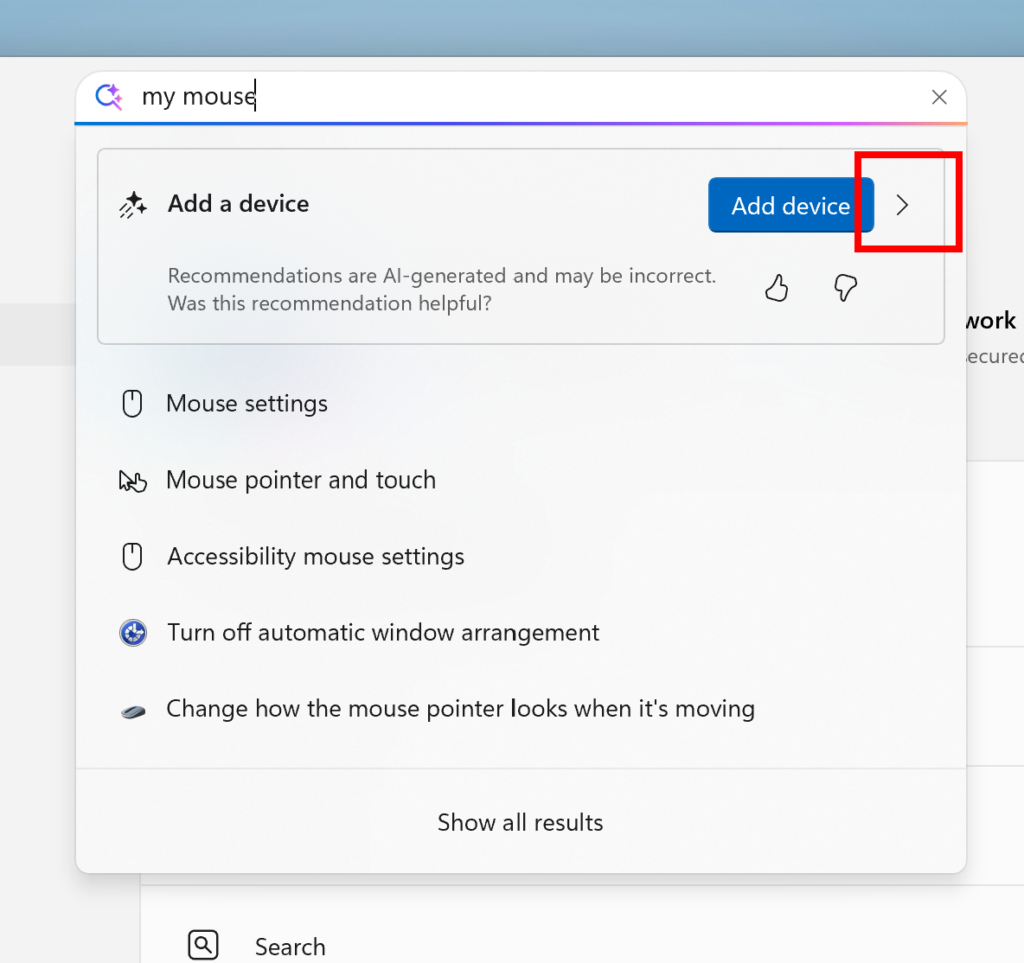
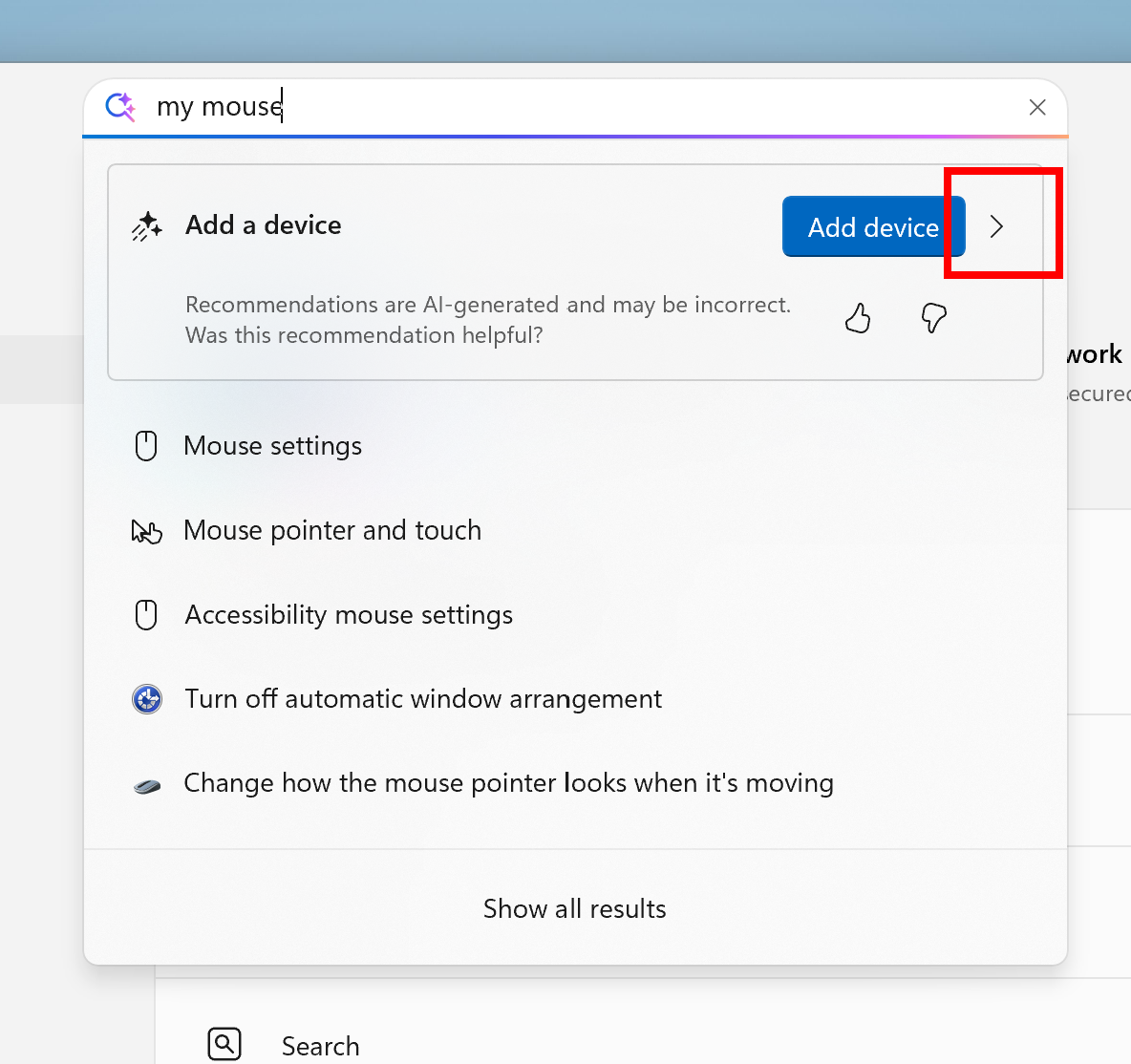
We are rolling out the new agent in Settings experience for AMD and Intel®-powered Copilot+ PCs. This experience is designed to help solve one of the most common frustrations we heard: finding and changing settings on your PC. With this update to Settings, you will be able to simply describe what you need help with like, “how to control my PC by voice” or “my mouse pointer is too small” and the agent will recommend the right steps you can take to address the issue. An agent uses AI on your PC to understand your intent and with your permission, automate and execute tasks on your behalf. Please note that this experience works if your primary display language is set to English. [caption id="attachment_177859" align="alignnone" width="1024"]Agent powered search results for my mouse pointer is too small in Settings. Agent powered search results for my mouse pointer is too small in Settings.[/caption] FEEDBACK: Please file feedback in Feedback Hub (WIN + F) under Settings > All other settings.

Changes and Improvements gradually being rolled out to the Beta Channel with toggle on*

[General]

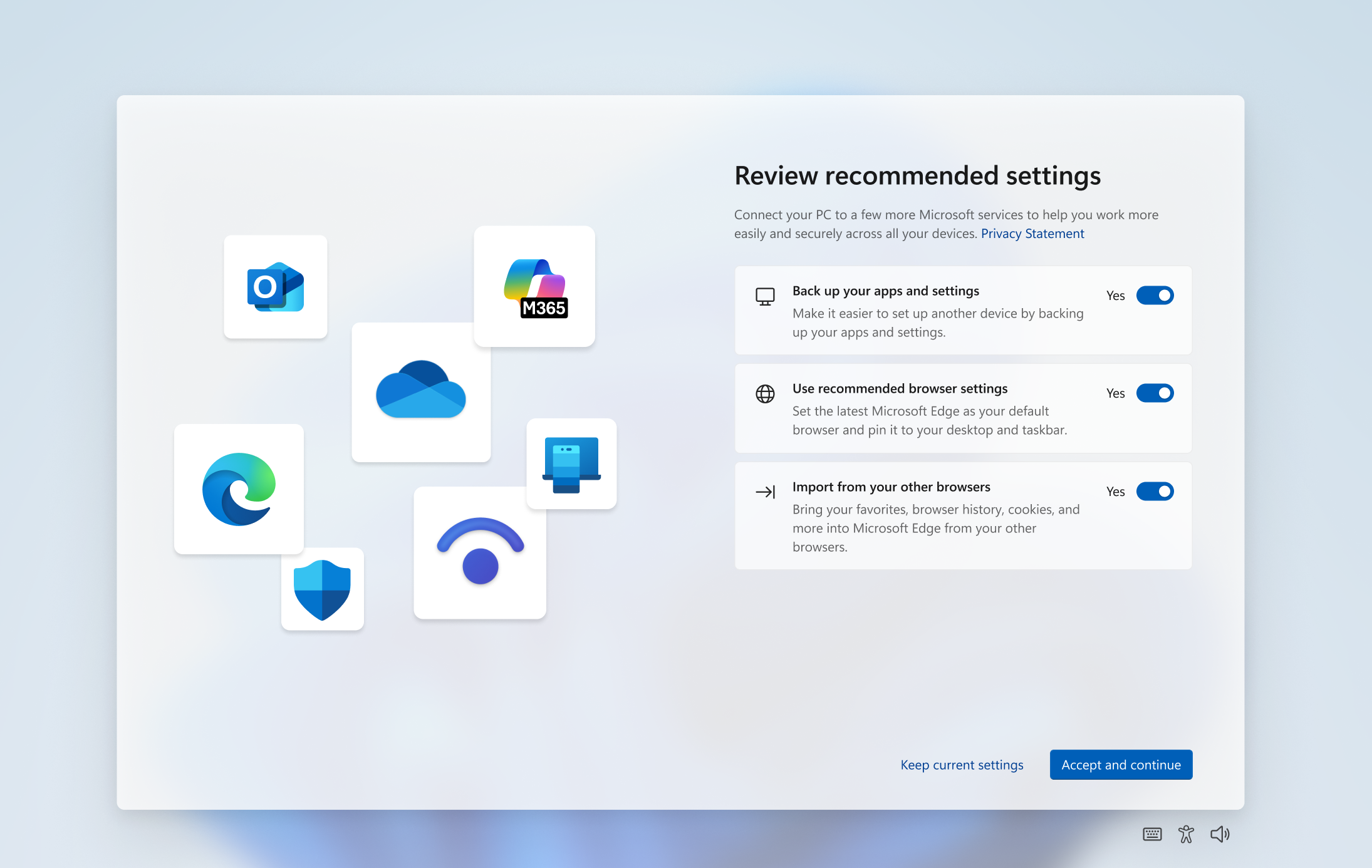
  • Some Windows Insiders in the Dev and Beta Channels will see a refreshed SCOOBE screen (Second Chance Out of Box Experience) for reviewing recommended settings on your PC. This redesigned screen is meant to be more intuitive and streamlined, allowing you to choose the recommended settings you want for your PC without having to navigate through multiple setup screens. If you see this screen, let us know if you have any feedback via Feedback Hub.
[caption id="attachment_178097" align="alignnone" width="625"]ALT-TEXT: Refreshed SCCOBE screen for reviewing recommended settings. ALT-TEXT: Refreshed SCCOBE screen for reviewing recommended settings.[/caption]

[Click to Do (Preview)]

The following changes and improvements are rolling out for Click to Do on Copilot+ PCs:
  • We are beginning to roll out a new tutorial for Click to Do. When you launch Click to Do for the first time, you’ll be offered a quick interactive tutorial that shows you how to accomplish tasks faster. During the tutorial, you’ll take actions on both text and images, so you’ll know how to quickly get a summary of a large block of text or remove the background from an image. You can revisit the tutorial at any time by selecting …, then Start tutorial.
[caption id="attachment_178094" align="alignnone" width="635"]New tutorial in Click to Do on Copilot+ PCs. New tutorial in Click to Do on Copilot+ PCs.[/caption]

[Taskbar & System Tray]

  • We are making a change to how quickly Windows can apply enterprise pins to the taskbar when initiated by the IT admins. We want to reduce the gap between an IT admin applying the pinning policy and when their users see a pin on their taskbar. Today, the policy only applies when explorer restarts. With this change, the gap is only up to ~8 hours (policy refresh interval) and sidesteps the explorer restart requirement.

[Search on the Taskbar]

  • In the left pane of the search results in the Windows Search box on the taskbar, we are introducing a new grid view to help you more quickly and accurately identify the desired image within your search.
[caption id="attachment_178095" align="alignnone" width="386"]Search results in the Windows Search box with grid view of images highlighted in a red box. Search results in the Windows Search box with grid view of images highlighted in a red box.[/caption]

[Lock screen]

  • We have made some updates to the UI for configuring widgets on the lock screen under Settings > Personalization > Lock screen.

[Notification Center]

  • To address your feedback, we are extending the functionality of Notification Center to secondary monitors. This means you will be able to see your calendar on any of your monitors as well as the option to show a bigger clock with seconds above calendar. You will be able to open Notification Center on any monitor by clicking the date and time in the system tray of your taskbar.

[Task Manager]

  • After disabling to fix some issues, we are beginning to roll out the change the way Task Manager calculates CPU utilization for the Processes, Performance, and Users pages again to Windows Insiders in the Dev and Beta Channels. Task Manager will now use the standard metrics to display CPU workload consistently across all pages and aligning with industry standards and third-party tools. For backward compatibility, a new optional column called CPU Utility is available (hidden by default) on the Details tab showing the previous CPU value used on the Processes page.
[caption id="attachment_177652" align="alignnone" width="380"]New CPU utility column option for Details page in Task Manager. New CPU utility column option for Details page in Task Manager.[/caption]

Fixes gradually being rolled out to the Beta Channel with toggle on*

[Taskbar]

  • Fixed an issue where the Task View icon in the taskbar might be unexpectedly invisible if you turned it off and back on in Settings (the space was reserved and you could click it to open Task View, but nothing showed in the space).
  • Fixed a race condition which could lead to the Widgets icon not displaying in the taskbar although it was enabled in Settings (no space reserved, clicking the area did nothing).

[Login and lock]

  • Fixed an issue which was causing the text for lock screen widgets to be unreadable in some cases because it was white on a light background.
  • Did some work to address an underlying issue which could lead to the taskbar being slow to load when unlocking your PC after coming out of sleep. This issue could also have led to the password field and other login screen contents not rendering when transitioning from lock screen to login screen after sleep. If you continue experiencing issues, please report them in the Feedback Hub under Install and Update > Logon hangs.

[File Explorer]

  • Fixed an issue where if you tried to use the unblock open in Properties for a file, it will still show as blocked when you opened Properties the next time.

[Start menu]

  • Fixed an issue for those with the new Start menu where if you used touch to navigate the new Start menu, it wasn’t working reliably. For example, it didn’t support the swipe-up gesture.

[Input]

  • Fixed an issue which was causing the Microsoft Changjie Input method to not work properly in the previous build.
  • Fixed an issue which was causing phonetic keyboards, such as the Hindi Phonetic Input keyboard and the Marathi Phonetic keyboard, to not work properly in the previous build.

[Administrator Protection]

  • Fixed an underlying issue where the Xbox app wouldn’t launch when administrator protection was enabled. This may have also impacted other apps too, showing error 0xC0000142 or 0xC0000045.

[Settings]

  • Fixed an issue where under Settings > System > Storage > Disks and Volumes there might show a link for BitLocker drive encryption although it wasn’t supported in that case. Clicking it would result in BitLocker opening and displaying error 0x80004005.

[Other]

  • Fixed an issue causing Insiders to see multiple error pop ups about unexpected elements when opening Group Policy Editor.
  • Fixed an underlying issue causing a small number of Insiders to experience a bugcheck with error DRIVER_IRQL_NOT_LESS_OR_EQUAL in the latest builds.
  • Fixed an underlying issue impacting installers for certain apps on ARM64 PCs, which could result in a long stall during the installation process.

Fixes for everyone in the Beta Channel

[Graphics]

  • Fixed an issue where external graphics cards connected over Thunderbolt were unexpectedly not discoverable in some cases.

Known issues

[General]

  • Some Windows Insiders may experience a rollback trying to install this update with a 0x80070005 in Windows Update. We’re working on a fix for Windows Insiders impacted. If you are impacted, using Settings > System > Recovery > “Fix issues using Windows update” may resolve the issue.

[Live Captions]

  • Live captions may crash when attempting to use live translation on a Copilot+ PC.

[Xbox Controllers]

  • Some Insiders are experiencing an issue where using their Xbox Controller via Bluetooth is causing their PC to bugcheck. Here is how to resolve the issue. Open Device Manager by searching for it via the search box on your taskbar. Once Device Manager is open, click on "View" and then "Devices by Driver". Find the driver named "oemXXX.inf (XboxGameControllerDriver.inf)" where the "XXX" will be a specific number on your PC. Right-click on that driver and click "Uninstall".

[Click to Do (Preview)]

The following known issues will be fixed in future updates to Windows Insiders:
  • Windows Insiders on AMD or Intel®-powered Copilot+ PCs may experience long wait times on the first attempt to perform intelligent text actions in Click to Do after a new build or model update.

Reminders for Windows Insiders in the Beta Channel

  • Windows Insiders in the Beta Channel on Windows 11, version 24H2 will receive updates based on Windows 11, version 24H2 via an enablement package (Build 26120.xxxx).
  • Updates delivered to the Beta Channel are in a format that offers a preview of enhancements to servicing technology on Windows 11, version 24H2. To learn more, see Introducing Windows 11 checkpoint cumulative updates | Windows IT Pro Blog.
  • Many features in the Beta Channel are rolled out using Controlled Feature Rollout technology, starting with a subset of Insiders and ramping up over time as we monitor feedback to see how they land before pushing them out to everyone in this channel.
  • For Windows Insiders in the Beta Channel who want to be the first to get features gradually rolled out to you, you can turn ON the toggle to get the latest updates as they are available via Settings > Windows Update*. Over time, we will increase the rollouts of features to everyone with the toggle turned on. Should you keep this toggle off, new features will gradually be rolled out to your PC over time once they are ready.
  • Features and experiences included in these builds may never get released as we try out different concepts and get feedback. Features may change over time, be removed, or replaced and never get released beyond Windows Insiders. Some of these features and experiences could show up in future Windows releases when they’re ready.
  • Some features in active development we preview with Windows Insiders may not be fully localized and localization will happen over time as features are finalized. As you see issues with localization in your language, please report those issues to us via Feedback Hub.
  • Please note that some accessibility features may not work with features like Recall and Click to Do while in preview with Windows Insiders.
  • Because the Dev and Beta Channels represent parallel development paths from our engineers, there may be cases where features and experiences show up in the Beta Channel first.
  • Check out Flight Hub for a complete look at what build is in which Insider channel.
Thanks, Amanda & Brandon

Source: Announcing Windows 11 Insider Preview Build 26120.5722 (Beta Channel)
 
Hello Windows Insiders, today we are releasing Windows 11 Insider Preview Build 26200.5722 (KB5062669) to the Dev Channel. Changes in Dev Channel builds and updates are documented in two buckets: new features, improvements, and fixes that are being gradually rolled out for Insiders who have turned on the toggle to get the latest updates as they are available (via Settings > Windows Update*) and then new features, improvements, and fixes rolling out to everyone in the Dev Channel. For more information, see the Reminders section at the bottom of this blog post.

New Copilot+ PC experiences

Introducing the new agent in Settings rolling out for AMD and Intel®-powered Copilot+ PCs

We are rolling out the new agent in Settings experience for AMD and Intel®-powered Copilot+ PCs. This experience is designed to help solve one of the most common frustrations we heard: finding and changing settings on your PC. With this update to Settings, you will be able to simply describe what you need help with like, “how to control my PC by voice” or “my mouse pointer is too small” and the agent will recommend the right steps you can take to address the issue. An agent uses AI on your PC to understand your intent and with your permission, automate and execute tasks on your behalf. Please note that this experience works if your primary display language is set to English. [caption id="attachment_177859" align="alignnone" width="1024"]Agent powered search results for my mouse pointer is too small in Settings. Agent powered search results for my mouse pointer is too small in Settings.[/caption] FEEDBACK: Please file feedback in Feedback Hub (WIN + F) under Settings > All other settings.

Changes and Improvements gradually being rolled out to the Dev Channel with toggle on*

[General]

  • Some Windows Insiders in the Dev and Beta Channels will see a refreshed SCOOBE screen (Second Chance Out of Box Experience) for reviewing recommended settings on your PC. This redesigned screen is meant to be more intuitive and streamlined, allowing you to choose the recommended settings you want for your PC without having to navigate through multiple setup screens. If you see this screen, let us know if you have any feedback via Feedback Hub.
[caption id="attachment_178097" align="alignnone" width="625"]ALT-TEXT: Refreshed SCCOBE screen for reviewing recommended settings. ALT-TEXT: Refreshed SCCOBE screen for reviewing recommended settings.[/caption]

[Click to Do (Preview)]

The following changes and improvements are rolling out for Click to Do on Copilot+ PCs:
  • We are beginning to roll out a new tutorial for Click to Do. When you launch Click to Do for the first time, you’ll be offered a quick interactive tutorial that shows you how to accomplish tasks faster. During the tutorial, you’ll take actions on both text and images, so you’ll know how to quickly get a summary of a large block of text or remove the background from an image. You can revisit the tutorial at any time by selecting …, then Start tutorial.
[caption id="attachment_178094" align="alignnone" width="635"]New tutorial in Click to Do on Copilot+ PCs. New tutorial in Click to Do on Copilot+ PCs.[/caption]

[Taskbar & System Tray]

  • We are making a change to how quickly Windows can apply enterprise pins to the taskbar when initiated by the IT admins. We want to reduce the gap between an IT admin applying the pinning policy and when their users see a pin on their taskbar. Today, the policy only applies when explorer restarts. With this change, the gap is only up to ~8 hours (policy refresh interval) and sidesteps the explorer restart requirement.

[Search on the Taskbar]

  • In the left pane of the search results in the Windows Search box on the taskbar, we are introducing a new grid view to help you more quickly and accurately identify the desired image within your search.
[caption id="attachment_178095" align="alignnone" width="386"]Search results in the Windows Search box with grid view of images highlighted in a red box. Search results in the Windows Search box with grid view of images highlighted in a red box.[/caption]

[Lock screen]

  • We have made some updates to the UI for configuring widgets on the lock screen under Settings > Personalization > Lock screen.

[Notification Center]

  • To address your feedback, we are extending the functionality of Notification Center to secondary monitors. This means you will be able to see your calendar on any of your monitors as well as the option to show a bigger clock with seconds above calendar. You will be able to open Notification Center on any monitor by clicking the date and time in the system tray of your taskbar.

[Task Manager]

  • After disabling to fix some issues, we are beginning to roll out the change the way Task Manager calculates CPU utilization for the Processes, Performance, and Users pages again to Windows Insiders in the Dev and Beta Channels. Task Manager will now use the standard metrics to display CPU workload consistently across all pages and aligning with industry standards and third-party tools. For backward compatibility, a new optional column called CPU Utility is available (hidden by default) on the Details tab showing the previous CPU value used on the Processes page.
[caption id="attachment_177652" align="alignnone" width="380"]New CPU utility column option for Details page in Task Manager. New CPU utility column option for Details page in Task Manager.[/caption]

Fixes gradually being rolled out to the Dev Channel with toggle on*

[Taskbar]

  • Fixed an issue where the Task View icon in the taskbar might be unexpectedly invisible if you turned it off and back on in Settings (the space was reserved and you could click it to open Task View, but nothing showed in the space).
  • Fixed a race condition which could lead to the Widgets icon not displaying in the taskbar although it was enabled in Settings (no space reserved, clicking the area did nothing).

[Login and lock]

  • Fixed an issue which was causing the text for lock screen widgets to be unreadable in some cases because it was white on a light background.
  • Did some work to address an underlying issue which could lead to the taskbar being slow to load when unlocking your PC after coming out of sleep. This issue could also have led to the password field and other login screen contents not rendering when transitioning from lock screen to login screen after sleep. If you continue experiencing issues, please report them in the Feedback Hub under Install and Update > Logon hangs.

[File Explorer]

  • Fixed an issue where if you tried to use the unblock open in Properties for a file, it will still show as blocked when you opened Properties the next time.

[Start menu]

  • Fixed an issue for those with the new Start menu where if you used touch to navigate the new Start menu, it wasn’t working reliably. For example, it didn’t support the swipe-up gesture.

[Input]

  • Fixed an issue which was causing the Microsoft Changjie Input method to not work properly in the previous build.
  • Fixed an issue which was causing phonetic keyboards, such as the Hindi Phonetic Input keyboard and the Marathi Phonetic keyboard, to not work properly in the previous build.

[Administrator Protection]

  • Fixed an underlying issue where the Xbox app wouldn’t launch when administrator protection was enabled. This may have also impacted other apps too, showing error 0xC0000142 or 0xC0000045.

[Settings]

  • Fixed an issue where under Settings > System > Storage > Disks and Volumes there might show a link for BitLocker drive encryption although it wasn’t supported in that case. Clicking it would result in BitLocker opening and displaying error 0x80004005.

[Other]

  • Fixed an issue causing Insiders to see multiple error pop ups about unexpected elements when opening Group Policy Editor.
  • Fixed an underlying issue causing a small number of Insiders to experience a bugcheck with error DRIVER_IRQL_NOT_LESS_OR_EQUAL in the latest builds.
  • Fixed an underlying issue impacting installers for certain apps on ARM64 PCs, which could result in a long stall during the installation process.

Fixes for everyone in the Dev Channel

[Graphics]

  • Fixed an issue where external graphics cards connected over Thunderbolt were unexpectedly not discoverable in some cases.

Known issues

[General]

  • Some Windows Insiders may experience a rollback trying to install this update with a 0x80070005 in Windows Update. We’re working on a fix for Windows Insiders impacted. If you are impacted, using Settings > System > Recovery > “Fix issues using Windows update” may resolve the issue.

[Live Captions]

  • Live captions may crash when attempting to use live translation on a Copilot+ PC.

[Xbox Controllers]

  • Some Insiders are experiencing an issue where using their Xbox Controller via Bluetooth is causing their PC to bugcheck. Here is how to resolve the issue. Open Device Manager by searching for it via the search box on your taskbar. Once Device Manager is open, click on "View" and then "Devices by Driver". Find the driver named "oemXXX.inf (XboxGameControllerDriver.inf)" where the "XXX" will be a specific number on your PC. Right-click on that driver and click "Uninstall".

[Click to Do (Preview)]

The following known issues will be fixed in future updates to Windows Insiders:
  • Windows Insiders on AMD or Intel®-powered Copilot+ PCs may experience long wait times on the first attempt to perform intelligent text actions in Click to Do after a new build or model update.

Reminders for Windows Insiders in the Dev Channel

  • Windows Insiders in the Dev Channel receive updates based on Windows 11, version 25H2 via an enablement package (Build 26200.xxxx). For more information on Windows 11, version 25H2 – see this blog post.
  • Many features in the Dev Channel are rolled out using Control Feature Rollout technology, starting with a subset of Insiders and ramping up over time as we monitor feedback to see how they land before pushing them out to everyone in this channel.
  • For Windows Insiders in the Dev Channel who want to be the first to get features gradually rolled out to you, you can turn ON the toggle to get the latest updates as they are available via Settings > Windows Update*. Over time, we will increase the rollouts of features to everyone with the toggle turned on. Should you keep this toggle off, new features will gradually be rolled out to your PC over time once they are ready.
  • Features and experiences included in these builds may never get released as we try out different concepts and get feedback. Features may change over time, be removed, or replaced and never get released beyond Windows Insiders. Some of these features and experiences could show up in future Windows releases when they’re ready.
  • Some features in active development we preview with Windows Insiders may not be fully localized and localization will happen over time as features are finalized. As you see issues with localization in your language, please report those issues to us via Feedback Hub.
  • Please note that some accessibility features may not work with features like Recall and Click to Do while in preview with Windows Insiders.
  • Because the Dev and Beta Channels represent parallel development paths from our engineers, there may be cases where features and experiences show up in the Beta Channel first.
  • Check out Flight Hub for a complete look at what build is in which Insider channel.
Thanks, Amanda & Brandon

Source: Announcing Windows 11 Insider Preview Build 26200.5722 (Dev Channel)
 
Hello Windows Insiders, today we are releasing Windows 11 Insider Preview Build 27913 to the Canary Channel. We are also not planning to release SDKs for 27xxx series builds for the time being.

Changes and Improvements

[General]

  • This update includes a small set of general improvements and fixes that improve the overall experience for Insiders running this build on their PCs.

[Settings]

  • The search box in Settings will now be located at the top center to deliver a more consistent and better search experience.

Fixes

[General]

  • Fixed an issue where the Windows Vista boot sound was unexpectedly being used instead of the Windows 11 boot sound.

[Desktop background]

  • Did some underlying work to help address issues which could result in the desktop background unexpectedly becoming black rather than displaying the expected wallpaper image. If you continue experiencing issues, please don’t hesitate to report them in the Feedback Hub under Desktop Environment > Background and Wallpaper.

[Settings]

  • Fixed an issue in the latest builds which could cause Settings to crash when interacting with the options under Settings > System > Power & Battery.
  • Fixed an underlying issue where some of the apostrophes across text in Settings and settings-related dialogs were not displaying correctly and were showing random characters.

[Audio]

  • Fixed an issue which could result in audio not working a few seconds after casting to a TV.

[Other]

  • Fixed an issue in the latest builds causing a small number of Insiders to experience repeated bugchecks with KERNEL_SECURITY_CHECK_FAILURE after upgrading. This may occur when connecting to VPN.
  • Fixed an underlying issue which could result in acrylic in certain apps unexpectedly being transparent.
  • Made another fix for the issue causing Group Policy Editor to not display correctly in certain languages (like Chinese), showing large blank areas.

Known issues

[General]

  • [IMPORTANT NOTE FOR COPILOT+ PCs] If you are joining the Canary Channel on a new Copilot+ PC from the Dev Channel, Release Preview Channel or retail, you will lose Windows Hello pin and biometrics to sign into your PC with error 0xd0000225 and error message “Something went wrong, and your PIN isn’t available”. You should be able to re-create your PIN by clicking “Set up my PIN”.
  • [NEW] The progress wheel may show as a rectangle glyph instead of rendering correctly when upgrading to this build.

Reminders for Windows Insiders in the Canary Channel

  • The builds we release to the Canary Channel represent the latest platform changes early in the development cycle and should not be seen as matched to any specific release of Windows and features and experiences included in these builds may never get released as we try out different concepts and get feedback. Features may change over time, be removed, or replaced and never get released beyond Windows Insiders. Some of these features and experiences could show up in future Windows releases when they’re ready.
  • Many features in the Canary Channel are rolled out using Control Feature Rollout technology, starting with a subset of Insiders and ramping up over time as we monitor feedback to see how they land before pushing them out to everyone in this channel.
  • Some features may show up in the Dev and Beta Channels first before showing up in the Canary Channel.
  • Some features in active development we preview with Windows Insiders may not be fully localized and localization will happen over time as features are finalized. As you see issues with localization in your language, please report those issues to us via Feedback Hub.
  • To get off the Canary Channel, a clean install of Windows 11 will be required. As a reminder - Insiders can’t switch to a channel that is receiving builds with lower build numbers without doing a clean installation of Windows 11 due to technical setup requirements.
  • The desktop watermark shown at the lower right corner of the desktop is normal for these pre-release builds.
  • Check out Flight Hub for a complete look at what build is in which Insider channel.
Thanks, Amanda & Brandon

Source: Announcing Windows 11 Insider Preview Build 27913 (Canary Channel)
 
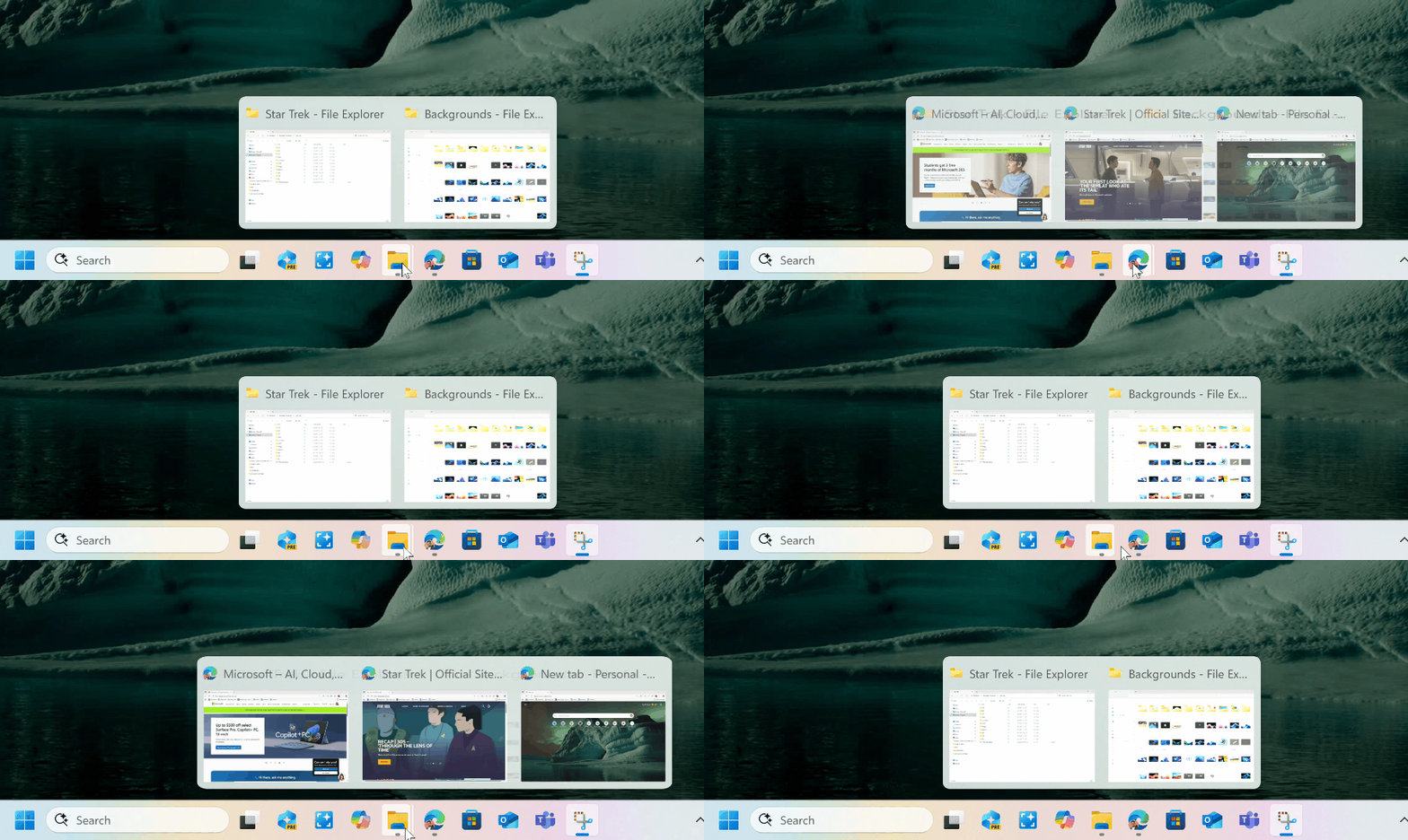
Hello Windows Insiders, today we are releasing Windows 11 Insider Preview Build 26120.5733 (KB5062673) to the Beta Channel for Windows Insiders on Windows 11, version 24H2. Changes in Beta Channel builds and updates are documented in two buckets: new features, improvements, and fixes that are being gradually rolled out for Insiders who have turned on the toggle to get the latest updates as they are available (via Settings > Windows Update*) and then new features, improvements, and fixes rolling out to everyone in the Beta Channel. For more information, see the Reminders section at the bottom of this blog post.

Changes and Improvements gradually being rolled out to the Beta Channel with toggle on*

[File Explorer]

  • For Windows Insiders signed in with a work or school account (Entra ID), File Explorer will begin showing people icons under the “Activity” column on File Explorer Home and on “Recommended” at the top of File Explorer Home. When you hover or click over a people icon, it will display the Live Persona Card for that person from Microsoft 365.
[caption id="attachment_177609" align="alignnone" width="550"]Activity column under File Explorer Home showing people icons highlighted in a red box. Activity column under File Explorer Home showing people icons highlighted in a red box.[/caption]

[Settings]

  • We are removing the "Manage or clear your Bing search history" entry from Settings > Privacy & security > Search under Search history. You can manage your Bing search history directly through the Privacy dashboard, accessible via the Privacy resources link under Related settings on that settings page.

Fixes gradually being rolled out to the Beta Channel with toggle on*

[Start menu]

  • Fixed an issue which was causing the Start menu to crash for some Insiders in the last couple builds.

[Taskbar & System Tray]

  • Fixed an issue where If you accidentally clicked down and slid your mouse on the taskbar preview thumbnail, clicking it would stop working.

[Lock screen]

  • Fixed an underlying crash which could result in widgets on the lock screen not displaying in the last couple builds – you also couldn’t add new ones.

[Input]

  • Fixed an issue in the previous flight which was leading to multi-finger touchpad gestures not working in the previous flight.

Known issues

[General]

  • Some Windows Insiders may experience a rollback trying to install this update with a 0x80070005 in Windows Update. We’re working on a fix for Windows Insiders impacted. If you are impacted, using Settings > System > Recovery > “Fix issues using Windows update” may resolve the issue.
  • [NEW] We’re working on the fix for an underlying issue with dao360.dll resulting in some apps crashing after the previous flight.

[Start menu]

  • [NEW] For Insiders with the new Start menu, you may unexpectedly see a category generated for every letter of the alphabet with blank icons, when opening the Start menu in the "All" section after updating to this build. Switching to a different view and then switching back should resolve the issue.

[File Explorer]

  • [NEW] In dark mode, the red color used for a low space drive in This PC may be unexpectedly light colored in this build. Some of the other colors may also be incorrect, including that black is used for space remaining instead of a more visible color.

[Click to Do (Preview)]

The following known issues will be fixed in future updates to Windows Insiders:
  • Windows Insiders on AMD or Intel®-powered Copilot+ PCs may experience long wait times on the first attempt to perform intelligent text actions in Click to Do after a new build or model update.

[Live Captions]

  • Live captions may crash when attempting to use live translation on a Copilot+ PC.

[Xbox Controllers]

  • Some Insiders are experiencing an issue where using their Xbox Controller via Bluetooth is causing their PC to bugcheck. Here is how to resolve the issue. Open Device Manager by searching for it via the search box on your taskbar. Once Device Manager is open, click on "View" and then "Devices by Driver". Find the driver named "oemXXX.inf (XboxGameControllerDriver.inf)" where the "XXX" will be a specific number on your PC. Right-click on that driver and click "Uninstall".

Reminders for Windows Insiders in the Beta Channel

  • Windows Insiders in the Beta Channel on Windows 11, version 24H2 will receive updates based on Windows 11, version 24H2 via an enablement package (Build 26120.xxxx).
  • Updates delivered to the Beta Channel are in a format that offers a preview of enhancements to servicing technology on Windows 11, version 24H2. To learn more, see Introducing Windows 11 checkpoint cumulative updates | Windows IT Pro Blog.
  • Many features in the Beta Channel are rolled out using Controlled Feature Rollout technology, starting with a subset of Insiders and ramping up over time as we monitor feedback to see how they land before pushing them out to everyone in this channel.
  • For Windows Insiders in the Beta Channel who want to be the first to get features gradually rolled out to you, you can turn ON the toggle to get the latest updates as they are available via Settings > Windows Update*. Over time, we will increase the rollouts of features to everyone with the toggle turned on. Should you keep this toggle off, new features will gradually be rolled out to your PC over time once they are ready.
  • Features and experiences included in these builds may never get released as we try out different concepts and get feedback. Features may change over time, be removed, or replaced and never get released beyond Windows Insiders. Some of these features and experiences could show up in future Windows releases when they’re ready.
  • Some features in active development we preview with Windows Insiders may not be fully localized and localization will happen over time as features are finalized. As you see issues with localization in your language, please report those issues to us via Feedback Hub.
  • Please note that some accessibility features may not work with features like Recall and Click to Do while in preview with Windows Insiders.
  • Because the Dev and Beta Channels represent parallel development paths from our engineers, there may be cases where features and experiences show up in the Beta Channel first.
  • Check out Flight Hub for a complete look at what build is in which Insider channel.
Thanks, Amanda & Brandon

Source: Announcing Windows 11 Insider Preview Build 26120.5733 (Beta Channel)
 
Hello Windows Insiders, today we are releasing Windows 11 Insider Preview Build 26200.5733 (KB5062673) to the Dev Channel. Changes in Dev Channel builds and updates are documented in two buckets: new features, improvements, and fixes that are being gradually rolled out for Insiders who have turned on the toggle to get the latest updates as they are available (via Settings > Windows Update*) and then new features, improvements, and fixes rolling out to everyone in the Dev Channel. For more information, see the Reminders section at the bottom of this blog post.

Changes and Improvements gradually being rolled out to the Dev Channel with toggle on*

[File Explorer]

  • For Windows Insiders signed in with a work or school account (Entra ID), File Explorer will begin showing people icons under the “Activity” column on File Explorer Home and on “Recommended” at the top of File Explorer Home. When you hover or click over a people icon, it will display the Live Persona Card for that person from Microsoft 365.
[caption id="attachment_177609" align="alignnone" width="550"]Activity column under File Explorer Home showing people icons highlighted in a red box. Activity column under File Explorer Home showing people icons highlighted in a red box.[/caption]

[Settings]

  • We are removing the "Manage or clear your Bing search history" entry from Settings > Privacy & security > Search under Search history. You can manage your Bing search history directly through the Privacy dashboard, accessible via the Privacy resources link under Related settings on that settings page.

Fixes gradually being rolled out to the Dev Channel with toggle on*

[Start menu]

  • Fixed an issue which was causing the updated Start menu to crash for some Insiders.

[Taskbar & System Tray]

  • Fixed an issue where If you accidentally clicked down and slid your mouse on the taskbar preview thumbnail, clicking it would stop working.

[Lock screen]

  • Fixed an underlying crash which could result in widgets on the lock screen not displaying in the last couple builds – you also couldn’t add new ones.

[Input]

  • Fixed an issue in the previous flight which was leading to multi-finger touchpad gestures not working in the previous flight.

Known issues

[General]

  • Some Windows Insiders may experience a rollback trying to install this update with a 0x80070005 in Windows Update. We’re working on a fix for Windows Insiders impacted. If you are impacted, using Settings > System > Recovery > “Fix issues using Windows update” may resolve the issue.
  • [NEW] We’re working on the fix for an underlying issue with dao360.dll resulting in some apps crashing after the previous flight.

[Start menu]

  • [NEW] For Insiders with the new Start menu, you may unexpectedly see a category generated for every letter of the alphabet with blank icons, when opening the Start menu in the "All" section after updating to this build. Switching to a different view and then switching back should resolve the issue.

[Taskbar & System Tray]

  • We are investigating reports that all apps pinned to the taskbar are unpinned for some Insiders after updating to Build 26200.5722 and higher.

[File Explorer]

  • [NEW] In dark mode, the red color used for a low space drive in This PC may be unexpectedly light colored in this build. Some of the other colors may also be incorrect, including that black is used for space remaining instead of a more visible color.

[Click to Do (Preview)]

The following known issues will be fixed in future updates to Windows Insiders:
  • Windows Insiders on AMD or Intel®-powered Copilot+ PCs may experience long wait times on the first attempt to perform intelligent text actions in Click to Do after a new build or model update.

[Live Captions]

  • Live captions may crash when attempting to use live translation on a Copilot+ PC.

[Xbox Controllers]

  • Some Insiders are experiencing an issue where using their Xbox Controller via Bluetooth is causing their PC to bugcheck. Here is how to resolve the issue. Open Device Manager by searching for it via the search box on your taskbar. Once Device Manager is open, click on "View" and then "Devices by Driver". Find the driver named "oemXXX.inf (XboxGameControllerDriver.inf)" where the "XXX" will be a specific number on your PC. Right-click on that driver and click "Uninstall".

Reminders for Windows Insiders in the Dev Channel

  • Windows Insiders in the Dev Channel receive updates based on Windows 11, version 25H2 via an enablement package (Build 26200.xxxx). For more information on Windows 11, version 25H2 – see this blog post.
  • Many features in the Dev Channel are rolled out using Control Feature Rollout technology, starting with a subset of Insiders and ramping up over time as we monitor feedback to see how they land before pushing them out to everyone in this channel.
  • For Windows Insiders in the Dev Channel who want to be the first to get features gradually rolled out to you, you can turn ON the toggle to get the latest updates as they are available via Settings > Windows Update*. Over time, we will increase the rollouts of features to everyone with the toggle turned on. Should you keep this toggle off, new features will gradually be rolled out to your PC over time once they are ready.
  • Features and experiences included in these builds may never get released as we try out different concepts and get feedback. Features may change over time, be removed, or replaced and never get released beyond Windows Insiders. Some of these features and experiences could show up in future Windows releases when they’re ready.
  • Some features in active development we preview with Windows Insiders may not be fully localized and localization will happen over time as features are finalized. As you see issues with localization in your language, please report those issues to us via Feedback Hub.
  • Please note that some accessibility features may not work with features like Recall and Click to Do while in preview with Windows Insiders.
  • Because the Dev and Beta Channels represent parallel development paths from our engineers, there may be cases where features and experiences show up in the Beta Channel first.
  • Check out Flight Hub for a complete look at what build is in which Insider channel.
Thanks, Amanda & Brandon

Source: Announcing Windows 11 Insider Preview Build 26200.5733 (Dev Channel)
 
Hello Windows Insiders, today we are releasing Windows 11 Insider Preview Build 26200.5742 (KB5064075) to the Dev Channel. Changes in Dev Channel builds and updates are documented in two buckets: new features, improvements, and fixes that are being gradually rolled out for Insiders who have turned on the toggle to get the latest updates as they are available (via Settings > Windows Update*) and then new features, improvements, and fixes rolling out to everyone in the Dev Channel. For more information, see the Reminders section at the bottom of this blog post.

Changes and Improvements gradually being rolled out to the Dev Channel with toggle on*

[Start menu]

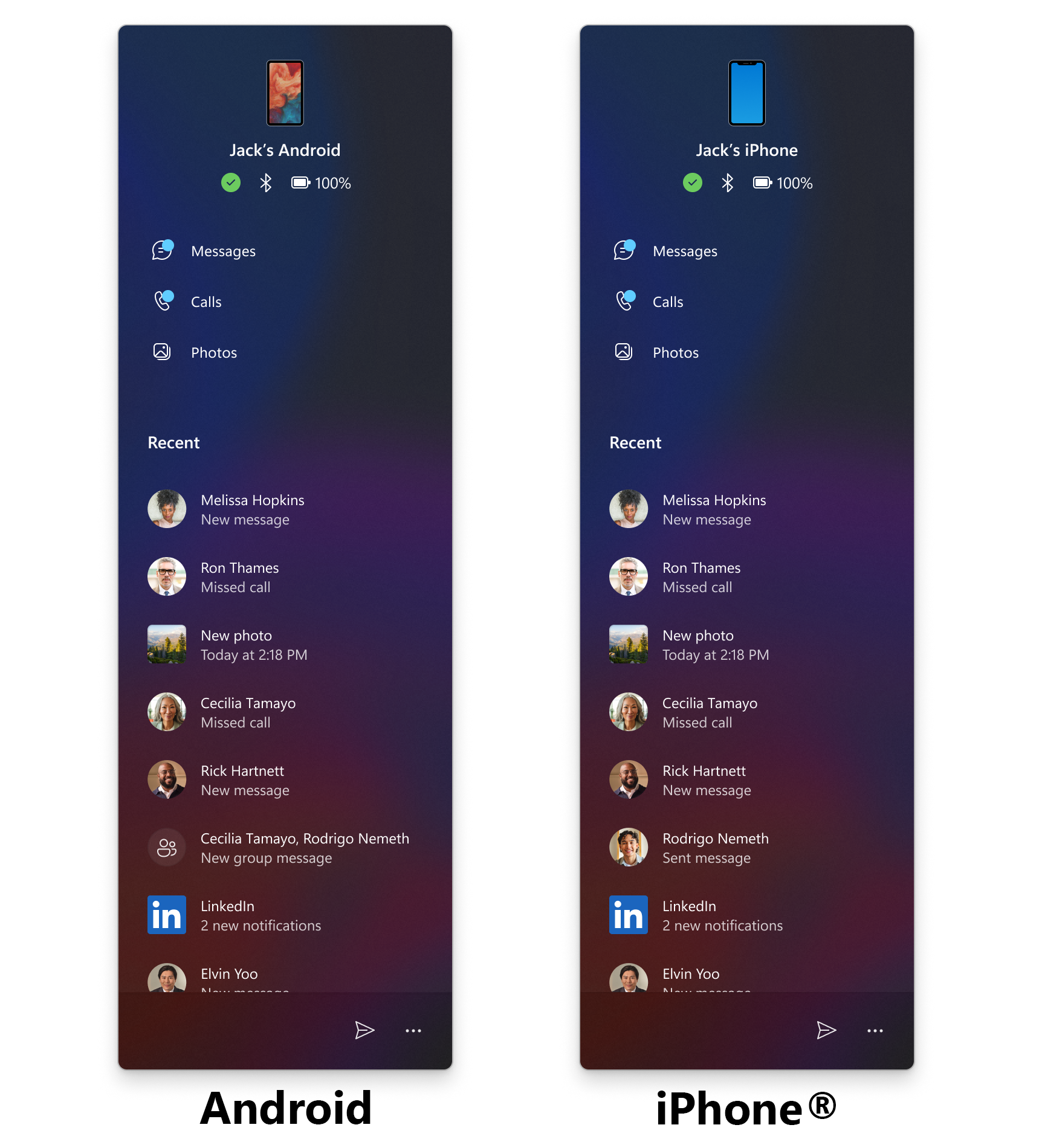
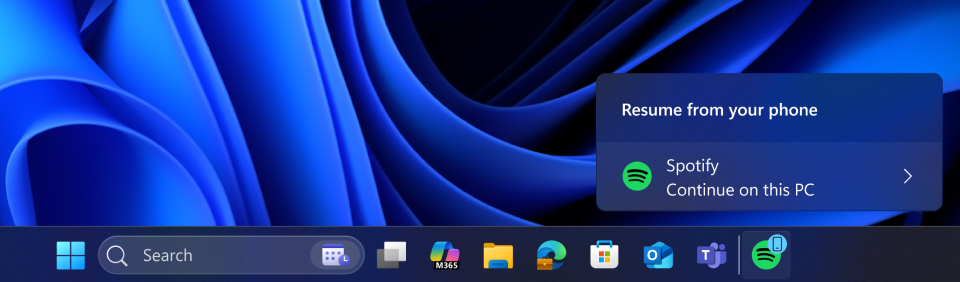
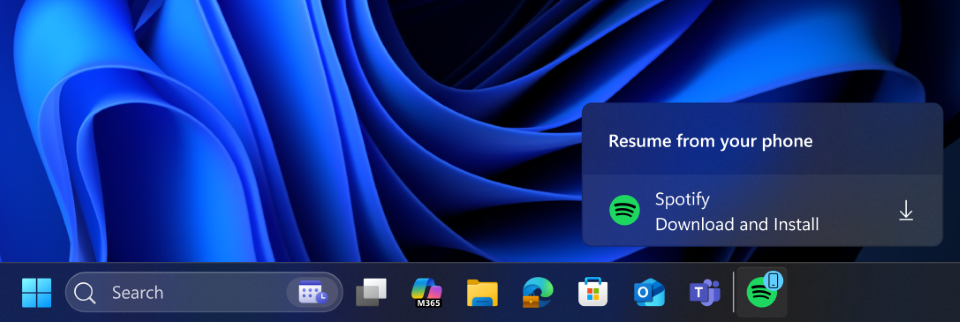
  • We’ve redesigned the mobile device companion with an updated layout that lets you access more right from Start. Now, you can scroll to access more recent activity items so you can stay on top of updates from your mobile device. Users will be able to access messages, calls, photos, mobile app updates and more from this new updated layout.
[caption id="attachment_178119" align="alignnone" width="470"]The redesigned mobile device companion experience for the Start menu showing an Android device on the left and iPhone® on the right. The redesigned mobile device companion experience for the Start menu showing an Android device on the left and iPhone® on the right.[/caption]

[Settings]

We’re moving more time and language settings from Control Panel to Settings:
  • You can now add additional clocks from Settings > Time & language > Date & time under the collapsed section which can be expanded for "Show time and date in the system tray". For those unfamiliar with the feature, these additional clocks display in Notification Center, as well as the tooltip when hovering over the clock in the taskbar.
  • You can now change your time server from Settings > Time & language > Date & time, under “Additional settings”.
  • The formatting settings for date and time have moved from Settings > Time & language > Language & region to Settings > Time & language > Date & time, and you can now change your AM/PM symbol from here as well (along with other existing formatting settings).
  • You can now change number and currency format from Settings > Time & language > Language & region, under the “Region” section.
  • If you'd like to enable Unicode UTF-8 for worldwide language support, there is now a toggle for this under Settings > Time & language > Language & region, under the “Language” section.
  • If needed, you can now copy current user language and region settings to welcome screen and system account, as well as new user accounts, from Settings > Time & language > Language & region, under “Additional settings”.
We’re moving more keyboard settings from Control Panel to Settings:
  • The setting for character repeat delay/rate has moved to Settings > Accessibility > Keyboard.
  • The setting for cursor blink rate has moved to Settings > Accessibility >Text cursor. Keyboard character repeat delay/rate is used to control the character repeat duration and repeat frequency. Cursor blink rate is used to control the cursor blinking frequency.

[Other]

  • We have updated more dialogs to match the Windows 11 visuals including the dialog for when an app can’t open.

Fixes gradually being rolled out to the Dev Channel with toggle on*

[File Explorer]

  • Fixed an issue where some of the icons in Details, Preview, and navigation panes of File Explorer weren’t properly mirrored when Arabic or Hebrew display languages.
  • Fixed an issue where the tooltips in File Explorer might unexpectedly stay visible.
  • Fixed an issue where duplicating a tab in File Explorer on a maximized window would result in a black flash.
  • Improved support for text scaling on desktop icons, addressing an issue which could lead to overlapping icons and text.
  • Fixed a couple cases where Narrator was unexpectedly not announcing actions in File Explorer (when using the “create new” library option, and when expanding details while copying files).
  • Made some more performance improvements – particularly to help the performance of launching cloud files and loading context menus.

[Start menu]

  • Fixed an issue for Insiders with the new Start menu, where they might unexpectedly see a category generated for every letter of the alphabet with blank icons, when opening the Start menu in the “All” section after updating to the previous build.
  • Fixed an issue where Visual Studio wasn’t showing in the correct category.

[Task Manager]

  • Fixed a few issues impacting Task Manager reliability, including a recent issue which could cause Task Manager to freeze when going to the performance section for some Insiders.
  • Fixed a few issues impacting accessibility – including adjusting minimum field sizes, improving contrast for the column headers on the Details page when contrast themes are enabled, and addressing a focus issue with the 'Select Columns' dialog on the Details page.

[Input]

  • Fixed an underlying issue where if you tried to type Chinese with an IME after copying something with CTRL + C could result in the first character getting dropped.
  • Fixed an issue where if you were typing on the touch keyboard with the Changjie, Bopomoji, or Japanese IME wouldn’t work if you had switched to using the previous version of the IME.

[Settings]

  • Fixed an issue where if you attempt to add a security key under Settings > Account > Sign-in options could result in Settings crashing.

[Other]

  • Fixed an underlying issue with dao360.dll resulting in some apps crashing after the last two builds.
  • Fixed an issue causing a small number of Insiders to experience bugchecks with SYSTEM_SERVICE_EXCEPTION in the latest builds.

Known issues

[General]

  • Some Windows Insiders may experience a rollback trying to install this update with a 0x80070005 in Windows Update. We’re working on a fix for Windows Insiders impacted. If you are impacted, using Settings > System > Recovery > “Fix issues using Windows update” may resolve the issue.

[For developers]

  • We are investigating reports after updating to Build 26200.5722 and higher in the Dev Channe that Visual Studio may crash on Arm64 PCs when running various scenarios that depend on Windows Presentation Foundation (WPF).

[Click to Do (Preview)]

The following known issues will be fixed in future updates to Windows Insiders:
  • [NEW] After updating to Build 26200.5742, text and image actions in Click to Do may not work and Click to Do may crash. This issue will be fixed in the next flight.
  • Windows Insiders on AMD or Intel®-powered Copilot+ PCs may experience long wait times on the first attempt to perform intelligent text actions in Click to Do after a new build or model update.

[Start menu]

  • [NEW] For Insiders with the new Start menu, the layout may temporarily show a smaller Start menu (ex. 6 columns of pinned apps instead of 8). This issue will be resolved shortly, and the larger layout will be restored.

[Taskbar & System Tray]

  • We are investigating reports that all apps pinned to the taskbar are unpinned for some Insiders after updating to Build 26200.5722 and higher.

[File Explorer]

  • In dark mode, the red color used for a low space drive in This PC may be unexpectedly light colored in this build. Some of the other colors may also be incorrect, including that black is used for space remaining instead of a more visible color.

[Live Captions]

  • Live captions may crash when attempting to use live translation on a Copilot+ PC.

[Xbox Controllers]

  • Some Insiders are experiencing an issue where using their Xbox Controller via Bluetooth is causing their PC to bugcheck. Here is how to resolve the issue. Open Device Manager by searching for it via the search box on your taskbar. Once Device Manager is open, click on "View" and then "Devices by Driver". Find the driver named "oemXXX.inf (XboxGameControllerDriver.inf)" where the "XXX" will be a specific number on your PC. Right-click on that driver and click "Uninstall".

Reminders for Windows Insiders in the Dev Channel

  • Windows Insiders in the Dev Channel receive updates based on Windows 11, version 25H2 via an enablement package (Build 26200.xxxx). For more information on Windows 11, version 25H2 – see this blog post.
  • Many features in the Dev Channel are rolled out using Control Feature Rollout technology, starting with a subset of Insiders and ramping up over time as we monitor feedback to see how they land before pushing them out to everyone in this channel.
  • For Windows Insiders in the Dev Channel who want to be the first to get features gradually rolled out to you, you can turn ON the toggle to get the latest updates as they are available via Settings > Windows Update*. Over time, we will increase the rollouts of features to everyone with the toggle turned on. Should you keep this toggle off, new features will gradually be rolled out to your PC over time once they are ready.
  • Features and experiences included in these builds may never get released as we try out different concepts and get feedback. Features may change over time, be removed, or replaced and never get released beyond Windows Insiders. Some of these features and experiences could show up in future Windows releases when they’re ready.
  • Some features in active development we preview with Windows Insiders may not be fully localized and localization will happen over time as features are finalized. As you see issues with localization in your language, please report those issues to us via Feedback Hub.
  • Please note that some accessibility features may not work with features like Recall and Click to Do while in preview with Windows Insiders.
  • Because the Dev and Beta Channels represent parallel development paths from our engineers, there may be cases where features and experiences show up in the Beta Channel first.
  • Check out Flight Hub for a complete look at what build is in which Insider channel.
Thanks, Amanda & Brandon

Source: Announcing Windows 11 Insider Preview Build 26200.5742 (Dev Channel)
 
Hello Windows Insiders, today we are releasing Windows 11 Insider Preview Build 26120.5742 (KB5064075) to the Beta Channel for Windows Insiders on Windows 11, version 24H2. Changes in Beta Channel builds and updates are documented in two buckets: new features, improvements, and fixes that are being gradually rolled out for Insiders who have turned on the toggle to get the latest updates as they are available (via Settings > Windows Update*) and then new features, improvements, and fixes rolling out to everyone in the Beta Channel. For more information, see the Reminders section at the bottom of this blog post.

Changes and Improvements gradually being rolled out to the Beta Channel with toggle on*

[Settings]

We’re moving more time and language settings from Control Panel to Settings:
  • You can now add additional clocks from Settings > Time & language > Date & time under the collapsed section which can be expanded for "Show time and date in the system tray". For those unfamiliar with the feature, these additional clocks display in Notification Center, as well as the tooltip when hovering over the clock in the taskbar.
  • You can now change your time server from Settings > Time & language > Date & time, under “Additional settings”.
  • The formatting settings for date and time have moved from Settings > Time & language > Language & region to Settings > Time & language > Date & time, and you can now change your AM/PM symbol from here as well (along with other existing formatting settings).
  • You can now change number and currency format from Settings > Time & language > Language & region, under the “Region” section.
  • If you'd like to enable Unicode UTF-8 for worldwide language support, there is now a toggle for this under Settings > Time & language > Language & region, under the “Language” section.
  • If needed, you can now copy current user language and region settings to welcome screen and system account, as well as new user accounts, from Settings > Time & language > Language & region, under “Additional settings”.
We’re moving more keyboard settings from Control Panel to Settings:
  • The setting for character repeat delay/rate has moved to Settings > Accessibility > Keyboard.
  • The setting for cursor blink rate has moved to Settings > Accessibility >Text cursor. Keyboard character repeat delay/rate is used to control the character repeat duration and repeat frequency. Cursor blink rate is used to control the cursor blinking frequency.

[Other]

  • We have updated more dialogs to match the Windows 11 visuals including the dialog for when an app can’t open.

Fixes gradually being rolled out to the Beta Channel with toggle on*

[File Explorer]

  • Fixed an issue where some of the icons in Details, Preview, and navigation panes of File Explorer weren’t properly mirrored when Arabic or Hebrew display languages.
  • Fixed an issue where the tooltips in File Explorer might unexpectedly stay visible.
  • Fixed an issue where duplicating a tab in File Explorer on a maximized window would result in a black flash.
  • Improved support for text scaling on desktop icons, addressing an issue which could lead to overlapping icons and text.
  • Fixed a couple cases where Narrator was unexpectedly not announcing actions in File Explorer (when using the “create new” library option, and when expanding details while copying files).
  • Made some more performance improvements – particularly to help the performance of launching cloud files and loading context menus.

[Start menu]

  • Fixed an issue for Insiders with the new Start menu, where they might unexpectedly see a category generated for every letter of the alphabet with blank icons, when opening the Start menu in the “All” section after updating to the previous build.
  • Fixed an issue where Visual Studio wasn’t showing in the correct category.

[Task Manager]

  • Fixed a few issues impacting Task Manager reliability, including a recent issue which could cause Task Manager to freeze when going to the performance section for some Insiders.
  • Fixed a few issues impacting accessibility – including adjusting minimum field sizes, improving contrast for the column headers on the Details page when contrast themes are enabled, and addressing a focus issue with the 'Select Columns' dialog on the Details page.

[Input]

  • Fixed an underlying issue where if you tried to type Chinese with an IME after copying something with CTRL + C could result in the first character getting dropped.
  • Fixed an issue where if you were typing on the touch keyboard with the Changjie, Bopomoji, or Japanese IME wouldn’t work if you had switched to using the previous version of the IME.

[Settings]

  • Fixed an issue where if you attempt to add a security key under Settings > Account > Sign-in options could result in Settings crashing.

[Other]

  • Fixed an underlying issue with dao360.dll resulting in some apps crashing after the last two builds.
  • Fixed an issue causing a small number of Insiders to experience bugchecks with SYSTEM_SERVICE_EXCEPTION in the latest builds.

Known issues

[General]

  • Some Windows Insiders may experience a rollback trying to install this update with a 0x80070005 in Windows Update. We’re working on a fix for Windows Insiders impacted. If you are impacted, using Settings > System > Recovery > “Fix issues using Windows update” may resolve the issue.

[Click to Do (Preview)]

The following known issues will be fixed in future updates to Windows Insiders:
  • [NEW] After updating to Build 26120.5742, text and image actions in Click to Do may not work and Click to Do may crash. This issue will be fixed in the next flight.
  • Windows Insiders on AMD or Intel®-powered Copilot+ PCs may experience long wait times on the first attempt to perform intelligent text actions in Click to Do after a new build or model update.

[Start menu]

  • [NEW] For Insiders with the new Start menu, the layout may temporarily show a smaller Start menu (ex. 6 columns of pinned apps instead of 8). This issue will be resolved shortly, and the larger layout will be restored.

[File Explorer]

  • In dark mode, the red color used for a low space drive in This PC may be unexpectedly light colored in this build. Some of the other colors may also be incorrect, including that black is used for space remaining instead of a more visible color.

[Live Captions]

  • Live captions may crash when attempting to use live translation on a Copilot+ PC.

[Xbox Controllers]

  • Some Insiders are experiencing an issue where using their Xbox Controller via Bluetooth is causing their PC to bugcheck. Here is how to resolve the issue. Open Device Manager by searching for it via the search box on your taskbar. Once Device Manager is open, click on "View" and then "Devices by Driver". Find the driver named "oemXXX.inf (XboxGameControllerDriver.inf)" where the "XXX" will be a specific number on your PC. Right-click on that driver and click "Uninstall".

Reminders for Windows Insiders in the Beta Channel

  • Windows Insiders in the Beta Channel on Windows 11, version 24H2 will receive updates based on Windows 11, version 24H2 via an enablement package (Build 26120.xxxx).
  • Updates delivered to the Beta Channel are in a format that offers a preview of enhancements to servicing technology on Windows 11, version 24H2. To learn more, see Introducing Windows 11 checkpoint cumulative updates | Windows IT Pro Blog.
  • Many features in the Beta Channel are rolled out using Controlled Feature Rollout technology, starting with a subset of Insiders and ramping up over time as we monitor feedback to see how they land before pushing them out to everyone in this channel.
  • For Windows Insiders in the Beta Channel who want to be the first to get features gradually rolled out to you, you can turn ON the toggle to get the latest updates as they are available via Settings > Windows Update*. Over time, we will increase the rollouts of features to everyone with the toggle turned on. Should you keep this toggle off, new features will gradually be rolled out to your PC over time once they are ready.
  • Features and experiences included in these builds may never get released as we try out different concepts and get feedback. Features may change over time, be removed, or replaced and never get released beyond Windows Insiders. Some of these features and experiences could show up in future Windows releases when they’re ready.
  • Some features in active development we preview with Windows Insiders may not be fully localized and localization will happen over time as features are finalized. As you see issues with localization in your language, please report those issues to us via Feedback Hub.
  • Please note that some accessibility features may not work with features like Recall and Click to Do while in preview with Windows Insiders.
  • Because the Dev and Beta Channels represent parallel development paths from our engineers, there may be cases where features and experiences show up in the Beta Channel first.
  • Check out Flight Hub for a complete look at what build is in which Insider channel.
Thanks, Amanda & Brandon

Source: Announcing Windows 11 Insider Preview Build 26120.5742 (Beta Channel)
 
Hello Windows Insiders, today we are releasing Windows 11 Insider Preview Build 27919 to the Canary Channel.

Changes and Improvements

[Windows Search]

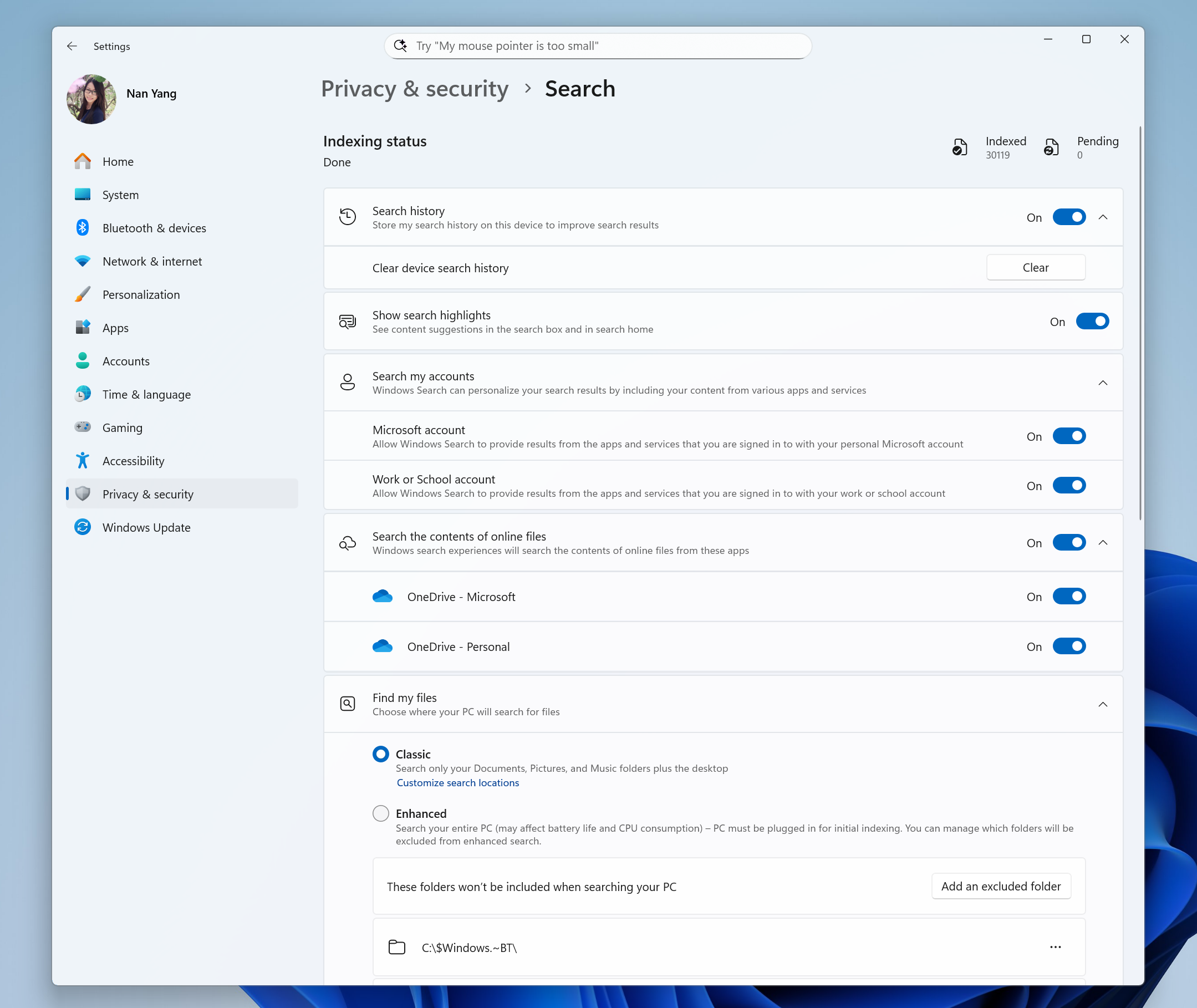
  • Today, we rationalize and organize Windows Search settings under Settings > Privacy & security under a “Search permissions” settings page and a “Searching Windows” settings page. We are beginning to roll out a change that brings those two settings pages together so you can easily access to all the Windows Search settings under a single settings page via Settings > Privacy & security > Search. The page is refreshed with a new modern visual for you to clearly browse the settings and control your experiences inside Windows Search, with the items listed in a better order.
[caption id="attachment_177961" align="alignnone" width="579"]The updated single settings page for Windows Search. The updated single settings page for Windows Search.[/caption]

Fixes

[File Explorer]

  • Fixed an issue where File Explorer might crash when trying to view the digital signatures tab in the properties for a file.

[Input]

  • Fixed an issue which was causing the Microsoft Changjie Input method to not work properly in the previous build.
  • Fixed an issue which was causing phonetic keyboards, such as the Hindi Phonetic Input keyboard and the Marathi Phonetic keyboard, to not work properly in the previous build.

Known issues

[General]

  • [IMPORTANT NOTE FOR COPILOT+ PCs] If you are joining the Canary Channel on a new Copilot+ PC from the Dev Channel, Release Preview Channel or retail, you will lose Windows Hello pin and biometrics to sign into your PC with error 0xd0000225 and error message “Something went wrong, and your PIN isn’t available”. You should be able to re-create your PIN by clicking “Set up my PIN”.
  • The progress wheel may show as a rectangle glyph instead of rendering correctly when upgrading to this build.
  • [NEW] You may see multiple error pop ups about unexpected elements when opening Group Policy Editor.
  • [NEW] There’s an underlying issue with dao360.dll in this build which may result in some apps crashing.

[Remote desktop]

  • [NEW] There’s an issue starting with the last build where remote desktop only uses your primary monitor even if it’s configured to use multiple monitors.

[Widgets]

  • [ADDED] We're investigating reports that widgets are non-functional and unavailable after upgrading to this build.

Reminders for Windows Insiders in the Canary Channel

  • The builds we release to the Canary Channel represent the latest platform changes early in the development cycle and should not be seen as matched to any specific release of Windows and features and experiences included in these builds may never get released as we try out different concepts and get feedback. Features may change over time, be removed, or replaced and never get released beyond Windows Insiders. Some of these features and experiences could show up in future Windows releases when they’re ready.
  • Many features in the Canary Channel are rolled out using Control Feature Rollout technology, starting with a subset of Insiders and ramping up over time as we monitor feedback to see how they land before pushing them out to everyone in this channel.
  • Some features may show up in the Dev and Beta Channels first before showing up in the Canary Channel.
  • Some features in active development we preview with Windows Insiders may not be fully localized and localization will happen over time as features are finalized. As you see issues with localization in your language, please report those issues to us via Feedback Hub.
  • To get off the Canary Channel, a clean install of Windows 11 will be required. As a reminder - Insiders can’t switch to a channel that is receiving builds with lower build numbers without doing a clean installation of Windows 11 due to technical setup requirements.
  • The desktop watermark shown at the lower right corner of the desktop is normal for these pre-release builds.
  • Check out Flight Hub for a complete look at what build is in which Insider channel.
Thanks, Amanda & Brandon

Source: Announcing Windows 11 Insider Preview Build 27919 (Canary Channel)
 
Hello Windows Insiders, today we are releasing Windows 11 Insider Preview Build 27924 to the Canary Channel. We are releasing ISOs for this build – they can be downloaded here.

What’s new in Build 27924

Copilot+ PC experiences

We are beginning to enable many of the Copilot+ PC experiences* for Windows Insiders in the Canary Channel on Copilot+ PCs such as:
Note that some features are gradually rolling out such as Improved Windows Search and agent in Settings. And we’re still working to enable some features like image descriptions in Narrator – so if you don’t see something right away on your Copilot+ PC after updating to this build, that’s expected. We’re working hard to get everything enabled across the board over for the Canary Channel. As is normal for the Canary Channel, the quality of these features will not match the quality of the same features in the Dev or Beta Channels. Expect some of these features to not work quite right. We will try to document known issues for the most impactful issues for these features and one such issue regarding Click to Do is documented in the known issues below. As always, please file feedback on any issues you see when using these Copilot+ experiences via Feedback Hub.

Advanced Settings

Advanced settings are now available via Settings > System > Advanced with some new features. The Advanced page is a redesign of the For Developers page, intending to make its settings easier to find for a broader audience. With the redesign of this page, we’ve added additional settings: Enable long paths, Virtual workspaces, and File Explorer + version control. Enable long paths allows you to remove MAX_PATH limitations from common Win32 file and directory functions. Virtual workspaces allow you to enable/disable virtual environments such as Hyper-V, Windows Sandbox, and more. File Explorer + version control provides the ability to display Git information directly inside File Explorer. Simply select your repository folder and File Explorer will display information such as your branch, diff count, last commit message, and more. [caption id="attachment_177884" align="alignnone" width="607"] Advanced settings page for File Explorer.[/caption] FEEDBACK: Please file feedback on GitHub at microsoft/WindowsAdvancedSettings.

Changes and Improvements

[Input]

  • Adjusted the pointer indicator to be a little more transparent, so it’s easier to see what’s under the crosshairs when it’s enabled.
  • For the time being we have changed the keyboard shortcut for the new pointer indicator from CTRL + WIN + X to CTRL + WIN + ALT + X, to help reduce accidental invocations.

[Windows MIDI Services]

  • The inbox preview MIDI Service and API has a feedback-driven breaking change to optionally allow for waiting for messages to be completely sent before returning from function calls. Any apps written against previous versions of the Windows MIDI Services MIDI 2.0 SDK will need to update to the latest preview available at Releases · microsoft/MIDI and be recompiled to continue working properly. For more discussion and feedback, please join our discord server at Join the Windows MIDI / Audio Discord Server!.

Fixes

[General]

  • Fixed an issue where the progress wheel might show as a rectangle glyph instead of rendering correctly when upgrading to the latest builds.

[Widgets]

  • Fixed an issue causing widgets to disappear or not work for some Insiders after the previous flight.

[Remote desktop]

  • Fixed an issue in the latest flights where remote desktop only used your primary monitor even if it was configured to use multiple monitors.

[Other]

  • Fixed an underlying webauth.dll crash in the previous flight which may have impacted the ability to use passkeys.

Known issues

[General]

  • [IMPORTANT NOTE FOR COPILOT+ PCs] If you are joining the Canary Channel on a new Copilot+ PC from the Dev Channel, Release Preview Channel or retail, you will lose Windows Hello pin and biometrics to sign into your PC with error 0xd0000225 and error message “Something went wrong, and your PIN isn’t available”. You should be able to re-create your PIN by clicking “Set up my PIN”.
  • You may see multiple error pop ups about unexpected elements when opening Group Policy Editor.
  • There’s an underlying issue with dao360.dll in this build which may result in some apps crashing.

[Click to Do (Preview)]

The following known issues will be fixed in future updates to Windows Insiders:
  • [NEW] Text and image actions in Click to Do may not work and Click to Do may crash. This issue will be fixed in the next flight.

Snipping Tool Update

We are rolling out an update for Snipping Tool (version 11.2507.14.0 and higher) to Windows Insiders in the Canary and Dev Channels. In this update, we’re introducing window mode screen recording in Snipping Tool—an easy way to capture activity within a specific app window. To get started, toggle over to the Record option in the capture toolbar and click on the dropdown menu for Recording area to select window mode. [caption id="attachment_178139" align="alignnone" width="474"]New option to set recording region by selecting a specific app window in the Snipping Tool toolbar. New option to set recording region by selecting a specific app window in the Snipping Tool toolbar.[/caption] When you select window mode, Snipping Tool will automatically size the recording region to tightly match the app window you choose, making setup quick and precise. Once recording begins, however, the region remains fixed—so if the app moves or gets covered by another window, the recording won’t follow it. This gives you a simple, focused way to record what’s happening in a defined space on your screen, without needing to crop or adjust later. [caption id="attachment_178141" align="alignnone" width="581"]Screen recording setup of the Paint app window with UI denoting that screen recording is set to the position of that specific app window. Screen recording setup of the Paint app window with UI denoting that screen recording is set to the position of that specific app window.[/caption] FEEDBACK: Please file feedback in Feedback Hub (WIN + F) under Apps > Snipping Tool.

Reminders for Windows Insiders in the Canary Channel

  • The builds we release to the Canary Channel represent the latest platform changes early in the development cycle and should not be seen as matched to any specific release of Windows and features and experiences included in these builds may never get released as we try out different concepts and get feedback. Features may change over time, be removed, or replaced and never get released beyond Windows Insiders. Some of these features and experiences could show up in future Windows releases when they’re ready.
  • Many features in the Canary Channel are rolled out using Control Feature Rollout technology, starting with a subset of Insiders and ramping up over time as we monitor feedback to see how they land before pushing them out to everyone in this channel.
  • Some features may show up in the Dev and Beta Channels first before showing up in the Canary Channel.
  • Some features in active development we preview with Windows Insiders may not be fully localized and localization will happen over time as features are finalized. As you see issues with localization in your language, please report those issues to us via Feedback Hub.
  • To get off the Canary Channel, a clean install of Windows 11 will be required. As a reminder - Insiders can’t switch to a channel that is receiving builds with lower build numbers without doing a clean installation of Windows 11 due to technical setup requirements.
  • The desktop watermark shown at the lower right corner of the desktop is normal for these pre-release builds.
  • Check out Flight Hub for a complete look at what build is in which Insider channel.
Thanks, Amanda & Brandon *Functionality will vary by device and market; text actions will be available across markets in select character sets. See aka.ms/copilotpluspcs.

Source: Announcing Windows 11 Insider Preview Build 27924 (Canary Channel)
 
Hello Windows Insiders, today we’re releasing Windows 11 Build 26100.5061 (KB5064081) to Insiders in the Release Preview Channel on Windows 11, version 24H2 (Build 26100). Below is a summary of the new features and improvements included as part of this update separated into two sections: gradual rollout and normal rollout. The bold text within the brackets indicates the item or area of the change we are documenting.

Gradual rollout

The following features and improvements might not be available to all users because they will roll out gradually. Text bolded in brackets indicate the area of the change being documented. Please note that features and improvements that gradually roll out may not begin rolling out right away nor will they immediately show up right away.
  • [Recall] New! Recall opens to a personalized homepage that puts your recent activity and top-used apps and websites front and center, making it easy to pick up where you left off. After turning on snapshot collection, the homepage highlights key productivity features like Recent Snapshots, which show the latest snapshots to help you quickly resume tasks, and Top Apps and Websites, which display the three apps and websites you’ve used most in the past 24 hours. You can set filters in Settings to control which apps and websites are saved in snapshots. A new navigation bar on the leftmost side of the screen provides quick access to Home, Timeline, Feedback, and Settings.
  • [Click to Do] New! When you launch Click to Do for the first time, you'll see a quick interactive tutorial. It shows how to complete tasks faster by demonstrating actions on both text and images—such as summarizing large blocks of text or removing image backgrounds. To revisit the tutorial later, select More options ... > Start tutorial.
  • [General] New! When an app requests access to location, camera, microphone, or other device capabilities, Windows shows a redesigned system dialog box. The screen dims slightly, and the privacy prompt appears centered on the screen.
  • [Taskbar]
    • New! The larger clock with seconds is now back in the notification center, displayed above the date and calendar. To turn this option on, go to Settings > Time & language > Date & time, and turn on Show time in the Notification Center.
    • Fixed: If you accidentally click down and slide your mouse on the taskbar preview thumbnail, clicking it may stop working.
    • Fixed: File Explorer preview windows may appear when hovering over unrelated app icons in the taskbar.
  • [Search on the Taskbar]
    • New! When you use Search from the Windows taskbar, a new grid view will help you more quickly and accurately identify the desired image within your search.
    • New! Search on the taskbar now provides clearer status information. If your search results are incomplete while your PC is organizing files in the background, Windows shows a notice with a link to check progress. You can dismiss the notice when you're done. There is also a status for files and folders, so you can easily tell whether they’re available online (cloud) or stored on your device.
  • [Lock screen] New! After rolling this experience out to Windows Insiders in the EEA, we are now beginning to roll out more widget options on the lock screen as well as support for lock screen widget personalization (previously referred to as “Weather and more”) with Insiders in all regions. You can add, remove, and rearrange lock screen widgets such as Weather, Watchlist, Sports, Traffic, and more. Any widget that supports the small sizing option can be added here. To customize your lock screen widgets, navigate to Settings > Personalization > Lock screen.
  • [File Explorer]
    • New! Use AI actions in File Explorer to edit images or summarize documents. Just right click (or Press Shift+F10) on a file and select AI Actions.
      • Image actions: You can now use four AI-powered image actions with .jpg, .jpeg, and .png files. Visual Search searches the web using an image instead of text. Blur Background opens the Photos app to highlight the subject and blur the background. Erase Objects removes unwanted elements from your photo. Remove Background uses Paint to change any image leaving a smooth cut out of the subject.
      • AI actions for Microsoft 365 makes it easier to work with your documents. With the Summarize action in Copilot, you can quickly generate summaries of files stored in OneDrive and SharePoint—no need to open each one. This AI action requires an active Microsoft 365 subscription and a Copilot license (Microsoft account and Microsoft Entra ID supported).New! Dividers now appear between top-level icons in the File Explorer context menu.
    • New! When you're signed in with a work or school account (Entra ID), File Explorer will display people icons in the Activity column and the Recommended section at the top of File Explorer Home. Hover over or select a person's icon to open their Microsoft 365 Live Persona Card, which shows who they are and how they're connected to the file.
    • Fixed: If you try to use the unblock open in Properties for a file, it still shows as blocked when you open Properties the next time.
  • Windows Hello]
    • New! As part of the enhanced passkey features released in September 2023, you’ll see a redesigned Windows Hello interface. These modernized visual updates support fast, clear communication that appear across multiple authentication flows, including the Windows sign-in screen, passkey, Recall, the Microsoft Store, and more. The Windows security credential experience for passkey offers a cleaner, more intuitive interface designed to support fast, secure sign-in. You can now easily switch between authentication options such as passkeys or connected devices.
    • Fixed: Windows Hello may recognize your face on the login screen, however it would still fail and then prompt you to enter your pin. If you continue experiencing issues, you may need to go to the Facial Recognition section under Settings > Accounts > Sign-in options, and select Improve recognition.
    • Improved: Fingerprint login after standby is now more robust.
  • [Advanced Settings] New! The redesigned Advanced settings page under Settings > System > Advanced is an update of the For Developers page and makes it easier to find key options. New settings include Enable long paths, which removes MAX_PATH limitations; Virtual workspaces, which let you turn environments like Hyper-V and Windows Sandbox on or off; and File Explorer + version control, which shows Git details such as branch, diff count, and last commit message directly in File Explorer when you select a repository folder.
  • [Settings]
    • New! Windows activation and expiration prompts match the Windows 11 design and appear as system notifications when action is required. There also have been improvements to messaging under Settings > System > Activation.
    • New! You can go to Settings > Privacy & security > Text and Image Generation to see which third-party apps have recently used generative AI models provided by Windows. You can also choose which apps are permitted to use them—putting you in charge of your device’s AI experience.
    • New! You can view the Device Card on the Settings home page. It shows key specifications and usage details of your PC. From the card, go directly to Settings > About page for more detailed information about your PC. This card will show when signed in with your Microsoft account and in the U.S. only.
    • New! More time, language, and keyboard settings have moved from Control Panel to Settings. You can now add additional clocks, change your time server, and customize date and time formatting—including AM/PM symbols—directly from Settings > Time & language > Date & time. Number and currency formats, Unicode UTF-8 support, and options to copy language and region settings to other accounts are now under Settings > Time & language > Language & region. Keyboard character repeat and cursor blink rate settings are now easier to find under Settings > Accessibility.
    • New! As part of the Copilot+ PC experience, the agent in Settings helps you quickly find and change settings. Initially available on Snapdragon®-powered Copilot+ PCs, agent in Settings now supports AMD- and Intel™-powered Copilot+ PCs. It currently works only when your primary display language is set to English.
    • Fixed: Settings may crash if you attempt to add a security key under Settings > Account > Sign-in options.
  • [Task Manager] New! Task Manager now uses standard metrics to show CPU workload consistently across all pages, aligning with industry standards and third-party tools. If you prefer the previous view, you can enable a new optional column called CPU Utility in the Details tab to display the earlier CPU usage value shown on the Processes page.
  • [Windows Backup for Organizations] New! Windows Backup for Organizations is now generally available! Experience seamless device transitions with enterprise-grade backup and restore. Whether you're refreshing your organization’s devices, upgrading to Windows 11, or deploying AI-powered PCs, this solution helps sustain productivity with minimal disruption, ensuring business continuity and organizational resilience.
  • [PowerShell 2.0] Starting in August 2025, Windows 11, version 24H2, will no longer include Windows PowerShell 2.0.This legacy component was introduced in Windows 7 and officially deprecated in 2017. Most users won’t be affected, as newer versions such as PowerShell 5.1 and PowerShell 7.x remain available and supported. If you use older scripts or tools that depend on PowerShell 2.0, update them to avoid compatibility issues.
  • [Live captions] Fixed: Changing the opacity of live captions in Settings > Accessibility > Captions > Caption Style, has no effect.
  • [Input]
    • Fixed: Attempting to type Chinese with an IME after copying something with CTRL + C can result in the first character not displaying.
    • Fixed: An underlying issue related to textinputframework.dll could result in certain apps like Sticky Notes and Notepad crashing.
  • [Kerberos] Fixed: There may be an underlying crash in Kerberos when attempting to access a cloud file share.
  • [Login] Improved: Addressed some underlying cases which could lead to you seeing a blank white screen, or a screen saying, "just a moment", for a few minutes when logging in to your PC.
  • [dbgcore.dll] Fixed: An underlying issue with dbgcore.dll could result in certain apps, including explorer.exe, crashing.
  • [Audio] Improved: Addressed an underlying audio service hang which could impact the ability to play audio in certain cases.

Normal rollout

This update includes the following features and improvements that are rolling out as part of this update. Text bolded in brackets indicates the area of the change being documented.
  • [Device management] Fixed: This update addresses an issue that prevented some system recovery features from working properly due to a temporary file sharing conflict. This affected certain device management tools and disrupted key functions on some devices.
  • [File system] Fixed: An issue in Resilient File System (ReFS) where using backup apps with large files could sometimes exhaust system memory.
  • [Input]
    • Fixed: This update addresses an issue with the Chinese (Simplified) Input Method Editor (IME) where some extended characters appear as empty boxes.
    • Fixed: This update addresses an issue that prevents typing on the touch keyboard when using the Microsoft Changjie, Microsoft Bopomofo, or Microsoft Japanese Input Method Editors (IMEs). The issue occurs after switching to a previous version of the IME.
  • [Performance] Fixed: This update addresses an issue that slows application installation on ARM64 devices. Some installers might take longer to complete.
Thanks, Windows Insider Program Team

Source: Releasing Windows 11 Build 26100.5061 to the Release Preview Channel
 
Hello Windows Insiders, today we’re releasing Windows 11 Build 22631.5837 (KB5064080) to Insiders in the Release Preview Channel on Windows 11, version 23H2 (Build 22631). This update includes the following features and improvements that are rolling out as part of this update. Text bolded in brackets indicates the area of the change being documented.
  • [Country and Operator Settings Asset (COSA)] Fixed: This update brings profiles up to date for certain mobile operators.
  • [Device management] Fixed: An issue where the removable storage policy didn’t correctly block external devices such as USB flash drives and memory sticks.
  • [Family Safety] Fixed: An issue where the “Ask to Use” approval prompt didn’t appear when blocked apps were opened. With this fix, apps now show the expected approval prompt when Family Safety settings are enabled.
  • [File Explorer]
    • Fixed: File Explorer might unexpectedly only display a single folder (for example, Desktop), rather than the expected content with recent files and more.
    • Fixed: Syncing more SharePoint sites to File Explorer might slow performance when navigating folders or opening the context menu. This can also affect how quickly files launch.
  • [File sharing] Fixed: This update addresses an issue where accessing files on a Server Message Block (SMB) share over Quick UDP Internet Connections (QUIC) might result in unexpected delays.
  • [File system] Fixed: This update addresses an issue in Resilient File System (ReFS) where enabling de-duplication and compression simultaneously could occasionally cause the system to stop responding.
  • [Input]
    • Fixed: This update addresses an issue where certain extended Unicode characters—such as rare Chinese symbols—appeared as blank spaces or incorrect symbols in Windows text boxes. The fix ensures these characters display correctly and maintains compliance with GB18030-2022 requirements.
    • Fixed: This update addresses an issue with the Chinese (Simplified) Input Method Editor (IME) where some extended characters appeared as empty boxes.
  • [Narrator] Fixed: This update addresses an issue where Narrator incorrectly read the name of the Enhance Facial Recognition Protection checkbox under the Facial recognition (Windows Hello) setting.
  • [Network connectivity] Fixed: This update addresses an issue where Wi-Fi might not reconnect automatically after a Group Policy update.
  • [Remote Desktop] Fixed: An issue where cameras didn’t appear during remote sessions after being added or removed. Newly connected cameras were not recognized in Remote Desktop Services (RDS) environments.
  • [Windows Backup for Organizations] New! Windows Backup for Organizations is now generally available! Experience seamless device transitions with enterprise-grade backup and restore. Whether you're refreshing your organization’s devices, upgrading to Windows 11, or deploying AI-powered PCs, this solution helps sustain productivity with minimal disruption, ensuring business continuity and organizational resilience.
Thanks, Windows Insider Program Team

Source: Releasing Windows 11 Build 22631.5837 to the Release Preview Channel
 
Hello Windows Insiders, today we are releasing Windows 11 Insider Preview Build 26120.5751 (KB5064071) to the Beta Channel for Windows Insiders on Windows 11, version 24H2. Changes in Beta Channel builds and updates are documented in two buckets: new features, improvements, and fixes that are being gradually rolled out for Insiders who have turned on the toggle to get the latest updates as they are available (via Settings > Windows Update*) and then new features, improvements, and fixes rolling out to everyone in the Beta Channel. For more information, see the Reminders section at the bottom of this blog post.

New Copilot+ PC experiences

Introducing New Selection Modes in Click to Do

We’re excited to announce powerful new ways to select objects in Click to Do: Freeform Selection, Rectangle Selection, and Ctrl + Click, giving you more control and flexibility than ever before. [caption id="attachment_178146" align="alignnone" width="769"]New Freeform and Rectangle Selection Mode buttons in Click to Do highlighted in a red box. New Freeform and Rectangle Selection Mode buttons in Click to Do highlighted in a red box.[/caption] Freeform Selection Mode: Tap the Freeform Selection button in the toolbar to activate this mode. Then use your pen or finger to draw freely around the entities you want to select. This makes selection feel more natural and intuitive, especially on touch-enabled devices. Rectangle Selection Mode: Click the Rectangle Selection button in the Click to Do toolbar, then drag a box around the items you want to select. Everything inside the rectangle, regardless of type, will be included in your selection. Ctrl + Click: Use your keyboard and mouse to multi-select different entity types, like text, images, and more, by holding down the Ctrl key and clicking on each item you want to include. These new modes allow you to select multiple different entity types in a single gesture, making your Click to Do actions more powerful and efficient. Click to Do selection is now smarter, faster, and more fluid. You can learn more about using Click to Do here. FEEDBACK: Please file feedback in Feedback Hub (WIN + F) under Desktop Environment > Click to Do.

Changes and Improvements gradually being rolled out to the Beta Channel with toggle on*

[File Explorer]

  • We’re updating the “Open with” section of the File Explorer context menu when right clicking a file to remove the accent colored backplate behind packaged app icons in the list (for example, for Snipping Tool). In doing this, the icons should be bigger and easier to see now.
[caption id="attachment_178147" align="alignnone" width="421"]File Explorer context menu showing icons with no backplating highlighted in a red box. File Explorer context menu showing icons with no backplating highlighted in a red box.[/caption]

[Taskbar & System Tray]

  • We are updating the animations for mousing over app groups on the taskbar.
[caption id="attachment_178148" align="alignnone" width="668"]New animation shown when mousing over open app groups on the taskbar. New animation shown when mousing over open app groups on the taskbar.[/caption]

Fixes gradually being rolled out to the Beta Channel with toggle on*

[Taskbar & System Tray]

  • Fixed an issue where, if you were using the option to show additional clocks, the date and time tooltip may show them duplicated.

[Start menu]

  • Fixed an issue for Insiders with the new Start menu with the previous flight, where the layout might temporarily show a smaller Start menu (ex. 6 columns of pinned apps instead of 8).
  • Fixed an issue for Insiders with the new Start menu, where it wasn’t opening when in safe mode.
  • Fixed an issue where when right clicking on Start menu, the context menu may appear very far away from the Start menu.
  • Fixed an issue where the “Hide this pane” option for the mobile device companion for the Start menu may be difficult to see if the option to use a custom accent color has been enabled for Start menu.

[File Explorer]

  • Fixed an issue where in dark mode, the red color used for a low space drive in This PC was unexpectedly light colored in the latest builds (and some of the other colors were incorrect, including that black was used for space remaining instead of a more visible color).

[Login and Lock screen]

  • Fixed an issue where some of the login options were shown as blank square icons.
  • We did some work to help improve lock screen reliability, by fixing a few underlying issues which could result in the lock screen hanging.

[Live captions]

  • Fixed an issue where live captions might crash when attempting to use live translation on a Copilot+ PC.

[Other]

  • Fixed an issue causing some Insiders to experience an increase in DWM crashes in the previous flight.
  • Fixed an issue where if you’d used the new option to move the hardware indicators, while the hardware indicator was visible, you wouldn’t be able to interact with the screen area underneath (spanning the length of the screen).

Fixes for everyone in the Beta Channel

[Click to Do (Preview)]

  • Fixed the issue causing text and image actions in Click to Do to not work and Click to Do to crash after updating to Build 26120.5742.

Known issues

[General]

  • Some Windows Insiders may experience a rollback trying to install this update with a 0x80070005 in Windows Update. We’re working on a fix for Windows Insiders impacted. If you are impacted, using Settings > System > Recovery > “Fix issues using Windows update” may resolve the issue.

[Recall]

  • [NEW] Windows Insiders in the EEA may hit in issue where Recall is not working correctly on their PCs after the most recent Dev and Beta Channel flights. To get back into a working state - please go to Settings > Privacy & security > Recall & snapshots > Advanced settings > Reset Recall and click "Reset Recall".

[File Explorer]

  • [NEW] For some users, the Shared section in File Explorer Home may be visible even if there is no content to display.

[Settings]

  • [NEW] We’re investigating reports that Settings > System > Storage > Temporary files is getting stuck when scanning files. We are also investigating previous Windows Installations also not showing.

[Xbox Controllers]

  • Some Insiders are experiencing an issue where using their Xbox Controller via Bluetooth is causing their PC to bugcheck. Here is how to resolve the issue. Open Device Manager by searching for it via the search box on your taskbar. Once Device Manager is open, click on "View" and then "Devices by Driver". Find the driver named "oemXXX.inf (XboxGameControllerDriver.inf)" where the "XXX" will be a specific number on your PC. Right-click on that driver and click "Uninstall".

Reminders for Windows Insiders in the Beta Channel

  • Windows Insiders in the Beta Channel on Windows 11, version 24H2 will receive updates based on Windows 11, version 24H2 via an enablement package (Build 26120.xxxx).
  • Updates delivered to the Beta Channel are in a format that offers a preview of enhancements to servicing technology on Windows 11, version 24H2. To learn more, see https://aka.ms/CheckpointCumulativeUpdates.
  • Many features in the Beta Channel are rolled out using Controlled Feature Rollout technology, starting with a subset of Insiders and ramping up over time as we monitor feedback to see how they land before pushing them out to everyone in this channel.
  • For Windows Insiders in the Beta Channel who want to be the first to get features gradually rolled out to you, you can turn ON the toggle to get the latest updates as they are available via Settings > Windows Update*. Over time, we will increase the rollouts of features to everyone with the toggle turned on. Should you keep this toggle off, new features will gradually be rolled out to your PC over time once they are ready.
  • Features and experiences included in these builds may never get released as we try out different concepts and get feedback. Features may change over time, be removed, or replaced and never get released beyond Windows Insiders. Some of these features and experiences could show up in future Windows releases when they’re ready.
  • Some features in active development we preview with Windows Insiders may not be fully localized and localization will happen over time as features are finalized. As you see issues with localization in your language, please report those issues to us via Feedback Hub.
  • Please note that some accessibility features may not work with features like Recall and Click to Do while in preview with Windows Insiders.
  • Because the Dev and Beta Channels represent parallel development paths from our engineers, there may be cases where features and experiences show up in the Beta Channel first.
  • Check out Flight Hub for a complete look at what build is in which Insider channel.
Thanks, Amanda & Brandon

Source: Announcing Windows 11 Insider Preview Build 26120.5751 (Beta Channel)
 
Hello Windows Insiders, today we are releasing Windows 11 Insider Preview Build 26200.5751 (KB5064071) to the Dev Channel. Changes in Dev Channel builds and updates are documented in two buckets: new features, improvements, and fixes that are being gradually rolled out for Insiders who have turned on the toggle to get the latest updates as they are available (via Settings > Windows Update*) and then new features, improvements, and fixes rolling out to everyone in the Dev Channel. For more information, see the Reminders section at the bottom of this blog post.

New Copilot+ PC experiences

Introducing New Selection Modes in Click to Do

We’re excited to announce powerful new ways to select objects in Click to Do: Freeform Selection, Rectangle Selection, and Ctrl + Click, giving you more control and flexibility than ever before. [caption id="attachment_178146" align="alignnone" width="769"]New Freeform and Rectangle Selection Mode buttons in Click to Do highlighted in a red box. New Freeform and Rectangle Selection Mode buttons in Click to Do highlighted in a red box.[/caption] Freeform Selection Mode: Tap the Freeform Selection button in the toolbar to activate this mode. Then use your pen or finger to draw freely around the entities you want to select. This makes selection feel more natural and intuitive, especially on touch-enabled devices. Rectangle Selection Mode: Click the Rectangle Selection button in the Click to Do toolbar, then drag a box around the items you want to select. Everything inside the rectangle, regardless of type, will be included in your selection. Ctrl + Click: Use your keyboard and mouse to multi-select different entity types, like text, images, and more, by holding down the Ctrl key and clicking on each item you want to include. These new modes allow you to select multiple different entity types in a single gesture, making your Click to Do actions more powerful and efficient. Click to Do selection is now smarter, faster, and more fluid. You can learn more about using Click to Do here. FEEDBACK: Please file feedback in Feedback Hub (WIN + F) under Desktop Environment > Click to Do.

Changes and Improvements gradually being rolled out to the Dev Channel with toggle on*

[General]

  • IT Admins can now remove select pre-installed Microsoft Store apps via Group Policy/MDM CSP on Enterprise/EDU devices. For more details, see this KB article.

[File Explorer]

  • We’re updating the “Open with” section of the File Explorer context menu when right clicking a file to remove the accent colored backplate behind packaged app icons in the list (for example, for Snipping Tool). In doing this, the icons should be bigger and easier to see now.
[caption id="attachment_178147" align="alignnone" width="421"]File Explorer context menu showing icons with no backplating highlighted in a red box. File Explorer context menu showing icons with no backplating highlighted in a red box.[/caption]

[Taskbar & System Tray]

  • We are updating the animations for mousing over app groups on the taskbar.
[caption id="attachment_178148" align="alignnone" width="668"]New animation shown when mousing over open app groups on the taskbar. New animation shown when mousing over open app groups on the taskbar.[/caption]

Fixes gradually being rolled out to the Dev Channel with toggle on*

[Taskbar & System Tray]

  • Fixed an issue where, if you were using the option to show additional clocks, the date and time tooltip may show them duplicated.

[Start menu]

  • Fixed an issue for Insiders with the new Start menu with the previous flight, where the layout might temporarily show a smaller Start menu (ex. 6 columns of pinned apps instead of 8).
  • Fixed an issue for Insiders with the new Start menu, where it wasn’t opening when in safe mode.
  • Fixed an issue where when right clicking on Start menu, the context menu may appear very far away from the Start menu.
  • Fixed an issue where the “Hide this pane” option for the mobile device companion for the Start menu may be difficult to see if the option to use a custom accent color has been enabled for Start menu.

[File Explorer]

  • Fixed an issue where in dark mode, the red color used for a low space drive in This PC was unexpectedly light colored in the latest builds (and some of the other colors were incorrect, including that black was used for space remaining instead of a more visible color).

[Login and Lock screen]

  • Fixed an issue where some of the login options were shown as blank square icons.
  • We did some work to help improve lock screen reliability, by fixing a few underlying issues which could result in the lock screen hanging.

[Live captions]

  • Fixed an issue where live captions might crash when attempting to use live translation on a Copilot+ PC.

[Other]

  • Fixed an issue causing some Insiders to experience an increase in DWM crashes in the previous flight.
  • Fixed an issue where if you’d used the new option to move the hardware indicators, while the hardware indicator was visible, you wouldn’t be able to interact with the screen area underneath (spanning the length of the screen).

Fixes for everyone in the Dev Channel

[Click to Do (Preview)]

  • Fixed the issue causing text and image actions in Click to Do to not work and Click to Do to crash after updating to Build 26200.5742.

[Taskbar & System Tray]

  • After updating to the current Dev Channel builds, apps pinned to the taskbar should no longer be unpinned. If the issue persists, submit feedback via Feedback Hub.

Known issues

[General]

  • Some Windows Insiders may experience a rollback trying to install this update with a 0x80070005 in Windows Update. We’re working on a fix for Windows Insiders impacted. If you are impacted, using Settings > System > Recovery > “Fix issues using Windows update” may resolve the issue.

[For developers]

  • We are investigating reports after updating to Build 26200.5722 and higher in the Dev Channe that Visual Studio may crash on Arm64 PCs when running various scenarios that depend on Windows Presentation Foundation (WPF).

[Recall]

  • [NEW] Windows Insiders in the EEA may hit in issue where Recall is not working correctly on their PCs after the most recent Dev and Beta Channel flights. To get back into a working state - please go to Settings > Privacy & security > Recall & snapshots > Advanced settings > Reset Recall and click "Reset Recall".

[File Explorer]

  • [NEW] For some users, the Shared section in File Explorer Home may be visible even if there is no content to display.

[Settings]

  • [NEW] We’re investigating reports that Settings > System > Storage > Temporary files is getting stuck when scanning files. We are also investigating previous Windows Installations also not showing.

[Xbox Controllers]

  • Some Insiders are experiencing an issue where using their Xbox Controller via Bluetooth is causing their PC to bugcheck. Here is how to resolve the issue. Open Device Manager by searching for it via the search box on your taskbar. Once Device Manager is open, click on "View" and then "Devices by Driver". Find the driver named "oemXXX.inf (XboxGameControllerDriver.inf)" where the "XXX" will be a specific number on your PC. Right-click on that driver and click "Uninstall".

Snipping Tool Update

We are rolling out an update for Snipping Tool (version 11.2507.14.0 and higher) to Windows Insiders in the Canary and Dev Channels. In this update, we’re introducing window mode screen recording in Snipping Tool—an easy way to capture activity within a specific app window. To get started, toggle over to the Record option in the capture toolbar and click on the dropdown menu for Recording area to select window mode. [caption id="attachment_178139" align="alignnone" width="474"]New option to set recording region by selecting a specific app window in the Snipping Tool toolbar. New option to set recording region by selecting a specific app window in the Snipping Tool toolbar.[/caption] When you select window mode, Snipping Tool will automatically size the recording region to tightly match the app window you choose, making setup quick and precise. Once recording begins, however, the region remains fixed—so if the app moves or gets covered by another window, the recording won’t follow it. This gives you a simple, focused way to record what’s happening in a defined space on your screen, without needing to crop or adjust later. [caption id="attachment_178141" align="alignnone" width="581"]Screen recording setup of the Paint app window with UI denoting that screen recording is set to the position of that specific app window. Screen recording setup of the Paint app window with UI denoting that screen recording is set to the position of that specific app window.[/caption] FEEDBACK: Please file feedback in Feedback Hub (WIN + F) under Apps > Snipping Tool.

Reminders for Windows Insiders in the Dev Channel

  • Windows Insiders in the Dev Channel receive updates based on Windows 11, version 25H2 via an enablement package (Build 26200.xxxx). For more information on Windows 11, version 25H2 – see this blog post.
  • Many features in the Dev Channel are rolled out using Control Feature Rollout technology, starting with a subset of Insiders and ramping up over time as we monitor feedback to see how they land before pushing them out to everyone in this channel.
  • For Windows Insiders in the Dev Channel who want to be the first to get features gradually rolled out to you, you can turn ON the toggle to get the latest updates as they are available via Settings > Windows Update*. Over time, we will increase the rollouts of features to everyone with the toggle turned on. Should you keep this toggle off, new features will gradually be rolled out to your PC over time once they are ready.
  • Features and experiences included in these builds may never get released as we try out different concepts and get feedback. Features may change over time, be removed, or replaced and never get released beyond Windows Insiders. Some of these features and experiences could show up in future Windows releases when they’re ready.
  • Some features in active development we preview with Windows Insiders may not be fully localized and localization will happen over time as features are finalized. As you see issues with localization in your language, please report those issues to us via Feedback Hub.
  • Please note that some accessibility features may not work with features like Recall and Click to Do while in preview with Windows Insiders.
  • Because the Dev and Beta Channels represent parallel development paths from our engineers, there may be cases where features and experiences show up in the Beta Channel first.
  • Check out Flight Hub for a complete look at what build is in which Insider channel.
Thanks, Amanda & Brandon

Source: Announcing Windows 11 Insider Preview Build 26200.5751 (Dev Channel)
 
Hello Windows Insiders, today we are releasing Windows 11 Insider Preview Build 27928 to the Canary Channel.

Changes and Improvements

[Genera]

  • The updated battery iconography we began rolling out in the Canary Channel with Build 27802 is disabled in this build. This is only temporary, and we will re-enable this in a future Canary Channel flight.

[Settings]

We’re moving more time and language settings from Control Panel to Settings:
  • You can now add additional clocks from Settings > Time & language > Date & time under the collapsed section which can be expanded for “Show time and date in the system tray”. For those unfamiliar with the feature, these additional clocks display in Notification Center, as well as the tooltip when hovering over the clock in the taskbar.
  • You can now change your time server from Settings > Time & language > Date & time, under “Additional settings”.
  • The formatting settings for date and time have moved from Settings > Time & language > Language & region to Settings > Time & language > Date & time, and you can now change your AM/PM symbol from here as well (along with other existing formatting settings).
  • You can now change number and currency format from Settings > Time & language > Language & region, under the “Region” section.
  • If you’d like to enable Unicode UTF-8 for worldwide language support, there is now a toggle for this under Settings > Time & language > Language & region, under the “Language” section.
  • If needed, you can now copy current user language and region settings to welcome screen and system account, as well as new user accounts, from Settings > Time & language > Language & region, under “Additional settings”.

Fixes

[General]

  • Fixed an underlying issue with dao360.dll in the latest builds which could result in some apps crashing.

[Click to Do (Preview)]

  • Fixed the issue causing text and image actions in Click to Do to not work correctly and Click to Do to crash.

[File Explorer]

  • Fixed an issue where File Explorer preview windows might appear when hovering over unrelated app icons in the taskbar.
  • Fixed an issue where if you tried to use the unblock open in Properties for a file, it still shows as blocked when you open Properties the next time.

[Taskbar]

  • Fixed an issue where If you accidentally clicked down and slid your mouse on the taskbar preview thumbnail, clicking it would stop working.

[Input]

  • Fixed an underlying issue related to textinputframework.dll could result in certain apps like Sticky Notes and Notepad crashing.
  • Fixed an issue where if you attempted to type Chinese with an IME after copying something with CTRL + C, it could result in the first character getting dropped.

[Login and Lock screen]

  • Did some work to address underlying cases which could lead to you seeing a blank white screen, or a screen saying, “just a moment”, for a few minutes when logging in to your PC.
  • Did some work to address an underlying issue which could lead to the taskbar being slow to load when unlocking your PC after coming out of sleep. This issue could also have led to the password field and other login screen contents not rendering when transitioning from lock screen to login screen after sleep. If you continue experiencing issues, please report them in the Feedback Hub under Install and Update > Logon hangs.

[Live captions]

  • Fixed an issue where if you changed the opacity of live captions in Settings > Accessibility > Captions > Caption Style, it had no effect.

[Settings]

  • Fixed an issue where Settings might crash if you attempt to add a security key under Settings > Account > Sign-in options.

[Other]

  • Fixed an issue in the previous build where you might see multiple error pop ups about unexpected elements when opening Group Policy Editor.

Known issues

[General]

  • We’re investigating reports that Settings > System > Storage > Temporary files is getting stuck when scanning files. We are also investigating previous Windows Installations also not showing.
  • [NEW] Launching cmd non-elevated from the Run dialog may open in Windows Console Host rather than Windows Terminal, even if Windows Terminal is your default terminal app. If you’re experiencing this, you can type wt into Run to launch Windows Terminal directly.

[Windowing]

  • [NEW] You may experience an increase in DWM crashes in this build (which could lead to you seeing a black flash).

[File Explorer]

  • In dark mode, the red color used for a low space drive in This PC may be unexpectedly light colored in this build. Some of the other colors may also be incorrect, including that black is used for space remaining instead of a more visible color.

Reminders for Windows Insiders in the Canary Channel

  • The builds we release to the Canary Channel represent the latest platform changes early in the development cycle and should not be seen as matched to any specific release of Windows and features and experiences included in these builds may never get released as we try out different concepts and get feedback. Features may change over time, be removed, or replaced and never get released beyond Windows Insiders. Some of these features and experiences could show up in future Windows releases when they’re ready.
  • Many features in the Canary Channel are rolled out using Control Feature Rollout technology, starting with a subset of Insiders and ramping up over time as we monitor feedback to see how they land before pushing them out to everyone in this channel.
  • Some features may show up in the Dev and Beta Channels first before showing up in the Canary Channel.
  • Some features in active development we preview with Windows Insiders may not be fully localized and localization will happen over time as features are finalized. As you see issues with localization in your language, please report those issues to us via Feedback Hub.
  • To get off the Canary Channel, a clean install of Windows 11 will be required. As a reminder - Insiders can’t switch to a channel that is receiving builds with lower build numbers without doing a clean installation of Windows 11 due to technical setup requirements.
  • The desktop watermark shown at the lower right corner of the desktop is normal for these pre-release builds.
  • Check out Flight Hub for a complete look at what build is in which Insider channel.
Thanks, Amanda & Brandon

Source: Announcing Windows 11 Insider Preview Build 27928 (Canary Channel)
 
Hello Windows Insiders, today we are releasing Windows 11 Insider Preview Build 26120.5761 (KB5064093) to the Beta Channel for Windows Insiders on Windows 11, version 24H2. Changes in Beta Channel builds and updates are documented in two buckets: new features, improvements, and fixes that are being gradually rolled out for Insiders who have turned on the toggle to get the latest updates as they are available (via Settings > Windows Update*) and then new features, improvements, and fixes rolling out to everyone in the Beta Channel. For more information, see the Reminders section at the bottom of this blog post.

New features gradually being rolled out to the Beta Channel with toggle on*

Ability to seamlessly resume apps from Android phone on PC

We are beginning to gradually roll out the ability to seamlessly resume using your favorite apps from your Android phone on your Windows 11 PC to Windows Insiders in the Dev and Beta Channels. To start with, you will be able to resume or continue listening to your favorite Spotify tracks and episodes right from where you left off on the Spotify app on your Android phone. First, start listening to one of your favorite songs or episodes in the Spotify app on your Android phone. On your PC (running the latest Insider Preview builds in the Dev or Beta Channels) a ‘Resume alert’ will appear on your taskbar. When you click on that alert, Spotify’s desktop app will open and the same track will now continue playing on your PC. [caption id="attachment_178169" align="alignnone" width="960"]
A cross-device resume taskbar alert indicating that you can continue using Spotify app from your phone, now on your PC.
A cross-device resume taskbar alert indicating that you can continue using Spotify app from your phone, now on your PC.[/caption] If the Spotify app is not installed on your PC, when you click on the alert it will initiate a 1-click installation from the Microsoft Store and will automatically download and open the app for you. You will then be prompted to sign into your Spotify account. [caption id="attachment_178182" align="alignnone" width="960"]
A cross-device resume taskbar alert indicating that you can download and install Spotify app to resume on your PC.
A cross-device resume taskbar alert indicating that you can download and install Spotify app to resume on your PC.[/caption] Please note that you will need to use the same Spotify account on both your Android phone and your PC. Here is how you can get set up to try this feature out:
  1. Turn on access to your phone.
    1. On your PC, go to Settings > Bluetooth & devices > Mobile devices.
    2. Switch "Allow this PC to access your mobile devices" to On.
    3. Click the “Manage devices” button and follow the steps to connect your Android phone.
  2. Set up the Link to Windows app on your phone.
    1. On your Android phone, open the Link to Windows app.
    2. Make sure you allow the app to run in the background (this keeps the Resume feature working reliably).
  3. Try the feature.
    1. Open Spotify on your phone and play a track or episode.
    2. You should see a Resume alert on your PC’s taskbar.
After everything is all set up - just open Spotify on your phone and play a track to receive the resume alert on your PC’s taskbar. As mentioned above – this feature is gradually rolling out so if you do not see it after completing these steps, please be patient and once the feature is rolled out to you, you will see this experience light up for you on your PC. For App Developers: We invite app developers to integrate with Resume and offer your users the ability to seamlessly continue tasks from phone app on PC app. Click here to learn more about integrating Resume into your app. FEEDBACK: Please file feedback in Feedback Hub (WIN + F) under Devices and Drivers > Linked Phone.

Improving the battery iconography on lock screen

Our new and improved battery icons have been designed to communicate the battery status of your PC with just a quick glance - and we’re bringing them to the lock screen. [caption id="attachment_178183" align="alignnone" width="2880"]
Lock screen with new battery icon and percentage showing on the bottom right.
Lock screen with new battery icon and percentage showing on the bottom right.[/caption] FEEDBACK: Please file feedback in Feedback Hub (WIN + F) under Desktop Environment > Lock screen.

Changes and Improvements gradually being rolled out to the Beta Channel with toggle on*

[Click to Do (Preview)]

The following changes and improvements are rolling out for Click to Do on Copilot+ PCs:
  • By pressing and holding two fingers anywhere on your screen (on your Copilot+ PC with a touch screen), you can simultaneously launch Click to Do, select the entity under your finger and see relevant actions. This new invocation method provides the ability to use touch with an accelerated entry point into Click to Do, like Win + Click when using a mouse or touchpad today.

[Agent in Settings]

The following changes and improvements are rolling out for agent in Settings on Copilot+ PCs:
  • We now provide a direct navigation link to the corresponding settings page from the agent search results.
[caption id="attachment_178184" align="alignnone" width="1024"]
New navigation link in the agent search results in Settings highlighted in a red box.
New navigation link in the agent search results in Settings highlighted in a red box.[/caption]

[Automatic Super Resolution]

The following changes and improvements are rolling out for Automatic Super Resolution (Auto SR) on Snapdragon-powered Copilot+ PCs:
  • We have simplified the settings controls and added streamlined ways to configure Auto SR directly from toast notifications.

[Input]

  • We’re adding a new keyboard shortcut to make it easier for you to insert an En dash (–) or Em dash (—) while typing anywhere in Windows. Going forward, pressing WIN + Minus (-) will insert En dash, and WIN + Shift + Minus (-) will insert Em dash. Note – if you have Magnifier running, WIN + Minus (-) will still zoom out Magnifier, rather than inserting an En dash.

[Windows Share]

  • In the last few Dev and Beta flights, we have begun trying out the ability to pin your favorite apps in the Windows share window.
[caption id="attachment_178185" align="alignnone" width="915"]
New pinning option for apps in the Windows share window highlighted in a red box.
New pinning option for apps in the Windows share window highlighted in a red box.[/caption]

Fixes gradually being rolled out to the Beta Channel with toggle on*

[Settings]

  • Did some work to help improve performance of loading the apps list on the Apps > Installed apps page.
  • Fixed an issue which was causing the new “Copy current user settings to the welcome screen and system accounts” under Time & Language > Language & Region option to crash Settings for some Insiders.

[Windows Hello]

  • Did some work to address an issue where Windows Hello might recognize your face on the login screen, however it would still fail and then prompt you to enter your pin. If you continue experiencing issues, you may need to go to the Facial Recognition section under Settings > Accounts > Sign-in options and select Improve recognition.

[Other]

  • Did some underlying work to help improve performance when gaming with game bar or other overlays on top of your game. This may particularly help those with multiple monitors which have different refresh rates. As always, if you're experiencing game performance issues, please file feedback including a trace of the issue, following these steps. Thanks Windows Insiders who've shared feedback so far!

Known issues

[Recall]

  • Windows Insiders in the EEA may hit in issue where Recall is not working correctly on their PCs after the most recent Dev and Beta Channel flights. To get back into a working state - please go to Settings > Privacy & security > Recall & snapshots > Advanced settings > Reset Recall and click "Reset Recall".

[File Explorer]

  • For some users, the Shared section in File Explorer Home may be visible even if there is no content to display.

[Settings]

  • We’re working on the fix for an issue causing Settings > System > Storage > Temporary files is to get stuck when scanning files. This issue is also related to the previous Windows Installations section not showing on this page when it should.

[Xbox Controllers]

  • Some Insiders are experiencing an issue where using their Xbox Controller via Bluetooth is causing their PC to bugcheck. Here is how to resolve the issue. Open Device Manager by searching for it via the search box on your taskbar. Once Device Manager is open, click on "View" and then "Devices by Driver". Find the driver named "oemXXX.inf (XboxGameControllerDriver.inf)" where the "XXX" will be a specific number on your PC. Right-click on that driver and click "Uninstall".

Snipping Tool Update

We are rolling out an update for Snipping Tool (version 11.2507.14.0 and higher) to Windows Insiders in the Beta and Release Preview Channels. In this update, we’re introducing window mode screen recording in Snipping Tool—an easy way to capture activity within a specific app window. To get started, toggle over to the Record option in the capture toolbar and click on the dropdown menu for Recording area to select window mode. [caption id="attachment_178139" align="alignnone" width="300"]
New option to set recording region by selecting a specific app window in the Snipping Tool toolbar.
New option to set recording region by selecting a specific app window in the Snipping Tool toolbar.[/caption] When you select window mode, Snipping Tool will automatically size the recording region to tightly match the app window you choose, making setup quick and precise. Once recording begins, however, the region remains fixed—so if the app moves or gets covered by another window, the recording won’t follow it. This gives you a simple, focused way to record what’s happening in a defined space on your screen, without needing to crop or adjust later. [caption id="attachment_178141" align="alignnone" width="2592"]
Screen recording setup of the Paint app window with UI denoting that screen recording is set to the position of that specific app window.
Screen recording setup of the Paint app window with UI denoting that screen recording is set to the position of that specific app window.[/caption] FEEDBACK: Please file feedback in Feedback Hub (WIN + F) under Apps > Snipping Tool.

Reminders for Windows Insiders in the Beta Channel

  • Windows Insiders in the Beta Channel on Windows 11, version 24H2 will receive updates based on Windows 11, version 24H2 via an enablement package (Build 26120.xxxx).
  • Updates delivered to the Beta Channel are in a format that offers a preview of enhancements to servicing technology on Windows 11, version 24H2. To learn more, see https://aka.ms/CheckpointCumulativeUpdates.
  • Many features in the Beta Channel are rolled out using Controlled Feature Rollout technology, starting with a subset of Insiders and ramping up over time as we monitor feedback to see how they land before pushing them out to everyone in this channel.
  • For Windows Insiders in the Beta Channel who want to be the first to get features gradually rolled out to you, you can turn ON the toggle to get the latest updates as they are available via Settings > Windows Update*. Over time, we will increase the rollouts of features to everyone with the toggle turned on. Should you keep this toggle off, new features will gradually be rolled out to your PC over time once they are ready.
  • Features and experiences included in these builds may never get released as we try out different concepts and get feedback. Features may change over time, be removed, or replaced and never get released beyond Windows Insiders. Some of these features and experiences could show up in future Windows releases when they’re ready.
  • Some features in active development we preview with Windows Insiders may not be fully localized and localization will happen over time as features are finalized. As you see issues with localization in your language, please report those issues to us via Feedback Hub.
  • Please note that some accessibility features may not work with features like Recall and Click to Do while in preview with Windows Insiders.
  • Because the Dev and Beta Channels represent parallel development paths from our engineers, there may be cases where features and experiences show up in the Beta Channel first.
  • Check out Flight Hub for a complete look at what build is in which Insider channel.
Thanks, Amanda & Brandon

Source: Announcing Windows 11 Insider Preview Build 26120.5761 (Beta Channel)
 
Hello Windows Insiders, today we are releasing Windows 11 Insider Preview Build 26200.5761 (KB5064093) to the Dev Channel. Changes in Dev Channel builds and updates are documented in two buckets: new features, improvements, and fixes that are being gradually rolled out for Insiders who have turned on the toggle to get the latest updates as they are available (via Settings > Windows Update*) and then new features, improvements, and fixes rolling out to everyone in the Dev Channel. For more information, see the Reminders section at the bottom of this blog post.

New features gradually being rolled out to the Dev Channel with toggle on*

Ability to seamlessly resume apps from Android phone on PC

We are beginning to gradually roll out the ability to seamlessly resume using your favorite apps from your Android phone on your Windows 11 PC to Windows Insiders in the Dev and Beta Channels. To start with, you will be able to resume or continue listening to your favorite Spotify tracks and episodes right from where you left off on the Spotify app on your Android phone. First, start listening to one of your favorite songs or episodes in the Spotify app on your Android phone. On your PC (running the latest Insider Preview builds in the Dev or Beta Channels) a ‘Resume alert’ will appear on your taskbar. When you click on that alert, Spotify’s desktop app will open and the same track will now continue playing on your PC. [caption id="attachment_178169" align="alignnone" width="960"]
A cross-device resume taskbar alert indicating that you can continue using Spotify app from your phone, now on your PC.
A cross-device resume taskbar alert indicating that you can continue using Spotify app from your phone, now on your PC.[/caption] If the Spotify app is not installed on your PC, when you click on the alert it will initiate a 1-click installation from the Microsoft Store and will automatically download and open the app for you. You will then be prompted to sign into your Spotify account. [caption id="attachment_178182" align="alignnone" width="960"]
A cross-device resume taskbar alert indicating that you can download and install Spotify app to resume on your PC.
A cross-device resume taskbar alert indicating that you can download and install Spotify app to resume on your PC.[/caption] Please note that you will need to use the same Spotify account on both your Android phone and your PC. Here is how you can get set up to try this feature out:
  1. Turn on access to your phone.
    1. On your PC, go to Settings > Bluetooth & devices > Mobile devices.
    2. Switch "Allow this PC to access your mobile devices" to On.
    3. Click the “Manage devices” button and follow the steps to connect your Android phone.
  2. Set up the Link to Windows app on your phone.
    1. On your Android phone, open the Link to Windows app.
    2. Make sure you allow the app to run in the background (this keeps the Resume feature working reliably).
  3. Try the feature.
    1. Open Spotify on your phone and play a track or episode.
    2. You should see a Resume alert on your PC’s taskbar.
After everything is all set up - just open Spotify on your phone and play a track to receive the resume alert on your PC’s taskbar. As mentioned above – this feature is gradually rolling out so if you do not see it after completing these steps, please be patient and once the feature is rolled out to you, you will see this experience light up for you on your PC. For App Developers: We invite app developers to integrate with Resume and offer your users the ability to seamlessly continue tasks from phone app on PC app. Click here to learn more about integrating Resume into your app. FEEDBACK: Please file feedback in Feedback Hub (WIN + F) under Devices and Drivers > Linked Phone.

Improving the battery iconography on lock screen

Our new and improved battery icons have been designed to communicate the battery status of your PC with just a quick glance - and we’re bringing them to the lock screen. [caption id="attachment_178183" align="alignnone" width="2880"]
Lock screen with new battery icon and percentage showing on the bottom right.
Lock screen with new battery icon and percentage showing on the bottom right.[/caption] FEEDBACK: Please file feedback in Feedback Hub (WIN + F) under Desktop Environment > Lock screen.

Changes and Improvements gradually being rolled out to the Dev Channel with toggle on*

[Click to Do (Preview)]

The following changes and improvements are rolling out for Click to Do on Copilot+ PCs:
  • By pressing and holding two fingers anywhere on your screen (on your Copilot+ PC with a touch screen), you can simultaneously launch Click to Do, select the entity under your finger and see relevant actions. This new invocation method provides the ability to use touch with an accelerated entry point into Click to Do, like Win + Click when using a mouse or touchpad today.

[Agent in Settings]

The following changes and improvements are rolling out for agent in Settings on Copilot+ PCs:
  • We now provide a direct navigation link to the corresponding settings page from the agent search results.
[caption id="attachment_178184" align="alignnone" width="1184"]
New navigation link in the agent search results in Settings highlighted in a red box.
New navigation link in the agent search results in Settings highlighted in a red box.[/caption]

[Automatic Super Resolution]

The following changes and improvements are rolling out for Automatic Super Resolution (Auto SR) on Snapdragon-powered Copilot+ PCs:
  • We have simplified the settings controls and added streamlined ways to configure Auto SR directly from toast notifications.

[Input]

  • We’re adding a new keyboard shortcut to make it easier for you to insert an En dash (–) or Em dash (—) while typing anywhere in Windows. Going forward, pressing WIN + Minus (-) will insert En dash, and WIN + Shift + Minus (-) will insert Em dash. Note – if you have Magnifier running, WIN + Minus (-) will still zoom out Magnifier, rather than inserting an En dash.

[Windows Share]

  • In the last few Dev and Beta flights, we have begun trying out the ability to pin your favorite apps in the Windows share window.
[caption id="attachment_178185" align="alignnone" width="915"]
New pinning option for apps in the Windows share window highlighted in a red box.
New pinning option for apps in the Windows share window highlighted in a red box.[/caption]

Fixes gradually being rolled out to the Dev Channel with toggle on*

[Settings]

  • Did some work to help improve performance of loading the apps list on the Apps > Installed apps page.
  • Fixed an issue which was causing the new “Copy current user settings to the welcome screen and system accounts” under Time & Language > Language & Region option to crash Settings for some Insiders.

[Windows Hello]

  • Did some work to address an issue where Windows Hello might recognize your face on the login screen, however it would still fail and then prompt you to enter your pin. If you continue experiencing issues, you may need to go to the Facial Recognition section under Settings > Accounts > Sign-in options and select Improve recognition.

[Other]

  • Did some underlying work to help improve performance when gaming with game bar or other overlays on top of your game. This may particularly help those with multiple monitors which have different refresh rates. As always, if you're experiencing game performance issues, please file feedback including a trace of the issue, following these steps. Thanks Windows Insiders who've shared feedback so far!

Fixes for everyone in the Dev Channel

[For developers]

  • The issue causing Visual Studio to crash on Arm64 PCs when running various scenarios that depend on Windows Presentation Foundation (WPF) will be fixed after installing the KB5064402 .NET update.

Known issues

[Recall]

  • Windows Insiders in the EEA may hit in issue where Recall is not working correctly on their PCs after the most recent Dev and Beta Channel flights. To get back into a working state - please go to Settings > Privacy & security > Recall & snapshots > Advanced settings > Reset Recall and click "Reset Recall".

[File Explorer]

  • For some users, the Shared section in File Explorer Home may be visible even if there is no content to display.

[Settings]

  • We’re investigating reports that Settings > System > Storage > Temporary files is getting stuck when scanning files. We are also investigating previous Windows Installations also not showing.

[Xbox Controllers]

  • Some Insiders are experiencing an issue where using their Xbox Controller via Bluetooth is causing their PC to bugcheck. Here is how to resolve the issue. Open Device Manager by searching for it via the search box on your taskbar. Once Device Manager is open, click on "View" and then "Devices by Driver". Find the driver named "oemXXX.inf (XboxGameControllerDriver.inf)" where the "XXX" will be a specific number on your PC. Right-click on that driver and click "Uninstall".

Reminders for Windows Insiders in the Dev Channel

  • Windows Insiders in the Dev Channel receive updates based on Windows 11, version 25H2 via an enablement package (Build 26200.xxxx). For more information on Windows 11, version 25H2 – see this blog post.
  • Many features in the Dev Channel are rolled out using Controlled Feature Rollout technology, starting with a subset of Insiders and ramping up over time as we monitor feedback to see how they land before pushing them out to everyone in this channel.
  • For Windows Insiders in the Dev Channel who want to be the first to get features gradually rolled out to you, you can turn ON the toggle to get the latest updates as they are available via Settings > Windows Update*. Over time, we will increase the rollouts of features to everyone with the toggle turned on. Should you keep this toggle off, new features will gradually be rolled out to your PC over time once they are ready.
  • Features and experiences included in these builds may never get released as we try out different concepts and get feedback. Features may change over time, be removed, or replaced and never get released beyond Windows Insiders. Some of these features and experiences could show up in future Windows releases when they’re ready.
  • Some features in active development we preview with Windows Insiders may not be fully localized and localization will happen over time as features are finalized. As you see issues with localization in your language, please report those issues to us via Feedback Hub.
  • Please note that some accessibility features may not work with features like Recall and Click to Do while in preview with Windows Insiders.
  • Because the Dev and Beta Channels represent parallel development paths from our engineers, there may be cases where features and experiences show up in the Beta Channel first.
  • Check out Flight Hub for a complete look at what build is in which Insider channel.
Thanks, Amanda & Brandon

Source: Announcing Windows 11 Insider Preview Build 26200.5761 (Dev Channel)
 
  • Like
Reactions: micasayyo
Hello Windows Insiders, today we are releasing Windows 11 Insider Preview Build 26120.5770 (KB5064089) to the Beta Channel for Windows Insiders on Windows 11, version 24H2. Changes in Beta Channel builds and updates are documented in two buckets: new features, improvements, and fixes that are being gradually rolled out for Insiders who have turned on the toggle to get the latest updates as they are available (via Settings > Windows Update*) and then new features, improvements, and fixes rolling out to everyone in the Beta Channel. For more information, see the Reminders section at the bottom of this blog post.

New Copilot+ PC experiences

New Microsoft 365 text action in Click to Do

We are beginning to roll out a new text action in Click to Do! Convert to table with Excel: Click to Do now recognizes tables so you can work smarter and faster with information you encounter everyday – whether it’s a table you see shared over Teams in a meeting, a school calendar from a photo, or any other document with an embedded table. With tables in Click to Do, you can now highlight any simple table and immediately send to Excel, copy or share it – all without retyping a single cell. See a table in any application and you can press Win + Click to invoke Click to Do, or Win + Q or right swipe and tap to select the table. Once selected, you’ll see the actions you can take like Convert to table with Excel. Just click, capture and continue. [caption id="attachment_178195" align="alignnone" width="520"]Click to Do with table highlighted and action to convert to table with Excel shown in the Click to Do menu. Click to Do with table highlighted and action to convert to table with Excel shown in the Click to Do menu.[/caption] This is an early preview of this action in Click to Do and table detection may sometimes not work correctly. However, table detection quality will improve over time in subsequent flights to the Dev and Beta Channels. Tables in Click to Do are rolling out to Windows Insiders on Snapdragon-powered Copilot+ PCs, with support for AMD and Intel-powered Copilot+ PCs coming soon. You’ll need the latest Microsoft Excel application installed on your PC to see Convert to table with Excel and a Microsoft 365 Subscription. This change is not yet rolling out to Windows Insiders in the EEA (European Economic Area). View Microsoft 365 Profile Cards: Rather than opening Microsoft Outlook or Teams or anywhere to look up someone’s profile, get straight to their info about them thanks to the integration of Live Persona Cards for from Microsoft 365 in Click to Do. See how to contact them or past collaborations without leaving your flow. This new action is available on emails seen in Click to Do. Press Win + Click right on an email and, if it’s part of your work or school’s organization, the profile card is displayed. [caption id="attachment_178197" align="alignnone" width="1024"]Click to Do showing a Microsoft 365 profile card after clicking on an email address. Click to Do showing a Microsoft 365 profile card after clicking on an email address.[/caption] You must be signed in to your PC with a work or school account (Entra ID) and have a Microsoft 365 subscription. This change is not yet rolling out to Windows Insiders in the EEA (European Economic Area). You can learn more about using Click to Do here. FEEDBACK: Please file feedback in Feedback Hub (WIN + F) under Desktop Environment > Click to Do.

New features gradually being rolled out to the Beta Channel with toggle on*

Get on-screen Braille and text output with Braille viewer

We are adding a new feature in Narrator called Braille viewer that allows you to see on-screen textual and Braille representation of the output shown on a refreshable Braille display. This is a helpful tool for sighted teachers, AT trainers, developers, and testers who do not read Braille or who have limited to no access to a Braille display. Teachers of Students with Visual Impairments (TVIs) can use Braille viewer to help improve student’s Braille skills or follow along in classroom as the teachers can visually see the textual and Braille representation on the screen while the student reads it on their connected Braille display. [caption id="attachment_178198" align="alignnone" width="1024"]On-screen textual and Braille representation shown over a Word document. On-screen textual and Braille representation shown over a Word document.[/caption] To open Braille viewer, start Narrator using Win + Ctrl + Enter and press Narrator key + Alt + B. A new floating window opens - contents of this window are updated as you continue to use Narrator. The number of Braille cells shown on the viewer depends on the size of your refreshable Braille display. If an 80-cell display is connected, the viewer shows 80 cells. If no display is connected, the viewer shows 40 cells by default. You could also change the display size and position of the viewer using settings menu on the viewer. NOTE: For Braille viewer to work, make sure Narrator is set up to give Braille output. To download and install Braille package, navigate to Settings > Accessibility > Narrator > Use a Braille display with Narrator. FEEDBACK: Please file feedback in Feedback Hub (WIN + F) under Accessibility > Narrator.

Changes and Improvements gradually being rolled out to the Beta Channel with toggle on*

[Windows Share]

  • You can find apps installed on your PC or apps available in the Microsoft Store directly within the Windows share window using “Find Apps” under the “Share using” section.
[caption id="attachment_178199" align="alignnone" width="393"]Results shown for searching for Paint directly within the Windows search window using “Find Apps”. Results shown for searching for Paint directly within the Windows search window using “Find Apps”.[/caption]

[Other]

Fixes gradually being rolled out to the Beta Channel with toggle on*

[Taskbar & System Tray]

  • Fixed an issue where clicking the date and time on a secondary monitor might open the flyout on your primary monitor.
  • Fixed an issue where if you minimized an app and switched back and forth between desktops, you might end up seeing a duplicate preview thumbnail when hovering over the app in the taskbar.

[Windowing]

  • Fixed an issue which was causing explorer.exe to crash when using ALT + Tab for some Insiders in the previous flight.

[Display]

  • Fixed an issue where the setting to enable HDR under Settings > System > Display might turn off after you turned it on, blocking you from enabling it.

[Audio]

  • Fixed an issue which could result in audio not working a few seconds after casting to a TV.

[Other]

  • Fixed an issue which was causing the drivers for certain smart cards to not work in recent flights (showing error 31).
  • Fixed a typo in the diskusage help list (diskusage /?).
  • Fixed an issue where if you had to enter a PIN for your device to cast from Quick Settings, pressing Enter wouldn’t confirm the PIN.
  • Fixed an issue where the tooltip for the "Abort if insufficient memory" setting in Task Manager’s advanced section of settings wasn’t correct.

Known issues

[File Explorer]

  • For some users, the Shared section in File Explorer Home may be visible even if there is no content to display.

[Settings]

  • We’re investigating reports that Settings > System > Storage > Temporary files is getting stuck when scanning files.

[Audio]

  • [NEW] Some Windows Insiders in the Dev and Beta Channels are experiencing an issue where audio stops working and Device Manager shows one or more devices with a yellow exclamation mark, including “ACPI Audio Compositor” and others. Selecting Properties on these devices will show “Windows cannot load the device driver for this hardware. The driver may be corrupted or missing.” If you are impacted by this issue, you can follow these instructions to get back into a working state:
    • Right-click on the device with a yellow exclamation mark in Device Manager and select “Update driver”.
    • Choose “Browse my computer for drivers” and then “Let me pick from a list of available drivers on my computer”.
    • Select the driver from the list with the most recent date and click “Next”. If you are presented with a list of common hardware types instead of one or more specific drivers, this device is not related to this issue.
    • This device should be repaired and no longer show a yellow exclamation mark in Device Manager. If it continues to show a yellow exclamation mark, the yellow exclamation mark is not related to this issue.
    • Repeat these steps for each device with a yellow exclamation mark.

[Xbox Controllers]

  • Some Insiders are experiencing an issue where using their Xbox Controller via Bluetooth is causing their PC to bugcheck. Here is how to resolve the issue. Open Device Manager by searching for it via the search box on your taskbar. Once Device Manager is open, click on "View" and then "Devices by Driver". Find the driver named "oemXXX.inf (XboxGameControllerDriver.inf)" where the "XXX" will be a specific number on your PC. Right-click on that driver and click "Uninstall".

Reminders for Windows Insiders in the Beta Channel

  • Windows Insiders in the Beta Channel on Windows 11, version 24H2 will receive updates based on Windows 11, version 24H2 via an enablement package (Build 26120.xxxx).
  • Updates delivered to the Beta Channel are in a format that offers a preview of enhancements to servicing technology on Windows 11, version 24H2. To learn more, see Introducing Windows 11 checkpoint cumulative updates | Windows IT Pro Blog.
  • Many features in the Beta Channel are rolled out using Controlled Feature Rollout technology, starting with a subset of Insiders and ramping up over time as we monitor feedback to see how they land before pushing them out to everyone in this channel.
  • For Windows Insiders in the Beta Channel who want to be the first to get features gradually rolled out to you, you can turn ON the toggle to get the latest updates as they are available via Settings > Windows Update*. Over time, we will increase the rollouts of features to everyone with the toggle turned on. Should you keep this toggle off, new features will gradually be rolled out to your PC over time once they are ready.
  • Features and experiences included in these builds may never get released as we try out different concepts and get feedback. Features may change over time, be removed, or replaced and never get released beyond Windows Insiders. Some of these features and experiences could show up in future Windows releases when they’re ready.
  • Some features in active development we preview with Windows Insiders may not be fully localized and localization will happen over time as features are finalized. As you see issues with localization in your language, please report those issues to us via Feedback Hub.
  • Please note that some accessibility features may not work with features like Recall and Click to Do while in preview with Windows Insiders.
  • Because the Dev and Beta Channels represent parallel development paths from our engineers, there may be cases where features and experiences show up in the Beta Channel first.
  • Check out Flight Hub for a complete look at what build is in which Insider channel.
Thanks, Amanda & Brandon

Source: Announcing Windows 11 Insider Preview Build 26120.5770 (Beta Channel)