Advice Request COMODO blocks Windows Updates with error 0x80070005

Please provide comments and solutions that are helpful to the author of this topic.
Yes. Your posts show that the relation is not a simple causation.
The core of the issue can reside elsewhere, and still, the update failure can sometimes be related to CIS/CFW and MD (as in my tests).
As an example, the death of Achilles was related to Paris, but the core of this was the beautiful Helen. In many parallel worlds where Helen would not be so beautiful, Achilles might be killed by someone else or live much longer.
I'm fairly sure that soon a Thread will arise showing that Helen used Comodo...
 
Weird. The most annoying thing is being notified of false positives and your security software thinks its a legitimate threat.
 
I've KB5068861 (26200.7171) installed on my real system, but I might uninstall and reinstall it to confirm failure/success with the Comodo + Defender combo. For the test, I'll use my settings in #Post69 and enable Defender.
I reverted to the clean system image before KB5068861 (26200.7171).

* Enabled Microsoft Defender and Microsoft Firewall and restored the firewall to defaults.
* Installed Comodo, applied settings, and restarted the system. Updated Comodo (the minor update after the last release) and restarted the system.
* Comodo diagnostics - OK.
* CHKDSK - OK.
* SFC /SCANNOW - OK.

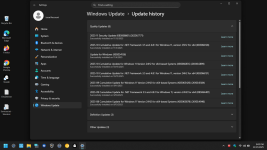
Started the KB5068861 (26200.7171) update. Installation failed and presented a "Retry" option. Clicked Retry, and the installation failed. Disabled Defender settings. Clicked Retry, and the update installed successfully.

cmd.png
 
I reverted to the clean system image before KB5068861 (26200.7171).

* Enabled Microsoft Defender and Microsoft Firewall and restored the firewall to defaults.
* Installed Comodo, applied settings, and restarted the system. Updated Comodo (the minor update after the last release) and restarted the system.
* Comodo diagnostics - OK.
* CHKDSK - OK.
* SFC /SCANNOW - OK.

Started the KB5068861 (26200.7171) update. Installation failed and presented a "Retry" option. Clicked Retry, and the installation failed. Disabled Defender settings. Clicked Retry, and the update installed successfully.

View attachment 293013

Did you use VM or a real machine?
 
I can confirm the problem was solved on the two machines after nearly 8 months.
Updates work again.
The solution in my case was to configure COMODO manually starting from the default Proactive config, instead of importing my config. I decided to keep HIPS ON because there is a specific rule to whitelist windows updates
 
I can confirm the problem was solved on the two machines after nearly 8 months.
Updates work again.
The solution in my case was to configure COMODO manually starting from the default Proactive config, instead of importing my config. I decided to keep HIPS ON because there is a specific rule to whitelist windows updates

Is this where the issue lies?

Great that you have found a set-up that works.

However, I have some more information on where I believe the underlying issue lies.

I've tried multiple times over the past few months to post this information on your thread on the COMODO Firewall - Firewall module make Windows update fail with error 0x80070005 on Windows 11 24H2 but have not been able to get into that forum either by using an existing account that I have or by creating a new one. There seems to be a known issue with the logging into the forum and Xcitium seem to have no inclination to fix it. I've also tried posting in various places to attract cruelsister's attention, but no joy.

So now I've found your posting here - joy of joys!

So, to the Comodo issue itself.

By a process of elimination I have found that removing the "Important Files/Folders" entry under HIPS, Protected Objects, Protected Files tab, the Windows Updates run smoothly. So I've got in the habit of temporarily removing Important Files/Folders during Windows Updates.

Drilling down further the issue lies with the %windir%\*| entry of Important Files/Folders, but removing just this and then reinstating it (from within File Rating, File Groups) is not easy, so I have stuck with dealing with it at the HIPS, Protected Objects, Protected Files, Important Files/Folders level.

Whether HIPS itself is left turned on or not does not seem to affect the outcome, which I find very strange given that the way things are presented the Protected Objects are a subordinate part of HIPS.

Of course HIPS turned on and nothing else changed was the original scenario when the problem was discovered.

Just turning off HIPS does not solve the issue.

But removing Important Files/Folders (with HIPS either on or off), does work OK for Windows Update.

BTW, I'm currently using Comodo 12.2.2.7098, but have tried with what I believe is the latest version "12.3.4.8162 Final" with exactly the same results. Similarly I have tried with a default configuration (i.e. "out of the box") and the issue still exists, with the same Important Files/Folders workaround getting past it.

Rather than jump through hoops to set Comodo up again from scratch (I've been using it for a long long time and have a lot of tweaks), I would dearly love to know what the real underlying issue is and what a possible proper fix (to the configuration?) might be.

Lastly, I would be grateful if someone could get this information into the afore-mentioned Comodo forum thread (even better would be finding some way of getting into the forum).

HTH
Barry
 
Removing the %windir%\*| entry of Important Files/Folders also worked in my testing VM.
So currently, we have three working solutions:
  1. Disabling MD.
  2. Disabling in MD the option "Dev drive protection" and adding the system drive (usually C: ) to MD Exclusions.
  3. Removing the %windir%\*| entry in Important Files/Folders (HIPS >> Protected Objects >> Protected Files).
I think that removing the rule %windir%\*| can also solve some other possible issues with Windows Updates.
The HIPS rule in point 3 protects files and subfolders in the "c:\Windows" folder against modification by unauthorized processes. It is a natural candidate to break some Windows Updates. Another solution might be to identify/trust the missing process, which is considered by Comodo as unauthorized during Windows Updates.
 
Last edited:
To add a bit more meat on the bone of the background of my own set-ups (and I have no idea whether the following is pertinent to the issue, but just felt it might be worthwhile understanding the background of my systems).

3 PCs

- All updated to Win11 24H2 (from Win10 Home 22H2) using Rufus tweaked ISOs

- One of the PCs did not meet the official Win11 specs.
For this one I used Rufus to skip the RAM size, Secure Boot & TPM 2.0 checks as well as requirement for MS account. For the others I used Rufus to avoid the MS account requirement. In both cases I also disabled data collection (i.e. skip privacy questions) and disabled bitlocker automatic device encryption.

- The original Win10 installs were done by clean installing Win 10 on one of the PCs and then cloning the image on to the others and sorting out the drivers.

The Win11 Windows Updates error 0x80070005 occurred on all 3 PCs. But I repeatedly found that the Windows Updates seemed to work (without removing Important Files/Folders) after two re-tries. However, looking at the Windows Update logs left me with an uneasy feeling that all was not right.
 
- All updated to Win11 24H2 (from Win10 Home 22H2) using Rufus tweaked ISOs
I've not performed an OS upgrade, i.e., 10 to 11, on any of our systems, so I've no experience of Comodo or any security solutions with the stated scenario. I prefer a clean install of a new OS, but I tried an upgrade twice from what I can recall, and it was all messy: slow boot, degraded performance, broken features, etc. The upgrade also takes longer, at least according to my experience. I also opt for a clean install of Comodo's major versions: a complete fresh start with no imports.

- One of the PCs did not meet the official Win11 specs.
Two of my HDD systems are incompatible with Windows 11: one with an incompatible processor and another with no secure boot. I use Rufus to install Windows 11 on these systems. Both systems have been performing well with Windows 11. None of the systems experienced Windows Update failures with Comodo installed. I apply minimal Comodo tweaks: proactive security, HIPS disabled, and some containment adjustments.

Do you use Comodo Antivirus, Microsoft Defender, a third-party antivirus, or any other real-time security solutions with your setup? I don't use any, only Comodo Firewall.
 
Do you use Comodo Antivirus, Microsoft Defender, a third-party antivirus, or any other real-time security solutions with your setup? I don't use any, only Comodo Firewall.
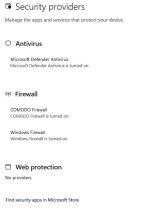
In the context of real-time AV/ FW, the only addition I have made to the standard Defender is Comodo Free FW. Installing Comodo leaves part of Defender FW (as well as Defender AV) active (as can be seen under Security Providers - see attached). For a long while my understanding has been that this situation is correct as Defender FW still has a role to play.


Some further possibly relevant information:-

With Windows 10 I'd had some similar (but NOT identical) Update failure issues .

In particular these issues arose when Windows Upgrades or Windows Updates attempted to update Intel Graphics Driver / Software (it was a long time ago now and not sure now whether it was the driver or the associated software, but I suspect it was the driver). In any event the install failed (not sure with what particular error code – might have been 0x80070005). At that time I found that the solution was to turn off Comodo HIPS and Containment for the duration. In fact, it was because of this previous experience that I started exploring that area when the Windows 11 0x80070005 issue raised its head.

Once again this issue arose on all 3 PCs.
 

Attachments

  • PrtScrn-003345.jpg
    PrtScrn-003345.jpg
    24.4 KB · Views: 23
  • Like
Reactions: rashmi
In the context of real-time AV/ FW, the only addition I have made to the standard Defender is Comodo Free FW. Installing Comodo leaves part of Defender FW (as well as Defender AV) active (as can be seen under Security Providers - see attached).
Ever since Comodo introduced "full containment," I've always used Comodo Firewall (disabled HIPS and containment adjustments) with no AV (turned off Microsoft Defender and Firewall) or other security solutions and have never experienced OS-related or Windows Update issues.

Comodo doesn't disable Microsoft Firewall; I manually disable it and Microsoft Defender.
 
Last edited:
Is this where the issue lies?

Great that you have found a set-up that works.

However, I have some more information on where I believe the underlying issue lies.

I've tried multiple times over the past few months to post this information on your thread on the COMODO Firewall - Firewall module make Windows update fail with error 0x80070005 on Windows 11 24H2 but have not been able to get into that forum either by using an existing account that I have or by creating a new one. There seems to be a known issue with the logging into the forum and Xcitium seem to have no inclination to fix it. I've also tried posting in various places to attract cruelsister's attention, but no joy.

So now I've found your posting here - joy of joys!

So, to the Comodo issue itself.

By a process of elimination I have found that removing the "Important Files/Folders" entry under HIPS, Protected Objects, Protected Files tab, the Windows Updates run smoothly. So I've got in the habit of temporarily removing Important Files/Folders during Windows Updates.

Drilling down further the issue lies with the %windir%\*| entry of Important Files/Folders, but removing just this and then reinstating it (from within File Rating, File Groups) is not easy, so I have stuck with dealing with it at the HIPS, Protected Objects, Protected Files, Important Files/Folders level.

Whether HIPS itself is left turned on or not does not seem to affect the outcome, which I find very strange given that the way things are presented the Protected Objects are a subordinate part of HIPS.

Of course HIPS turned on and nothing else changed was the original scenario when the problem was discovered.

Just turning off HIPS does not solve the issue.

But removing Important Files/Folders (with HIPS either on or off), does work OK for Windows Update.

BTW, I'm currently using Comodo 12.2.2.7098, but have tried with what I believe is the latest version "12.3.4.8162 Final" with exactly the same results. Similarly I have tried with a default configuration (i.e. "out of the box") and the issue still exists, with the same Important Files/Folders workaround getting past it.

Rather than jump through hoops to set Comodo up again from scratch (I've been using it for a long long time and have a lot of tweaks), I would dearly love to know what the real underlying issue is and what a possible proper fix (to the configuration?) might be.

Lastly, I would be grateful if someone could get this information into the afore-mentioned Comodo forum thread (even better would be finding some way of getting into the forum).

HTH
Barry

I have no idea, I fixed it configuring it manually and I am happy with the solution... Custom proactive mode with HIPS ON
 
  • Like
Reactions: simmerskool
Sorry for not reading through all previous posts about the Windows update issue.

But was / am I correct in my statement that HIPS need to be switched ON in order to allow the Windows Updates to be installed successfully?
 
  • Like
Reactions: simmerskool
Sorry for not reading through all previous posts about the Windows update issue.

But was / am I correct in my statement that HIPS need to be switched ON in order to allow the Windows Updates to be installed successfully?

Not in my case. On my VM, the updates failed with HIPS OFF, and were successful after removing the %windir%\*| entry in Important Files/Folders (HIPS >> Protected Objects >> Protected Files).
It is strange, but it seems that Important Files/Folders rules can sometimes have an impact on the system even if HIPS is OFF.
 
  • +Reputation
Reactions: simmerskool
Not in my case. On my VM, the updates failed with HIPS OFF, and were successful after removing the %windir%\*| entry in Important Files/Folders (HIPS >> Protected Objects >> Protected Files).
It is strange, but it seems that Important Files/Folders rules can sometimes have an impact on the system even if HIPS is OFF.
Maybe parts of HIPS >> Protected Objects >> Protected Files >> Important Files/Folders is also part is of CIS' self-defense code. Even when turning HIPS OFF one is not allowed to tamper with CIS' own reg keys for example.
 
  • Like
Reactions: simmerskool
Maybe parts of HIPS >> Protected Objects >> Protected Files >> Important Files/Folders is also part is of CIS' self-defense code. Even when turning HIPS OFF one is not allowed to tamper with CIS' own reg keys for example.

It is possible. However, in my case, it is also related to Microsoft Defender settings:
 
  • +Reputation
Reactions: simmerskool