Open MalwareTips in Safari and tap Share. You may need to open the Page Menu first.
Choose Add to Home Screen. If it is not listed, use Edit Actions to add it.
Keep Open as Web App enabled if shown, then tap Add.
Android
Open MalwareTips in Chrome or another browser that supports app installation.
Open the browser menu and look for Install app, Install and create shortcut, or Add to Home screen.
Choose Install and confirm. Wording varies by browser.
Desktop
Chrome: use the install icon in the address bar, or the menu under Cast, save and share.
Edge: open the menu, then More tools, Apps and Install this site as an app.
Safari on Mac: choose Share or File, then Add to Dock. Firefox on Windows: look for the web apps button in the address bar.
If you cannot find an install option, update your browser or use its bookmark option to keep MalwareTips close.
Keep up with your conversations
After installation, open the app and sign in. Enable push notifications in Preferences if you want alerts. On iPhone and iPad, push requires a Home Screen web app and iOS or iPadOS 16.4 or later.
hi
I tried the hitmanpro kickstart I put in option 1 cuz it wont start on its own but it says ntldr: couldn't open drive multi(0)Disk(0)rdisk(0)partition(2)
my disc drive was broke right before this happened so I don't know what to do now..any help would be great..Thanks for your time
I'm Fiery and I would gladly assist you in removing the malware on your computer.
PLEASE NOTE: The first 3 posts of ALL new members require approval by mods/admins. Please be patient if you don't see your post immediately after submitting it.
Before we start:
Note that the removal process is not immediate. Depending on the severity of your infection, it could take a long time.
Malware removal can be dangerous. I cannot guarantee the safety of your system as malware can be unpredictable. It is possible that we might encounter situations where the only recourse is to re-format and re-install your operating system. Therefore, I would advise you to backup all your important files before we start.
Please be patient and stay with me until I give you the green lights and inform you that your PC is clean.
Some tools may be flagged by your antivirus as harmful. Rest assure that ALL the tools we use are safe, the detections are false positives.
The absence of symptoms does not mean your PC is fully disinfected.
If you are unclear about the instructions, please stop and ask. Following the steps in the order that I post them in is vital.
Lastly, if you have requested help on other sites, that will delay and hinder the removal process. Please only stick to one site.
<hr>
Please print these instruction out so that you know what you are doing
So I'm assuming you can't access normal or safe mode?
Start your computer in Safe Mode with Networking.
Remove all floppy disks, CDs, and DVDs from your computer, and then <>restart your computer</>.</li>
[*]<>Tap the "F8 key" continuously</> until you get the Advanced Boot Options screen.</li>
[*]On the Advanced Boot Options screen, use the arrow keys to <>highlight Safe Mode with Networking</> , and then <>press ENTER</>.
IMPORTANT:
You will need a flash drive with a size of 512 Mb or bigger. Make sure that you do not leave anything important on the flash drive, as all data on it will be deleted during the following steps.
Download OTLPE.iso from one of the following links and save it to your Desktop mirror1
Download eeepcfr.zip from the following link and save it to your Desktop: the mirror
Finally, if you do not have a file archiver like 7-zip or Winrar installed, please download 7-zip from the following link and install it: the mirror
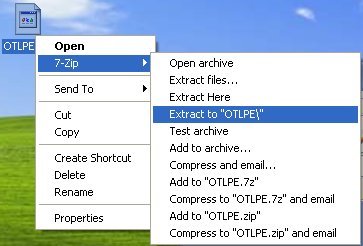
Once you have 7-zip install, decompress OTLPE.iso by rightclicking on the folder and choosing the options shown in the picture below. Please use a dedicated folder, for example OTLPE, on your Desktop
Please also decompress eeepcfr to your systemroot (usually C:\).
Empty the flash drive you want to install OTLPE on.
Go to C:\eeecpfr and double-click usb_prep8.cmd to launch it.
Press any key when asked to in the black window that opens.
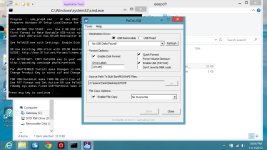
As indicated in the image, make sure you have selected the correct flash drive, before proceeding.
For Drive Label: type in OTLPE.
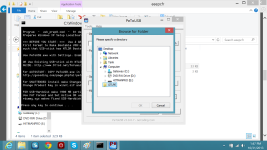
Under Source Path to built BartPE/WinPE Files click ... and select the folder OTLPE that you created on your Desktop.
Finally check Enable File Copy.
Click on Start, accept the disclaimers and wait for the program to finish.
Download Farbar Recovery Scan Tool from the below link:
<ul><li>For 32 bit systems download <a title="External link" href="http://download.bleepingcomputer.com/farbar/FRST.exe" rel="nofollow external"><>Farbar Recovery Scan Tool</></a> and save it to a USB/flash drive.
</li>
Reboot your system using the bootable flash drive you just created.
Note : If you do not know how to set your computer to boot from Flash drive follow the steps here
Your system should now display a REATOGO-X-PE desktop.
Locate the flash drive with FRST and double click
The tool will start to run.
When the tool opens click Yes to disclaimer.
Press Scan button.
It will make a log (FRST.txt) on the flash drive. Please copy and paste it to your reply.
I did everything you said but when I get to this step (Under Source Path to built BartPE/WinPE Files click ... and select the folder OTLPE that you created on your Desktop.) I highlight the file but it wont let me click ok
can you take a screenshot and post it here? (Press the print screen key on your keyboard to take a screenshot. Save it on Paint and save it to your Desktop. Then click New reply and scroll down to the attachment section and attach the screenshot)
can you take a screenshot and post it here? (Press the print screen key on your keyboard to take a screenshot. Save it on Paint and save it to your Desktop. Then click New reply and scroll down to the attachment section and attach the screenshot)
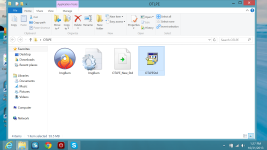
nothing happens when I hit the print screen button...guess im doin something wrong so I took a couple pics of the screen with my phone hope it works...thanks for your patience
I noticed your eeepcfr folder is in the OTLPE folder. They should be separated.
Put the eeepcfr folder in C:\ and the OTLPE folder on the Desktop. The OTLPE folder should not include any other files or folders besides the OTLPE ones.
Change your current OTLPE folder name to OTLPE1. Then open that folder, right click the OTLPEStd.iso file in the OTLPE folder and click Extract file again. Extract it to a new folder on your Desktop and name it OTLPE.
Open usb_prep8.cmd again and try to select the OTLPE folder