

You are using an out of date browser. It may not display this or other websites correctly.
You should upgrade or use an alternative browser.
You should upgrade or use an alternative browser.
- Status
- Not open for further replies.

What errors do you get? Post any screenshots, if possible.
Mod Edit: Moved to Troubleshooting (Software). Please Edit your post using Thread Tools to fill in the blank forms.
Mod Edit: Moved to Troubleshooting (Software). Please Edit your post using Thread Tools to fill in the blank forms.
Upvote
0
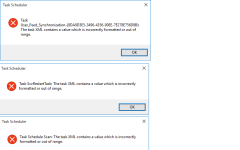
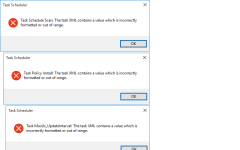
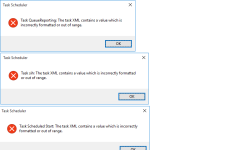
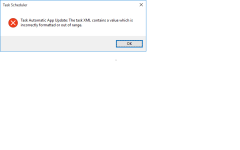

D
Deleted member 2913
Thread author
Yours is clean install?I have no errors at all.
And have you customized settings/options?
Upvote
0
D
Deleted member 2913
Thread author
Its a fresh install of Win 10 i.e bootable USB used & did format/install i.e fresh install.@yesnoo Seems like XML data files are corrupted. Probably something went wrong during the upgrade process.
I believe that the best solution is fresh install of Windows 10.
Regards,
Kardo
Upvote
0
Would you be able to use DISM and SFC to repair any damages?
Unsure if these are of any help, check with someone before using.
http://www.tenforums.com/tutorials/7808-dism-repair-windows-10-image.html
http://answers.microsoft.com/en-us/...-and-sfc/1021b42a-09ff-41a0-a95a-48f3ee3ae699
Unsure if these are of any help, check with someone before using.
http://www.tenforums.com/tutorials/7808-dism-repair-windows-10-image.html
http://answers.microsoft.com/en-us/...-and-sfc/1021b42a-09ff-41a0-a95a-48f3ee3ae699
Upvote
0

- Jul 12, 2014
- 1,143
- 7,365
- 2,079
- 33
@yesnoo If you can access Task Scheduler window after error messages then try following:
Inside the Task Scheduler:

Regards,
Kardo
Inside the Task Scheduler:
- Open the Task Scheduler Library.
- Open Microsoft
- Open Windows
- Click on every folder until you get the error code.
- Open up "My Computer" and in address bar type (or copy and paste); C:\Windows\System32\Tasks\Microsoft\Windows\
- Click on the folder that gave the error in the Task Scheduler
- Delete what is INSIDE the folder....NOT the folder itself.
- Go back to Task Scheduler and hopefully no error.
Regards,
Kardo
Upvote
0
D
Deleted member 2913
Thread author
None of the folders gave any errors.@yesnoo If you can access Task Scheduler window after error messages then try following:
Inside the Task Scheduler:
I hope it helps.
- Open the Task Scheduler Library.
- Open Microsoft
- Open Windows
- Click on every folder until you get the error code.
- Open up "My Computer" and in address bar type (or copy and paste); C:\Windows\System32\Tasks\Microsoft\Windows\
- Click on the folder that gave the error in the Task Scheduler
- Delete what is INSIDE the folder....NOT the folder itself.
- Go back to Task Scheduler and hopefully no error.
Regards,
Kardo
Running sfc /scannow - UPDATE - sfc /scannow didn't find any errors.
Could the prob be coz of bootable USB?
I had prepared ISO with Install.esd & created bootable USB with Rufus.
http://answers.microsoft.com/en-us/...e-d3b9118a8864?page=1&tm=1433519642487&auth=1
The above site has the decryption tool & steps.
No errors were there during encryption & creation of bootable USB...both were successful.
Last edited by a moderator:
Upvote
0
- Jul 12, 2014
- 1,143
- 7,365
- 2,079
- 33
But could the prob be coz of bootable USB?
@yesnoo It is possible. Can't guarantee it. If you have time then:
- Format your USB drive
- Download Windows USB/DVD Download Tool
- Install downloaded tool (please note that older .NET framework is required)
- After installation open tool and follow the steps in program to create bootable USB
- Finally make a fresh install of Windows 10
If issue still occurs then I guess that there is something wrong with ISO file.
Regards,
Kardo
Upvote
0
D
Deleted member 2913
Thread author
I have to upgrade my cousin system too.
MS has provided Media Creation Tool to upgrade & clean install Win 10 with bootable USB. I guess MCT downloads Win 10 & offers to create bootable USB. I will create bootable USB & upgrade my cousin system with bootable USB i,e running setup.exe from within OS. Later clean install of Win 10.
I will use the bootable USB to fresh install Win 10 on my system too.
MS has provided Media Creation Tool to upgrade & clean install Win 10 with bootable USB. I guess MCT downloads Win 10 & offers to create bootable USB. I will create bootable USB & upgrade my cousin system with bootable USB i,e running setup.exe from within OS. Later clean install of Win 10.
I will use the bootable USB to fresh install Win 10 on my system too.
Upvote
0
D
Deleted member 2913
Thread author
Ok...I googled & found some Time Zone are affected & India is one of them i.e The mentioned prob in the opening post is due to Time Zone.
I set the Time Zone to US & checked Task Scheduler & not a single error.
I set the Time Zone to India again & checked Task Scheduler & all the errors back.
I set the Time Zone to US & checked Task Scheduler & not a single error.
I set the Time Zone to India again & checked Task Scheduler & all the errors back.
Upvote
0

- Status
- Not open for further replies.
You may also like...
-
 New Update Microsoft: New Windows scheduled task will launch Office apps faster
- Started by Gandalf_The_Grey
- Replies: 0
-
Question Kaspersky showed 52 disinfected objects after a full scan, but there's nothing in the quarantine folder.
- Started by nonamebob567
- Replies: 13
-
DFull screen experience expands to more Windows 11 PC form factors for Windows Insiders
- Started by Donna Little
- Replies: 2
-
 Troubleshoot Dell PC CPU Fan Error. Spins for a few seconds and sometimes does not spin at all.
- Started by JakeXPMan
- Replies: 28
