Serious Discussion Microsoft Edge Stable (Chromium) Now Available for Download

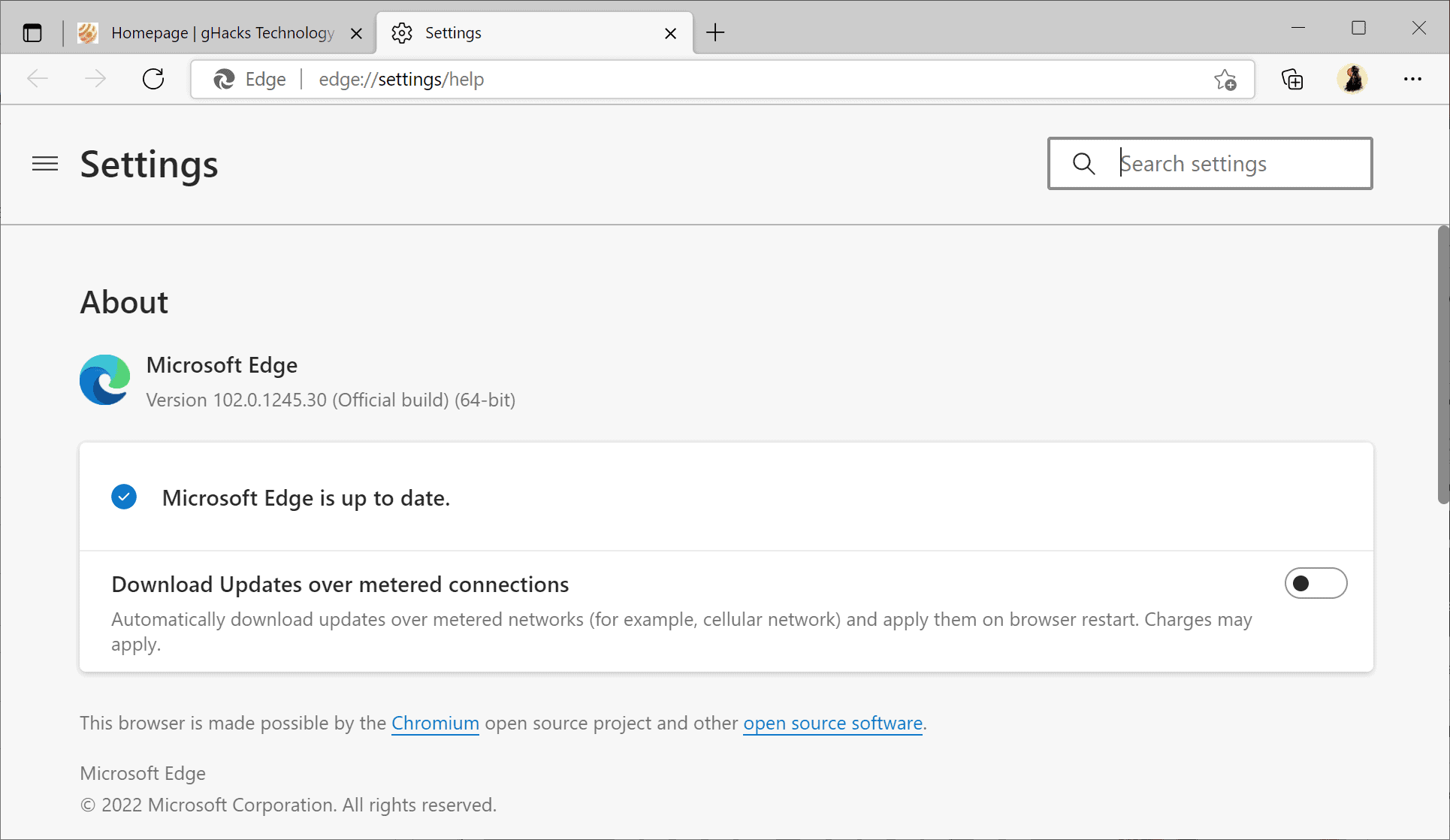
Some users are reporting printing issues in Microsoft Edge 102​

Günter Born mentioned on his German blog that some users seem to have issues printing in Microsoft Edge after the update to version 102. Printing is no longer possible in Edge on affected systems according to several users who reported the issue already on Born's blog, Twitter and Microsoft's support website.

The issue seems to affect different localized versions. Born thought initially that only German systems were affected, but administrators and users with English and French versions of Windows confirmed later on that this is not the case.

One admin noted on Twitter that printing in the entire organization was affected.
Well... my entire org can't print PDFs, now. Not like we don't avg 10-20,000 prints per damn day or anything (load tags on shipments)

The majority of systems appear unaffected by the issue, and what is causing the issue is unclear at the time of writing.

The only available workaround at the time of writing is to downgrade Microsoft Edge to version 101. Downgrading is not a straightforward process, as Microsoft Edge is not updated via Windows Update. It is necessary to complete a series of tasks that include the installation of policy templates, the disabling of updates, and the running of commands from the command line to rollback Edge to a previous version.

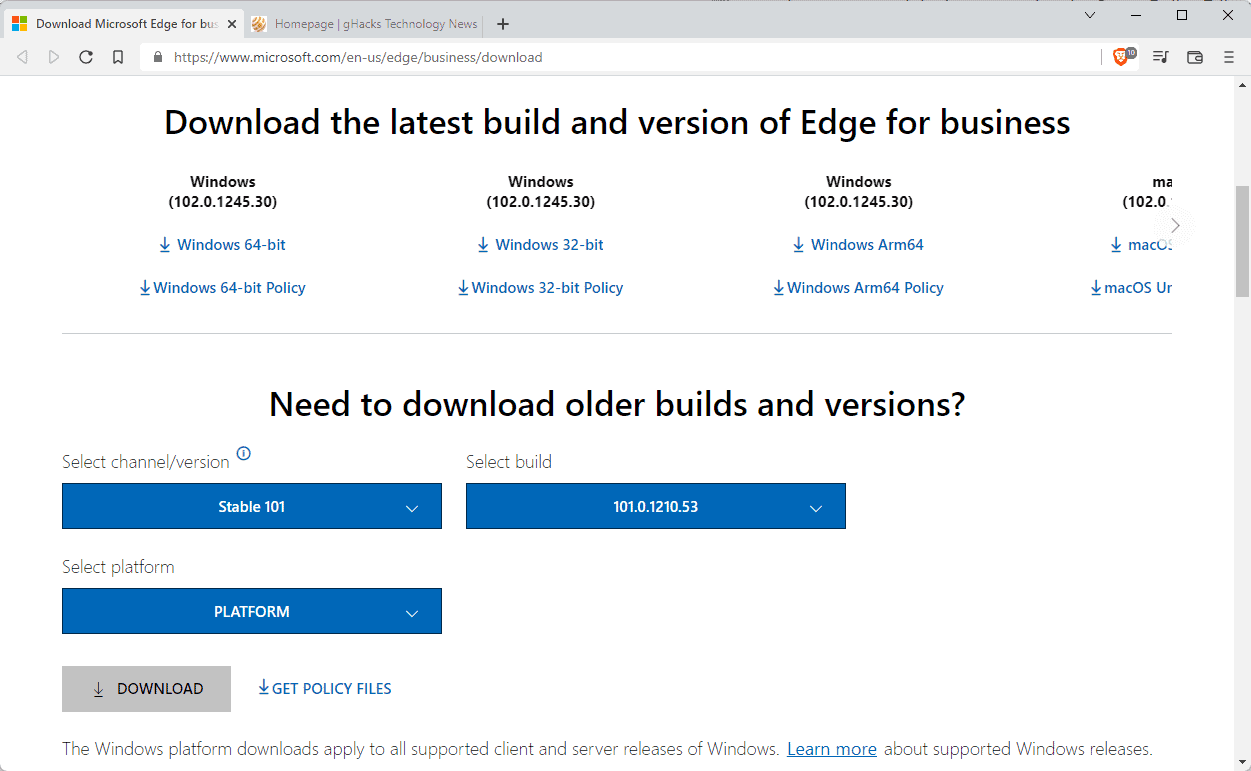
Old Microsoft Edge installers can be downloaded from the Microsoft Edge business download site. Options to download older versions for all supported desktop platforms are available on the website.

Microsoft has not confirmed the issue at the time of writing.
 
How to disable the Visual Search icon in Microsoft Edge
If you are using Microsoft's Edge web browser, you may have noticed that the browser displays a small icon over any image that you hover the mouse over. The feature, called Visual Search, has been available for some time, but it seems that Microsoft has enabled it for some users automatically.
Edge users who may want to turn of the Visual Search icon or the context menu option in the browser may do so in the following way. Note that you may also enable the feature if it not enabled using the instructions.
  1. Load edge://settings/appearance in the browser's address bar, or select Main Menu > Settings > Appearance.
  2. Scroll down to the Context menus section on the page that opens.
  3. Activate the Visual Search entry on the page to display the preferences for that particular feature.
  4. Toggle "Show visual search on image hover" to enable or disable the Visual Search icon in Microsoft Edge.
  5. Toggle "Show visual search in context menu" to enable or disable the Visual Search context menu entry.
  6. You may also turn off Visual Search for specific sites by selecting Add and entering URLs.
The changes take effect immediately, a restart of the browser or a reload of open tabs is not necessary to see the changes.
 

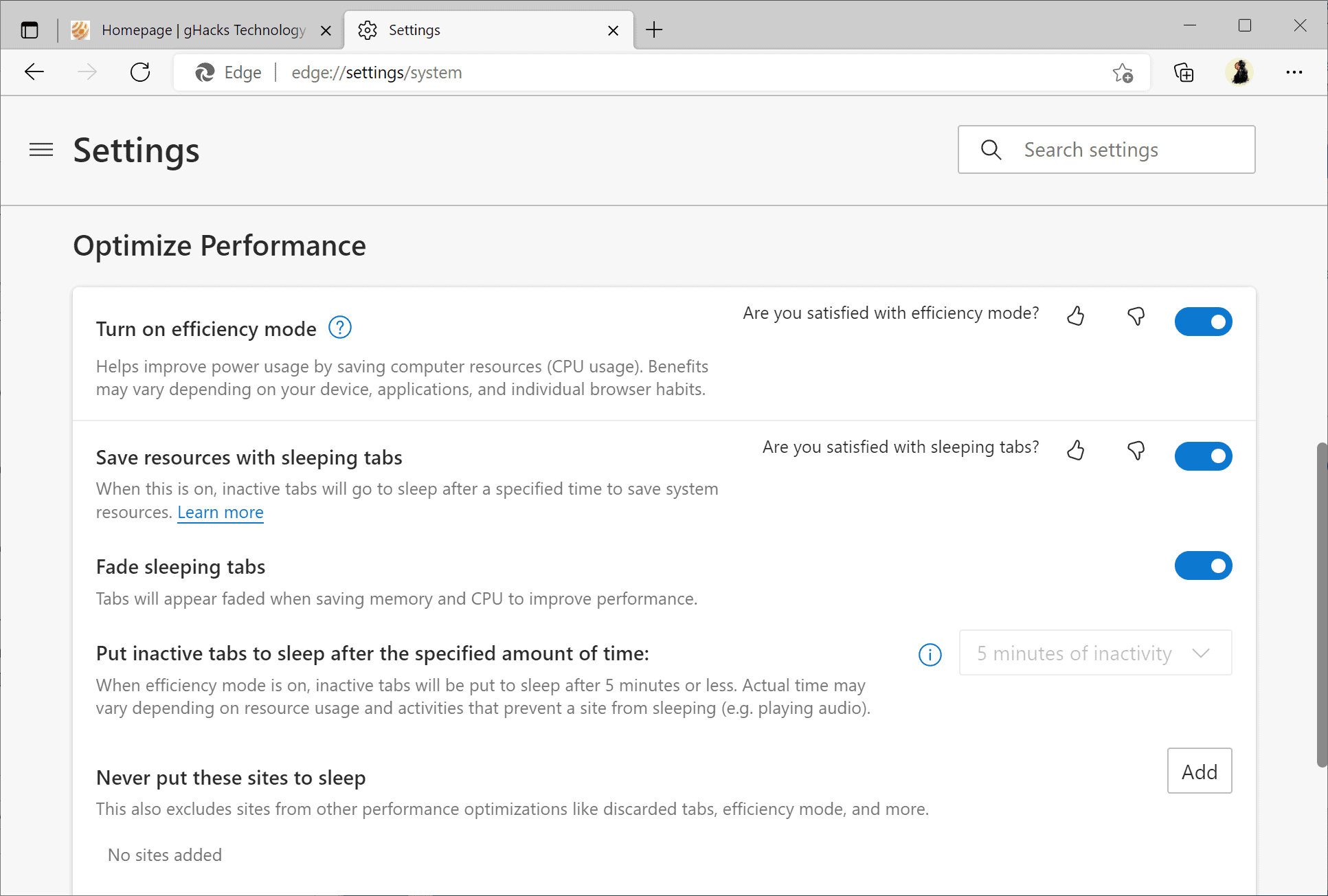
Microsoft: Edge's Sleeping Tabs feature saves an average of 39.1 MB of RAM per tab​

Microsoft published information about the effectiveness of the Sleeping Tabs feature on its Microsoft Edge Dev Twitter account today:
Use sleeping tabs to save resources? You aren’t alone! Over the past 28 days on Windows devices, we slept 6 billion tabs resulting in a savings of 273.7 Petabytes of RAM. That’s roughly 39.1 megabytes saved per tab

The company analyzed sleeping tabs data on Windows devices to find out how effective the feature is. Microsoft claims that the feature has put 6 billion tabs to sleep over the past 28 days, and that this has freed up more than 273.7 of RAM on those devices. The average saving is "roughly 39.1 Megabytes" according to Microsoft. Some users may find it creepy that Microsoft has access to the information.

The feature is enabled by default and it puts tabs to sleep after 2 hours of inactivity. 6 billion tabs sounds like a lot, even more so if the 2 hour period of inactivity applies. More data, especially on the total number of open tabs in the monitored period would be helpful to get a better picture of the effectiveness of the feature.
 

Microsoft: Edge's Sleeping Tabs feature saves an average of 39.1 MB of RAM per tab​


TBH, I'm more interested in knowing how much CPU usage does it reduce. Ram is not a concern for me, as most of it remains unused while I'm browsing.
 
I've been having intermittent browser crashes when closing a tab, i.e. click -> stall (with "Edge not Responding" message -> crash. This has been happening for about a month. Anyone else experiencing this?
No issues here... but that doesn't help :)
 
I don't wanna use 'Strict' cause of this "Strict mode is not recommended for most users as it would require some level of configuration to complete daily tasks."
I do not recall any webpage that would not work because of this and I used it before it was even officially implemented in settings.
 
What I meant was if MS has put a warning on a feature than it probably means something.
Trying out the strict mode now.
When I tested Speedometer2.0 a few months ago, with Enhanced Security tuned on for the page, I got a much lower score. Don't really know what it means in real world usage.