Serious Discussion Network Monitor & Antivirus

Even if I toggled it, nothing happens at startup
It starts in silent mode and the icon stays in the taskbar, and then you can choose whether the icon appears or remains hidden.
Sem título.png
 
In my opinion the Active Connections and Suspicious Links lists could benefit of processes' filters.
There should be a button which opens a drop-down list for both the Active Collections and Suspicious Links lists. This drop-down list should show by default all the processes included in Active Collections and Suspicious Links lists. The drop-down list should have a "Search" field and checkboxes near each process so a user can choose to search for a specifing process or show only the selected process/es by flagging the checkbox/es. This would avoid to scroll the whole Active Connections list, which can be very long, or the Suspicious Links list, to find a specific process. The attached screenshots are just an example of what I mean.

Active connections dropdown list.jpg

Suspicious links dropdown list.jpg


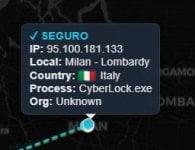
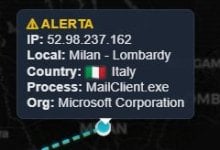
I noticed that in the World Map, when a node refers to multiple IP addresses and / or processes it's not so easy to distinguish them so hovering the mouse cursor over each of them is almost impossible. Just for example I choose Milan. The colored circles are overlapped so it's very easy to miss one or more of them. I see that after selecting a colored circle with the left mouse button the IP address / Process mini-panel stays on top so adding forward and back arrows to those panes will make possible to cycle between them, if there is more than one in the same node.

Milan (1st IP address).jpgMilan (2nd IP address).jpg

Moreover I've set the language as English but it shows "Seguro" instead of "Safe" or "Secure" and "Alerta" instead of "Warning"

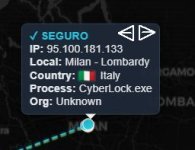
Lastly, just an example of what a panel with forward and back arrows might look like:

Mini panel with arrows.jpg
 
Last edited:
What exactly the "Block" button does ? Does it block the remote IP address or does it block the process ? In the last case does it block the process connection to that specific remote IP address or to all remote IP addresses ? I could try to block something but I prefer to wait for a answer ;)

Block button.png
 
What exactly the "Block" button does ?

Looking at Network Monitor & Antivirus' features on Microsoft Store I guess that it blocks the IP address "ADVANCED FIREWALL CONTROL: Found a suspicious IP address? Block it instantly with a click. Our "Automatic Lockout" feature can even handle critical threats on its own, keeping the perimeter of your system secure."
Also from Serious Discussion - Network Monitor & Antivirus
"About the IP Blocking: The system doesn't rely solely on a static blacklist. It works through active real-time monitoring of your computer's connections (using native system tools like netstat).
The application identifies remote IPs and checks their reputation, and you can inspect in detail and confirm the origins.
If a connection is considered suspicious or dangerous, the blocking feature allows you to create a direct rule in the Windows Firewall (or iptables on Linux) with one click. This prevents any future communication with that address, protecting the system immediately and effectively."
 
Last edited:
When the World Map is visible, Network Monitor & Antivirus' CPU usage raises constantly to 10-15 %, with peaks of around 30 % and also there's a constant disk load. If I switch to another tab (Scanner, Quarantine, History, Settings) or to another app both CPU usage and disk load are back to 0 %. I guess that it depends on the fact that the lines which connect the World Map nodes are animated so a setting which disable the animation would be welcome. Anyway in my opinion the animation isn't really needed as static connection lines would be enough.

Animated connection lines (clicking on the image shows the animation)

NW connection lines.gif

World Map visible

NW (World Map visible).png

NW (World Map visible).png

World Map not visible

NW (World Map not visible).png
 
Last edited:
If a connection is considered suspicious or dangerous, the blocking feature allows you to create a direct rule in the Windows Firewall
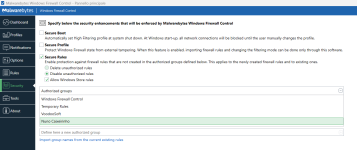
It could conflict with Binisoft / Malwarebytes Windows Firewall Control with "Secure Rules" enabled as this feature prevents Windows Firewall rules to be created or modified by external softwares. I have enabled this setting but adding "Nuno Caixeirinho" to Authorized Groups should solve the potential issue.

WFC Secure Rules.png
 
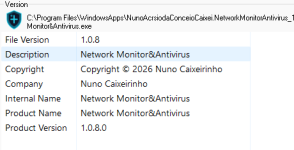
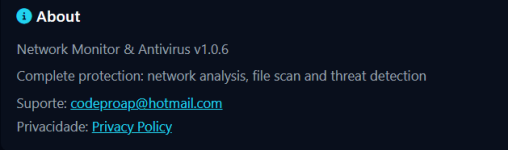
Just a minor "issue": I've version 1.08 but in-app it shows 1.06. I also wonder if Network Monitor & Antivirus includes a auto-update feature, maybe through the Microsoft Store or when a new version is released you need to download the new version from the Store and install it on top of the existing one.

NMA version.pngNMA version in-app.png
 
In my opinion the Active Connections and Suspicious Links lists could benefit of processes' filters.
There should be a button which opens a drop-down list for both the Active Collections and Suspicious Links lists. This drop-down list should show by default all the processes included in Active Collections and Suspicious Links lists. The drop-down list should have a "Search" field and checkboxes near each process so a user can choose to search for a specifing process or show only the selected process/es by flagging the checkbox/es. This would avoid to scroll the whole Active Connections list, which can be very long, or the Suspicious Links list, to find a specific process. The attached screenshots are just an example of what I mean.

View attachment 297030

View attachment 297031


I noticed that in the World Map, when a node refers to multiple IP addresses and / or processes it's not so easy to distinguish them so hovering the mouse cursor over each of them is almost impossible. Just for example I choose Milan. The colored circles are overlapped so it's very easy to miss one or more of them. I see that after selecting a colored circle with the left mouse button the IP address / Process mini-panel stays on top so adding forward and back arrows to those panes will make possible to cycle between them, if there is more than one in the same node.

View attachment 297028View attachment 297029

Moreover I've set the language as English but it shows "Seguro" instead of "Safe" or "Secure" and "Alerta" instead of "Warning"

Lastly, just an example of what a panel with forward and back arrows might look like:

View attachment 297055
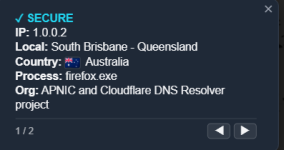
Thank you for the feedback. I apologize for the language translation error in the alerts. This and other issues will be corrected in the next update.
 
@NAC-Nuno

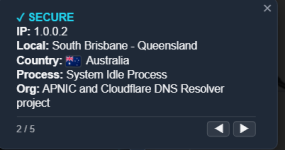
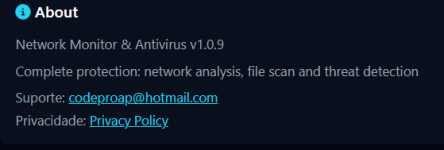
I've just updated to version 1.0.9. Thank you very much for the quick release of the new version which includes the requested feature about multiple IP addresses and / or Processes related to the same World Map node. It's very useful the # / # on bottom left of mini-panels. Also the CPU usage of Network Monitor&Antivirus.exe when the World Map is visible has decreased significantly compared to the previous version. Now it's about 5 % and rarely reaches 10 %, even if the connections between nodes are animated. Also the version number is correct.
Nice Work.

Mini-panel (1).pngMini-panel (2).pngVersion number.png

What's new in this version

Smart Connection Clustering: We implemented a geographic clustering system. When multiple network connections originate from the same physical location, map markers are intelligently stacked.
Interactive Hover Navigation: When hovering over or clicking a point with multiple connections, an interactive menu appears, allowing you to cycle through different processes and IPs at that location using navigation arrows. This ensures no suspicious link remains hidden behind others, while keeping the map clean and readable.
Secure DNS (DoH) Monitoring: Added native support for DNS over HTTPS (DoH) detection. The app now validates if your DNS connection is encrypted, ensuring better privacy against network snooping.
Optimized Silent Startup: Refined app behavior when starting with Windows. Booting is now truly silent and integrated into the System Tray, avoiding visual distractions.
Refined Interface: Standardized typography and visual design in the "System Status" panel for a more professional and consistent user experience.
Stability Improvements: Fixed issues with taskbar icon visibility and optimized app initialization for better performance.
 
Last edited:
  • Like
Reactions: simmerskool
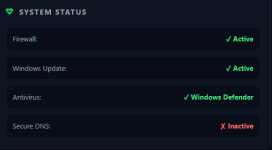
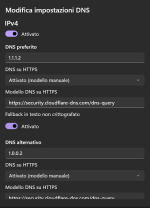
I've just found a bug: version 1.0.9 shows Secure DNS as inactive but the previous version 1.0.8 showed it correctly as Active. I'm using the Cloudflare DNS for some time.

Secure DNS inactive.pngCloudFlare.png
 
  • Like
Reactions: simmerskool
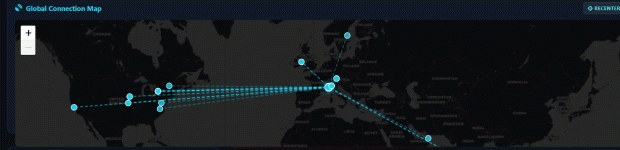
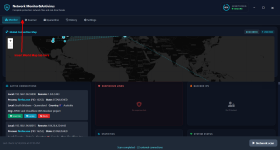
Other the having the World Map in "Monitor" tab, which is useful in any case, I suggest to add a "World Map" tab with a enlarged map that allows you to see the whole world, if possible. This would allow to see all current nodes and connections at a glance without need to move the map. I would certainly keep the mousewheel zoom in / out feature because if the map shows the whole world, it may have a smaller scale than the map visible in the monitor tab.

NW Monitor tab.png
 
Last edited:
  • Like
Reactions: simmerskool
Other the having the World Map in "Monitor" tab, which is useful in any case, I suggest to add a "World Map" tab with a enlarged map that allows you to see the whole world, if possible. This would allow to see all current nodes and connections at a glance without need to move the map. I would certainly keep the zoom in / out feature because if the map shows the whole world, it may have a smaller scale than the map visible in the monitor tab.

View attachment 297117
Thanks for the suggestion, and about the bug, I will fix it in the next update.
 
  • Like
Reactions: simmerskool
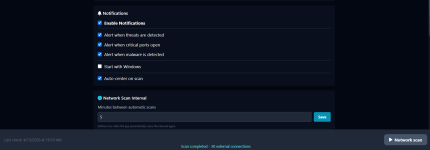
I notice that Network Monitor & Antivirus checks the Active Connections and Suspicious Links only after a network scan whose interval in minutes is defined in its settings. It would be great if Network Monitor & Antivirus could also monitor the connections in real-time. I mean when a process connects to the Internet, its connection/s are immediately shown both in Active Connections and / or Suspicious Links and on the World Map. On the contrary when a process stops its connection/s it should be removed from both Active Connections and / or Suspicious Links and from the World Map. The user could activate the optional real-time monitoring by inserting 0 (zero) in Network Scan Interval setting. I hope you can consider implementing this feature which in my opinion would improve the Network security as Network Monitor & Antivirus can shows popup notifications for threats events.

NM settings.png
 
Last edited:
  • Like
Reactions: simmerskool
I've just updated to 1.0.10 and the expand / back buttons are a even better solution than a additional tab.
I also appreciate the Italian translation, I've checked it and the only part not translated is "Estadio de Seguranca" instead of "Stato di Sicurezza".
The Secure DNS check is fixed, thank you.

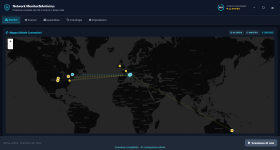
Enlarged World map with both Active Connections and Suspicious Links (First Network Monitor & Antivirus run after the update to 1.0.10)

Enlarged map.png

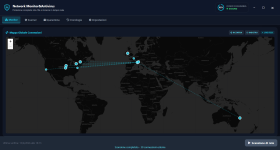
Enlarged World map after validating the Suspicious Links

Enlarged map (1).png

What's new in this version

- New Expand Button
Explore the threat map in more detail. The new expand mode allows the map to occupy the entire application space, making it easier to visualize connections and geographic risks.
Fluid Navigation: Smooth transitions and a smart button that toggles between "Expand" and "Back".

- Critical Security Fix (Windows 11)
Secure DNS Detection: We fixed the DNS over HTTPS (DoH) detection logic for network adapters in Windows 11.

- Interface Optimizations
Improvements to map renderer performance and layout adjustments for Dark, Blue, and Light themes.
 
Last edited:
  • Like
Reactions: simmerskool
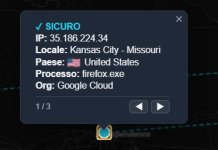
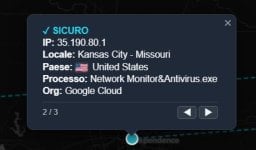
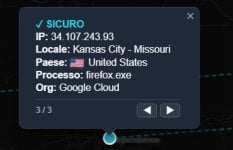
Also hovering the mouse cursor over a node shows how many IP addresses / Processes are related to that node, nice. I haven't noticed it before.

Kansas City node

Kansas City node.jpg

After clicking on the node you can cycle back and forth between the 3 IP addresses / Processes.

Kansas City node (1).jpgKansas City node (2).jpgKansas City node (3).jpg
 
Last edited:
  • Like
Reactions: simmerskool
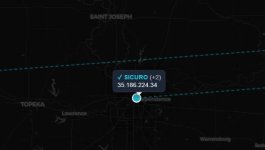
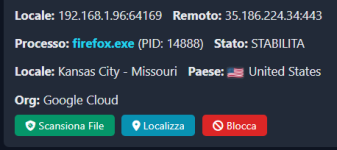
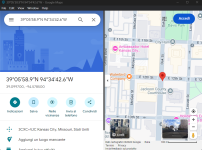
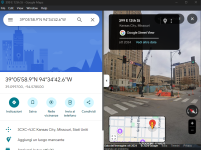
And here it is the Google Maps / Google Street View window which popped up when I clicked on "Locate button" for Firefox.exe process., remote address 35.186.224.34. Google Cloud should be near there unless the location is a generic reference to Kansas city, I wouldn't know.
*edited* It should be a generic reference to Kansas City because after a AI search the Google Data center in Kansas City is located at Hunt Midwest Business Center, near NE Parvin Road and I-435, while the Google Map location is in Kansas City Downtown, two areas very distant from each other. So I guess that Google Maps can't pinpoint the exact location of a IP address. However, that's not its prerogative, neither its purpose. I assume other tools can do this but in this case it's not really needed.

Firefox locate button.pngGoogle Maps.pngGoogle Street view.png
 
Last edited:
  • Like
Reactions: simmerskool